



Display Setup
Max Display Output

Display Stability
Network Control
USB Speed

Focus Control

Automatic input scanning
4×2 DP 1.4 KVM for 4 PCs | Dual 8K60/4K144, Network Hub & EDID
Control four computers from one keyboard and mouse across two DP 1.4 monitors up to 8K@60Hz, with built-in network switch and front-panel USB hub for multi-system desks.
Display Setup
Max Display Output
Display Stability
Network Control
USB Speed
Focus Control
Automatic input scanning
4×2 DP 1.4 KVM for 4 PCs | Dual 8K60/4K144, Network Hub & EDID
Why Choose DKS402-M24
Overview

01
Dual 8K60 Displays over DisplayPort 1.4
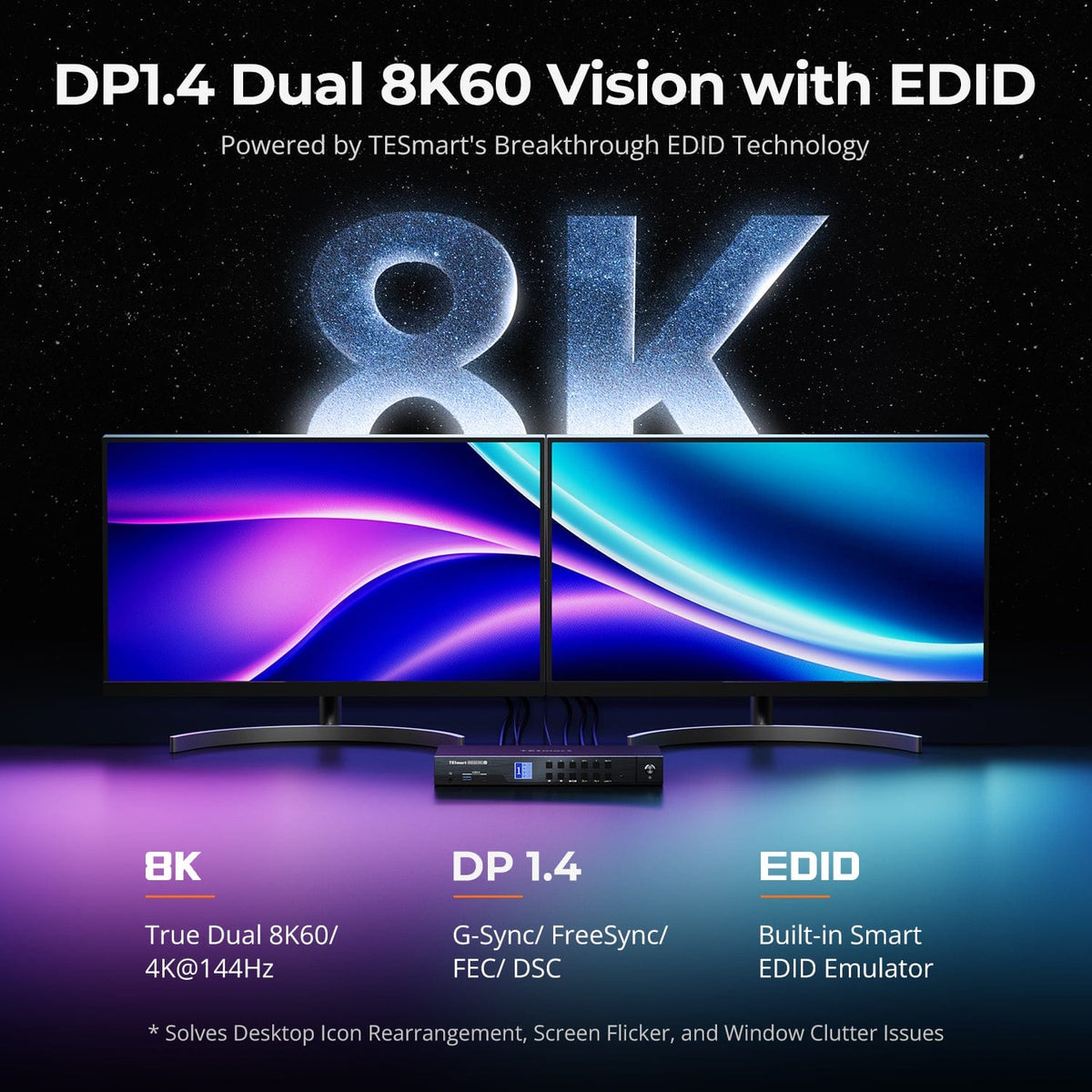
DKS402-M24 delivers true dual 8K@60Hz or 4K@144Hz via DP 1.4, with built-in smart EDID emulation, HDR, G-Sync/FreeSync, FEC and DSC. It prevents icon rearrangement, screen flicker and window clutter during switching.

02
TESmart-Developed DP 1.4 EDID for Stable Switching
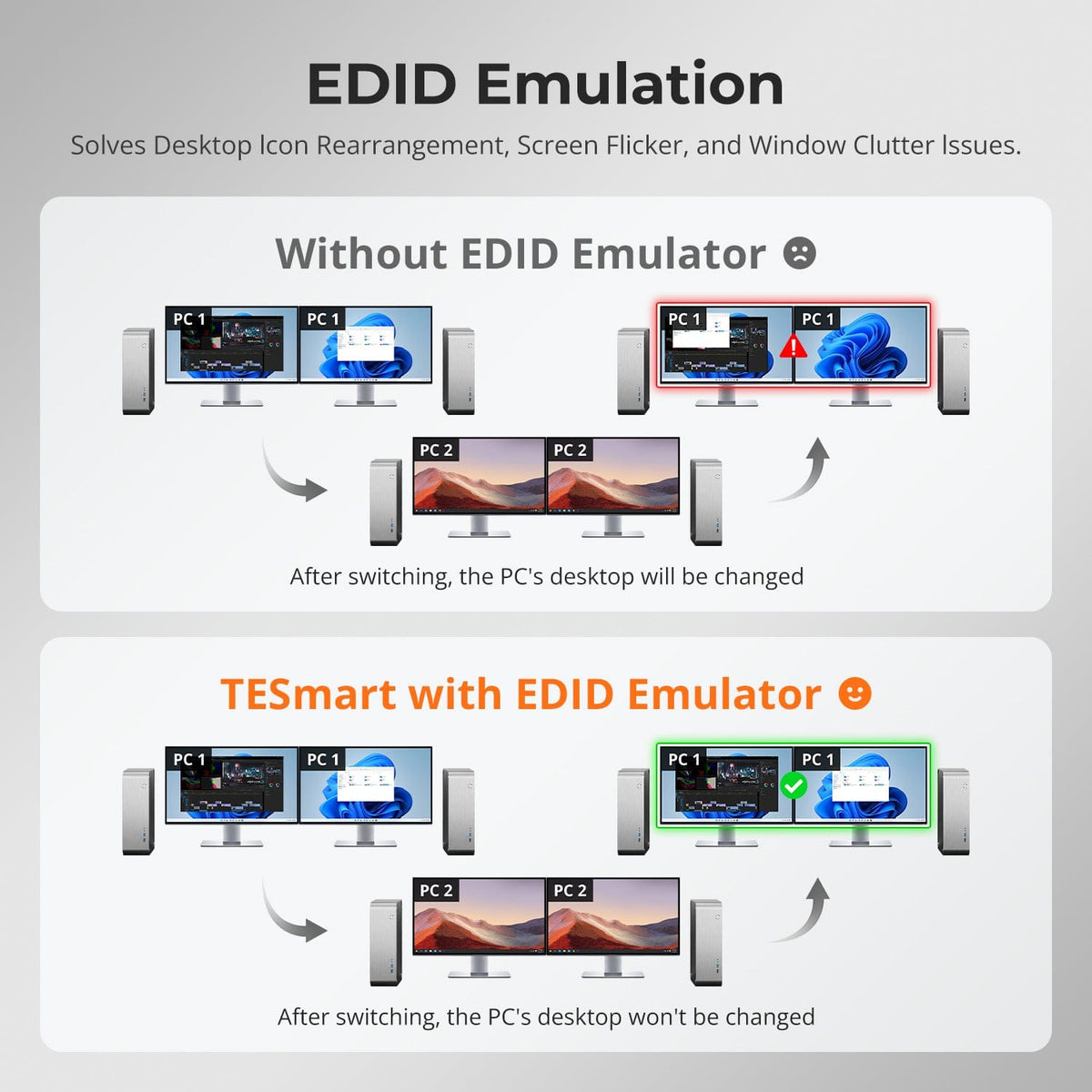
TESmart’s self-developed DP 1.4 EDID emulation keeps display settings locked during switching, preventing resolution changes, icon rearrangement, flicker and unnecessary re-detection. It brings stable EDID control to high-bandwidth dual-display workflows.
03
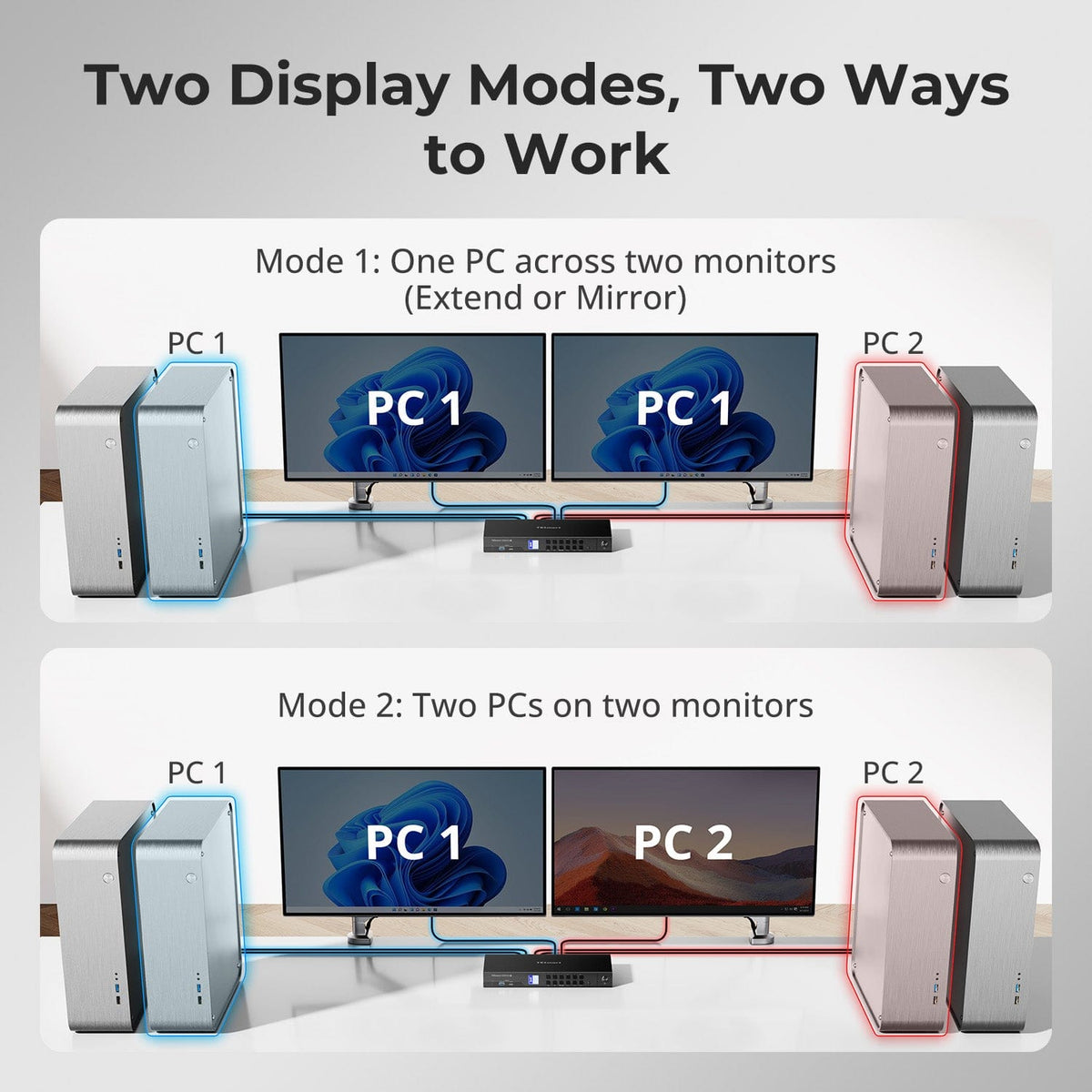
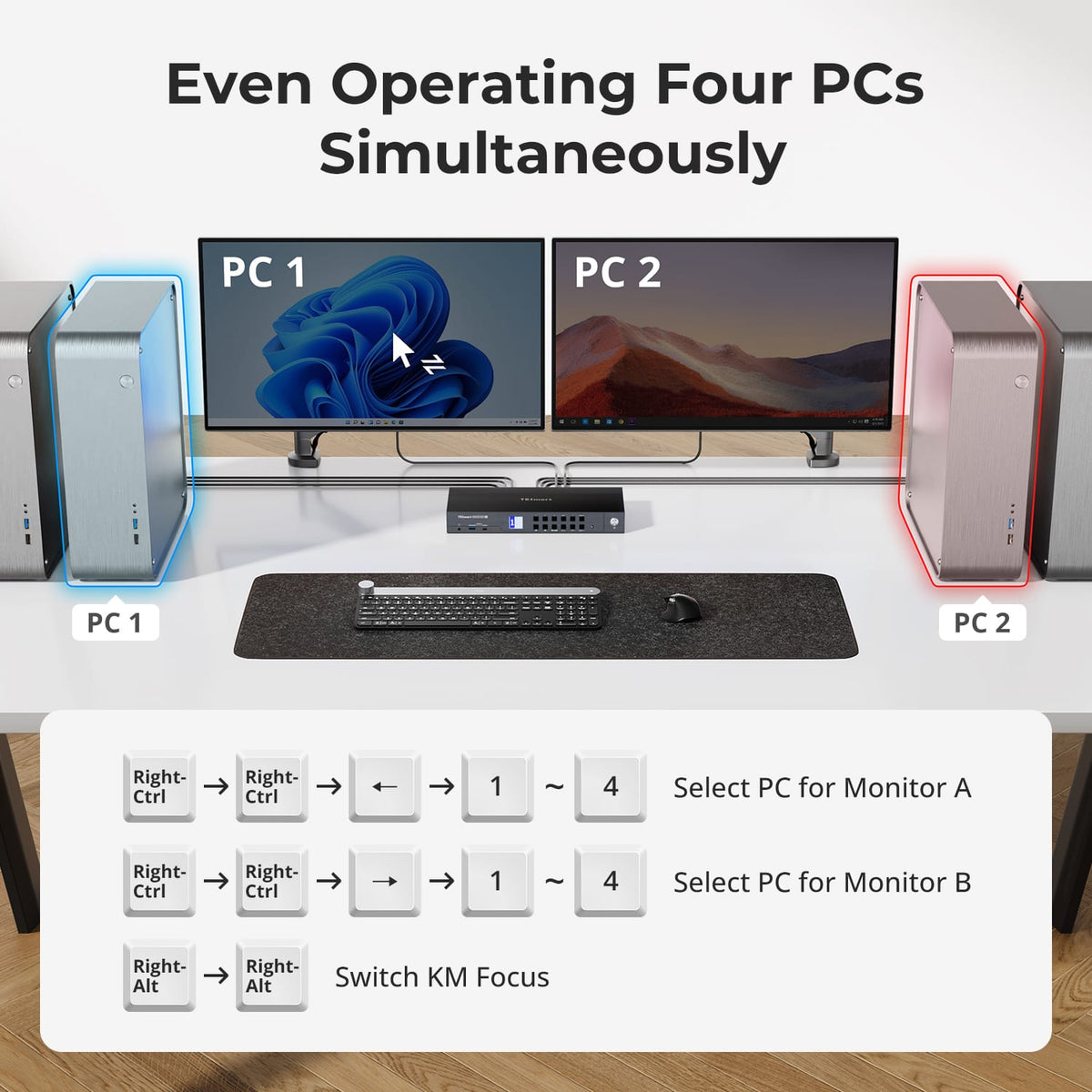
Dual Display Modes — Operate Four PCs Simultaneously
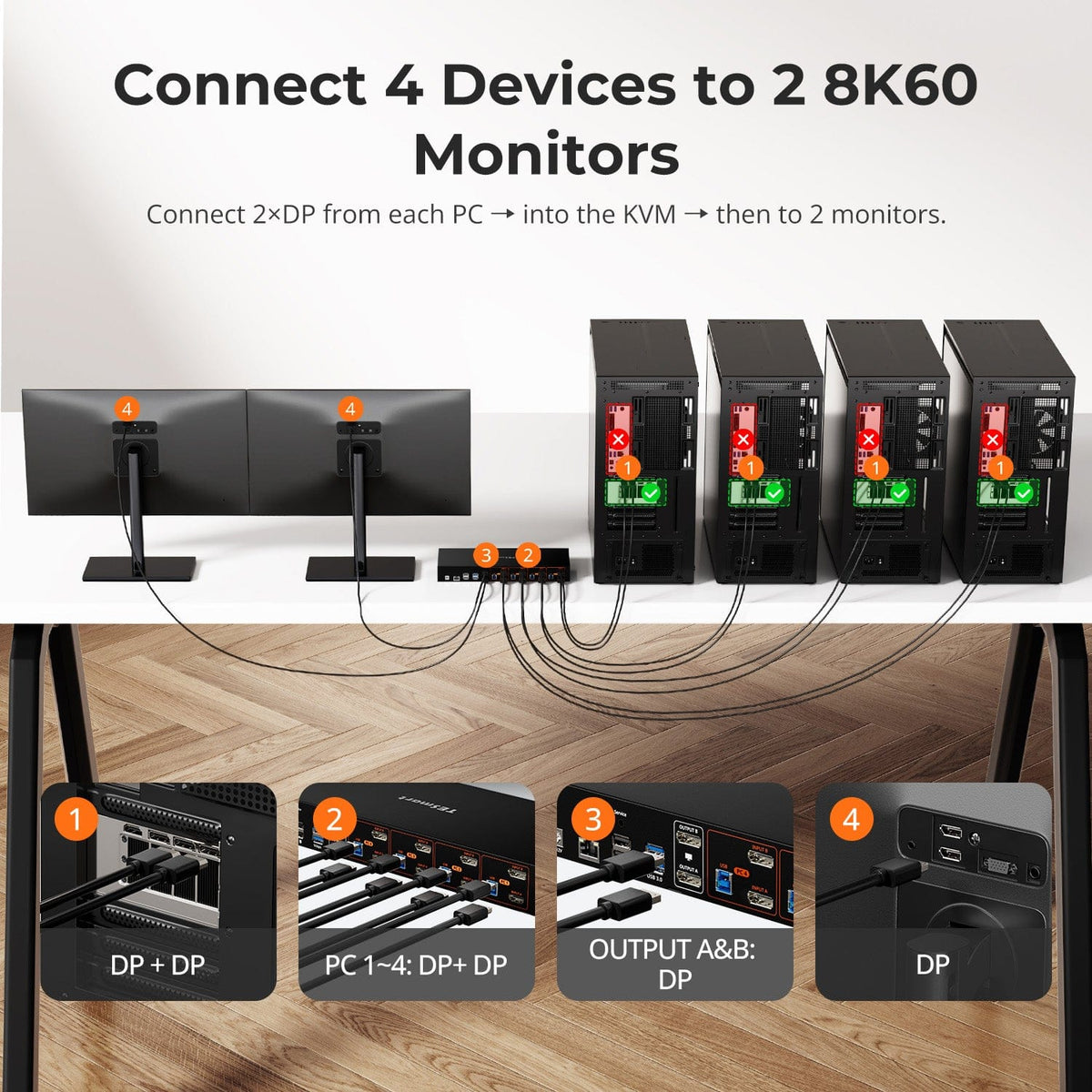
DKS402-M24 supports four PCs across two monitors. Assign any PC (1–4) to Monitor A or B using Right-Ctrl hotkeys, then press Right-Alt to switch keyboard and mouse focus—enabling independent dual-display multitasking.
04
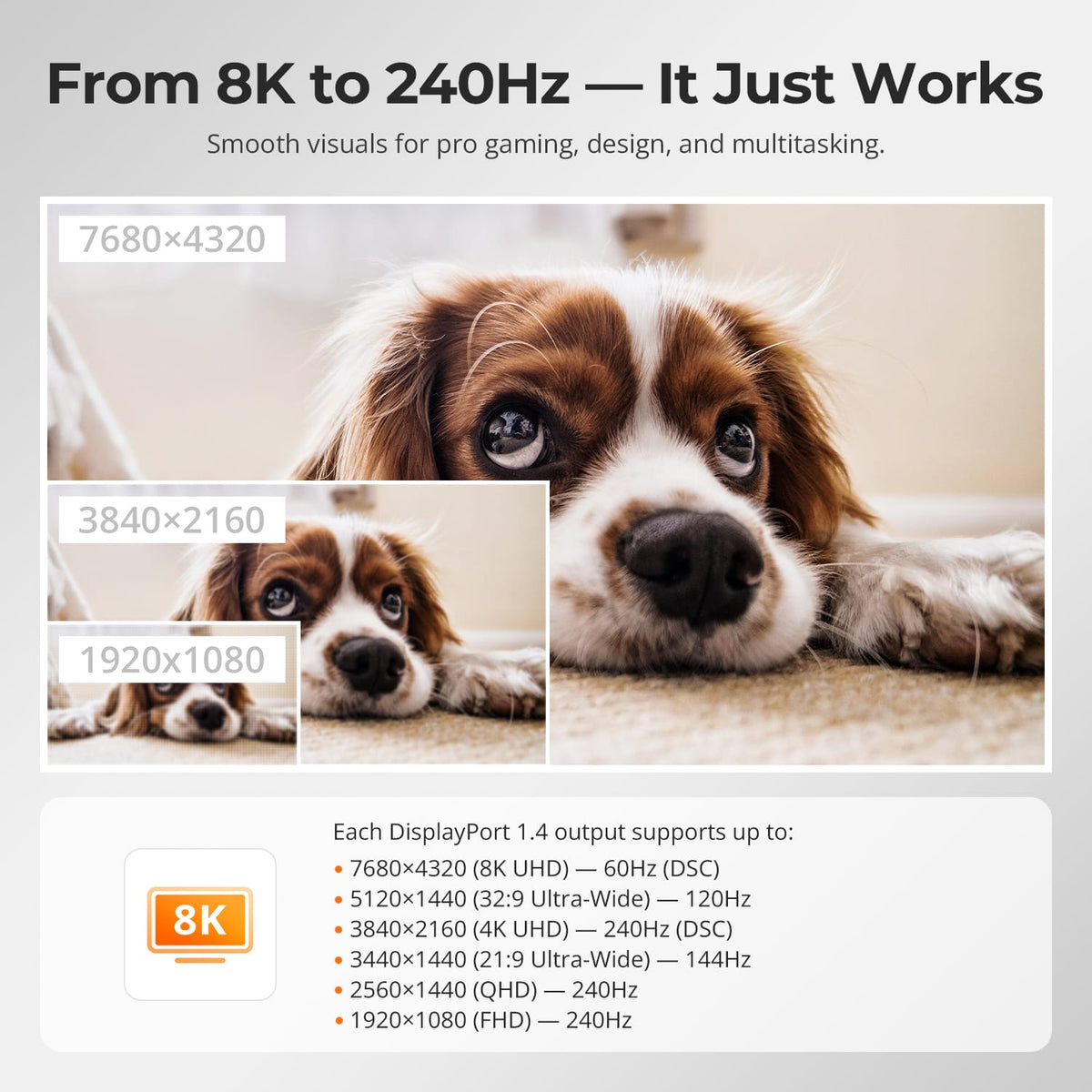
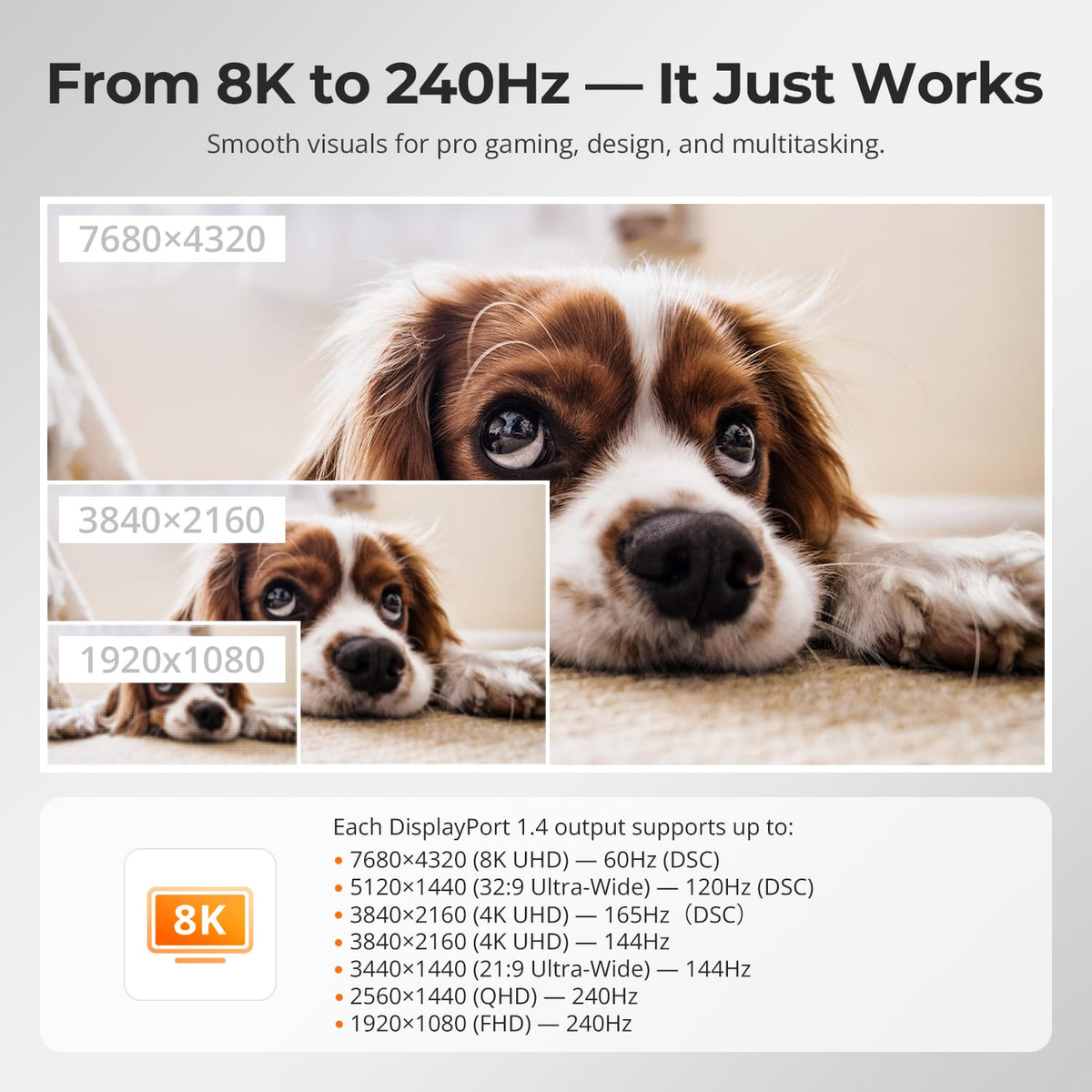
DP 1.4 Full Resolution Coverage — 8K60 to 240Hz(DSC)
Each DisplayPort 1.4 output delivers up to 8K@60Hz for precision design, or high-refresh modes up to 4K@144Hz and 1080P@240Hz for pro gaming and multitasking.
05
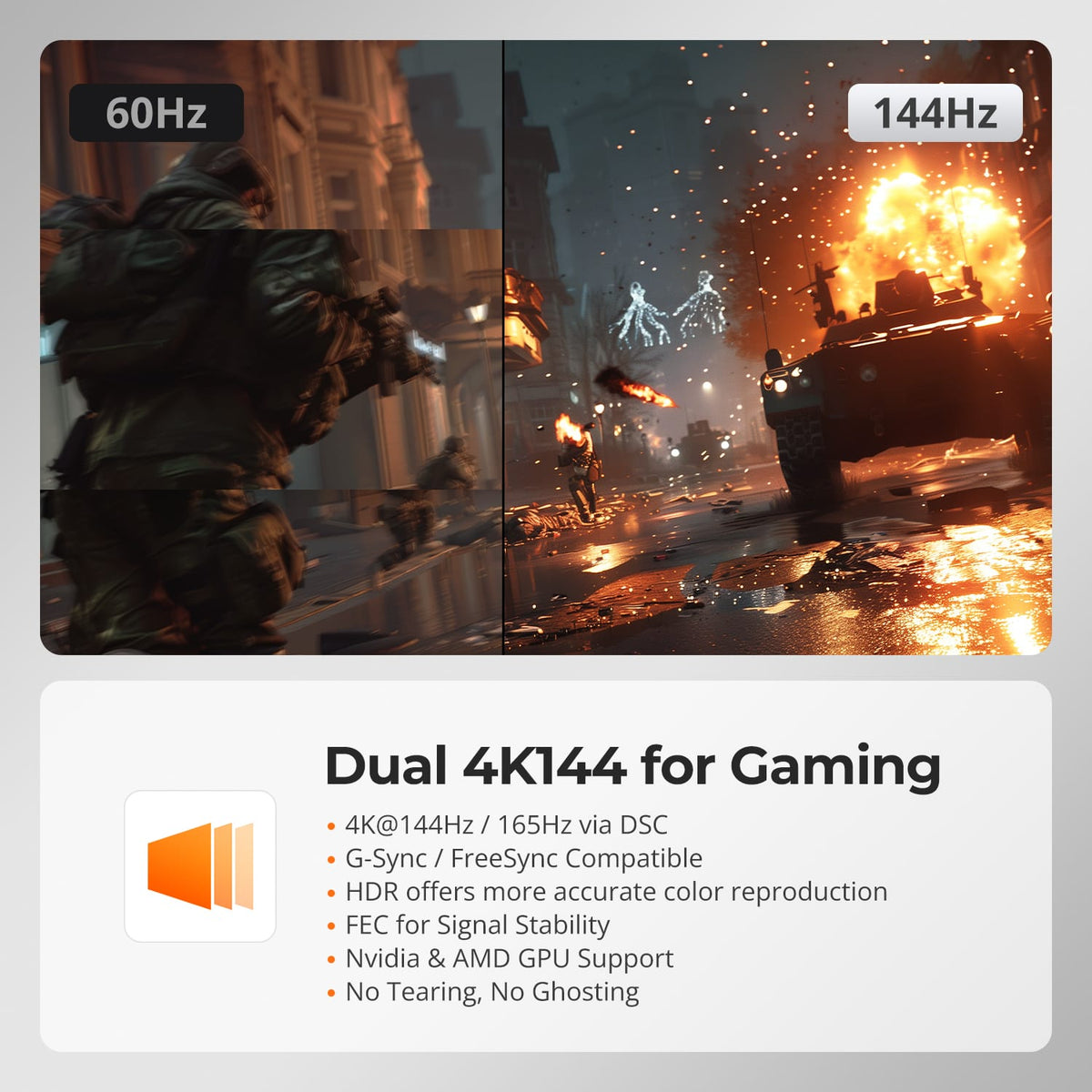
Dual 4K@144Hz Gaming Performance
Experience tear-free, high-refresh gameplay with full G-Sync and FreeSync compatibility. DSC technology ensures stable 4K@144Hz/165Hz output across both displays for competitive gaming.
06
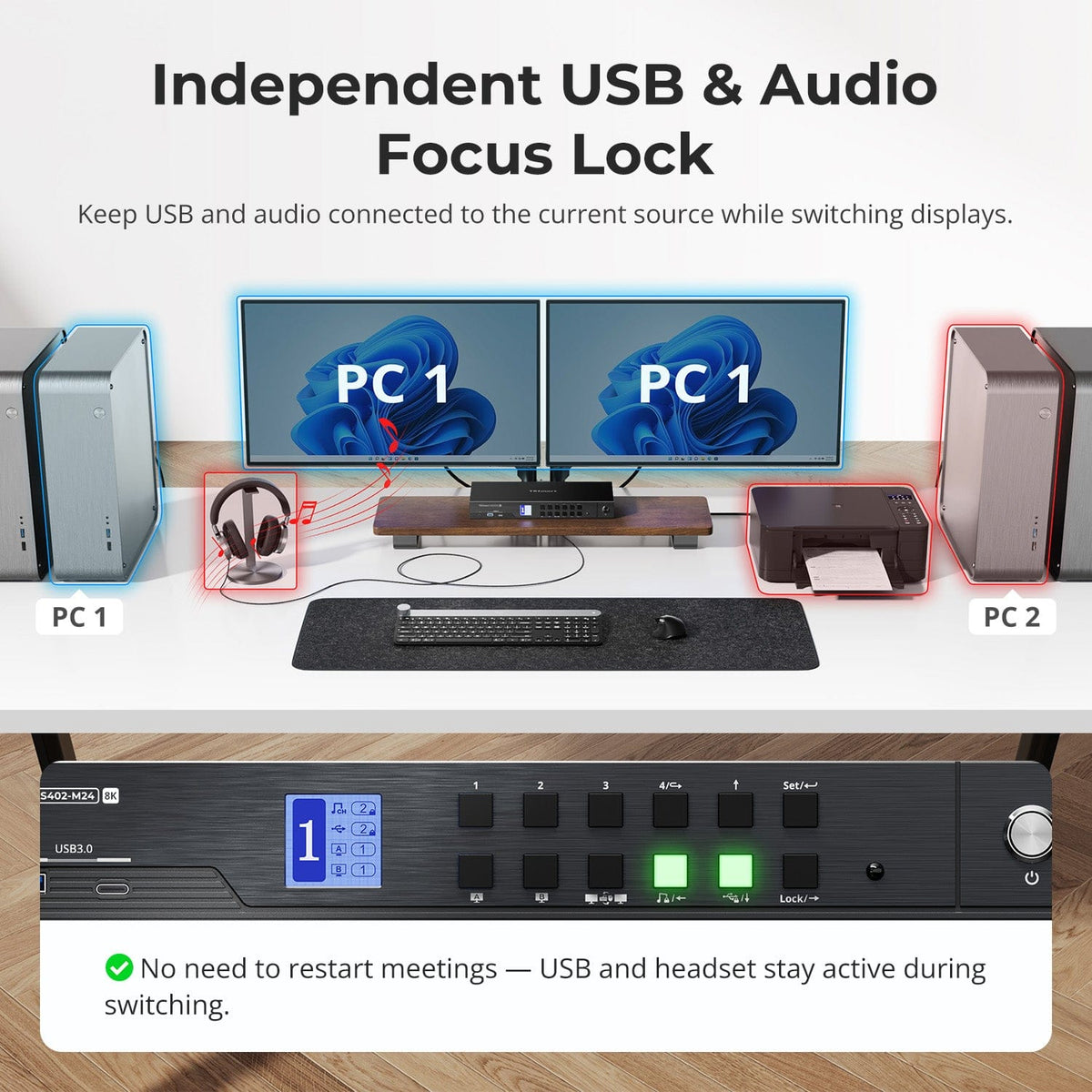
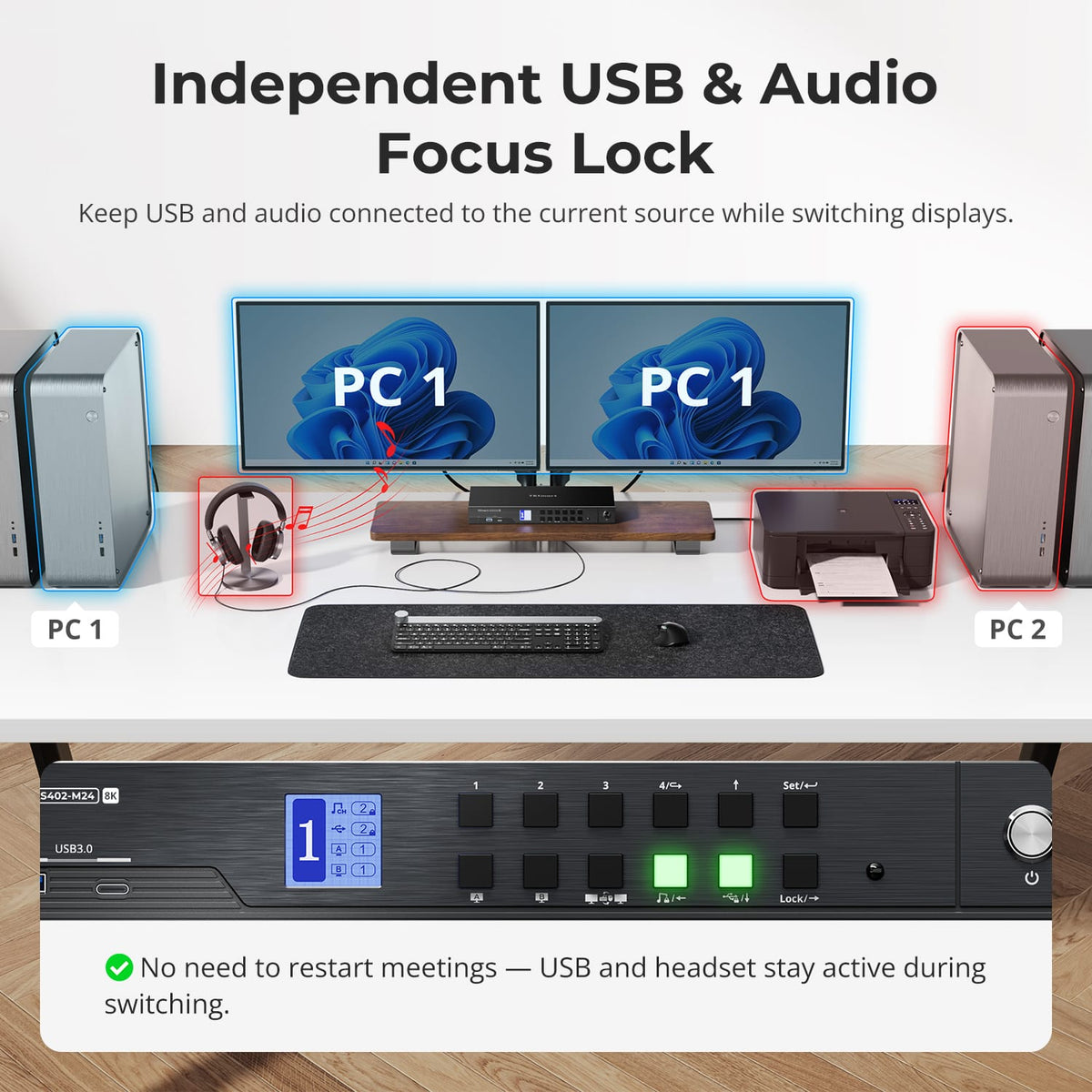
Independent USB & Audio Focus Lock
USB and audio can stay locked to the current source while switching displays. Toggle follow mode via hotkey—when disabled, switch USB and audio independently. No meeting dropouts, no reconnecting—seamless workflow.
07
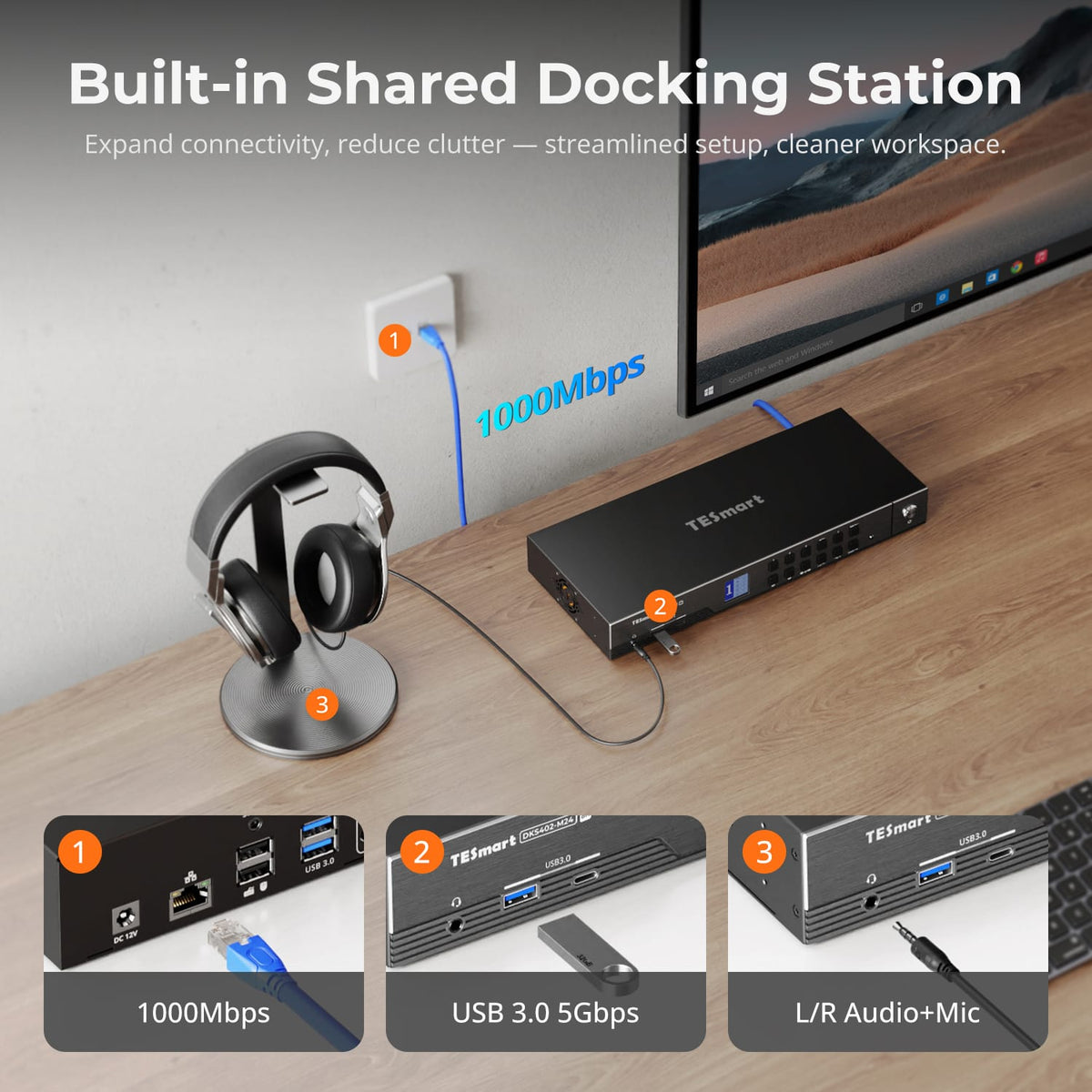
More than a KVM. A Shared Dock for Your Desk.
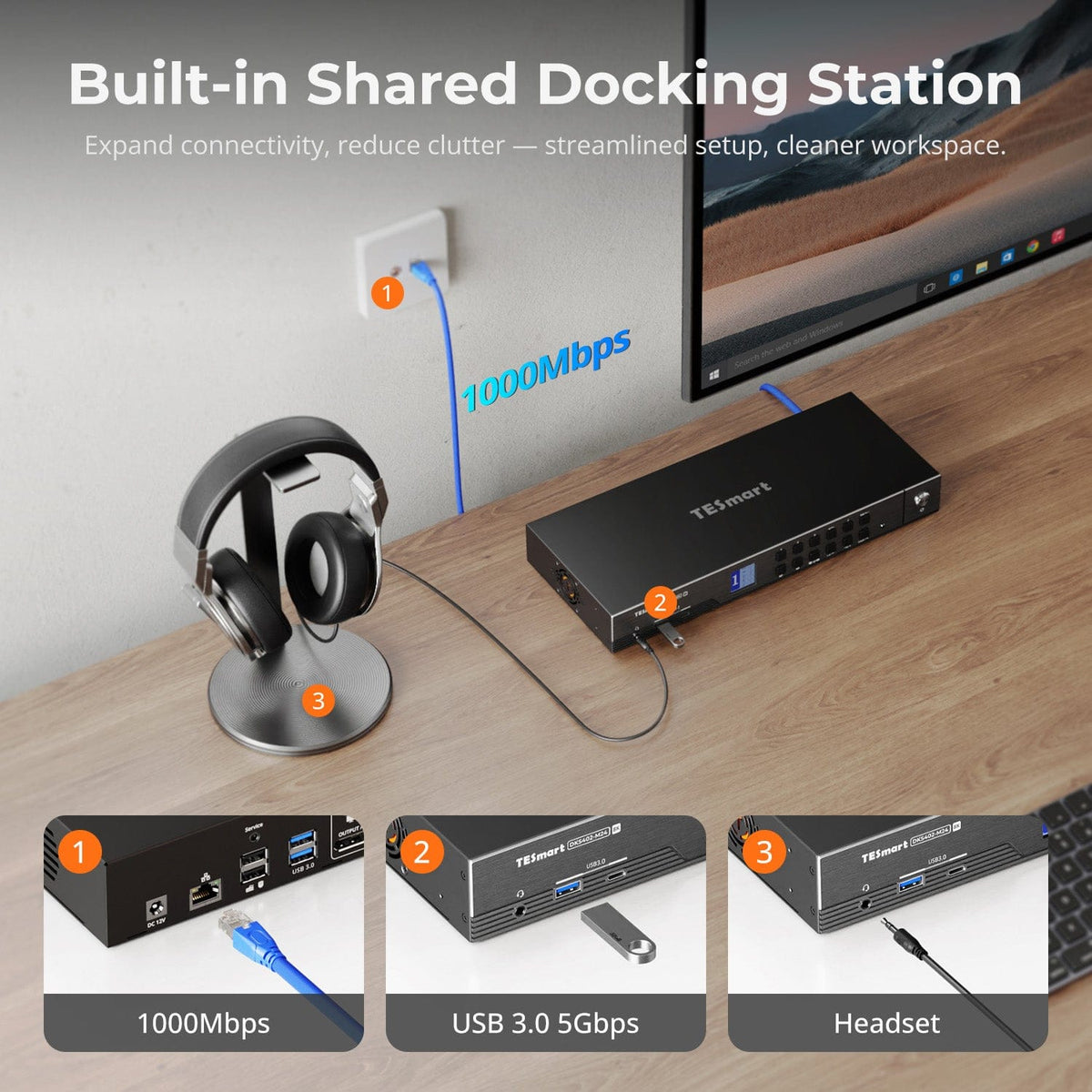
Share USB 3.0 peripherals, Gigabit Ethernet and audio across all four computers from one device, with front USB ports charging phones and tablets. No separate dock needed.
08
09
10
Specifications & Support
Compatibility & Input Guide
Technical Specifications
Manuals & Downloads
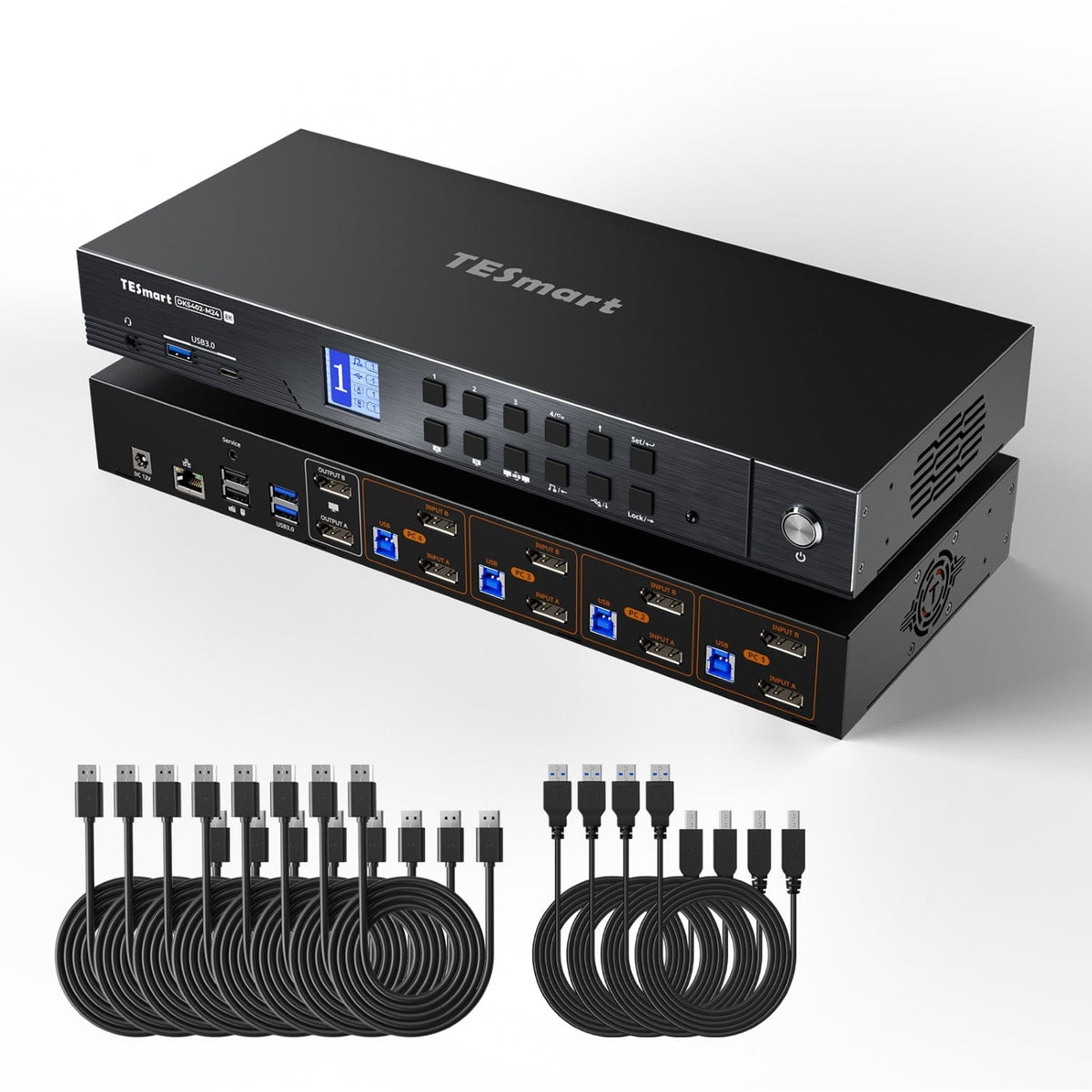
Included in the Box

1 × DKS402-M24 KVM Switch

4 × USB 3.0 Cables

8 × DP Cables

1 × IR Remote Control

1 × IR Receiver Cable

1 × DC 12V Power Adapter

1 × User Manual

2 × Rack-ears


FAQs
Visit our Help Center for more answers.
[Compatibility] What devices can I connect to DKS402-M24?
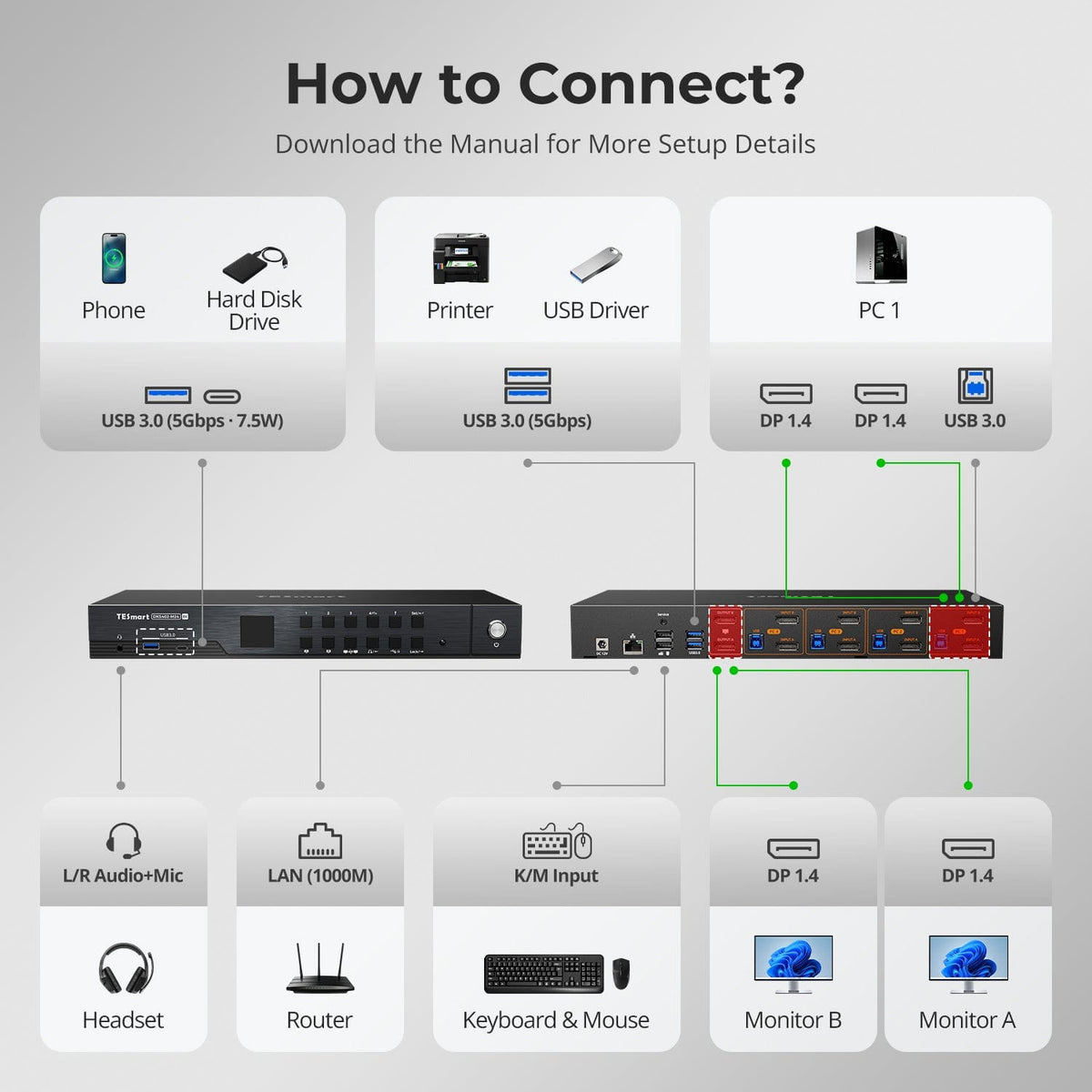
DKS402-M24 is designed for four DisplayPort computers and two DP monitors. Each computer connects via two DP cables and one USB-B cable.
A typical setup combines four PCs and two DP monitors, all controlled with one keyboard and mouse.
[Compatibility] Does DKS402-M24 support HDR and VRR?
Yes.
Built on DP 1.4, DKS402-M24 supports HDR high dynamic range and VRR pass-through. Actual HDR and VRR performance depends on the connected display and GPU supporting and enabling the respective features.
If you encounter any issues, please contact TESmart official support for assistance.
[Compatibility] Does DKS402-M24 support G-Sync and FreeSync?
Yes.
DKS402-M24 supports both NVIDIA G-Sync and AMD FreeSync adaptive sync pass-through, eliminating screen tearing and stuttering for smooth gaming.
Actual performance depends on the connected display supporting the respective technology and the GPU having it properly enabled.
[Compatibility] Should I choose DKS402-M24, DKS403-M24 or DKS202-M24?
Choose DKS402-M24 when up to four PCs need to share two DP 1.4 monitors, with Auto-Scan and panel lock for shared or supervised desks.
Choose DKS403-M24 when those four PCs need three monitors.
Choose DKS202-M24 when only two PCs share two monitors.
[Features & Connections] What is the maximum supported resolution?
DKS402-M24 supports dual 8K@60Hz (DSC) output, with 4K@165Hz (DSC), 4K@144Hz, QHD@240Hz and 1080p@240Hz also available per output. Ultra-wide 32:9 at 120Hz and 21:9 at 144Hz are supported as well.
Actual resolution and refresh rate depend on the connected computers, displays, cables and selected display mode.
[Features & Connections] What display modes does DKS402-M24 support?
Two display modes are supported.
Mode 1 puts the same PC on both monitors, extending or mirroring its desktop across both displays.
Mode 2 shows a different PC on each monitor, and you can double-press the Right-Alt key to switch keyboard and mouse focus while keeping both systems visible.
[Features & Connections] What does EDID emulation do?
Each input port includes an EDID emulator. When you switch computers, each PC continues to detect the display as connected, so desktop icons stay in place, windows do not resize and the screen does not flicker. Your multi-monitor layout remains unchanged.
[Features & Connections] How does the built-in network switch work?
The built-in network switch shares one Gigabit Ethernet connection across all four connected PCs using a single cable, so no extra network adapters or separate desktop switch are required. Use a USB 3.0 or higher port on each PC for full Gigabit bandwidth, and the switch can be disabled if it is not needed.
[Features & Connections] Can I lock USB and audio to one computer while switching?
Yes.
Audio and USB 3.0 focus can be locked independently from the front panel, so a headset, external drive or ongoing transfer stays with its computer while you switch screens or keyboard and mouse control. The locked state is kept even after the KVM is powered off.
[Features & Connections] How does the panel Lock button work, and what is the default PIN?
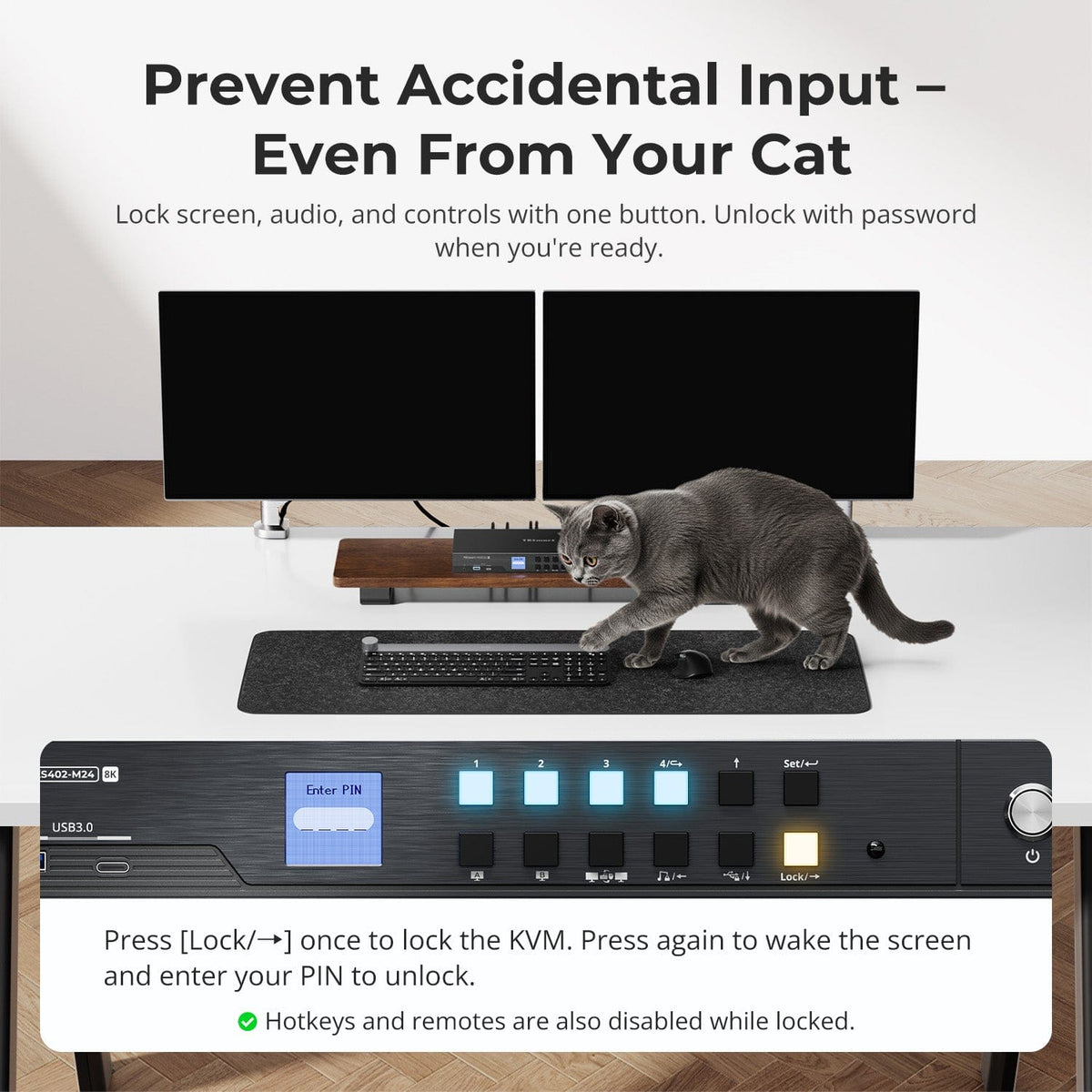
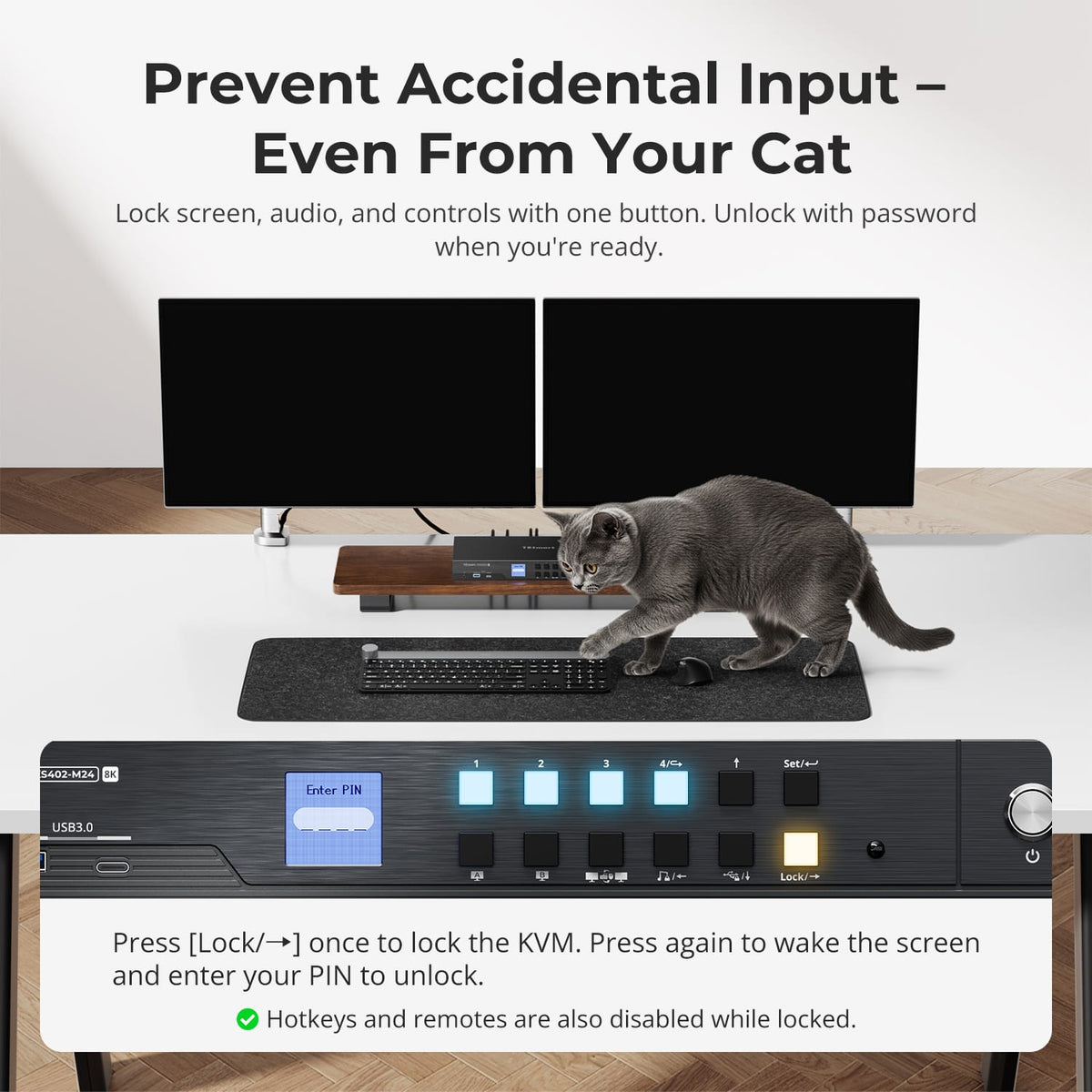
Press the Lock button on the front panel to lock DKS402-M24: the displays turn off, audio output pauses, and the front-panel buttons, keyboard hotkeys and IR remote are all disabled. Press the button again to wake the LCD, then enter the PIN to unlock.
The default PIN is 1234 and it can be changed in the LCD settings menu. If you change the PIN and forget it, please contact TESmart customer support for assistance.
[Setup & Switching] How can I switch between the four connected computers?
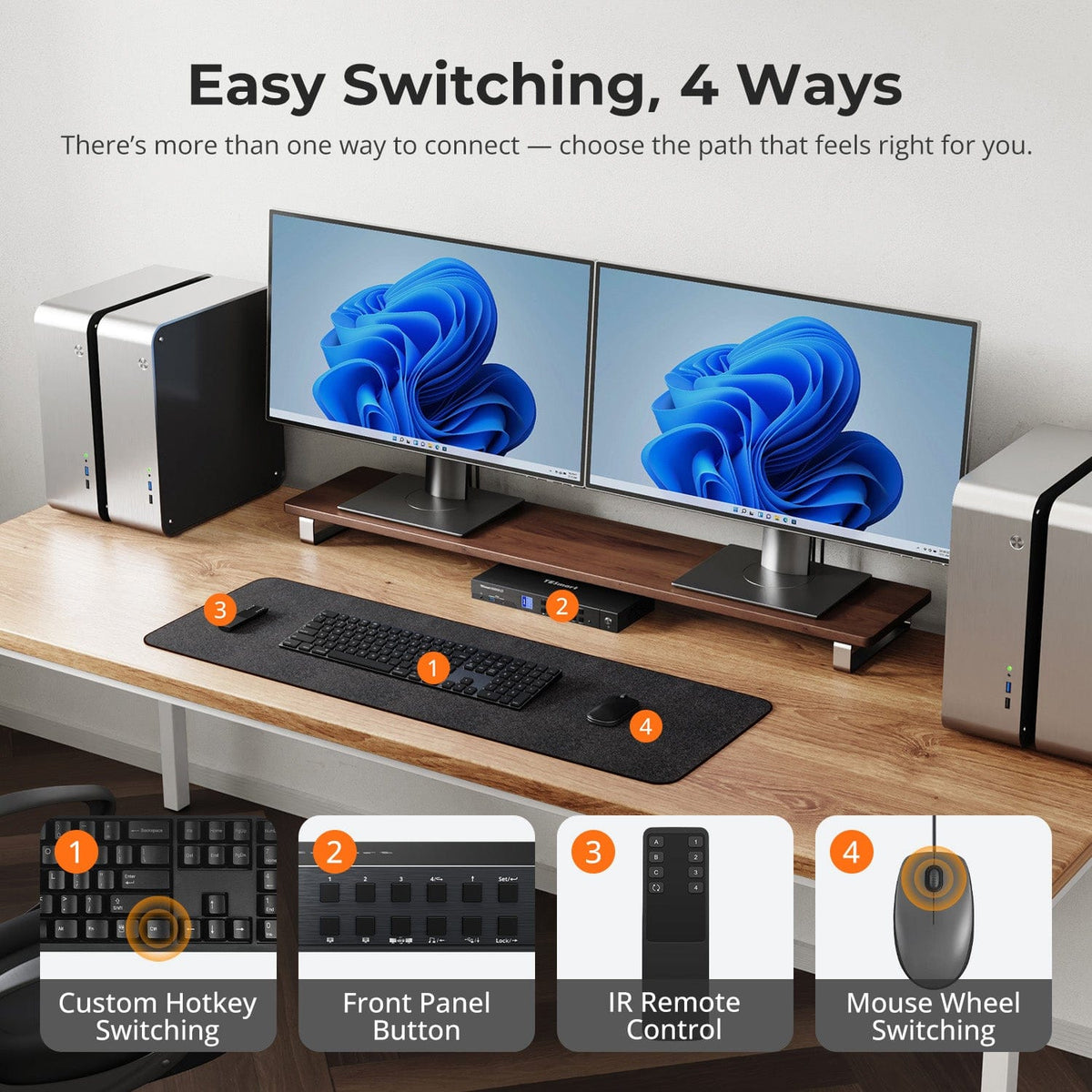
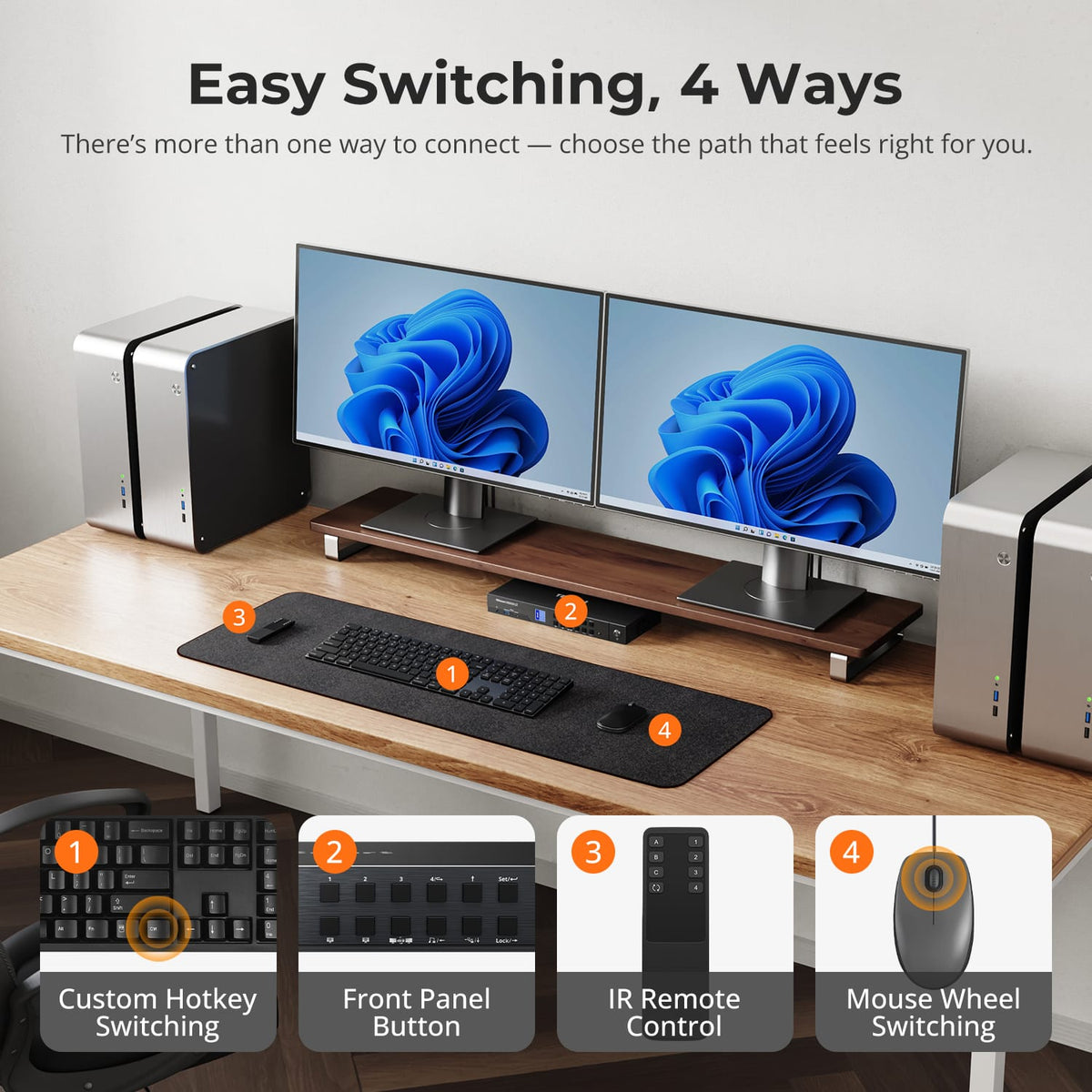
DKS402-M24 provides five switching methods: front-panel keypad with LCD, IR remote control, keyboard hotkeys, mouse-wheel switching and Auto-Scan.
Mouse-wheel switching is off by default and must be turned on with a hotkey; double-click the mouse wheel to move to the next computer.
[Setup & Switching] Do I need to install drivers or software?
DKS402-M24 is plug-and-play: display switching and keyboard and mouse control work without installing any driver or software.
Some advanced peripherals may still require their own drivers.
[Setup & Switching] Does DKS402-M24 support keyboard hotkeys?
Yes.
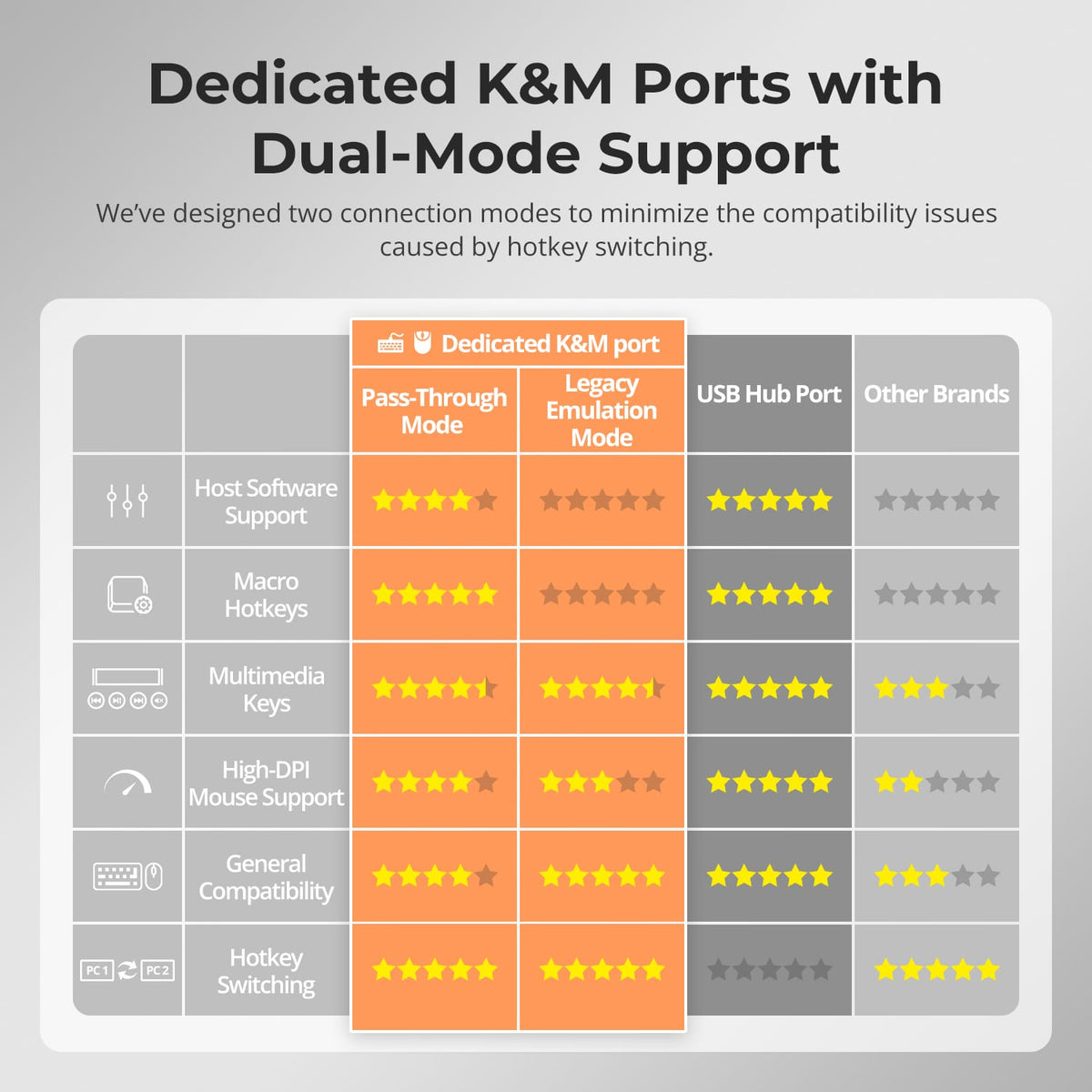
Connect a compatible wired USB keyboard to the dedicated keyboard port to use hotkey controls. Hotkey functions may not work through Bluetooth keyboards, general USB hubs or some wireless receivers. The default trigger key is Right-Ctrl, pressed twice before the command key.
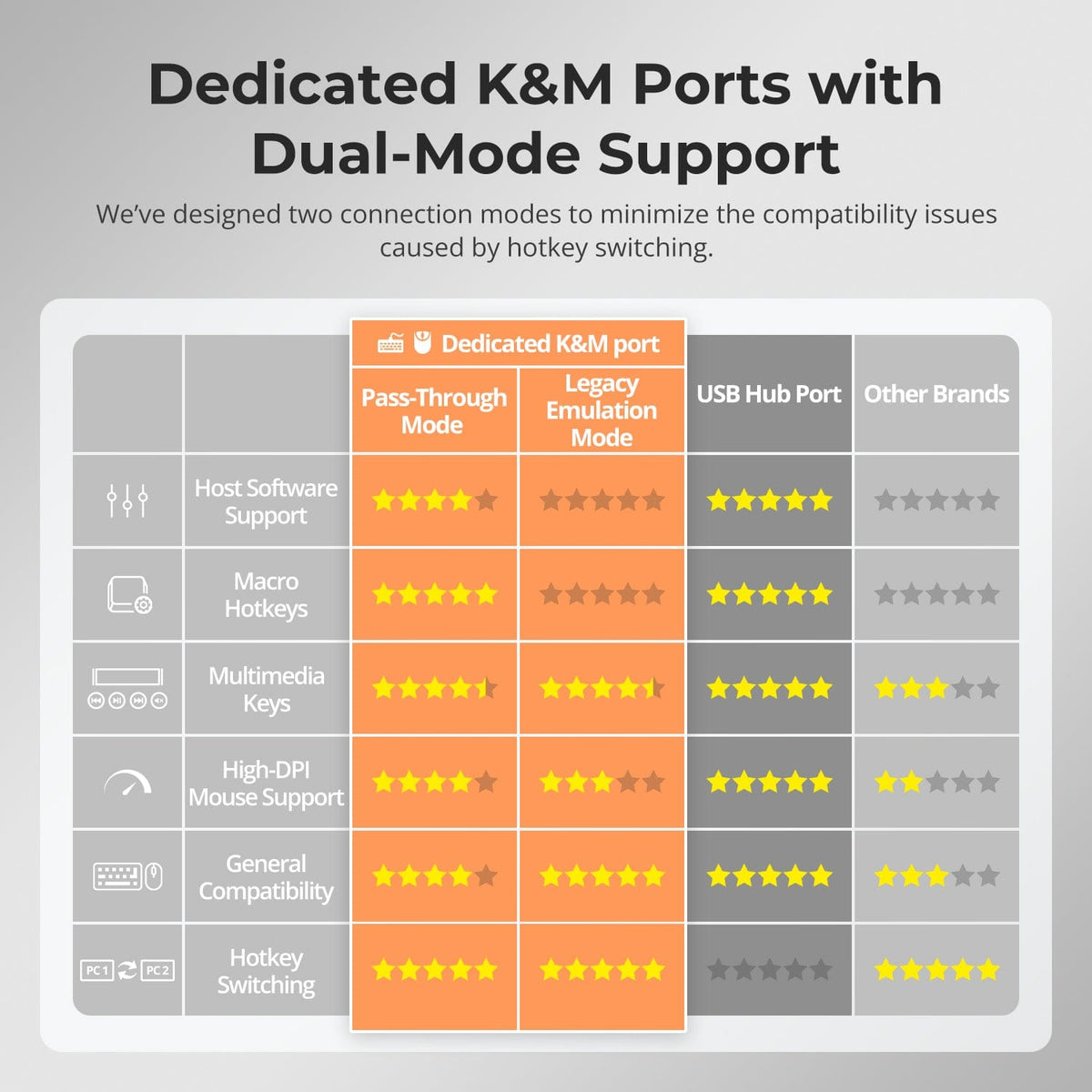
[Setup & Switching] What are Pass-Through Mode and Legacy Emulation Mode?
Pass-Through Mode is recommended for most modern keyboards and mice and supports many advanced peripheral functions.
Legacy Emulation Mode can improve basic keyboard, mouse and hotkey compatibility when a device does not operate correctly in Pass-Through Mode. Some advanced keyboard or mouse software functions may be unavailable in Legacy Emulation Mode.