



Display Setup
Max Display Output
Display Technology
Display Stability
Network Control
Laptop Charging
USB Speed
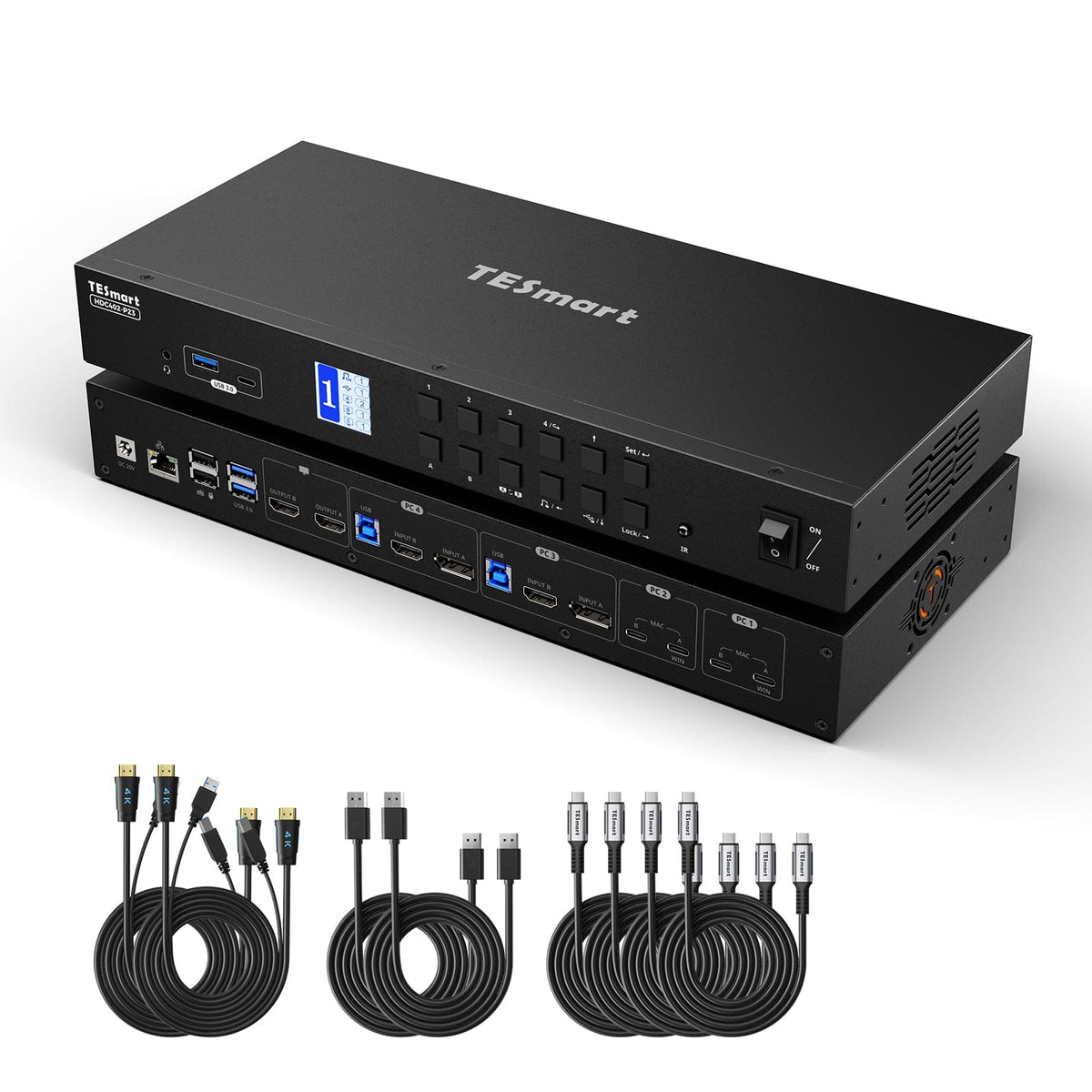
Dual Monitor Hybrid USB-C/HDMI/DP 4K60Hz KVM Switch Pro Hub for 2 Laptops & 2 PCs, w/ MST Mode, EDID Emulation, Gigabit LAN, and Dual Charging
Share two Apple Studio Displays, one keyboard and mouse between two computers—or show one computer on each display when you need both systems at once.
Display Setup
Max Display Output
Display Technology
Display Stability
Network Control
Laptop Charging
USB Speed
Dual Monitor Hybrid USB-C/HDMI/DP 4K60Hz KVM Switch Pro Hub for 2 Laptops & 2 PCs, w/ MST Mode, EDID Emulation, Gigabit LAN, and Dual Charging
Why Choose HDC402-P23
Overview

01
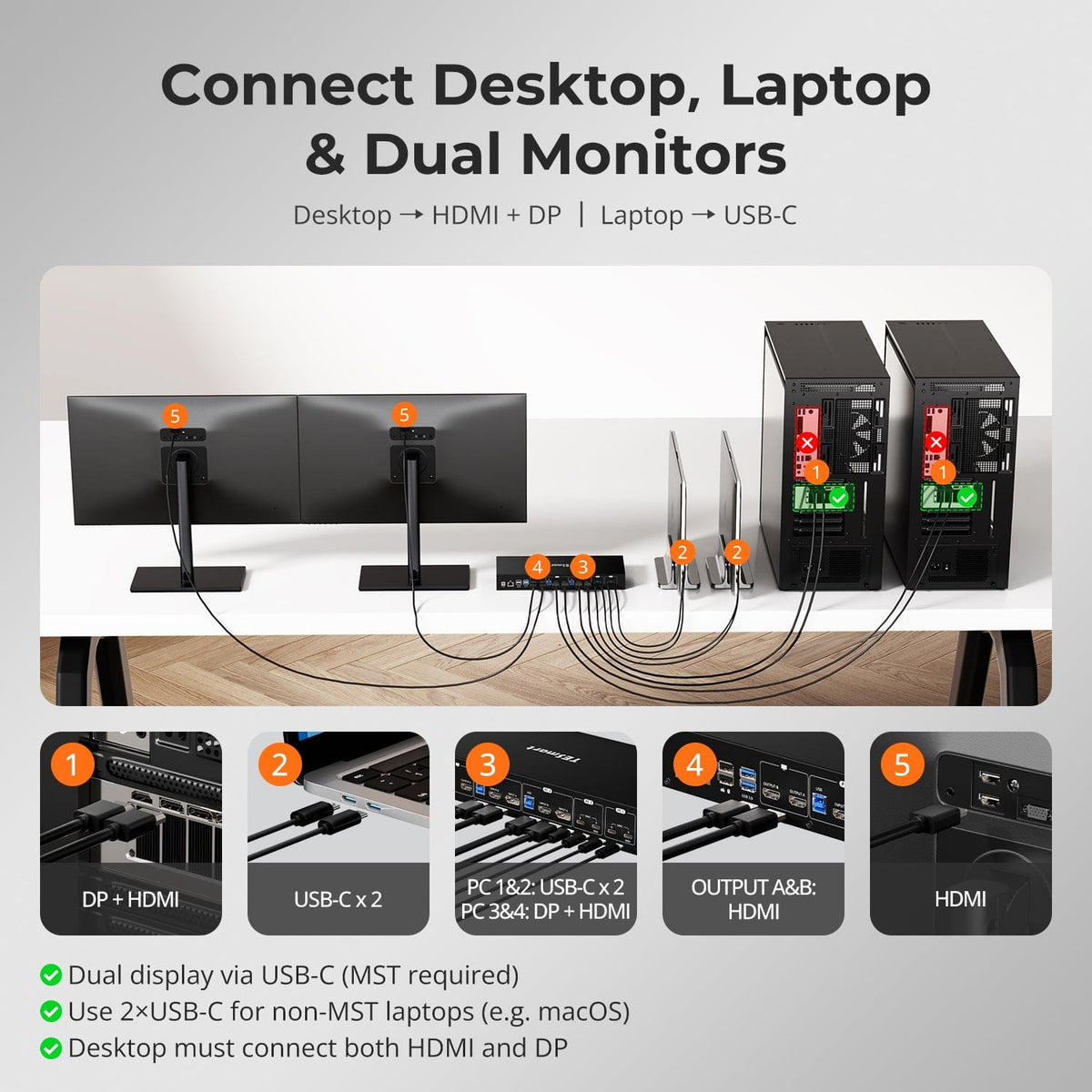
One Dual-Monitor Setup for Laptops and Desktops
Connect two USB-C laptops and two desktops to the same dual-monitor workstation. MST-capable laptops can drive both displays through one USB-C connection, while non-MST systems such as macOS require two USB-C connections. Each desktop must provide both HDMI and DisplayPort outputs.

02
Two Display Modes for Focused or Side-by-Side Work
Run one computer across both monitors in extended or mirrored mode, or show two computers side by side with one system on each monitor. In the two-computer view, keyboard and mouse focus can move between systems without hiding either desktop.

03
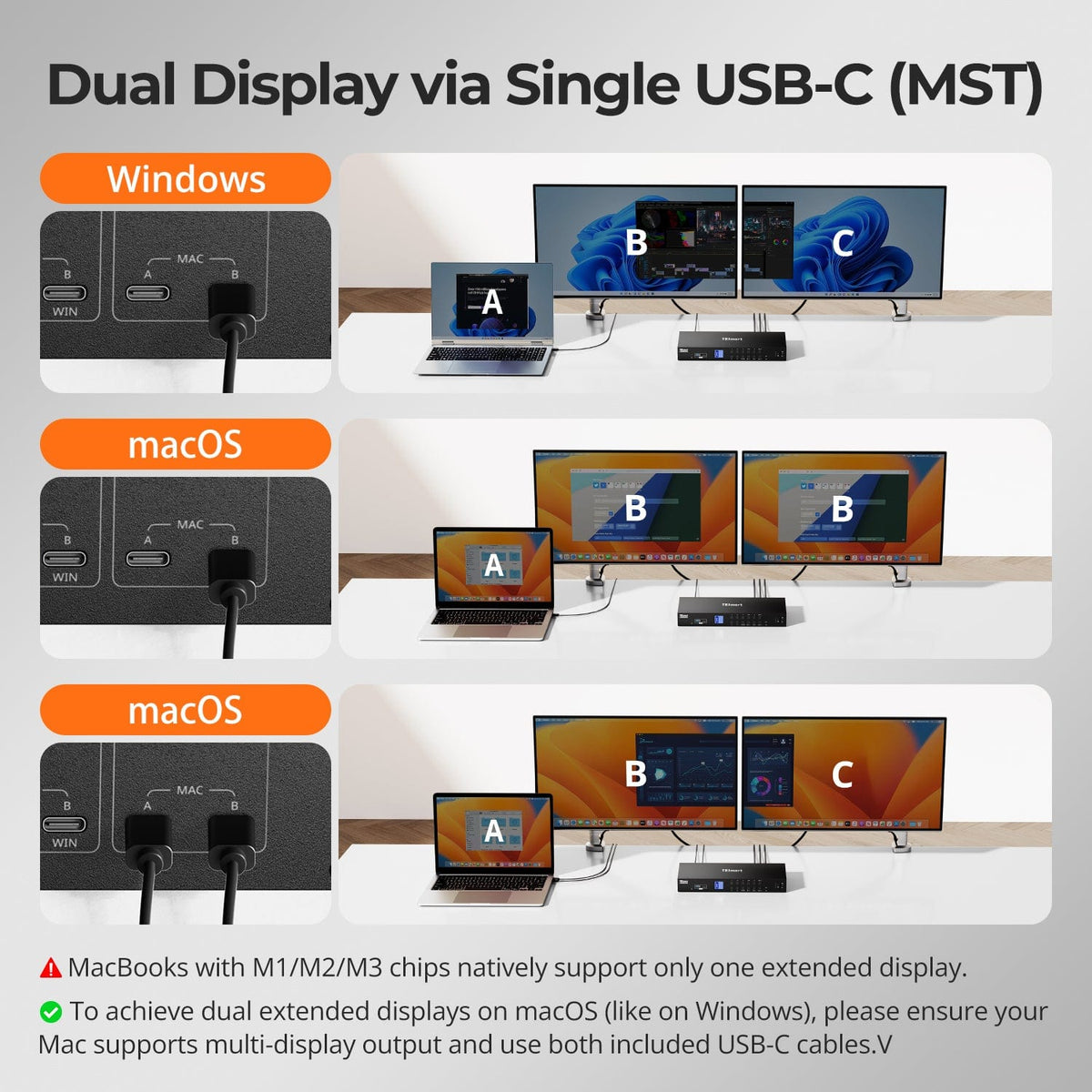
Dual Displays from One USB-C Cable on Windows
A compatible Windows laptop can drive both HDMI monitors through one full-featured USB-C connection using DisplayPort 1.2 MST. For macOS, which does not support MST extended desktops, use both USB-C inputs when the Mac itself supports two external displays.

04
From Dual 4K60 to 240Hz
Each KVM output supports up to 3840×2160@60Hz, with lower-resolution high-refresh options including 3440×1440@100Hz, 2560×1440@165Hz and 1920×1080@240Hz. Match both the source and displays to the resolution and refresh rate you plan to use.

05
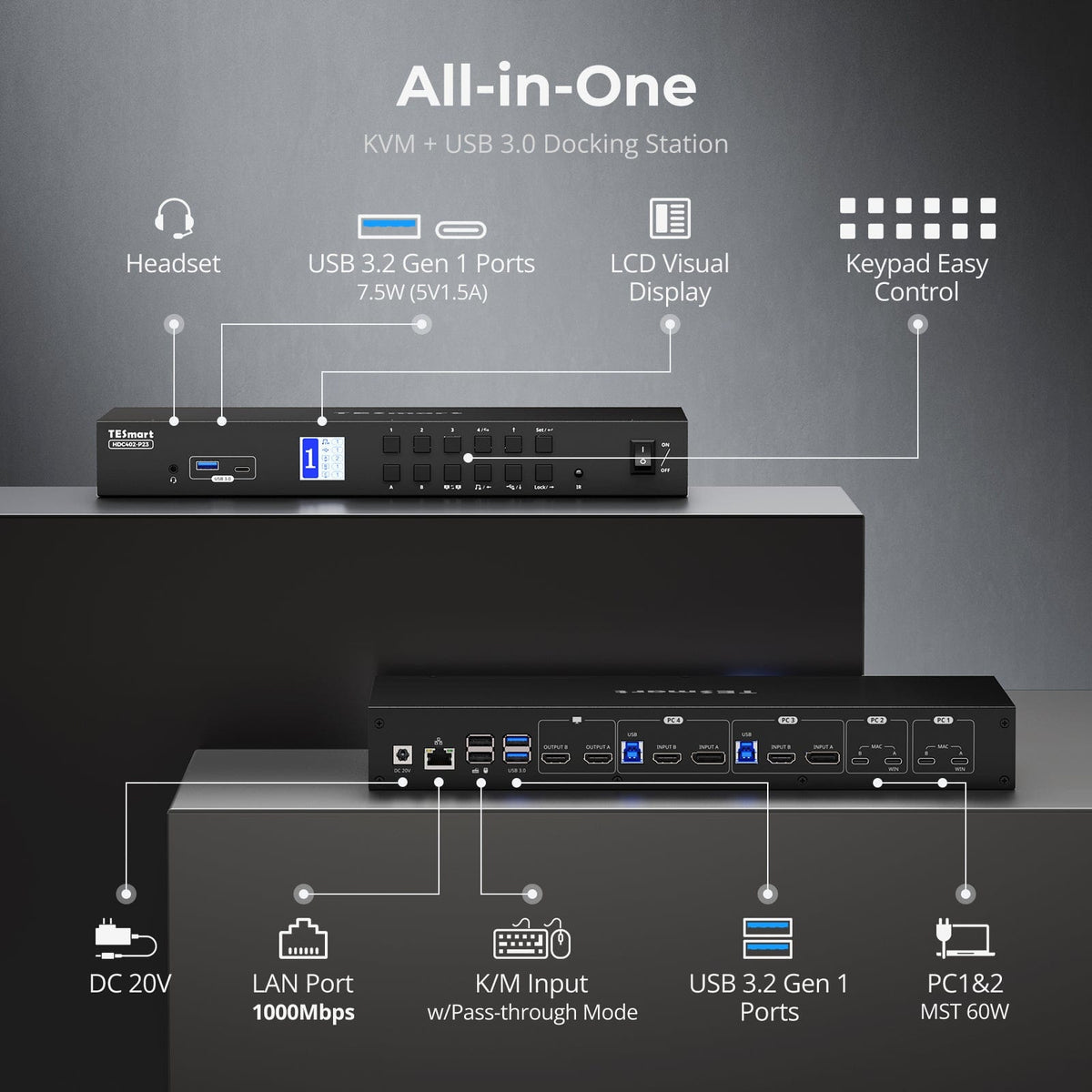
Power, Network and Peripherals in Docking Station
Declutter your desk with a built-in docking station — no extra hubs needed. Share essential ports across all connected devices:
- 60W USB-C PD — Power your laptop while working
- USB 3.0 (5Gbps) — Fast data for drives, webcams, and more
- 1000Mbps Ethernet — Reliable, wired network connection
- Headset Jack — Clear audio input and output for meetings
Perfect for hybrid setups, home offices, and clean cable management.

06
Protect an Active Workstation with One Touch
Press the Lock control to turn off both displays and disable audio, USB, hotkeys and the IR remote. Press it again and enter the configured PIN to restore access.

07
Keep USB & Audio Where You Need Them
Lock USB devices or audio to the current computer while switching displays and keyboard and mouse control elsewhere. The two locks work independently and remain set after a restart, which is useful for meetings, storage transfers and long-running peripherals.

08
EDID Emulation — Stable Screens, No Surprises
Switching displays shouldn’t scramble your desktop. Our built-in EDID emulator keeps your layout exactly how you left it.
- No More Icon Mess
Preserves icon positions and window sizes when switching inputs. - Flicker-Free Switching
Eliminates screen blackouts and flicker caused by display reinitialization. - Smoother Multitasking
Maintain visual consistency across workstations and monitor setups.
✅ With TESmart EDID emulation: your display stays stable and unchanged — even after switching.
⚠️ Without EDID emulation: icons shift, windows resize, and screen flicker occurs after every switch.

09

10

11
Specifications & Support
Compatibility & Input Guide
Technical Specifications
Manuals & Downloads
Included in the Box
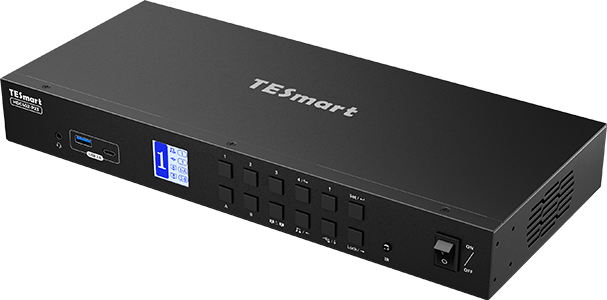
1 × HDC402-P23 KVM Switch
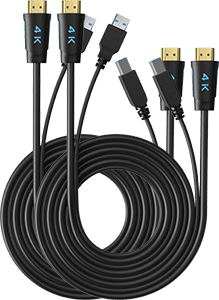
4 × KVM Cables (HDMI + USB)
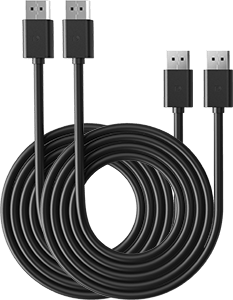
2 × DisplayPort Cables
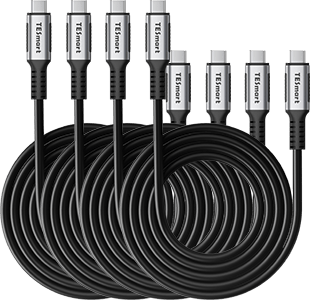
4 × USB-C Cables
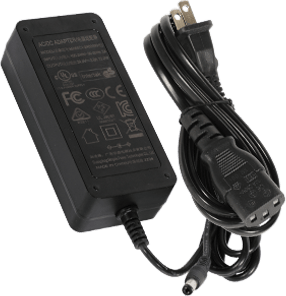
1 × DC 20V Power Adapter
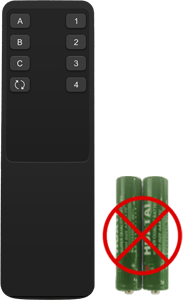
1 × IR Remote Control
1 × User Manual
FAQs
Visit our Help Center for more answers.
[Compatibility] Does the KVM support Mac and Windows environments?
Yes. HDC402-P23 supports Windows, macOS, Unix, Raspberry Pi OS, and Linux distributions including Debian, Ubuntu, Fedora, and Raspbian.
[Compatibility] What does my laptop's USB-C port need to support?
It must support both DisplayPort Alt Mode video output and USB data transfer. Charging-only or data-only USB-C ports cannot provide full KVM functionality.
[Compatibility] Why does a macOS computer show duplicated displays or only one display?
macOS does not support MST extended displays. Connect the Mac to both USB-C ports in its input group, and confirm that the Mac itself supports two external displays. Some M3 models require the laptop lid to be closed for the second external display.
[Compatibility] What resolutions and refresh rates are supported?
HDC402-P23 supports up to 3840×2160 at 60Hz. Lower-resolution high-refresh modes include 3440×1440 at 100Hz, 2560×1440 at 120Hz, 2560×1080 at 165Hz, and 1920×1080 at 240Hz. Actual output depends on the source, displays, and cables.
[Features & Connections] How can I switch USB peripherals or audio independently?
Use the USB and audio buttons to lock either function to the current computer. Video can then switch independently. The dedicated keyboard and mouse ports cannot be locked.
[Features & Connections] Why does the monitor still fail to sleep after Lock?
Some monitors continue detecting the HDMI clock after video output is locked. Updated firmware can fully disable the HDMI signal; contact TESmart Support for the correct firmware and instructions.
[Features & Connections] Why can't my computer use Wi-Fi after connecting to the KVM?
The computer may prioritize the KVM's wired network adapter over Wi-Fi. Press Right Ctrl twice, then F4 to disable the KVM network adapter, or disable the Realtek USB GbE Family Controller in the operating system.
[Features & Connections] Why does my laptop show 'slow charging'?
HDC402-P23 provides up to 60W at 20V/3A. A laptop that requires more power or does not support 20V charging may charge slowly. Use the laptop's original adapter when higher power is required.
[Features & Connections] Does the KVM support firmware upgrades?
Yes. Firmware updates may improve compatibility or address specific issues. Only install firmware supplied for HDC402-P23, and contact TESmart Support for the correct file and instructions.
[Features & Connections] Why are my USB peripherals not working?
Confirm that USB-C Input A is connected for PC1 or PC2, or that the USB-B cable is connected for PC3 or PC4. Connect non-keyboard devices to the standard USB ports. High-power or high-bandwidth devices may require a powered hub or direct computer connection.
[Features & Connections] Why is my audio device not working?
For PC1 or PC2, connect USB-C Input A; for PC3 or PC4, connect the USB-B cable. Select USB Audio for the 3.5mm connection or choose the connected USB audio device in the system settings.
[Setup & Switching] How do I adjust the fan speed?
Press Right Ctrl twice, then F3 to cycle through Off, Automatic, Low, and High. Automatic is the default mode.
[Setup & Switching] How do I connect devices to the KVM switch?
For PC1 and PC2, connect a Windows MST laptop to USB-C Input A; use both Input A and B for macOS or other non-MST systems. For PC3 and PC4, connect HDMI, DisplayPort, and USB. Connect two monitors to HDMI Outputs A and B, then attach the keyboard, mouse, USB devices, and audio equipment. Monitor HDMI cables are not included.
[Setup & Switching] How can I switch the keyboard and mouse between two computers?
In Display Mode 2, press Right Alt twice to move keyboard and mouse control between the two displayed computers. Front-panel keyboard and mouse switching may require a firmware update.
[Setup & Switching] Why are my keyboard and mouse not working properly?
If hotkeys still work, press Right Ctrl twice, then F2 to switch to Legacy Emulation Mode. If the problem continues or hotkeys do not respond, contact TESmart Support.