


Display Setup
Max Display Output
Device Setup
Display Color

Gaming Display

Display Stability
Network Control
HDMI 2.1 & DP 1.4 Dual 4K144Hz KVM Switch Gaming Dock for 4 PCs & 2 Monitors, w/ ADI Chip, EDID, VRR, FVA, ALLM, and Dynamic HDR
Share 2 HDMI monitors, a keyboard and mouse between 4 PCs with HDMI and DisplayPort outputs, with up to 8K60/4K144 and EDID emulation.
Display Setup
Max Display Output
Device Setup
Display Color
Gaming Display
Display Stability
Network Control
HDMI 2.1 & DP 1.4 Dual 4K144Hz KVM Switch Gaming Dock for 4 PCs & 2 Monitors, w/ ADI Chip, EDID, VRR, FVA, ALLM, and Dynamic HDR
Why Choose HDK402-M24
Overview
01
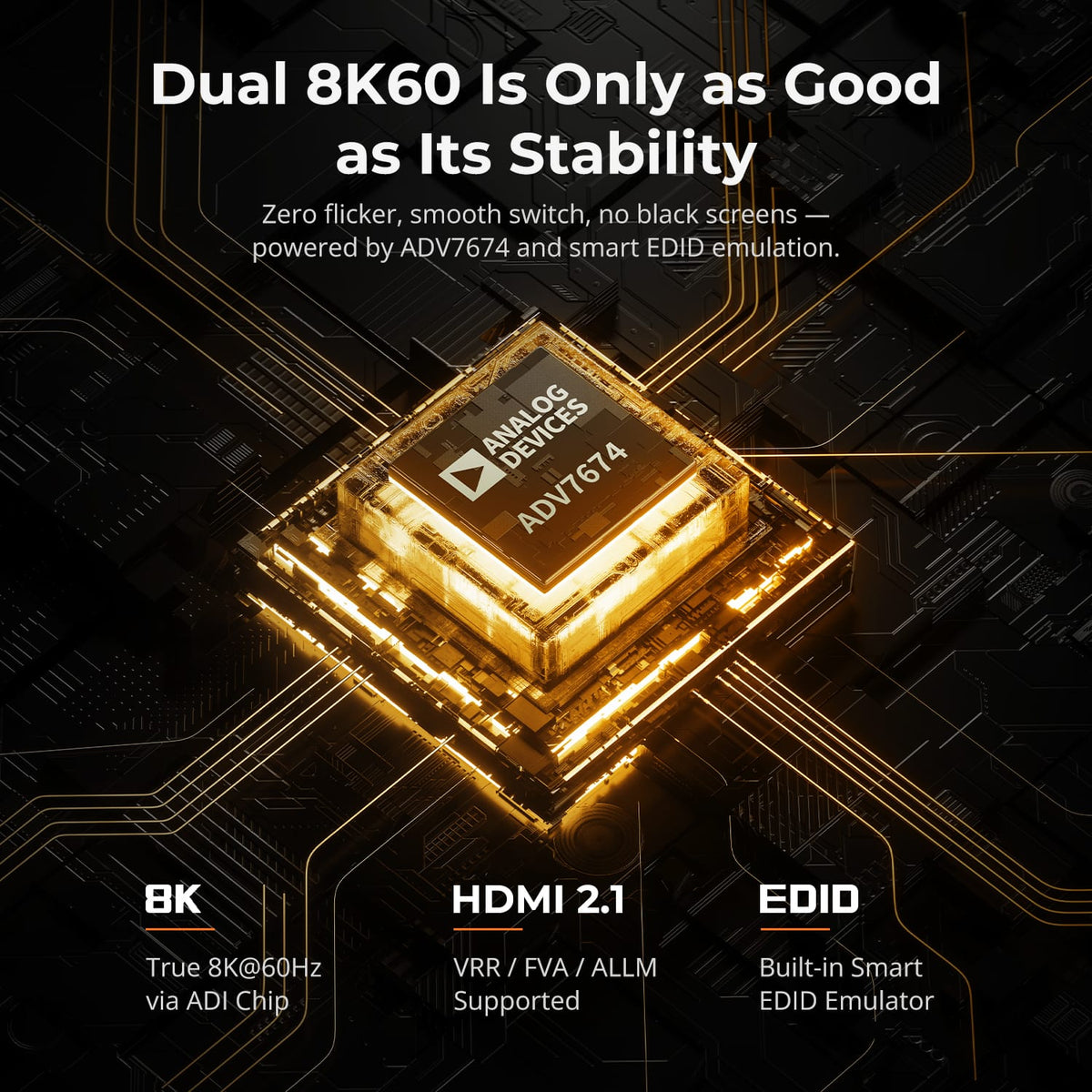
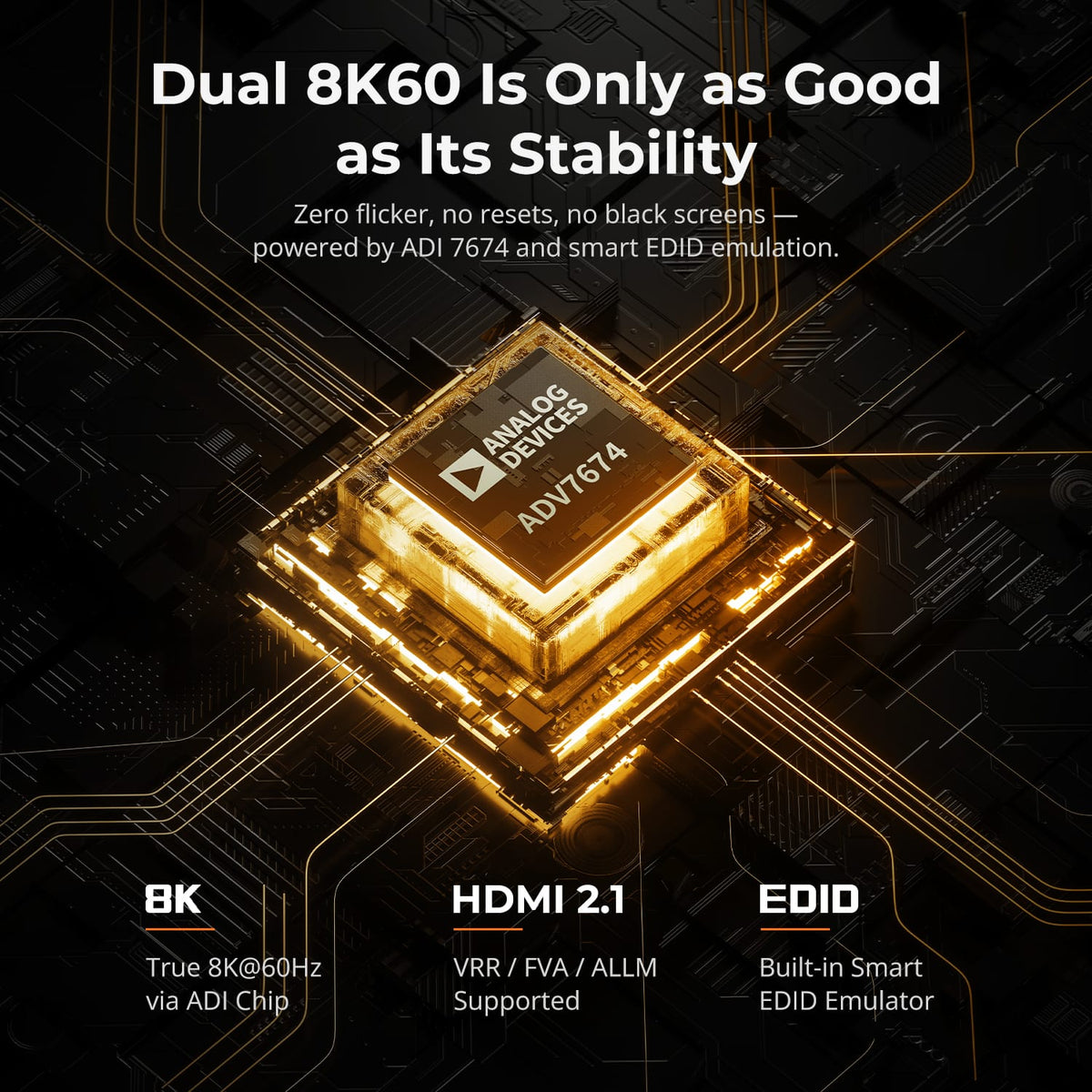
Dual 8K60 Built for Signal Stability
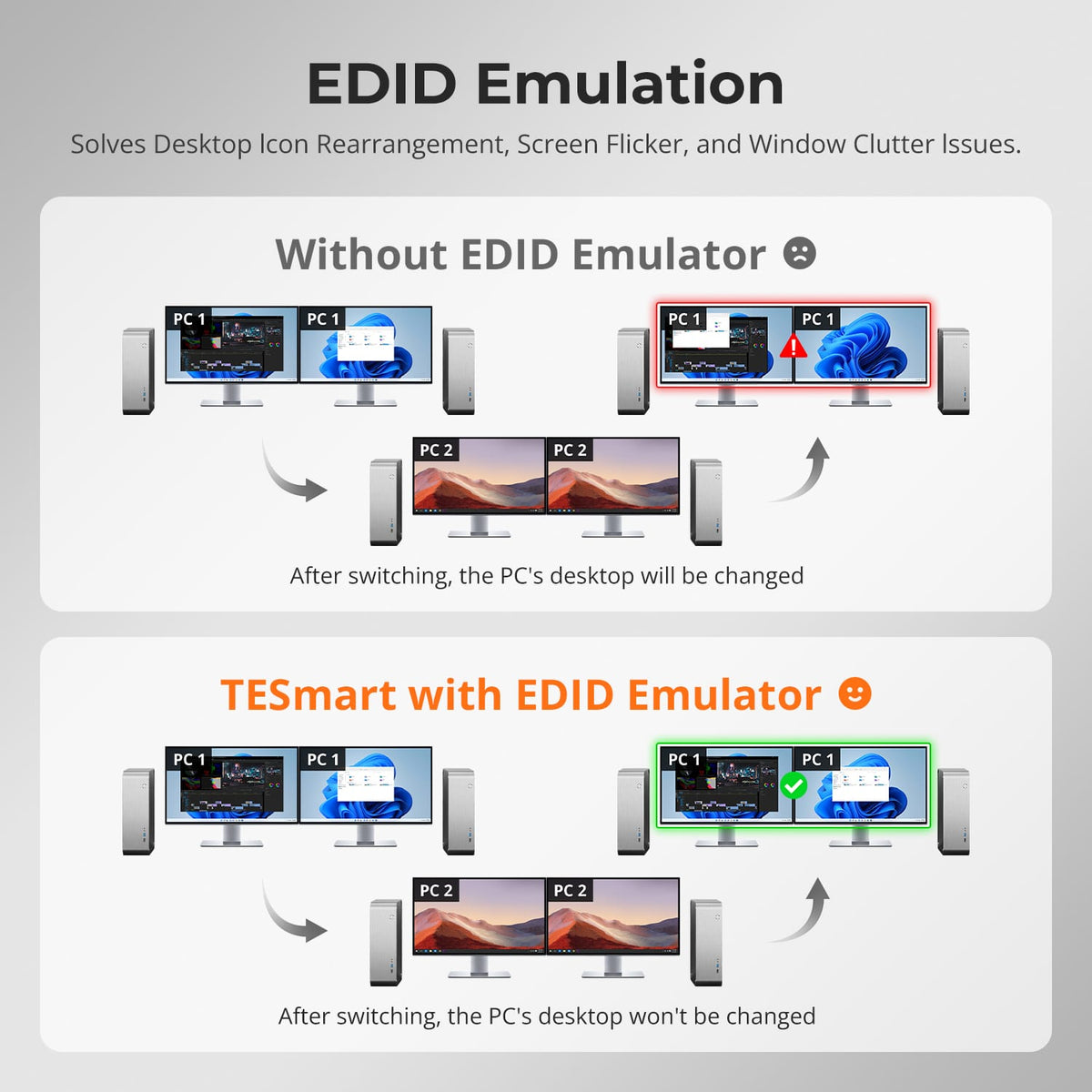
ADV7674 HDMI 2.1 decoding and EDID emulation support demanding dual-display workflows while keeping the signal path stable during switching. The design targets high-bandwidth setups where black screens, resets and display loss disrupt work or play.
02
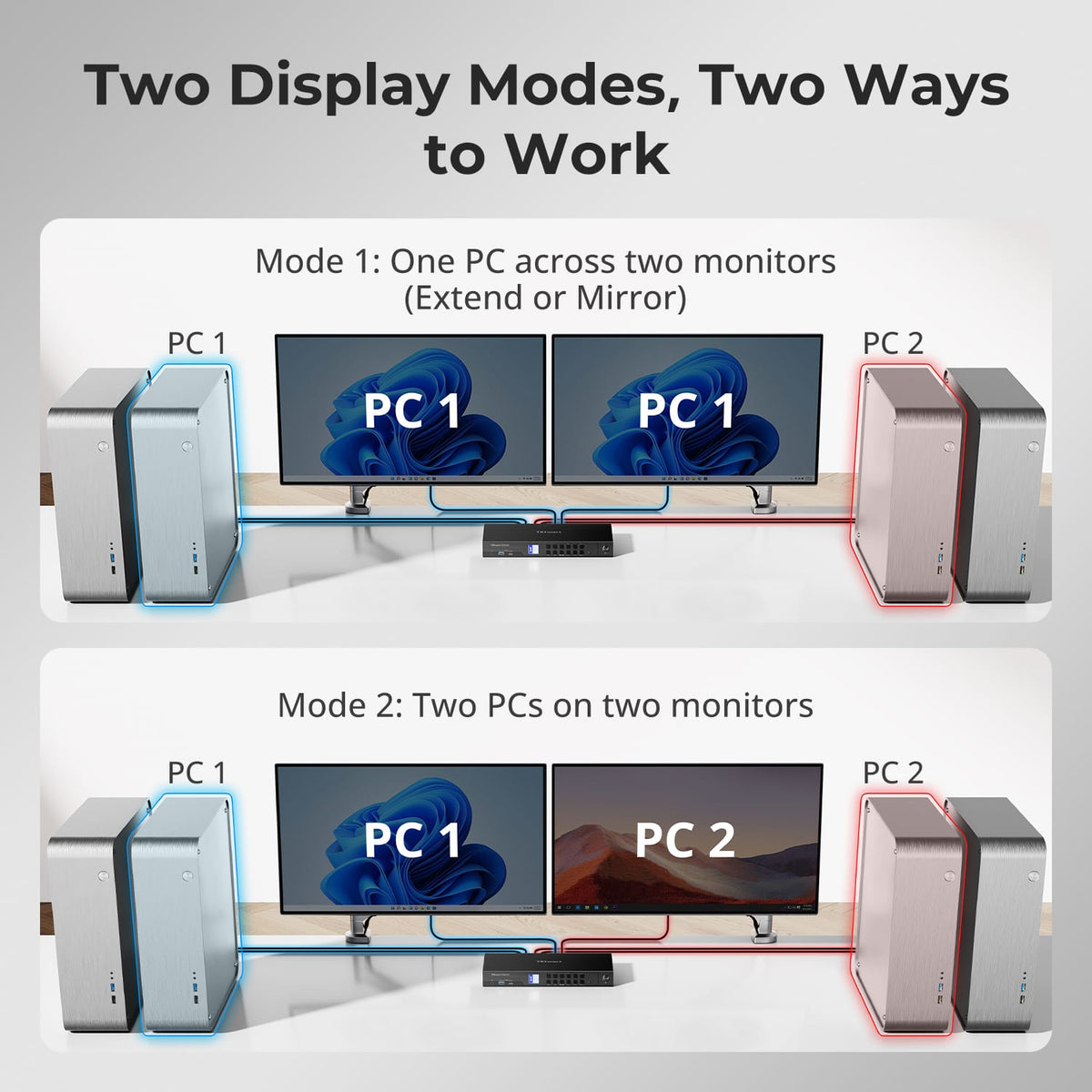
Two Display Modes for Focused or Side-by-Side Work
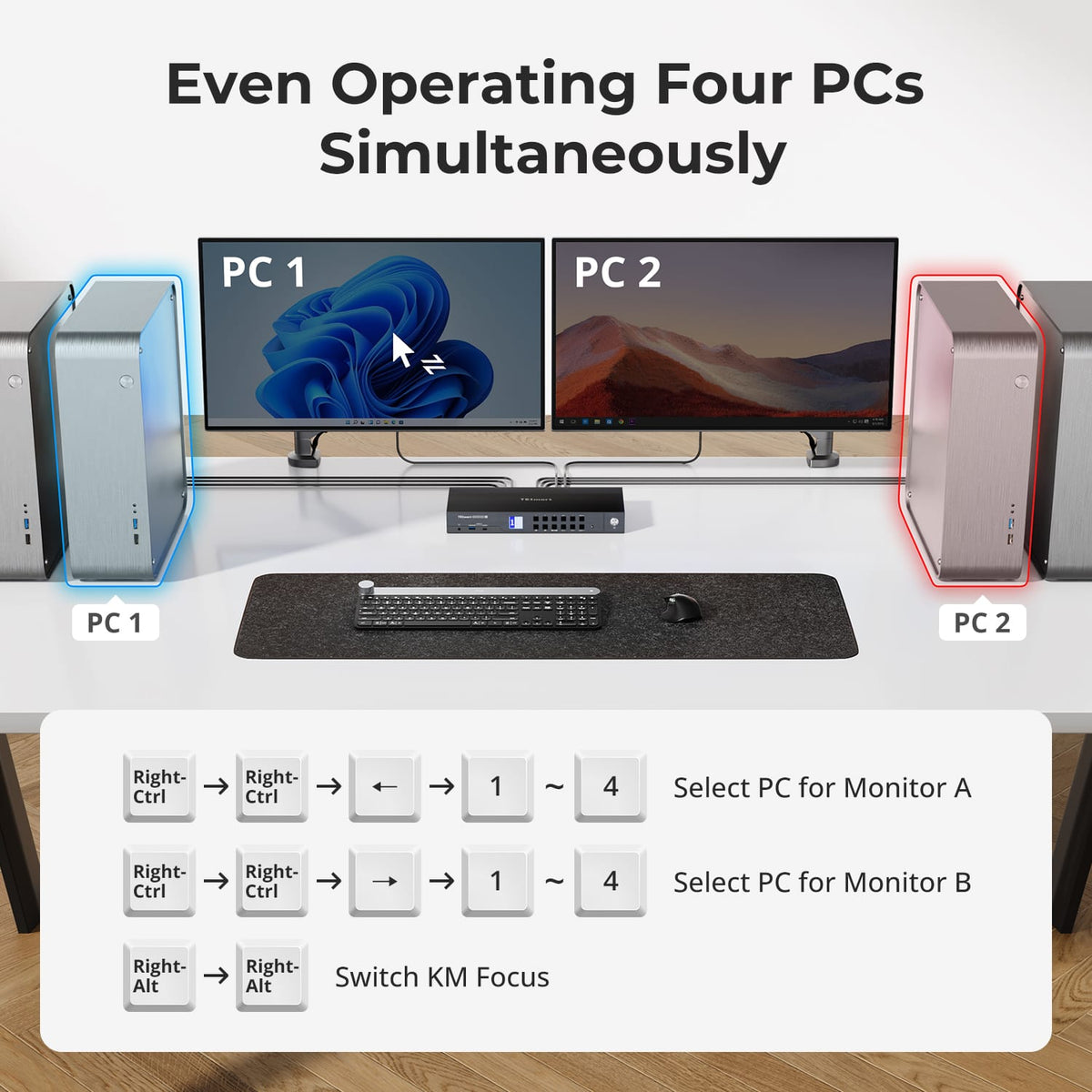
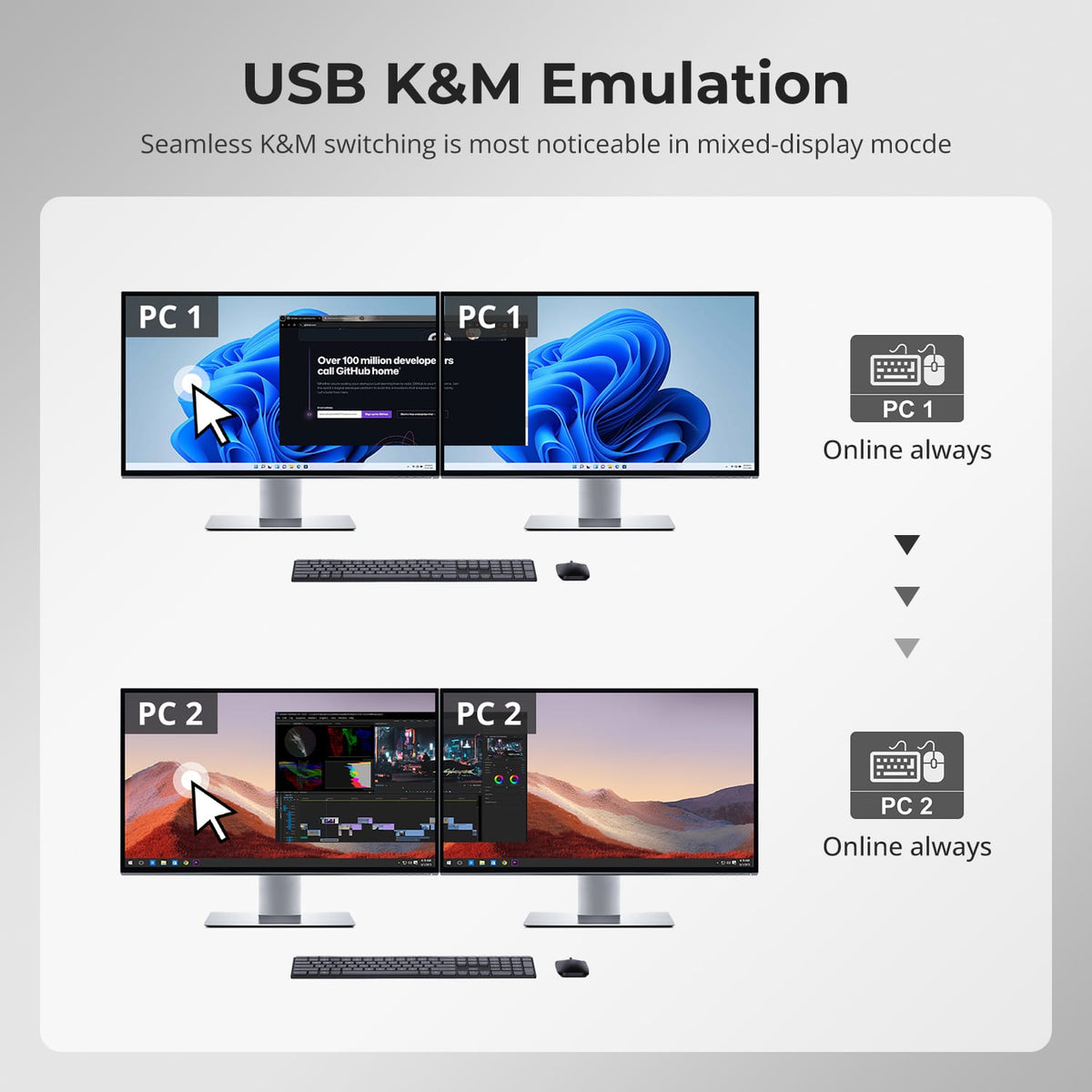
Use both monitors with one computer in extended or mirrored mode, or show two computers side by side with one on each display. In the two-computer view, keyboard and mouse focus can move between systems while both desktops remain visible.
03
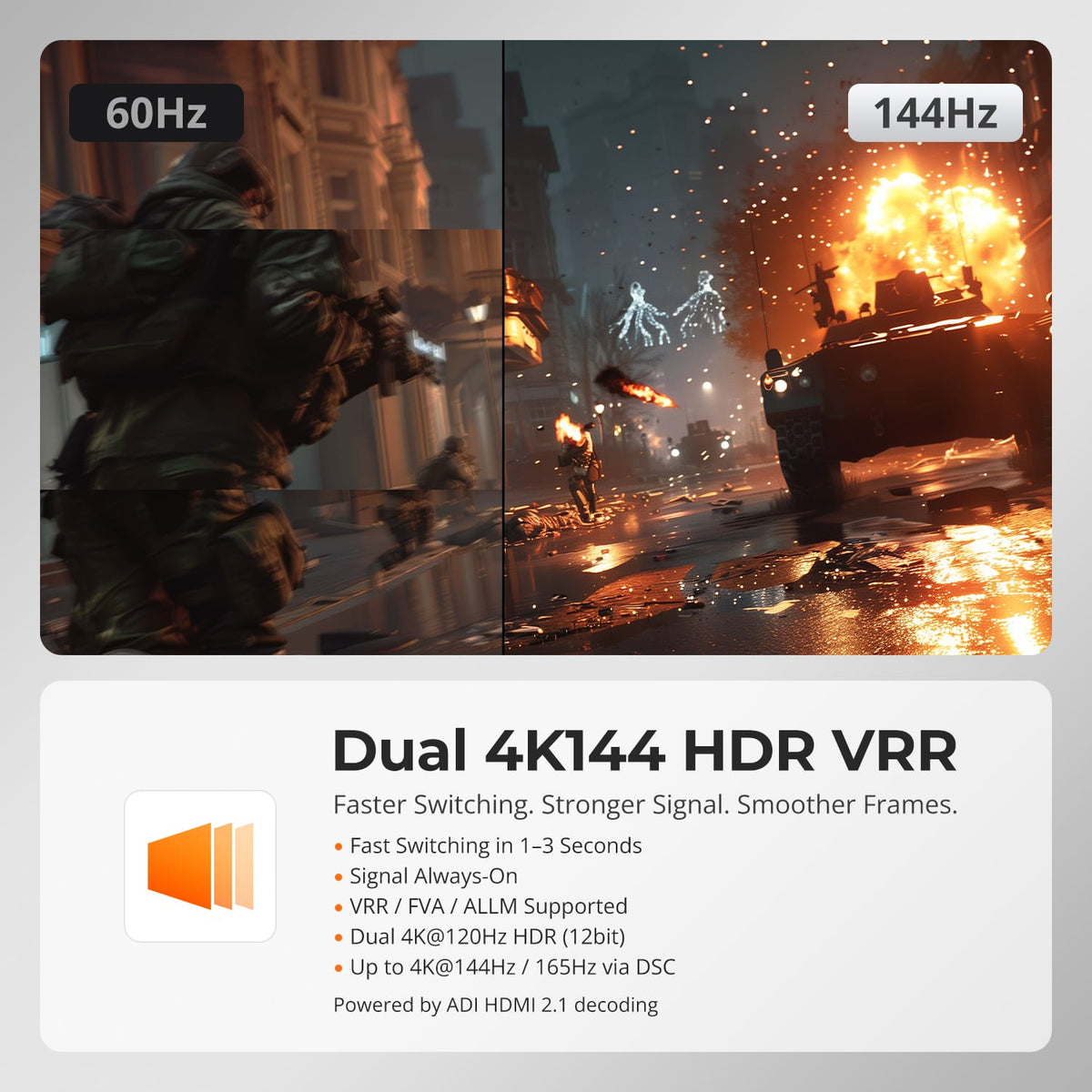
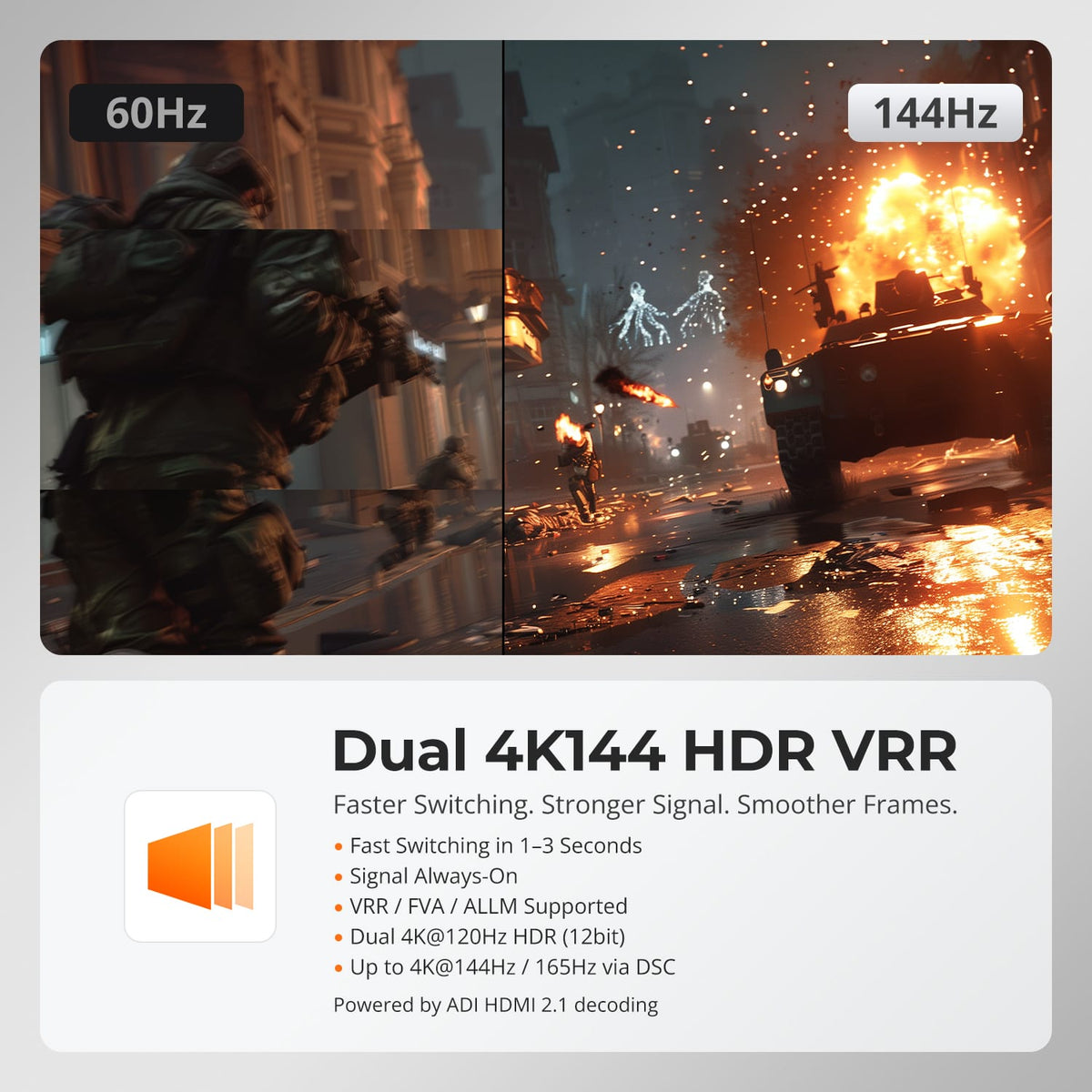
Dual 4K144 HDR and Variable Refresh Rate
Run supported gaming displays at dual 4K@120Hz with 12-bit HDR or up to 4K@144Hz/165Hz through DSC. VRR, FVA and ALLM support help reduce tearing and latency when the connected graphics hardware, displays and cables support the same features.
04
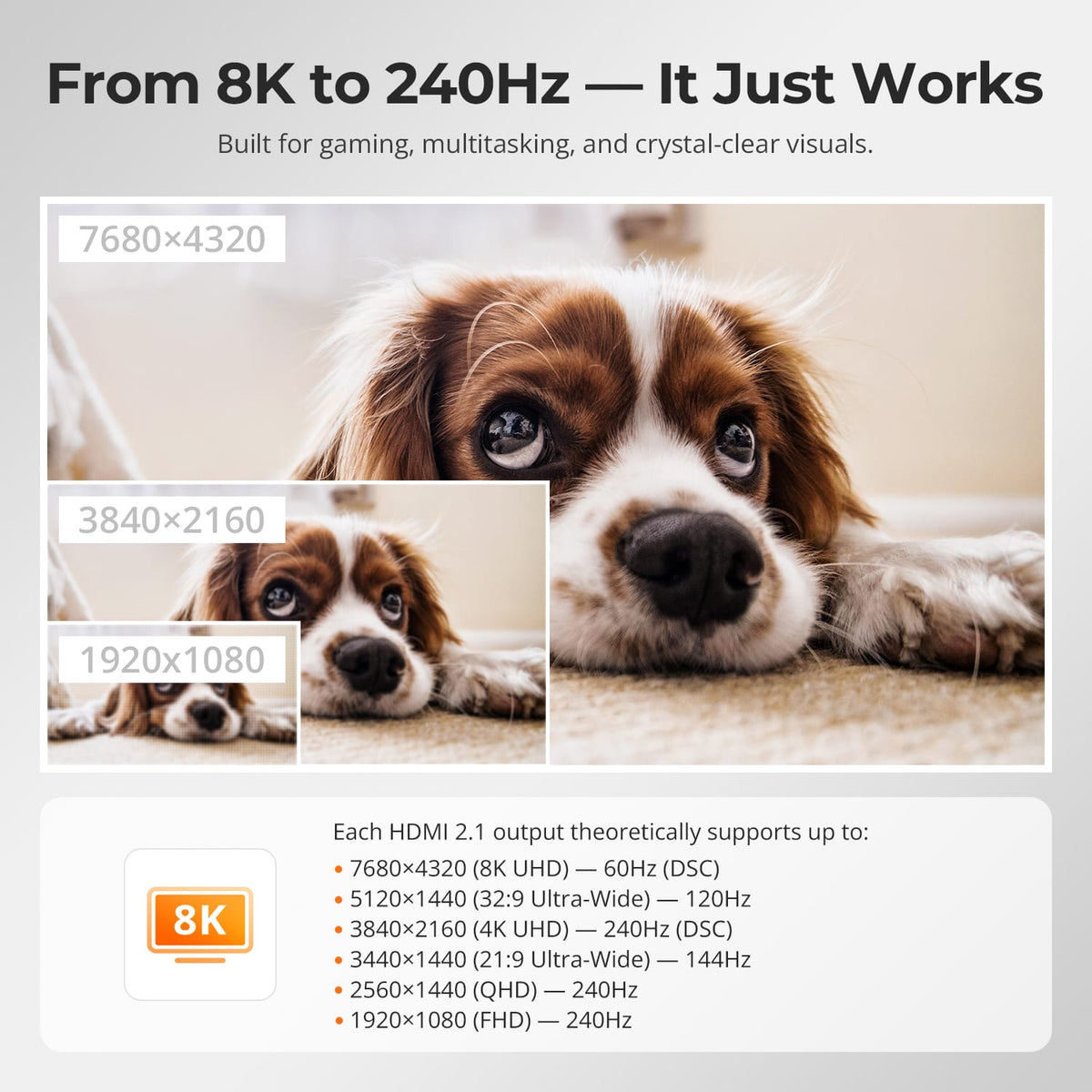
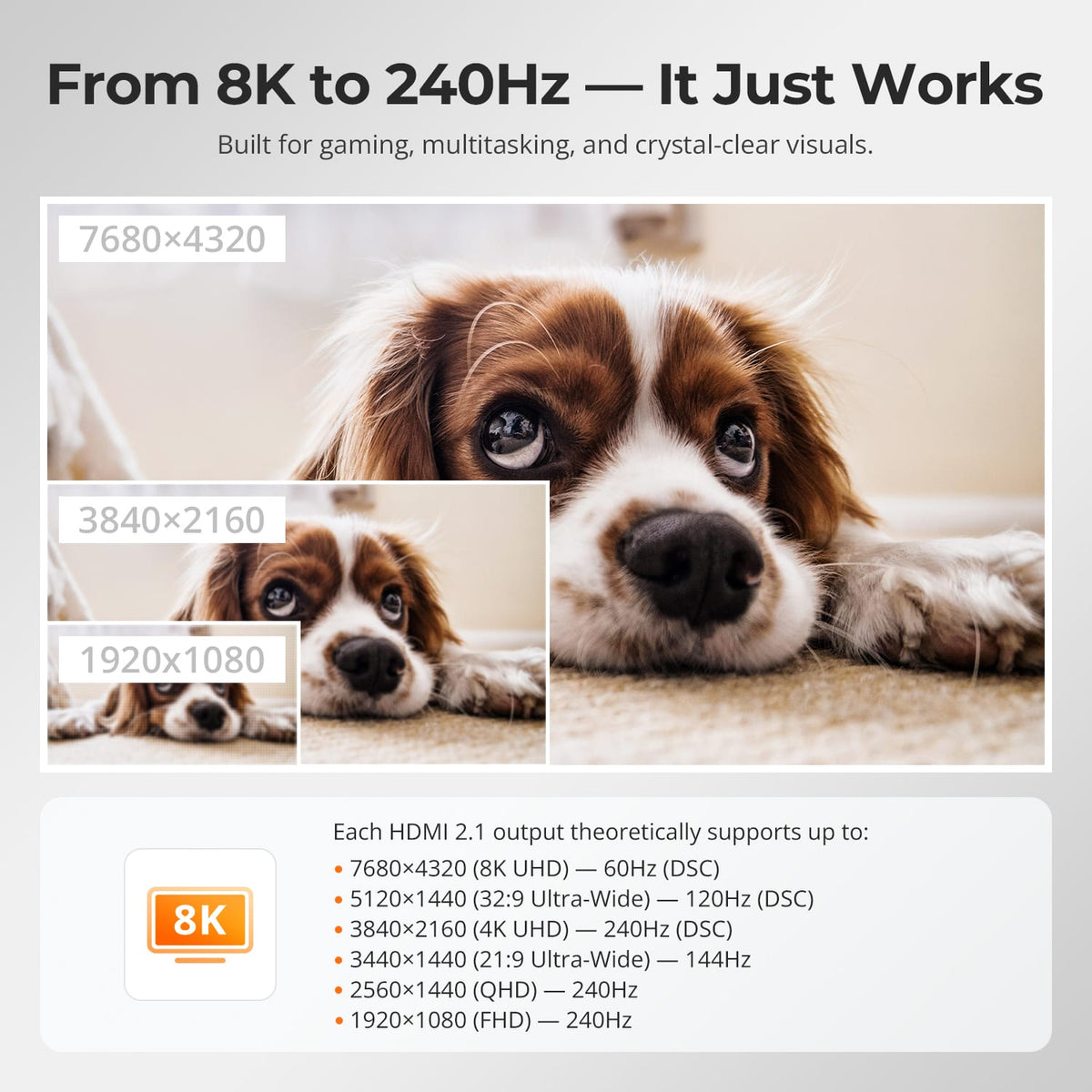
From 8K60 to 240Hz
Each HDMI 2.1 output supports resolutions up to 8K@60Hz with DSC, plus high-refresh options such as 5120×1440@120Hz, 4K@240Hz, 3440×1440@144Hz, 1440p@240Hz and 1080p@240Hz. The complete source-to-display chain must support the selected mode.
05
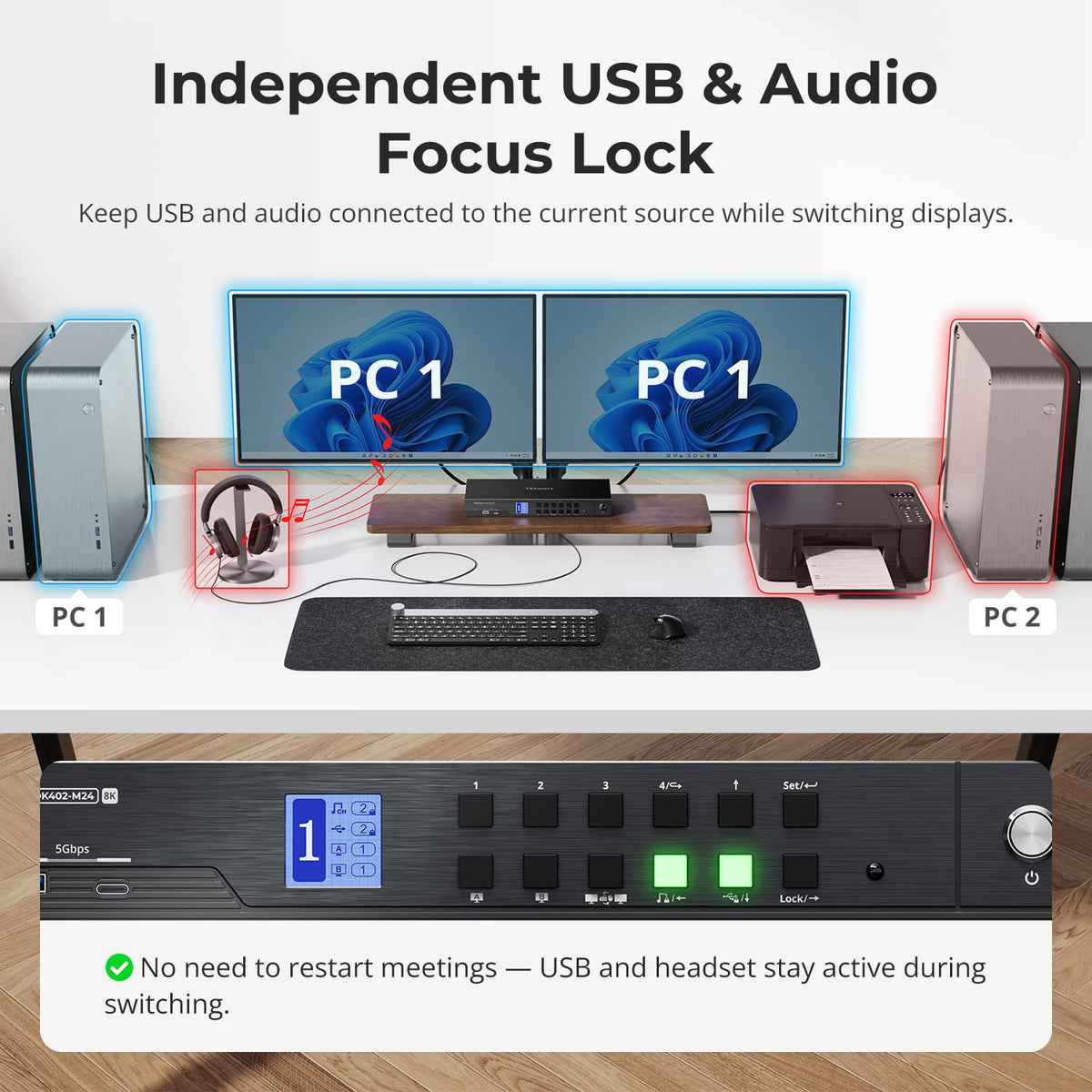
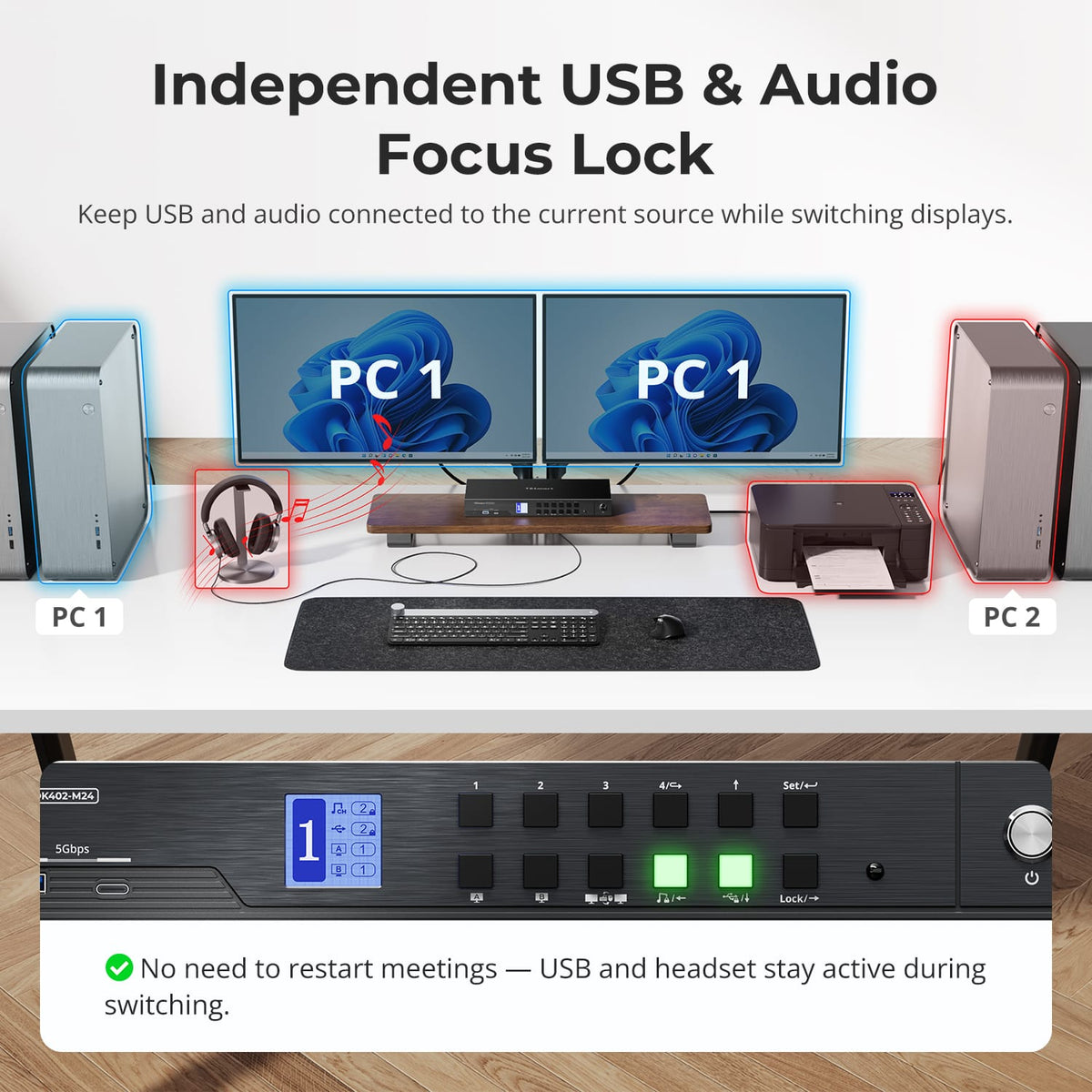
Keep USB & Audio on the Computer You Choose
Lock USB devices or audio to the current computer while switching displays and keyboard and mouse control elsewhere. The two locks work independently and remain set after restart, which helps calls, recordings and transfers continue without interruption.
06
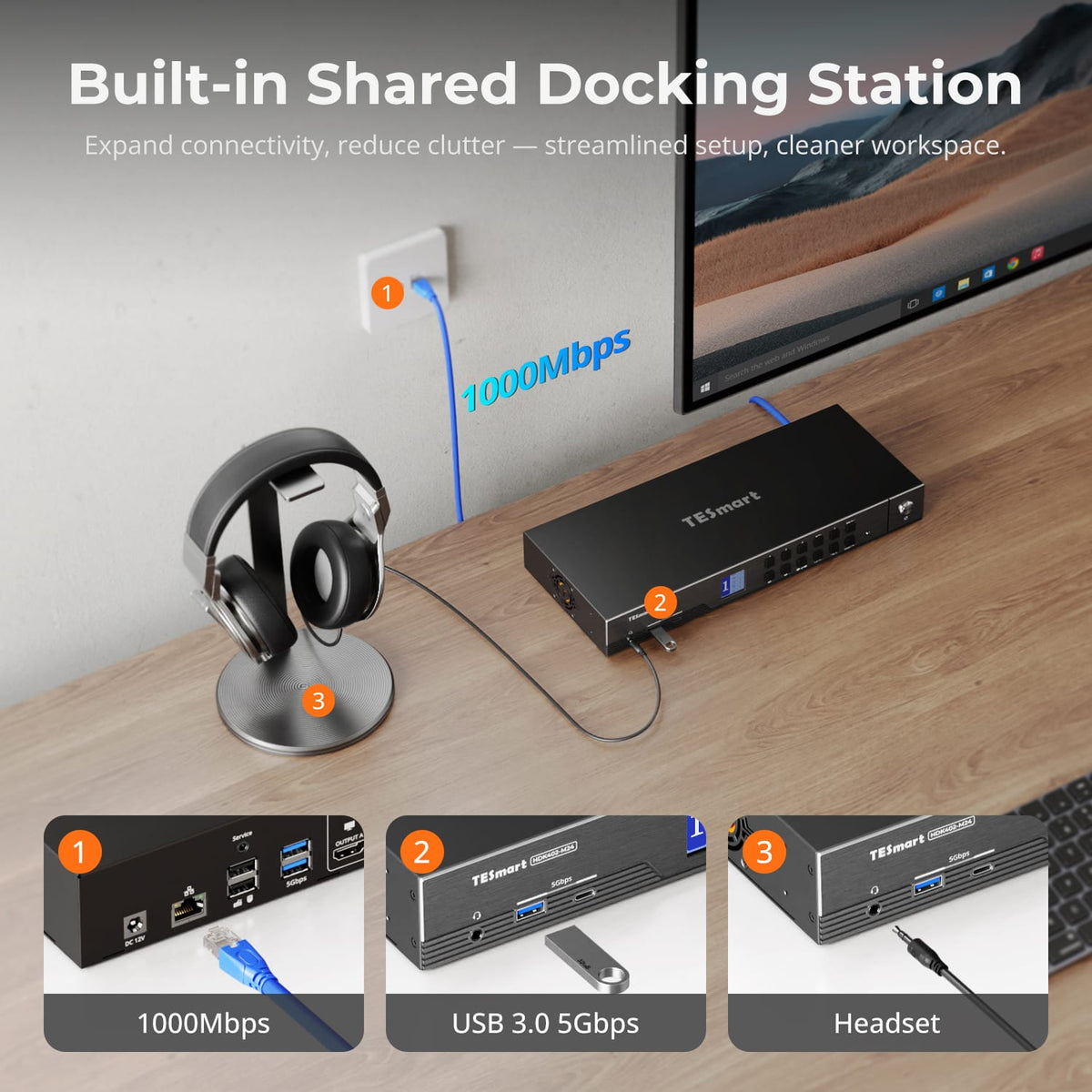
A Shared Dock for Four Computers
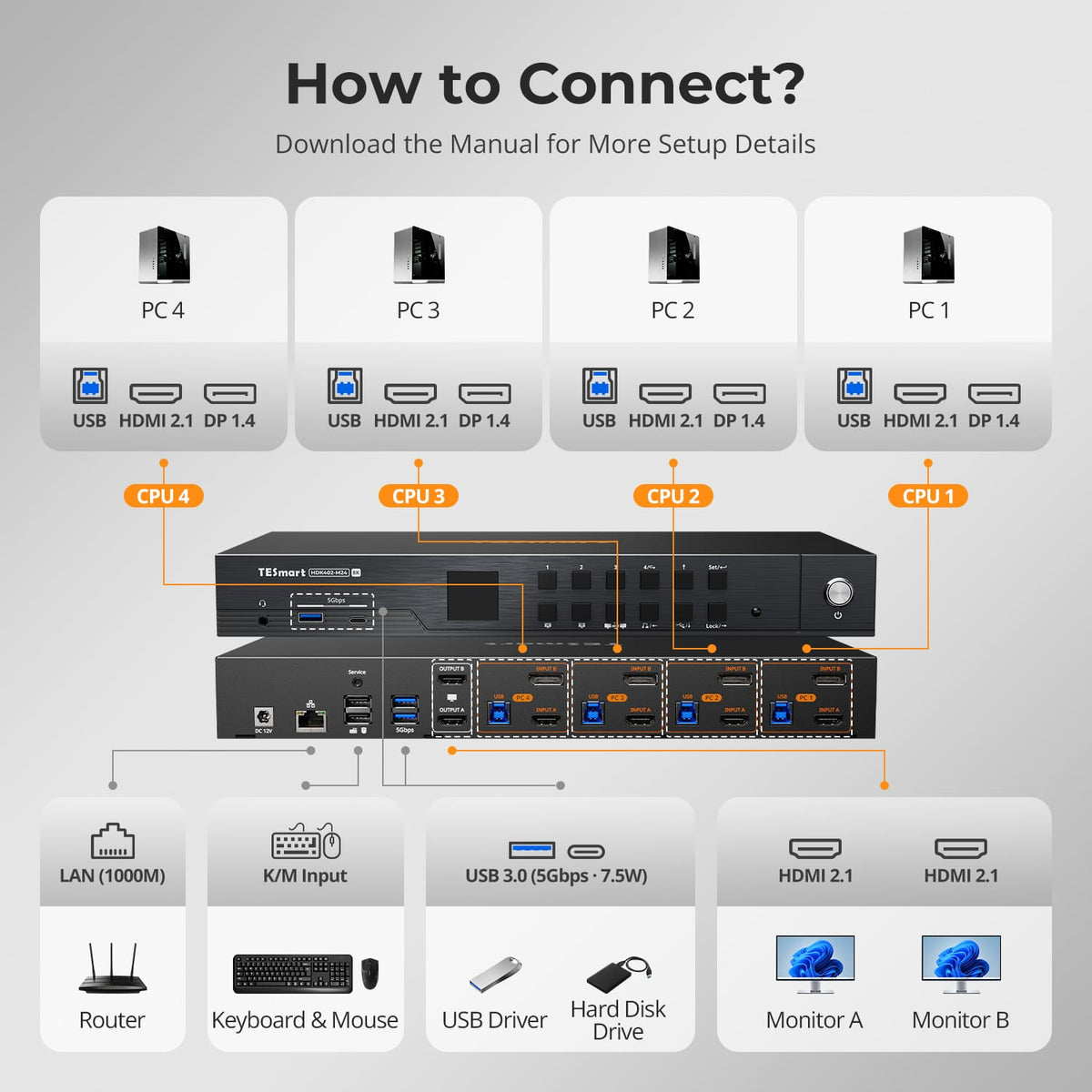
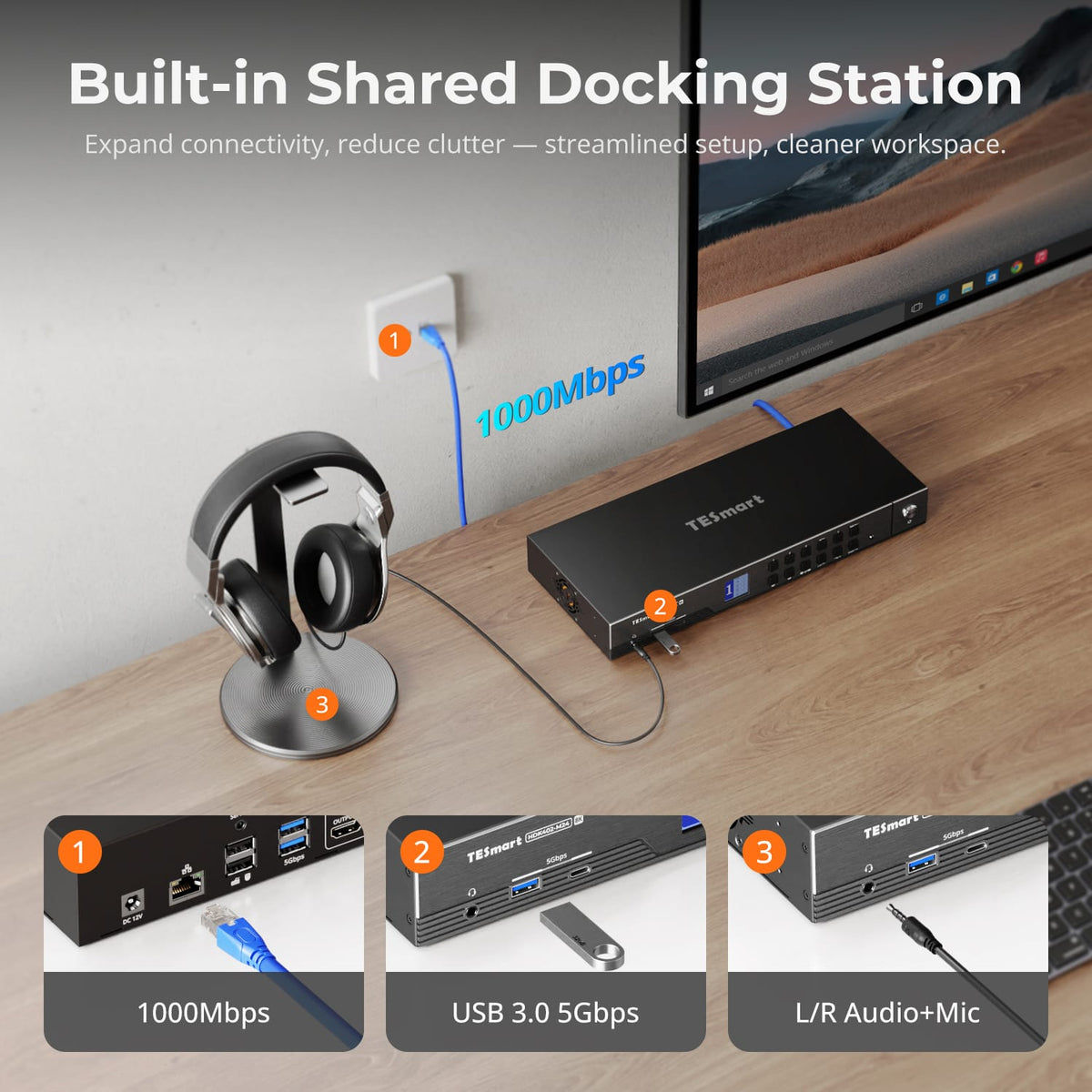
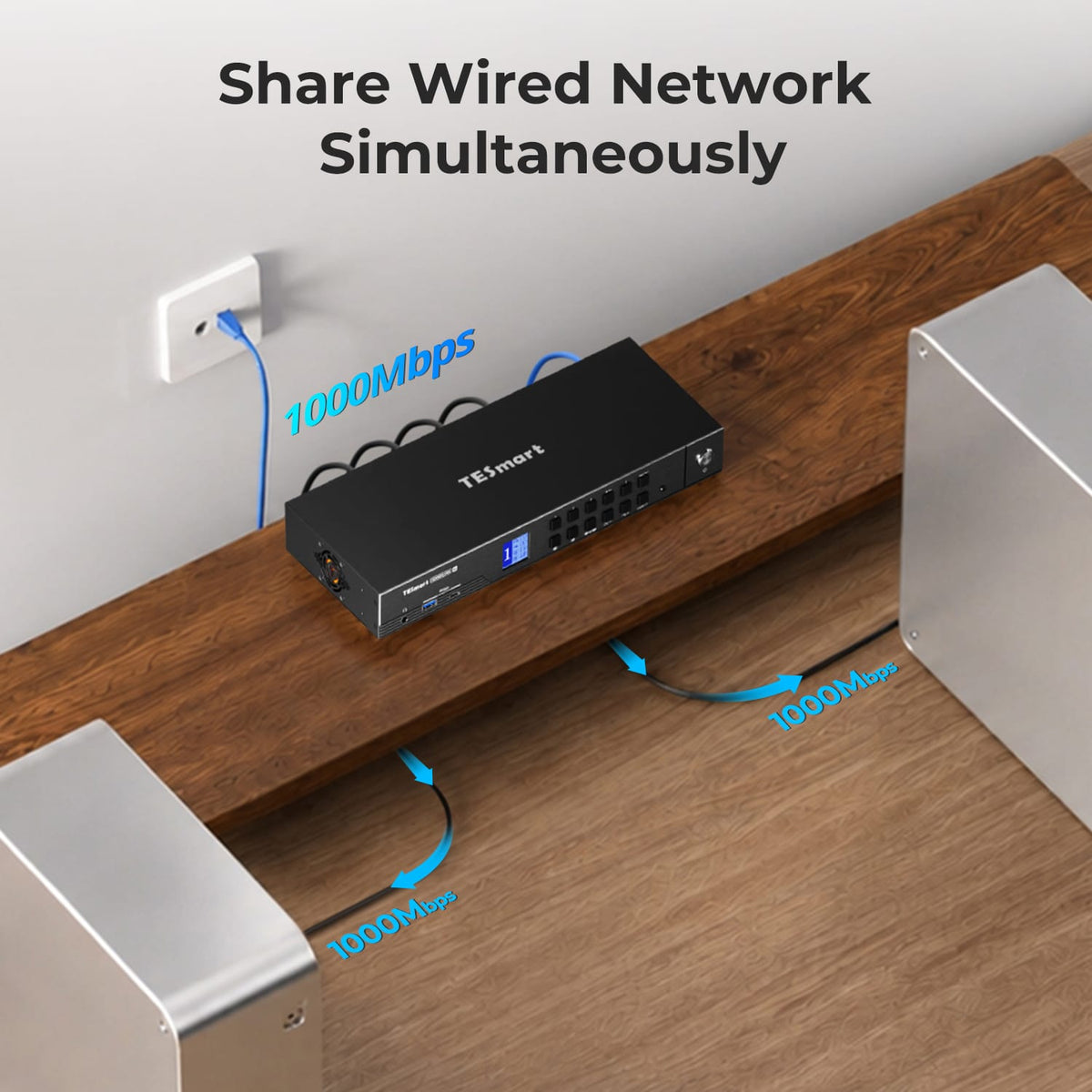
Share USB 3.2 Gen 1 devices, Gigabit Ethernet and a 3.5mm headset connection across the workstation. The built-in connections reduce the need for separate USB, network and audio switches.

07
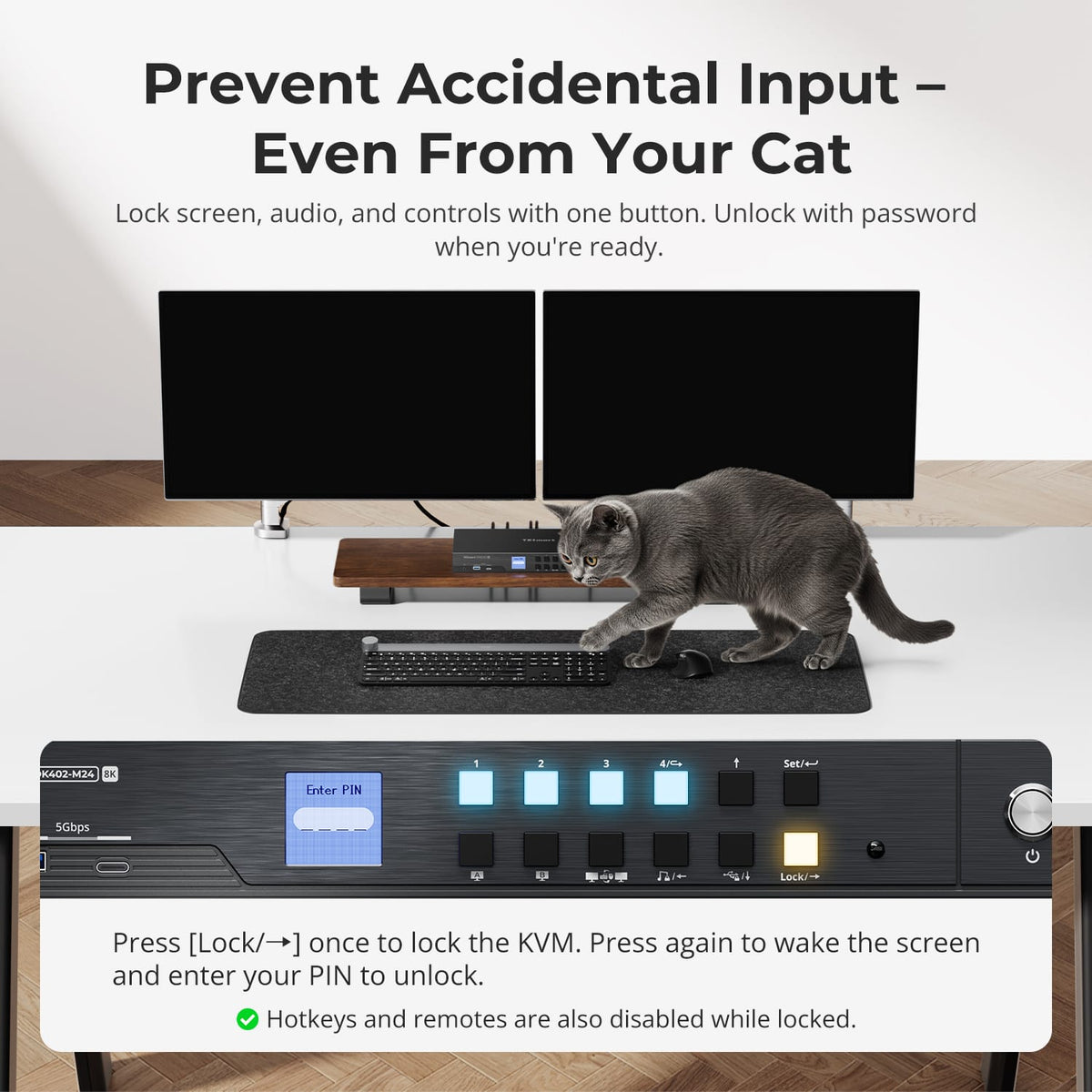
Lock the Workstation with One Button
Lock the WorkstatioThe front-panel Lock control turns off both displays and disables USB, audio, hotkeys and IR control. Press it again and enter the configured PIN to restore access.n with One Button
08

09
10
Specifications & Support
Compatibility & Input Guide
Technical Specifications
Manuals & Downloads
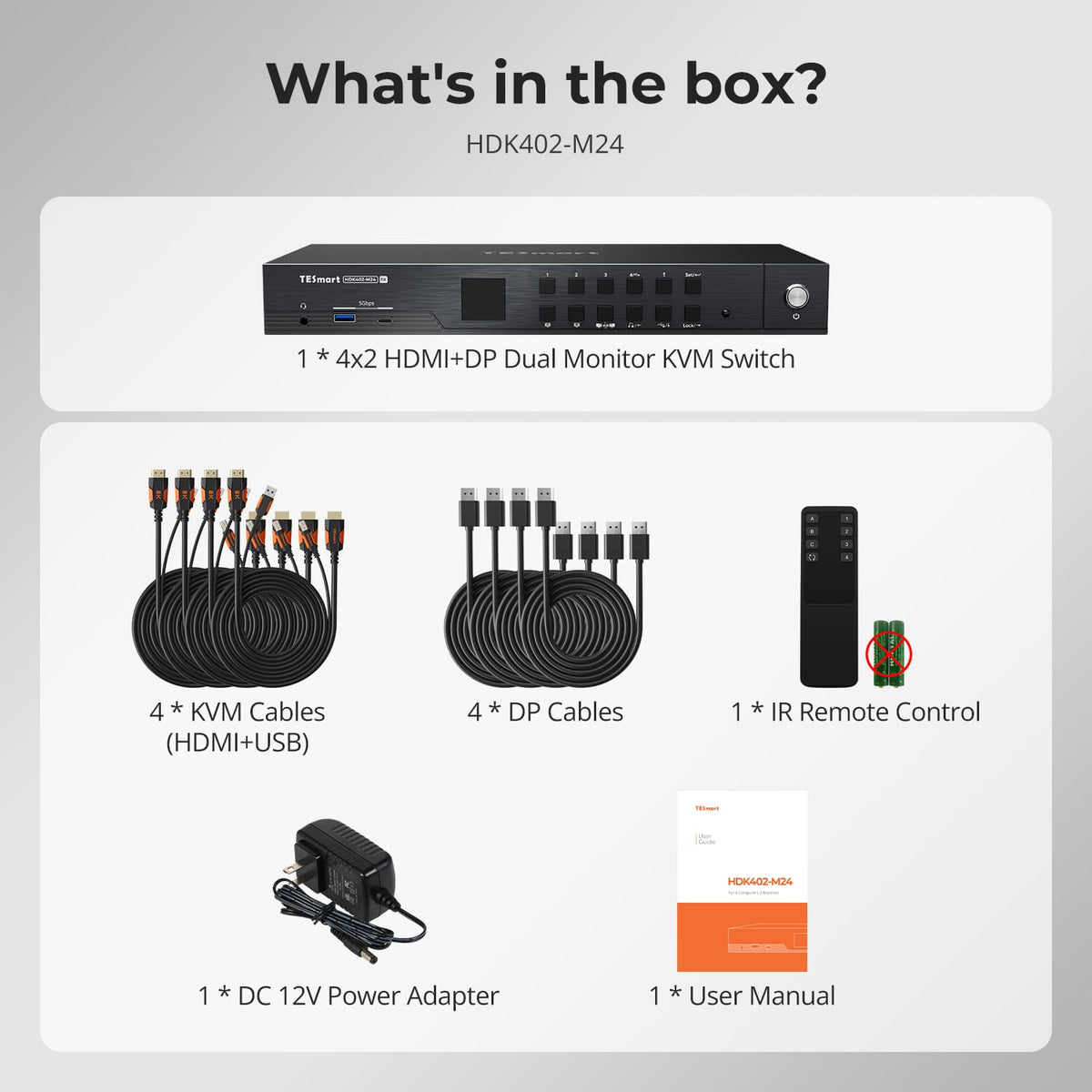
Included in the Box
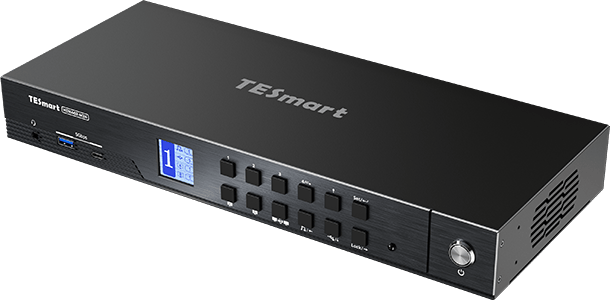
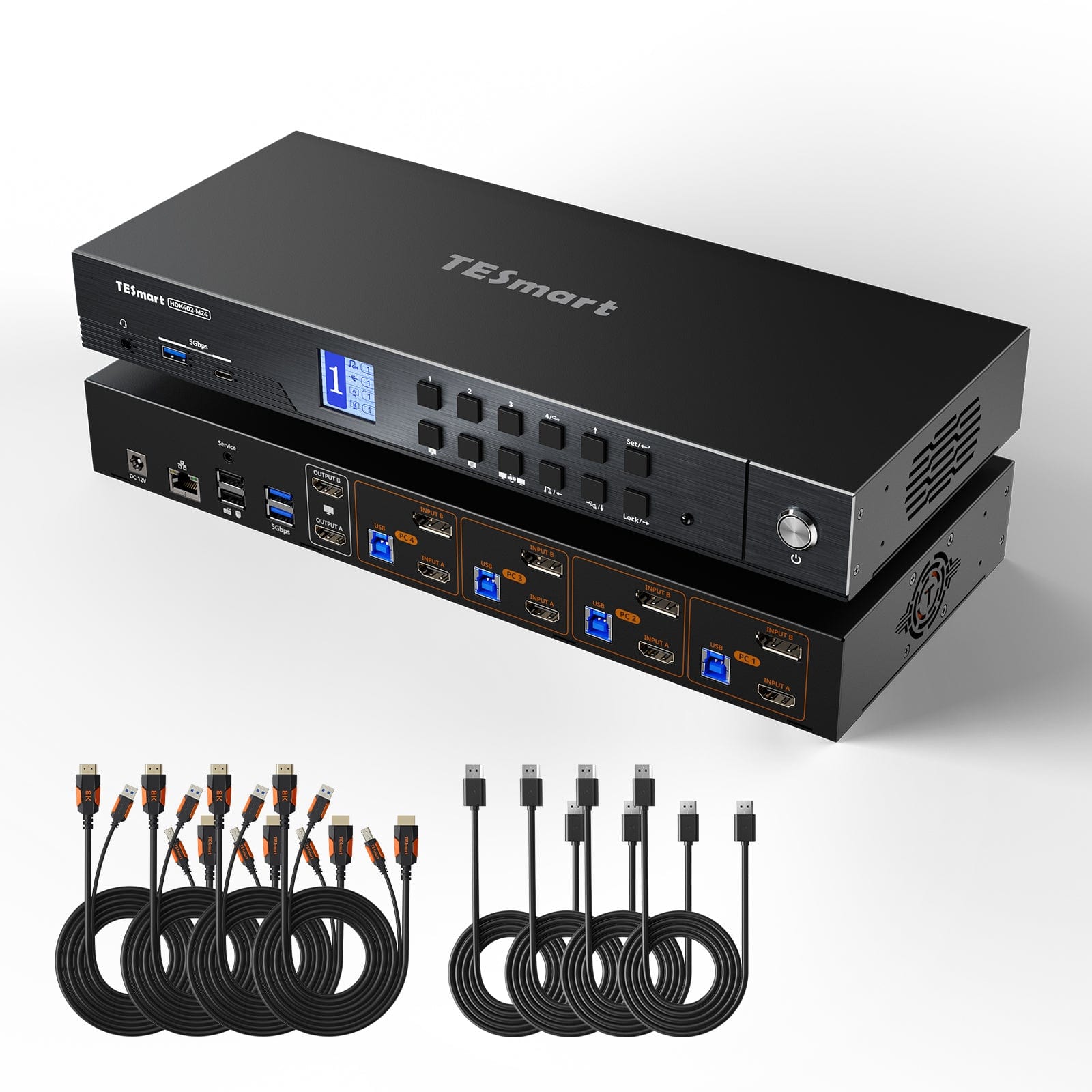
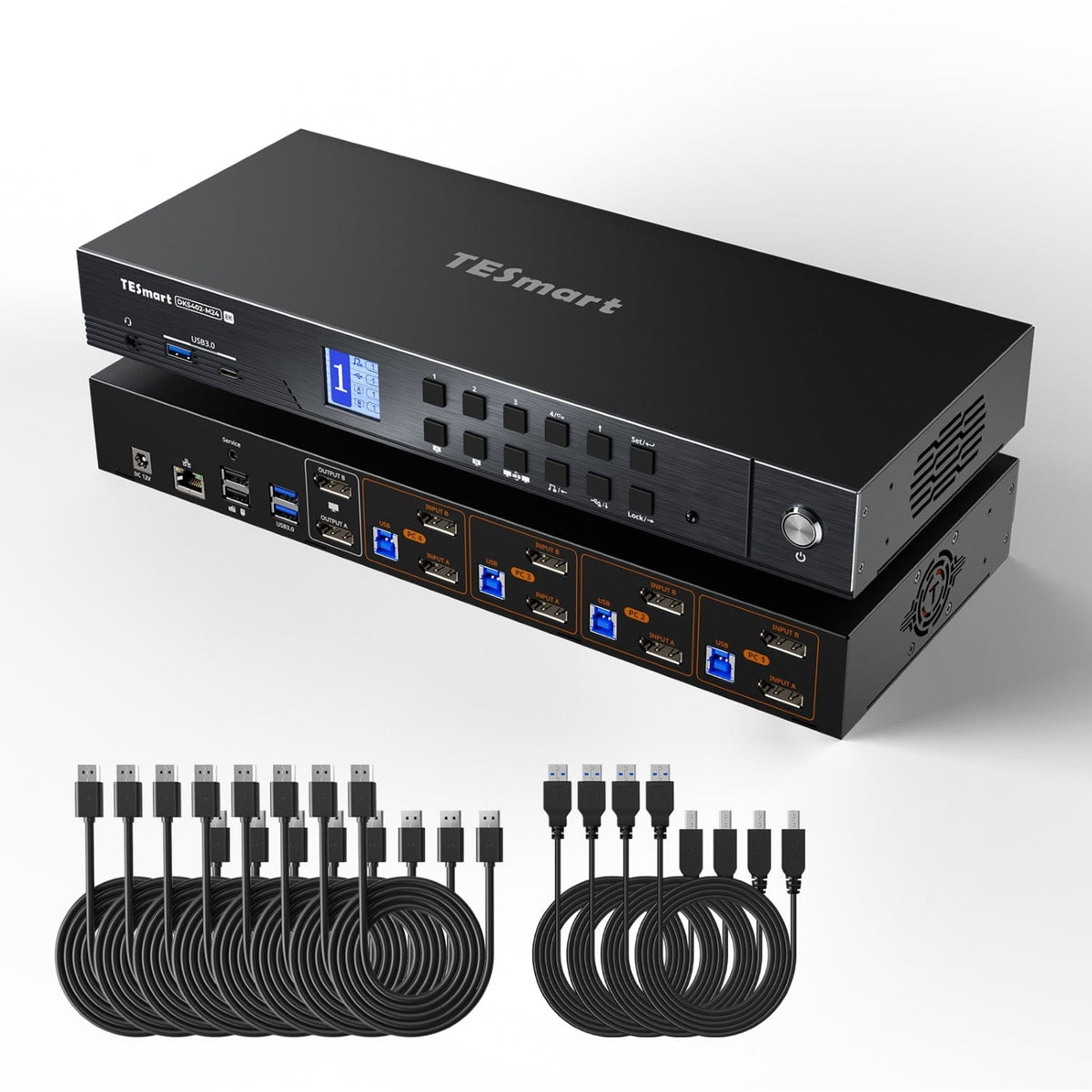
1 × HDK402-M24 KVM Switch
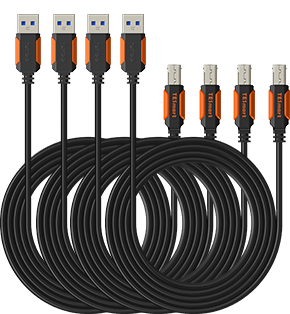
4 × KVM Cables (HDMI + USB)
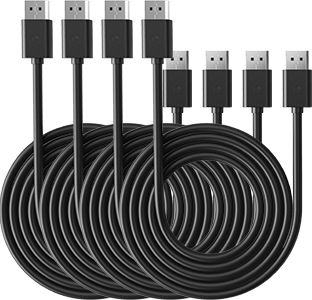
4 × DisplayPort 1.4 Cables
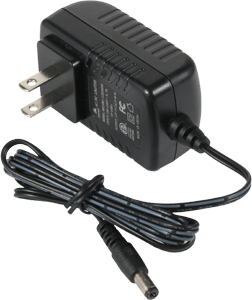
1 × 12 V DC Power Adapter
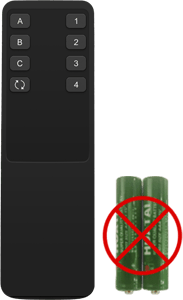
1 × IR Remote Control
1 × User Manual
Compare your options
Choose models from the menus to compare connections, display performance and shared features.
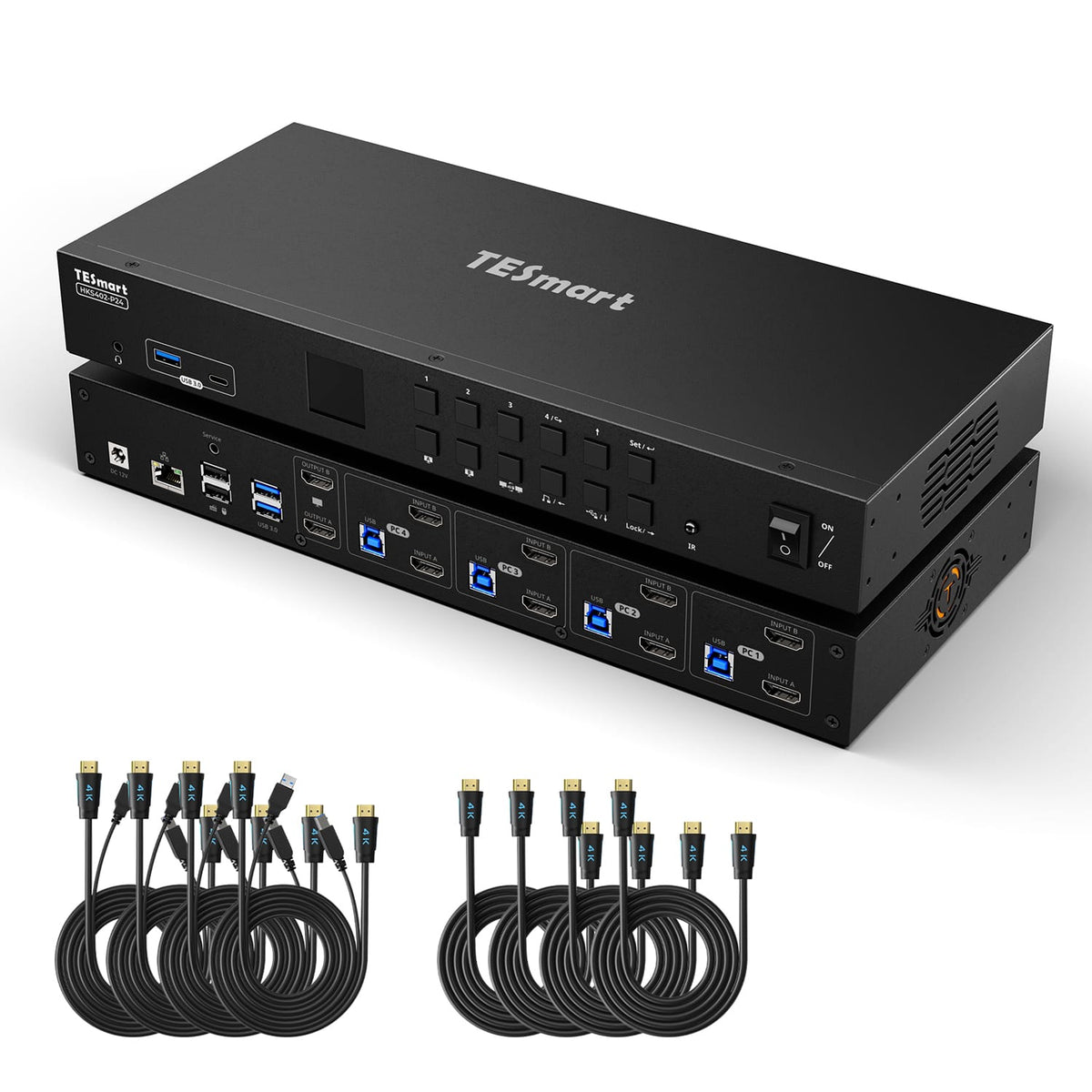
Model
HDK402-M24
Model
DKS402-M24
Model
HKS402-P24
Computer setup
4 computers
Computer setup
4 computers
Computer setup
4 computers
Computer connections
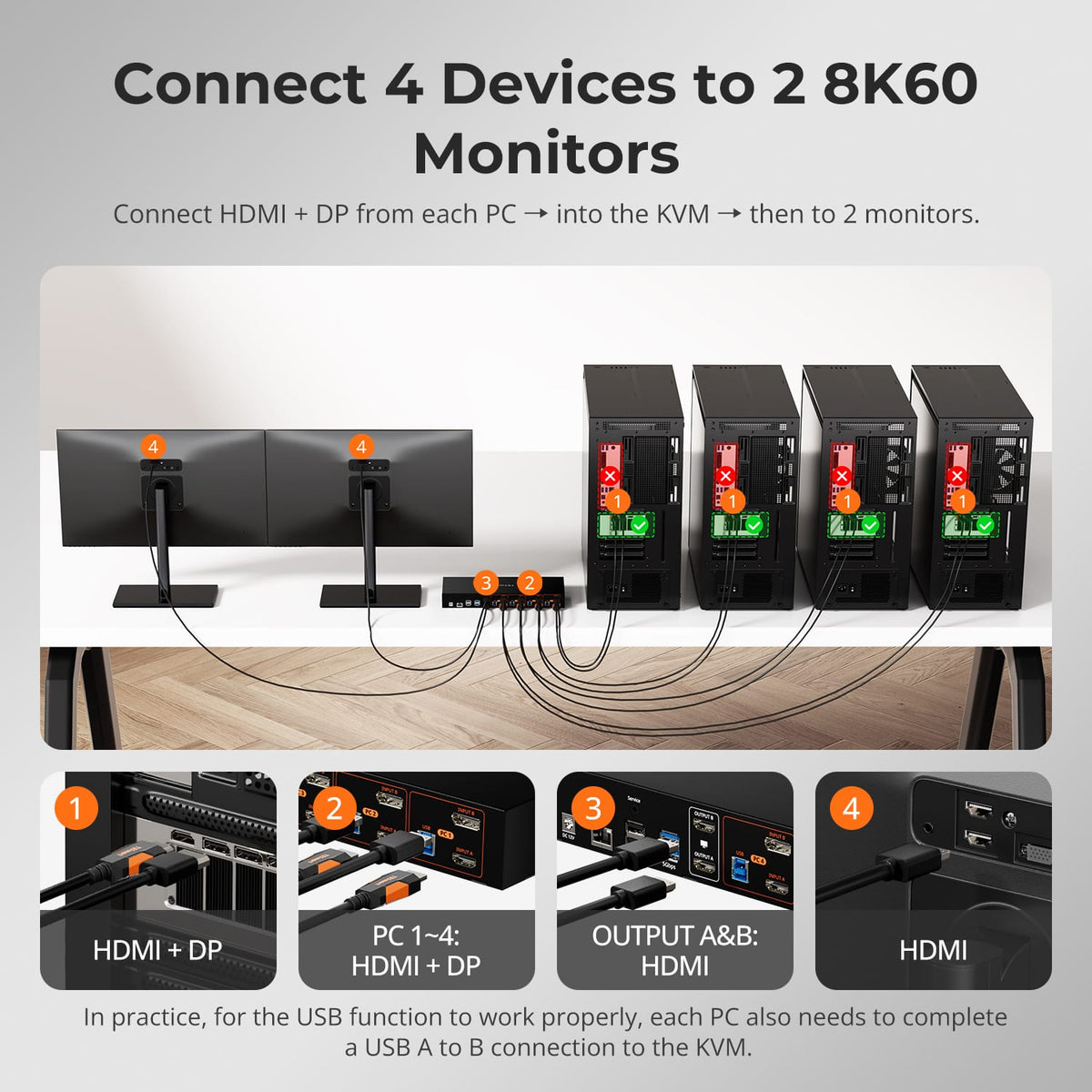
Each PC: HDMI + DisplayPort + USB
Computer connections
Each PC: 2 × DisplayPort + USB
Computer connections
Each PC: 2 × HDMI + USB
Display outputs
2 × HDMI
Display outputs
2 × DisplayPort
Display outputs
2 × HDMI
Video output
8K60 / 4K144
Video output
8K60 / 4K144
Video output
4K60
Shared USB
USB 3.0 / 5Gbps
Shared USB
USB 3.0 / 5Gbps
Shared USB
USB 3.0 / 5Gbps
Laptop charging
Laptop charging
Laptop charging
Shared Ethernet
1000Mbps
Shared Ethernet
1000Mbps
Shared Ethernet
1000Mbps
EDID emulation
EDID emulation
EDID emulation
Multi-display setup
Separate video outputs from each computer
Multi-display setup
Separate video outputs from each computer
Multi-display setup
Separate video outputs from each computer
Display requirements
Each computer must drive 2 displays
Display requirements
Each computer must drive 2 displays
Display requirements
Each computer must drive 2 displays
FAQ's
Visit our Help Center for more answers.
[Compatibility] Does the KVM support Mac and Windows environments?
Yes. HDK402-M24 supports Windows, macOS, Unix, Raspberry Pi OS, and Linux distributions including Debian, Ubuntu, Fedora, and Raspbian. Video and USB switching use standard HDMI, DisplayPort, and USB connections.
[Compatibility] What resolutions and refresh rates are supported?
The listed maximum is 7680×4320@60Hz with DSC. Other listed modes include 5120×1440@120Hz with DSC, 3840×2160@240Hz with DSC, 3440×1440@144Hz, 2560×1440@240Hz, and 1920×1080@240Hz.
[Compatibility] Does this KVM switch support Dolby Vision?
Yes. HDK402-M24 supports Dolby Vision. The source, content, displays, and cables must also support and enable it.
[Compatibility] My monitor supports Adaptive-Sync. Is it compatible with this KVM switch?
Yes. HDK402-M24 supports HDMI 2.1 VRR and is compatible with G-Sync and FreeSync. The source, displays, and cables must also support the selected feature.
[Features & Connections] How can I use the two monitors?
Use both monitors with one computer in extended or mirrored mode, or display two computers side by side with one on each monitor. The source computer controls extended and mirrored desktop settings.
[Features & Connections] What does EDID emulation do?
It keeps display information available to connected computers during switching, helping reduce screen flicker, resolution resets, window movement, and desktop icon rearrangement.
[Features & Connections] How can I switch USB peripherals or an audio device independently?
Switch to the target computer, then press the USB or audio lock button. Press the same button again to unlock it. Dedicated keyboard and mouse ports cannot be locked, and video switching remains available.
[Features & Connections] Why can't my computer use Wi-Fi after connecting to the KVM Switch?
The computer may prioritize the KVM's built-in wired network adapter. Press Right Ctrl twice, then F4 for the selected computer, or disable Realtek USB GbE Family Controller in the operating system.
[Features & Connections] What should I do if the fan produces noise after it turns on?
Early firmware may run the fan continuously at high speed under heavy load or high temperatures. Contact TESmart Support for the optimized firmware, which adds updated temperature thresholds and additional fan modes.
[Features & Connections] Why is my audio device not working?
Confirm that the computer's USB-A-to-USB-B connection is secure. Select USB Audio for the 3.5mm output or the appropriate USB audio device; if the 3.5mm output remains unavailable, use a USB sound card.
[Features & Connections] Does the KVM Switch support firmware upgrades?
Yes. Firmware updates may address specific issues or improve compatibility. Only install firmware supplied for HDK402-M24, and contact TESmart Support for the correct file and instructions.
[Setup & Switching] Why are my keyboard and mouse not working properly?
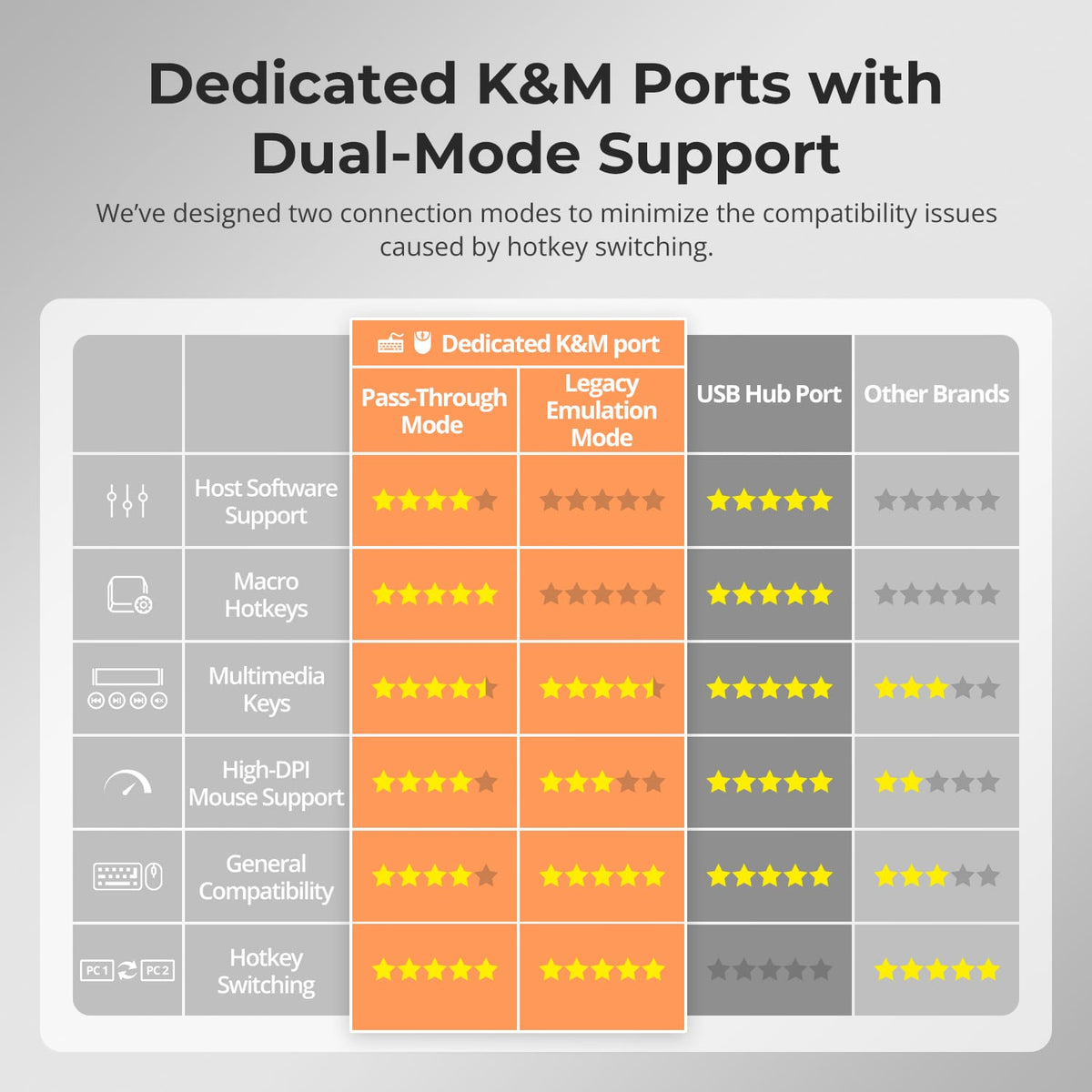
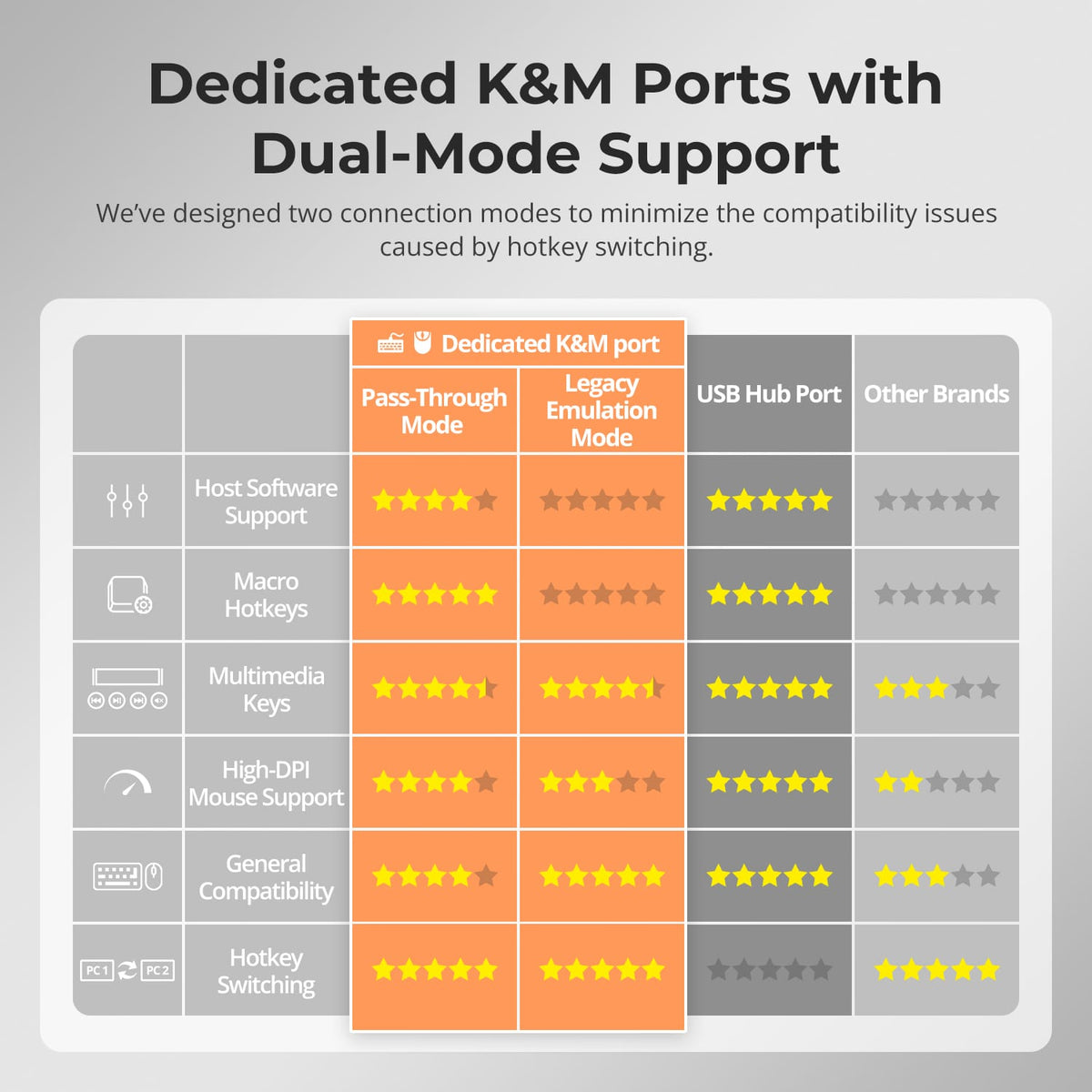
If hotkeys still work, press Right Ctrl twice, then F2 to switch to Legacy Emulation Mode. If hotkeys do not respond or the problem continues, contact TESmart Support.
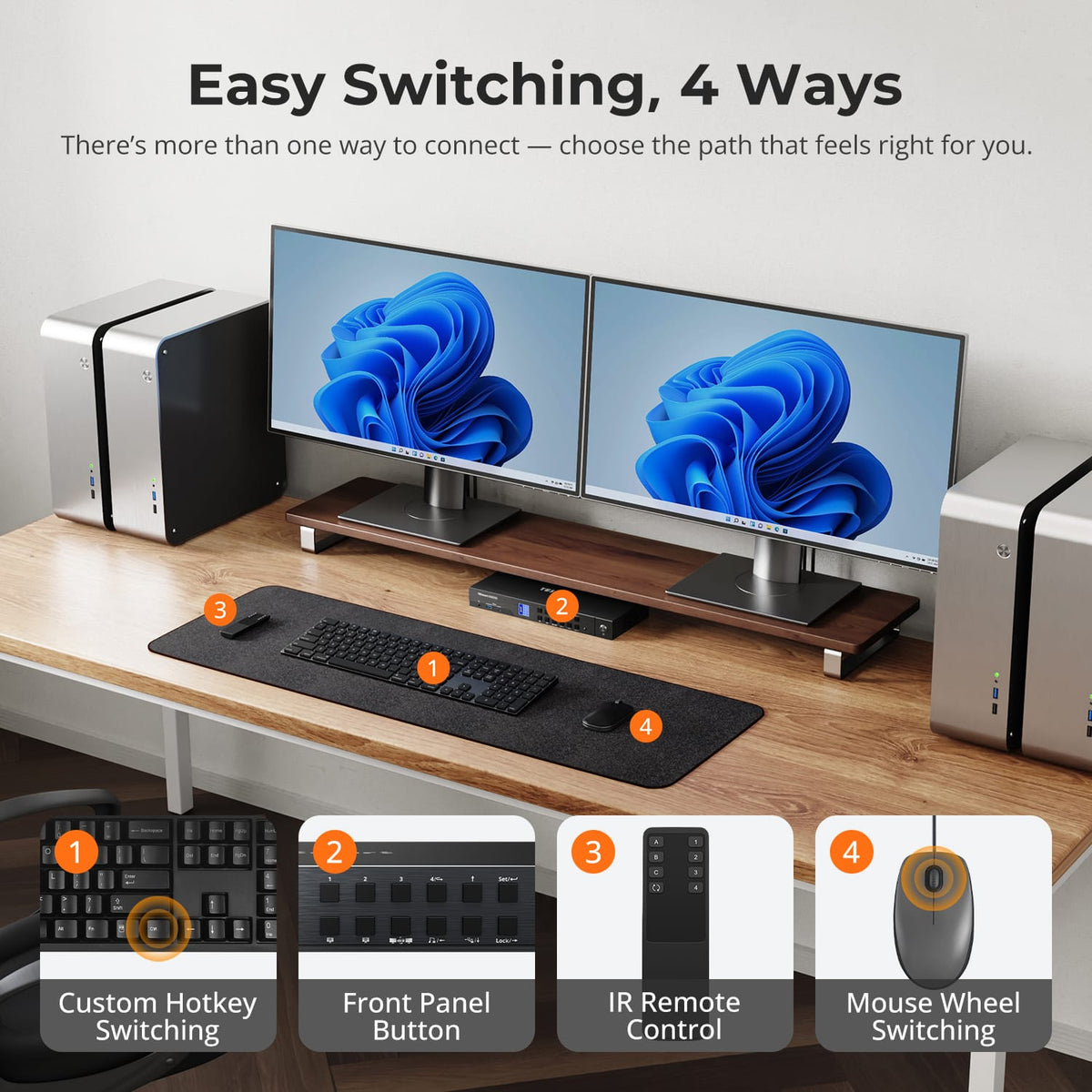
[Setup & Switching] How can I switch between computers?
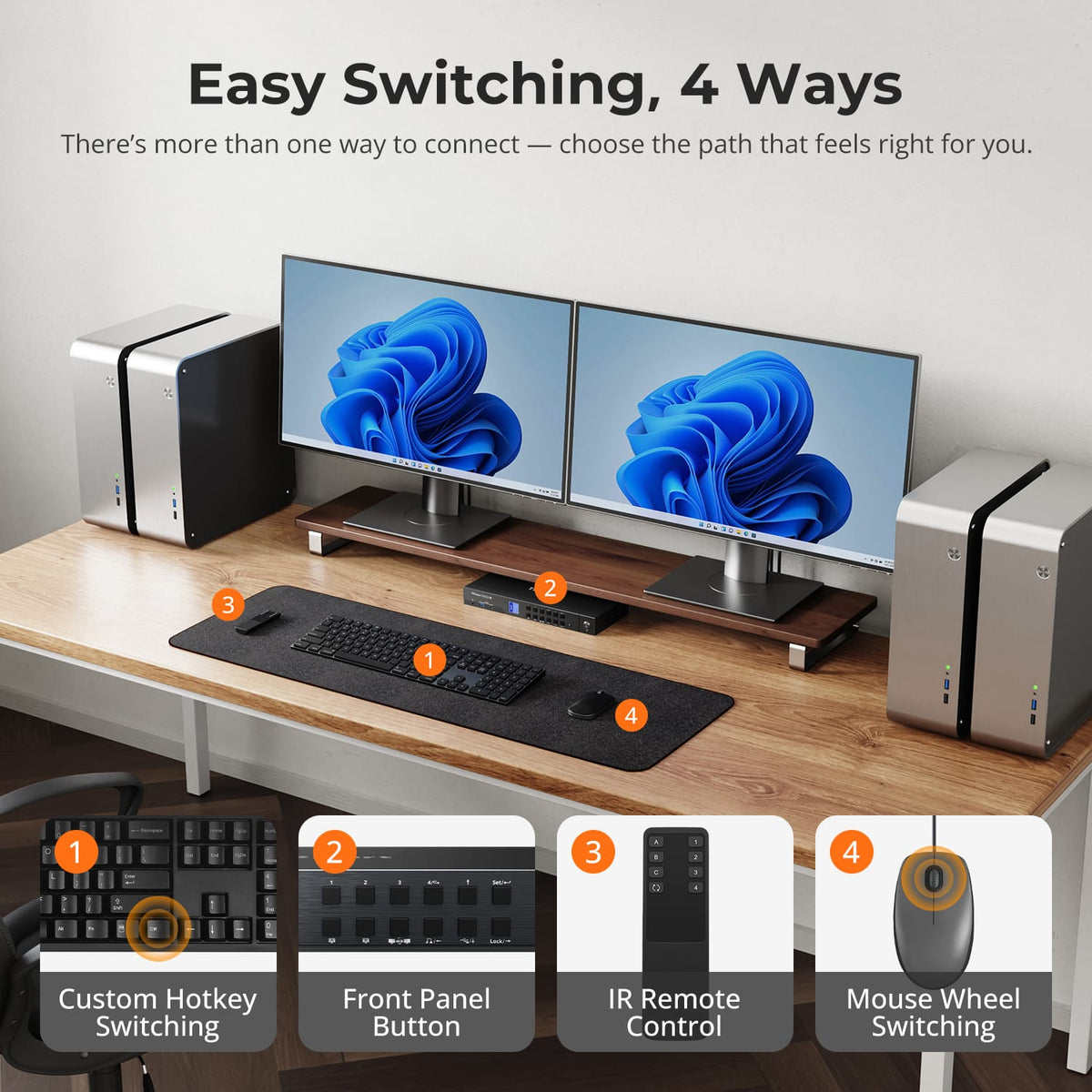
Use the front-panel controls, IR remote, keyboard hotkeys, or mouse wheel. Mouse-wheel switching is disabled by default and must be enabled before use.
[Setup & Switching] How do I adjust the fan speed?
Press Right Ctrl twice, then F3. The supplied FAQ documents three modes on standard firmware—Off, High, and Automatic, with Automatic as default—while optimized firmware provides four fan modes.
[Setup & Switching] Why are my keyboard and mouse not working properly?
If hotkeys still work, press Right Ctrl twice, then F2 to switch to Legacy Emulation Mode. If hotkeys do not respond or the problem continues, contact TESmart Support.