

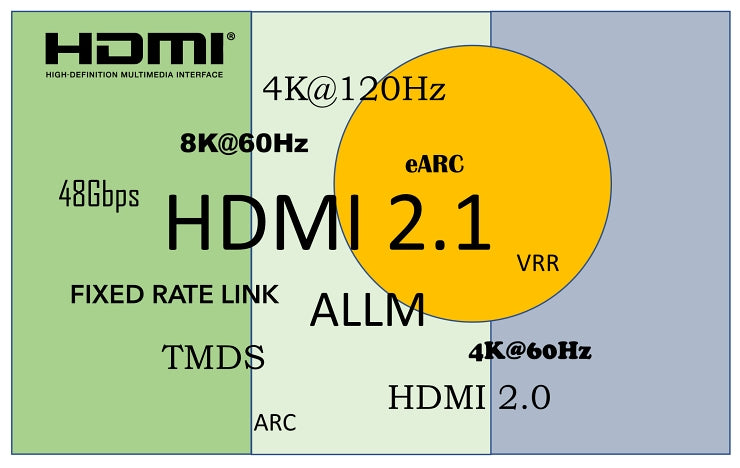
A gaming monitor may support 4K 144Hz or 4K 240Hz when connected directly to a graphics card, but choosing a KVM is not only a bandwidth question. The KVM must also match the number of computers, the number of monitors, the available video outputs on every computer, and the exact features used by the display.
The practical goal is not to find a product with the longest specification list. It is to choose an HDMI 2.1 KVM switch that fits the workstation structure and can carry the intended combination of resolution, refresh rate, color depth, HDR, VRR, and DSC through the complete signal chain.
Table of Contents
- Quick Answer: Which HDMI 2.1 KVM Do You Need?
- Choose by Computer and Monitor Count
- Can HDMI 2.1 Support 4K 120Hz, 144Hz or 240Hz?
- When 4K 240Hz Requires DSC
- VRR, HDR, ALLM and EDID Compatibility
- Single-Monitor vs. Dual-Monitor Connections
- TESmart HDMI 2.1 KVM Model Comparison
- Pre-Purchase Compatibility Checklist
- FAQ
- Conclusion
Quick Answer: Which HDMI 2.1 KVM Do You Need?
Start with the desk layout. Resolution support only matters after the computer count, monitor count, and video-port structure match.
| Setup | TESmart Model | Key Requirement |
|---|---|---|
| 2 computers, 1 HDMI monitor | HKS201-M24 | Each computer provides one HDMI video output and one USB connection. |
| 2 computers, 2 HDMI monitors | HKS202-M24 | Each computer normally provides two independent HDMI video outputs. |
| 4 computers, 1 HDMI monitor | HKS401-M24 | This is a single-monitor model; it does not create a dual-monitor desktop. |
| 2 computers, 2 monitors, with HDMI + DisplayPort outputs from each PC | HDK202-M24 | Each computer supplies one HDMI and one DisplayPort signal; the monitor-side outputs are HDMI. |
For 4K 120Hz or 144Hz, verify the exact HDMI modes supported by the GPU and monitor, not just the interface version. For 4K 240Hz, check whether the mode uses Display Stream Compression (DSC) and whether the GPU, KVM, monitor, cables, firmware, and display settings can negotiate the same mode.
Choose by Computer and Monitor Count
A KVM routes existing video signals. It does not normally create additional display outputs. This distinction is especially important in dual-monitor setups.
Two Computers and One Monitor
A 2×1 HDMI KVM is the direct fit when two computers share one display, keyboard, mouse, and selected USB devices. Each computer needs one usable HDMI output. This layout is easier to validate because only one display path from each computer passes through the KVM.
This setup makes sense for a gaming PC and work computer sharing one high-refresh monitor. A second display can remain connected outside the KVM, but it will not switch as part of the shared KVM path.
Two Computers and Two Monitors
A 2×2 dual-monitor KVM routes two video paths from each computer to two shared monitors. For an extended desktop, each computer normally needs two independent display signals. Across two computers, that means four host-side video connections before the two KVM-to-monitor cables are counted.
A laptop with one HDMI port does not automatically have the outputs required for this layout. It may need a compatible USB-C video adapter or dock, and the laptop must support the intended number of external displays at the target resolution and refresh rate.
Four Computers and One Monitor
A 4×1 KVM is more appropriate than combining a small KVM with a separate HDMI switch. The 4×1 design keeps video, keyboard, mouse, and shared USB control within the same switching workflow. It is intended for users moving among several PCs or test systems on one monitor.

Can HDMI 2.1 Support 4K 120Hz, 144Hz or 240Hz?
HDMI 2.1 system configurations can support higher bandwidth and features such as VRR and ALLM, but the version label does not describe every capability of a specific port. A source or monitor may expose only a subset of modes, and some monitors reserve their highest refresh rate for DisplayPort or for a specific HDMI input.
| Target Mode | What to Confirm | Why It May Fail |
|---|---|---|
| 4K 120Hz | GPU HDMI output, monitor HDMI input, KVM supported-mode table, HDR/color-depth settings, and Ultra High Speed HDMI cables. | A lower-bandwidth port, cable, adapter, or monitor input can limit the chain to 4K 60Hz. |
| 4K 144Hz | Whether the monitor supports 144Hz over HDMI, plus the required color format, VRR range, and any DSC requirement. | The display may support 144Hz only over DisplayPort, or it may reduce color depth or refresh rate under certain settings. |
| 4K 240Hz | DSC support, monitor firmware, GPU driver, EDID reporting, VRR/HDR behavior, and the KVM’s specific resolution table. | The 240Hz option may disappear when one device cannot negotiate the same DSC or display mode. |
Do not treat “supports 8K” as proof that every 4K high-refresh configuration will work. Resolution, refresh rate, color depth, chroma format, HDR, and compression all change the data carried by the link. Use the exact mode listed by the GPU, KVM, and monitor manufacturers.
When 4K 240Hz Requires DSC
Display Stream Compression (DSC) is a visually lossless, low-latency compression method used to transport high-resolution, high-refresh video within available link bandwidth. For a KVM user, the important issue is interoperability: the source, KVM, and monitor must agree on a compatible DSC mode.
The supported-resolution tables for the HKS202-M24 and HDK202-M24 list 3840×2160 at 240Hz as a DSC mode. This should be read as a supported path under compatible conditions, not as a guarantee for every GPU and monitor combination.
Before purchasing for 4K 240Hz, confirm all of the following:
- The GPU supports DSC over the selected output.
- The monitor supports 4K 240Hz on the selected HDMI input.
- The KVM lists the exact mode and compression requirement.
- The monitor firmware and GPU driver are current.
- The cables are appropriate for the intended HDMI 2.1 system configuration.
During initial setup, test the target refresh rate with HDR and VRR disabled. Then enable one feature at a time. This separates a basic mode-negotiation problem from an HDR, VRR, color-depth, or DSC interaction.
For OLED-specific 4K 240Hz and HDR/VRR considerations, use the dedicated OLED gaming monitor KVM guide rather than treating every 240Hz display as the same workload.

VRR, HDR, ALLM and EDID Compatibility
These features solve different problems. They should not be grouped together as a general promise of “gaming performance.”
| Feature | What It Does | What It Means for KVM Selection |
|---|---|---|
| VRR | Allows the display refresh timing to follow the frame delivery rate from the source. | The GPU, KVM, monitor, and selected mode must support compatible VRR behavior. |
| HDR | Adds higher dynamic-range and color requirements to the video mode. | HDR may change color depth and bandwidth requirements, so test it after the base refresh rate is stable. |
| ALLM | Signals a compatible display to use a low-latency picture mode. | ALLM does not determine how quickly a KVM changes from one computer to another. |
| EDID | Communicates display identity and supported modes to the computer. | EDID emulation can help maintain display recognition, but it cannot eliminate every HDCP, link-training, DSC, or monitor-resynchronization event. |
For a deeper explanation of display continuity, window movement, and monitor rediscovery, see EDID Emulation Explained. For refresh-rate drops, flicker, or no-signal diagnosis, use the separate KVM refresh-rate troubleshooting guide.
Single-Monitor vs. Dual-Monitor Connections
The difference is not only the number of displays on the desk. It changes how many independent video paths every computer must provide.
| Connection | Single-Monitor KVM | Dual-Monitor KVM |
|---|---|---|
| Video from Computer 1 | One video signal | Two independent video signals |
| Video from Computer 2 | One video signal | Two independent video signals |
| KVM to monitors | One output cable | Two output cables |
| Extended desktop | Not applicable within the shared path | Requires both computers to support two external displays |
For desktop PCs, two GPU outputs are usually straightforward to identify. For laptops, check the processor and GPU display limit, the port specification, and the dock or adapter architecture. A USB-C connector alone does not prove that the laptop can supply two independent 4K high-refresh signals.
Mac users should also confirm the external-display limits of the exact Mac model. Many Macs do not provide native DisplayPort connectors, so a mixed HDMI/DisplayPort KVM may require USB-C-to-DisplayPort conversion on the Mac side.
TESmart HDMI 2.1 KVM Model Comparison
HKS201-M24: Two Computers, One HDMI Monitor
The HKS201-M24 is more suitable for a gaming and work desk built around one shared HDMI monitor. It combines a 2×1 layout with EDID emulation, shared USB connectivity, and a built-in Gigabit network connection. It avoids the extra cabling and unused display path of a dual-monitor model.
HKS202-M24: Two Computers, Two HDMI Monitors
The HKS202-M24 fits users whose two computers can each provide two HDMI signals. It is intended for dual-monitor gaming and workstation layouts that need both displays, keyboard, mouse, and USB devices to follow the selected computer.
Its product page lists dual 4K 144Hz-class operation and also lists 4K 240Hz as a DSC mode. The actual result still depends on the selected monitor inputs and the complete chain. Users with only one video output from a laptop should solve that output limitation before choosing a 2×2 KVM.
HKS401-M24: Four Computers, One HDMI Monitor
The HKS401-M24 is designed for one high-resolution monitor shared by up to four computers. It makes more sense for a gaming PC, work PC, test system, and another HDMI source than a dual-monitor product with unused outputs.
HDK202-M24: Mixed HDMI and DisplayPort Host Outputs
The HDK202-M24 is more suitable when each desktop PC naturally provides one HDMI output and one DisplayPort output. The KVM accepts the mixed host-side interfaces and sends HDMI to the two monitors.
This model should not be selected only because it supports two connector types. Confirm that both monitors accept HDMI at the target refresh rate. When the monitors and GPUs are primarily DisplayPort devices, a native DisplayPort KVM path may be simpler. The separate DisplayPort vs. HDMI guide covers that decision in more detail.

Pre-Purchase Compatibility Checklist
- Count computers and monitors. Choose 2×1, 2×2, or 4×1 before comparing resolution claims.
- Map every video output. A dual-monitor extended desktop normally needs two independent signals from each computer.
- Write down the exact target mode. Include resolution, refresh rate, HDR, color depth, VRR, and whether DSC is used.
- Check the monitor input, not only the panel specification. Some displays support their maximum refresh rate only on one connector type or one specific port.
- Check the KVM supported-resolution table. Do not rely on “HDMI 2.1” or “8K” alone.
- Use appropriate HDMI cables. For system configurations up to 48Gbps, use certified Ultra High Speed HDMI cables and keep the cable path as simple as possible.
- Account for adapters and docks. Every conversion stage adds another device that must support the target mode.
- Test in stages. Establish the refresh rate first, then enable HDR, VRR, and other features one at a time.
If a monitor works directly but drops to 60Hz, flickers, or loses signal through the KVM, move to the dedicated signal-chain troubleshooting guide. Questions about gaming input latency should be handled separately from switching blackout time; see the KVM gaming latency guide.
FAQ
Can an HDMI 2.1 KVM Switch Support 4K 240Hz?
Yes, when the KVM lists 4K 240Hz and the complete chain supports the same mode. The GPU, KVM, monitor, cables, EDID, firmware, and driver must work together. On the HKS202-M24 and HDK202-M24 supported-mode tables, 4K 240Hz is listed with DSC.
Do I Need DSC for 4K 240Hz?
Many current 4K 240Hz configurations use DSC. Check the exact GPU output, monitor input, and KVM resolution table rather than assuming that all HDMI 2.1 ports handle the mode in the same way.
Why Does a Dual-Monitor KVM Need Two Video Outputs from Each Computer?
Each monitor normally needs its own video signal for an extended desktop. The KVM routes those two signals; it does not generate a second independent display from one HDMI input.
Will VRR and HDR Work Through the KVM?
They can when the source, KVM, monitor, and selected mode support compatible VRR and HDR behavior. First verify the target refresh rate without these features, then enable HDR and VRR separately.
Do EDID Emulation and Certified Cables Guarantee No Black Screen?
No. EDID emulation can maintain display recognition, and certified cables remove one common source of signal instability. Neither can prevent every HDCP authentication, FRL link-training, DSC negotiation, display-mode change, or monitor-resynchronization event.
Conclusion
An HDMI 2.1 gaming KVM should be selected in this order: workstation structure, available video outputs, target display mode, and complete-chain compatibility. A single-monitor user does not need a dual-monitor KVM, and a dual-monitor user cannot ignore the number of outputs available from each computer.
For 4K 120Hz and 144Hz, verify the exact HDMI capability of the GPU and monitor. For 4K 240Hz, treat DSC as a full-chain requirement. Use VRR, HDR, ALLM, and EDID as separate compatibility checks rather than assuming that one feature guarantees the others.
Once those conditions are clear, the model choice becomes direct: HKS201-M24 for two computers and one HDMI monitor, HKS202-M24 for two computers and two HDMI monitors, HKS401-M24 for four computers and one HDMI monitor, or HDK202-M24 when each desktop computer provides a mixed HDMI and DisplayPort output pair.
Share:
What is K&M Passthrough and How It Works in KVM Switch?
Looking for a DP 1.4 KVM Switch with EDID? Check Out This Game-Changer!