

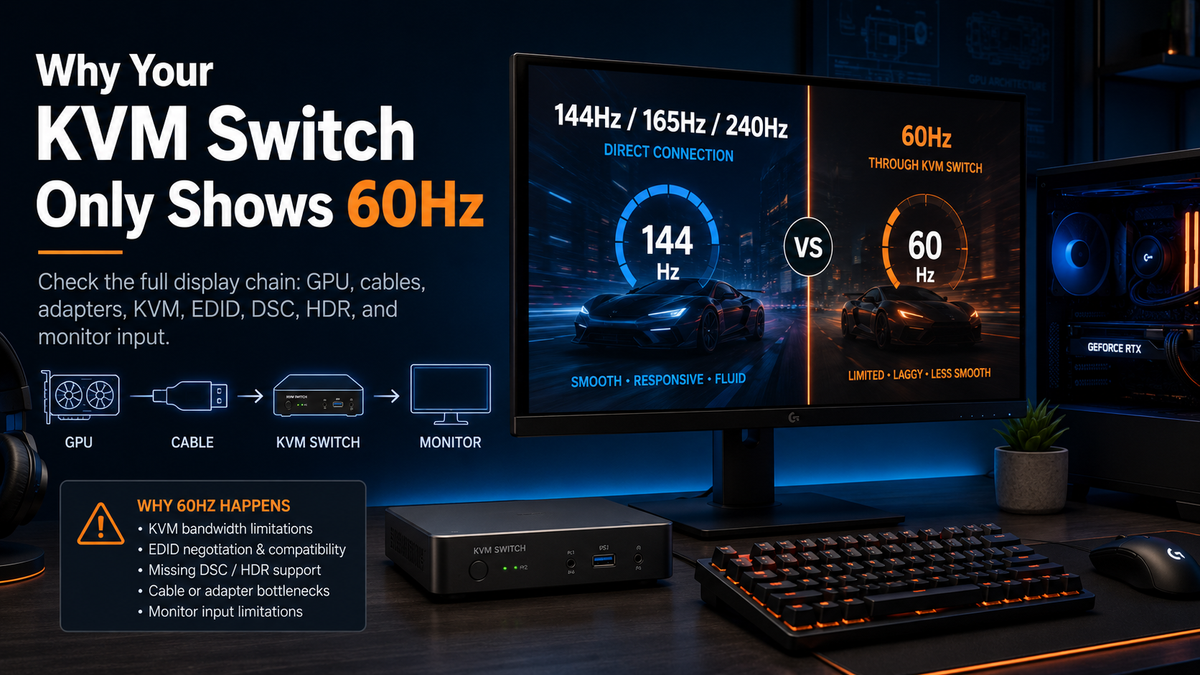
A monitor that runs at 144Hz, 165Hz, or 240Hz when connected directly to a computer may drop to 60Hz after a KVM switch is added. In other cases, the higher refresh-rate option remains visible, but selecting it causes a black screen, flickering, or signal loss.
This usually means that at least one part of the display chain cannot transmit or correctly identify the requested video mode. The KVM may be that limiting component, but the same problem can also come from the GPU output, cable, adapter, dock, monitor input, EDID data, DSC compatibility, or operating system settings.
The correct way to troubleshoot a KVM refresh rate issue is to inspect the complete path:
GPU output → source cable → adapter or dock → KVM switch → output cable → monitor input
A KVM switch does not create display bandwidth. The final resolution, refresh rate, color depth, HDR capability, and VRR behavior depend on the weakest or least compatible component in that path.
Table of Contents
- Why a KVM Can Turn 144Hz Into 60Hz
- Quick Answer: The KVM Is Only One Part of the Display Chain
- How Resolution, Refresh Rate, HDR, and Color Depth Affect Bandwidth
- Why “4K Support” Does Not Automatically Mean “4K 144Hz Support”
- Check Every Component in the KVM Signal Chain
- How Cables, Adapters, and Docks Cause High-Refresh-Rate Problems
- Why EDID Can Make Your Computer Show Only 60Hz
- When DSC May Be Required for High-Resolution, High-Refresh-Rate Modes
- HDR, G-Sync, FreeSync, and VRR Compatibility
- Why Dual-Monitor and Triple-Monitor KVM Setups Are More Difficult
- Common KVM Refresh-Rate Failure Patterns
- Step-by-Step Troubleshooting for KVM Refresh-Rate Issues
- Compare the Available Solutions
- When to Upgrade to a Higher-Bandwidth KVM
- How to Choose a TESmart KVM for a High-Refresh-Rate Monitor
- FAQ
- Conclusion
Why a KVM Can Turn 144Hz Into 60Hz
When a display is connected directly to a graphics card, the signal path is relatively simple. The GPU communicates with the monitor, reads its supported display modes, and negotiates a resolution, refresh rate, color format, and color depth.
Adding a KVM introduces more components and two separate cable segments. The computer must now communicate through the source cable, the KVM’s video hardware, and the output cable before reaching the monitor.
If one part of that path supports only a lower-bandwidth mode, the operating system may offer 60Hz as the highest stable option. If the system incorrectly believes that a higher mode is available, selecting 144Hz or 240Hz may instead produce a black screen.
The most common explanations include:
- The KVM’s actual video capability is lower than the target resolution and refresh rate.
- One of the cables works at 60Hz but becomes unstable at a higher data rate.
- An adapter or docking station limits the signal to a lower display mode.
- The computer reads incomplete or incorrect EDID information through the KVM.
- A high-resolution mode requires DSC, but one device in the path does not pass or process it correctly.
- Enabling HDR, 10-bit color, or VRR increases the demands placed on the connection.
- The monitor’s high-bandwidth input mode is disabled in its on-screen menu.
- The two computers use different GPU outputs, adapters, or interface capabilities.
This is why “my KVM only shows 60Hz” is a symptom rather than a complete diagnosis.

Quick Answer: The KVM Is Only One Part of the Display Chain
Start by testing the monitor directly with the same computer, GPU port, monitor input, resolution, color settings, and, where possible, the same cable. This establishes whether the computer and monitor can produce the target mode without the KVM.
If direct connection also fails, replacing the KVM will not solve the underlying limitation. If direct connection succeeds but the KVM path fails, reconnect the system one component at a time until the limiting part becomes clear.
Quick Diagnosis Table
| Symptom | Likely Cause | First Check |
|---|---|---|
| Only 60Hz appears in the operating system | EDID problem, interface limit, cable limit, adapter limit, or insufficient KVM bandwidth | Test the monitor directly with the same computer and display settings |
| 144Hz appears but causes a black screen | Signal integrity, insufficient bandwidth, color-depth requirement, or DSC incompatibility | Replace both cable segments and test with HDR disabled |
| HDR forces the display back to 60Hz | The HDR mode requires more bandwidth or a different color format | Disable HDR and compare the available refresh rates |
| High refresh rate works on one computer only | Different GPU outputs, adapters, docks, drivers, or display capabilities | Compare the complete source-side path for both computers |
| Single-monitor mode works but dual-monitor mode fails | GPU, laptop, dock, or multi-display bandwidth limitation | Test each monitor separately through the KVM |
| VRR causes flickering or signal loss | Incomplete G-Sync, FreeSync, or VRR compatibility in the signal path | Disable VRR temporarily while keeping the same resolution and refresh rate |
At TESmart, we recommend checking the complete display chain before replacing any single component. This avoids upgrading the KVM when the real restriction is a laptop output, adapter, cable, or monitor setting.
How Resolution, Refresh Rate, HDR, and Color Depth Affect Bandwidth
A video connection transmits a large amount of pixel data every second. Increasing the number of pixels, the number of frames, or the amount of color information increases the data that must travel through the link.
The following settings all affect the required bandwidth:
- Resolution: 4K contains more pixels per frame than 1440p or 1080p.
- Refresh rate: 144Hz sends more frames per second than 60Hz.
- Color depth: 10-bit color carries more color information than 8-bit color.
- Color format: RGB or YCbCr 4:4:4 generally carries more color information than 4:2:2 or 4:2:0.
- HDR: HDR commonly uses higher color depth and may require additional link capacity.
- Timing overhead: The transmitted signal includes more than the visible pixels alone.
What Changes at Common Display Modes?
1080p at 144Hz is less demanding than the same refresh rate at 1440p or 4K. It may work through equipment that cannot handle 4K at a high refresh rate.
1440p at 144Hz or 165Hz is common in gaming setups, but it still requires every device and cable to support the selected color settings and refresh rate.
1440p at 240Hz substantially increases the data rate. A connection that works at 144Hz may become unstable at 240Hz.
4K at 120Hz or 144Hz requires much more capacity than 4K at 60Hz. Depending on the interface, color depth, and color format, the mode may require a higher-bandwidth link or DSC.
4K at 240Hz and 8K at 60Hz are particularly demanding. These modes may depend on DSC, reduced chroma, or another specific link configuration. Support must be verified across the GPU, KVM, cables, and monitor.
Why HDR or 10-Bit Color Can Change the Result
A setup may support 4K 144Hz in 8-bit SDR but fail when HDR or 10-bit color is enabled. This does not necessarily mean that HDR is defective. The new combination may exceed the uncompressed capacity available through one component.
The system may respond in several ways:
- Reduce the refresh rate.
- Change from RGB or 4:4:4 to 4:2:2 or 4:2:0.
- Enable DSC where supported.
- Remove the high-refresh-rate option.
- Attempt the mode and produce a black screen.
For troubleshooting, compare one variable at a time. Keep the resolution fixed, disable HDR, select 8-bit color, and retest the refresh rate. This helps identify whether the failure is caused by raw refresh rate or by the combined display format.

Why “4K Support” Does Not Automatically Mean “4K 144Hz Support”
A product described as supporting 4K may support 4K at 30Hz, 4K at 60Hz, or a higher refresh rate under specific conditions. The word “4K” alone does not describe refresh rate, color depth, HDR, chroma format, or DSC requirements.
The same warning applies to an “8K” label. A device capable of one 8K mode is not automatically guaranteed to support every 4K 144Hz, 4K 240Hz, ultrawide, HDR, or VRR configuration.
Before buying a 4K 144Hz KVM, check the product’s published resolution-and-refresh-rate combinations rather than relying on the resolution headline.
HDMI 2.0 and HDMI 2.1
HDMI 2.1 was developed to support higher-bandwidth display modes and features such as 4K at 120Hz and VRR. However, an HDMI version label does not prove that every product implements every optional capability or the maximum possible link rate. The actual product specification remains the deciding factor.
For an HDMI KVM refresh rate check, confirm:
- The output capability of the graphics card or console.
- The input and output capabilities of the KVM.
- The supported mode of the monitor’s specific HDMI input.
- The cable certification and length on both sides of the KVM.
- Whether HDR, VRR, or 10-bit color is required.
DisplayPort 1.2, DisplayPort 1.4, and DisplayPort 2.1
Newer DisplayPort generations provide more capability for higher resolution, refresh rate, and color depth. DisplayPort 1.4 also introduced standardized transport support for DSC 1.2, while later DisplayPort standards added higher link-rate options.
That does not mean every DisplayPort 1.4 device implements DSC in the same way or supports the same display timings. A DisplayPort KVM refresh rate assessment must still use the exact product specifications for the GPU, KVM, and monitor. VESA treats EDID, Adaptive-Sync, DSC, and link-layer behavior as separate areas of interoperability testing.
USB-C Connector Shape vs. Video Capability
USB-C describes a connector shape. It does not automatically confirm that a port supports video.
A USB-C port may provide:
- USB data only.
- Charging only.
- DisplayPort Alt Mode.
- USB4 connectivity.
- Compatibility with Thunderbolt devices.
- A combination of video, data, and power with device-specific limits.
This distinction matters in a gaming PC and work laptop setup. A desktop graphics card may provide a direct DisplayPort output, while the laptop may send video through USB-C, a dock, or a converter. The two computers therefore have different signal paths even though they use the same KVM.
Do not treat a normal USB-C connection and a Thunderbolt-compatible connection as interchangeable. Confirm the laptop’s actual video-output capability and the display path required by the KVM.
Active and Passive Adapters
A passive adapter relies on the source device to produce a signal that can be routed to the destination connector. An active adapter contains conversion electronics and creates another negotiation point in the path.
An active adapter can be necessary when converting between display standards, but it can also impose its own resolution, refresh-rate, HDR, or DSC limit. Conversion direction matters: an adapter designed for DisplayPort source to HDMI display may not work in the opposite direction.

Check Every Component in the KVM Signal Chain
The most reliable way to solve a KVM 144Hz not working problem is to evaluate every component instead of assuming that matching connector shapes guarantee matching performance.
Complete Display Chain Checklist
| Component | What to Verify | Common Failure |
|---|---|---|
| GPU | Output type, port version, supported resolution, refresh rate, color depth, HDR, VRR, and DSC | The laptop or secondary GPU output is lower-spec than expected |
| Source cable | Interface type, certified performance, length, connector condition, and conversion direction | The cable works at 60Hz but loses signal at a higher data rate |
| Adapter or dock | Maximum display mode, MST behavior, DSC support, output allocation, and operating-system compatibility | The dock limits the output to 4K 60Hz or shares bandwidth across several ports |
| KVM switch | Published resolution and refresh-rate combinations, interface type, EDID behavior, HDR, VRR, and DSC information | The “4K” label describes 4K 60Hz rather than the requested high-refresh-rate mode |
| Output cable | Bandwidth capability, length, construction, and compatibility with the monitor input | A long or low-quality cable produces intermittent black screens |
| Monitor | Correct input port, maximum refresh rate for that port, OSD high-bandwidth mode, DSC, HDR, and VRR settings | The high-bandwidth or enhanced input mode is disabled |
| Operating system | Selected refresh rate, display duplication or extension mode, resolution, scaling, HDR, and color settings | The operating system returns to 60Hz after switching or reconnecting the display |
| EDID and DSC | Whether the target mode is advertised correctly and supported from source to display | The mode is missing from EDID or the compressed stream is not handled end to end |
When comparing direct connection with KVM connection, keep the test conditions as similar as possible. Changing the GPU port, cable, monitor input, HDR setting, or color depth at the same time can produce a misleading result.
How Cables, Adapters, and Docks Cause High-Refresh-Rate Problems
High-refresh-rate problems often appear only after the signal passes through two cables. A KVM setup requires one cable from the computer to the KVM and another from the KVM to the monitor. Both must carry the requested mode.
A cable that appears reliable at 60Hz may show errors when the signal rate increases. Common symptoms include:
- Random black screens.
- Flickering or colored artifacts.
- The display repeatedly reconnecting.
- 144Hz appearing in the menu but failing when selected.
- HDR working only at a lower refresh rate.
- One monitor failing while another remains stable.
Cable Length and Signal Integrity
Longer copper cables generally leave less margin for high-rate signals. The usable length depends on the interface, cable construction, device transmitters and receivers, adapters, and target display mode.
For initial testing:
- Use short, certified cables.
- Avoid extension cables.
- Avoid wall plates and couplers.
- Replace both cable segments rather than only one.
- Do not assume a cable is suitable for high refresh rate because it works at 60Hz.
Docking Station Limitations
A dock expands one computer’s ports. A KVM switches control and display connections between computers. They solve different problems, and combining them adds another layer of negotiation.
A dock may divide its available display capacity across multiple outputs. A laptop that supports one high-refresh-rate monitor directly may be unable to run two equivalent monitors through the dock.
macOS and Windows may also handle multi-display technologies differently. A dock based on MST, for example, does not create the same extended-display behavior on every platform. Driver-based display technologies add another compatibility layer.
When testing a Mac and PC desk setup, remove the dock where possible. Connect each computer to the KVM using the most direct video path supported by the source and KVM.

Why EDID Can Make Your Computer Show Only 60Hz
EDID is the information a display provides to a source device. It describes supported resolutions, refresh rates, audio formats, color characteristics, and other display capabilities.
When the computer starts or detects a display, it reads this information and builds the list of modes shown in Windows, macOS, or the GPU control panel.
A KVM EDID issue can occur when the computer receives incomplete, incorrect, or inconsistent display information. Possible results include:
- Only 60Hz appears.
- The monitor is detected as a generic display.
- The preferred resolution changes after switching.
- Windows move to another screen.
- The display order changes.
- HDR or audio options disappear.
- The operating system reconfigures the desktop after every switch.
What EDID Emulation Does
EDID emulation or display memory can maintain a consistent virtual connection between the computer and monitor. This can reduce display re-detection, window movement, and mode changes during switching.
It may also help the computer retain a known resolution and refresh rate instead of receiving different information each time the active source changes.
However, EDID emulation does not increase video bandwidth. It can advertise and preserve a supported mode, but it cannot make a cable, chipset, adapter, or interface transmit more data than it was designed to carry.
An incorrect fixed EDID can also create a black screen if it advertises a mode that the complete path cannot transmit. EDID settings should therefore match the real monitor and link capabilities.

When DSC May Be Required for High-Resolution, High-Refresh-Rate Modes
DSC stands for Display Stream Compression. It compresses the display stream so that demanding video modes can be transported within the available link capacity.
VESA describes DSC as a low-latency, visually lossless compression technology used across display standards, including DisplayPort, HDMI, and USB-C display paths. It is intended to support higher-resolution, higher-color-depth, and HDR applications without treating the display stream like a normal compressed video file.
Some combinations involving 4K 144Hz, 4K 240Hz, 8K 60Hz, HDR, or high color depth may depend on DSC. The exact requirement varies with:
- Resolution.
- Refresh rate.
- Color depth.
- RGB or YCbCr format.
- Chroma subsampling.
- Interface link rate.
- Display timing.
DSC Must Work Across the Complete Path
A monitor supporting DSC does not prove that the entire connection supports DSC. The GPU, source port, adapter, dock, KVM, output path, and monitor must negotiate a compatible mode.
A KVM DSC support check should answer four questions:
- Can the GPU output the target mode using DSC?
- Can every adapter or dock pass that compressed display stream?
- Can the KVM accept and transmit the required DSC mode?
- Can the monitor decode that mode through the selected input?
If any answer is unclear, test a lower-bandwidth configuration first. For example, disable HDR, select 8-bit color, or reduce the refresh rate. If the reduced mode works, the failure is more likely related to link capacity or DSC negotiation than to basic video switching.
Do not assume that DSC is required for every high-refresh-rate mode. Some configurations can operate without it, while others may require it because of their combined resolution, refresh rate, and color settings.

HDR, G-Sync, FreeSync, and VRR Compatibility
A display can work at a fixed high refresh rate without supporting every HDR or variable-refresh-rate feature through the same KVM path.
HDR and Color Format
HDR often involves 10-bit color or another higher-data configuration. When HDR is enabled, the system may reduce the refresh rate or change the color format to remain within the available link capacity.
For a KVM HDR support test:
- Start with HDR disabled.
- Confirm the target resolution and refresh rate.
- Enable HDR without changing other settings.
- Check whether color depth, chroma format, or refresh rate changes.
If HDR causes the monitor to fall from 144Hz to 60Hz, the complete HDR mode may require more capacity than the current path provides.
VRR, G-Sync, and FreeSync
VRR changes the display’s refresh timing to follow the frame delivery rate of the source. HDMI describes VRR as a feature designed to reduce or eliminate tearing, judder, and related gameplay artifacts.
For KVM G-Sync support, KVM FreeSync support, or broader KVM VRR compatibility, every part of the path must preserve the necessary timing and signaling behavior.
A setup may therefore show one of these outcomes:
- 144Hz fixed refresh works, but VRR does not.
- VRR works only within a reduced refresh-rate range.
- Enabling G-Sync or FreeSync causes intermittent flickering.
- VRR works on one computer but not another.
- HDR and VRR work separately but not together at the maximum refresh rate.
When diagnosing instability, disable G-Sync, FreeSync, or VRR temporarily. If the fixed refresh rate becomes stable, investigate feature compatibility rather than treating the issue as a basic 144Hz bandwidth failure.
Why Dual-Monitor and Triple-Monitor KVM Setups Are More Difficult
A multi-monitor KVM does not generate additional video outputs. In most dual-monitor or triple-monitor designs, each computer must provide a separate video signal for each display.
A two-computer, two-monitor KVM commonly requires two video outputs from PC 1 and two video outputs from PC 2. A three-monitor model may require three outputs from each computer.
This becomes difficult when:
- A laptop has only one native video-capable port.
- A dock must generate several display outputs from one connection.
- The GPU supports the monitors individually but not all target modes simultaneously.
- The two monitors require different interface types or DSC configurations.
- One display runs at 4K 144Hz while the other uses a different timing, HDR mode, or VRR range.
- macOS and Windows handle the dock’s multi-display method differently.
Test One Monitor Before Building the Full Setup
For a high refresh rate multi-monitor setup, validate the system in stages:
- Test Monitor 1 directly with Computer 1.
- Test Monitor 1 through the KVM with Computer 1.
- Repeat the same test with Computer 2.
- Test Monitor 2 separately.
- Connect both monitors at conservative settings.
- Increase the refresh rate of one monitor at a time.
- Enable HDR or VRR only after the fixed display modes are stable.
If a single monitor reaches the target refresh rate but the dual monitor gaming setup fails, the likely limit is the combined source, dock, adapter, or multi-display configuration rather than the individual monitor.

Common KVM Refresh-Rate Failure Patterns
Different symptoms point to different stages of the display process. Use the following table to distinguish mode-detection problems from transmission and feature-compatibility problems.
| Failure Pattern | What It Usually Indicates | Useful Test |
|---|---|---|
| The high-refresh-rate option does not appear | The mode is not being advertised through EDID, or one component reports a lower limit | Compare the EDID and available modes during direct connection |
| The option appears, but selecting it causes a black screen | The mode is advertised but cannot be transmitted reliably | Use shorter cables and reduce color depth or refresh rate |
| The refresh rate drops after switching computers | The operating system is re-detecting the display or reading different EDID data | Check EDID emulation settings and display memory behavior |
| The display drops to 60Hz only when HDR is enabled | The HDR color configuration requires more capacity | Compare 8-bit SDR with the same resolution and refresh rate |
| One monitor works at high refresh, but adding a second monitor causes failure | The GPU, dock, laptop connection, or multi-display path cannot sustain both modes | Test each display separately and review the source’s combined display limits |
| One computer reaches 144Hz, but the other is limited to 60Hz | The two computers use different GPU ports, adapters, docks, drivers, or supported modes | Compare each source path component by component |
| The monitor flickers only when VRR is enabled | The fixed-rate signal is stable, but variable-timing compatibility is incomplete | Disable VRR while retaining the same maximum refresh rate |
| The KVM black screen at 144Hz appears randomly rather than immediately | The signal has limited stability margin, often due to cables or connection length | Replace both cables with shorter certified models |
Step-by-Step Troubleshooting for KVM Refresh-Rate Issues
Follow these steps in order. Do not change several variables at the same time.
-
Test the monitor directly.
Connect the monitor directly to the computer. Confirm that the target resolution and refresh rate work before adding the KVM.
-
Record the working configuration.
Note the GPU port, cable, monitor input, refresh rate, HDR state, color depth, color format, DSC setting, and VRR state.
-
Confirm the GPU display output.
Check the specification of the exact port being used. Different ports on the same computer may have different capabilities.
-
Confirm the monitor input.
Some monitors support their maximum refresh rate only through one input type or one specific port.
-
Check the operating system setting.
Verify the active refresh rate in Windows, macOS, or the GPU control panel. Confirm that the display is using the intended resolution rather than a duplicated or scaled mode.
-
Check the monitor OSD.
Enable any required high-bandwidth, enhanced HDMI, DisplayPort version, DSC, Adaptive-Sync, or overclock setting documented by the monitor manufacturer.
-
Use short, certified cables.
Replace both the computer-to-KVM cable and the KVM-to-monitor cable. A stable output cable cannot compensate for a weak source cable.
-
Remove docks and adapters.
Use direct HDMI, DisplayPort, or supported USB-C video connections where possible. Reintroduce conversion devices only after the basic KVM path works.
-
Disable HDR and select 8-bit color.
Retest the target refresh rate. If it works, the failure may be caused by the combined bandwidth requirement rather than refresh rate alone.
-
Disable VRR, G-Sync, or FreeSync.
Test a fixed refresh rate. This separates basic video transport from variable-refresh-rate compatibility.
-
Review DSC requirements.
Determine whether the target display mode depends on DSC and whether the GPU, adapter, KVM, and monitor support that complete workflow.
-
Update drivers and firmware.
Install appropriate GPU drivers and check whether the monitor, dock, or KVM manufacturer provides relevant firmware updates.
-
Test one monitor at a time.
For a dual-monitor or triple-monitor KVM, verify each display independently before testing the complete setup.
-
Compare both computers.
If only one computer fails, compare its output port, adapter, dock, operating-system settings, driver, and supported multi-monitor configuration.
-
Check the KVM’s exact specification.
Look for the published resolution and refresh-rate combination rather than a general “4K” or “8K” statement. Verify HDR, VRR, DSC, and multi-monitor conditions separately.
Compare the Available Solutions
Upgrading the KVM is only one possible response. The correct path depends on which component is limiting the system and which KVM functions must be retained.
| Solution | High-Refresh-Rate Potential | Peripheral Switching | Setup Complexity | Multi-Monitor Support | Best Use Case | Main Limitation |
|---|---|---|---|---|---|---|
| Keep the current KVM and reduce display settings | Lower; may require reduced refresh rate, color depth, or HDR | Retained | Low | Retained within current limits | Users who prioritize switching over maximum display performance | Does not meet the original high-refresh-rate target |
| Replace the cables | High when signal integrity is the actual problem | Retained | Low | Retained | Black screens, flickering, or intermittent operation at higher rates | Does not fix a KVM, GPU, or adapter bandwidth limit |
| Remove adapters or docks | Often improved by simplifying the signal path | Usually retained through the KVM | Medium | May be reduced if the dock created extra outputs | Direct-connect desktops or laptops with sufficient native outputs | Some laptops cannot provide enough direct video outputs |
| Use direct display connections | Usually the highest potential | USB switching may require a separate USB switch or KVM | Medium | Depends on GPU outputs | Gaming users who prioritize display performance over unified switching | The monitor input may need to be switched separately |
| Upgrade to a higher-bandwidth KVM | Higher when the current KVM is the confirmed limit | Retained | Low to medium | Available when the correct monitor count is selected | Users who need both high-refresh-rate video and shared peripherals | Other components must still support the target display mode |
| Use a hybrid setup with one monitor bypassing the KVM | High for the direct-connected gaming monitor | Retained for keyboard, mouse, and other switched devices | Higher | Flexible | A gaming display plus secondary productivity monitors | Display and computer switching may require more than one action |
When to Upgrade to a Higher-Bandwidth KVM
An upgrade becomes reasonable after direct testing confirms that the GPU, monitor, and suitable cables can run the target mode, but the same mode consistently fails through the current KVM.
Consider a higher-bandwidth KVM when:
- The current model is specified only for 4K 60Hz, but the monitor is intended to run at 4K 120Hz or 144Hz.
- The KVM does not publish support for the required refresh-rate combination.
- The required DSC, HDR, or VRR workflow is not supported or documented.
- The current KVM does not match the monitor interface.
- The KVM has the wrong number of video paths for a dual-monitor or triple-monitor setup.
- You need to switch USB peripherals together with a demanding display configuration.
- A direct-connection workaround is functional but creates too many manual switching steps.
Do not upgrade solely because the existing KVM is old. First determine whether the replacement model explicitly supports the target resolution, refresh rate, monitor count, and source interfaces.
A KVM switch 144Hz or KVM switch 240Hz requirement must always include the resolution. For example, 1080p 240Hz and 4K 240Hz are very different signal requirements.


How to Choose a TESmart KVM for a High-Refresh-Rate Monitor
TESmart offers HDMI and DisplayPort KVM categories for single-monitor and multi-monitor workstations. The appropriate model depends on the real desk structure rather than the refresh-rate number alone.
Before comparing products, identify:
- How many computers need to be switched.
- How many monitors will be shared.
- Which video outputs are available on every computer.
- Which inputs are available on every monitor.
- The target resolution and refresh rate for each monitor.
- Whether HDR, 10-bit color, DSC, G-Sync, FreeSync, or VRR is required.
- Whether the computers use direct outputs, USB-C adapters, or docking stations.
- Which USB peripherals must follow the active computer.
For HDMI-Based Desks
An HDMI-focused TESmart model is more suitable when both computers and monitors provide HDMI outputs and inputs, especially in gaming PC, console, and mixed computer environments.
For a single-monitor desk, the HKS201-M24 class is designed around two computers sharing one display, while the HKS401-M24 class is intended for four-computer, one-monitor control.
For two computers sharing two HDMI monitors, the HDK202-M24 class is more relevant. Users should still verify the exact resolution-and-refresh-rate table for each display, particularly when the target includes 4K high refresh, HDR, VRR, or 10-bit color.
For DisplayPort-Based Desks
A DisplayPort-focused model makes more sense for desktop workstations with native DisplayPort GPU outputs and DisplayPort gaming monitors.
For two computers and two DisplayPort monitors, the DKS202-M24 class fits the required input and output structure. A three-monitor workstation should instead be evaluated against a model such as DKS203-M24, because each additional display requires another video path from each computer.
Mac users should confirm the source-side connection before selecting a DisplayPort KVM. Most Mac systems do not provide a native full-size DisplayPort output, so a USB-C-to-DisplayPort cable or dock may be required. That conversion becomes part of the compatibility assessment.
What a Higher-Performance TESmart KVM Can and Cannot Do
A suitable TESmart high refresh rate KVM can manage switching for displays, keyboard, mouse, and supported USB peripherals while preserving the display modes documented for the product.
It cannot make an unsupported GPU output, adapter, cable, dock, or monitor input produce a higher display mode. It also cannot guarantee that every HDR, VRR, color-depth, or DSC combination will work unless that complete configuration is supported.
Published high-resolution capability should be treated as the starting point for selection, not as a substitute for checking the exact target timing. This is especially important for a KVM for gaming monitor setups involving 144Hz, 165Hz, 240Hz, 4K 120Hz, or several high-refresh-rate displays.
FAQ
1. Why does my 144Hz monitor only show 60Hz through a KVM?
At least one component in the KVM signal path is probably limiting or failing to advertise the 144Hz mode. Test the monitor directly, then check the GPU port, both cables, adapters, KVM specification, monitor input, and EDID behavior.
2. Can a KVM switch reduce the monitor refresh rate?
Yes. A KVM can become the limiting component when its video bandwidth or supported display modes are below the requested setting. However, cables, adapters, docks, GPU outputs, and monitor settings can produce the same symptom.
3. Does a 4K KVM automatically support 144Hz?
No. A “4K” specification may refer to 4K at 30Hz, 60Hz, or another documented mode. Check the exact resolution-and-refresh-rate combinations rather than the resolution label alone.
4. Why does the screen go black when I select 144Hz or 240Hz?
The mode may be visible in EDID but unstable across the physical connection. Common causes include insufficient bandwidth, weak cables, excessive cable length, unsupported color settings, or incomplete DSC compatibility.
5. Can a bad HDMI or DisplayPort cable limit the display to 60Hz?
Yes. A cable may operate at 60Hz but fail when the signal rate increases. Replace both KVM cable segments with short, appropriately certified cables during testing.
6. Does EDID affect the refresh rate available in Windows?
Yes. Windows uses the display capability information it receives to determine which modes are available. Missing or incorrect EDID data can remove high-refresh-rate options or cause the system to select a lower mode.
7. Do I need DSC for 4K 144Hz or 4K 240Hz?
It depends on the interface bandwidth, color depth, chroma format, timing, and refresh rate. Some configurations may require DSC, while others may operate without it. Verify the complete GPU-to-monitor path.
8. Will G-Sync or FreeSync work through every KVM switch?
No. Fixed high refresh rate and VRR are separate compatibility questions. The GPU, KVM, cables, and monitor must all preserve the required variable-refresh-rate behavior.
9. Why does HDR reduce my maximum refresh rate?
HDR may use a higher color depth or a more demanding color format. The combined mode may exceed the capacity of one component, causing the system to reduce the refresh rate or change the color format.
10. Why does high refresh rate work on one computer but not another?
The computers may use different GPU ports, USB-C capabilities, adapters, docks, drivers, or supported display configurations. Compare their complete source paths rather than only their operating systems.
11. Can a dual-monitor KVM run both monitors at high refresh rates?
Some dual-monitor KVM configurations can, but the result depends on the KVM specification and the ability of each computer to produce both video signals simultaneously. Test each monitor separately before combining them.
12. Should I upgrade my KVM or replace the cables first?
Start with direct testing and short certified cables because cable replacement is simpler and less expensive. Upgrade the KVM when testing shows that its documented display capability is the limiting factor.
Conclusion
When a monitor works at 144Hz, 165Hz, or 240Hz directly but shows only 60Hz through a KVM, the problem is not automatically the KVM itself. The result is controlled by the complete display chain, including the GPU output, cables, adapters, docks, KVM hardware, EDID data, DSC behavior, monitor input, and selected color settings.
Start with a known working direct connection. Add the KVM using short cables, remove unnecessary conversion devices, and test SDR, fixed refresh rate, and one monitor before enabling HDR, VRR, or a multi-monitor configuration.
When the current KVM is confirmed as the limit, select a replacement using the actual resolution, refresh rate, interface, and monitor count—not a general “4K” or “8K” label.
Before viewing TESmart high-performance HDMI or DisplayPort KVM products, record the following details:
- Number of computers
- Number of monitors
- GPU output ports
- Monitor input ports
- Target resolution for each monitor
- Target refresh rate for each monitor
- HDR, color-depth, DSC, or VRR requirements
- Required keyboard, mouse, USB, audio, and network peripherals
With this information, you can choose a TESmart KVM that matches the real signal path and workstation structure rather than relying on a resolution label that does not describe the complete display mode.
Share:
How Do I Know If My Graphics Card Supports DSC?
Monitor With Built-in KVM vs External KVM Switch: Which Is Better in 2026?