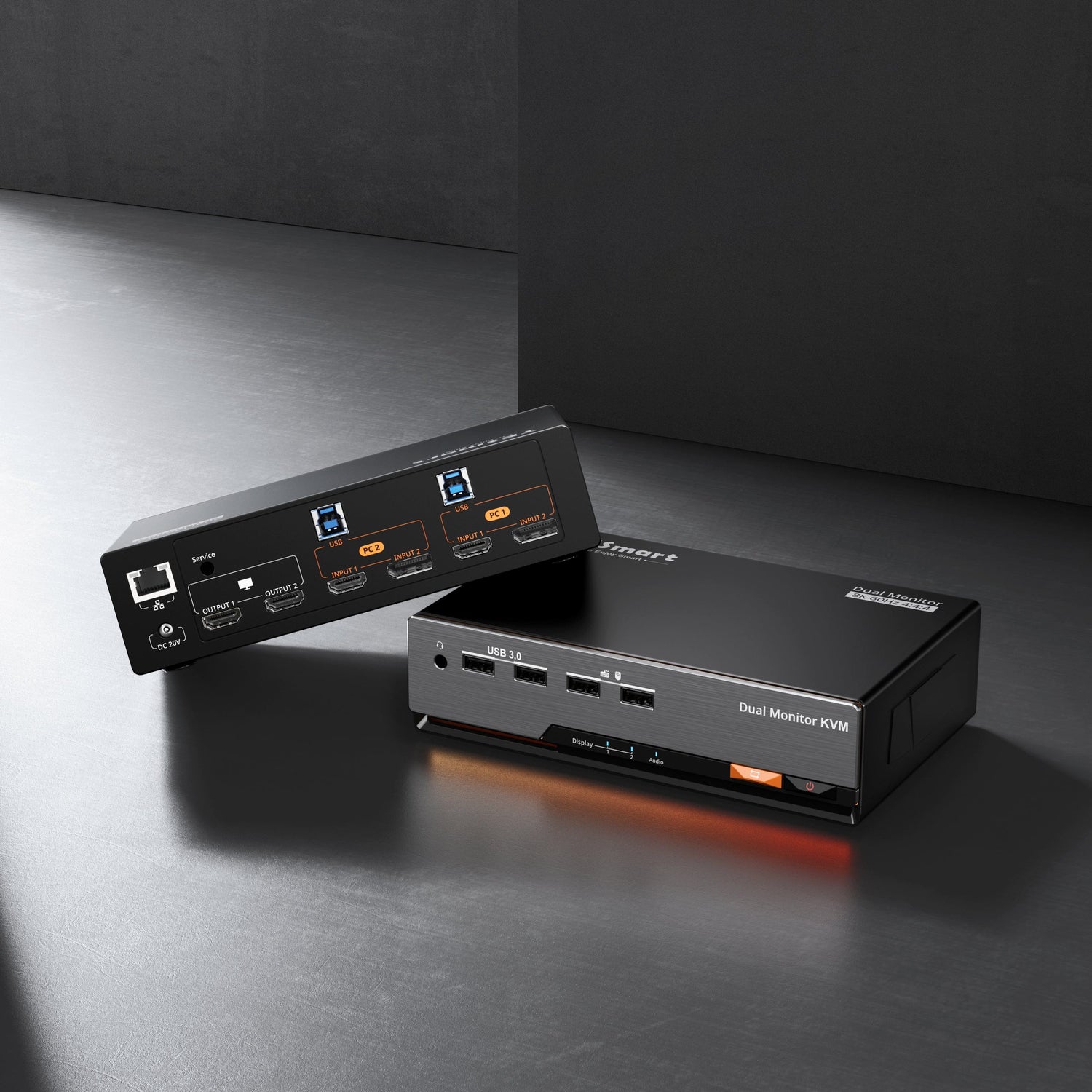
For professionals who need to operate multiple computers simultaneously, TESmart KVM switch devices are indeed a powerful tool for improving efficiency. The HDC203-PM24 is a triple 4K 60Hz DisplayLink hybrid KVM docking station designed to connect two computers (such as a desktop and a laptop) and control three monitors.

This article will provide a detailed analysis of potential problems and solutions based on the general characteristics and common usage scenarios of this type of high-performance KVM device.
01 Device Connection and Display Issues
The core function of multi-screen KVM devices is video signal distribution and management, but connection and display problems are the most common issues in actual use. Correct connection methods and settings are fundamental to ensuring the device works properly.

These devices typically support multiple video interfaces, including HDMI, DP, and USB-C. However, even high-end devices such as KVMs supporting triple 4K@60Hz 4:4:4 display may encounter display problems.
A common problem is no signal on the monitor or abnormal resolution. This may be due to an incorrect connection sequence. The correct procedure is: first connect all monitors to the KVM device, then connect the KVM to the computer, and finally connect the power supply.
If the monitor cannot reach the nominal resolution (e.g., 4K@60Hz), check the cable quality. Ensure you are using high-quality cables with HDMI 2.0 or DP 1.4 specifications or higher; inferior cables cannot transmit high-resolution and high refresh rate signals.
When using a USB-C connection with a laptop, you need to confirm whether the laptop's USB-C port supports video output. Not all USB-C ports have this function, especially on older devices.
02 Signal Switching and User Experience
The core value of a KVM switch device lies in seamlessly switching between multiple computers, but the experience during the switching process directly affects work efficiency.

The device mentioned on the product page usually supports EDID (Extended Display Identification Data) management, which is crucial for maintaining stable display settings. EDID emulation ensures that each computer "thinks" the monitor is always connected, avoiding the need to readjust the resolution after switching.
Switching delays or unresponsiveness are another common problem. If switching is slow, try the following: ensure all connections are secure; check that the USB connection is working correctly (some KVMs trigger switching via USB signals); consider updating the device firmware.
For devices that require a key combination or dedicated button for switching, familiarize yourself with the correct switching method. If the device supports hotkey switching, you need to press and hold a specific key (such as Ctrl) before pressing the switch key.
If peripherals (keyboard, mouse) do not work properly after switching, check the USB connection and try connecting the peripherals to the USB port labeled "HID" or specifically designated for input devices on the KVM.
03 Compatibility and Driver Support
Modern KVM devices are becoming increasingly complex, and compatibility and driver support are key factors affecting the user experience.

The DisplayLink technology mentioned on the product page requires the corresponding driver to be installed on each computer to function correctly. If there is no display after connecting a DisplayLink device, please first visit the official website to download and install the latest driver.
Operating system compatibility also needs attention. Most modern KVM devices support Windows, macOS, and Linux, but the level of functionality may differ. Especially on macOS, some advanced features such as high refresh rate support may be limited.
For gamers, G-Sync and FreeSync support is a major highlight. To enable these features, ensure that: the monitor itself supports the technology; a compatible cable is used (usually a high-quality DP cable); and the settings are correctly configured in the graphics card control panel.
Firmware updates can resolve many compatibility issues. Regularly checking the manufacturer's website for new firmware releases and updating according to the instructions can improve device stability and compatibility.