Table of Contents
- Introduction
- Quick Answer: Which Triple Monitor KVM Should You Choose?
- Why Triple Monitor KVM Setups Are Harder Than They Look
- The Real Problem: Your Laptop May Not Support Three Displays Natively
- What Is MST in a Triple Monitor KVM Setup?
- Why MST Works Better for Windows Laptops Than MacBooks
- What Is DisplayLink and Why Does It Matter for MacBook Triple Monitor Setups?
- MST vs DisplayLink KVM: Key Differences
- TESmart HDC203-P24 vs HDC203-PM24: Which One Fits Your Setup?
- Recommended Setups by Device Type
- Before You Buy: Check These Five Things
- Related Guides
- FAQ
Introduction
If you want one desktop PC and one laptop to share three monitors, one keyboard, one mouse, and USB peripherals, the main challenge is usually not the KVM switch itself. The harder question is whether the laptop can generate three external displays in the way your setup requires.
This is why a triple monitor KVM for desktop and laptop should not be chosen only by counting video outputs. You also need to understand the display-expansion path behind the setup. In this category, the decision often comes down to MST vs DisplayLink.
MST is closer to a native GPU-driven display path. It can work well for Windows laptops that support DisplayPort MST through USB-C, USB4, or a compatible display output. DisplayLink uses a USB-based graphics approach and is often more practical for MacBook users or office laptops that cannot reliably drive three external monitors through their native display pipeline.
For TESmart users, this difference is the key reason to compare HDC203-P24 and HDC203-PM24. Both are designed for 2-computer, 3-monitor workflows up to 4K@60Hz, but they solve different laptop-side problems.
Quick Answer: Which Triple Monitor KVM Should You Choose?
Start with the laptop, not the monitors. In a desktop + laptop + three-monitor workspace, the desktop PC usually has clearer GPU output options. The laptop is more likely to determine whether MST or DisplayLink makes sense.
| Your Setup | Better Path | Recommended TESmart Model | Why |
|---|---|---|---|
| Desktop PC + Windows laptop with native MST support | MST | HDC203-P24 | The laptop can use a more native multi-display path, which is cleaner for GPU-driven workflows. |
| Desktop PC + MacBook | DisplayLink | HDC203-PM24 | macOS does not support MST for extended multi-display setups, so DisplayLink is usually the more relevant path. |
| Office laptop with limited native display output | DisplayLink | HDC203-PM24 | DisplayLink can provide a practical triple-monitor path when the laptop cannot drive three displays natively. |
| Performance-sensitive Windows workstation | MST, if supported | HDC203-P24 | MST keeps the workflow closer to native graphics output, which is preferable when latency and direct GPU behavior matter. |
Why Triple Monitor KVM Setups Are Harder Than They Look
A 3-monitor KVM switch sounds straightforward: connect two computers, connect three displays, and switch between systems. In practice, a triple-monitor desk has more variables than a single-monitor or dual-monitor setup.
Each display needs a valid video signal, display identity, resolution negotiation, and refresh-rate agreement. When you switch between computers, the KVM must manage not only keyboard and mouse control, but also how each computer sees the three monitors.
This is where many setups fail. The KVM may support three displays, but the laptop may not. The laptop may have USB-C, but that port may not support video output. It may support one or two external monitors natively, but not three. It may work under Windows but behave differently under macOS.
That is why a triple-monitor KVM buying decision should begin with the display chain:
Computer output → USB-C / HDMI / DisplayPort path → MST or DisplayLink behavior → KVM switching → monitor input.
If one part of that chain does not support your target resolution, refresh rate, or multi-display mode, the final setup may not behave as expected.

The Real Problem: Your Laptop May Not Support Three Displays Natively
Most desktop PCs can be configured with a graphics card that provides multiple video outputs. For a three-monitor workstation, this is usually the easier side of the setup.
Laptops are different. A laptop may look capable because it has USB-C, HDMI, or a Thunderbolt-compatible port, but those ports do not guarantee the same display behavior. Some USB-C ports support DisplayPort Alt Mode. Some support data and charging only. Some laptops support MST. Others do not expose enough display bandwidth or display streams for a three-monitor workspace.
Operating system behavior also matters. Windows laptops commonly support MST when the hardware allows it. macOS does not support MST for extended multi-display setups, which changes the decision for MacBook users immediately.
This is the key point: when choosing a 3 monitor KVM switch for laptop and desktop, the question is not simply “How many monitors does the KVM support?” The better question is “How will my laptop create three independent external displays?”

What Is MST in a Triple Monitor KVM Setup?
MST, or Multi-Stream Transport, is a DisplayPort feature that allows multiple independent display streams to be carried through one compatible DisplayPort path.
In a triple-monitor KVM setup, MST matters because it can let a compatible laptop output multiple displays through a native graphics pipeline. The GPU generates the display streams, the operating system manages them as external monitors, and the KVM passes the display workflow through to the monitors.
This makes MST attractive for Windows laptop + desktop PC workstations where the laptop supports the required display output mode. The experience is closer to direct GPU output than a USB graphics solution, which can matter for workloads where display responsiveness, color behavior, or motion handling is more important.
However, MST is not a universal answer. The laptop hardware, USB-C controller, GPU capability, operating system, cables, and KVM all need to support the required mode. If the laptop side does not support MST properly, an MST-based KVM will not magically create a stable three-monitor workspace.

Why MST Works Better for Windows Laptops Than MacBooks
Windows laptops are often better candidates for MST-based multi-monitor setups because Windows commonly supports extended displays over MST when the hardware path is designed for it.
For example, a Windows laptop with USB-C DisplayPort Alt Mode and proper MST support may be able to drive multiple external monitors through a compatible MST-based workflow. In that case, an MST-based triple-monitor KVM can be a clean fit because the laptop is already capable of producing the display streams.
MacBook workflows are different. macOS does not support MST for extended multi-display setups. This means a MacBook should not be evaluated the same way as a Windows laptop when planning a three-monitor KVM desk.
This is one reason some users become frustrated after buying a KVM based only on the number of monitor outputs. The KVM may support three monitors, but macOS may not support the MST expansion method behind that setup.
For MacBook users, the better question is usually not “Does this KVM support MST?” It is “Does this setup provide a display-expansion path that works around macOS MST limitations?”

What Is DisplayLink and Why Does It Matter for MacBook Triple Monitor Setups?
DisplayLink uses a USB-based graphics approach rather than relying only on the computer’s native display streams. In practical terms, it gives laptops another way to create additional external displays when the native display path is limited.
This is why DisplayLink is important for MacBook triple monitor KVM setups. Since macOS does not support MST extended multi-display output, DisplayLink is often the more practical path for building a three-monitor desk around a MacBook.
DisplayLink also matters for thin-and-light office laptops. Many business laptops have limited native display output, even when they include USB-C ports. In those cases, DisplayLink can help create a usable multi-monitor workstation without depending entirely on the laptop’s built-in display pipeline.
DisplayLink is not automatically better than MST. It uses software and dedicated hardware to transport display data over USB, so it is not the first choice for every gaming, high-motion, or latency-sensitive workflow. But for office work, coding, dashboards, documents, browser-based tools, communication apps, and general productivity, the tradeoff can be reasonable.
The practical value of DisplayLink is compatibility. It can make a triple-monitor desk possible in situations where native MST is not available, not supported, or not the right path for the operating system.
MST vs DisplayLink KVM: Key Differences
MST and DisplayLink are both used in multi-monitor workflows, but they solve different problems. Choosing between them is less about which technology is “better” and more about which one matches your laptop and workload.
| Factor | MST-Based KVM Path | DisplayLink-Based KVM Path |
|---|---|---|
| How displays are generated | Uses native DisplayPort multi-stream output from the GPU path | Uses USB-based graphics with DisplayLink software and hardware |
| Best operating system fit | Windows laptops with proper MST support | MacBook setups and laptops with limited native display output |
| MacBook suitability | Not suitable as the foundation for extended multi-display output on macOS | Usually more relevant for MacBook triple-monitor workflows |
| Performance behavior | Closer to native GPU output when supported correctly | Practical for productivity, but less ideal for latency-sensitive or high-motion use |
| Setup dependency | Requires laptop hardware, OS, cables, and KVM to support MST properly | Requires DisplayLink software support and a compatible USB data path |
| Typical user | Windows workstation users who want a cleaner native display path | MacBook users, office users, and laptop-first workflows that need broader compatibility |
For users comparing MST vs DisplayLink KVM options, this table is the main decision point. If your laptop supports native MST well, MST can be the cleaner path. If your laptop does not, DisplayLink may be the more realistic way to build the three-monitor desk you want.
TESmart HDC203-P24 vs HDC203-PM24: Which One Fits Your Setup?
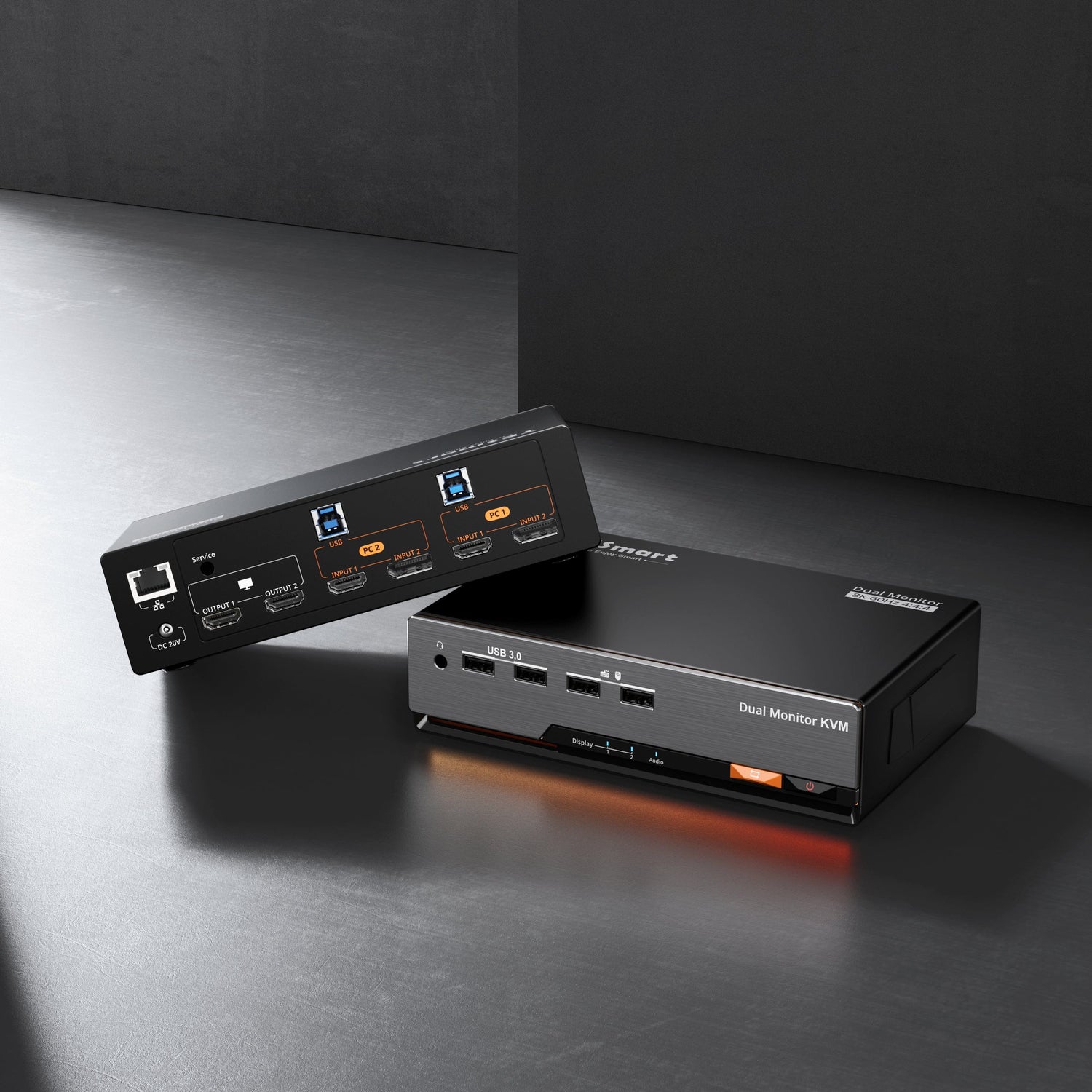
HDC203-P24 and HDC203-PM24 are both designed for 2-computer, 3-monitor KVM workflows up to 4K@60Hz. They are not interchangeable, because they assume different display-expansion paths on the laptop side.
| Model | Display Expansion Path | Better Fit | Typical Scenario |
|---|---|---|---|
| HDC203-P24 | MST | Users who want a more native multi-display path | Desktop PC + Windows laptop setups where the laptop supports MST properly |
| HDC203-PM24 | DisplayLink | Users who need a practical triple-monitor path from the laptop side | MacBook workflows, USB-C laptop desks, and office laptops that should not depend on MST |
Choose HDC203-P24 when your laptop already supports the right native display path and you want triple-monitor switching to stay closer to direct GPU-driven behavior. This model makes more sense for Windows laptop + desktop PC environments where MST support has already been confirmed.
Choose HDC203-PM24 when the laptop side is the limitation. If your setup includes a MacBook, or if your office laptop cannot reliably drive three external monitors natively, the DisplayLink-based path is usually the more relevant option to evaluate first.
Both models also address a practical KVM problem beyond video: keeping the desk organized. Instead of reconnecting monitors, keyboards, mice, and USB peripherals every time you move between systems, the KVM becomes the central switching point for a fixed three-monitor workstation.
Recommended Setups by Device Type
For Windows Laptop + Desktop PC
If your Windows laptop supports DisplayPort MST through USB-C, USB4, or another compatible display-capable path, HDC203-P24 is usually the cleaner option to evaluate. It keeps the display workflow closer to native GPU output and avoids adding a USB graphics layer when the laptop does not need one.
For MacBook + Desktop PC
If the laptop is a MacBook, HDC203-PM24 should usually be evaluated first. macOS does not support MST for extended multi-display setups, so a DisplayLink-based KVM path is more practical for MacBook triple-monitor workflows.
For Thin-and-Light Office Laptops
Many office laptops are not built around high-end external display output. Even if they include USB-C, they may not support the exact three-monitor output mode you expect. For these systems, HDC203-PM24 can be a more realistic fit because DisplayLink provides an additional display-expansion path.
For Gaming or High-Refresh Workflows
If your priority is low latency, native GPU behavior, or gaming-focused display performance, MST or direct GPU-driven output should be considered first when the laptop supports it. In this case, HDC203-P24 is generally the more relevant TESmart model to compare, provided the laptop side can support the required MST workflow.
For Mixed Mac and Windows Workflows
If your desk regularly switches between a Windows desktop and a MacBook, do not assume the Windows side and Mac side will behave the same way. The desktop PC may have no problem driving three monitors, while the MacBook may require a DisplayLink-based path. In that case, HDC203-PM24 is usually the safer starting point.
Before You Buy: Check These Five Things
1. Does your laptop support video over USB-C?
A USB-C port does not always mean video output. Check whether the port supports DisplayPort Alt Mode, USB4, or a Thunderbolt-compatible display path. If the port is data-only or charging-only, it will not support the display workflow you expect.
2. Does your operating system support MST?
Windows laptops often support MST when the hardware allows it. macOS does not support MST for extended multi-display setups. This difference is one of the most important reasons MacBook users should evaluate DisplayLink-based options first.
3. Are your monitors within the target resolution and refresh rate?
Both HDC203-P24 and HDC203-PM24 are positioned for triple 4K@60Hz workflows. Confirm your monitor resolution and refresh-rate expectations before choosing. If your setup needs higher refresh rates, evaluate the full signal chain before assuming compatibility.
4. Are you adding adapters, docks, or long cable runs?
Every adapter, dock, hub, or long cable adds another negotiation point. For triple-monitor KVM setups, keep the signal path as simple as possible. If conversion is required, confirm that the adapter supports the resolution, refresh rate, and display mode you need.
5. What workload will run on the three monitors?
For coding, documents, dashboards, spreadsheets, browser work, messaging, and office productivity, DisplayLink can be a practical path when native display output is limited. For gaming, high-motion graphics, or latency-sensitive creative work, a native GPU-driven path is usually preferable when available.
Related Guides
If you are still comparing the broader technology differences, start with TESmart’s MST and DisplayLink guide:
MST vs DisplayLink: Which Multi-Monitor Technology Is Better for Mac and Windows Workflows?
If your main concern is MacBook multi-monitor support, this guide focuses more directly on DisplayLink-based Mac workflows:
Mac Multi-Monitor Support: TESmart USB-C KVM with DisplayLink Explained
For product-level comparison, review the two TESmart triple-monitor models here:
FAQ
Can I use one KVM switch for one desktop, one laptop, and three monitors?
Yes, but the laptop must support the display-expansion method required by the setup. A triple-monitor KVM can switch three displays, keyboard, mouse, and USB peripherals, but it cannot make a laptop output three monitors through a display path the laptop or operating system does not support.
Do I need DisplayLink for a MacBook triple monitor setup?
In many MacBook triple-monitor workflows, DisplayLink is the more practical path because macOS does not support MST for extended multi-display setups. This is why HDC203-PM24 is usually the more relevant TESmart model for MacBook users to evaluate first.
Why does MST work on Windows but not on Mac?
MST is part of the DisplayPort multi-stream display path. Windows commonly supports extended displays through MST when the laptop hardware supports it. macOS does not support MST for extended multi-display setups, so MacBook users need a different approach for many multi-monitor workflows.
Is DisplayLink good enough for office work?
For documents, spreadsheets, dashboards, browser work, communication tools, coding, and general productivity, DisplayLink can be a practical option. It is less ideal as the first choice for latency-sensitive gaming or high-motion graphics workflows, where native GPU output is usually preferred.
Is MST better for gaming or high-refresh-rate monitors?
MST is generally the better path to evaluate first when native GPU behavior, lower latency, or high-motion performance matters. However, the full chain still matters: laptop output, GPU capability, cable quality, KVM support, and monitor input all need to match the target resolution and refresh rate.
Can a USB-C port always connect to three monitors?
No. USB-C describes the connector shape, not guaranteed display capability. A USB-C port may support charging, data, video, or a combination of these. Before buying a triple-monitor KVM, confirm whether the laptop supports video over USB-C and whether it can support the required multi-display mode.
Which TESmart triple monitor KVM should I choose for Mac and Windows?
Choose HDC203-P24 if your Windows laptop supports MST properly and you want a more native display path. Choose HDC203-PM24 if your setup includes a MacBook or a laptop that should not depend on MST for triple-monitor output.
Does EDID matter in a triple-monitor KVM setup?
Yes. EDID helps the computer recognize monitor identity, resolution, and display capability. In multi-monitor KVM setups, stable EDID handling can reduce issues such as windows moving around, monitors being re-detected, or longer black-screen intervals during switching.