

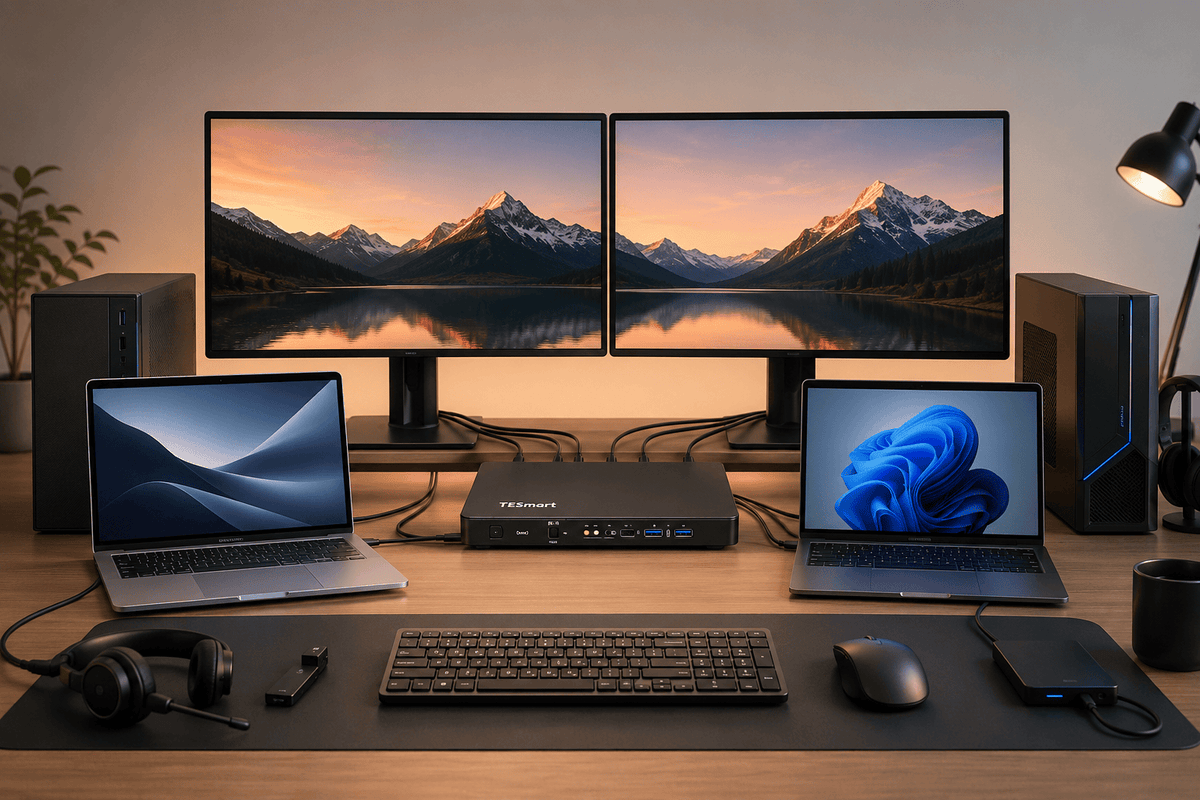
A work laptop, a personal laptop, a desktop workstation and a gaming PC can easily end up on the same desk. The difficult part is not finding space for four computers. It is making all four systems share two monitors, one keyboard and mouse, a webcam, a headset, external storage and a wired network connection without reconnecting several cables every time you change computers.
At TESmart, we see many users trying to solve this problem by combining separate USB-C docks, USB switches and monitor input controls. These arrangements can work, but each additional device introduces another display, USB or power connection that must be configured and maintained.
The real buying question is therefore not simply, “Which KVM has four ports?” It is whether each laptop and desktop can provide the required display signals, whether the laptops support video over USB-C, and whether one integrated device can replace enough of the existing connection chain to make switching easier.
Quick Recommendation
For users who genuinely need to keep two laptops and two desktop computers connected to one dual-monitor workspace, a four-port hybrid KVM dock is usually more suitable than a conventional two-port desktop KVM.
The hybrid design matters because the computers do not all use the same connection method. The laptops may depend on USB-C for video, USB data and charging, while the desktop PCs provide separate HDMI, DisplayPort and USB connections.
A separate dock and KVM may still make sense when upgrade flexibility is the priority or when a laptop needs a specialized docking feature. However, an integrated four-host solution can reduce the number of devices, power adapters and switching steps when the desk matches its intended input structure.
Before choosing either approach, count the computers and verify the video outputs available on every host.
Table of Contents
- Why This Desk Setup Is Harder Than It Looks
- The Three Ways to Build the Desk
- Why a Two-Port KVM Is Often Not Enough
- Our Recommendation for Two Laptops and Two Desktops
- Who Should Choose This Four-Port Hybrid Setup?
- Check These Things Before Buying
- Example Connection Topology
- Integrated KVM Dock vs Separate Dock and KVM
- What USB Sharing and Ethernet Change in Daily Use
- Final Recommendation
- FAQ
Why This Desk Setup Is Harder Than It Looks
A four-computer desk becomes complicated because every host may send video, USB data and power through a different connection path.
A desktop PC commonly sends one display through HDMI and another through DisplayPort. Its keyboard, mouse and other peripherals use a separate USB data connection. Because a desktop has its own power supply, charging is not part of the KVM connection.
A laptop may have only USB-C ports. One USB-C connection can potentially carry video, USB data and laptop charging, but the connector shape does not confirm that all three functions are available.
The laptop port must support the required capabilities, including:
- DisplayPort Alt Mode for video output
- USB data for the keyboard, mouse and shared peripherals
- The required number of external displays
- MST when two Windows displays must travel through one USB-C connection
- USB Power Delivery at a voltage and wattage accepted by the laptop
Dual monitors add another requirement. The computer must provide two usable display streams. A desktop can usually do this through two physical GPU outputs. A compatible Windows laptop may provide both streams through one USB-C connection using DisplayPort Alt Mode and MST.
macOS works differently. It does not use MST to turn one DisplayPort stream into two independent extended desktops. A Mac that supports two external displays may therefore need two separate video connections. The Mac itself must also support the intended number of external monitors.
USB peripherals, audio and Ethernet do not automatically follow a monitor input change. Changing both monitors from one input to another will not move a webcam or headset to the same computer. Those resources require their own switching path.
The Three Ways to Build the Desk
Most users considering a KVM switch for two laptops and two desktops are choosing between three practical approaches.
| Decision Factor | Manual Cable Swapping | Separate USB-C Dock and Traditional KVM | Four-Port Hybrid KVM Dock |
|---|---|---|---|
| Connected computers | Depends on available monitor inputs and cables | Depends on the KVM port count | Four when designed for four hosts |
| Dual-monitor support | Possible, but both display paths must be changed manually | Possible when the dock, KVM and hosts all support the required topology | Integrated when the hosts provide the required video signals |
| Laptop charging | Separate chargers | Usually provided by the dock | Depends on the integrated model and laptop requirements |
| Shared USB peripherals | Requires reconnection or a separate USB switch | Usually managed through the KVM or dock | Integrated on supported USB ports |
| Shared Ethernet | Separate adapters or connections | Usually provided by the dock | Available when built into the hybrid device |
| Cable complexity | High during every computer change | High during installation | Moderate during installation, with fewer separate devices afterward |
| Upgrade flexibility | High, but poorly integrated | Higher because the dock and KVM can be replaced separately | Lower because several functions are combined in one device |
| Compatibility checks | Monitor inputs and host outputs | Host, dock, adapters, KVM, cables and monitors | Host, integrated KVM, cables and monitors |
| Switching process | Several manual actions | Usually one KVM action, but the dock connection may still need attention | One managed switching workflow |
| Best suited for | Infrequent switching and simple equipment | Users who need specialized docks or modular upgrades | Mixed laptop and desktop desks that regularly switch among three or four hosts |
1. Manual Cable Swapping
This is the lowest-cost approach when the computers are changed only occasionally. Each monitor can remain connected to several computers, while the keyboard, mouse and other devices are moved manually.
The problem is repetition. Switching may require changing the input on both monitors, moving a USB-C dock cable, reconnecting a headset and confirming which computer has access to the webcam or external drive.
2. Separate Docking Station Plus a Traditional KVM
This arrangement can be flexible because the dock and KVM serve different purposes. The dock expands the laptop. The KVM switches the resulting display and USB connections.
A typical chain may look like this:
Laptop → USB-C dock → HDMI and DisplayPort cables → KVM → two monitors
This does not mean the arrangement will fail. It means the complete signal chain must be checked. The dock must produce two compatible display signals, the KVM must accept them, and the laptop must support the intended display topology.
Adding a second laptop may also require another dock or continued swapping of the first dock’s host cable.
3. One Hybrid Four-Port KVM Dock
A hybrid KVM dock combines laptop-oriented USB-C connections with conventional desktop video and USB inputs. This allows the laptops and desktops to use connection methods suited to their hardware rather than forcing every computer through the same adapters.
This approach is most valuable when all four computers need permanent connections and the user frequently switches the complete workstation between them.

Why a Two-Port KVM Is Often Not Enough
A two-port dual-monitor KVM is appropriate for many desks. It can manage one laptop and one desktop, two desktops or two laptops when the model matches their ports.
The limitation is computer count. A two-port KVM can keep only two host groups connected. When the desk includes three or four computers, users may have to:
- Disconnect one computer to connect another
- Add a second USB switch
- Use monitor input buttons for the additional hosts
- Install a second KVM
- Give up dual-monitor access on less frequently used systems
- Move the USB-C dock cable between laptops
Two smaller KVMs can sometimes be combined, but the user must then manage which switch controls the displays and which one controls the peripherals. The result may be functional without being easier to operate.
A four-port KVM becomes relevant when the third and fourth computers are part of the normal workflow rather than temporary devices. It keeps all host connections available and avoids treating the additional systems as exceptions.
Users with only two computers should not choose a four-port product solely because it has more ports. A simpler model from the TESmart dual-monitor KVM collection may require fewer cables and cost less.

Our Recommendation for Two Laptops and Two Desktops
At TESmart, we designed the TESmart HDC402-P23 four-port dual-monitor KVM for mixed desks where two laptops use USB-C connections while two desktop systems provide dedicated HDMI, DisplayPort and USB connections.
The product’s main value is not simply that it has four host positions. It combines the connection structures needed by both host types.
The two laptop groups are intended for USB-C hosts that support video output and USB data. On compatible Windows systems, DisplayPort Alt Mode and MST can provide two extended displays through one USB-C video path. The laptop groups also provide charging up to 60W, subject to the laptop’s Power Delivery negotiation and power requirements.
The two desktop groups use separate HDMI, DisplayPort and USB data connections. This reflects how desktop GPUs normally provide two independent display streams.
Once connected, the workstation can share:
- Two monitors with display modes up to the supported 4K 60Hz configuration
- A keyboard and mouse
- USB 3.0 peripherals such as a webcam or external storage device
- A 1000Mbps wired Ethernet connection
- Audio devices connected through the supported audio interface
The HDC402-P23 also supports two useful display arrangements. Both monitors can show the same selected computer in extended or mirrored mode, or the monitors can display two different computers side by side while keyboard and mouse focus is moved between them.
EDID emulation and HPD Hold are intended to maintain a more consistent display connection during switching. They can reduce monitor re-detection and window rearrangement, although final behavior still depends on the operating system, GPU, applications and complete signal chain.
Mid-article check: If your desk combines two USB-C laptops with two HDMI and DisplayPort desktops, review the HDC402-P23 connection guide before adding another dock or switch.

Who Should Choose This Four-Port Hybrid Setup?
This Configuration Is More Suitable For
- Users with three or four computers that need permanent desk connections
- Workstations containing two USB-C laptops and one or two desktop computers
- Compatible Windows laptops that support DisplayPort Alt Mode and MST
- Mixed Mac, Windows and Linux desks where every host can provide the required video outputs
- Developers who test software across several operating systems
- Creators who separate office, editing, rendering and storage tasks across different computers
- IT support desks, repair benches and hardware testing environments
- Users who need to show two computers side by side on separate monitors
- Users who want USB peripherals, Ethernet and audio integrated into the switching workflow
- People who currently move one USB-C dock between two laptops several times per day
A Different Solution May Make More Sense For
- Users with only two straightforward desktop PCs
- Users who only need to share a keyboard and mouse
- Mac users expecting two independent extended monitors from one MST-based USB-C connection
- Laptops whose USB-C ports do not support video output
- Gaming laptops or mobile workstations that require substantially more than 60W and cannot use their original charger at the same time
- Users whose primary target is dual 4K 144Hz or 240Hz gaming
- Workflows that require a native Thunderbolt monitor connection
- Users who need three or four shared monitors
- People who regularly upgrade the dock and KVM independently
For four conventional desktop computers, a desktop-focused model may be more appropriate. Users can compare TESmart KVM switches for four computers and two monitors before deciding whether USB-C laptop integration is necessary.

Check These Things Before Buying
We recommend completing this compatibility checklist before choosing any dual-monitor KVM docking station.
| Check | What to Confirm | Why It Matters |
|---|---|---|
| 1. Computer count | How many computers require permanent connections? | A two-port model may be enough for two hosts, while three or four active systems justify a four-port design. |
| 2. Desktop outputs | Does each desktop provide compatible HDMI and DisplayPort outputs? | Two monitors normally require two independent video streams from each desktop. |
| 3. USB-C video | Does each laptop USB-C port support DisplayPort Alt Mode? | A data-only or charging-only USB-C port cannot send video to the KVM. |
| 4. USB data | Does the selected laptop port carry USB data as well as video? | The shared keyboard, mouse, Ethernet adapter and USB devices depend on the USB data connection. |
| 5. MST capability | Does the Windows laptop, GPU, port and driver support MST? | A one-cable dual-extended-display connection usually depends on MST. |
| 6. macOS topology | Does the exact Mac model support two external monitors? | macOS does not create two extended displays through one MST stream. |
| 7. Charging requirement | Is charging up to 60W sufficient for each laptop? | Some gaming and workstation laptops may charge slowly or require their original power adapter. |
| 8. Display target | What resolution and refresh rate must both monitors use? | The result depends on the host, GPU, cables, KVM, monitor and selected display mode. |
| 9. Monitor inputs | Do both monitors have inputs compatible with the KVM outputs? | Adapters can add another compatibility variable to the signal chain. |
| 10. USB bandwidth | Will the shared devices include webcams, fast storage, capture devices or audio interfaces? | Several high-bandwidth devices share the available USB channel. |
| 11. Peripheral type | Are the keyboard and mouse wired, USB receiver-based or Bluetooth-only? | Devices paired directly to one computer through Bluetooth do not automatically follow KVM switching. |
Do not identify a port only by its shape. USB-C data, DisplayPort Alt Mode, Power Delivery, MST and Thunderbolt are separate capabilities. A laptop may support some without supporting all of them.
The HDC402-P23 is not a Thunderbolt KVM and should not be treated as a replacement for every dock used in a Thunderbolt workflow. A laptop with a Thunderbolt-enabled port may use a compatible USB-C DisplayPort path, but native Thunderbolt monitors require a solution that preserves their required monitor connection.

Example Connection Topology
The following example shows how a mixed four-computer workstation can be organized.
- Work Windows laptop: Connect to the first USB-C host group. For two extended displays through one video connection, confirm DisplayPort Alt Mode and MST support.
- Personal Windows laptop: Connect to the second USB-C host group and perform the same capability checks.
- Gaming desktop: Connect HDMI, DisplayPort and USB data to one desktop host group.
- Linux workstation or mini PC: Connect HDMI, DisplayPort and USB data to the remaining desktop group.
- Monitor 1 and Monitor 2: Connect to the KVM’s two display outputs.
- Keyboard and mouse: Connect to the dedicated keyboard and mouse console ports.
- Webcam or external drive: Connect to the USB 3.0 peripheral hub.
- Router or network switch: Connect to the Gigabit Ethernet port.
- Headset: Connect through the supported audio interface.
Actual port placement should be confirmed against the product connection diagram and manual. Keep each computer’s video and USB cables within the same numbered host group. Mixing a desktop’s USB connection with another computer’s video group can cause the picture and peripherals to switch to different hosts.
For a compatible Mac, do not assume the Windows MST connection method will provide the same result. A Mac that supports two external displays will generally need two independent video-capable connections for dual extended output through this topology.
Integrated KVM Dock vs Separate Dock and KVM
| Decision Factor | Separate Dock and KVM | HDC402-P23 |
|---|---|---|
| Device count | Usually at least two devices | One integrated switching device |
| Upgrade flexibility | Higher because the dock and KVM can be replaced separately | Lower because docking and switching functions are combined |
| Cable complexity | Higher, especially with multiple laptops | Lower after the initial four-host installation |
| Four-host support | Depends on the selected KVM | Designed for four connected hosts |
| USB-C laptop integration | Depends on the dock and adapters | Two integrated USB-C laptop groups |
| Desktop integration | Depends on the KVM input format | Two HDMI, DisplayPort and USB desktop groups |
| Laptop charging | Depends on the dock | Up to 60W, subject to host negotiation |
| EDID handling | Depends on the KVM | Integrated EDID emulation and HPD Hold |
| Troubleshooting | More signal-chain components to isolate | Fewer external components, but host compatibility must still be verified |
| Specialized dock features | Can be selected for a particular laptop or workflow | Limited to the functions built into the KVM |
A separate dock and KVM remains a valid choice when the laptop needs higher charging power, proprietary dock functions, DisplayLink expansion or a specialized monitor connection.
The HDC402-P23 is not automatically the right choice for every desk. Its strongest value appears when the user genuinely needs four-host capacity, mixed laptop and desktop inputs, two shared monitors and integrated USB, Ethernet, audio and charging functions.

What USB Sharing and Ethernet Change in Daily Use
Independent USB and Audio Focus
In a normal KVM workflow, the selected display, keyboard, mouse and USB devices move together. That is not always desirable.
For example, an external drive may be transferring data on one computer while the user needs to check another system. A headset may need to remain connected to a work laptop during a call even when one monitor is showing a personal computer.
Independent USB and audio focus locking allows supported resources to remain with one computer while the display focus changes. Keyboard and mouse focus is managed separately.
Shared Gigabit Ethernet
A built-in 1000Mbps Ethernet connection reduces the need for a separate USB network adapter or Ethernet-equipped dock at each laptop position.
The selected host can access the wired network through the KVM’s USB connection. Actual network performance depends on the computer, USB connection, network hardware and other traffic on the link.
Shared USB Bandwidth
The USB 3.0 hub is suitable for devices such as webcams, storage drives, microphones and headsets, but connected devices share the available bandwidth.
A keyboard and mouse require little bandwidth. A high-resolution webcam and fast external SSD can use considerably more. Users with several high-bandwidth devices should test the combined workload or connect the most demanding device directly to the computer when necessary.
Final Recommendation
Choose a four-port hybrid KVM dock when the main problem is consolidating two laptops and two desktops into one shared dual-monitor workspace.
Choose a simpler two-port KVM when only two computers need permanent connections. There is little value in adding unused host capacity when a smaller product already matches the computer and monitor count.
Choose a separate dock and KVM when modular upgrades, specialized dock functions or higher laptop charging power matter more than reducing the number of devices.
Choose a higher-bandwidth gaming KVM when dual 4K high-refresh gaming is the primary requirement. TESmart’s HDMI 2.1 and DisplayPort 1.4 KVM options are designed for different display priorities than a 4K 60Hz hybrid office workstation.
Choose a DisplayLink-based solution when the computer cannot natively provide the required number of external display streams and software-based display expansion is acceptable. Consider the required driver, latency and operating-system support before using that path.
For two compatible USB-C laptops, two HDMI and DisplayPort desktops, two monitors and a shared set of USB, audio and network devices, the HDC402-P23 can replace several separate switching components with one managed workstation connection.
Explore the TESmart HDC402-P23 to check whether its four-host capacity, dual-monitor outputs, shared USB, Gigabit Ethernet and laptop charging match your workspace.
FAQ
Q1: Can one KVM switch connect two laptops and two desktops?
Yes. A four-port KVM can keep four computers connected, but the input structure must match the computers. For a mixed desk, look for dedicated USB-C laptop groups and conventional HDMI, DisplayPort and USB desktop groups.
Q2: Can HDC402-P23 replace a separate docking station?
It can replace common dock functions such as external displays, USB sharing, Ethernet, audio and charging in a compatible setup. It may not replace a specialized dock that provides higher charging power, DisplayLink, proprietary features or native Thunderbolt monitor connectivity.
Q3: Can two laptops use two extended monitors through USB-C?
Compatible Windows laptops may provide two extended displays through one USB-C video path when the port supports DisplayPort Alt Mode and MST. The laptop, GPU, operating system and driver must all support the intended display topology.
Q4: Does HDC402-P23 work with Mac and Windows computers?
It is designed for mixed operating-system environments, but the connection method may differ. Windows can use MST on compatible hosts. A Mac may require two independent video connections and must natively support the required number of external displays.
Q5: Can a MacBook run two extended displays through one USB-C cable?
Not through an MST-based connection. macOS does not split one DisplayPort stream into two independent extended desktops through MST. A compatible Mac generally needs two independent display paths for this setup.
Q6: Is 60W charging enough for a work laptop?
It is sufficient for many business laptops during normal office use. High-performance laptops that require 90W, 100W, 120W or more may charge slowly, lose battery under heavy load or still need their original power adapter.
Q7: Can I display two different computers on the two monitors?
Yes. HDC402-P23 supports a mode in which each monitor displays a different computer. Keyboard and mouse focus can then be switched between those computers. It can also display one selected computer across both monitors.
Q8: Will EDID prevent windows from moving after switching?
EDID emulation can reduce display re-detection and window rearrangement by maintaining monitor information for the connected hosts. It cannot guarantee identical behavior in every operating system, application or GPU configuration.
Q9: Can I connect a webcam and external drive through the KVM?
Yes. Both can use the shared USB 3.0 hub, subject to device compatibility and total USB bandwidth. A high-resolution webcam and fast storage drive may compete for bandwidth when used simultaneously.
Q10: Is HDC402-P23 suitable for dual 4K high-refresh gaming?
Its main target is dual-monitor productivity and professional workstation use at up to 4K 60Hz per supported output. Lower resolutions can support higher refresh rates, but users seeking dual 4K 144Hz gaming should choose a higher-bandwidth gaming-focused KVM.
Q11: Do all USB-C ports support video output?
No. USB-C describes the connector, not every supported function. Check the computer documentation for DisplayPort Alt Mode, USB data, external-display support and Power Delivery compatibility.
Q12: Is a four-port KVM necessary if I currently use only three computers?
Not necessarily. It makes sense when all three systems need permanent connections and a fourth host may be added, or when the product’s mixed USB-C and desktop input structure matches the desk. Otherwise, a smaller KVM may be more economical.
Share:
How to Share Two Monitors Across Two Laptops and Two Desktop PCs
Three Displays, Two Computers: How to Build a Stable High-Refresh DP Workstation