

Table of Contents
- Introduction
- What Users Are Actually Trying to Solve
- Can a Dual-Monitor KVM Run 1440p 240Hz and 4K 60Hz Together?
- Why Mixed-Refresh KVM Setups Become Complicated
- Check the Two Computer-Side Display Paths First
- Why a Dock Can Become the High-Refresh Bottleneck
- How to Choose Between DisplayPort, HDMI, and a Mixed KVM
- What to Check If 240Hz Drops to 60Hz After Adding the KVM
- Which Signal Path Should the 240Hz Gaming Monitor Use?
- Which TESmart Solution Fits This Setup?
- Recommended Wiring Examples
- Related Guides
- FAQ
- Conclusion
Introduction
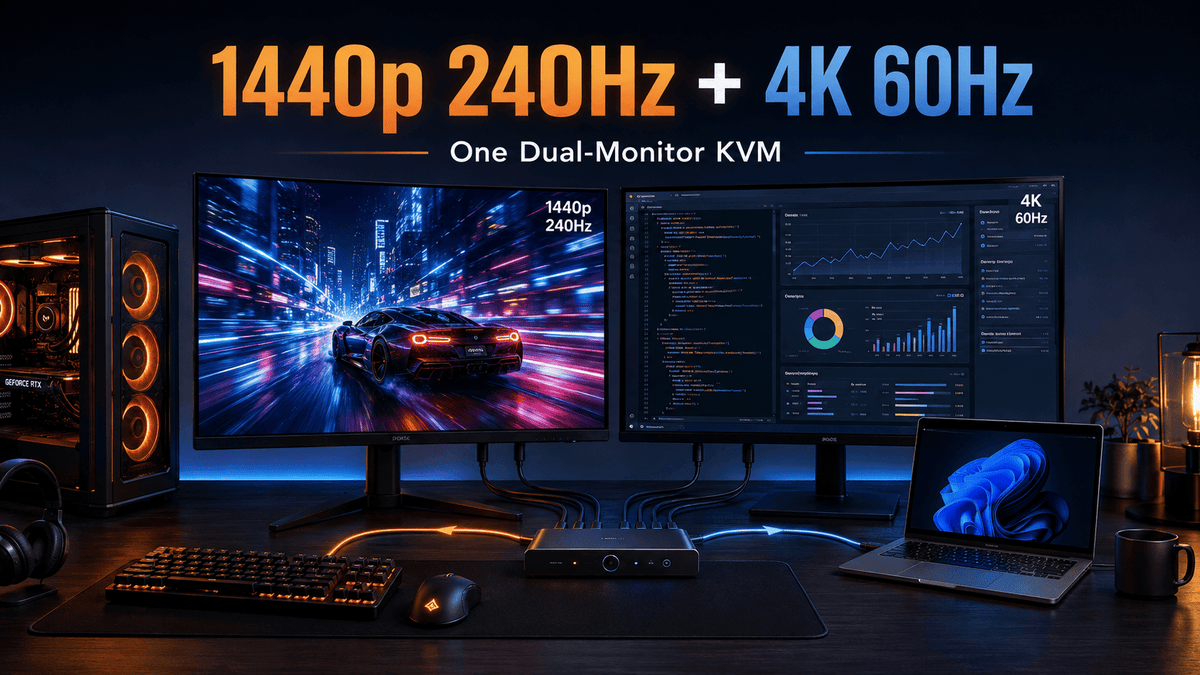
A mixed-monitor desk creates a very specific KVM problem: the gaming display needs to stay at 2560×1440 at 240Hz, while the second monitor only needs 3840×2160 at 60Hz. At the same time, a gaming desktop and a work laptop need to share both monitors, one keyboard, and one mouse.
The common fear is that the slower 4K 60Hz display will force the 240Hz monitor down to 60Hz. In a correctly designed dual-monitor setup, it should not. The two displays can run at different resolutions and refresh rates because they are separate display paths.
The harder part is making sure every device in each path can support the mode assigned to it. A KVM does not create display bandwidth. The gaming PC output, laptop output, dock or adapter, KVM port, cable, monitor input, EDID behavior, DSC support, graphics settings, and VRR settings all have to agree on the target mode.
That is why this is better treated as a mixed-refresh dual-monitor KVM decision problem, not a generic “gaming KVM” purchase.
Quick answer
Yes, a dual-monitor KVM can run a 1440p 240Hz gaming display and a 4K 60Hz work display at the same time, provided the KVM has two independent display paths and the complete signal chain for each monitor supports its assigned mode. The 4K 60Hz monitor does not automatically force the gaming monitor to 60Hz.
What Users Are Actually Trying to Solve
Users searching for this setup are usually not trying to maximize every specification on both computers. Their real requirements are asymmetric.
The gaming PC needs the full 240Hz path
The gaming desktop is the device that normally needs 1440p 240Hz, G-Sync or FreeSync, low-latency display behavior, and a direct path from the discrete GPU. Losing the 240Hz option after adding a KVM defeats the reason for buying the gaming monitor in the first place.
The work laptop usually needs stability more than 240Hz
The work laptop may only need 60Hz or 120Hz on the gaming monitor while keeping the 4K work display at 60Hz. That is acceptable for many development, office, engineering, and productivity workflows.
This distinction matters because the same physical gaming monitor can use 240Hz when the gaming PC is selected and a lower refresh rate when the work laptop is selected. The two computers do not have to use identical display settings.
Keyboard and mouse sharing should not require manual USB switching
Many users fall back to connecting both computers directly to both monitors, changing monitor inputs manually, and using a separate USB or KM switch for the keyboard and mouse. That preserves display performance, but it creates two switching actions instead of one.
A suitable dual-monitor KVM is valuable only if it preserves the gaming display mode while also simplifying display and USB control.

Can a Dual-Monitor KVM Run 1440p 240Hz and 4K 60Hz Together?
Yes. Mixed refresh rates are not inherently a problem. The important point is that a dual-monitor KVM normally carries two display signals rather than combining both monitors into one timing.
Each monitor has its own display link
Monitor A can negotiate 2560×1440 at 240Hz while Monitor B negotiates 3840×2160 at 60Hz. Windows, the GPU driver, and the monitors treat them as separate displays.
The KVM must preserve two usable video paths from the selected computer to the two monitors. If both paths meet their required bandwidth and timing, one monitor can run much faster than the other.
EDID is negotiated per display, but EDID does not create bandwidth
EDID tells the computer what a display supports, including resolution, refresh-rate options, color formats, and other display capabilities. In a dual-monitor setup, the computer receives display information for each monitor.
A KVM with EDID emulation can help keep those display identities available during switching. This can reduce repeated monitor detection, window movement, and unexpected fallback modes after switching.
However, EDID cannot turn a limited cable, dock, adapter, or video interface into a higher-bandwidth connection. It improves display identification and switching stability; it does not increase the physical capacity of the signal path.
The gaming PC and work laptop can use different modes
The gaming PC may use 1440p 240Hz on the main monitor and 4K 60Hz on the secondary monitor. The work laptop can use the same two displays at 1440p 60Hz or 120Hz plus 4K 60Hz if that is what its ports or dock can support.
This is often the most practical design. Preserve maximum performance where it matters—the gaming PC—without forcing the laptop-side topology to meet a refresh rate it does not need.

Why Mixed-Refresh KVM Setups Become Complicated
The monitor specifications are only the end points. The complete connection chain determines what actually appears in the operating system.
| Part of the chain | What must be checked | Typical failure |
|---|---|---|
| Gaming PC GPU | Two usable outputs; one must support 1440p 240Hz with the desired color/VRR mode | High-refresh option missing before the signal even reaches the KVM |
| Work laptop | Ability to provide two independent external-display streams | Only one monitor works, or both are mirrored |
| Dock / adapter | Upstream bandwidth, output-port limits, MST/SST/DisplayLink architecture, DSC support | 1440p 240Hz falls to 120Hz or 60Hz |
| KVM | Exact resolution/refresh support for each video interface and two-monitor topology | KVM works at lower modes but not at the gaming target |
| Cables | Both the PC-to-KVM and KVM-to-monitor cable segments | Flicker, black screen, or fallback to a safer timing |
| Monitor input | Whether that specific HDMI or DP input supports the monitor's full refresh rate and VRR mode | Monitor supports 240Hz, but only on a different input |
This explains why a KVM advertised with a high maximum resolution can still be wrong for a mixed-refresh desk. “8K support” or “4K support” does not tell you whether the device supports the exact 1440p 240Hz + 4K 60Hz dual-monitor topology you are building.
Check the Two Computer-Side Display Paths First
Before choosing the KVM, draw the two video paths coming out of each computer.
Gaming desktop: use two outputs from the discrete GPU
For a gaming desktop with a dedicated graphics card, the cleanest design is normally to send both monitor signals from that GPU. One GPU output feeds the 240Hz gaming-monitor path, and a second output feeds the 4K 60Hz work-monitor path.
Avoid assuming that one video cable plus one USB cable can create two independent monitor signals. A conventional dual-monitor KVM still needs the selected computer to provide the video streams that will appear on both monitors.
Work laptop: verify how two external displays are generated
A laptop may expose two display signals through two USB-C ports, through a supported dock, through one USB-C port plus HDMI, or through another laptop-specific topology. The important question is not the connector shape. It is whether the laptop can provide two independent display streams in the required operating system.
If the laptop is a MacBook, this check becomes especially important. Most MacBook models do not provide native DisplayPort connectors, so a DisplayPort-only KVM usually requires USB-C-to-DisplayPort cables or a dock. A single MST-based dock should not automatically be assumed to produce two independent extended desktops in macOS.
Do not over-spec the laptop path unnecessarily
If the work laptop only needs 60Hz on the gaming monitor, do not reject a practical laptop topology simply because it cannot deliver 240Hz. The gaming PC and laptop can use different refresh rates on the same monitor.
The purchase decision should prioritize the stricter host: usually the gaming PC for refresh rate and the laptop for display-count or connector limitations.

Why a Dock Can Become the High-Refresh Bottleneck
A dock solves a different problem from a KVM. A dock expands one computer's ports; a KVM switches shared displays and peripherals between computers.
That distinction matters because a dock may place two monitor outputs behind one upstream USB-C or Thunderbolt-compatible connection. Those display streams can be constrained by the dock architecture, upstream bandwidth, DP Alt Mode lane allocation, DSC support, MST behavior, or driver-based DisplayLink processing.
Why 1440p 240Hz is more sensitive
1440p at 240Hz carries far more display data than 1440p at 60Hz. Enabling higher color depth, HDR, or certain timing formats can raise the requirement further. A dock that is comfortable with dual 4K 60Hz in one mode is not automatically guaranteed to preserve every 1440p 240Hz gaming combination.
Recommended rule: keep the gaming path simple
If the gaming desktop can connect directly from the GPU to the KVM, keep it that way. Do not add a dock or unnecessary converter between the gaming GPU and the high-refresh KVM input.
Use a dock only where it solves a laptop-side need, and verify its output limits independently. If removing the dock restores 240Hz, the dock or its upstream connection is the likely bottleneck rather than the monitor.
For a deeper breakdown of dock and KVM roles, see Can You Use a Docking Station With a KVM Switch?.

How to Choose Between DisplayPort, HDMI, and a Mixed KVM
The correct interface is the one that preserves the required mode across the actual ports on your GPU, laptop, KVM, and monitors. Do not choose based only on the standard name printed on the box.
Choose an all-DisplayPort layout when both monitors and both hosts can supply DP-class outputs
DisplayPort is a natural fit for many PC gaming monitors, especially when the 240Hz monitor exposes its full refresh and adaptive-sync capabilities through DP. An all-DP KVM also keeps the wiring consistent when both monitors have DisplayPort inputs.
This approach becomes less convenient when the work laptop has only USB-C or HDMI outputs, because adapters or a dock may be required to create two DisplayPort signals.
Choose an HDMI + DisplayPort KVM when the desk is already mixed
If the gaming monitor is best served by DisplayPort while the 4K 60Hz work monitor is easier to connect over HDMI, forcing both displays into one connector type can add unnecessary conversion.
A KVM with a dedicated DP path and a dedicated HDMI path can match the physical layout more directly. This is especially useful when the gaming GPU already provides both connector types.
Check the monitor manual for port-specific limits
Some monitors expose their highest refresh rate on DisplayPort, some support it over HDMI 2.1, and some support different VRR, HDR, color-depth, or DSC modes depending on the input. The label “240Hz monitor” describes the panel capability, not necessarily every input on that monitor.
For a broader interface comparison, see Is DP 1.4 or HDMI 2.1 Better for Gaming?.

What to Check If 240Hz Drops to 60Hz After Adding the KVM
If the gaming monitor runs at 240Hz when connected directly to the PC but only 60Hz through the KVM, troubleshoot the complete path instead of changing random Windows settings.
1. Confirm 1440p 240Hz with a direct GPU-to-monitor connection
This establishes a working baseline. Confirm the exact monitor input, cable, GPU output, refresh rate, color depth, HDR state, and VRR state that work without the KVM.
2. Use the same high-refresh-capable monitor input
If the monitor reaches 240Hz only through DisplayPort, moving the KVM output to an HDMI input with a lower limit can immediately explain the fallback.
3. Verify that the KVM supports 2560×1440 at 240Hz on that path
Do not infer support from “4K” or “8K” branding alone. Check the model's published refresh-rate table or product documentation for the exact QHD timing.
4. Check both cable segments
A KVM adds a source-side cable and an output-side cable. Either segment can become the weak link. Use short, appropriate cables first and remove extensions or converters during troubleshooting.
5. Remove the dock or adapter from the 240Hz path
Connect the gaming PC directly from the discrete GPU to the KVM. If 240Hz returns, reintroduce adapters one at a time until the limiting component is identified.
6. Check Windows and the GPU control panel
Open the advanced display settings and confirm that the gaming monitor is set to 240Hz. Also check NVIDIA, AMD, or Intel display settings for refresh rate, color depth, VRR, and output format.
Be careful with duplicated display mode. Mirroring two monitors with very different capabilities can force the system to choose a common mode. For a mixed 240Hz + 60Hz desk, extended desktop mode is normally the better starting point.
7. Check EDID behavior
If the 240Hz option disappears only after switching between computers, EDID handling may be involved. A KVM with EDID emulation can help the computer continue to identify the monitor consistently while the other computer is active.
For more detail, see EDID Emulation Explained: How It Makes KVM Multi-Monitor Switching More Stable.
8. Temporarily reduce color-depth, HDR, or VRR complexity
If 240Hz appears but becomes unstable, test a simpler signal first. Disable HDR temporarily, use a standard color depth, and test without VRR. Then re-enable features one by one. Some high-resolution, high-refresh combinations depend on DSC support across the GPU, KVM, and monitor.
9. Start at 60Hz and increase gradually
If the KVM is unstable, verify 1440p 60Hz, then 120Hz or 144Hz, and then 240Hz. This helps separate basic connection problems from high-bandwidth problems.
A dedicated troubleshooting guide is available at Why Your KVM Switch Only Shows 60Hz?.

Which Signal Path Should the 240Hz Gaming Monitor Use?
The 240Hz monitor should get the simplest, highest-confidence path in the entire desk.
Preferred gaming path: discrete GPU → high-bandwidth KVM video input → matching KVM output → 240Hz-capable monitor input.
Keep the gaming screen off a bandwidth-limited office dock when possible. If the 4K 60Hz secondary display must use a dock, adapter, or mixed connector, put the extra complexity on the secondary path rather than the 240Hz path.
For the gaming PC, the high-refresh monitor is the stricter display. For the work laptop, the stricter problem may instead be generating two external displays from limited laptop ports. The two hosts can therefore use different upstream connection strategies even though they share the same KVM and monitors.
Which TESmart Solution Fits This Setup?
For this mixed-refresh use case, product selection should follow the physical signal topology. The three relevant TESmart options do not solve the same problem.
| Model | Best fit | Fit for 1440p 240Hz + 4K 60Hz | Main caveat |
|---|---|---|---|
| DKS202-M24 | Two PCs, two DisplayPort monitors, high-refresh desktop workflows | Strong match. DP 1.4, EDID support, and published 2560×1440 at 240Hz support make it the first model to evaluate for an all-DP desk. | Each computer still has to provide two suitable DisplayPort-class signals. Laptop adapters or docks can become the limiting part. |
| HDK202-M24 | Two PCs with one HDMI 2.1 path and one DP 1.4 path per host | Strong match when the gaming monitor and work monitor use different interfaces. Published support includes 2560×1440 at 240Hz plus high-refresh dual-monitor modes. | Match each monitor to the interface that actually supports its target refresh, VRR, HDR, and color mode. |
| HDC202-X24 | One laptop with Thunderbolt 4 connectivity plus one desktop sharing two HDMI monitors, with single-cable laptop connection | Not a full-match for a mandatory 1440p 240Hz main display. Its published modes include dual 4K 60Hz, 2560×1440 at 120Hz, and 1080p at 240Hz. | Choose it when laptop integration and dual 4K 60Hz matter more than preserving 1440p 240Hz. Compatibility wording does not imply Intel® Thunderbolt™ certification. |
DKS202-M24: the cleaner choice for an all-DP high-refresh desk
If both monitors have suitable DisplayPort inputs and the gaming PC can provide two DP outputs, the DKS202-M24 matches the topology directly. TESmart lists DP 1.4, EDID emulation, G-Sync/FreeSync support, and 2560×1440 at 240Hz among its supported display modes.
For the target setup, the practical mapping is:
DP path 1 → 1440p 240Hz gaming monitor
DP path 2 → 4K 60Hz work monitor
The remaining question is the laptop. If it has only USB-C outputs, verify that it can generate two independent DP-compatible display streams through appropriate USB-C-to-DP connections or a suitable dock.
Both monitors use DisplayPort?
Review the DKS202-M24 if your priority is preserving the 1440p 240Hz gaming path while keeping a second DP display available to both computers.
HDK202-M24: better when HDMI and DP are already mixed
The HDK202-M24 is more suitable when one display should stay on DisplayPort and the other is naturally an HDMI display. TESmart lists a dedicated HDMI 2.1 path and DP 1.4 path per computer, EDID emulation, VRR features, and 2560×1440 at 240Hz support.
For many 1440p 240Hz + 4K 60Hz desks, a sensible starting topology is:
DP 1.4 → 1440p 240Hz gaming monitor
HDMI 2.1 → 4K 60Hz work monitor
This avoids converting the 4K office display to DisplayPort solely to make the cabling uniform. If the gaming monitor reaches its best mode over HDMI 2.1 instead, reverse the priority based on the monitor's actual input specifications.
One DP gaming monitor and one HDMI work monitor?
Review the HDK202-M24 when a mixed HDMI 2.1 + DP 1.4 signal path matches your GPU and monitor ports more directly.
HDC202-X24: prioritize laptop integration, not 1440p 240Hz
The HDC202-X24 serves a different workstation. It is designed for a laptop with Thunderbolt 4 connectivity plus a desktop sharing two HDMI monitors, with a single laptop connection, up to 60W laptop charging, Gigabit Ethernet, shared USB, EDID emulation, and dual 4K 60Hz output.
For this article's exact target, its published 2560×1440 limit is 120Hz rather than 240Hz. That means it makes sense only when the user values the one-cable laptop workflow more than keeping the QHD gaming monitor at its full 240Hz through the KVM.
In other words, do not choose the HDC202-X24 simply because a work laptop has a Thunderbolt 4 port. Choose it when the laptop-side architecture is the main problem and its published display modes match the performance you actually need.
Is single-cable laptop connection the priority?
Review the HDC202-X24 if your target is a laptop with Thunderbolt 4 connectivity plus a desktop and two HDMI monitors, and 1440p 120Hz is acceptable on the faster screen.
Recommended Wiring Examples
Example A: DKS202-M24 for two DP monitors
Gaming PC:
GPU DP output 1 → DKS202-M24 PC1 DP input 1
GPU DP output 2 → DKS202-M24 PC1 DP input 2
Work laptop:
Laptop display output 1 → DP-compatible connection → DKS202-M24 PC2 DP input 1
Laptop display output 2 → DP-compatible connection → DKS202-M24 PC2 DP input 2
Monitors:
DKS202-M24 output 1 → 1440p 240Hz gaming monitor
DKS202-M24 output 2 → 4K 60Hz work monitor
This is the cleanest layout when both monitors accept DisplayPort and both computers can provide two independent DP-class outputs.
Example B: HDK202-M24 for one DP monitor and one HDMI monitor
Gaming PC:
GPU DP output → HDK202-M24 DP input
GPU HDMI output → HDK202-M24 HDMI input
Work laptop:
Laptop/dock DP-compatible output → HDK202-M24 DP input
Laptop/dock HDMI output → HDK202-M24 HDMI input
Monitors:
HDK202-M24 DP output → 1440p 240Hz gaming monitor
HDK202-M24 HDMI output → 4K 60Hz work monitor
This reduces conversion when the physical monitor inputs are already mixed.
Do not hide a weak link inside the diagram
If the laptop uses a dock, write the dock model and its output limits into the wiring plan. If a USB-C-to-DP adapter is required, treat the adapter as a real part of the video path. The final refresh rate is determined by the complete chain, not by the KVM alone.
Related Guides
This page is intentionally focused on the mixed-refresh 1440p 240Hz + 4K 60Hz decision. Use the following guides for adjacent questions:
Do KVM Switches Support High Refresh Rates for Gaming? — bandwidth, DSC, VRR, and high-refresh KVM basics.
Why Your KVM Switch Only Shows 60Hz? — a full signal-path troubleshooting checklist when 144Hz, 165Hz, or 240Hz disappears.
EDID Emulation Explained — why display identity, window position, and monitor redetection change after switching.
Is DP 1.4 or HDMI 2.1 Better for Gaming? — how to choose the video interface for high-refresh monitors.
Can You Use a Docking Station With a KVM Switch? — where a dock belongs in a laptop + desktop KVM topology.
How to Set Up a KVM Switch — basic cabling and connection preparation.
FAQ
Q1: Can one monitor run at 1440p 240Hz while the second runs at 4K 60Hz through the same KVM?
Yes. A dual-monitor KVM can carry different display modes on its two monitor paths. The first monitor can run at 1440p 240Hz while the second runs at 4K 60Hz as long as the computer, KVM, cables, and monitor inputs support those modes.
Q2: Will the 4K 60Hz monitor force the 240Hz monitor to 60Hz?
Not in a normal extended-desktop configuration with two independent display paths. The two monitors negotiate separate modes. Mirroring or duplicating displays can create a different situation because the operating system may look for a timing that both displays can use.
Q3: Can the gaming PC use 240Hz while the work laptop uses only 60Hz on the same gaming monitor?
Yes. Each computer can store and negotiate its own display mode. The gaming PC can use the monitor at 240Hz while the work laptop uses a lower refresh rate, provided both modes are supported by the KVM path and monitor input.
Q4: Why does my 240Hz monitor show only 60Hz after I add a KVM?
One part of the new signal path is probably limiting the mode or changing what the computer detects. Check the GPU output, source cable, dock or adapter, KVM capability, output cable, monitor input, EDID behavior, DSC requirements, color depth, HDR, VRR, and operating-system settings.
Q5: Does EDID emulation guarantee 240Hz?
No. EDID emulation helps preserve display identity and supported-mode information during switching. It can reduce window movement, redetection, and some fallback behavior, but it does not increase link bandwidth. The full video chain still has to support 1440p 240Hz.
Q6: Should the 240Hz gaming monitor use DisplayPort or HDMI?
Use the interface that supports the monitor's full 240Hz mode, VRR, color depth, and HDR requirements across the GPU, KVM, and monitor input. DisplayPort 1.4 is a common choice for high-refresh PC monitors, while HDMI 2.1 can also be appropriate when the monitor and KVM support the required mode.
Q7: Can a dock replace the dual-monitor KVM?
No. A dock expands connectivity for one computer. It does not normally switch two computers between the same two monitors and shared keyboard/mouse. A dock can be used on the laptop side of a KVM, but it becomes another component whose display limits must be checked.
Q8: Is HDC202-X24 suitable for a 1440p 240Hz gaming monitor?
Not if 1440p 240Hz through the KVM is mandatory. The current published display modes for HDC202-X24 include 2560×1440 at 120Hz, 1080p at 240Hz, and dual 4K at 60Hz. It is better suited to users who prioritize a single-cable laptop workflow and dual 4K 60Hz output.
Q9: Can a MacBook use a DisplayPort dual-monitor KVM such as DKS202-M24?
Potentially, but most MacBooks do not have native DisplayPort connectors. You need to verify that the exact Mac can provide two independent external-display streams and then convert those streams to the KVM's required DisplayPort inputs. Do not assume that one MST-based USB-C dock will create two independent extended desktops in macOS.
Conclusion
A 1440p 240Hz gaming monitor and a 4K 60Hz work monitor do not need matching resolutions or refresh rates to share a dual-monitor KVM. Mixed refresh rates are normal when the two monitors are carried over independent display paths.
The correct buying order is:
1. Confirm the gaming PC can drive 1440p 240Hz and 4K 60Hz from two GPU outputs.
2. Confirm the work laptop can generate two independent external-display streams.
3. Identify whether each monitor is best connected by DP or HDMI.
4. Remove unnecessary docks or adapters from the 240Hz gaming path.
5. Choose a KVM that explicitly supports the required refresh rate on the required interface.
6. Use EDID emulation as a stability feature, not as a substitute for bandwidth.
For an all-DisplayPort desk, the DKS202-M24 is the more direct model to evaluate. For a mixed DisplayPort + HDMI desk, the HDK202-M24 better matches that connection structure. The HDC202-X24 belongs to a different decision path: it makes more sense when a laptop with Thunderbolt 4 connectivity needs a single-cable workstation connection and 1440p 120Hz is acceptable instead of 240Hz.
If the current workaround is manual monitor-input switching plus a USB switch, do not replace it with a KVM until the full signal path has been verified. The right KVM should remove switching friction without taking away the display performance that made the gaming monitor worth using.
Share:
DisplayPort KVM with a Dock Compatible with Thunderbolt 5: Which Video Output Should You Actually Use?
Do You Still Need a Thunderbolt KVM for the 2026 Apple Studio Display?