

Table of Contents
- Introduction
- Quick Answer
- Docking Station and KVM Switch Do Different Jobs
- The Recommended Connection: Laptop to Dock to KVM
- Three Common Dock and KVM Topologies
- What Must Match Before Dock and KVM Can Work Together?
- MST, DisplayLink, DP Alt Mode, and Docks Compatible With Thunderbolt Devices Are Not the Same
- Why Refresh Rate Drops or the Screen Goes Black
- When You Should Not Combine a Dock With a KVM
- When a USB-C KVM or KVM Dock Is a Better Choice
- How TESmart Helps Build a More Reliable Setup
- Related TESmart Guides
- Conclusion
- FAQ
Introduction
You may already use a docking station to connect a laptop to monitors, Ethernet, storage, a webcam, a keyboard, and a mouse. The setup works until a second computer enters the desk: perhaps a personal desktop, a gaming PC, or another work laptop. At that point, the question changes from “How do I expand one computer?” to “How do two computers share the same workspace?”
Yes, you can use a docking station with a KVM switch. The reliable way to plan it, however, is to treat the dock as part of one computer’s input path rather than as a universal expansion device placed after the KVM.
The usual connection order is:
This arrangement can work well for a laptop-and-desktop desk, but connector labels alone do not establish compatibility. A USB-C port may carry video, data, power, or only some of those functions. A dual-monitor dock may use two native display signals, DisplayPort Multi-Stream Transport (MST), or DisplayLink software. A KVM may accept the connectors physically while still being unable to preserve the intended resolution, refresh rate, display topology, or USB behavior.

This guide focuses on that complete signal path. For a broader comparison of the two device categories, see KVM Switch vs. Docking Station: Choosing the Right Solution for You.
Quick Answer
A docking station can work with a KVM switch, but the dock normally connects before the KVM, on one computer’s input side.
The dock expands the laptop into video and USB connections that the KVM can receive. The KVM then switches the shared monitors and peripherals between that laptop and the other computer.
Compatibility depends on the complete chain: computer output, dock architecture, video interfaces, USB path, cables, adapters, KVM bandwidth, operating system, and monitor requirements.
Docking Station and KVM Switch Do Different Jobs
A dock and a KVM may both have HDMI, DisplayPort, USB-C, USB-A, Ethernet, and audio ports, but their host-side logic is different.
| Device | Primary Purpose | Typical Host Logic | What It Does Not Automatically Do |
|---|---|---|---|
| Docking Station | Expands ports for one computer | One host upstream connection feeds multiple downstream devices | Switch monitors and USB ownership between two computers |
| KVM Switch | Shares monitors and USB peripherals between multiple computers | Multiple computer inputs connect to one shared workspace | Add every docking feature or charge every connected laptop |
| KVM Dock | Combines selected expansion and multi-computer switching functions | Host inputs, display outputs, USB sharing, and selected docking functions are designed together | Guarantee every USB-C, DisplayLink, MST, or Thunderbolt workflow without verification |
Why a Standard Dock Usually Cannot Switch Two Computers
Most docks have one upstream host port. That port expects one computer to negotiate USB data, display output, power delivery, and device enumeration. The dock can fan those functions out to monitors and peripherals, but it does not usually include the host-switching logic needed to transfer the entire desk between two computers.
A second laptop cannot normally be added by connecting it to an ordinary downstream USB-C port. That downstream port may be intended for storage, a phone, or another peripheral rather than a second host. Similar connector shape does not mean equivalent direction or function.
This distinction matters because some setup failures begin with the assumption that any USB-C socket can act as an interchangeable input, output, charging port, and display connection. It cannot be evaluated by shape alone.

The Recommended Connection: Laptop to Dock to KVM
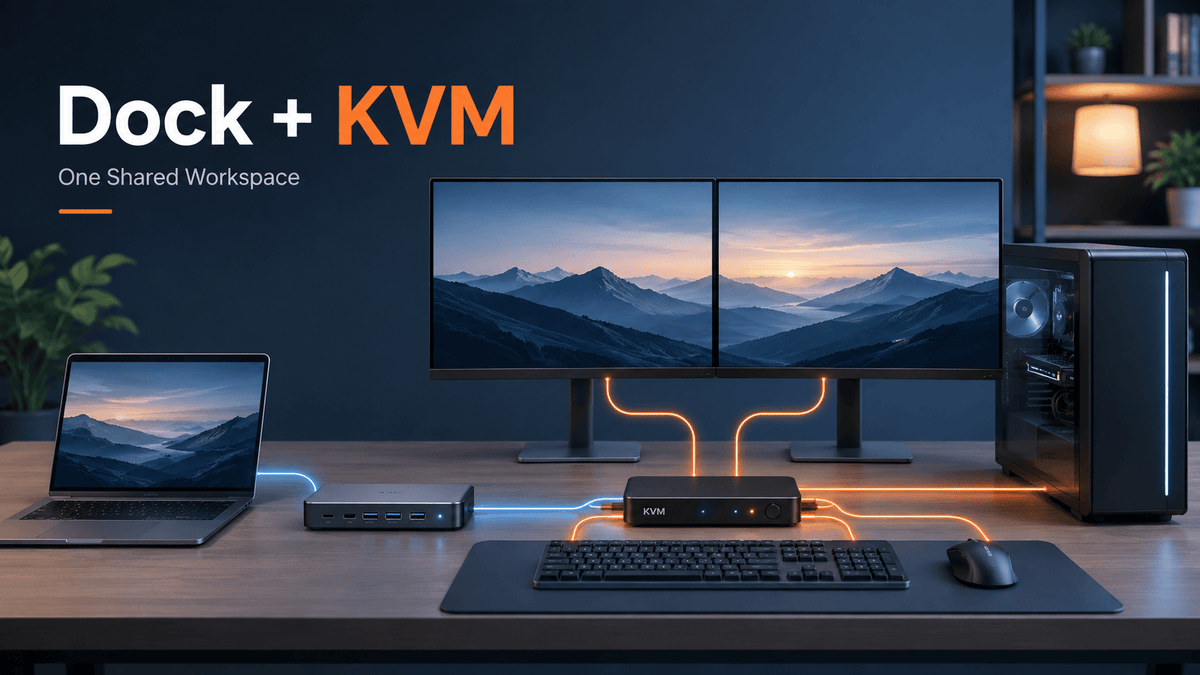
In most mixed laptop-and-desktop setups, the dock belongs between the laptop and the KVM:
Desktop PC → KVM PC Input 2
KVM → Monitor(s), Keyboard, Mouse, and Shared USB Devices
Here, the dock acts as an adapter and expansion layer for the laptop. It converts the laptop’s USB-C or Thunderbolt-compatible host connection into the HDMI, DisplayPort, and USB outputs required by the KVM. The desktop supplies its own video and USB connections directly to the other KVM input.
Video and USB May Still Need Separate Connections
A traditional KVM input often needs both a video connection and a USB upstream connection. HDMI or DisplayPort carries the display signal. USB carries keyboard, mouse, webcam, storage, audio, and other shared peripheral data.
Therefore, connecting only the dock’s HDMI output to the KVM may produce a picture while leaving the keyboard and mouse attached to the wrong computer. The dock-to-KVM USB data path must also be connected according to the KVM’s input design.
Why KVM to Dock to Monitors Is Usually the Wrong Order
The following structure is generally not appropriate:
A dock’s upstream port expects a computer host, not a bundle of ordinary HDMI, DisplayPort, and USB signals arriving from a KVM. The dock cannot normally take a KVM’s display output and USB output, reinterpret them as a single host connection, and then provide unified expansion for whichever computer is active.
There are specialized products with integrated switching and docking functions, but that capability must be part of the device design. It should not be assumed from the presence of USB-C ports.

Three Common Dock and KVM Topologies
Scenario 1: Laptop With a Dock and Desktop Sharing One Monitor
Desktop PC → KVM PC Input 2
KVM → One Monitor + Keyboard + Mouse + Shared USB Devices
This is the most straightforward dock-and-KVM arrangement. The dock needs one compatible video output for the KVM and a USB data path for shared peripherals. The desktop needs its own matching video and USB connections.
Before purchasing adapters, confirm direction. A USB-C-to-HDMI adapter converts a USB-C display output into HDMI. An HDMI-to-USB-C display conversion is a different task and may require an active converter. The connector names at both ends do not describe the conversion direction.
Scenario 2: Dual-Monitor Dock and Desktop Sharing Two Monitors
Desktop PC With Two Video Outputs → Dual-Monitor KVM
Dual-Monitor KVM → Two Monitors + Shared USB Devices
A dual-monitor KVM normally expects two usable video signals from each computer. The laptop side must therefore provide two outputs that the operating system recognizes in the required extended or mirrored configuration. The desktop side also needs two GPU outputs connected to the KVM.
The dock having two physical display connectors is not enough. Those connectors may be driven by MST, DisplayLink, two native DisplayPort streams, or a combination of technologies. The KVM and operating system must be able to work with that topology.
Also check whether both KVM inputs use the same connector arrangement. A dual-monitor KVM with two DisplayPort inputs per computer may require USB-C-to-DisplayPort connections on the laptop side. A model with HDMI and DisplayPort inputs may require a different dock output combination.
Scenario 3: Two USB-C Laptops Need One-Cable Desk Connections
Laptop 2 → Dock 2 → Traditional KVM
Traditional KVM → Shared Monitor(s) and USB Devices
This can be built, but it adds two docks, two power supplies, several video cables, two USB paths, and more firmware and cable variables. Troubleshooting becomes difficult because either dock, either host port, either power-delivery negotiation, or the KVM may be responsible for a failure.
For two USB-C laptops, a USB-C KVM or KVM Dock may create a cleaner topology by integrating laptop input, display output, USB sharing, and selected charging functions. It is still necessary to verify the laptops’ video-capable USB-C ports, supported display count, operating-system behavior, target resolution, and power requirements.

What Must Match Before Dock and KVM Can Work Together?
1. Video Interface Compatibility
The dock’s output must match the KVM’s input or use a conversion path that is electrically and directionally correct. HDMI-to-HDMI and DisplayPort-to-DisplayPort are usually easier to validate than multi-stage conversions.
When conversion is unavoidable, confirm the signal direction and target mode. DisplayPort-to-HDMI and HDMI-to-DisplayPort are not automatically interchangeable. USB-C-to-DisplayPort also requires a host port that actually supports display output.
2. Resolution and Refresh-Rate Bandwidth
The final display mode is limited by the lowest-capability part of the chain:
A dock rated for 4K or dual displays does not guarantee the same result after the signal passes through a KVM. The rating may apply only to a specific port combination, color format, refresh rate, operating system, or display topology.
High refresh rate, HDR, VRR, DSC, and high color depth increase the demands on the chain. A setup may produce 4K at 60Hz but fail at 120Hz, or support high refresh on one monitor but not two simultaneously.
3. Number of Independent Video Outputs
A dual-monitor KVM usually needs two display signals from each computer. A triple-monitor KVM usually needs three, unless the KVM uses a specifically designed and verified single-cable display architecture.
Count logical display streams, not just connectors. Two ports on a dock may mirror the same signal. A single USB-C connection may carry one DisplayPort stream that the dock divides through MST. A DisplayLink dock may create additional displays through USB software rather than the laptop’s native display pipeline.
4. USB Connection Path
Video switching and USB switching are separate functions. The dock-to-KVM path must carry USB data if the laptop is expected to use the shared keyboard, mouse, webcam, storage, microphone, or other peripherals.
High-bandwidth devices deserve special attention. Webcams, capture devices, external SSDs, audio interfaces, and USB hubs may compete for the same upstream bandwidth. A keyboard and mouse can work normally while a camera drops frames or a storage device performs below its direct-connect speed.
5. Power Delivery
A dock may charge the connected laptop through its host cable. That power path is local to the laptop and dock unless the KVM is explicitly designed to provide or pass through laptop charging.
A standard KVM does not automatically transfer the dock’s charging capability to another computer. Treat video, USB data, and power delivery as three separate paths and verify each one.
6. Operating System, Drivers, and Firmware
The same dock can behave differently across Windows, macOS, and Linux because display enumeration, MST handling, DisplayLink drivers, sleep behavior, and USB permissions differ. Dock firmware, KVM firmware, graphics drivers, and DisplayLink software can all affect wake and switching reliability.
MST, DisplayLink, DP Alt Mode, and Docks Compatible With Thunderbolt Devices Are Not the Same
“USB-C dock” describes a connector-based product category, not one display architecture. Understanding how the dock creates its display outputs is more useful than counting its ports.
| Dock Architecture | How Displays Are Created | Typical Strength | Main KVM Consideration |
|---|---|---|---|
| USB-C DP Alt Mode | Uses native DisplayPort video carried through USB-C | Direct GPU-driven output with no display driver required | Confirm the host supports video, available DP lanes, display count, and bandwidth |
| MST | Splits one DisplayPort stream into multiple display streams | Useful for extended Windows multi-monitor setups | macOS generally does not use ordinary MST hubs for multiple independent extended desktops; verify the exact Mac and topology |
| DisplayLink | Creates additional displays over USB data with software and a DisplayLink chipset | Can add displays when native output paths are limited | Requires drivers and may be less suitable for low-latency gaming, protected content, color-critical work, or demanding high-refresh workflows |
| Dock Compatible With Thunderbolt Devices | Carries DisplayPort, USB, PCIe-related data paths, and power according to the host and device design | High-bandwidth laptop expansion and fewer host-side cables | Display count still depends on the computer, dock, operating system, monitor type, and downstream KVM path |
An MST Dock Is Not the Same as Two Independent GPU Ports
An MST dock may expose two HDMI or DisplayPort connectors while sourcing both from one DisplayPort stream. This can work for many Windows office setups, but it is not equivalent to two separate GPU outputs in every operating system or KVM chain.
For a detailed comparison focused on three-monitor workstations, see MST vs. DisplayLink for a Desktop and Laptop Triple-Monitor Setup.
DisplayLink Adds a Software Display Layer
DisplayLink transmits display information through USB data and reconstructs it through compatible hardware. This can solve real multi-monitor limitations, especially in office-oriented workflows, but it should not be treated as identical to a native HDMI or DisplayPort output.
Driver installation, operating-system permissions, CPU/GPU workload, content protection, latency, and USB bandwidth can all affect the result. When a DisplayLink dock is placed before a KVM, both the software display layer and the hardware switching layer must behave correctly.
Thunderbolt Compatibility Does Not Remove Host Limits
A dock designed for Thunderbolt-enabled laptops can carry substantial display and data traffic over one cable, but the computer still determines how many displays and which modes are available. The downstream KVM, adapters, cables, and monitors must also support the same target configuration.
Compatibility should not be confused with official certification. Unless a product page explicitly states certification status, describe the device as compatible with Thunderbolt devices, designed for Thunderbolt laptop workflows, or tested with common Thunderbolt workflows.
Why Refresh Rate Drops or the Screen Goes Black
Adding a dock increases the number of negotiation points between the computer and monitor. A failure that appears to be a “KVM problem” may originate in the host port, dock, adapter, cable, display mode, driver, or power sequence.
| Symptom | Likely Cause | Practical Check |
|---|---|---|
| Refresh rate falls from 120Hz or 144Hz to 60Hz | Dock, adapter, cable, or KVM lacks bandwidth for the requested mode | Test direct connection, then add one device at a time; verify the exact port combination and color depth |
| One monitor works but the second does not | Dock does not provide two usable streams, MST is unsupported, or the second KVM input is not connected | Confirm two independent displays directly from the dock before connecting the KVM |
| Black screen after switching | EDID, HDCP, hot-plug detection, or link retraining fails across the longer chain | Reduce to 1080p60, use shorter cables, remove adapters, and retest wake and switching |
| Flicker or intermittent signal | Marginal cable quality, excessive length, bandwidth pressure, or unstable conversion | Replace one cable at a time with a shorter verified cable and remove unnecessary converters |
| Windows move or resize after switching | The computer sees the monitor as disconnected and re-enumerates the desktop | Check the KVM’s EDID behavior and compare with a direct monitor connection |
| Display does not wake from sleep | Dock firmware, host sleep state, power delivery, hot-plug timing, or driver issue | Update firmware and drivers, disable deep sleep for testing, and power devices in a controlled order |
| Keyboard and mouse work, but webcam or SSD disconnects | USB bandwidth, hub depth, power, or device compatibility issue | Connect a basic wired keyboard and mouse first, then add high-bandwidth USB devices individually |
| Streaming or protected content shows an error | HDCP authentication fails through multiple devices or conversions | Test the content with a direct monitor path, then simplify adapters and confirm KVM support |
A Better Troubleshooting Order
- Connect the computer directly to the monitor at the target resolution and refresh rate.
- Test the dock directly with the monitor or monitors.
- Confirm that the dock provides the required number of independent displays.
- Set a conservative mode such as 1080p at 60Hz before adding the KVM.
- Add the KVM with short, verified cables and no optional adapters.
- Connect basic keyboard and mouse devices before webcams, storage, capture devices, or additional hubs.
- Increase resolution, refresh rate, HDR, and other advanced display features one at a time.
This sequence isolates each layer. Reconnecting every device at once makes it difficult to identify whether the dock, KVM, cable, driver, or display mode caused the failure.
When You Should Not Combine a Dock With a KVM
Dock plus KVM is reasonable when a laptop needs expansion and the desk needs switching. It is less attractive when the signal path becomes more important than preserving the existing dock.
Consider a simpler or integrated design when:
- Your target is 4K at high refresh rates, high-refresh ultrawide output, professional HDR, or another bandwidth-sensitive mode.
- You need dependable G-Sync, FreeSync, VRR, DSC, or complex high-color-depth behavior.
- The dock depends on DisplayLink, but the workload is low-latency gaming, color-critical video, protected media, or high-frame-rate production.
- The dock mirrors two physical outputs instead of creating two independent extended displays.
- A Mac is expected to create two independent extended desktops through an ordinary MST dock.
- The dock output and KVM input require several active converters.
- The existing chain already produces frequent black screens, wake failures, USB reconnects, or unstable resolution detection.
- Both laptops need a one-cable connection for video, USB data, and charging.
- The monitor is Apple Studio Display or another display that depends on a Thunderbolt-compatible device path rather than ordinary HDMI or DisplayPort input.
- The setup includes multiple hubs, extenders, adapters, long cables, and docks with no clear way to isolate faults.
Fewer conversion stages usually mean easier troubleshooting and more predictable display performance.
When a USB-C KVM or KVM Dock Is a Better Choice
An integrated solution becomes more useful when the desk is being redesigned rather than forced to preserve an existing dock.
| Workspace Requirement | More Suitable Path to Evaluate | What Still Must Be Verified |
|---|---|---|
| One laptop needs more ports; no second computer | Docking station | Host compatibility, display count, charging, and peripherals |
| Laptop and desktop share one or two conventional HDMI/DP monitors | Hybrid KVM or KVM Dock | Laptop video protocol, desktop outputs, USB path, and target display mode |
| Two USB-C laptops need fewer host-side cables | USB-C KVM | DP Alt Mode, display count, charging power, macOS/Windows behavior, and monitor interfaces |
| Mac needs additional displays beyond its native topology | DisplayLink-based KVM Dock where appropriate | Driver support, workload, latency expectations, content protection, and display resolution |
| Apple Studio Display or another Thunderbolt-dependent display is shared | KVM compatible with Thunderbolt display workflows | Computer support, display behavior, peripheral functions, charging, cables, and certification status |
A KVM Dock is not a universal replacement for every dock-and-KVM combination. Integrated hardware reduces device count, but it does not remove the need to verify the host’s USB-C video capability, MST or DisplayLink architecture, power delivery, monitor count, and target display specification.

For Mac-specific planning, see the MacBook Dual Monitor Setup Guide: Dock vs. KVM for Multi-Device Desks.
How TESmart Helps Build a More Reliable Setup
At TESmart, we evaluate the complete signal path rather than looking only at connector types. A useful recommendation starts with the computer and monitor architecture, not with a product model.
Before choosing a KVM, collect the following information:
- Exact laptop and desktop models
- Dock model and firmware version
- Operating system and version
- Number of monitors
- Target resolution and refresh rate for each monitor
- Dock video output ports and the technology behind them
- Number of usable video outputs from each computer
- USB devices that must be shared
- Whether the laptop needs charging through the desk connection
- Any adapters, converters, extenders, or long cable runs
TESmart Paths for Different Workstation Architectures
For a basic laptop-and-desktop desk, start with a KVM whose video inputs match the dock and desktop outputs. A single-monitor design may be sufficient when both computers share one display, while a dual-monitor KVM requires two valid display paths from each computer.
For two laptops or a laptop-heavy desk, the TESmart USB-C KVM range is more suitable to evaluate because laptop inputs and shared desk functions are designed as one system. The exact model should be selected according to DP Alt Mode support, monitor count, charging requirement, and operating system.
For one laptop and one desktop sharing two displays, a hybrid model such as HDC202-P23 may make more sense than adding a separate dock, provided its input structure, display modes, and charging behavior match the two computers.
For a Mac or laptop workflow that needs additional software-driven displays, HDC203-PM24 uses DisplayLink technology and should be evaluated with driver requirements and workload expectations in mind. It is more suitable for productivity-oriented multi-monitor use than for assuming native-GPU behavior in every application.
When the priority is a Thunderbolt-dependent display or another specialized device path, choose a solution designed and tested for that workflow. Do not substitute an HDMI or DisplayPort KVM merely because a USB-C adapter can be physically connected.

Related TESmart Guides
- KVM Switch vs. Docking Station: Choosing the Right Solution for You — a broader comparison of expansion and switching roles.
- Why a High-Bandwidth Dock Still Does Not Switch Two Computers — why bandwidth and docking features do not automatically provide host switching.
- MST vs. DisplayLink for a Desktop and Laptop Triple-Monitor Setup — a deeper look at native and software-driven multi-monitor paths.
- How to Set Up a KVM Switch — connection preparation and basic KVM installation.
- KVM Switch Buying Guide 2026 — a wider decision framework covering computer count, monitor count, interfaces, and display targets.
Conclusion
You can use a docking station with a KVM switch when the dock expands one computer into video and USB connections that the KVM is designed to receive. In most cases, the correct order is Laptop → Dock → KVM → Shared Monitors and USB Devices.
The harder question is not whether the connectors fit. It is whether the full chain can provide the required number of display streams, resolution, refresh rate, USB bandwidth, power behavior, and operating-system compatibility.
For a simple single-monitor laptop-and-desktop setup, an existing dock plus KVM may be practical. For two USB-C laptops, multi-monitor Mac workflows, high-refresh displays, or a desk with too many adapters, an integrated USB-C KVM or KVM Dock can reduce complexity.
Explore TESmart single-monitor KVM switches, USB-C KVM solutions, and multi-monitor KVM options. Choose by the complete workstation topology rather than by connector labels alone.
FAQ
Can I connect a docking station to a KVM switch?
Yes, in many setups. The dock typically connects to one computer and provides video plus USB outputs to one KVM input. Compatibility depends on the dock architecture, KVM inputs, operating system, target display mode, cables, and USB requirements.
Should the docking station go before or after the KVM switch?
The docking station should typically go before the KVM, on the laptop’s input side: Laptop → Dock → KVM. A standard dock usually expects one computer on its upstream port and is not designed to sit after a KVM as a shared expansion layer.
Can one docking station switch between two laptops?
Usually not. Most docks have one host upstream connection and expand that host’s ports. A dock can switch two computers only when the product specifically includes multi-host switching or KVM functions.
Why does my refresh rate drop when I connect a dock through a KVM?
The complete chain may not have enough bandwidth for the requested mode. The limiting part could be the laptop port, dock, adapter, cable, KVM, monitor input, display topology, or color setting. Test each stage directly and increase the display mode gradually.
Can I use a dual-monitor dock with a dual-monitor KVM?
Yes, provided the dock creates two usable display signals for the operating system and both outputs match the KVM inputs. Each computer typically needs to supply two video signals to a dual-monitor KVM unless the hardware uses another explicitly supported architecture.
Does a DisplayLink dock work with a KVM switch?
It can, but it must be verified. DisplayLink uses USB data, software, and compatible hardware to create displays. Driver support, USB bandwidth, protected content, latency, and switching behavior may differ from native HDMI or DisplayPort output.
Can I charge my laptop through a KVM and docking station setup?
The dock may charge the laptop through its host cable. Whether an integrated KVM also provides charging depends on the model. A standard KVM does not automatically pass the dock’s power delivery to every connected computer.
Is a USB-C KVM better than using a separate dock and KVM?
It is often more suitable when two USB-C laptops need fewer cables or when the desk is being rebuilt around integrated switching and expansion. It is not automatically better for every setup. USB-C video support, display count, operating-system limits, power delivery, and target resolution must still be checked.
Why does my Mac show mirrored displays through an MST dock?
macOS generally does not use ordinary DisplayPort MST hubs to create multiple independent extended desktops in the same way as Windows. The result depends on the Mac model, dock architecture, and display path. A native multi-output or DisplayLink-based approach may be required.
Can I place a dock between the KVM and an Apple Studio Display?
Not as a general rule. Apple Studio Display depends on a Thunderbolt-compatible device path for video and integrated functions. A conventional HDMI or DisplayPort KVM plus a standard dock should not be assumed to preserve that workflow. Use a solution specifically designed and tested for Thunderbolt display use.
Share:
Why Apple Studio Display Needs a True Thunderbolt 4 KVM
Best KVM Setup for a MacBook and Windows Gaming PC