Introduction
A 4K 240Hz monitor may work perfectly when connected directly to a gaming PC, then drop to 144Hz—or disappear completely—when a KVM switch is added.
The same problem can appear with 8K 60Hz. The GPU supports the resolution. The monitor supports it. The cables appear to support it. Yet the complete setup does not.
This is where Display Stream Compression (DSC) becomes relevant.
The useful question is not simply “What is DSC?” It is:
If a display mode depends on DSC, what has to happen when that signal passes through a KVM switch?
The answer involves more than bandwidth. The source and display must agree on the display mode, the video link must be established correctly, the KVM must preserve the required signal path, and cables or adapters cannot introduce a weaker link.
This guide focuses on that complete path:
GPU → cable → KVM → cable → monitor
and explains what to check when 4K 240Hz, 8K 60Hz, HDR, or other high-bandwidth modes work directly but fail through a KVM.
What DSC Actually Does in a KVM Signal Path
DSC stands for Display Stream Compression, a compression standard developed by VESA for display transport.
Unlike video compression used to reduce streaming file size, DSC is designed for real-time transmission inside a display link. VESA describes it as a low-latency, visually lossless compression technology. DisplayPort 1.4 incorporates DSC 1.2 and can use compression ratios of up to approximately 3:1.
That distinction matters in a KVM setup.
In a conventional digital KVM path, the KVM should not be thought of as a device that takes an ordinary display signal and “turns DSC on.” DSC capability originates from the display pipeline at the endpoints.
In simplified form:
GPU / source → DSC-capable transport → KVM → DSC-capable transport → monitor
The source generates the display stream according to the mode negotiated with the display. The monitor ultimately receives and processes that stream.
The KVM in between must therefore be capable of carrying the required video path and allowing the source and display to establish the mode correctly.
That leads to an important buying rule:
A KVM cannot add DSC capability to a GPU or monitor that does not already support the required display mode.
Likewise, seeing “8K” on a KVM specification does not automatically prove that every possible 4K 240Hz, 10-bit HDR, DSC, or VRR combination will work.
The exact mode still matters.

Why 4K 240Hz and 8K 60Hz Belong in the Same Conversation
One reason DSC discussions become confusing is that resolution and refresh rate are often treated separately.
From a bandwidth perspective, however, 4K 240Hz and 8K 60Hz are surprisingly similar workloads.
Consider the active pixel data before blanking and transport overhead:
| Display Mode | Approx. Active Pixel Rate | Approx. Raw RGB Data at 10-bit |
|---|---|---|
| 4K 60Hz | 0.50 billion pixels/s | 14.9 Gbps |
| 4K 144Hz | 1.19 billion pixels/s | 35.8 Gbps |
| 4K 240Hz | 1.99 billion pixels/s | 59.7 Gbps |
| 8K 60Hz | 1.99 billion pixels/s | 59.7 Gbps |
These figures are simplified active-video calculations and do not include blanking intervals or interface encoding overhead.
The useful insight is the relationship:
At the same color depth and sampling format, 4K 240Hz and 8K 60Hz process roughly the same number of active pixels per second.
This explains why a user shopping for an “8K KVM” may also care about high-refresh 4K performance—but it also explains why the two labels are not interchangeable.
A device rated for 8K 60Hz under one color format or transport configuration does not automatically guarantee every 4K 240Hz mode.
HDR, 10-bit color, chroma format, interface link rate, DSC support, VRR, and the monitor's own timing requirements can all change the result.

Does a KVM Switch Need to Support DSC?
If the display mode you are trying to run depends on DSC, then the KVM path must be compatible with that DSC-based mode.
The more important question is what “support” means.
A high-bandwidth KVM sits between two devices that need to negotiate a display connection:
Source → KVM → Display
The KVM must not prevent the source from discovering the monitor's supported modes or carrying the resulting display stream.
If something in that path cannot handle the negotiated mode, several things may happen:
-
240Hz disappears from the operating system
-
8K becomes available only at a lower refresh rate
-
HDR or 10-bit color becomes unavailable
-
the GPU falls back to another color format
-
the display works at 120Hz or 144Hz but not 240Hz
-
the monitor shows a black screen
-
switching between computers takes longer than expected
-
the connection works on one computer but not another
This is why “Does the KVM support DSC?” should usually be followed by:
At what resolution, refresh rate, bit depth, display interface, and monitor configuration?
That is a much more useful compatibility question.

Why EDID and Link Training Matter When You Switch Computers
DSC is only one part of the process.
Before a GPU sends a high-bandwidth display mode, it first needs to understand what the display can accept.
EDID Tells the Source What the Display Supports
EDID contains information used by a source to identify display capabilities.
This can include supported resolutions, timings, and other display information.
When a KVM is inserted between the computer and monitor, EDID becomes important because the source still needs a consistent view of the display.
Depending on the KVM design, EDID may be passed through, retained, or otherwise managed by the switching hardware.
If the display information seen by the computer changes after switching, the operating system or GPU may recalculate the available display modes.
That can show up as:
-
windows moving between screens
-
the desktop briefly resizing
-
refresh rate changing
-
HDR being renegotiated
-
a short black screen
EDID-related behavior is therefore separate from DSC itself, even though both can affect the same high-refresh setup.
DisplayPort May Need to Establish the Link Again
DisplayPort also uses a process commonly referred to as link training to establish a reliable connection between the source and the receiving device.
VESA documentation describes Hot Plug Detect, capability discovery, and link training as parts of DisplayPort link establishment and management.
When a KVM changes the active source, the display path may need to be renegotiated depending on how the hardware handles the connection.
At 4K 60Hz, that renegotiation may be relatively forgiving.
At 4K 240Hz or another mode operating close to the link's practical limits, cable quality, adapters, signal margin, and capability negotiation become much more important.
This is one reason a monitor can work correctly when connected directly to a GPU yet behave differently after another device is inserted into the path.

Why 4K 240Hz Can Work Directly but Fail Through a KVM
Consider this setup:
Gaming GPU → DisplayPort cable → 4K 240Hz monitor
The monitor exposes 240Hz, DSC is negotiated where required, and everything works.
Now insert a KVM:
Gaming GPU → cable → KVM → cable → 4K 240Hz monitor
The setup now contains two cable segments plus the switching hardware.
If 240Hz disappears, do not immediately assume that “DSC does not work through KVMs.”
Several different failure points can produce the same symptom.
1. The KVM Does Not Support the Exact Target Mode
“8K,” “DisplayPort,” or “high refresh rate” are not sufficient descriptions by themselves.
The target mode could be:
3840 × 2160 @ 240Hz, RGB/4:4:4, 10-bit, HDR, VRR
That is much more specific than simply “4K.”
Compatibility needs to be evaluated against the actual mode.
2. One Cable Segment Cannot Maintain the Required Link
Adding a KVM changes one direct cable connection into two cable runs.
A cable that is stable at a lower link rate may expose problems when the complete chain is pushed harder.
Typical symptoms include flickering, intermittent black screens, or a refresh-rate option disappearing.
3. An Adapter or Dock Changes the Path
This is especially important with laptops.
For example:
USB-C laptop → dock → DisplayPort → KVM → monitor
has more negotiation points than:
GPU DisplayPort → KVM → monitor
The USB-C port must support the required display output, the dock or adapter must preserve the necessary mode, and the KVM must then carry it to the display.
Removing the dock or adapter is therefore one of the most useful diagnostic tests.
4. The Source Negotiates a Different Color Mode
A display may expose different combinations of:
-
RGB
-
YCbCr
-
8-bit
-
10-bit
-
HDR
-
refresh rate
when bandwidth becomes constrained.
A setup that reaches 240Hz only after dropping bit depth or changing chroma is not equivalent to a setup carrying the original target format.
This is why refresh rate alone should not be used to validate a high-bandwidth KVM path.
A Better Way to Test DSC Through a KVM
If a high-refresh display works directly but not through the KVM, test the chain methodically instead of replacing several components at once.
| Test | What It Tells You |
|---|---|
| Connect GPU directly to monitor | Confirms the source and display can reach the target mode |
| Keep the same GPU port and monitor input | Prevents another interface difference from changing the test |
| Add the KVM using short, appropriate cables | Tests the KVM path with fewer cable variables |
| Remove docks, hubs, and converters | Identifies whether an intermediate device is limiting the mode |
| Test 4K60, then 4K120/144, then the target mode | Shows approximately where the chain begins to fail |
| Compare SDR and HDR / 8-bit and 10-bit | Helps identify a bandwidth-sensitive failure |
| Check available refresh rates after each change | Shows whether capability negotiation changed |
| Test each computer independently | Separates KVM behavior from source-specific limitations |
A particularly useful clue is this:
If 4K60 works, 4K144 works, but 4K240 disappears only after adding the KVM or another cable segment, the problem is probably not basic video connectivity.
The failure is occurring when the chain moves into a higher-bandwidth operating mode.
TESmart's troubleshooting guidance similarly recommends starting with a direct connection, reducing resolution or refresh rate, removing docks or hubs, and simplifying the cable path when diagnosing black screens or resolution problems.

DisplayPort, HDMI, and USB-C: DSC Does Not Behave Identically in Every Setup
DSC should not be treated as a port type.
It is a transport compression technology used within supported display standards.
DisplayPort
DisplayPort 1.4 is closely associated with DSC because DSC substantially expands the display modes that can fit within its available transport bandwidth. VESA incorporated DSC 1.2 into DisplayPort 1.4 specifically for higher-resolution, higher-refresh and HDR applications.
This makes DSC particularly relevant when selecting a DisplayPort KVM for high-refresh PC workstations.
HDMI
HDMI also supports DSC in newer specifications, but DSC should not be assumed simply because a device says “HDMI 2.1.”
HDMI documentation describes DSC as an optional capability used for especially demanding display modes.
For an HDMI KVM, the actual supported timing and format therefore matter more than the version number printed on the connector.
USB-C DisplayPort Alt Mode
USB-C adds another source of confusion because USB-C describes the connector, not the complete display capability.
A laptop's USB-C port may carry DisplayPort video, but the available lane configuration, GPU support, dock design, adapter, and other USB traffic can affect the final display mode.
For a USB-C laptop connecting to a DisplayPort KVM, a USB-C-to-DisplayPort adapter or dock becomes another active part of the compatibility chain.
This is especially relevant for Mac users because many Macs rely on USB-C-based display outputs rather than native DisplayPort connectors. TESmart compatibility guidance therefore recommends minimizing unnecessary dock or hub layers when diagnosing unstable Mac display paths.
Choosing a TESmart KVM for a DSC-Dependent Setup
The most useful way to choose a KVM is not to begin with DSC.
Begin with the workstation structure.
Two Computers Sharing One High-Resolution Monitor
For a two-computer, single-monitor setup where the target extends beyond basic 4K60, the HKS201-M24 sits in TESmart's 8K60 single-monitor category.
This type of configuration makes more sense when both systems can provide the required video output directly and the user wants to share one high-resolution display plus keyboard and mouse.
However, an 8K60 rating should not automatically be interpreted as proof of every 4K240 configuration. If your exact requirement is 4K240 with 10-bit HDR or VRR, verify that specific mode rather than inferring support from the 8K label.
Two Computers Sharing Two DisplayPort Monitors
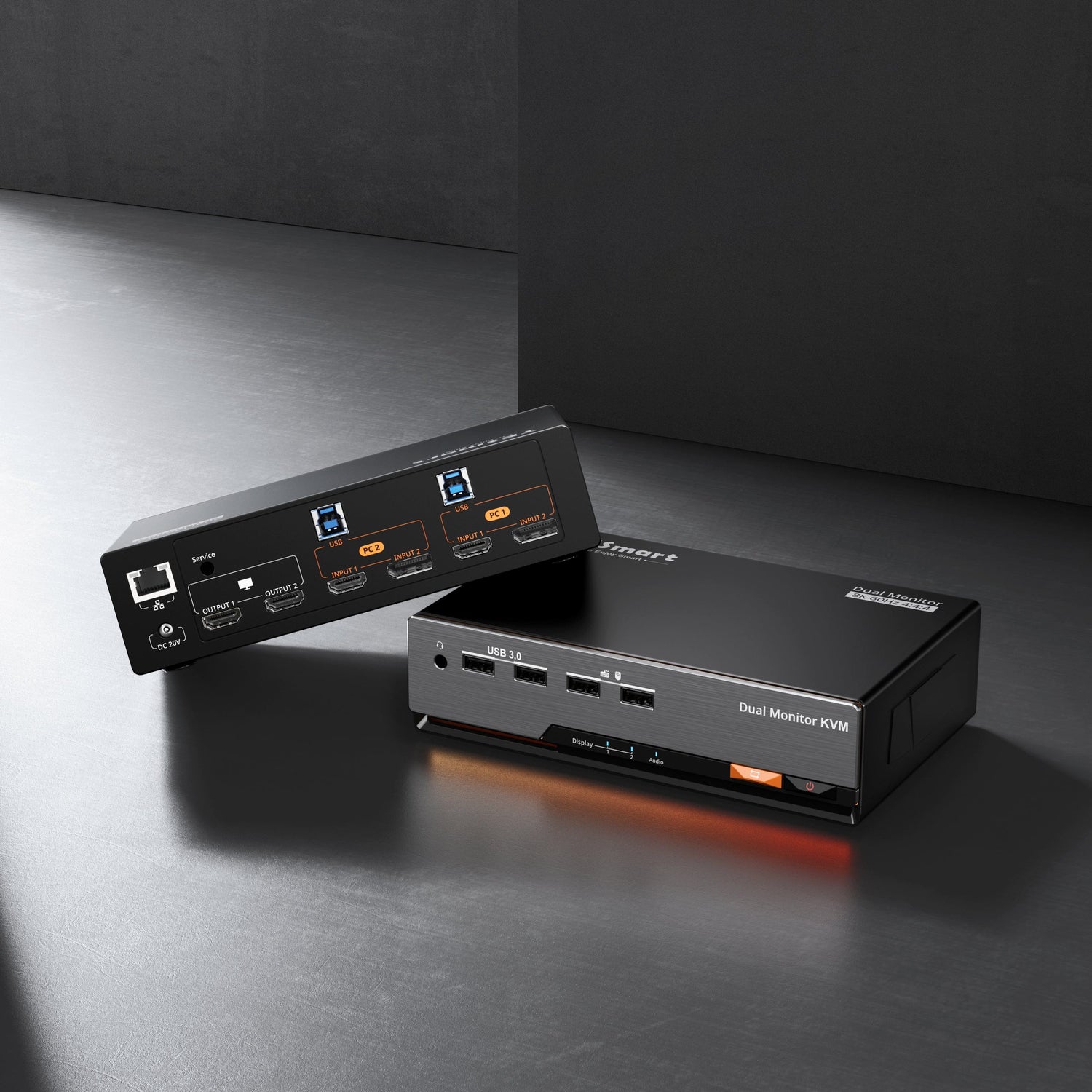
For a DisplayPort-oriented dual-monitor workstation, the DKS202-M24 is a 2-PC, 2-monitor model in TESmart's 8K60 class.
This is more relevant to developers, creators, or high-end PC users who need two independent display paths from each computer.
The important prerequisite is often overlooked:
Each computer must be able to provide the required number of independent video outputs.
A dual-monitor KVM does not create an additional GPU output.
High-bandwidth dual-monitor setups also need to be evaluated per display rather than treating “dual monitor” as one combined resolution specification.
Two Computers Sharing Three DisplayPort Monitors
For a three-display workstation, the DKS203-M24 is structured for 2 PCs and 3 monitors and is also listed in the 8K60 product class.
This is more suitable when monitor count is the primary requirement and each computer already provides enough display outputs.
As the number of displays increases, troubleshooting should become more systematic: validate each video path individually before testing the complete three-monitor arrangement.
Do Not Choose by “8K” Alone
For DSC-related high-refresh setups, check at least:
-
Number of computers
-
Number of monitors
-
Video output available from each computer
-
Monitor input type
-
Exact target resolution
-
Target refresh rate
-
8-bit or 10-bit color
-
HDR requirement
-
VRR requirement
-
Dock or adapter use
-
Whether the target mode depends on DSC
This avoids one of the most common mistakes in high-end display setups: assuming two products with similar headline resolution labels will behave identically.
FAQ
Does a KVM switch decode DSC?
A conventional KVM should not be viewed as a device that adds DSC encoding or decoding capability to otherwise incompatible equipment. If the target mode depends on DSC, the complete source-to-display path needs to support that mode. The KVM must be compatible with carrying and negotiating the required display connection.
Why does 4K 240Hz work directly but not through my KVM?
Adding a KVM also adds another device and another cable segment to the display path. The exact KVM mode support, cable quality, EDID behavior, adapters, color depth, HDR settings, and link negotiation can all determine whether 240Hz remains available.
Does every 4K 240Hz monitor use DSC?
Not necessarily in every interface and format combination. Whether DSC is required depends on the available transport bandwidth, interface, color depth, chroma format, GPU, and monitor implementation.
Does an 8K60 KVM automatically support 4K240?
No. Although 4K240 and 8K60 have similar active pixel rates at the same color depth, the actual display timings, DSC behavior, HDR, VRR, color format, and product implementation can differ. Verify the exact supported mode.
Can EDID cause a refresh rate to disappear?
EDID is part of how the source discovers display capabilities. If the display information presented to the source changes, the GPU or operating system may expose a different set of resolutions or refresh rates. EDID behavior is therefore one factor to investigate when a high-refresh mode disappears after switching.
Why does a KVM go black briefly when switching?
Changing the active source can require the display connection to be re-established. Display capability detection, Hot Plug Detect behavior, and link training can contribute to the delay, particularly on demanding DisplayPort paths.
Can a dock prevent DSC from working?
A dock or adapter becomes another component in the display chain. If it does not support the required video mode or transport behavior, the system may fall back to a lower refresh rate or fail to display the target mode. Testing without the dock is one of the fastest ways to isolate the problem.
Conclusion
DSC matters to KVM users for a different reason than it matters in a general display technology article.
The important question is not simply how compression works.
It is whether this complete path:
GPU → cable → KVM → cable → monitor
can negotiate and maintain the display mode you actually want.
For 4K 240Hz, 8K 60Hz, high-bit-depth HDR, and other demanding modes, checking only the resolution printed on a KVM box is not enough.
Define the exact target mode first. Confirm that it works with a direct connection. Then validate the cables, KVM, adapters, and display settings one step at a time.
That approach makes it much easier to distinguish a genuine DSC compatibility problem from an EDID issue, a link-training problem, a weak cable path, or a limitation elsewhere in the workstation.