



Display Setup
Max Display Output
Display Technology
Device Setup
Laptop Charging
Network Sharing
Display Stability
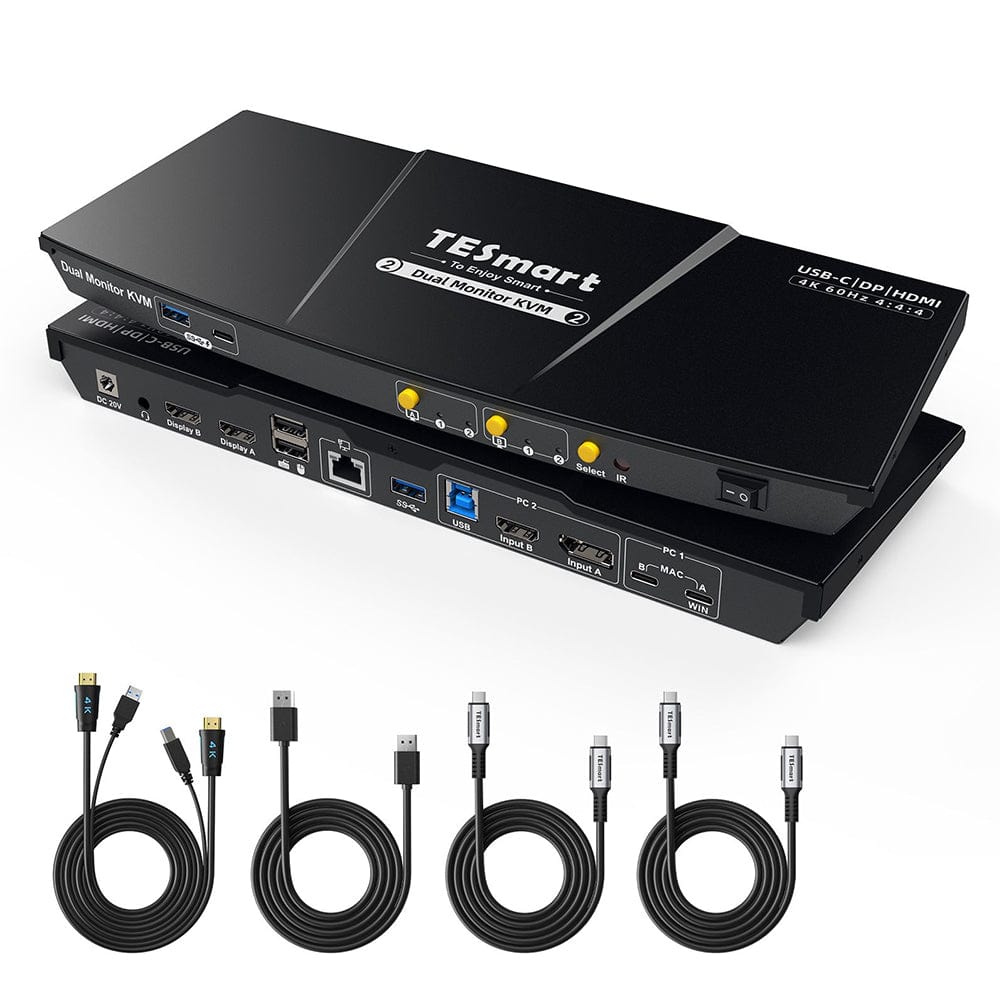
Dual 4K60Hz Hybrid KVM Docking Station Kit - USB-C with MST & EDID for 1 Laptop & 1 Desktop
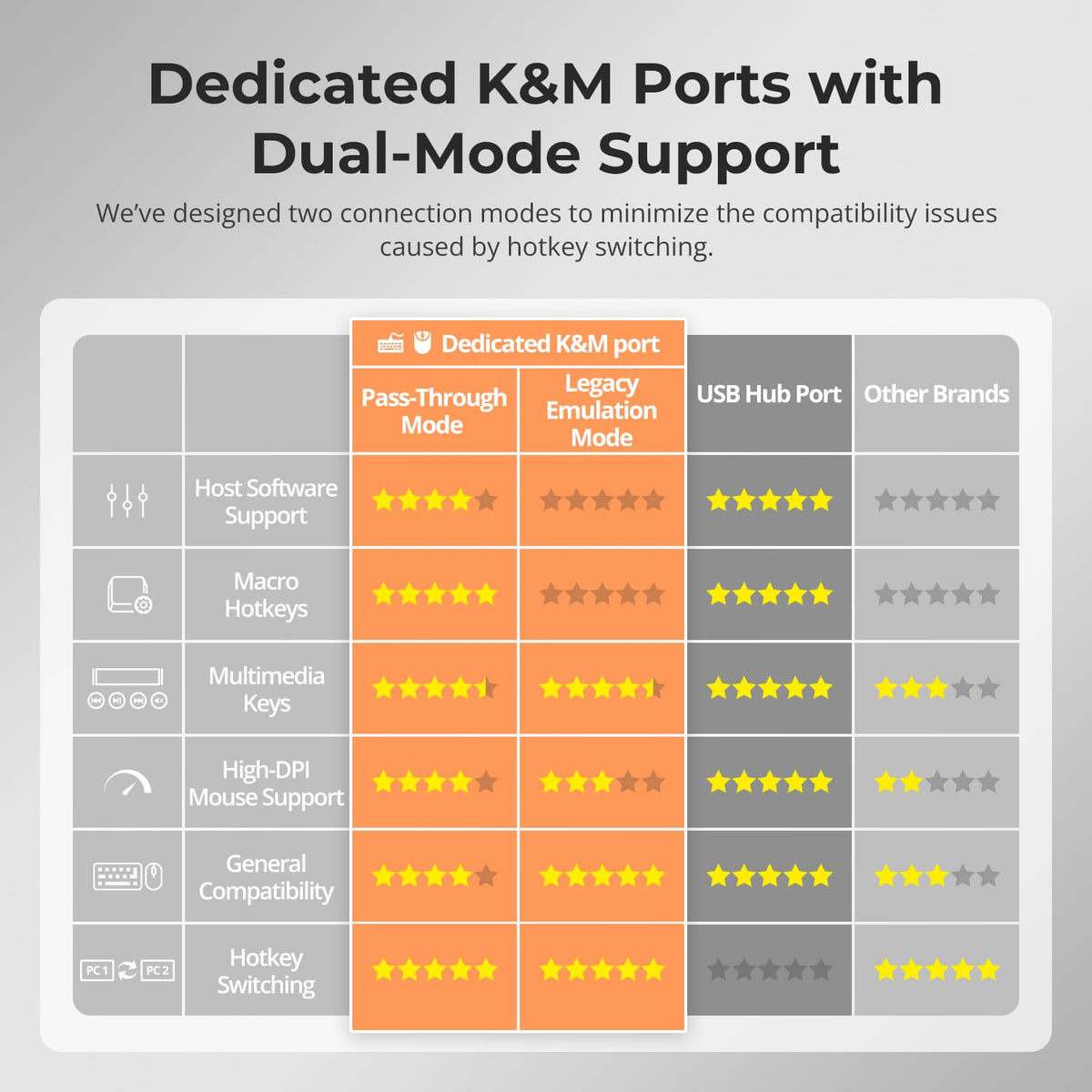
Share two Apple Studio Displays, one keyboard and mouse between two computers—or show one computer on each display when you need both systems at once.
Display Setup
Max Display Output
Display Technology
Device Setup
Laptop Charging
Network Sharing
Display Stability
Dual 4K60Hz Hybrid KVM Docking Station Kit - USB-C with MST & EDID for 1 Laptop & 1 Desktop
Why Choose HDC202-P23-N
Overview
01
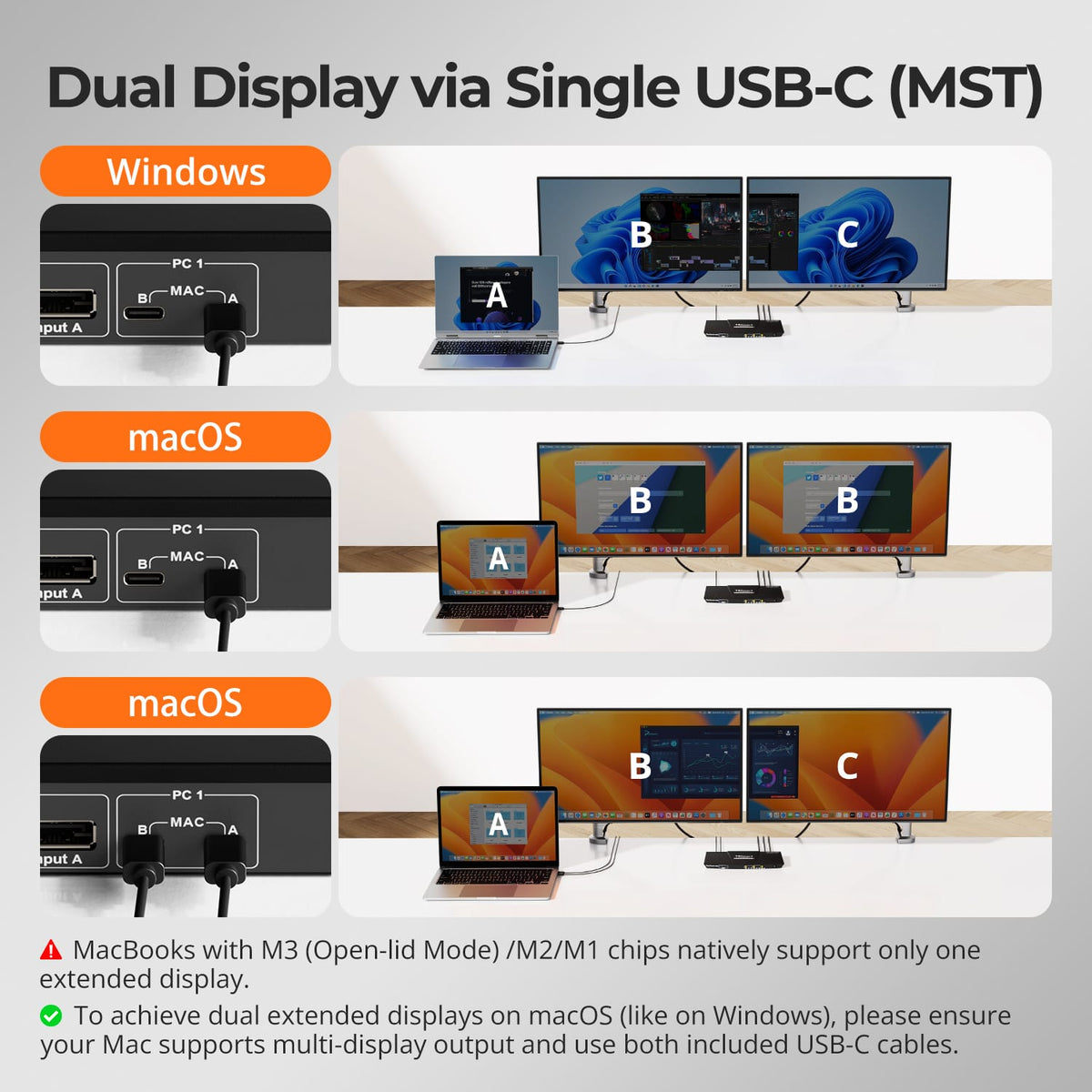
Dual Displays from a Single USB-C Cable
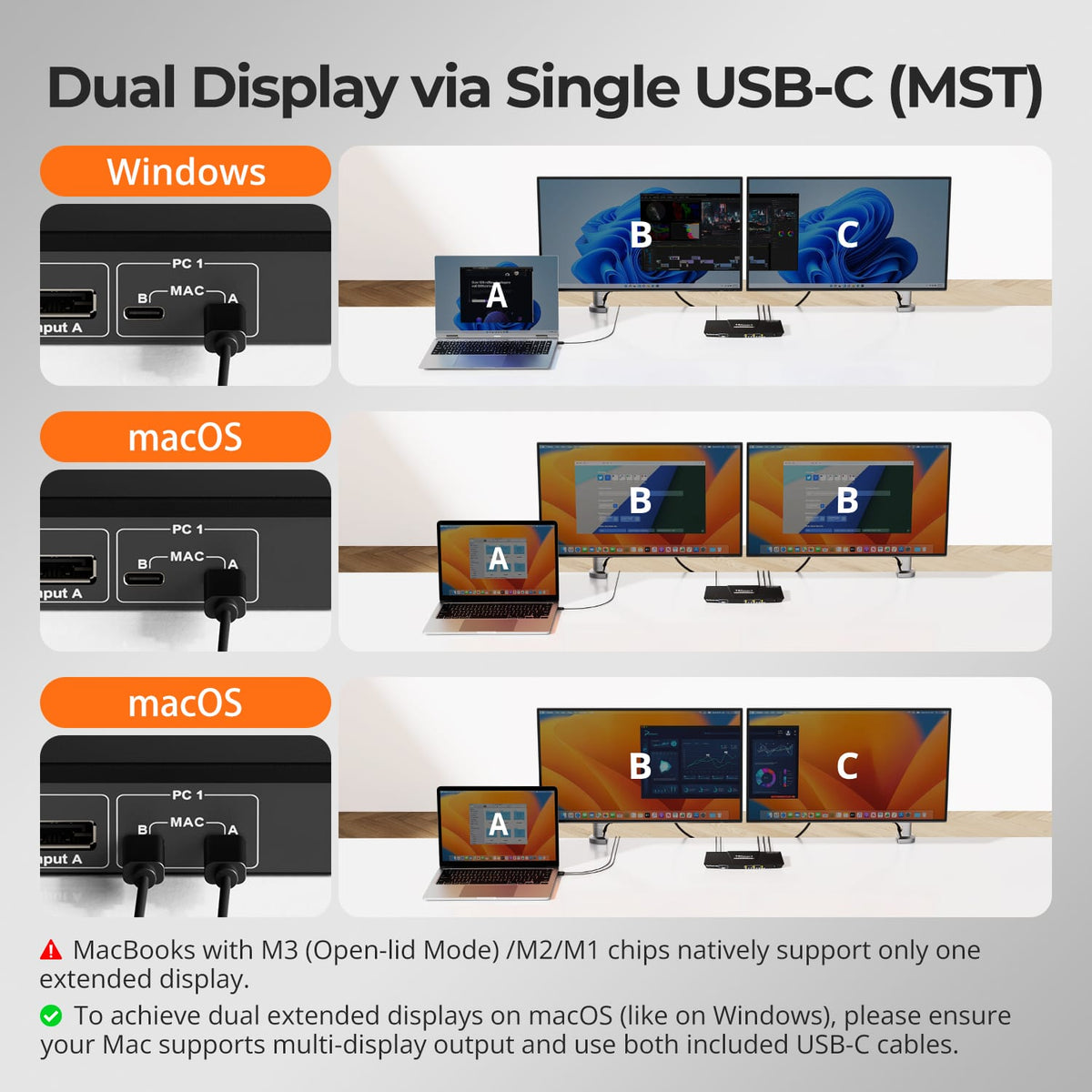
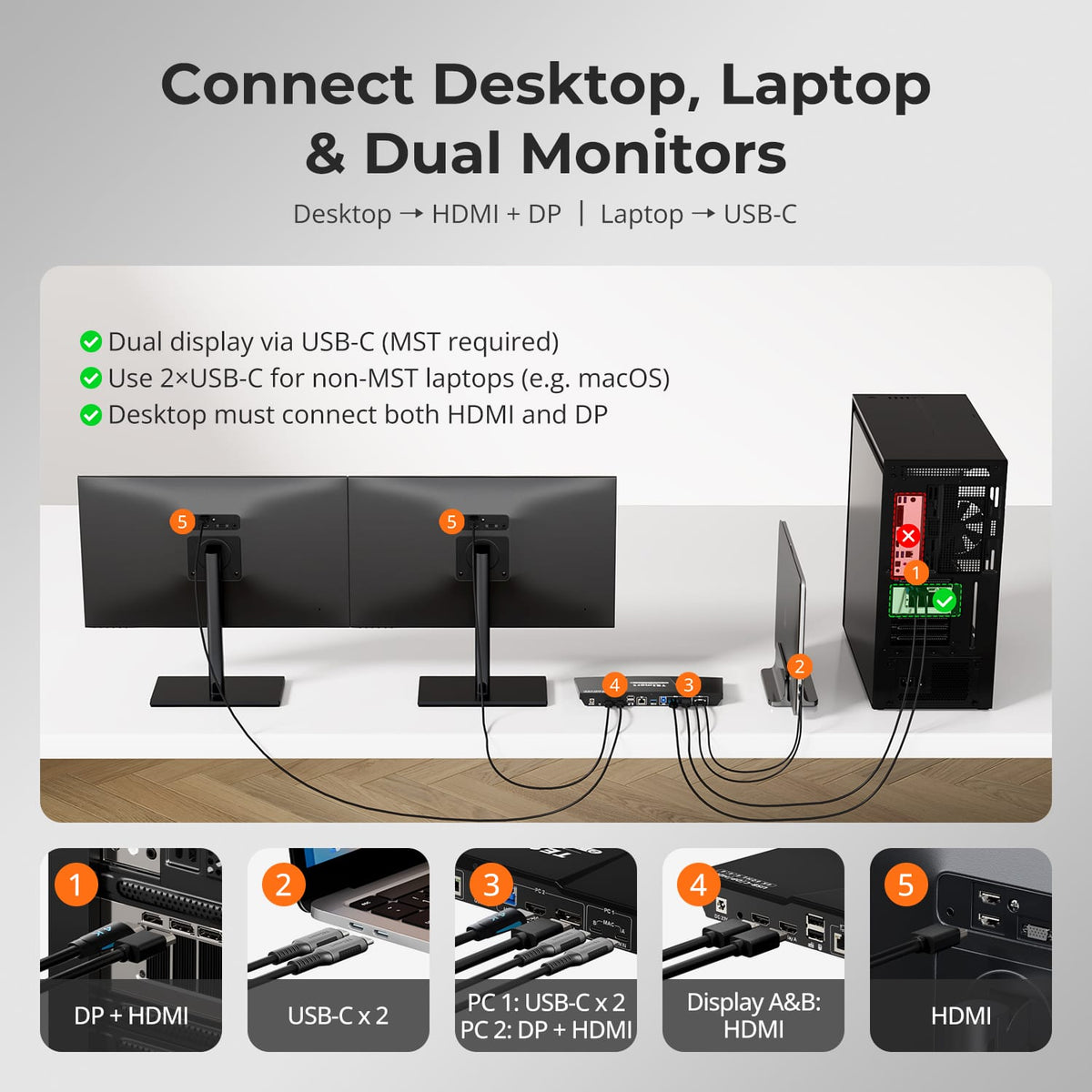
A compatible Windows USB-C laptop can send video, USB data and charging through one full-function USB-C connection and use MST to drive the dual-monitor workspace without a separate dock.
02
Two Screens. Flexible Routing.
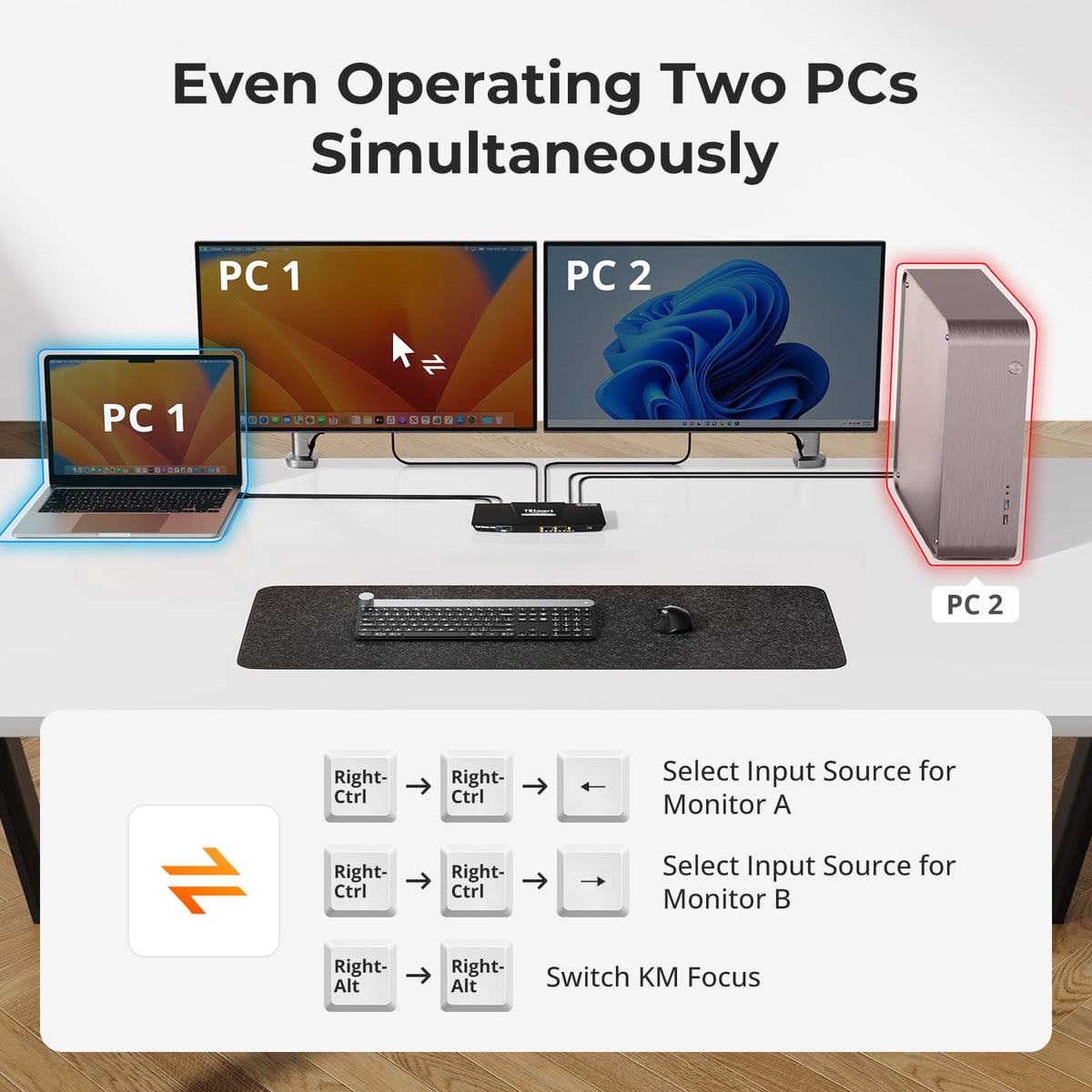
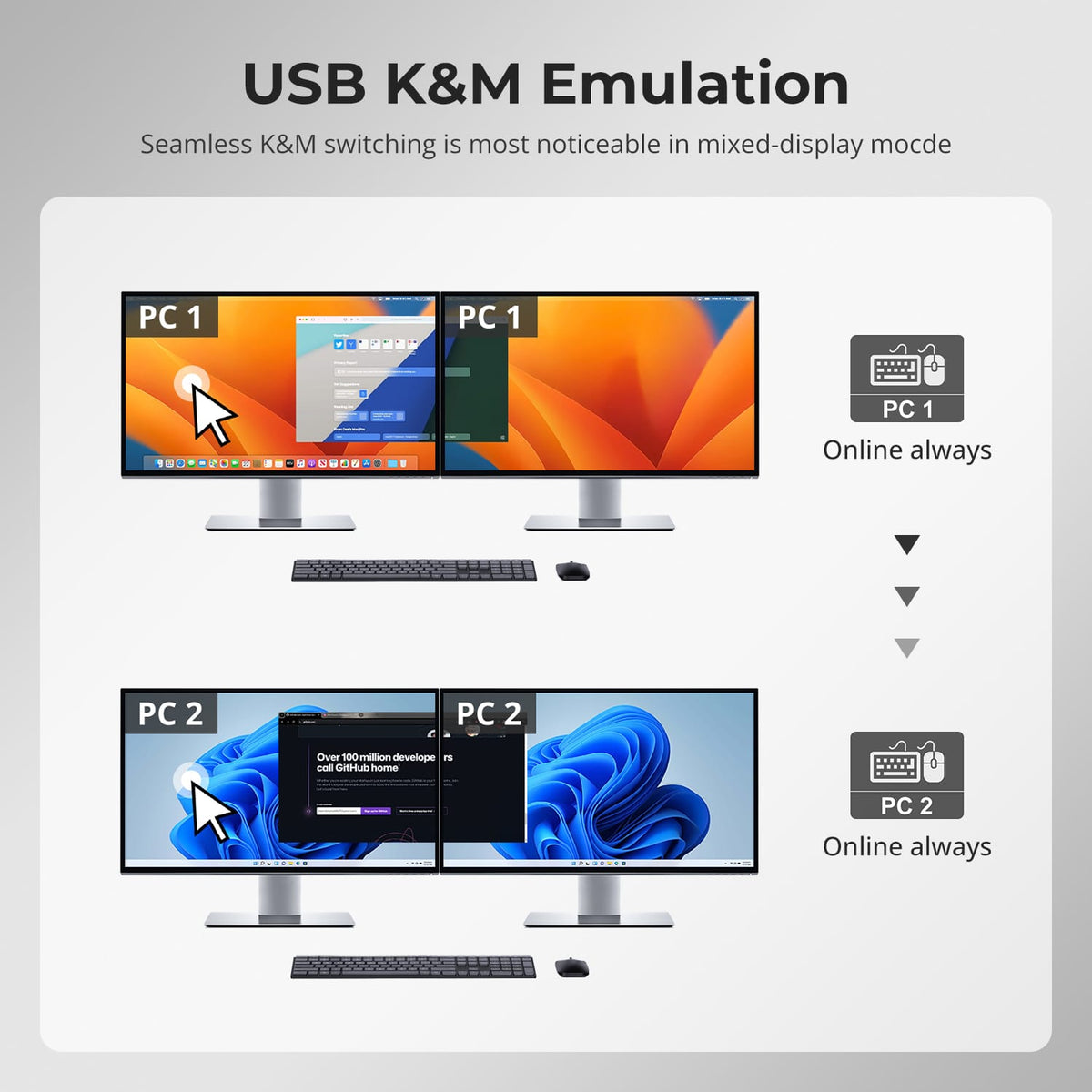
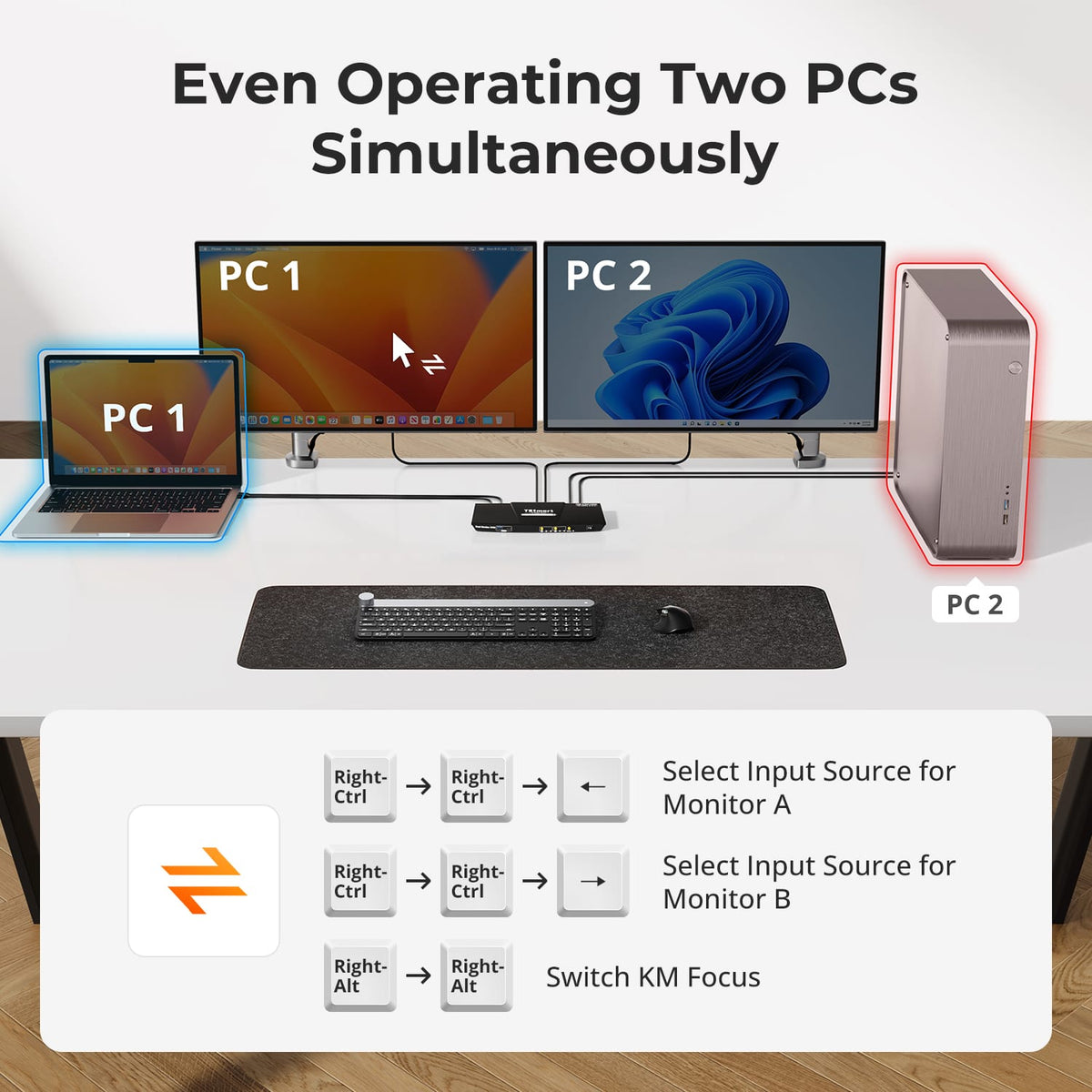
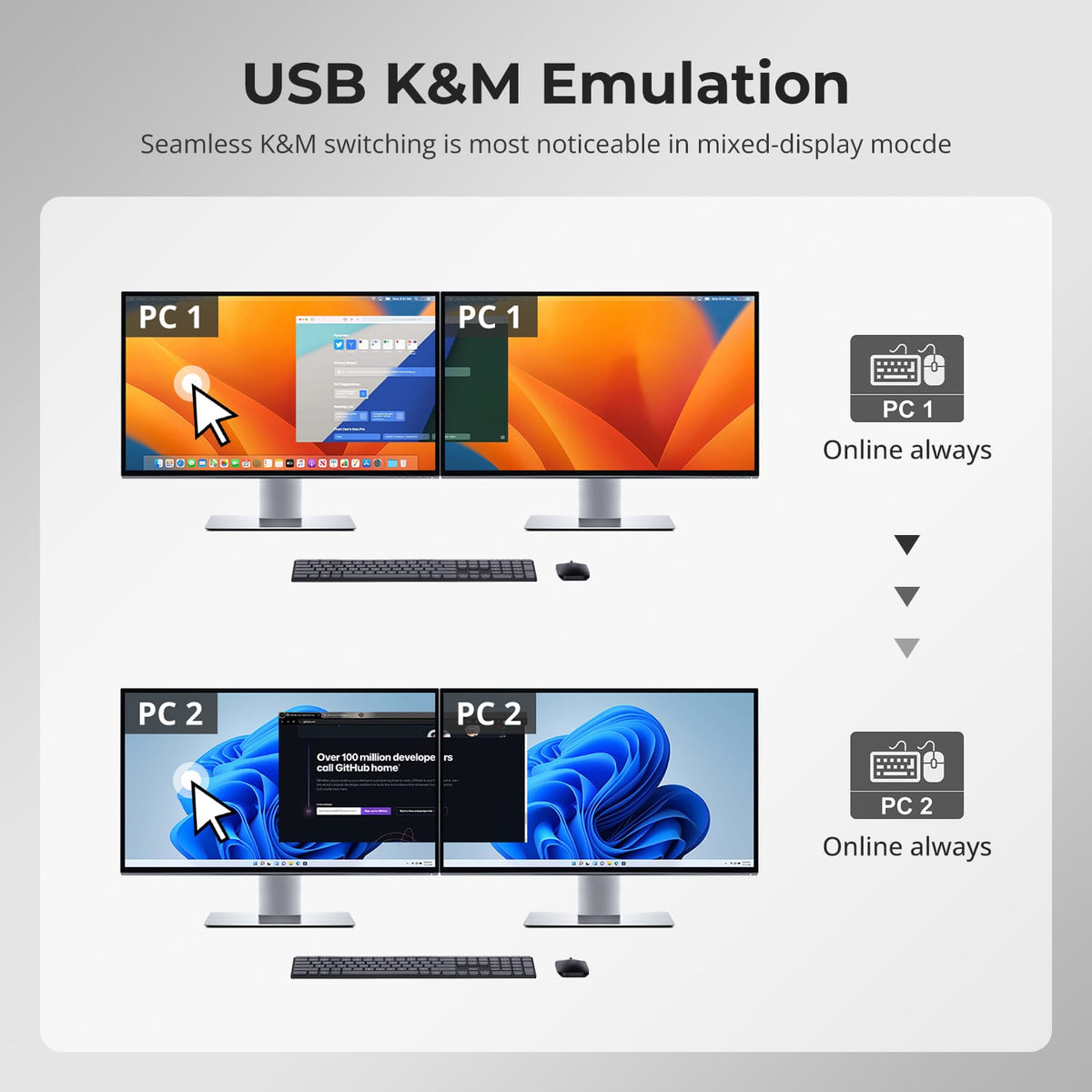
Use both monitors with one selected computer, or keep one computer visible on each display and move keyboard and mouse control to the system you need.
03
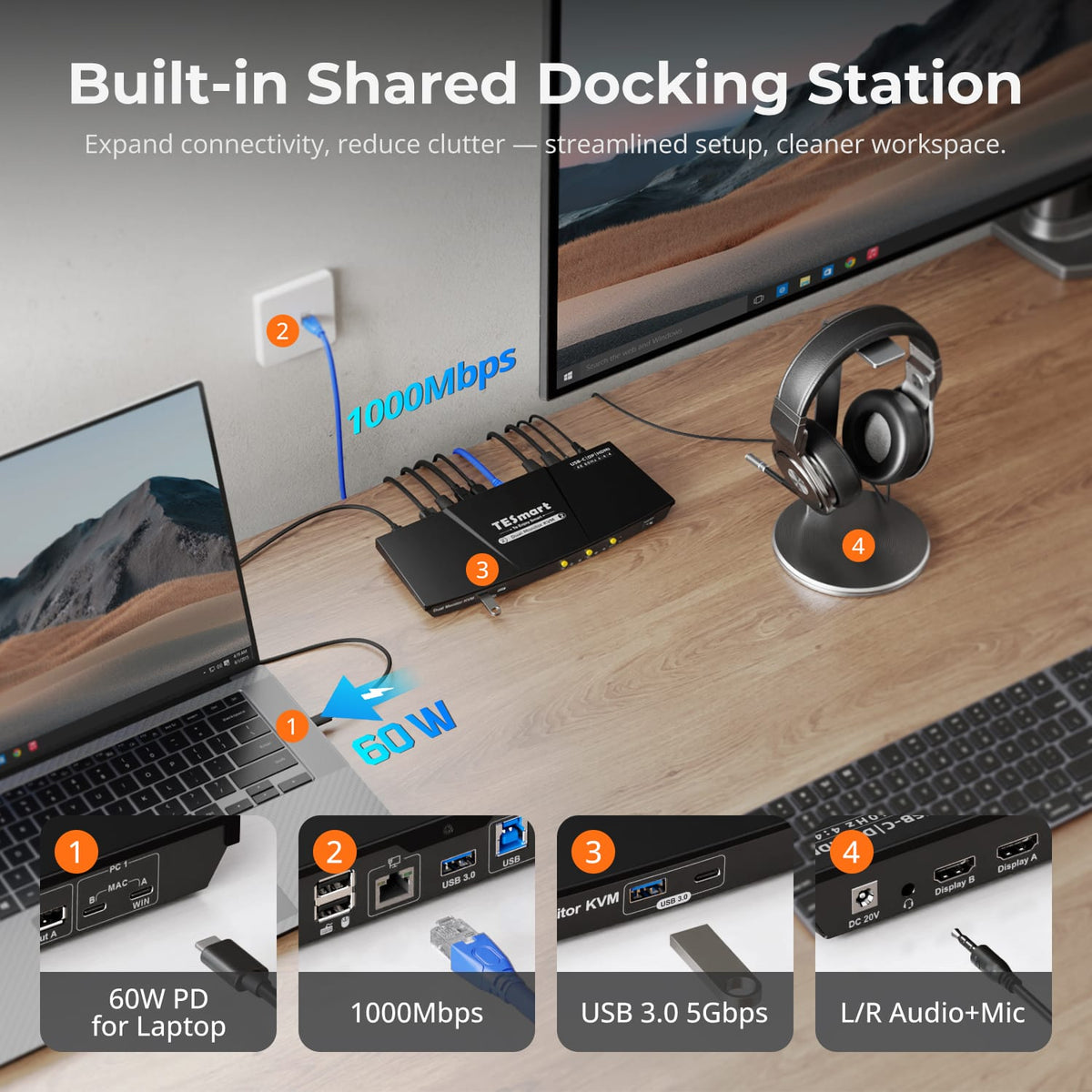
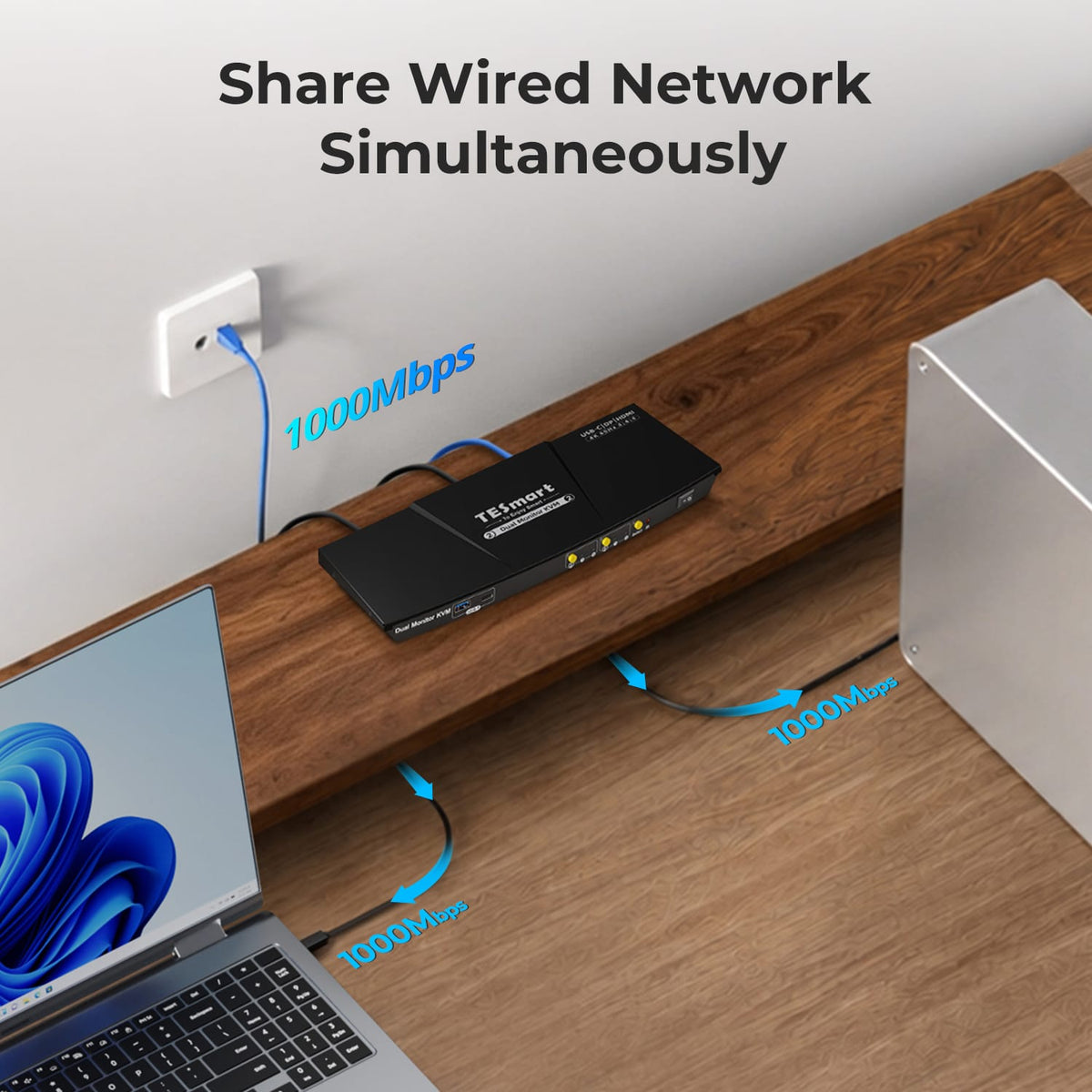
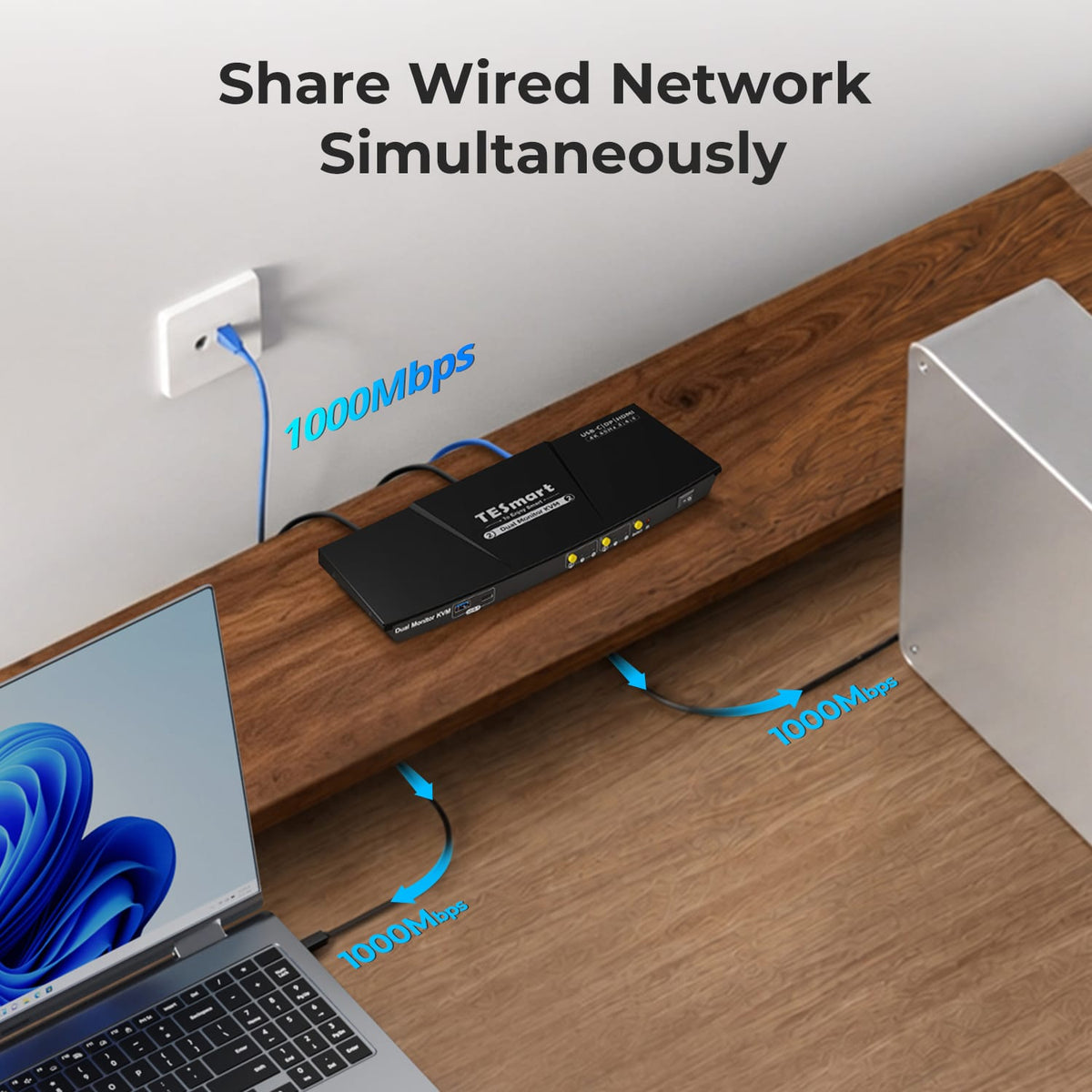
Charge the Laptop. Share Gigabit Ethernet.
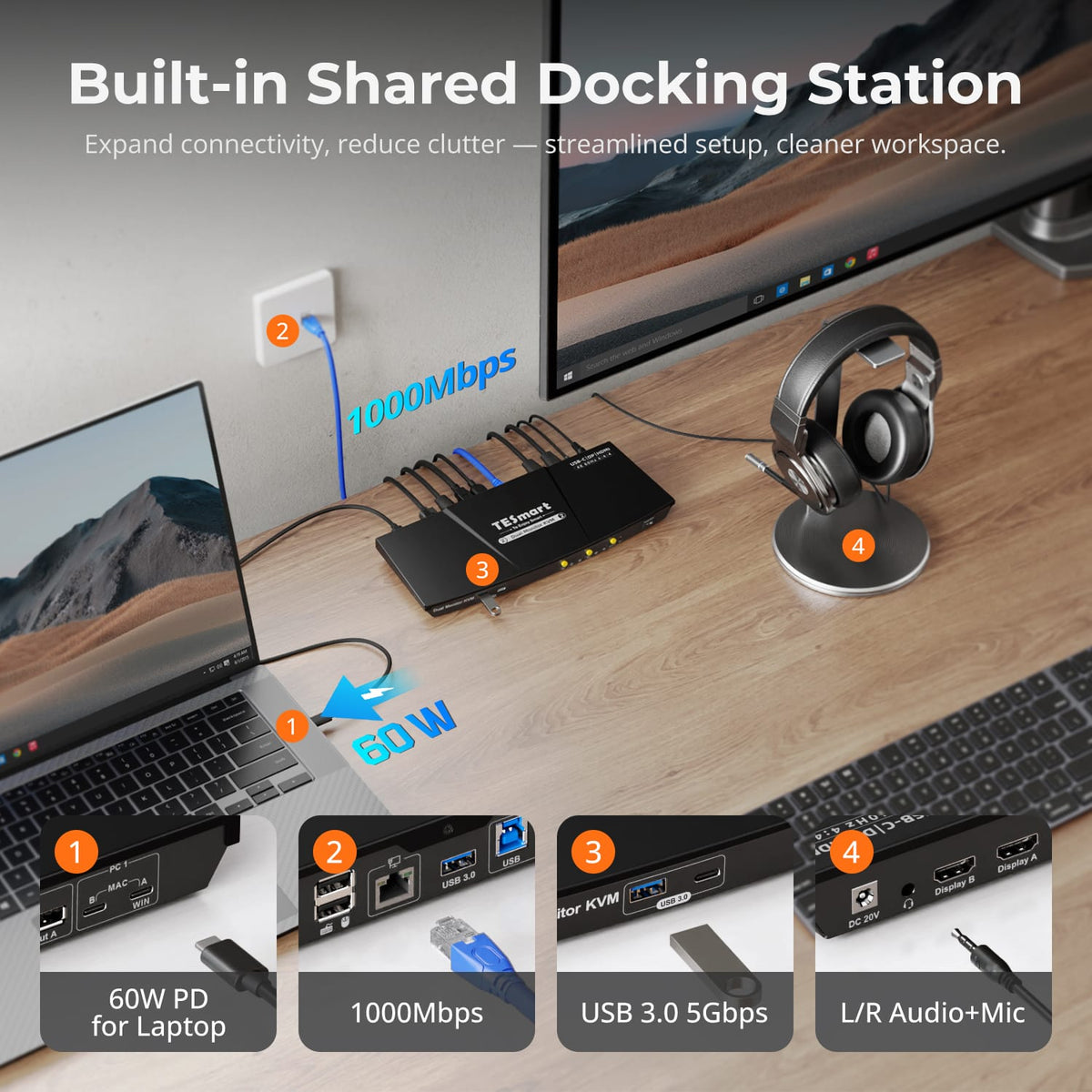
A compatible USB-C host can receive up to 60W charging while the connected computers share the KVM's Gigabit Ethernet connection, reducing extra power and network adapters on the desk.
04
Dual 4K60 for Everyday Productivity
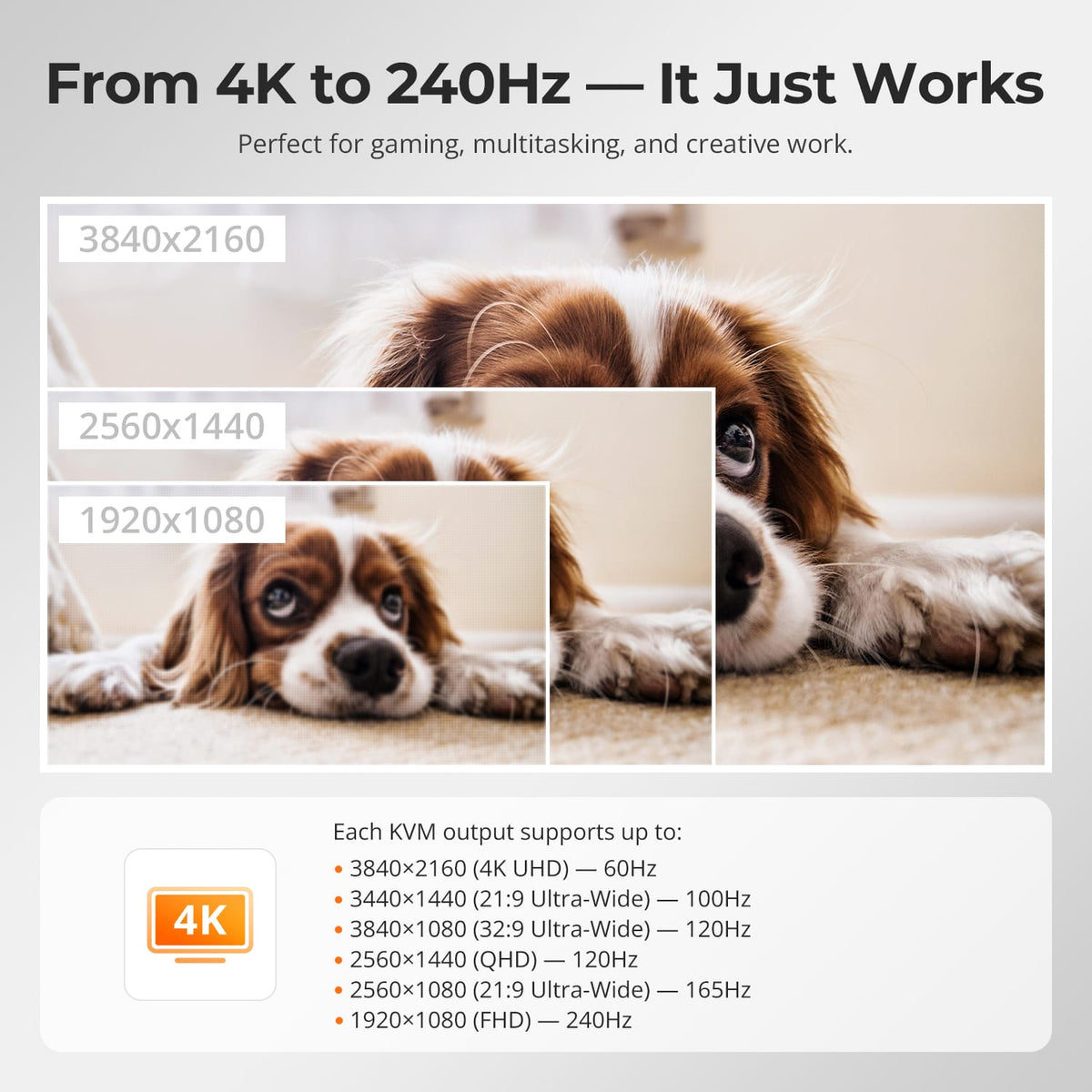
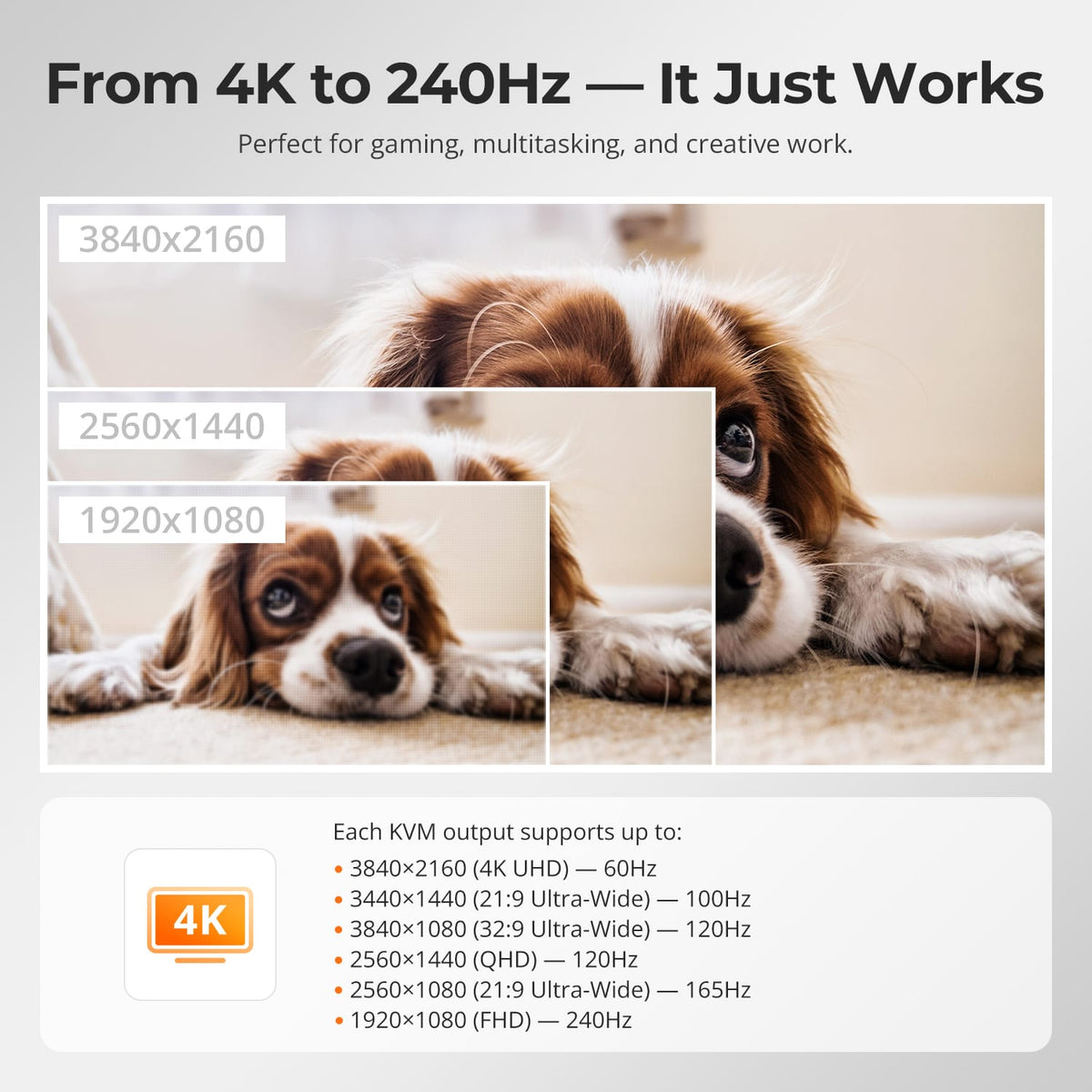
Support up to 3840×2160@60Hz 4:4:4 on compatible displays, giving hybrid laptop-and-desktop workflows a consistent dual-screen canvas.
05
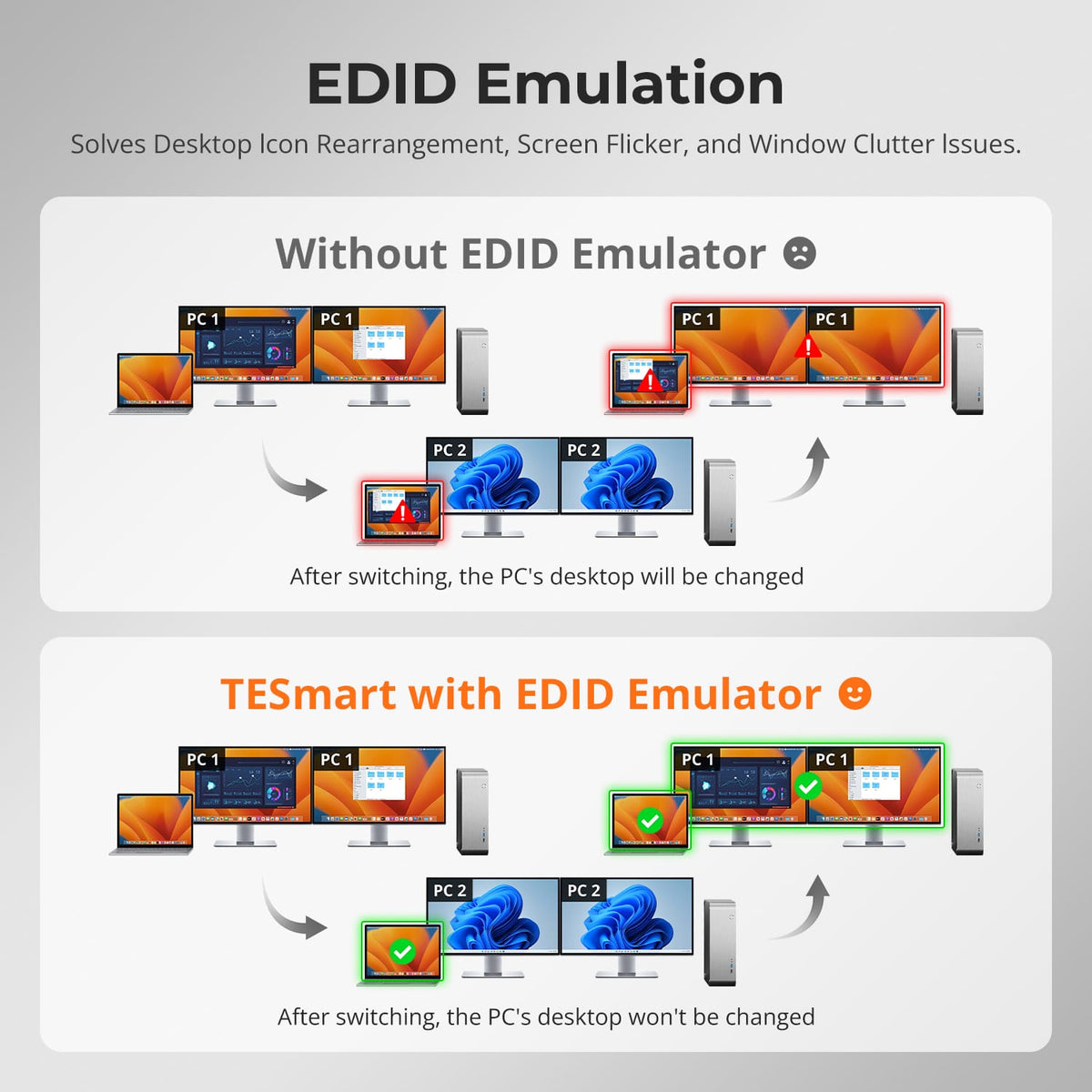
EDID Helps Keep Display Settings Stable
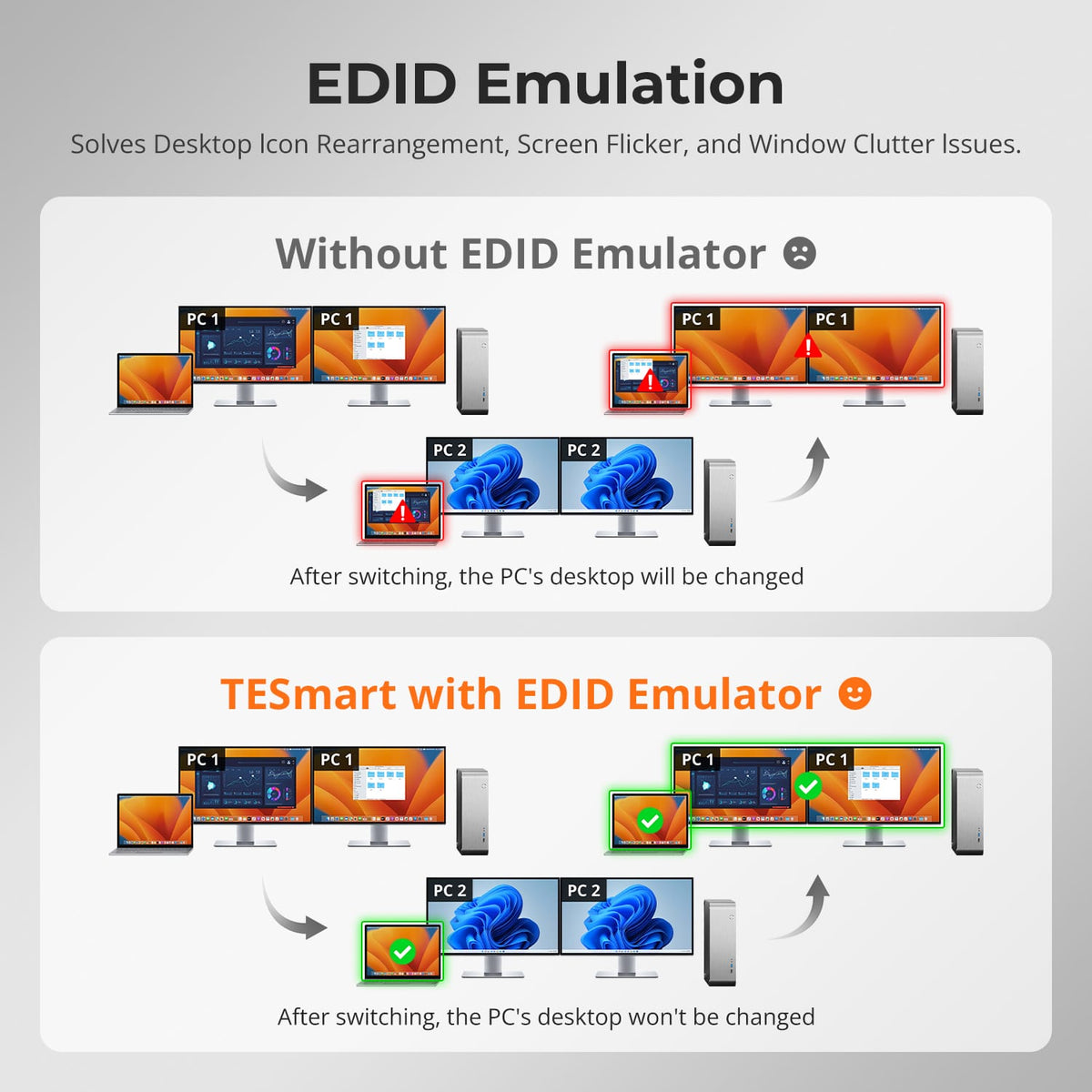
EDID emulation keeps monitor information available to the connected computers, reducing re-detection and desktop rearrangement after switching.

06
Built-In Shared Docking
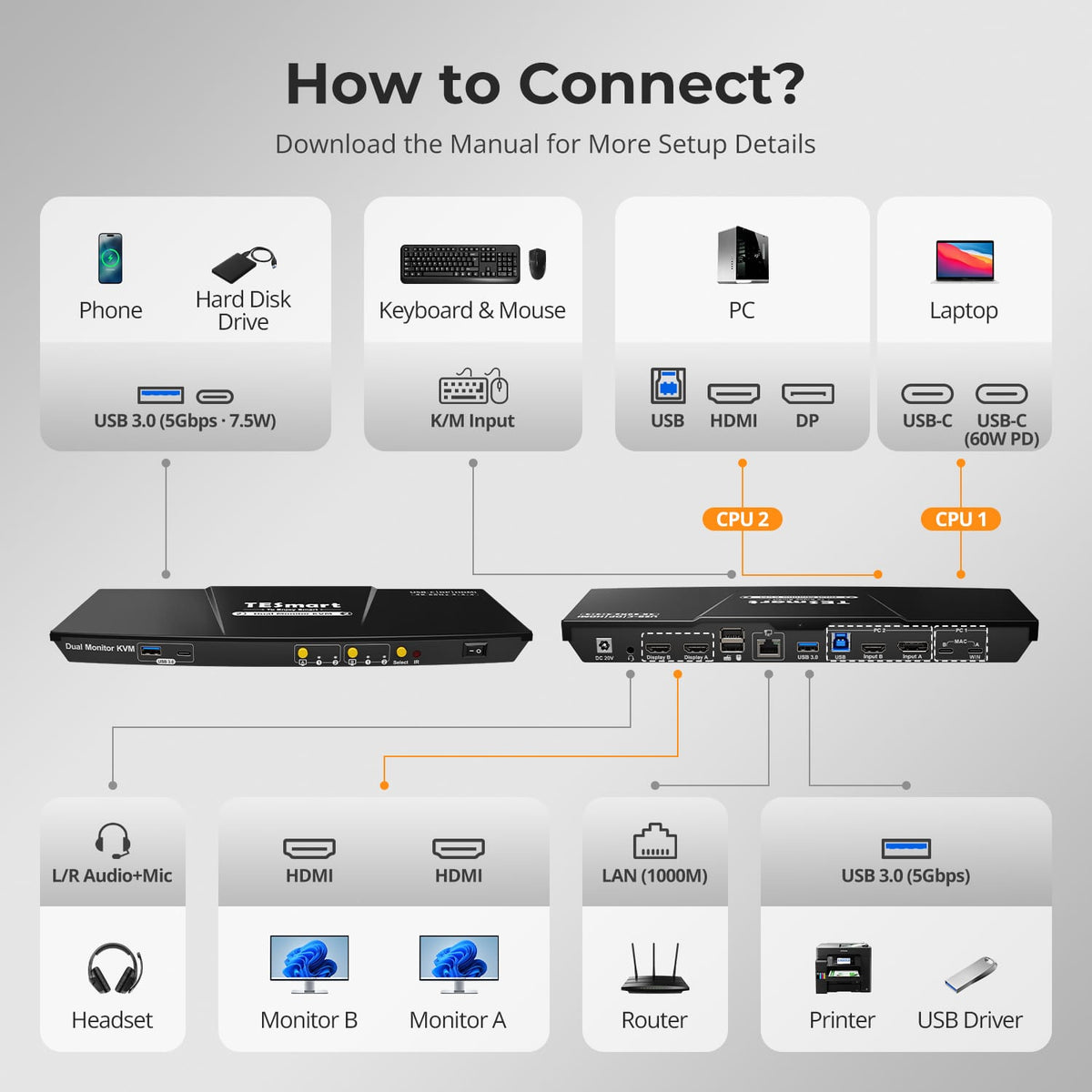
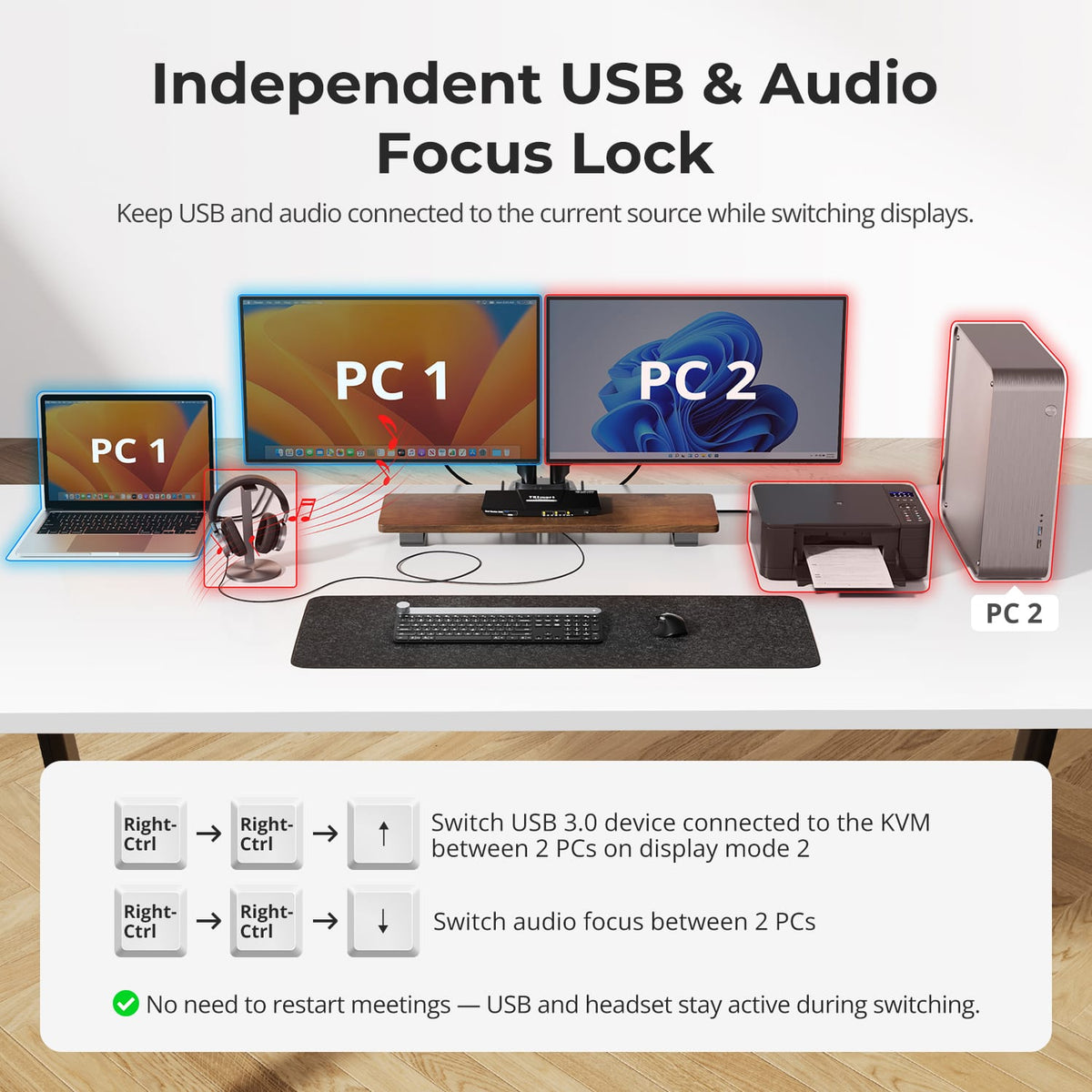
Share USB 3.0 peripherals and audio connections between the two computers, so storage, accessories and a headset can stay connected to one central desktop hub.
07
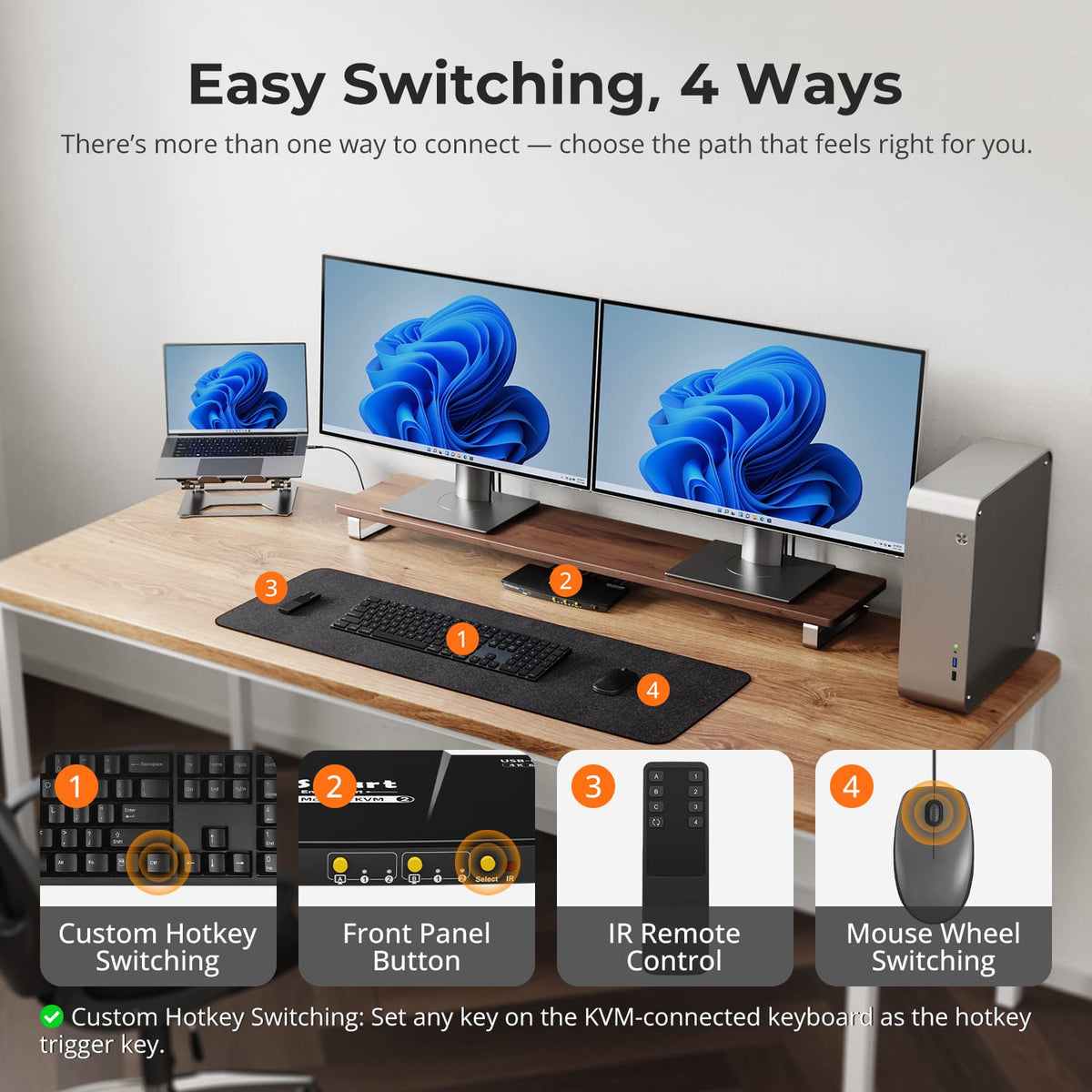
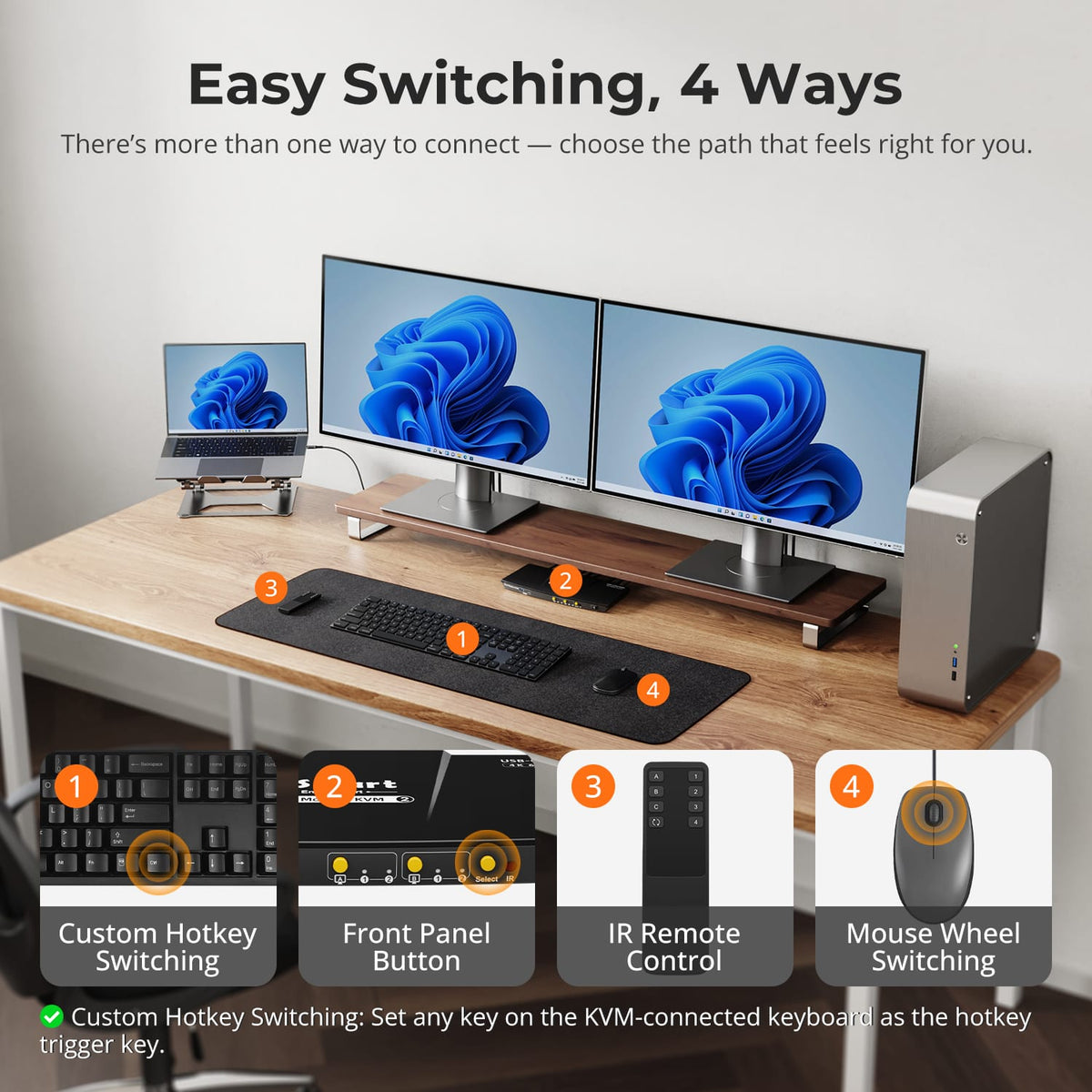
Switch Without Replugging Your Desk
HDC202-P23 feature graphic illustrates switching between the laptop and desktop through the KVM.
08
09
10
Specifications & Support
Compatibility & Input Guide
Technical Specifications
Manuals & Downloads
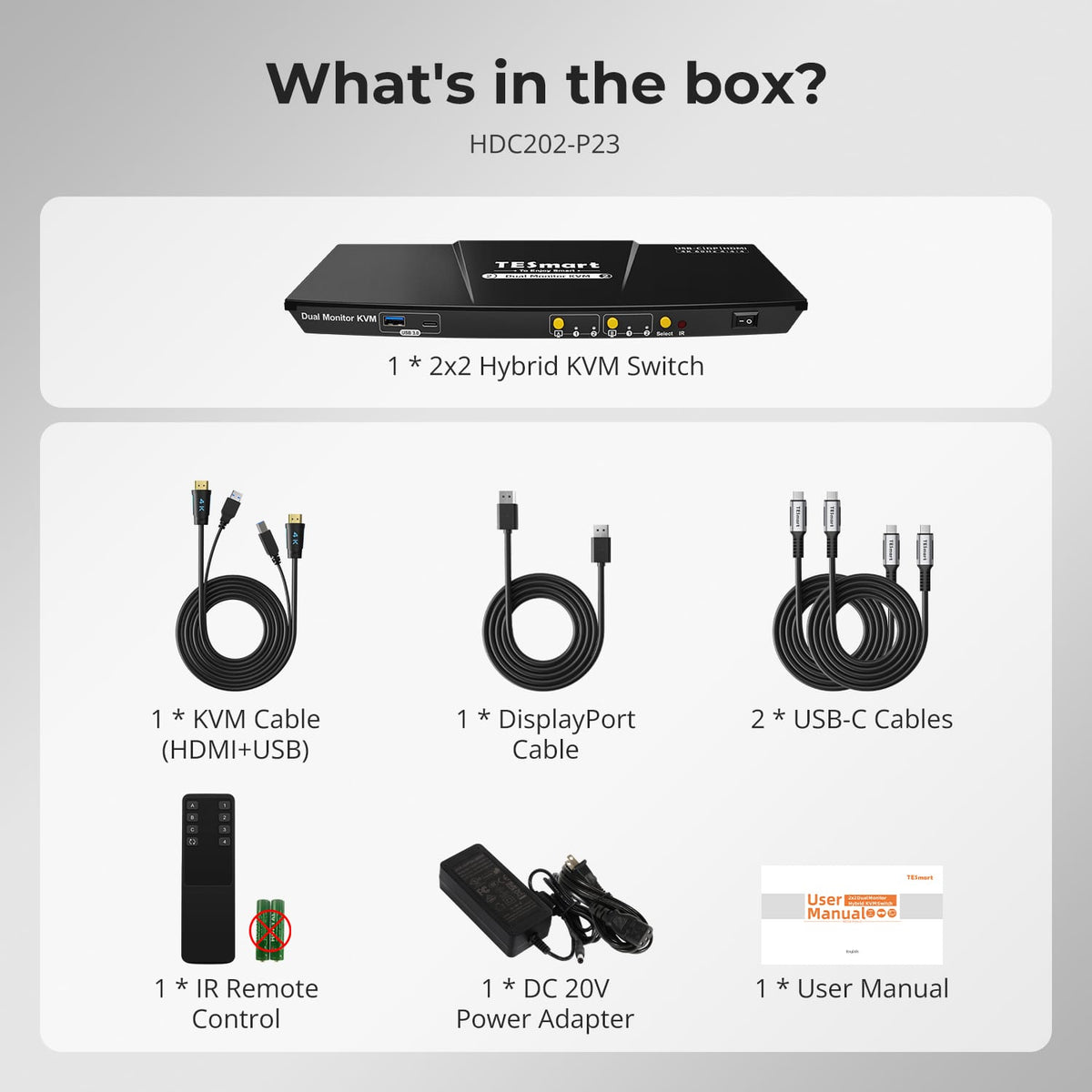
Included in the Box
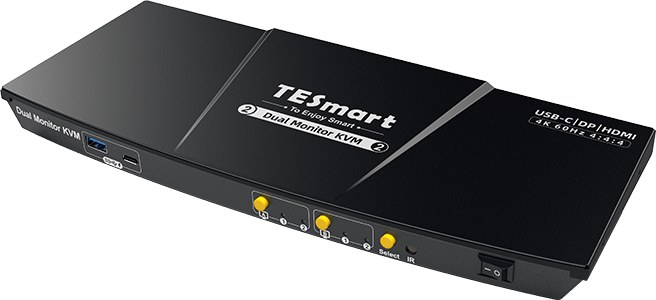
1 × 2×2 Hybrid KVM Switch
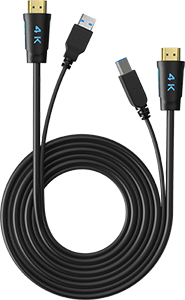
1 × KVM Cable
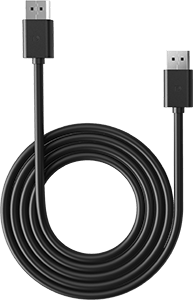
1 × DisplayPort Cable
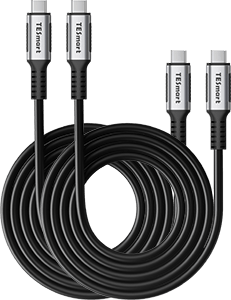
2 × USB-C Cables
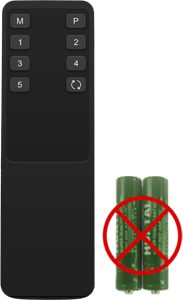
1 × IR Remote Control
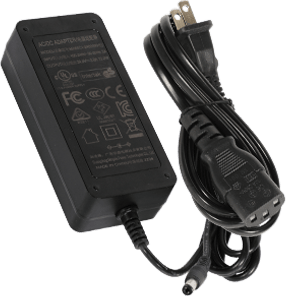
1 × DC 20V Power Adapter
1 × User Manual
FAQs
Visit our Help Center for more answers.
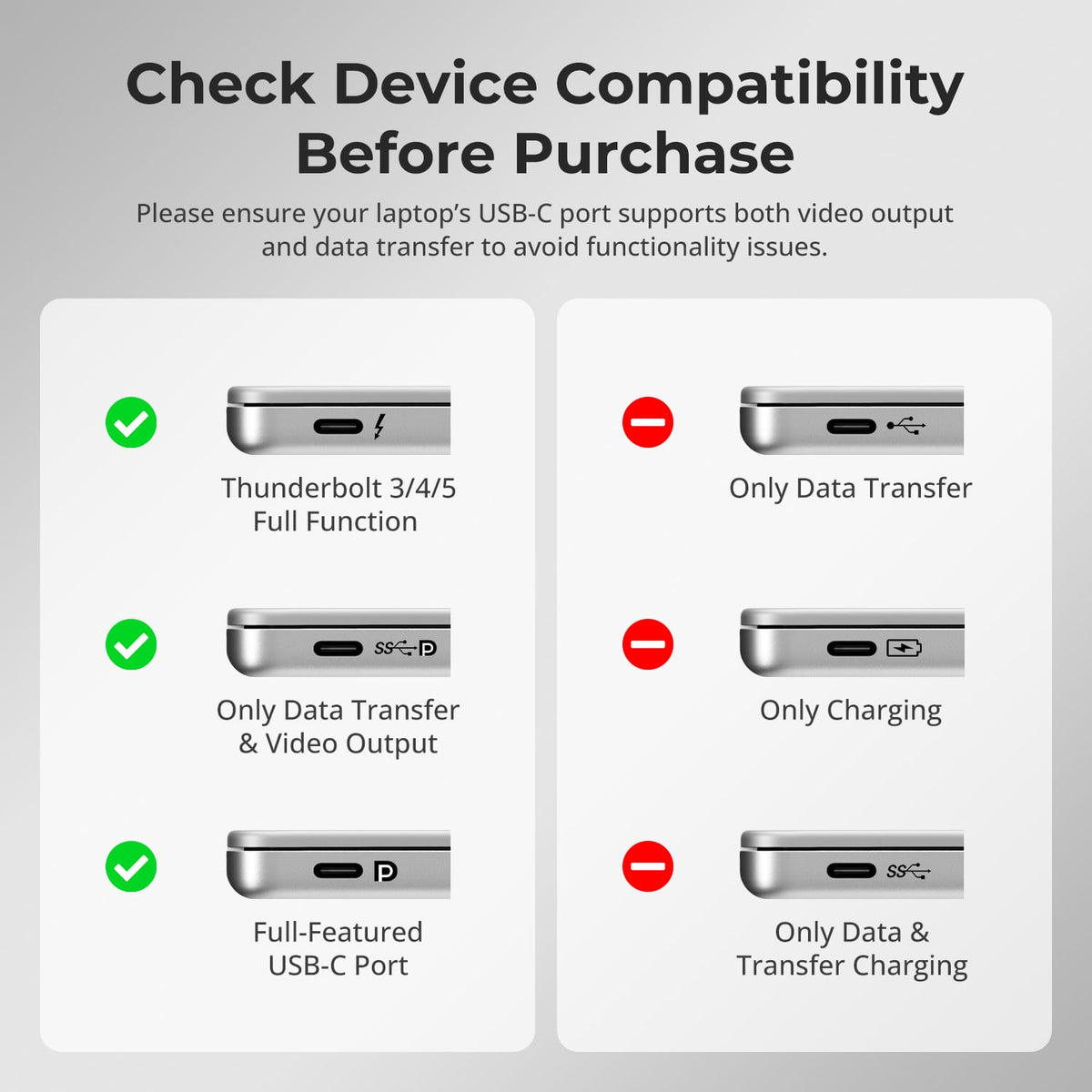
[Compatibility] What type of USB-C laptop works with HDC202-P23-N?
For video through USB-C, the laptop port must support DisplayPort Alt Mode or Thunderbolt 3 or later. A USB-C connector used only for charging or data is not enough.
[Compatibility] Can a Windows laptop drive both monitors through one USB-C cable?
Yes when the Windows laptop supports DisplayPort MST through its full-function USB-C connection. The KVM can carry video, USB data and charging through that host link.
[Compatibility] Can a Mac use two independent extended displays through the single USB-C MST connection?
macOS does not support DisplayPort MST for independent extended displays in the same way as Windows. The exact number of extended displays depends on the Mac model and its native external-display support.
[Compatibility] What is the maximum display resolution?
The manual supports up to 3840×2160@60Hz 4:4:4 on compatible sources, monitors and cables.
[Features & Connections] What can I share between the laptop and desktop?
You can share the two displays, keyboard, mouse, USB peripherals, audio and the KVM's Gigabit Ethernet connection.
[Features & Connections] Can HDC202-P23-N charge the connected laptop?
Yes. A compatible USB-C host can receive up to 60W. Full charging requires the proper 20V Power Delivery negotiation, and some laptop models may accept less power.
[Features & Connections] Does the KVM support EDID emulation?
Yes. EDID emulation helps the computers retain monitor information to reduce display re-detection and desktop rearrangement after switching.
[Setup & Switching] How should I connect a Windows USB-C laptop for MST?
Connect the compatible laptop to the USB-C input marked for the MST path using a full-function USB-C cable, then connect the two HDMI monitors to the KVM outputs.
[Setup & Switching] Do I need a separate docking station for the USB-C laptop?
Not for the KVM functions covered by this product. A compatible USB-C host can use the KVM for display, USB, network and charging, reducing the need for a separate dock.