


Display Setup
Max Display Output

First TESmart Japan-Built KVM

Gaming Display

Display Stability

Network Sharing

USB Speed
Made in Japan – HDMI 2.1 Dual 4K144Hz KVM Switch Gaming Dock for 2 PCs & 2 Monitors, w/ ADI Chip, EDID, VRR, FVA, ALLM, and Dynamic HDR
Share two HDMI monitors and USB peripherals between two PCs, with up to 8K60/4K144 and EDID emulation. This template describes the Japanese model version.
Display Setup
Max Display Output
First TESmart Japan-Built KVM
Gaming Display
Display Stability
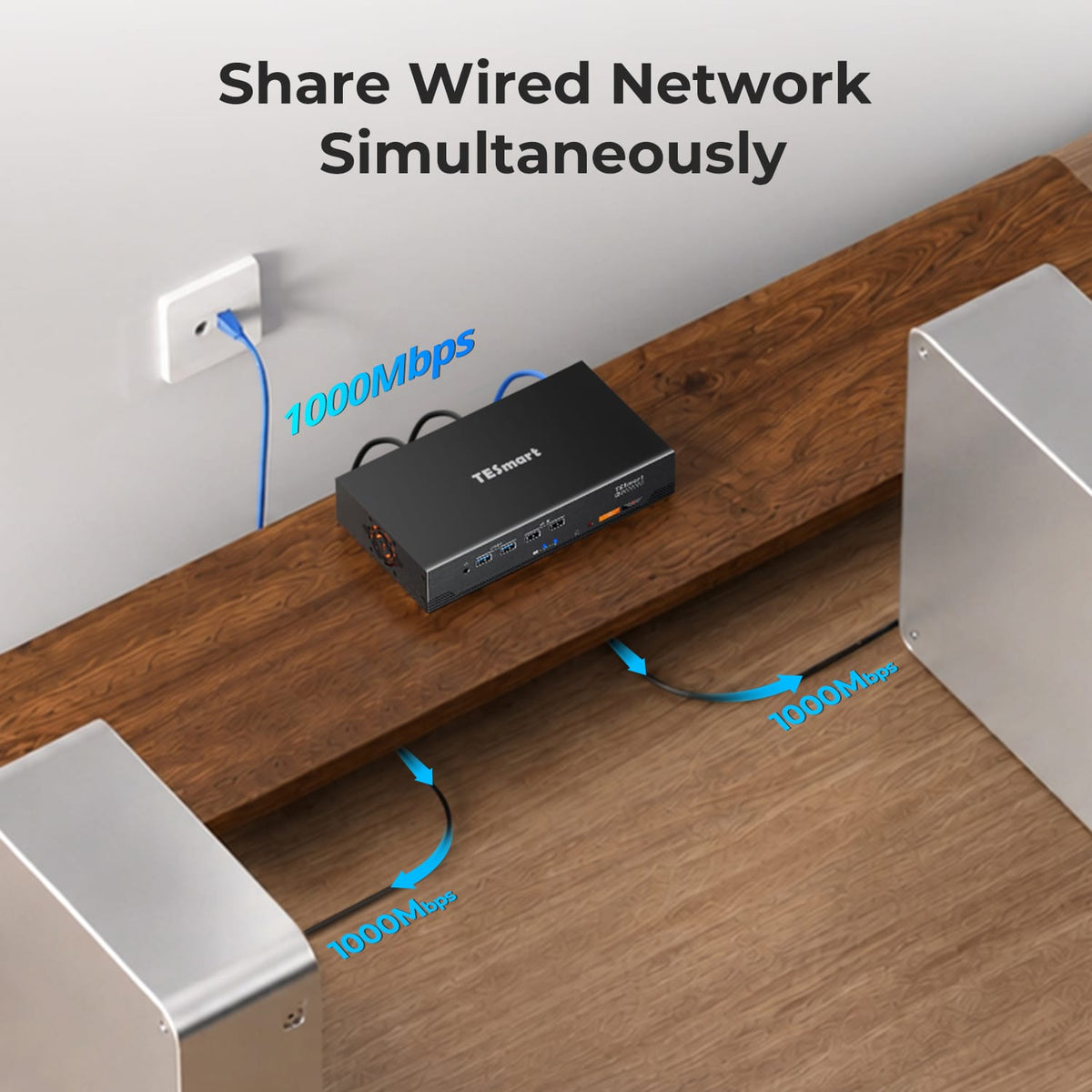
Network Sharing
USB Speed
Made in Japan – HDMI 2.1 Dual 4K144Hz KVM Switch Gaming Dock for 2 PCs & 2 Monitors, w/ ADI Chip, EDID, VRR, FVA, ALLM, and Dynamic HDR
Why Choose JP-HKS202-M24
Overview
01
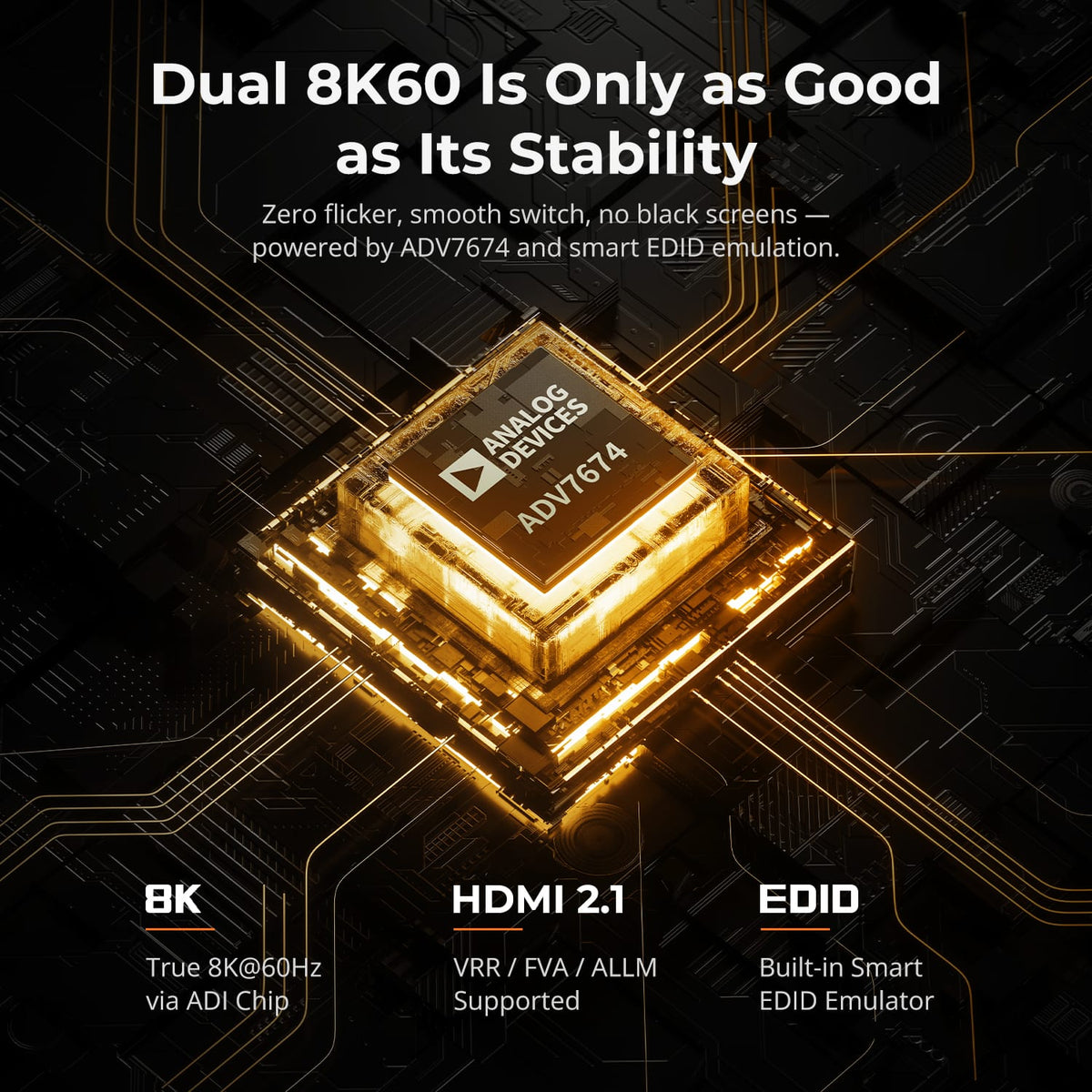
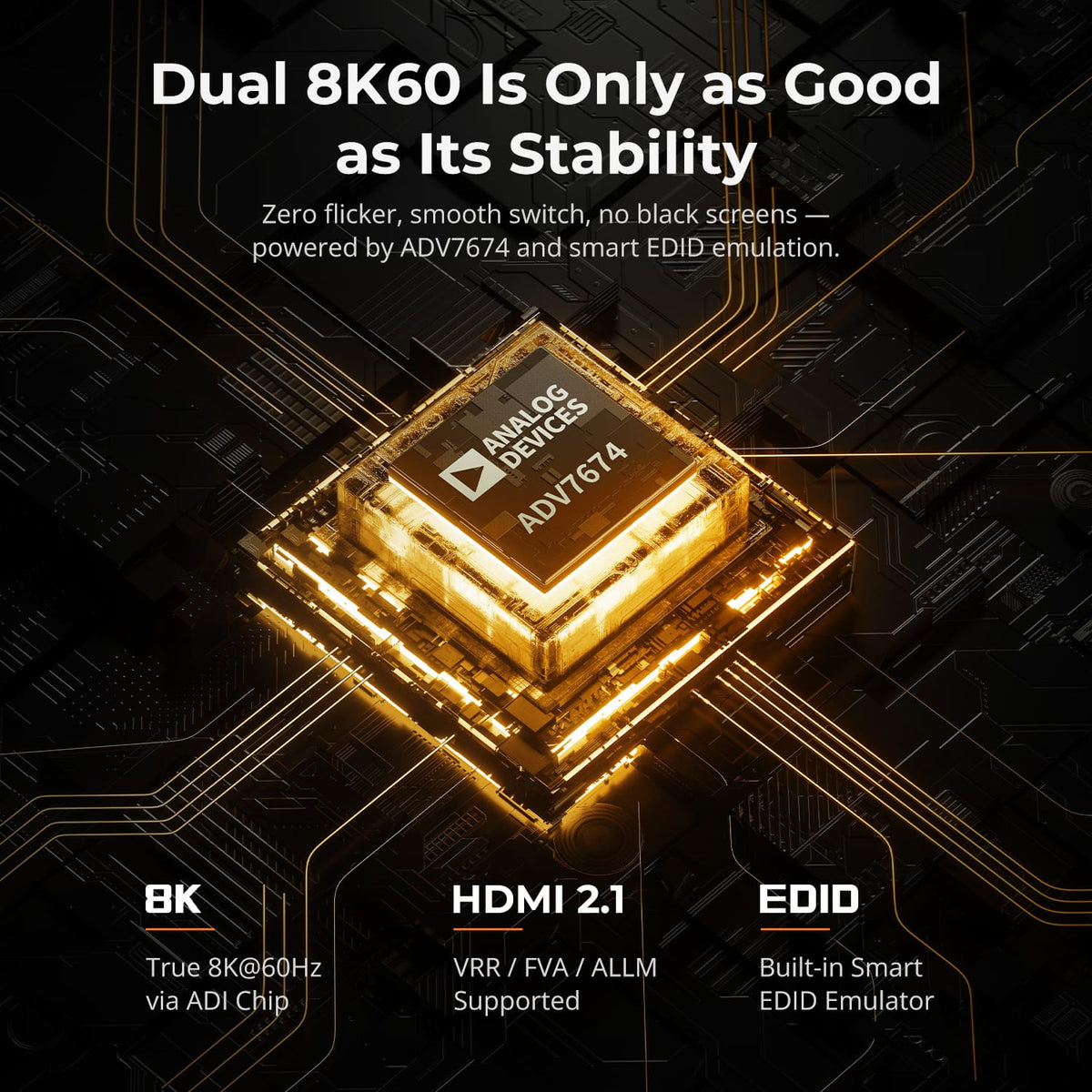
Dual 8K60 Built for Stable Switching
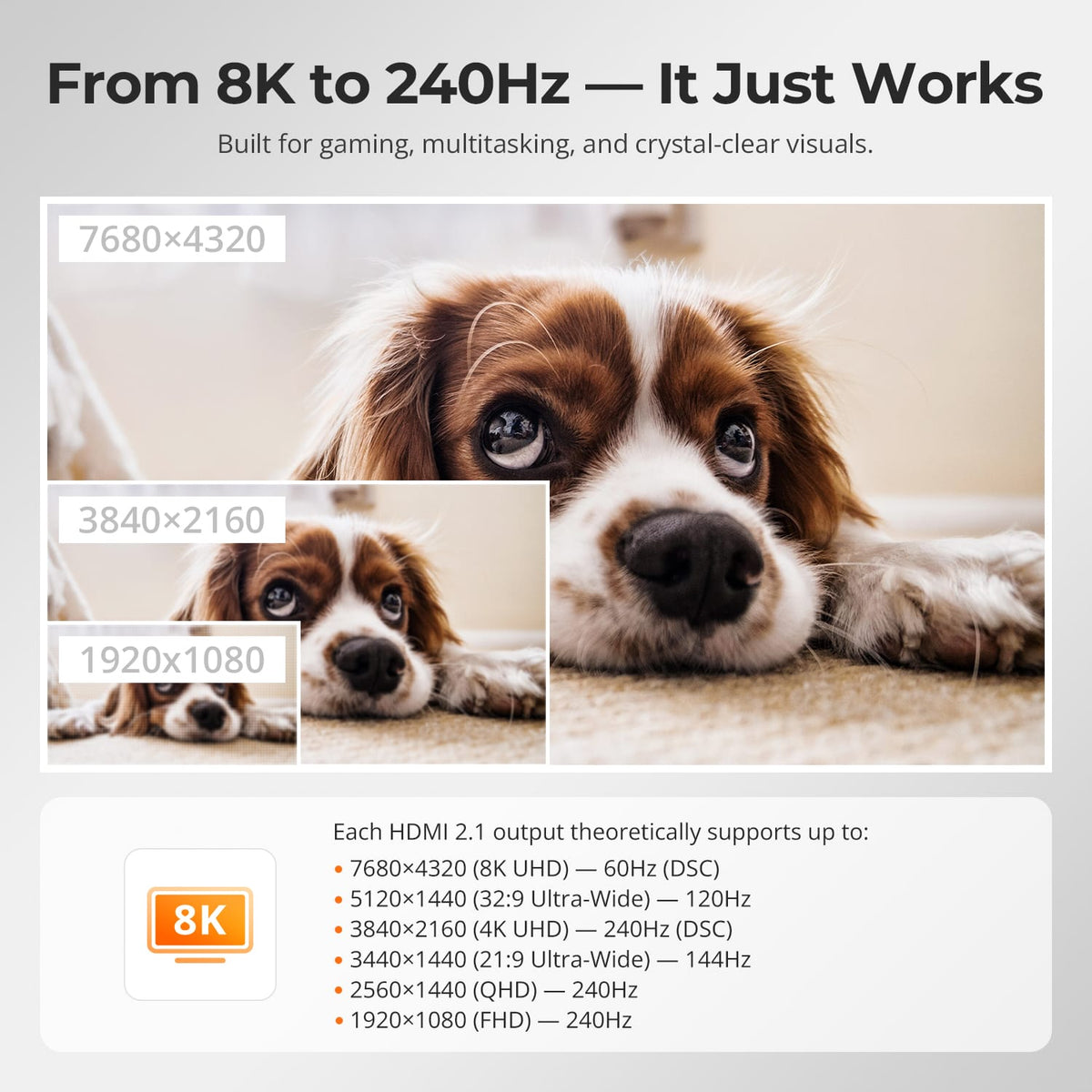
Two HDMI 2.1 display paths support up to 8K@60Hz 4:4:4, while EDID keeps monitor information available to both computers so high-resolution desktops are less likely to reset after a switch.
02
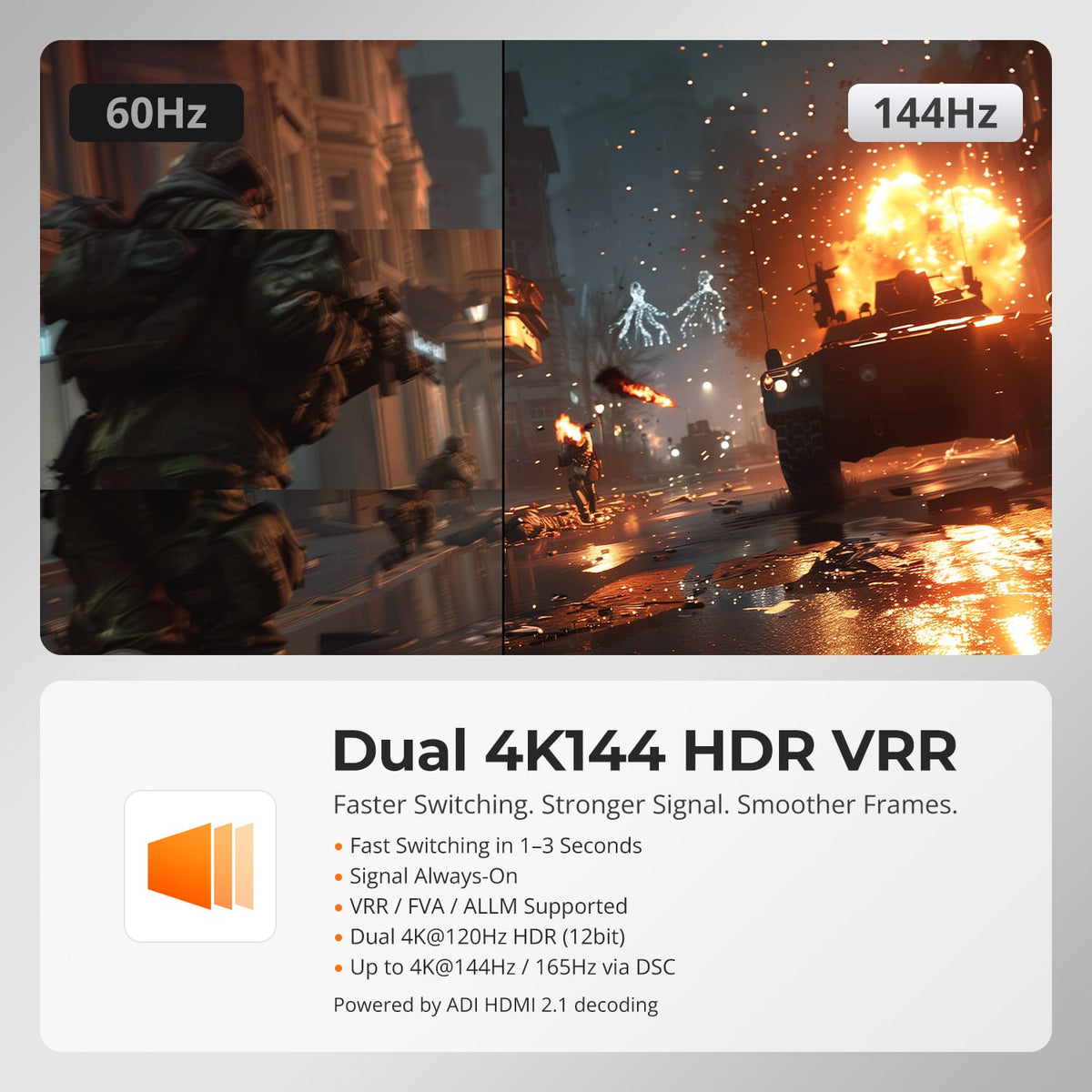
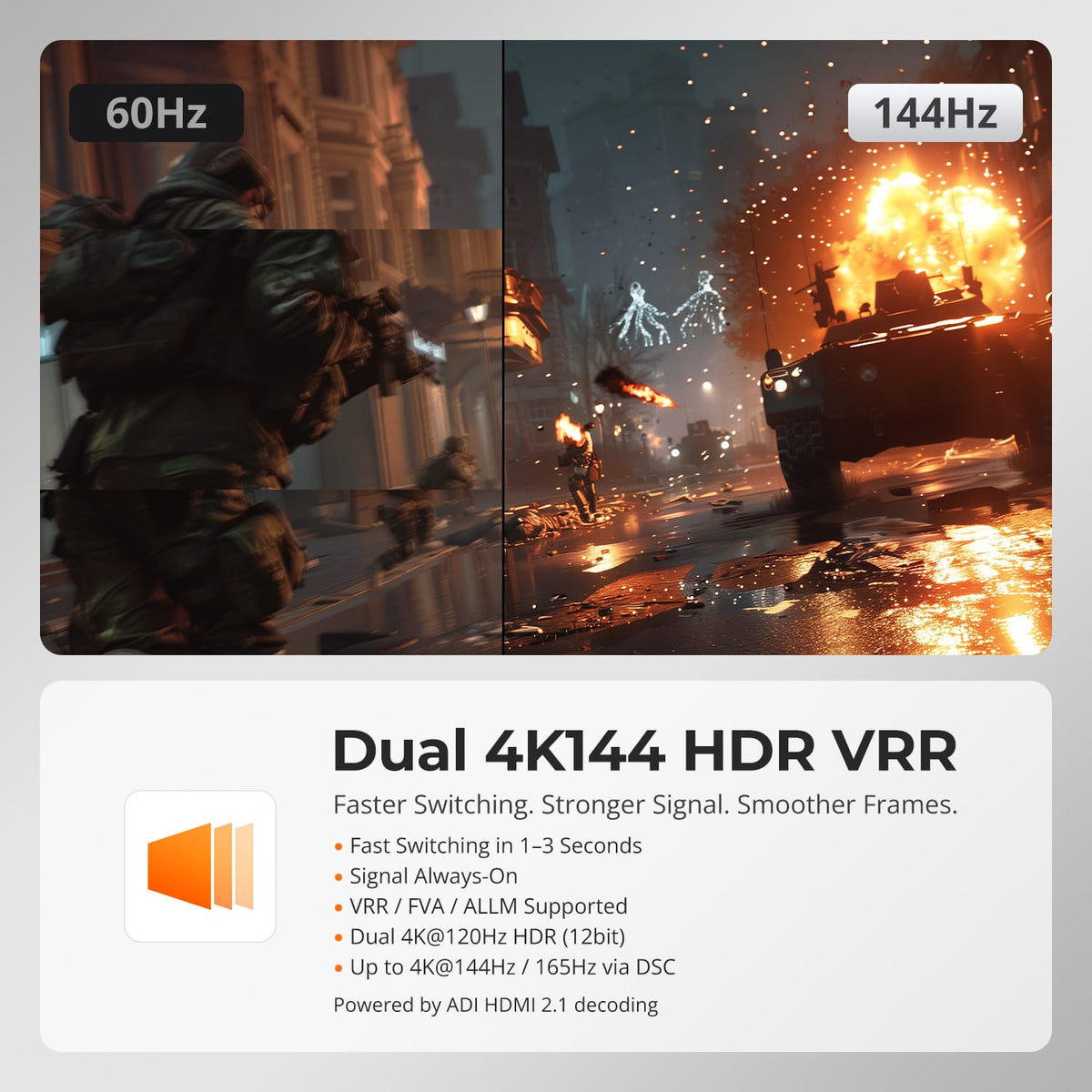
Dual 4K144 for Fast, Fluid Motion
For compatible gaming and creative systems, the KVM supports 4K@120/144Hz along with HDR, VRR, FVA and ALLM. The 48Gbps HDMI 2.1 path is designed to preserve smooth motion and image quality across both screens.
03
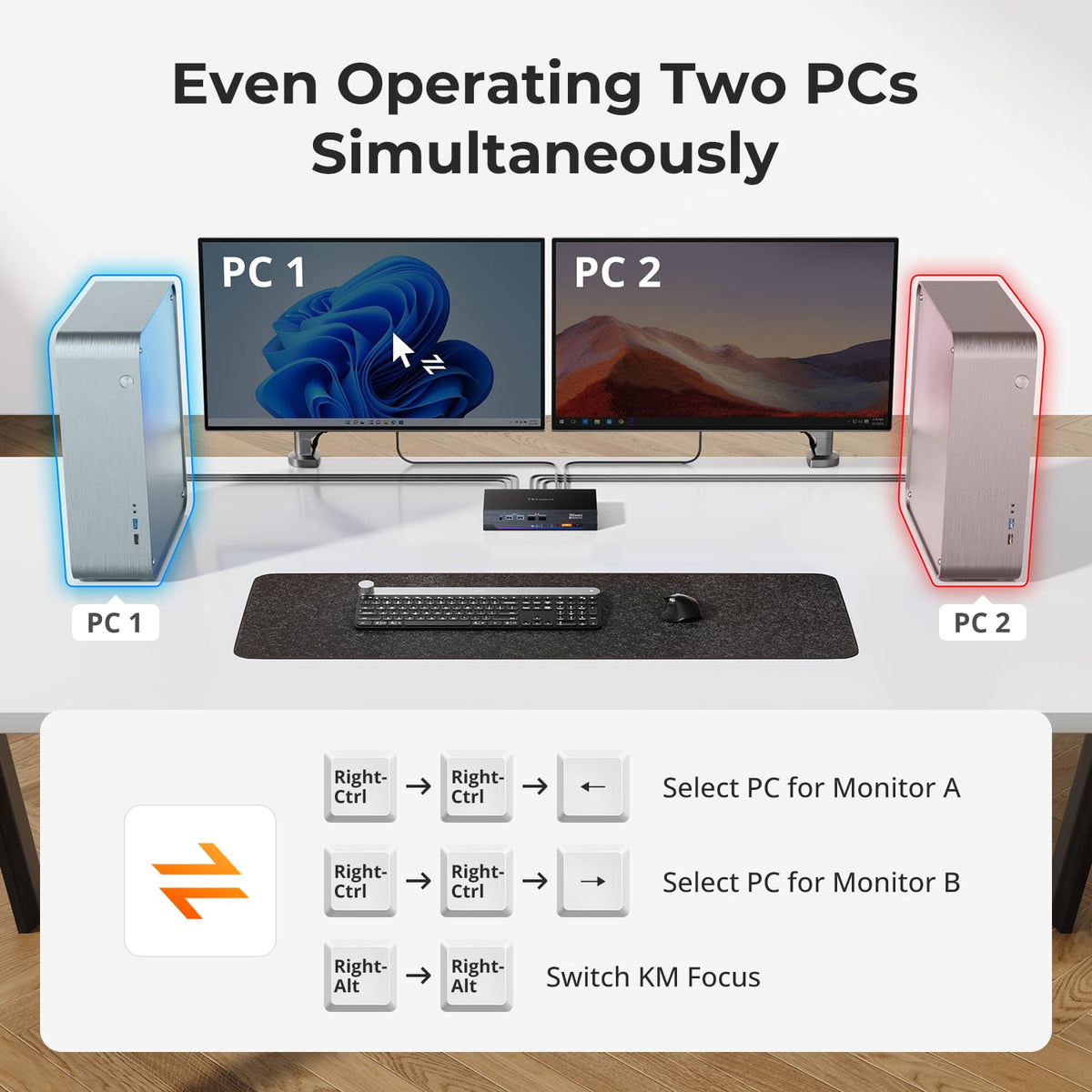
Two Screens, Two Ways to Work
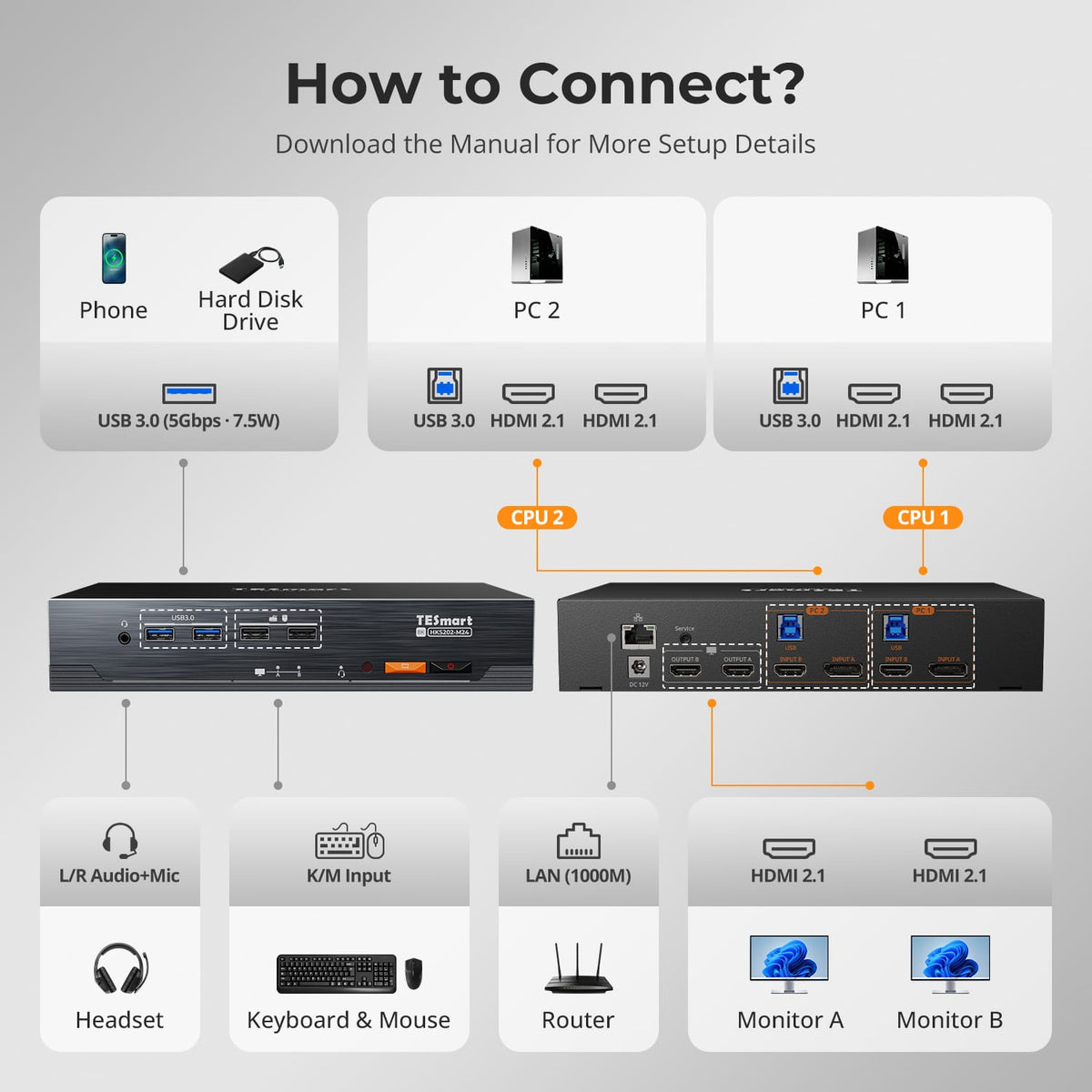
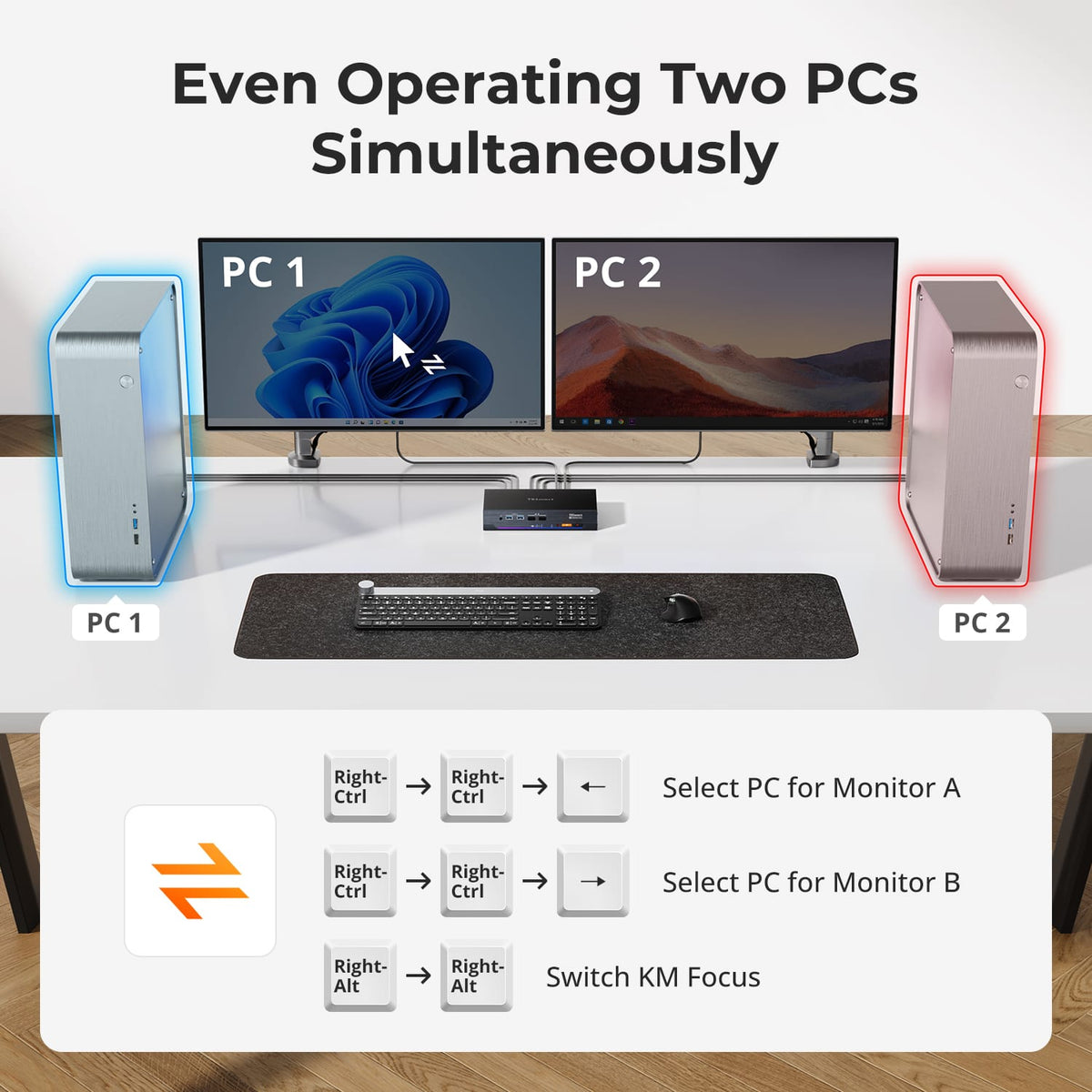
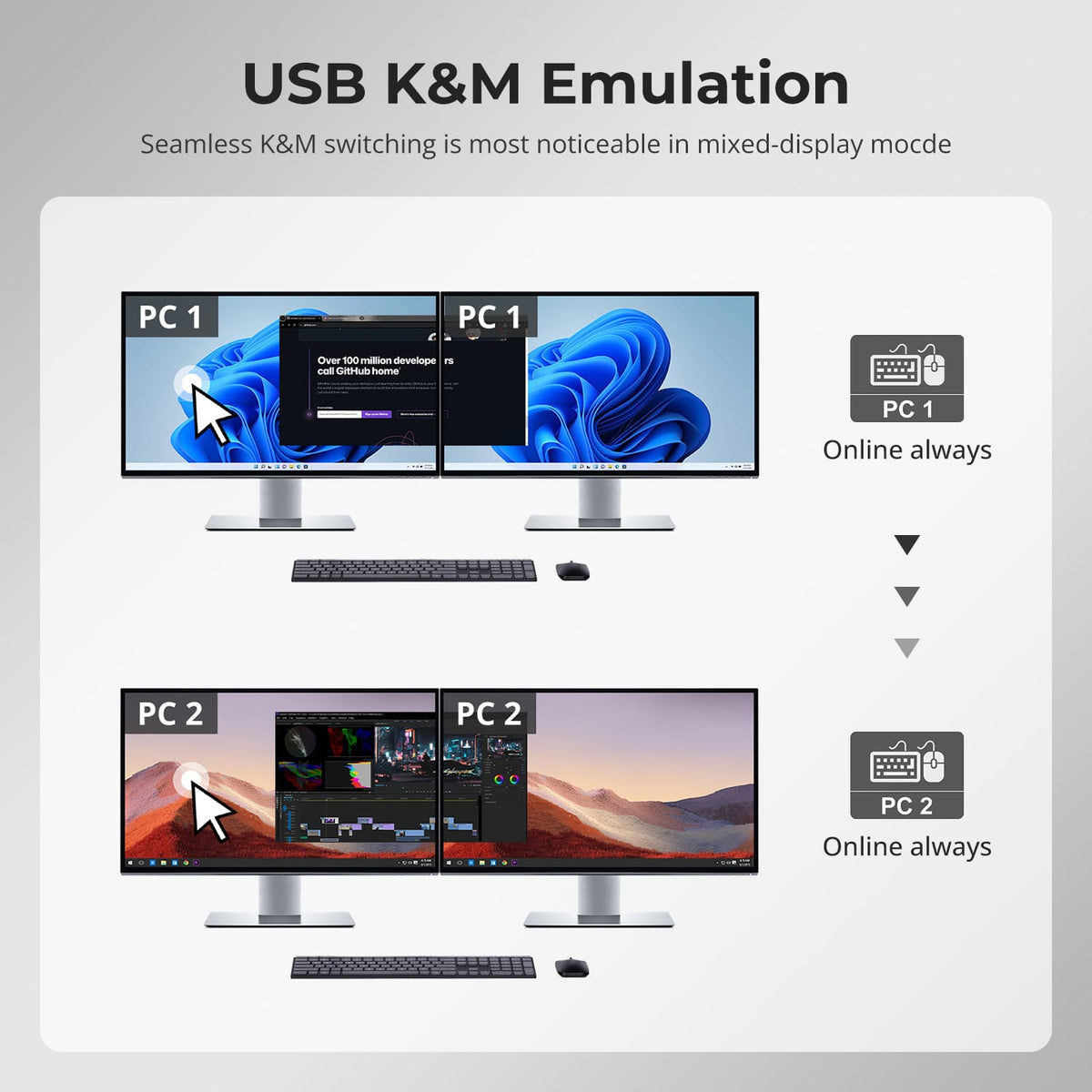
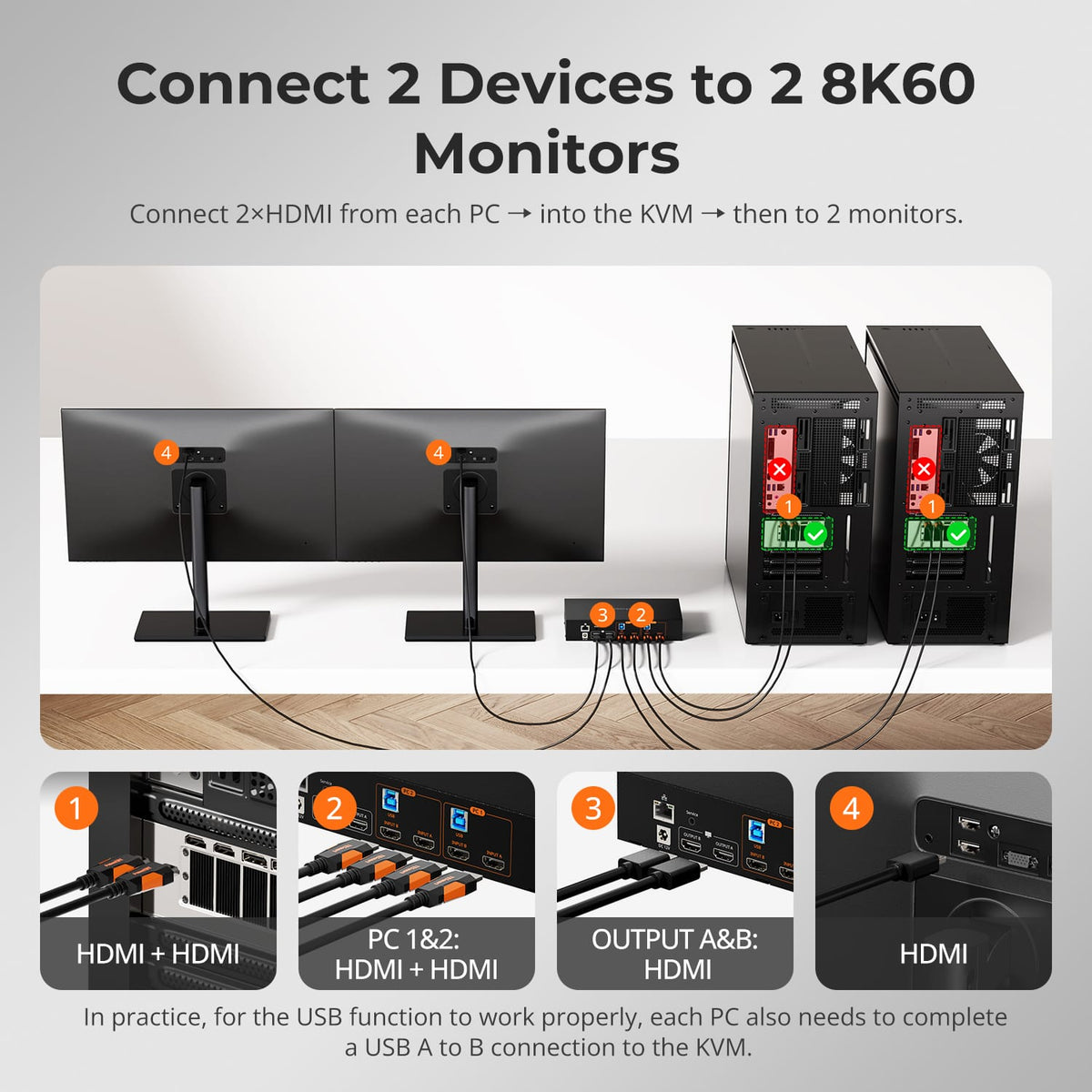
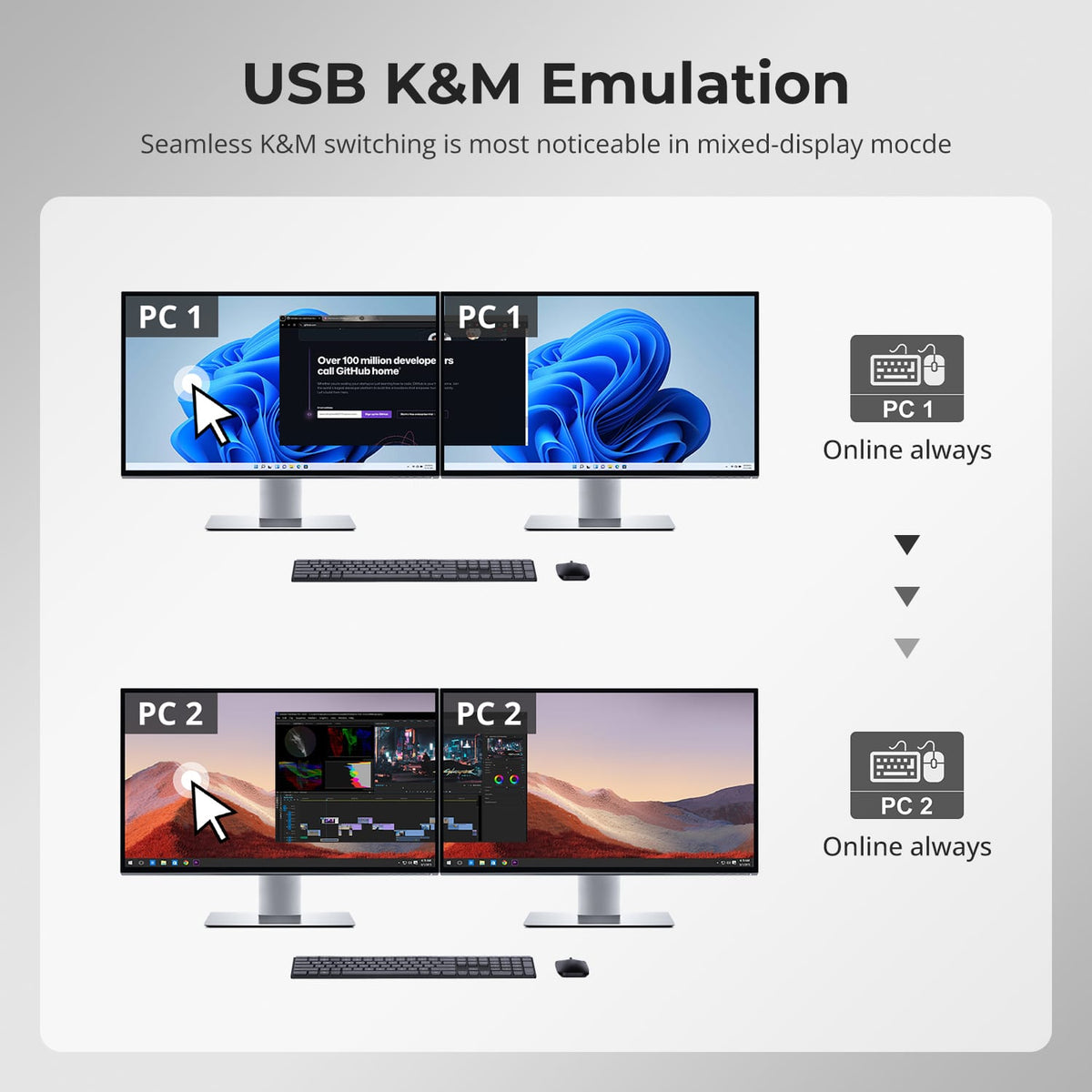
Run both monitors from one computer in extended or mirrored mode, or display one computer on each monitor and switch keyboard and mouse focus between them.
04
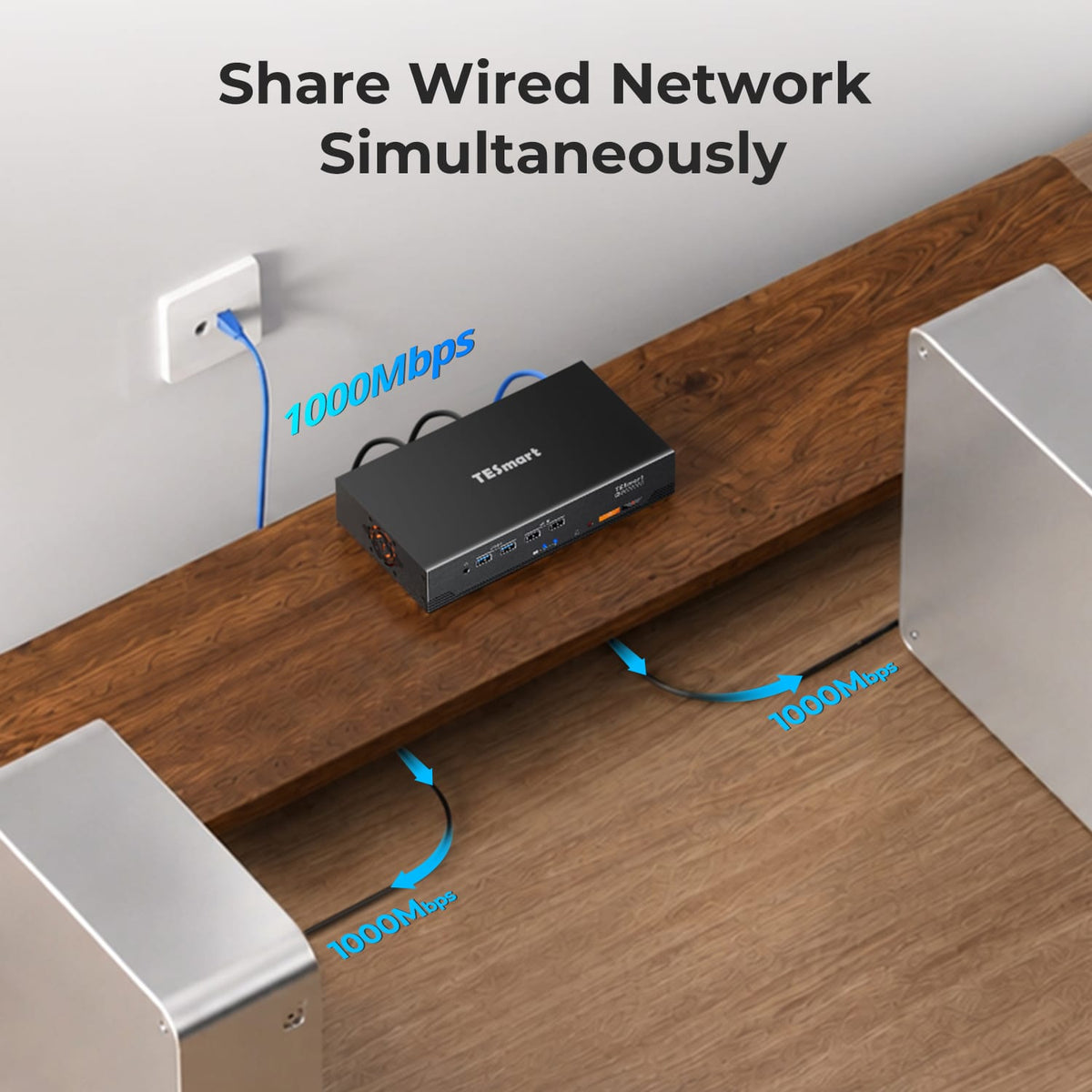
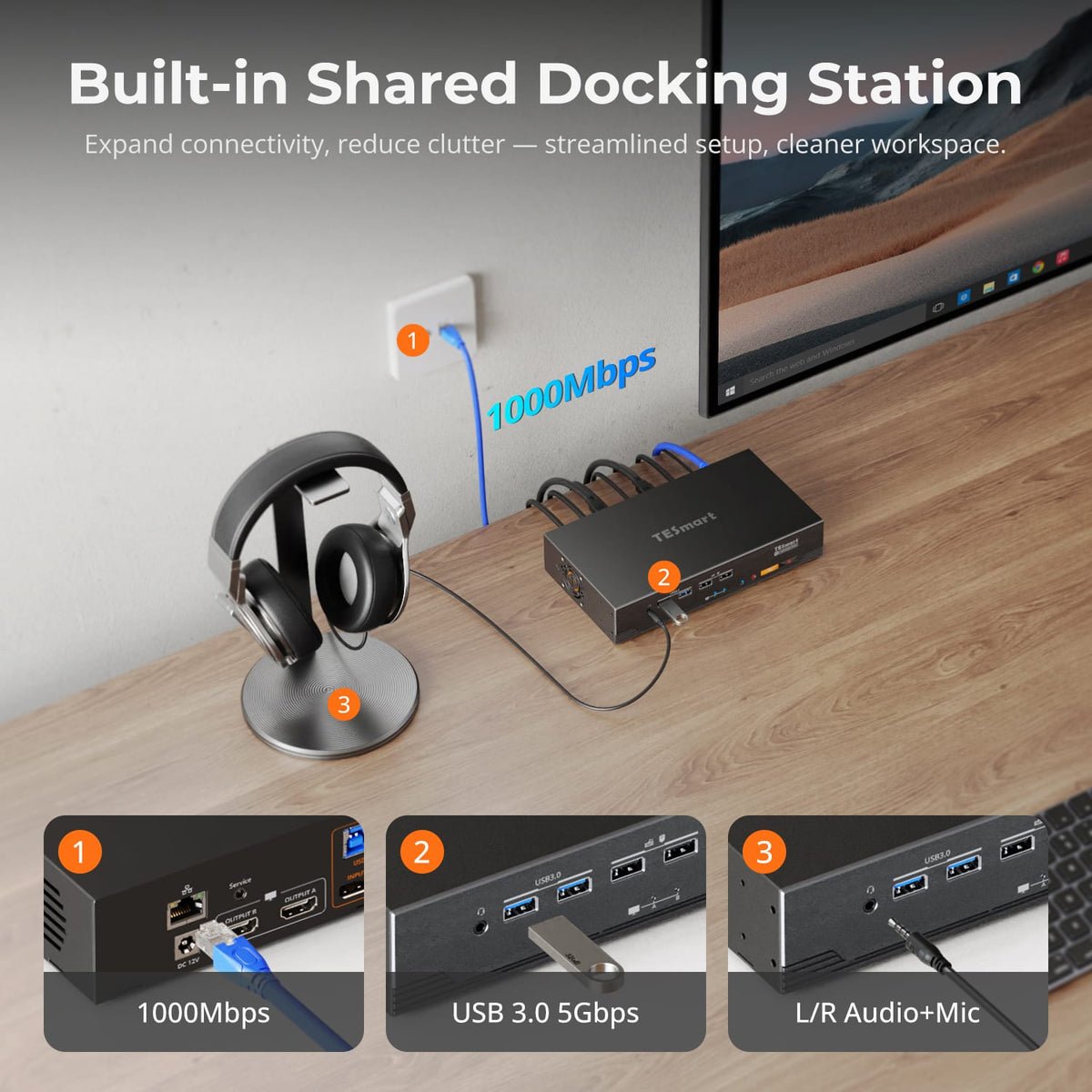
A Shared Dock Built into the KVM
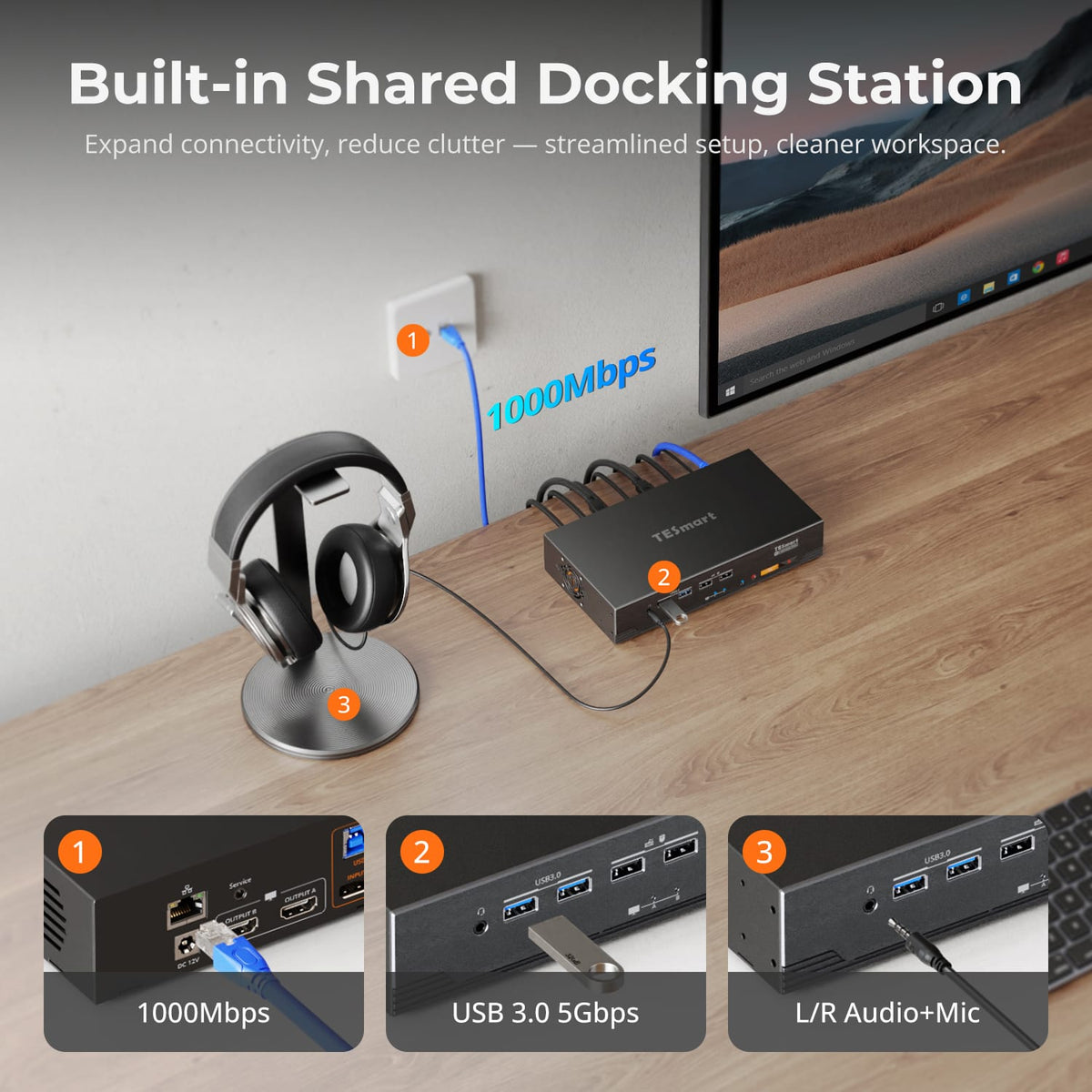
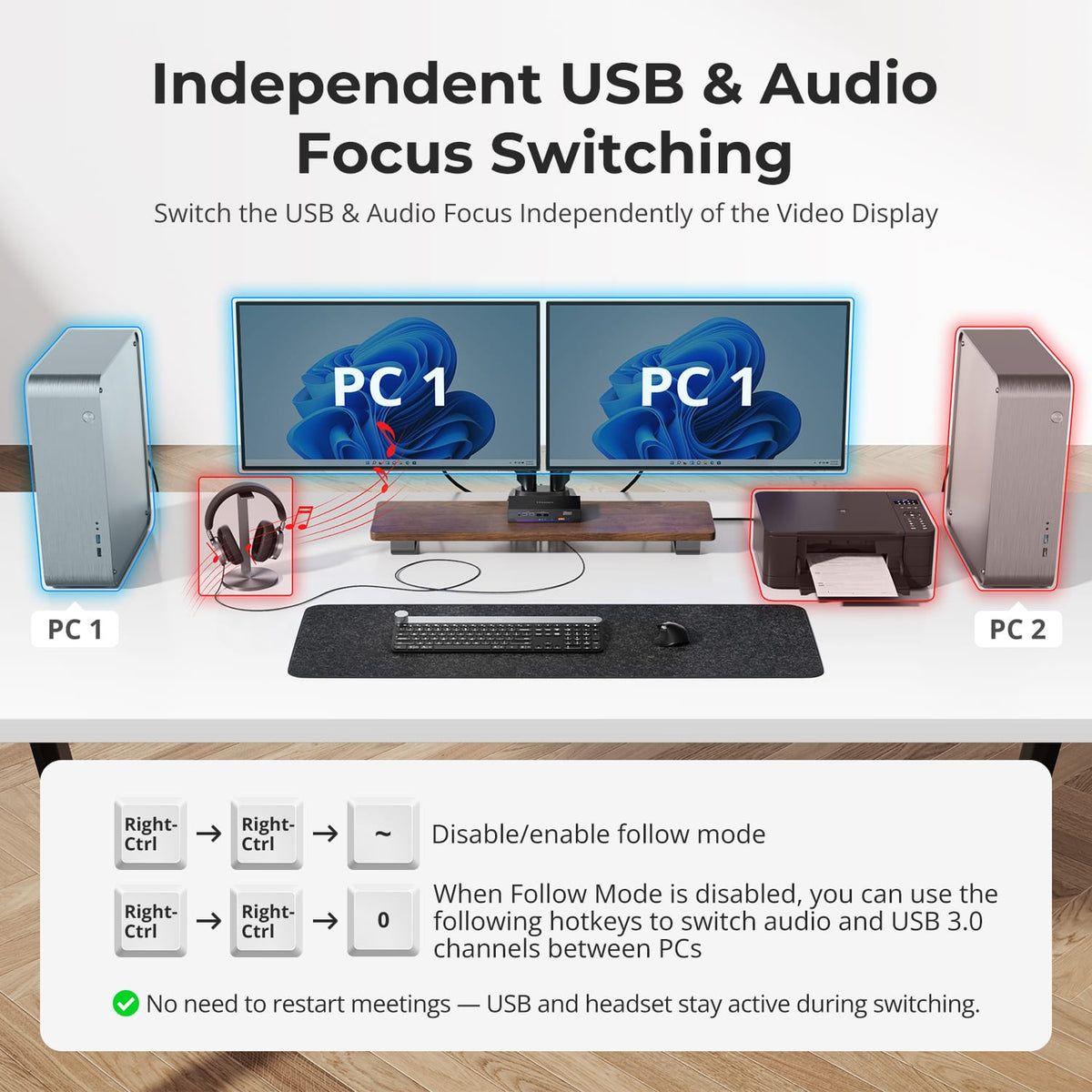
Share Gigabit Ethernet, USB 3.2 Gen 1 devices and 3.5mm audio through the same desktop hub, reducing the number of standalone switches and adapters around the two-computer setup.
05
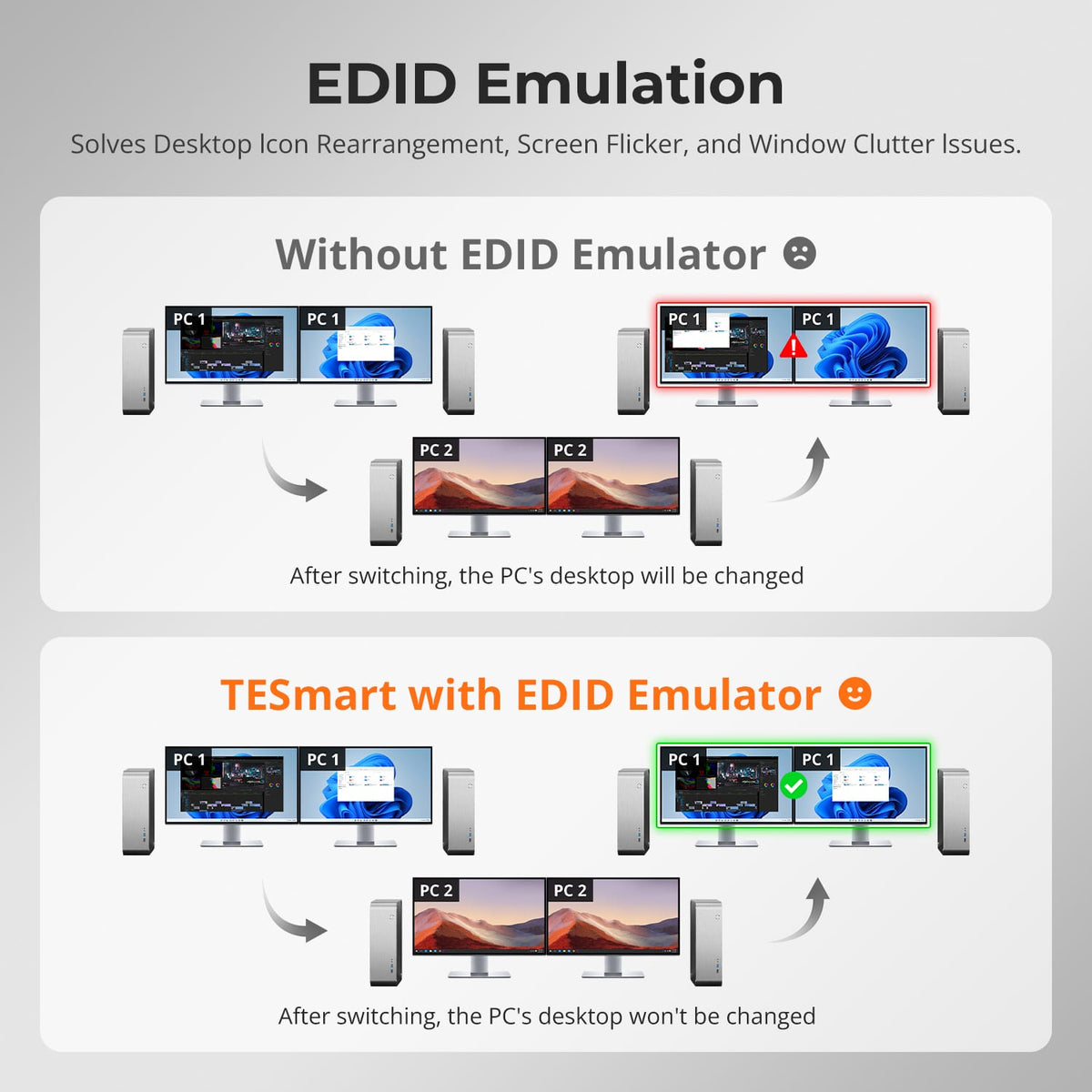
Keep Your Desktop Where You Left It
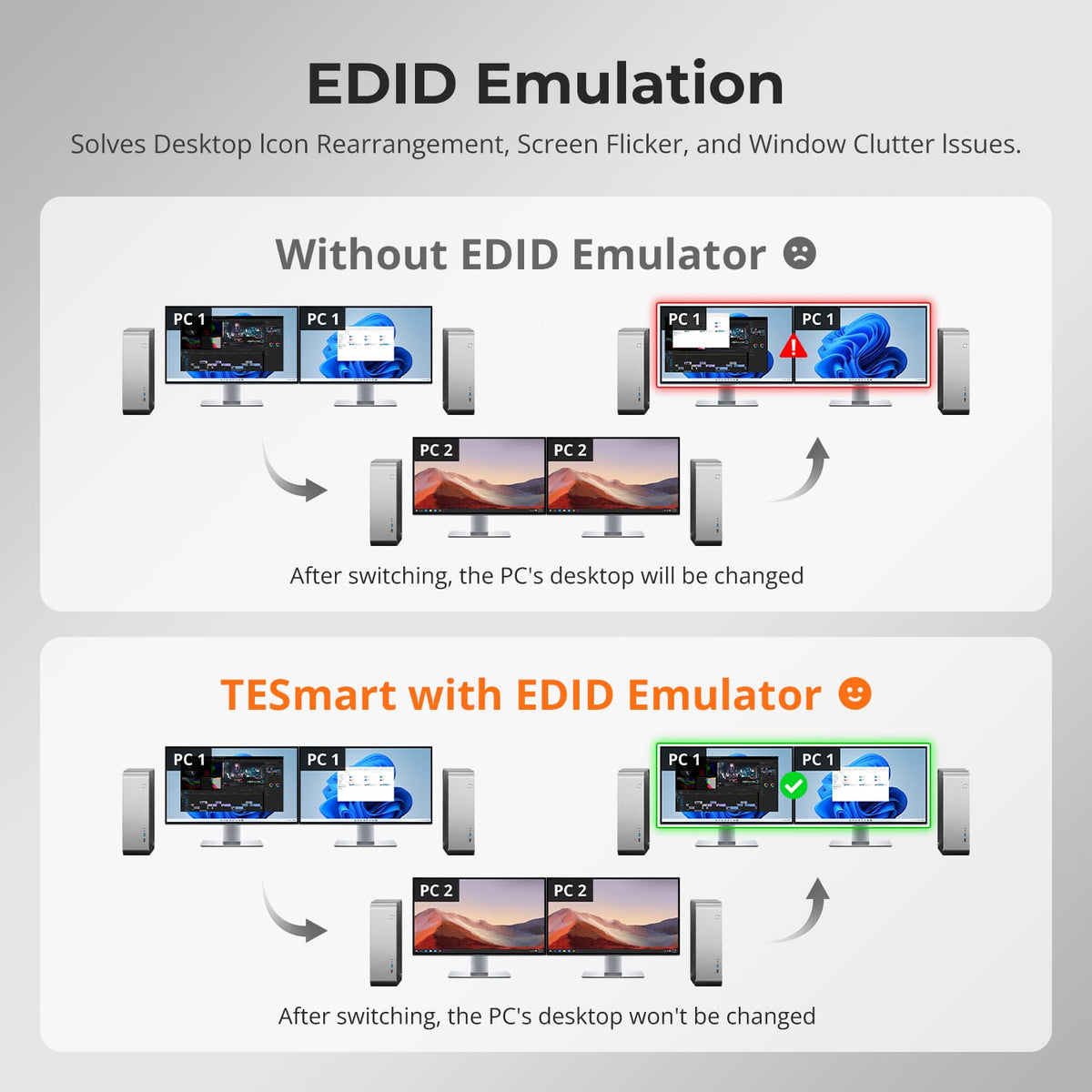
EDID emulation keeps display information available to both computers, reducing monitor re-detection, resolution changes and window rearrangement when switching.
06
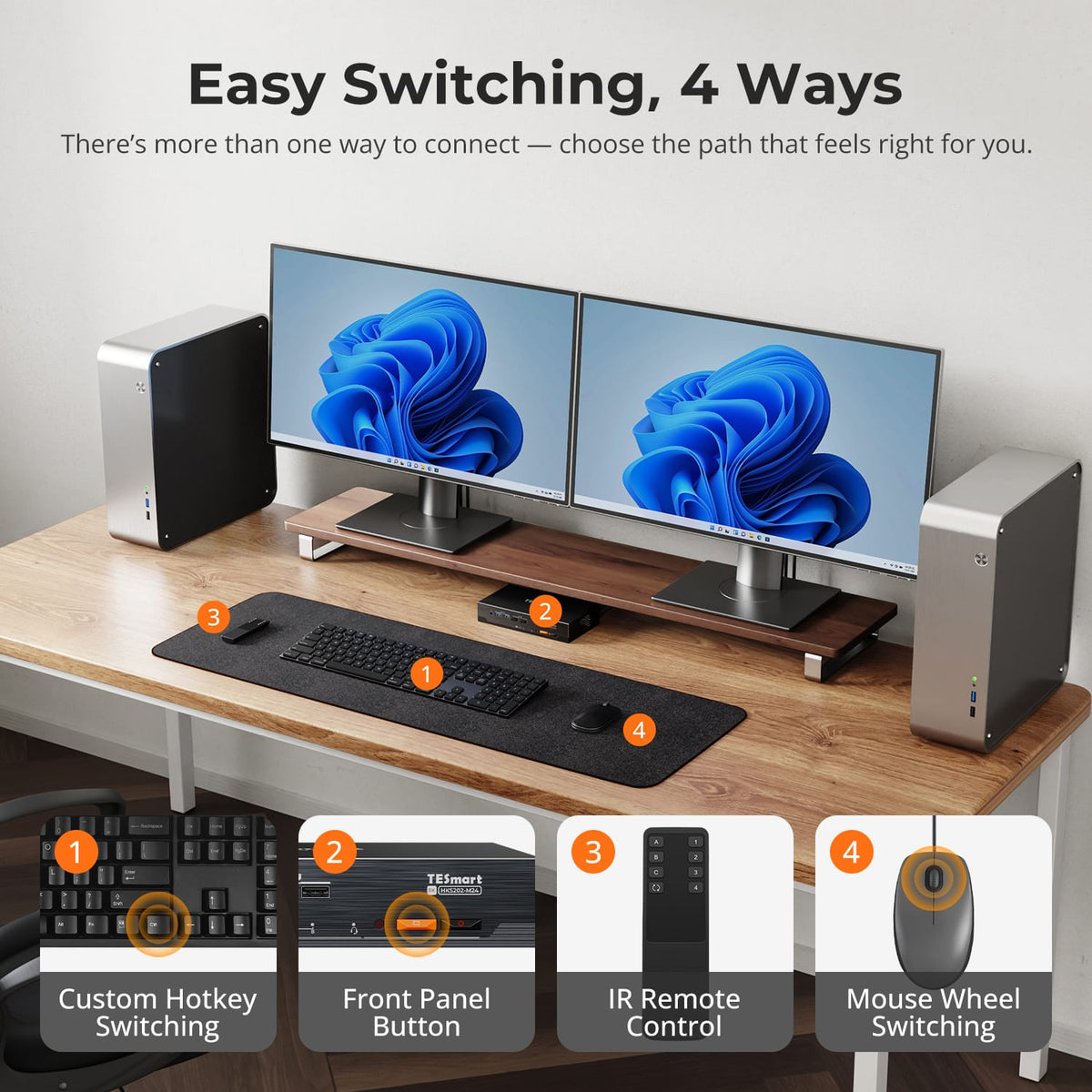
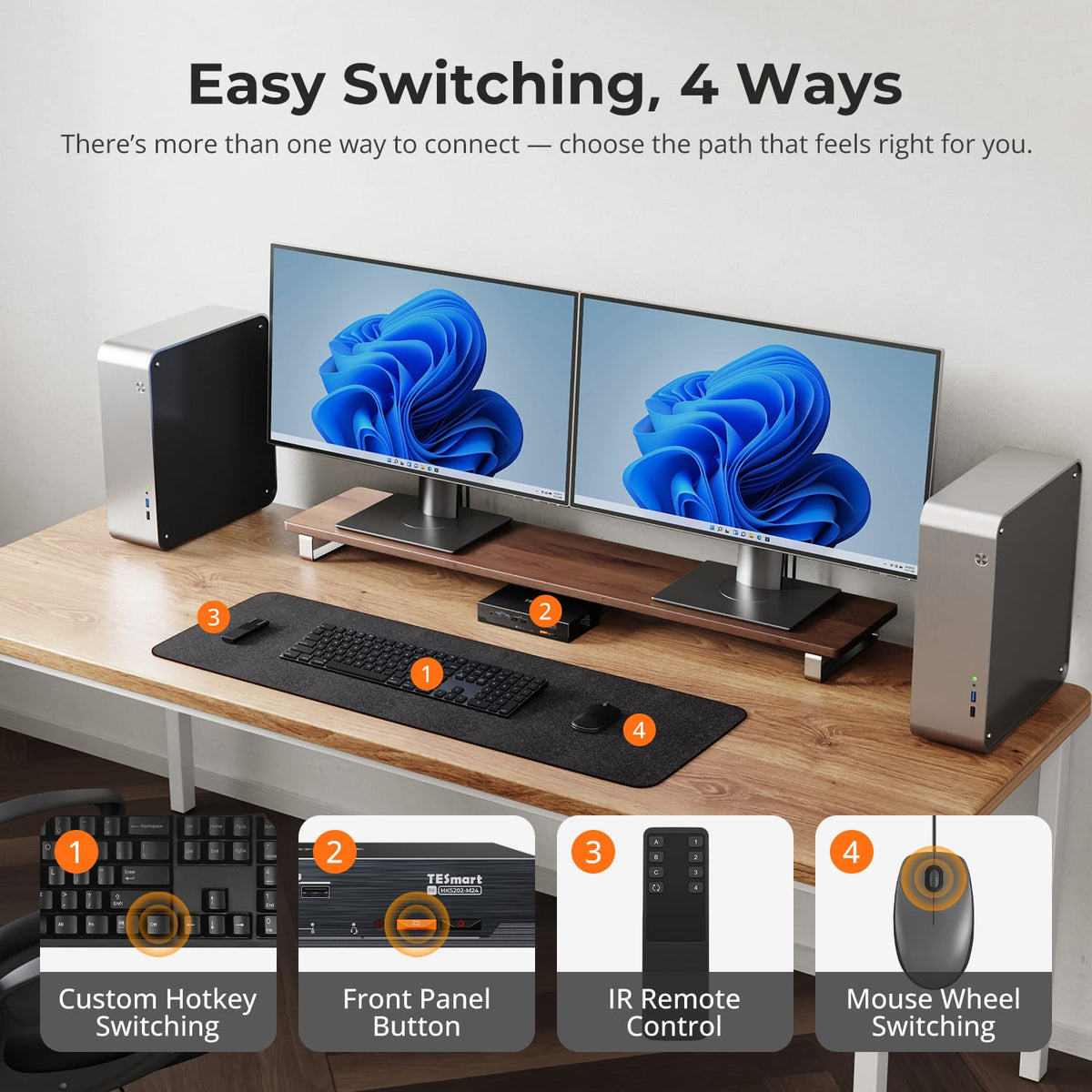
Switch the Way You Prefer
Use the front panel, IR remote, keyboard hotkeys or mouse-wheel switching to move between the two computers without touching display cables.
07
08
09
Specifications & Support
Compatibility & Input Guide
Technical Specifications
Manuals & Downloads
Included in the Box
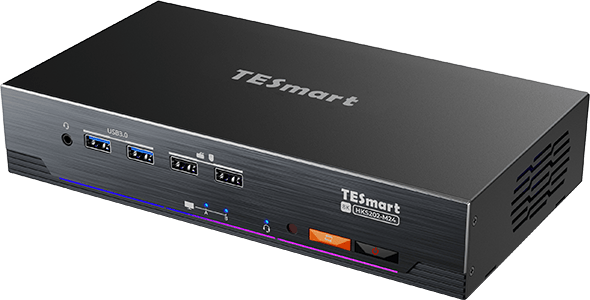
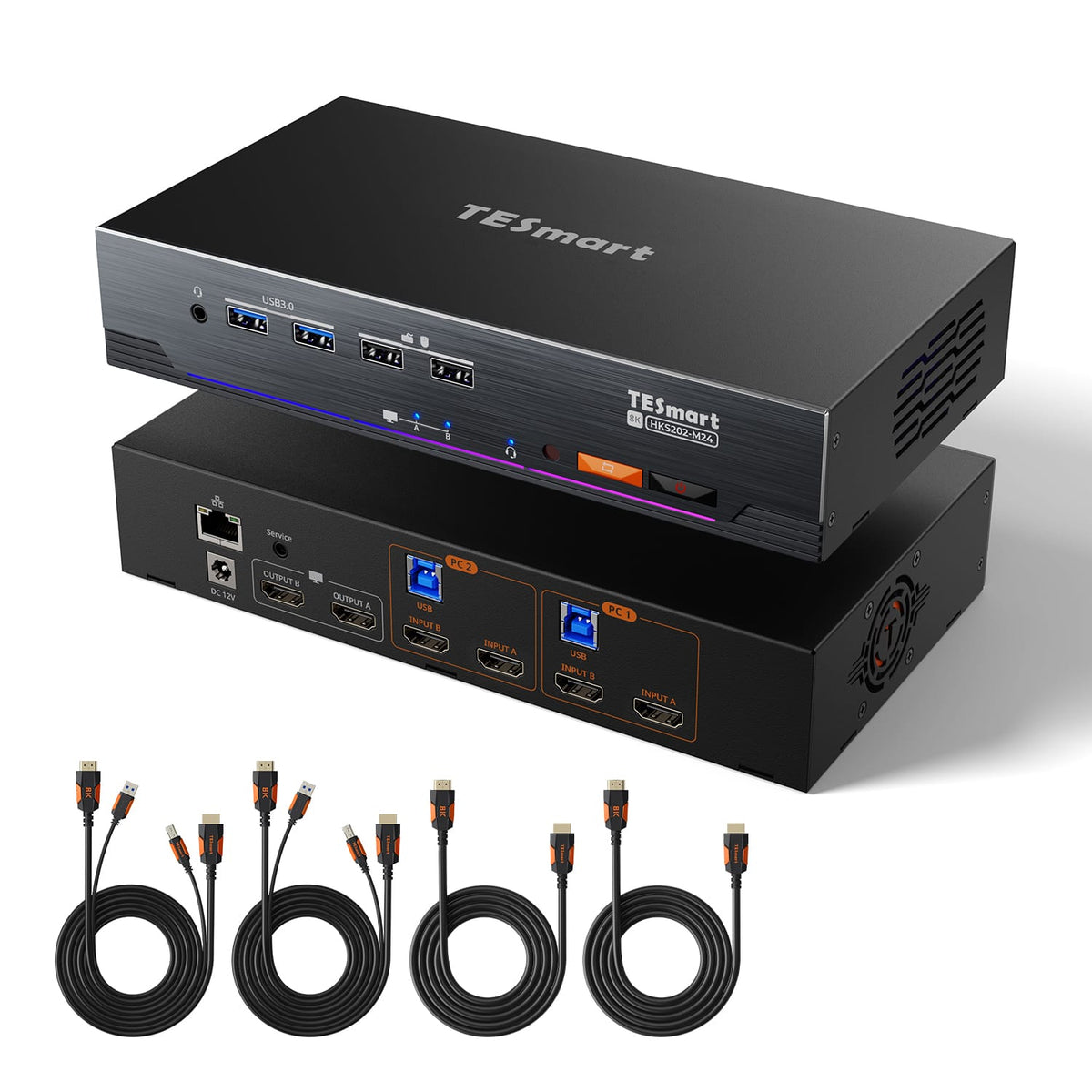
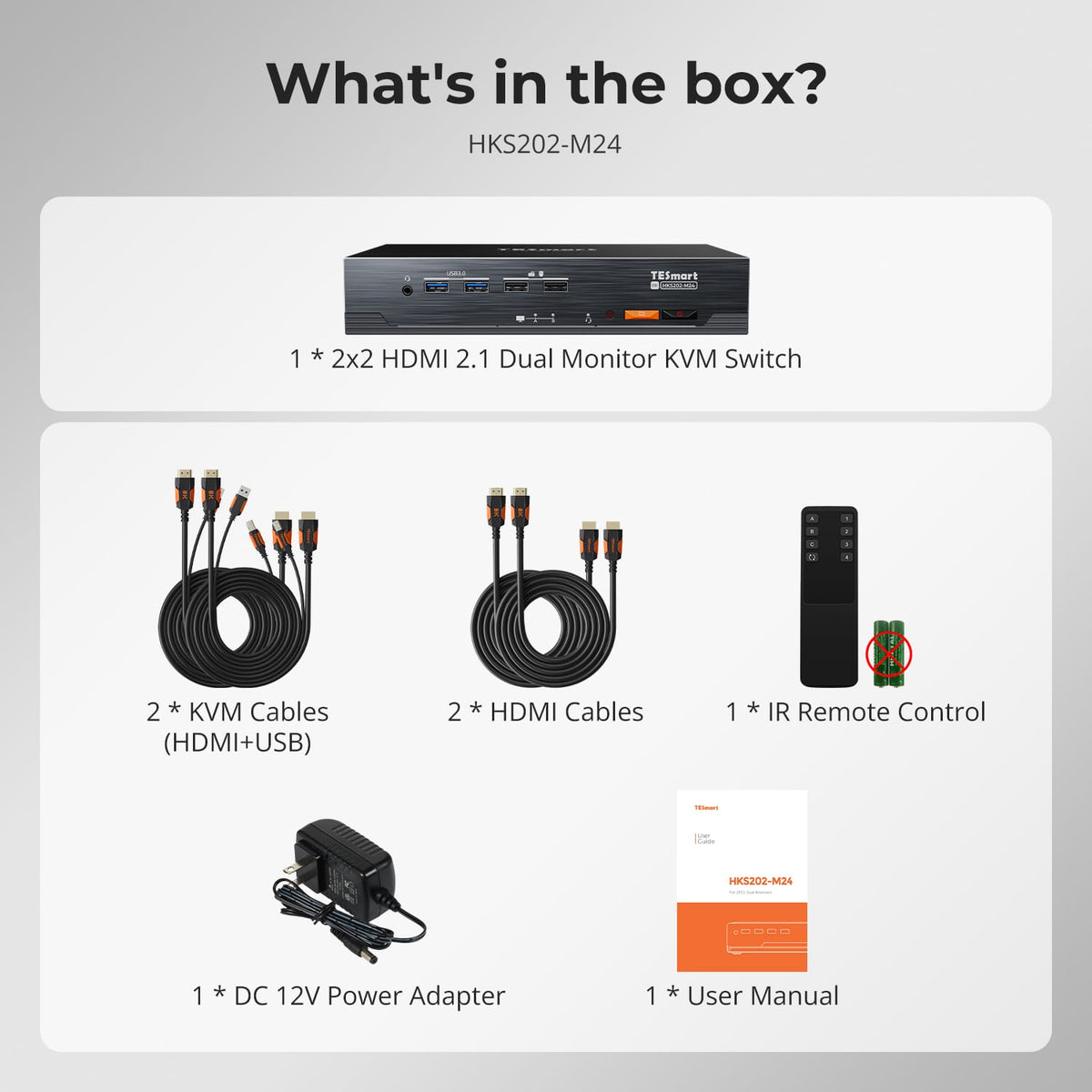
1 × 2×2 HDMI 2.1 KVM Switch
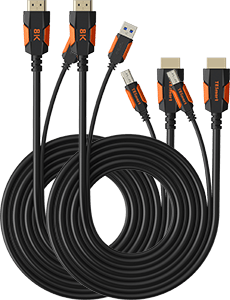
2 × KVM Cables
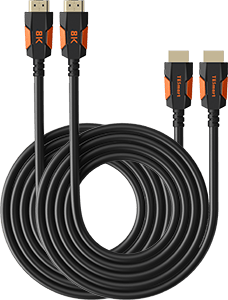
2 × HDMI Cables
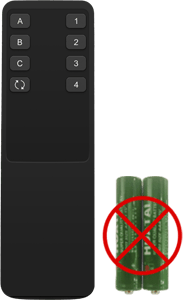
1 × IR Remote Control
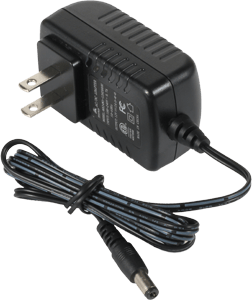
1 × 12 V DC Power Adapter
1 × User Manual
Compare your options
Choose models from the menus to compare connections, display performance and shared features.

Model
JP-HKS202-M24
Model
HKS202-M24-V2
Model
HKS202-P23-V2
Computer setup
2 computers
Computer setup
2 computers
Computer setup
2 computers
Computer connections
Each PC: HDMI + DisplayPort + USB
Computer connections
Each PC: 2 × HDMI + USB
Computer connections
Each PC: 2 × HDMI + USB
Display outputs
2 × HDMI
Display outputs
2 × HDMI
Display outputs
2 × HDMI
Video output
8K60 / 4K144
Video output
8K60 / 4K144
Video output
4K60
Shared USB
USB 3.0 / 5Gbps
Shared USB
USB 3.0 / 5Gbps
Shared USB
USB 3.0 / 5Gbps
Laptop charging
Laptop charging
Laptop charging
Shared Ethernet
1000Mbps
Shared Ethernet
1000Mbps
Shared Ethernet
EDID emulation
EDID emulation
EDID emulation
Display Mode 1 only
Multi-display setup
Separate video outputs from each computer
Multi-display setup
Separate video outputs from each computer
Multi-display setup
Separate video outputs from each computer
Display requirements
Each computer must drive 2 displays
Display requirements
Each computer must drive 2 displays
Display requirements
Each computer must drive 2 displays
FAQ's
Visit our Help Center for more answers.
[Compatibility] What computers can I connect to JP-HKS202-M24?
You can connect two computers. Each computer needs two HDMI video outputs and one USB connection for full dual-monitor KVM operation.
[Compatibility] What is the maximum supported resolution?
The manual supports up to 8K@60Hz 4:4:4 and is backward compatible with 4K@60/120/144Hz. Actual output depends on the GPU, displays, cables and selected video format.
[Compatibility] What do I need for VRR or high-refresh 4K?
The source GPU, both HDMI cables and the monitor must support the target HDMI 2.1 feature and refresh rate. VRR, FVA, ALLM and DSC require support across the complete connection path.
[Features & Connections] What display modes are available?
You can show one computer across both displays in extended or mirrored mode, or keep different computers visible on the two monitors and switch keyboard and mouse focus.
[Features & Connections] Does JP-HKS202-M24 support EDID emulation?
Yes. EDID emulation keeps monitor information available to the computers to reduce display re-detection and desktop rearrangement after switching.
[Features & Connections] Can both computers share Ethernet and USB devices?
Yes. The KVM provides shared Gigabit Ethernet and USB 3.2 Gen 1 connections for compatible devices.
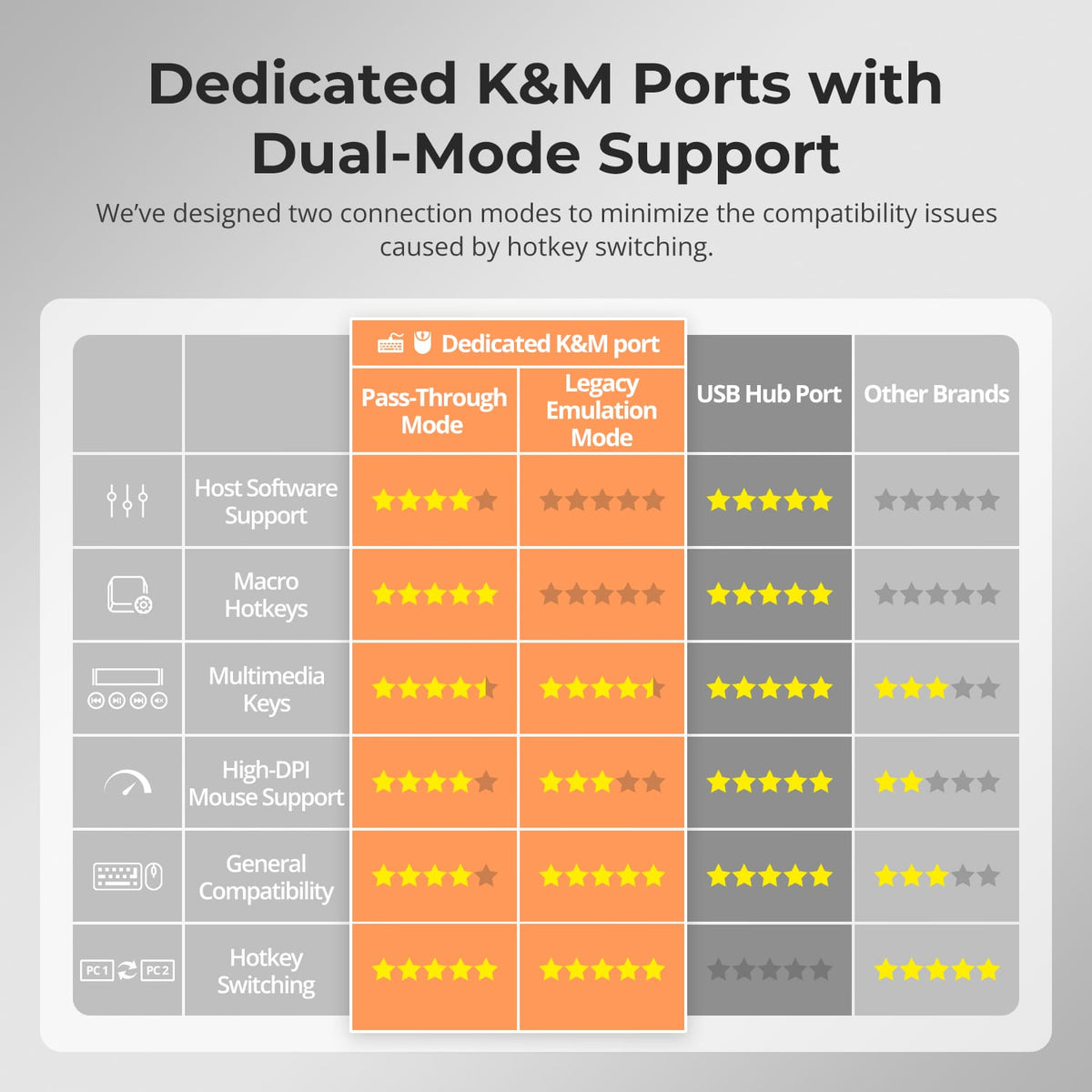
[Setup & Switching] What are Pass-Through Mode and Legacy Emulation Mode?
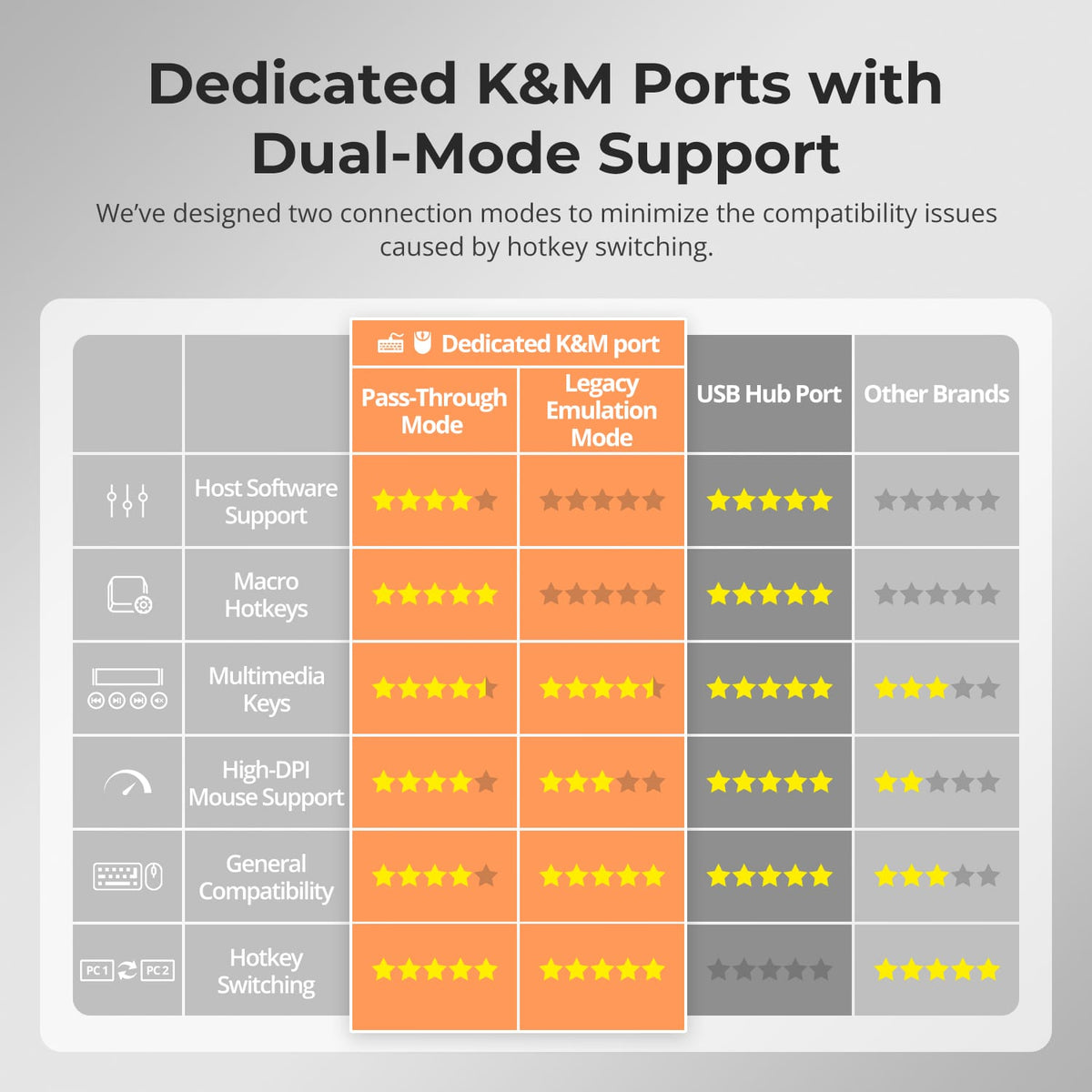
Pass-Through Mode is intended for most modern keyboards and mice. Legacy Emulation Mode provides an alternative for basic keyboard, mouse and hotkey compatibility.
[Setup & Switching] How can I switch between the two computers?
Use the front-panel controls, IR remote, keyboard hotkeys or mouse-wheel switching.
[Setup & Switching] Do I need software to use the KVM?
No dedicated switching software is required for normal KVM operation. Connected USB devices may still need their own drivers.