

Choose by Setup

Set up Your Mac and Dual Apple Studio Display Workflow
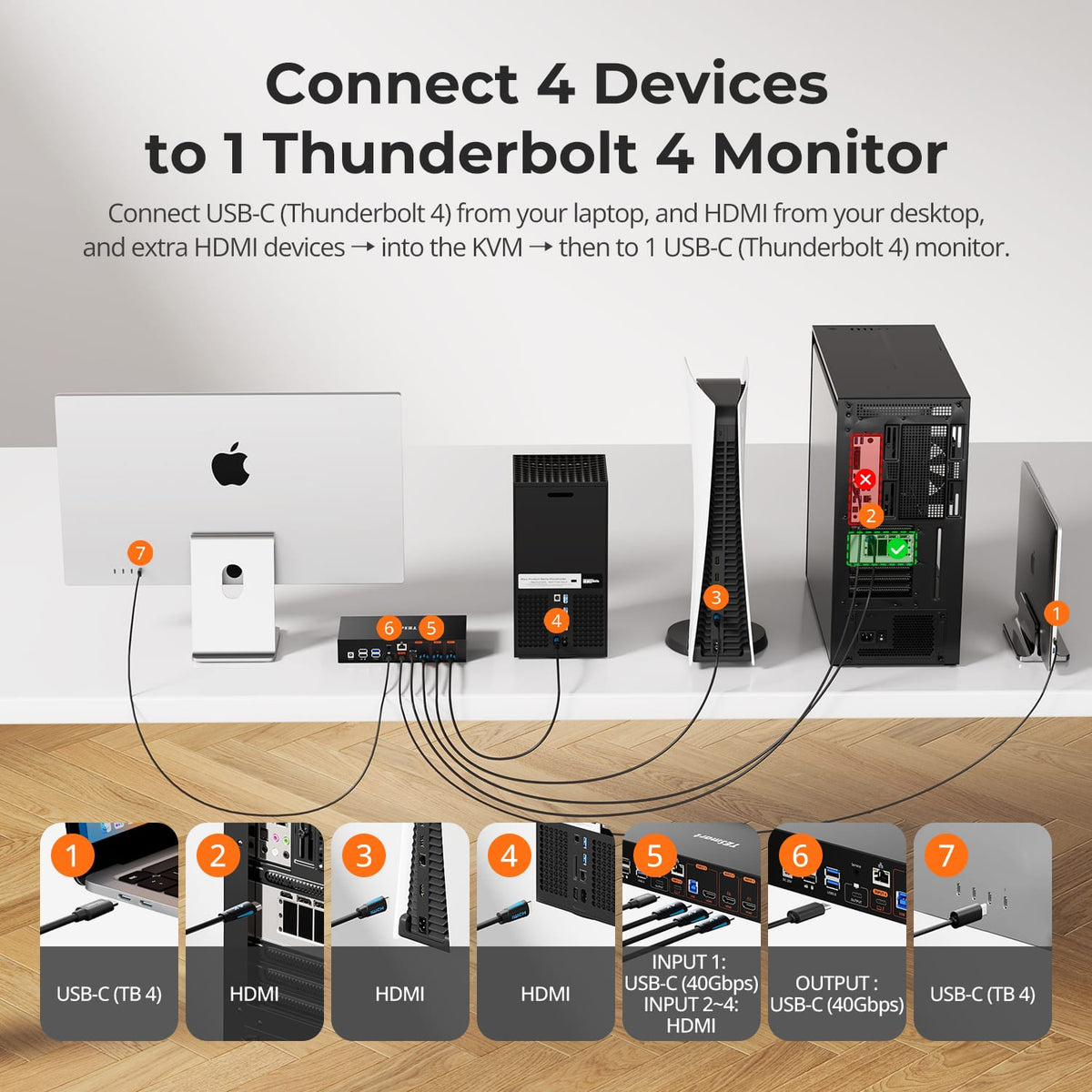
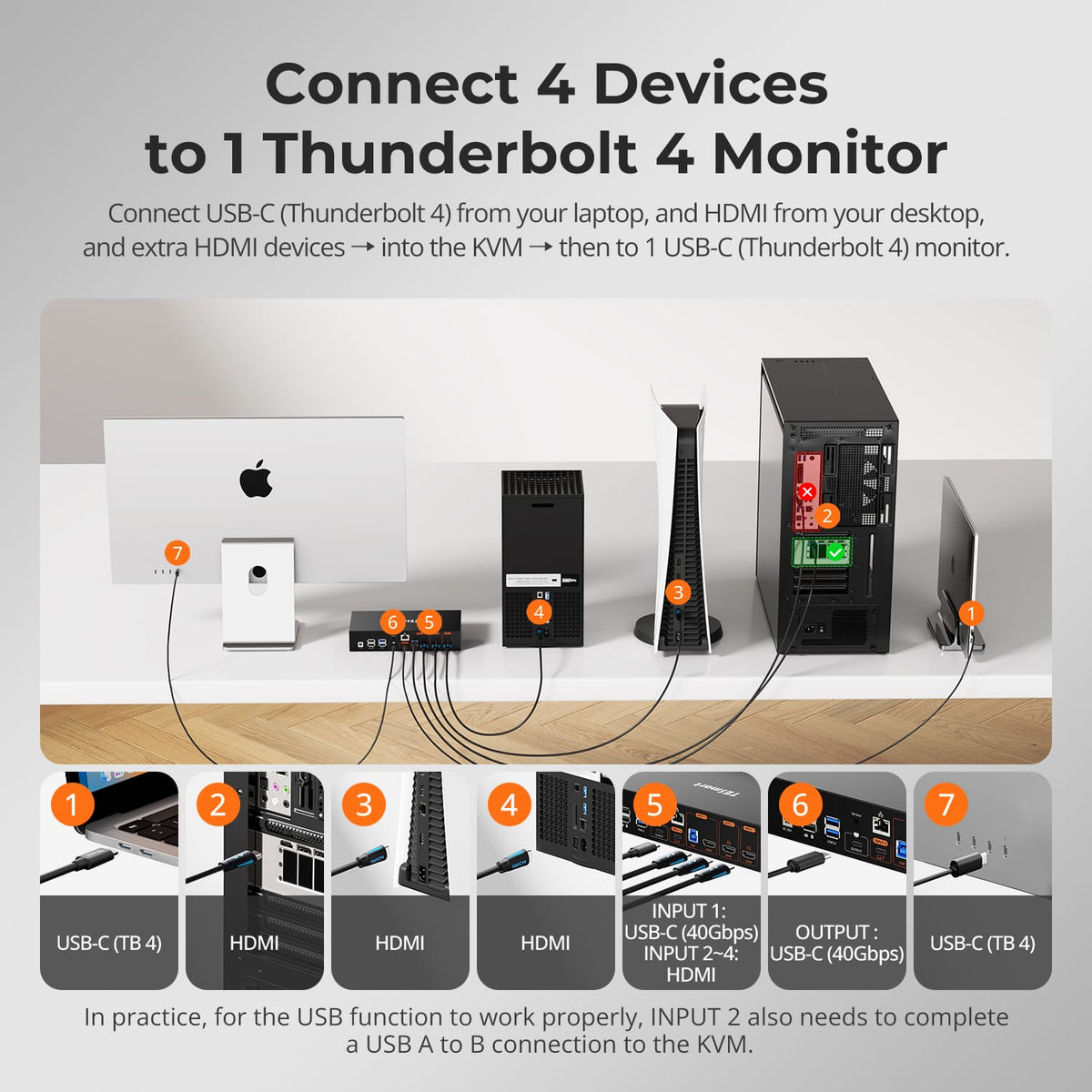
Connect Your Mac / Desktop / PS5 / Xbox to the Apple Studio Display

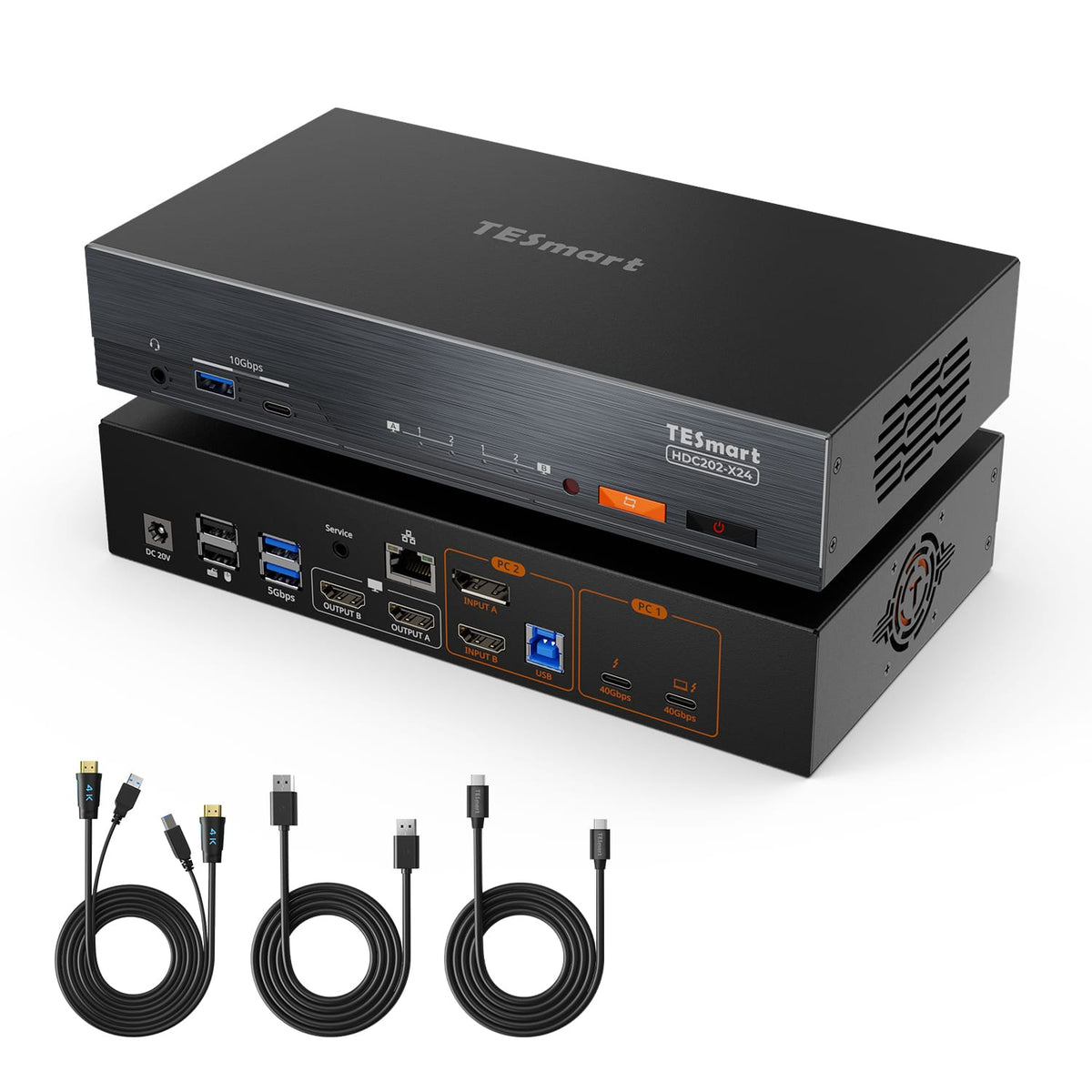
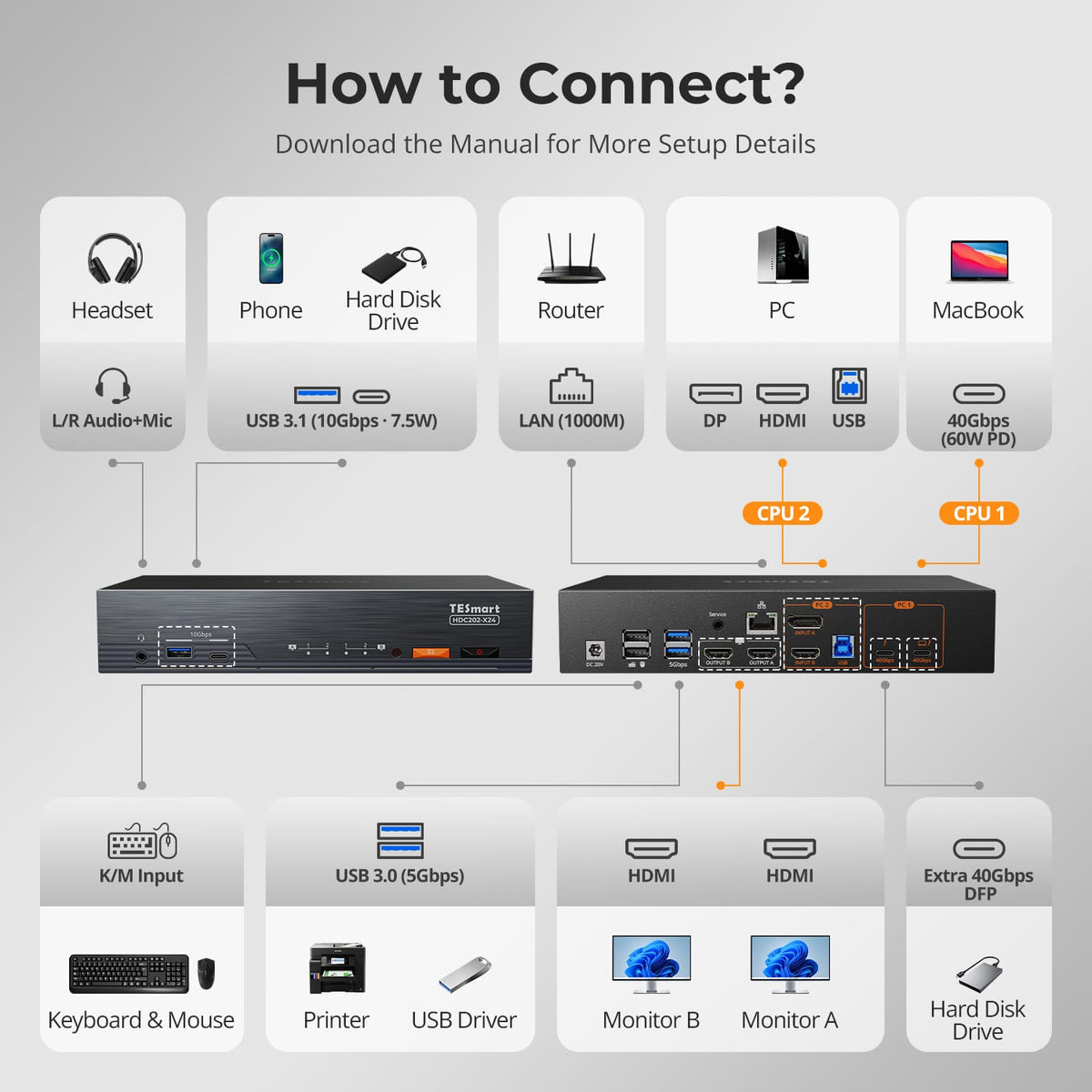
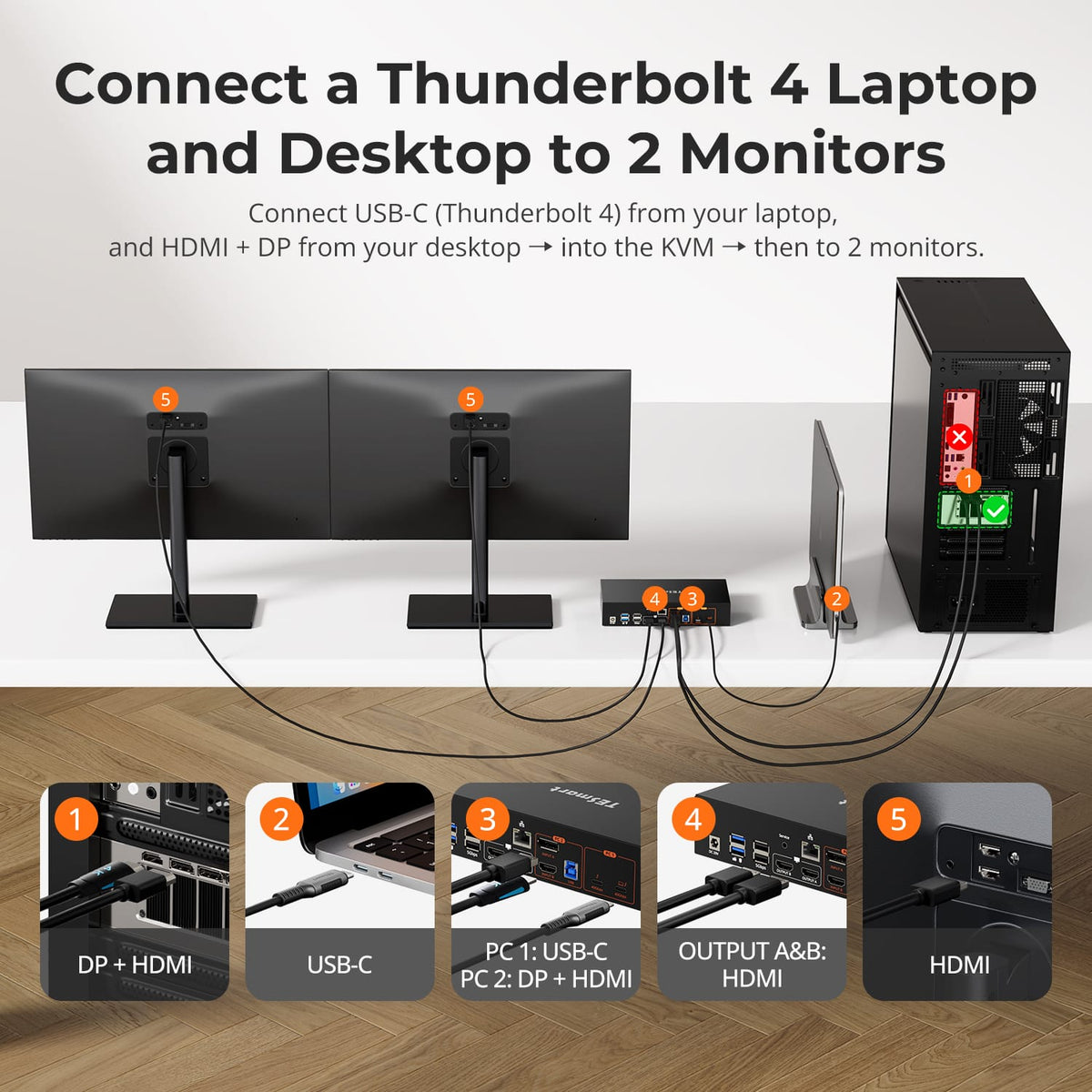
Thunderbolt Laptop + Desktop — Dual HDMI Displays
Thunderbolt Series

Display Setup
Max Display Output

Thunderbolt Controller

Compatibility

Laptop Charging
Network Control
Display Setup
Max Display Output
Thunderbolt Controller
Connectivity
Compatibility
Laptop Charging
Display Setup
Max Display Output
Compatibility
For Game Consoles

Thunderbolt PCIe connection

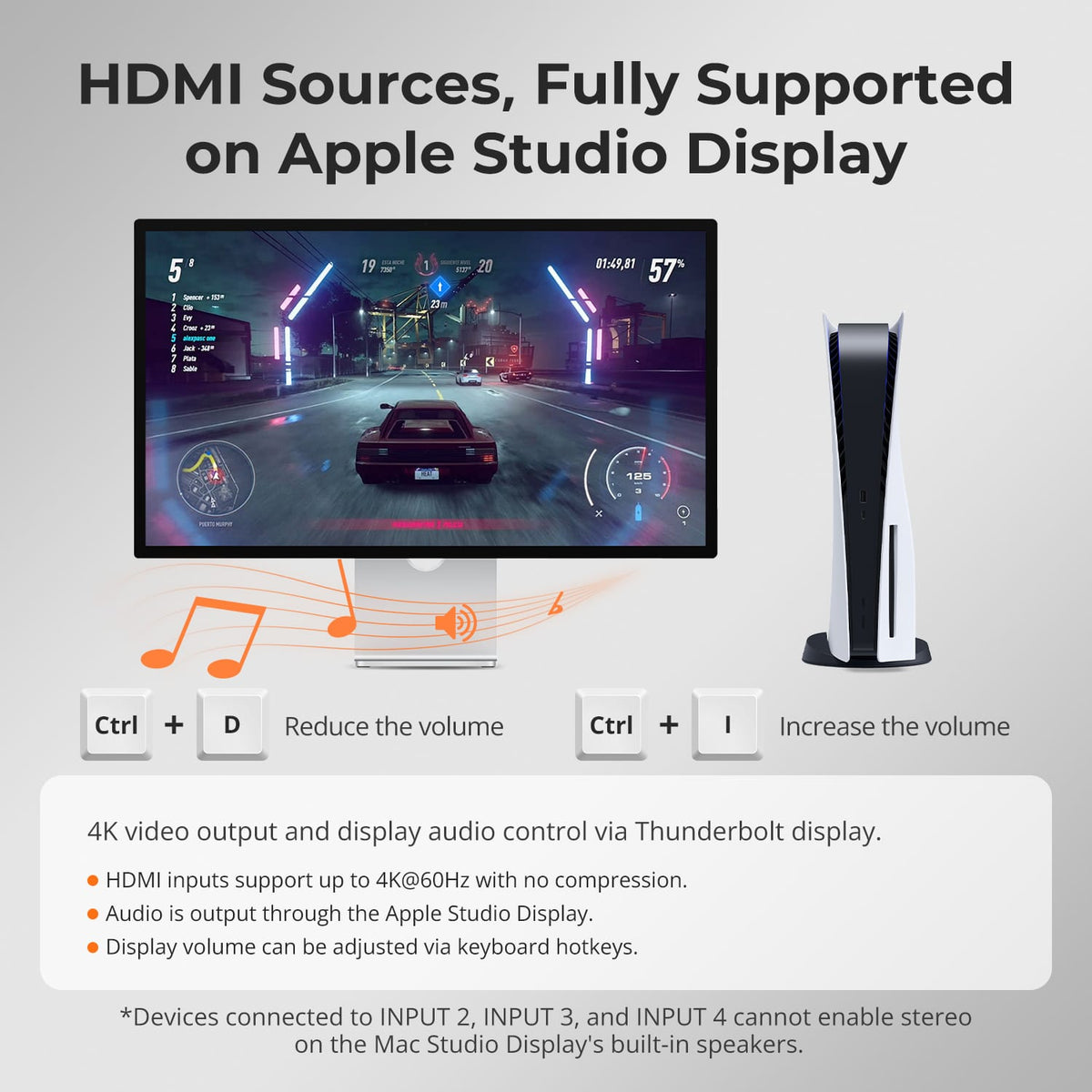
Stereo Audio from HDMI
Source Mix
2× PCs (Thunderbolt™ 4)
Source Mix
1× Mac (Thunderbolt™ 4)
1x Windows PC
2× HDMI sources
Source Mix
1× Laptop (Thunderbolt™ 4)
1× HDMI/DP desktop
Display Setup
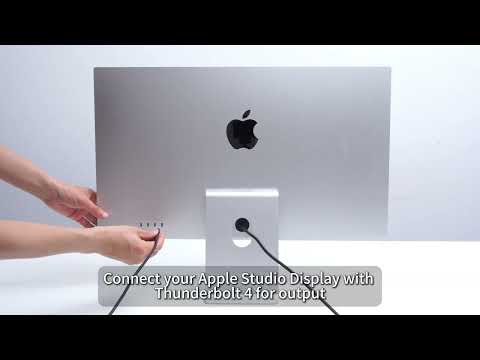
2× Apple Studio Displays
Display Setup
1× Apple Studio Display
Display Setup
2× HDMI monitors
Max Display Output
Up to 6K@60Hz / 5K@120Hz
Max Display Output
Input 1: 6K@60Hz / 5K@120Hz
HDMI: 4K@60Hz
Max Display Output
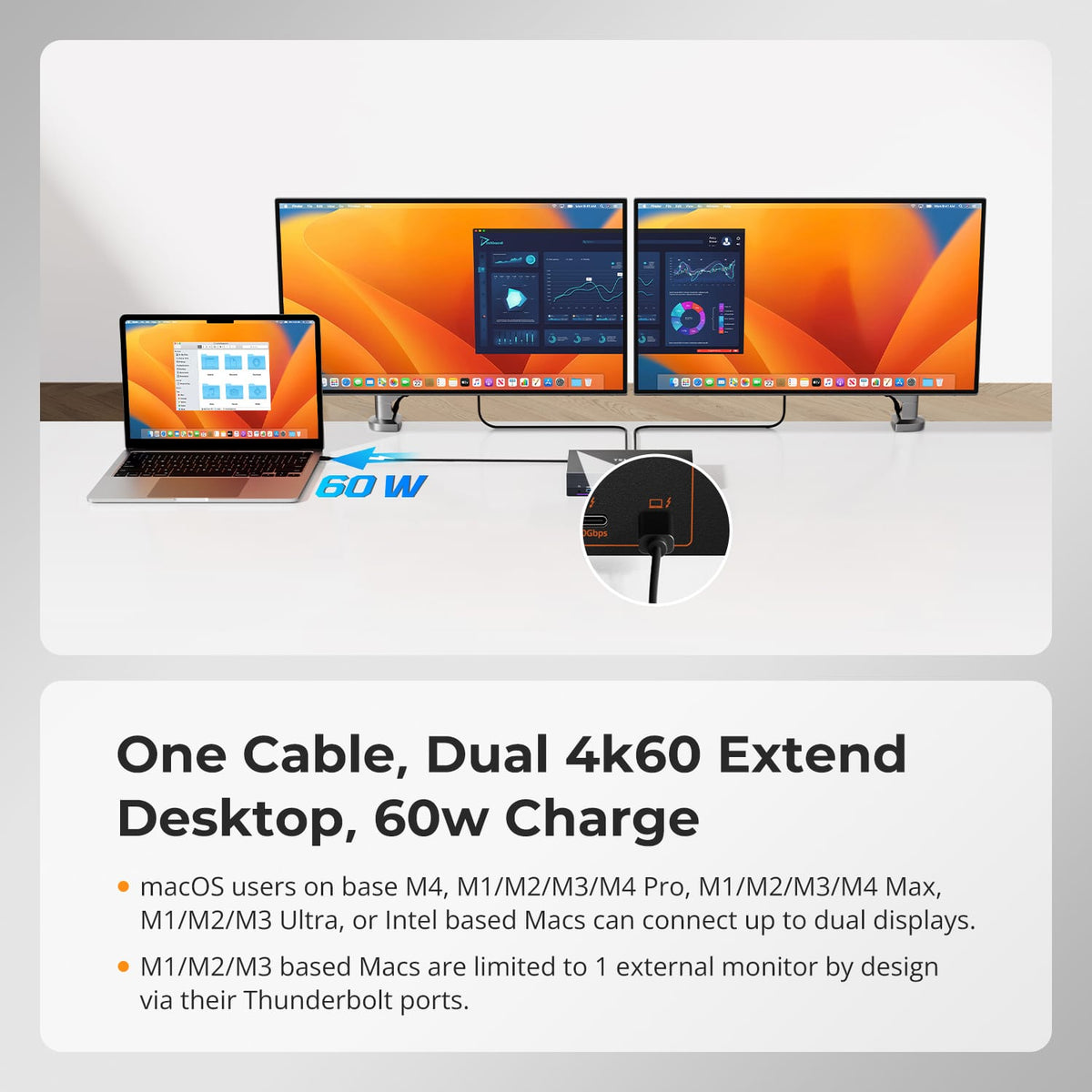
Dual 4K@60Hz
Laptop Charging
2× 60W
Laptop Charging
1× 60W
Laptop Charging
1× 60W
Best For
Two Macs or Win Laptops(Thunderbolt 4) sharing two Apple Studio Displays
Best For
Mac, desktop and HDMI devices sharing one Apple Studio Display
Best For
Mac and one desktop sharing two standard monitors
Why Thunderbolt KVM
Standard KVM needs separate video and USB cables. Thunderbolt KVM does it all through one cable — video, data, and 60W charging at full 40Gbps for high-refresh, high-resolution displays.
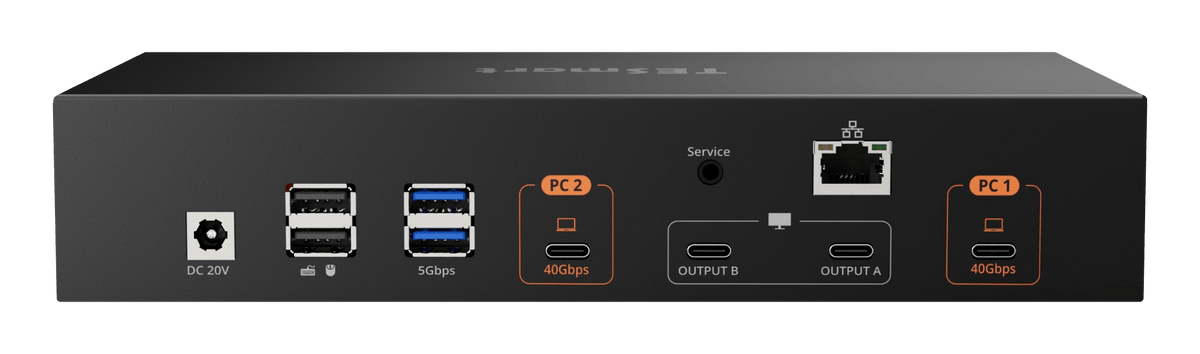


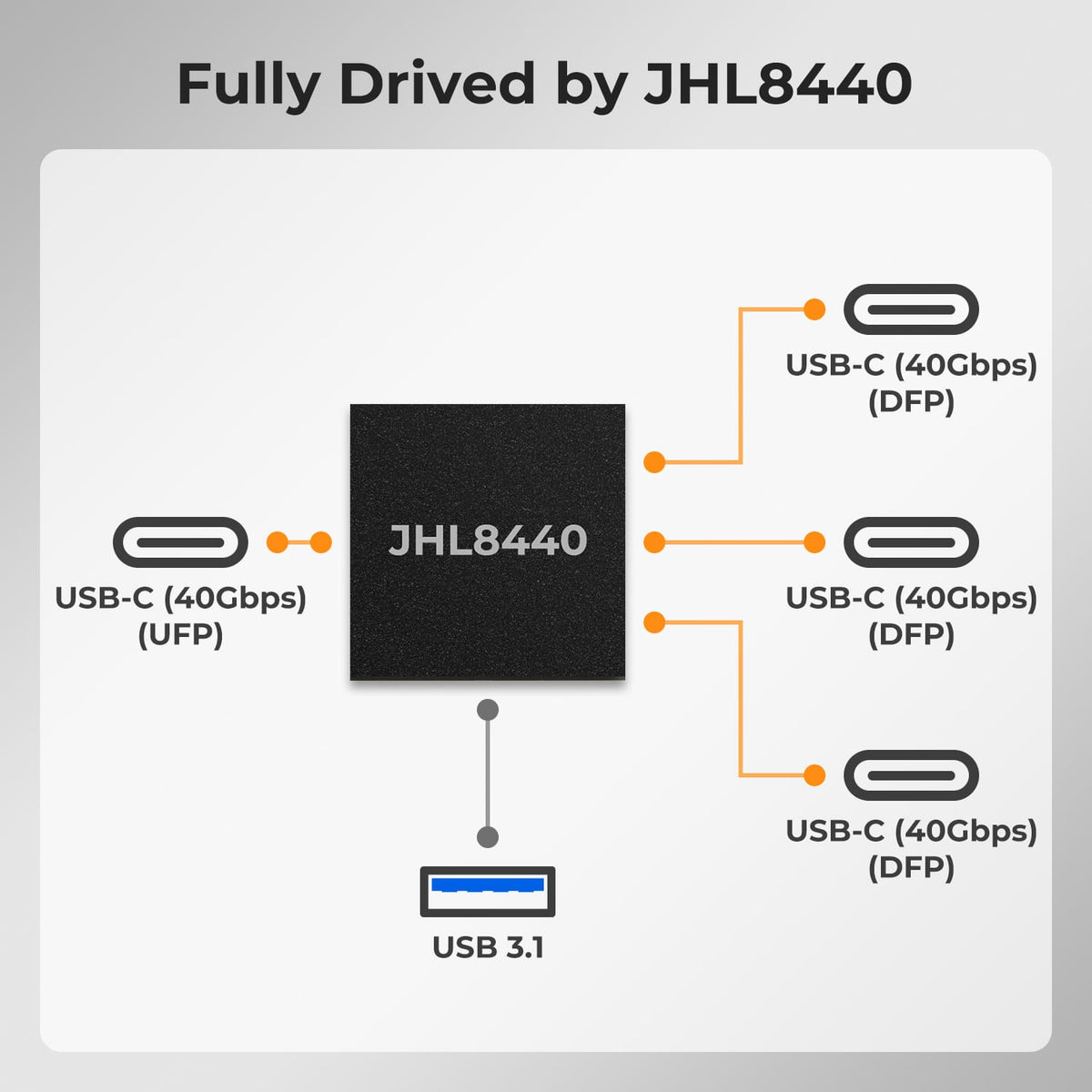
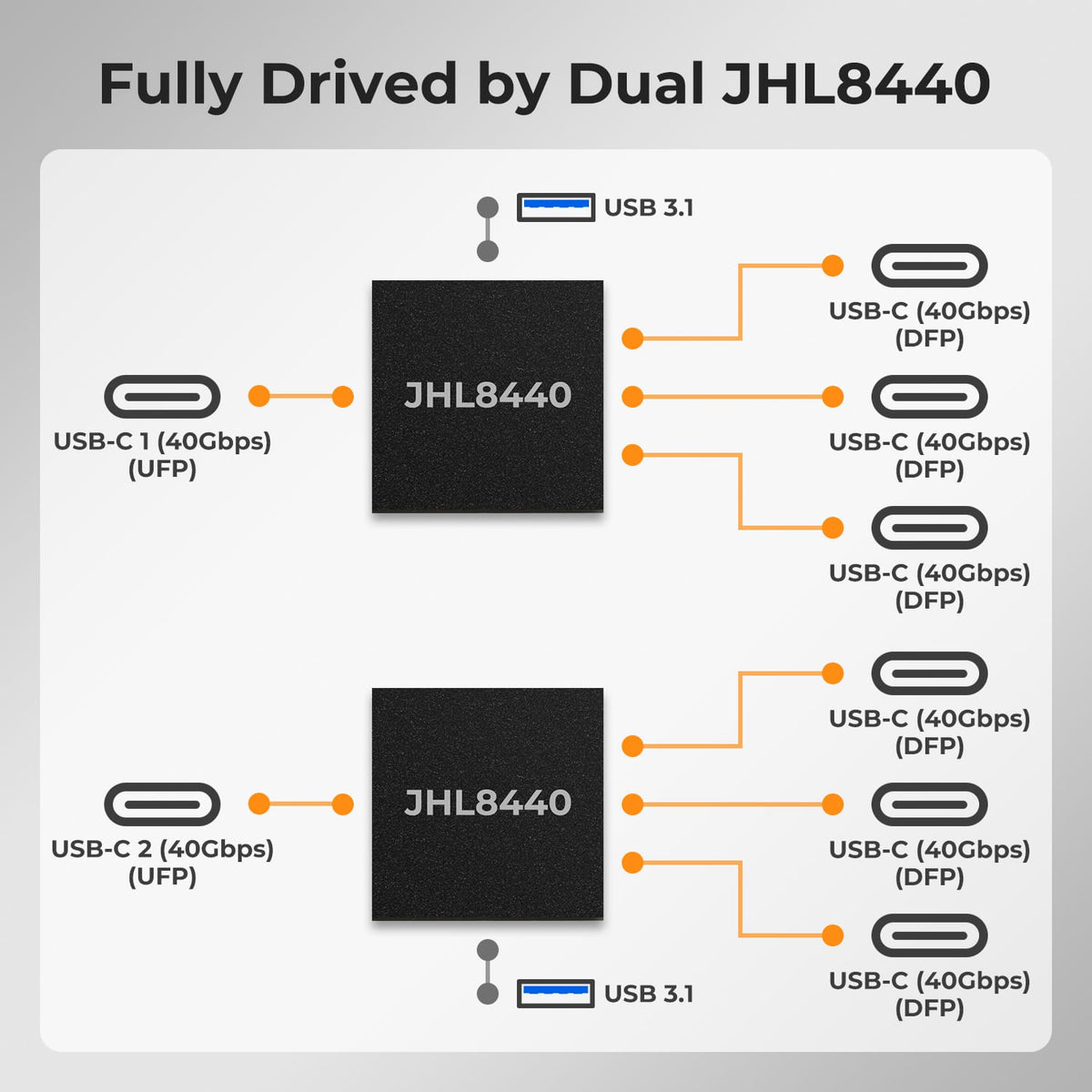
Built on Intel® JHL8440
Certified TB4 core. Intel® JHL8440 Thunderbolt 4 gives video, data, charging full 40Gbps backbone.
One cable, full speed. One cable, full speed. DisplayPort video, PCIe data, 60W charging—5K120 / 6K60 on Thunderbolt Display.
Trusted lineup. On Mac or Windows, THK401-X4, HDC202-X24 run one JHL8440; TKS202-X4 runs two.
What Our Customers Say
Real reviews from real Thunderbolt KVM users


"I use it with my Apple Studio Display, my Mac, and my PS5. The PS5 works fine—I can use the Apple Studio Display's speakers, and there's no audio-video desync at 4K 60, so the experience is great."

"Works great for my MacBook Pro and Windows PC setup. The Thunderbolt 4 connection is rock solid and the extra HDMI inputs are really useful for my console. Only minor gripe is the remote control feels a bit flimsy."

"Finally, a single dock that lets me switch my dual 4K monitors between my work laptop and personal desktop without unplugging anything. Saves me so much time every day. Build quality is solid and it hasn't let me down once."

"Does exactly what I needed — shares my dual monitors and peripherals between work and personal machines. Setup was straightforward, switching is responsive. The only reason I'm not giving 5 stars is the power adapter is bulky."
"Running my Macbook + Windows laptop through this KVM to two 3440×1440 monitors via USB-C to HDMI adapters.Although we encountered some problems along the way, they were all resolved after communicating with the customer service team."
"I use it with my Apple Studio Display, my Mac, and my PS5. The PS5 works fine—I can use the Apple Studio Display's speakers, and there's no audio-video desync at 4K 60, so the experience is great."
"Works great for my MacBook Pro and Windows PC setup. The Thunderbolt 4 connection is rock solid and the extra HDMI inputs are really useful for my console. Only minor gripe is the remote control feels a bit flimsy."
"Finally, a single dock that lets me switch my dual 4K monitors between my work laptop and personal desktop without unplugging anything. Saves me so much time every day. Build quality is solid and it hasn't let me down once."
"Does exactly what I needed — shares my dual monitors and peripherals between work and personal machines. Setup was straightforward, switching is responsive. The only reason I'm not giving 5 stars is the power adapter is bulky."
Thunderbolt KVM Guides

FAQs
What is a Thunderbolt™ KVM switch?
A standard KVM switches between displays and USB peripherals, while a Thunderbolt KVM switches the entire Thunderbolt ecosystem over a single cable — display video, PCIe data, USB and laptop charging all travel through one Thunderbolt connection. Our Thunderbolt KVM Solutions are built on the Intel® JHL8440 Thunderbolt™ 4 controller (TKS202-X4 runs two; HDC202-X24 and THK401-X4 each run one) to provide a full 40Gbps backbone for Mac and Windows Thunderbolt computers.
Should I choose HDC202-X24, THK401-X4 or TKS202-X4?
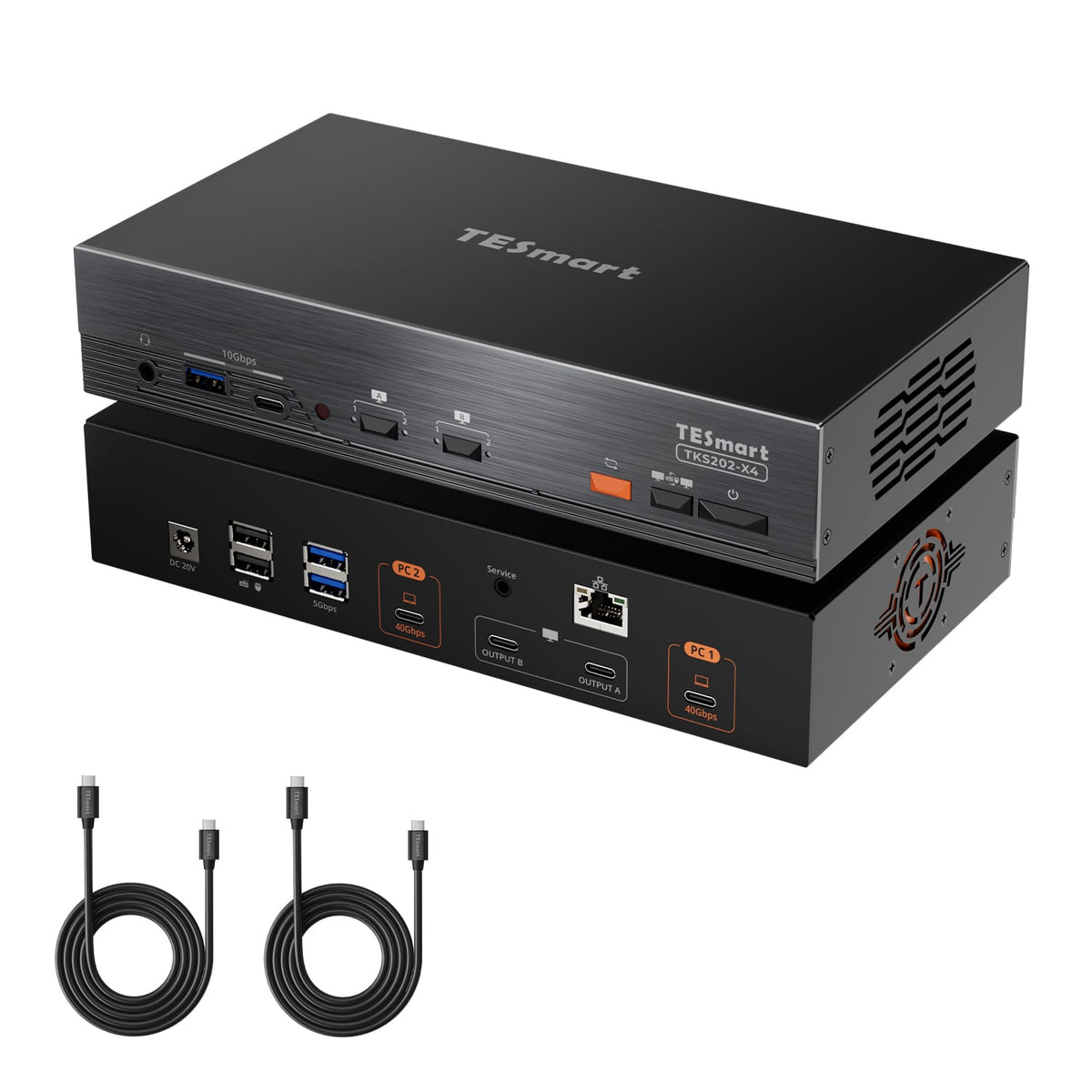
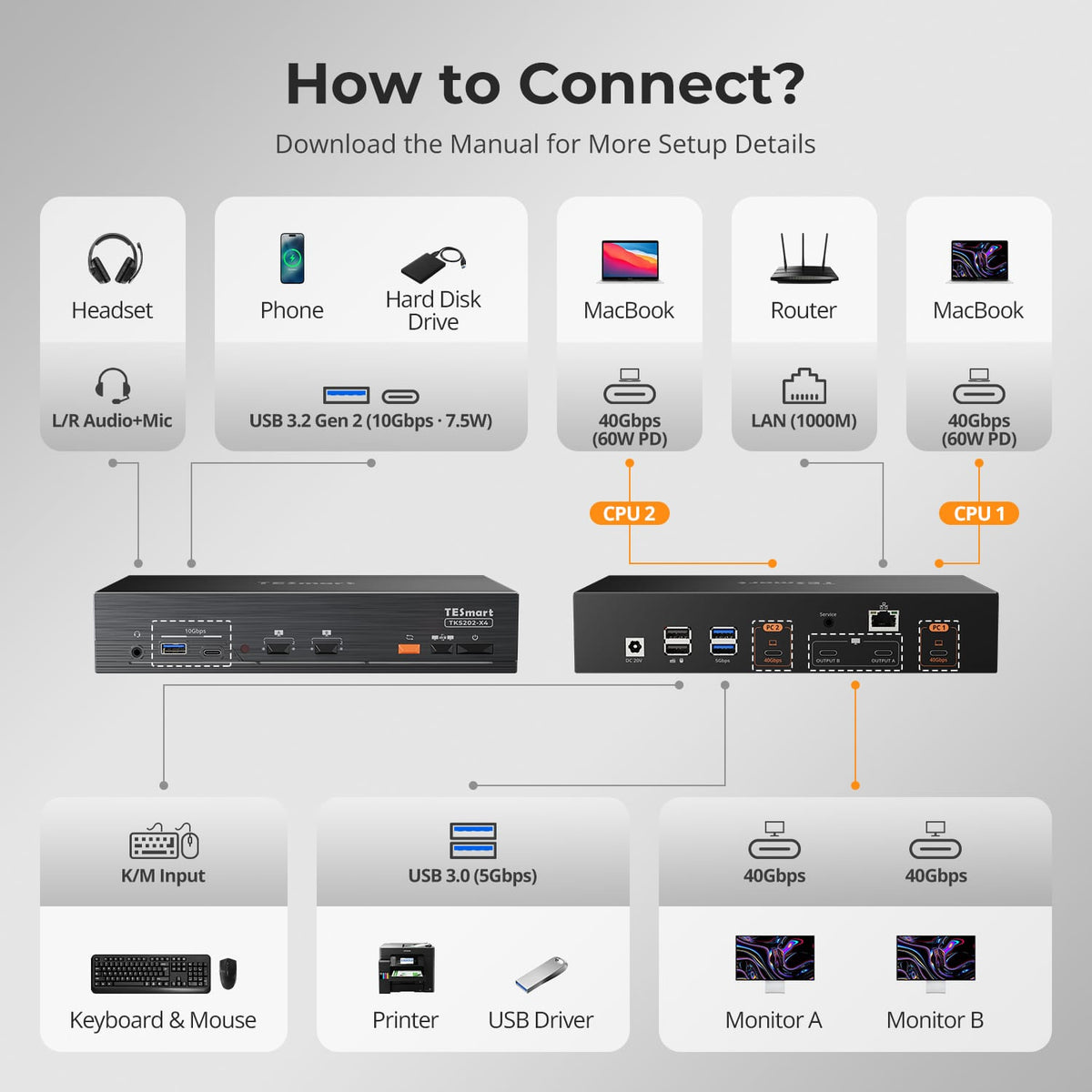
Choose TKS202-X4 when two computers compatible with Thunderbolt 4 need to share a dual Thunderbolt-display workstation.
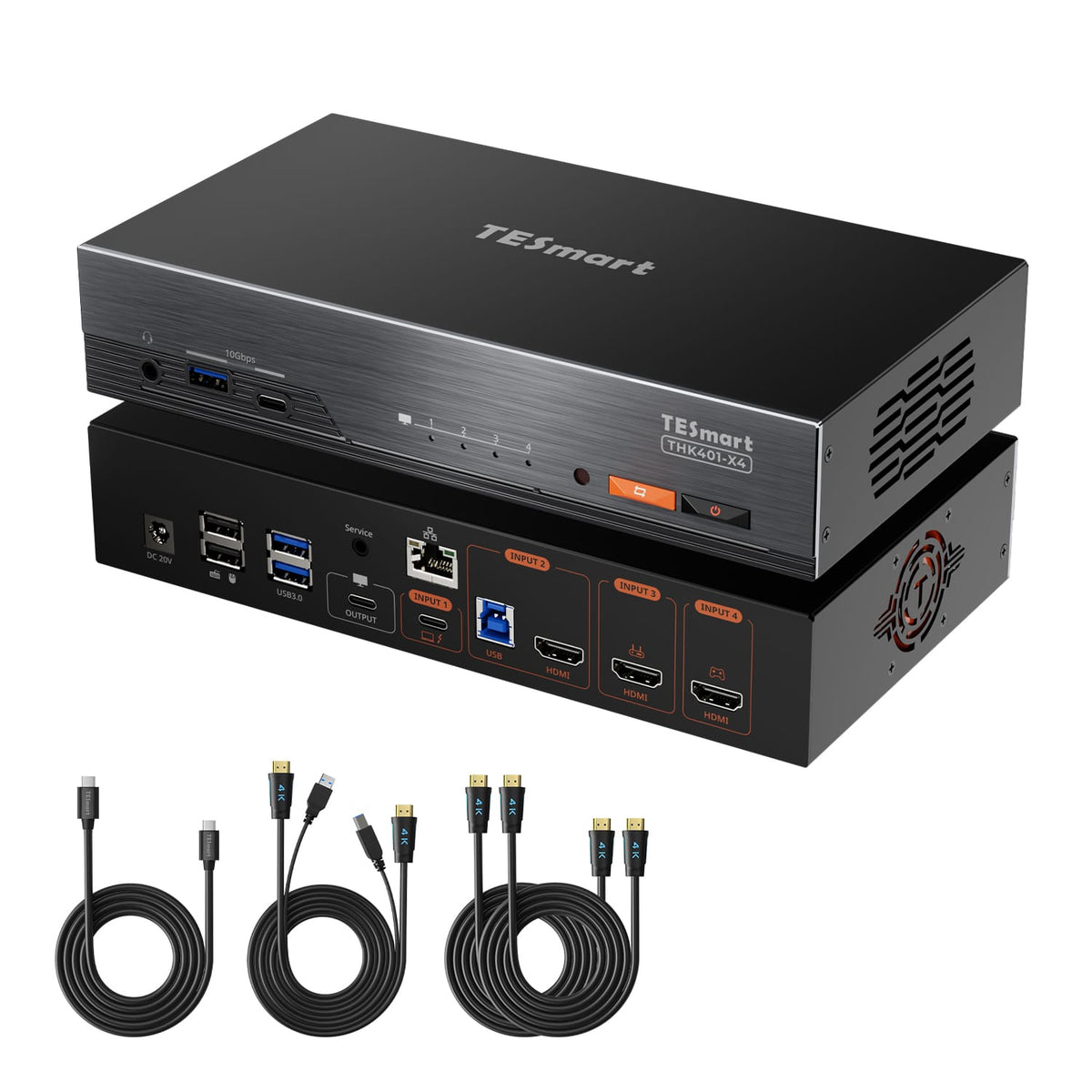
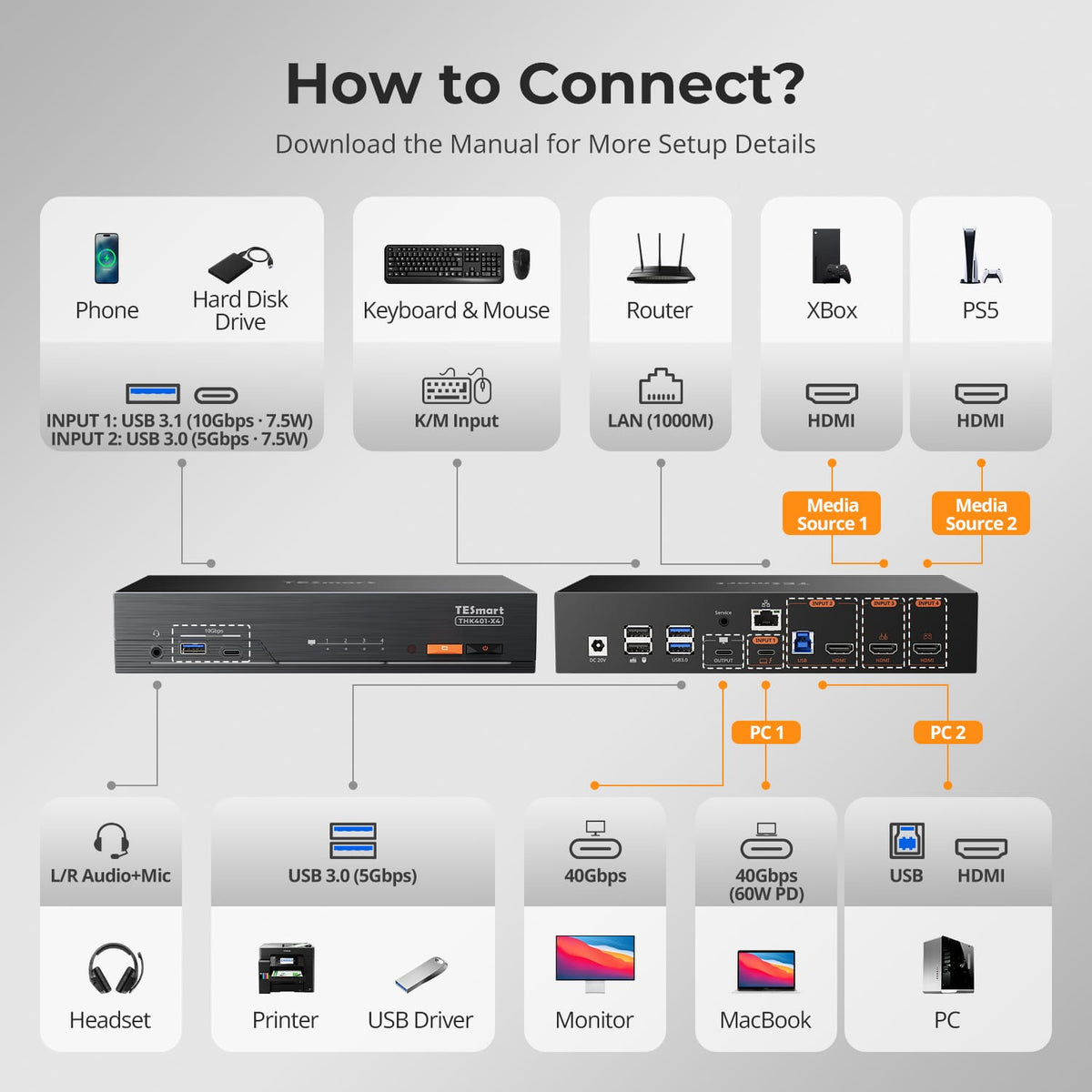
Choose THK401-X4 when one Apple Studio Display needs to be shared between two computers plus two additional HDMI source devices.
Choose HDC202-X24 when a Thunderbolt laptop and a DP/HDMI desktop need to share two HDMI displays with built-in docking—60W charging, Gigabit Ethernet and 10Gbps USB—plus high-refresh gaming support.
Can TKS202-X4/THK401-X4 work with displays other than Apple Studio Display?
Yes.
TKS202-X4 and THK401-X4 are primarily designed for Apple Studio Display and also supports selected Thunderbolt™ displays.
Compatible models include Apple Studio Display, Apple Pro Display XDR and selected LG and Dell Thunderbolt displays listed in our compatibility guide.
Compatibility with standard USB-C displays may vary by model and is not guaranteed.
HDMI or DisplayPort monitors may also work through compatible third-party USB-C video adapters, but stability can vary depending on the adapter, display and source computer. If your setup is not listed, please contact TESmart Support before purchasing.
How do I know if my computer is compatible?
These KVMs require a full-function Thunderbolt™ 4 connection (compatible Thunderbolt™ 3/5 or validated USB4 systems also listed in our compatibility guides). A USB-C connector alone does not guarantee compatibility — ports limited to data transfer, charging or partial video output may not provide full display, USB and KVM functionality. For dual-display setups, confirm your computer itself supports the required external display configuration before purchase. If unsure, check the compatibility list or contact TESmart Support.
Do USB and audio have to follow the display when I switch?
No.
With Follow Mode (default) enabled, supported USB and audio devices follow the active computer when switching. You can disable Follow Mode or use the per-product focus/lock option to keep a headset, meeting or USB device active on one system while switching displays or keyboard-and-mouse control separately. Exact lock options vary by model — see each product page.
Do my computers get charging and network access?
Compatible Thunderbolt™/USB-upstream computers can receive up to 60W Power Delivery, and the built-in Gigabit Ethernet (up to 1000Mbps) can be shared between connected computers. Availability depends on the port type — Thunderbolt/USB-upstream inputs provide PD and Ethernet, while plain HDMI source inputs do not. See each product page for port-by-port details.
What are Pass-Through Mode and Legacy Emulation Mode?
Pass-Through Mode is recommended for most modern keyboards and mice and supports many advanced peripheral functions.
Legacy Emulation Mode can improve basic keyboard, mouse and hotkey compatibility when a device does not operate correctly in Pass-Through Mode.Some advanced keyboard or mouse software functions may be unavailable in Legacy Emulation Mode.
How can I switch between connected computers or devices?
TESmart Thunderbolt™ KVM models support multiple switching methods, depending on the model.
Common methods include:
- Front-panel controls
- IR remote control
- Keyboard hotkeys
- Mouse-wheel switching
Mouse-wheel switching must be enabled before use.
For keyboard hotkeys, connect a compatible wired USB keyboard to the dedicated keyboard port. Bluetooth keyboards, general USB hubs, and some wireless receivers may not support hotkey functions correctly.
Do I need to install drivers or switching software?
No dedicated switching software is required for the primary KVM functions, including display and source switching and basic keyboard and mouse control.
However, individual keyboards, mice, USB devices, audio devices, or other peripherals may require their own drivers or applications.
Complete Your Thunderbolt Workspace
Up to 50% Credit on Trade-in
3 – 5 Business Days
Hassle-Free Return & Purchase Guarantee
Register to unlock 4 extra years of coverage
"Running my Macbook + Windows laptop through this KVM to two 3440×1440 monitors via USB-C to HDMI adapters.Although we encountered some problems along the way, they were all resolved after communicating with the customer service team."