

Table of Contents
- Introduction
- Quick Answer
- What Is Display Stream Compression?
- Does a KVM Switch Compress the Video Signal?
- When Is DSC Required?
- DSC Compatibility Checklist for KVM Setups
- Why 4K240Hz Works Directly but Not Through a KVM
- Does DSC Affect Image Quality, Input Lag or VRR?
- Which TESmart KVM Fits a DSC-Dependent Setup?
- Conclusion
- FAQ
Introduction
Your graphics card and monitor both support 4K at 240Hz. The same setup works when the monitor is connected directly to the computer, but after adding a KVM switch, Windows offers only 4K at 120Hz—or the screen turns black when 240Hz is selected.
This does not necessarily mean that the KVM is defective. The target display mode may depend on Display Stream Compression, commonly called DSC, and every device in the display path must be able to negotiate and carry that mode correctly.
The same issue appears in 8K60Hz and high-refresh ultrawide setups. A GPU or monitor supporting DSC is not enough when the signal also passes through cables, adapters, docking stations and a KVM switch.
The practical question is therefore not simply whether the KVM “has DSC.” It is whether the complete display chain supports the exact resolution, refresh rate, color format and DSC-dependent mode you want to use.
Quick Answer
Not every KVM switch needs DSC. DSC becomes relevant when the requested display mode requires more transport bandwidth than the selected HDMI, DisplayPort or USB-C display link can provide without compression.
For a typical 4K60Hz desktop, DSC is usually unnecessary. For 4K240Hz over DisplayPort 1.4, 8K60Hz with full color detail, and some high-refresh ultrawide modes, DSC is commonly part of the required signal path.
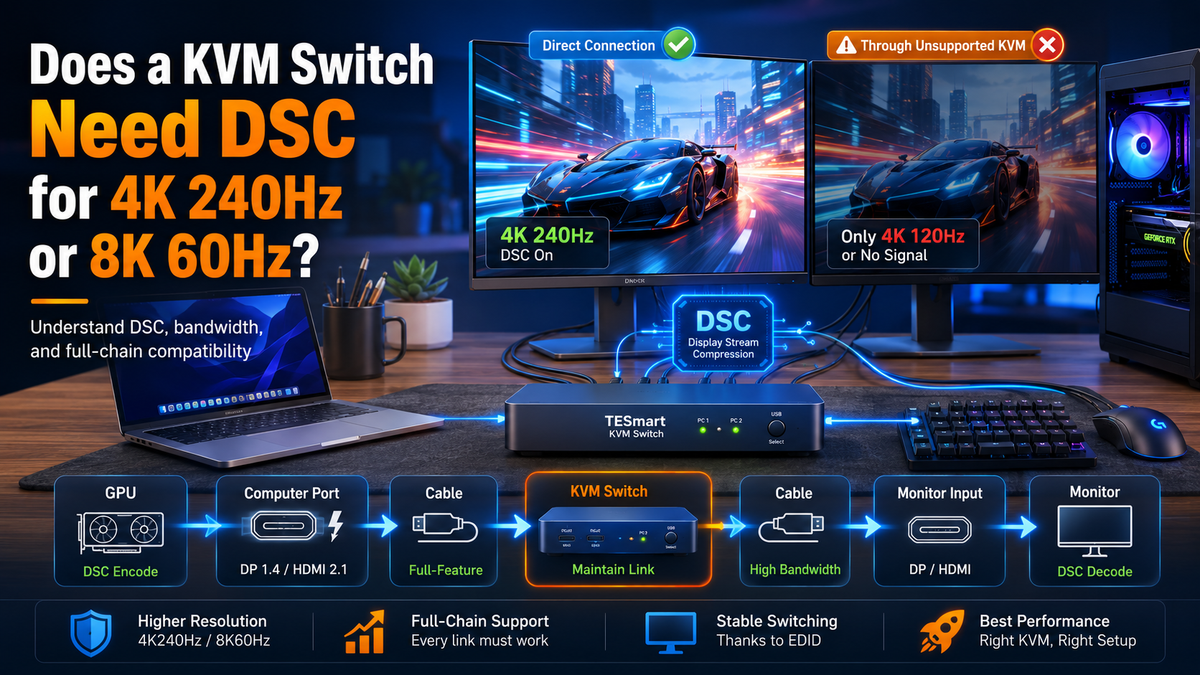
In a typical DSC connection, the graphics processor encodes the video stream, and the monitor decodes it. The KVM normally does not create the compression itself. It must maintain the link negotiation and transport the DSC-dependent signal without reducing the supported mode.
The complete path matters:
GPU → computer video port → input cable → KVM switch → output cable → monitor input → monitor settings
If any part of that path cannot support the target mode, the system may fall back to a lower refresh rate, lower color depth, chroma subsampling or no video output.

What Is Display Stream Compression?
VESA developed Display Stream Compression as a low-latency display compression standard designed to provide visually lossless image quality.
DSC reduces the amount of data that must travel across the display interface. This allows a link with limited transport bandwidth to carry higher resolutions, higher refresh rates or greater color depth than it could carry as an uncompressed signal.
DSC is technically a lossy codec because the reconstructed image is not mathematically identical to every bit of the original image. However, it is designed and evaluated so that viewers cannot distinguish the compressed output from the uncompressed source under normal viewing conditions.
This is different from streaming-video compression. Formats used for online video often prioritize small files and low network bandwidth across multiple frames. DSC is intended for real-time display transport, with constant, predictable behavior and very low processing delay.
Why Video Bandwidth Is Not One Simple Number
It is tempting to calculate a display mode using only resolution and refresh rate, but the actual transport requirement also depends on:
- RGB or YCbCr output
- 4:4:4, 4:2:2 or 4:2:0 chroma format
- 8-bit, 10-bit or 12-bit color depth
- HDR settings
- Display timing and blanking intervals
- Interface encoding and protocol overhead
- The DSC compression configuration used by the source and display
The advertised bandwidth of an interface is therefore not the same as the amount of bandwidth available for active image data. A device carrying an HDMI 2.1 or DisplayPort 1.4 label is also not automatically guaranteed to support every resolution and refresh-rate combination associated with that standard.

Does a KVM Switch Compress the Video Signal?
In a typical DSC display path, the GPU performs DSC encoding and the monitor performs DSC decoding. A KVM switch between them must support the signaling, link training and display-mode negotiation required by that compressed stream.
For buyers, it is more accurate to ask whether a KVM supports a specific DSC-dependent display mode than to ask whether it “contains DSC compression.”
For example, a product specification that explicitly lists 3840 × 2160 at 240Hz with DSC provides more useful information than a general statement such as “supports DisplayPort 1.4.”
EDID and DSC Are Related, but They Are Not the Same
EDID tells the computer which resolutions, refresh rates, color formats and display capabilities are available. DSC determines how the image data is transported when compression is required.
An EDID emulator can help the computer continue recognizing the monitor during switching. This may reduce resolution changes, desktop rearrangement and repeated display detection.
However, EDID cannot create bandwidth or add DSC support to hardware that does not support the target mode. A KVM may advertise the correct resolution through EDID and still fail if the video path cannot carry that signal reliably.

When Is DSC Required?
The following table provides a general guide. The final result depends on the interface, color depth, chroma format, monitor timing and hardware implementation.
| Target Display Mode | Is DSC Usually Required? | What to Check |
|---|---|---|
| 4K60Hz | Usually no | Interface version, HDR and color depth |
| 4K120Hz | Depends on the interface and format | HDMI or DisplayPort link, 10-bit color and chroma format |
| 4K144Hz or 4K165Hz | Often depends on timing and color settings | GPU port, monitor input, HDR and exact supported-mode table |
| 4K240Hz | Commonly required on DisplayPort 1.4 and many HDMI 2.1 paths | GPU DSC support, KVM mode support, monitor DSC support and cables |
| 8K60Hz | Frequently required for full-color or higher-bit-depth output | Color format, DSC ratio, interface implementation and display input |
| 5120 × 1440 at high refresh rates | Depends on the refresh rate and display timing | Monitor input, EDID, DSC support and GPU output capability |
Is DSC Always Required for 4K240Hz?
No. A newer high-bandwidth interface may be able to carry certain 4K240Hz formats without DSC. The answer changes with color depth, chroma format and timing.
However, 4K240Hz commonly relies on DSC when it is transmitted through a DisplayPort 1.4 link. Users building a KVM setup around DisplayPort 1.4 should therefore treat DSC compatibility as a core requirement rather than assuming that the “DP 1.4” label is sufficient.
Is DSC Always Required for 8K60Hz?
Not under every possible color and timing configuration, but DSC is widely used for practical 8K60Hz connections. The DisplayPort FAQ, for example, describes DisplayPort 1.4a carrying 8K60Hz at 24-bit color with 2:1 DSC and at 30-bit color with 2.5:1 DSC.
This is why an “8K60Hz” specification should always be read together with its DSC, color-depth and chroma conditions.
DSC Compatibility Checklist for KVM Setups
Before buying a KVM for 4K240Hz, 8K60Hz or another DSC-dependent mode, verify each part of the chain.
- Check the GPU output port. Confirm that the exact port being used supports the target resolution, refresh rate and DSC. Different ports on the same computer may not have identical capabilities.
- Check the monitor input. A monitor may support its maximum refresh rate through DisplayPort but not through HDMI, or vice versa.
- Look for the exact KVM display mode. Do not rely only on an HDMI 2.1 or DisplayPort 1.4 label. Check whether the KVM explicitly lists 4K240Hz or 8K60Hz with DSC.
- Verify every video cable. Both the computer-to-KVM cable and the KVM-to-monitor cable must handle the target link rate. A short, certified cable is preferable during testing.
- Remove unnecessary adapters. HDMI-to-DisplayPort converters, USB-C adapters, docking stations and extension cables may change or limit DSC negotiation.
- Check the monitor's on-screen menu. Some displays require DSC, a high-bandwidth DisplayPort mode or an enhanced HDMI mode to be enabled manually.
- Update drivers and firmware. GPU drivers, monitor firmware and KVM firmware can affect link training, EDID handling and high-refresh-rate compatibility.
- Test the monitor directly first. Confirm that the computer can reach the target mode without the KVM, using the same GPU port and equivalent cable type.
Why 4K240Hz Works Directly but Not Through a KVM
A successful direct connection proves that the GPU and monitor can establish the target mode. It does not prove that every device added between them can maintain it.
The KVM Does Not Support the Exact Mode
A KVM may support 4K resolution but only up to 60Hz, 120Hz or 144Hz. It may also support 8K60Hz under one signal format without supporting the 4K240Hz mode used by a particular monitor.
Always check the detailed supported-resolution table rather than relying on the maximum resolution in the product title.
The Advertised EDID Changes
When connected directly, the GPU reads the monitor's native EDID. Through a KVM, the GPU may receive an emulated or modified EDID.
If the 240Hz timing, DSC capability, HDR format or VRR range is not presented correctly, the operating system may offer only a lower mode.
One Cable Cannot Maintain the Required Link Rate
A direct setup uses one video cable. A KVM setup normally uses two: one from the computer to the KVM and another from the KVM to the display.
Either cable can become the weak point. Marginal cables may work at 4K120Hz but produce black screens, flickering or intermittent link retraining at 4K240Hz.
An Adapter or Dock Changes the Signal Path
A USB-C-to-DisplayPort connection can support DSC, but only when the computer's USB-C port supports the necessary DisplayPort Alt Mode, and the adapter or cable preserves the required capabilities.
A dock or protocol converter adds another active device to the chain. The fact that its output connector is DisplayPort does not guarantee that it supports the monitor's full DSC-dependent mode.
The Monitor Input Is Not in Its Highest-Bandwidth Mode
Some monitors offer selectable DisplayPort versions, compatibility modes or DSC settings in the on-screen menu. A monitor set to a compatibility mode may intentionally limit its maximum refresh rate.
HDR, VRR or Color Depth Changes the Requirement
A mode that works at 8-bit SDR may fail after 10-bit HDR is enabled. VRR may also require a specific timing range and supported signal path.
When troubleshooting, disable HDR, 10-bit color and VRR temporarily. Re-enable them one at a time after the base resolution and refresh rate are stable.

Recommended Test Order
- Connect the computer directly to the monitor and confirm the target mode.
- Reconnect the KVM and begin at 4K60Hz.
- Increase the refresh rate in stages.
- Test with HDR and VRR disabled.
- Replace both video cables with short, known-good cables.
- Remove docks, converters and extension cables.
- Check the monitor's DSC and high-bandwidth input settings.
- Compare the result with the KVM's published supported-mode table.
Does DSC Affect Image Quality, Input Lag or VRR?
Does DSC Reduce Image Quality?
DSC is technically lossy, but it is designed to be visually lossless. For normal desktop work, gaming and professional display use, the intention is that the viewer cannot distinguish the compressed result from the uncompressed source.
DSC should not be confused with chroma subsampling. DSC can preserve full color detail while lowering the transport data rate, whereas chroma subsampling reduces color resolution.
Does DSC Add Input Lag?
VESA describes DSC as a low-latency display codec. Its processing delay is small compared with the latency introduced by game rendering, display processing or frame synchronization.
A temporary black screen when switching computers is normally caused by EDID negotiation, link training or HDCP reauthentication. That switching delay is different from continuous input latency during use.
Does DSC Prevent Screen Tearing?
No. DSC changes how display data fits within the link bandwidth. It does not synchronize the GPU frame rate with the monitor refresh cycle.
Screen tearing is addressed by technologies such as V-Sync, HDMI VRR, Adaptive-Sync, FreeSync and G-Sync.
Can DSC Work with VRR, FreeSync or G-Sync?
DSC does not inherently prevent VRR from working. However, the GPU, KVM, cables and monitor must all support the selected DSC mode and the required variable-refresh signaling.
A KVM advertising DSC-dependent resolutions should not automatically be assumed to support every monitor's VRR range. Check the product specification and test the exact monitor and GPU combination.

Which TESmart KVM Fits a DSC-Dependent Setup?
TESmart offers several high-bandwidth KVM configurations whose published supported-resolution tables include 4K240Hz and 8K60Hz modes marked as DSC-dependent.
The correct model depends first on the number of computers, the number of displays and whether the workstation uses HDMI or DisplayPort.
| Model | Desktop Structure | Interface Focus | Published DSC-Dependent Modes | Suitable Scenario |
|---|---|---|---|---|
| HKS201-M24 | 2 computers → 1 monitor | HDMI 2.1 | 8K60Hz, 4K240Hz and 5120 × 1440 at 120Hz | A single high-refresh gaming or creator display shared by two computers |
| HKS202-M24 | 2 computers → 2 monitors | HDMI 2.1 | 8K60Hz and 4K240Hz | A dual-monitor HDMI workstation that also needs VRR support |
| DKS202-M24 | 2 computers → 2 monitors | DisplayPort 1.4 | 8K60Hz and 4K240Hz | A dual-monitor DisplayPort workstation for gaming, editing or development |
| DKS203-M24 | 2 computers → 3 monitors | DisplayPort 1.4 | 8K60Hz and 4K240Hz | A triple-monitor workstation where each computer provides three video outputs |
For Two Computers and One HDMI 2.1 Monitor
The HKS201-M24 is more suitable when two desktop computers need to share one HDMI display. Its supported-resolution list includes 3840 × 2160 at 240Hz with DSC and 7680 × 4320 at 60Hz with DSC.
Compared with a basic 4K60Hz HDMI switch, this model makes more sense when the monitor is being used for high-refresh gaming, 8K content review or a 5120 × 1440 ultrawide workflow.
For Two Computers and Two HDMI Monitors
The HKS202-M24 matches a two-computer, two-monitor HDMI setup. Its published supported modes include 4K240Hz and 8K60Hz with DSC, together with VRR support.
Before choosing it, confirm that each computer can supply the required number of independent HDMI video outputs. A dual-monitor KVM cannot create a second extended desktop signal from a computer that provides only one display output.
For a Dual-Monitor DisplayPort Workstation
The DKS202-M24 is more suitable for two computers sharing two DisplayPort monitors. Its published resolution table includes 3840 × 2160 at 240Hz with DSC and 7680 × 4320 at 60Hz with DSC.
Each computer connects to the KVM through two DisplayPort links. This structure is useful for desktop graphics cards that already provide multiple native DisplayPort outputs.
Mac users should check the connection path carefully. Most Mac computers do not provide native full-size DisplayPort outputs, so USB-C-to-DisplayPort cables or another compatible conversion path may be required. That conversion layer must also support the target DSC-dependent mode.
For a Triple-Monitor DisplayPort Workstation
The DKS203-M24 is designed for two computers sharing three DisplayPort monitors. It is more appropriate for developers, traders, engineers and creators who need three independent extended displays rather than a duplicated image.
Each computer must provide three compatible video signals. The fact that one GPU port can reach 4K240Hz does not automatically mean that the computer can drive three displays at the same mode simultaneously. GPU output limits and the intended multi-monitor combination should be checked before purchase.
Check the Exact Test Conditions
A published 4K240Hz or 8K60Hz entry should not be interpreted as a guarantee for every combination of HDR, 10-bit color, VRR, monitor timing, cable length and multi-monitor load.
Before selecting a model, compare the product's supported-resolution table with:
- The exact GPU model and output port
- The monitor model and selected input
- The number of displays connected at the same time
- The desired color depth and HDR mode
- The required VRR or Adaptive-Sync range
- Any USB-C adapters, docks or protocol converters in the path
Conclusion
A KVM switch does not need DSC for every display setup. It needs to support DSC-dependent signaling when the requested resolution, refresh rate and color format cannot fit within the selected link without compression.
For 4K240Hz over DisplayPort 1.4 and many practical 8K60Hz configurations, DSC is a central part of the display path. The GPU must encode it, the monitor must decode it, and the cables, adapters and KVM must maintain the required link and negotiation.
The safest buying method is to ignore broad labels such as “8K KVM” or “DisplayPort 1.4 KVM” until you have confirmed the exact supported mode. Match the KVM to the number of computers, number of monitors, interface type and published DSC-dependent resolution.
When a high-refresh mode works directly but fails through a KVM, test the chain one component at a time. In many cases, the limitation comes from an unsupported mode, incorrect EDID, a marginal cable, an adapter or a monitor input setting—not DSC image quality itself.
FAQ
Is DSC required for 4K240Hz?
DSC is commonly required for 4K240Hz over DisplayPort 1.4 and for many HDMI 2.1 implementations. Some newer, higher-bandwidth interfaces may carry certain 4K240Hz formats without DSC. Color depth, chroma format and timing determine the final requirement.
Is DSC required for 8K60Hz?
DSC is frequently used for 8K60Hz, particularly when full chroma or higher color depth is required. Some reduced-color or alternative timing configurations may have different bandwidth requirements.
Does a KVM switch perform DSC compression?
In a typical setup, the GPU encodes the DSC stream and the monitor decodes it. The KVM must support the target mode and maintain the required signaling between them.
Does DSC reduce image quality?
DSC is technically lossy but designed to be visually lossless. Under normal use, the viewer should not be able to distinguish the DSC output from the uncompressed image.
Does DSC add input lag?
DSC is designed as a low-latency display codec. Link training or display switching may cause a temporary black screen, but that is different from continuous gameplay input latency.
Do HDMI 2.1 and DisplayPort 1.4 always guarantee DSC support?
No. An interface-version label does not guarantee every optional capability or every resolution and refresh-rate combination. Check the exact supported-mode table for the GPU, KVM and monitor.
Can DSC work through USB-C to DisplayPort?
Yes, when the USB-C source supports the necessary DisplayPort Alt Mode and DSC capability, and the cable or adapter supports the required link. A USB-C connector alone does not guarantee video output or DSC support.
Does DSC disable G-Sync, FreeSync or VRR?
DSC does not inherently disable variable refresh rate. The complete display path must support both the DSC mode and the required VRR signaling.
Why does 4K240Hz work directly but fail through my KVM?
The KVM may not support the exact DSC-dependent timing, or the problem may involve EDID, cables, adapters, monitor settings, GPU drivers or HDR and color-depth settings. Test the display directly, then rebuild the KVM path one component at a time.
Share:
What is Display Stream Compression (DSC)?
5 Must-Haves for Your Home Office