

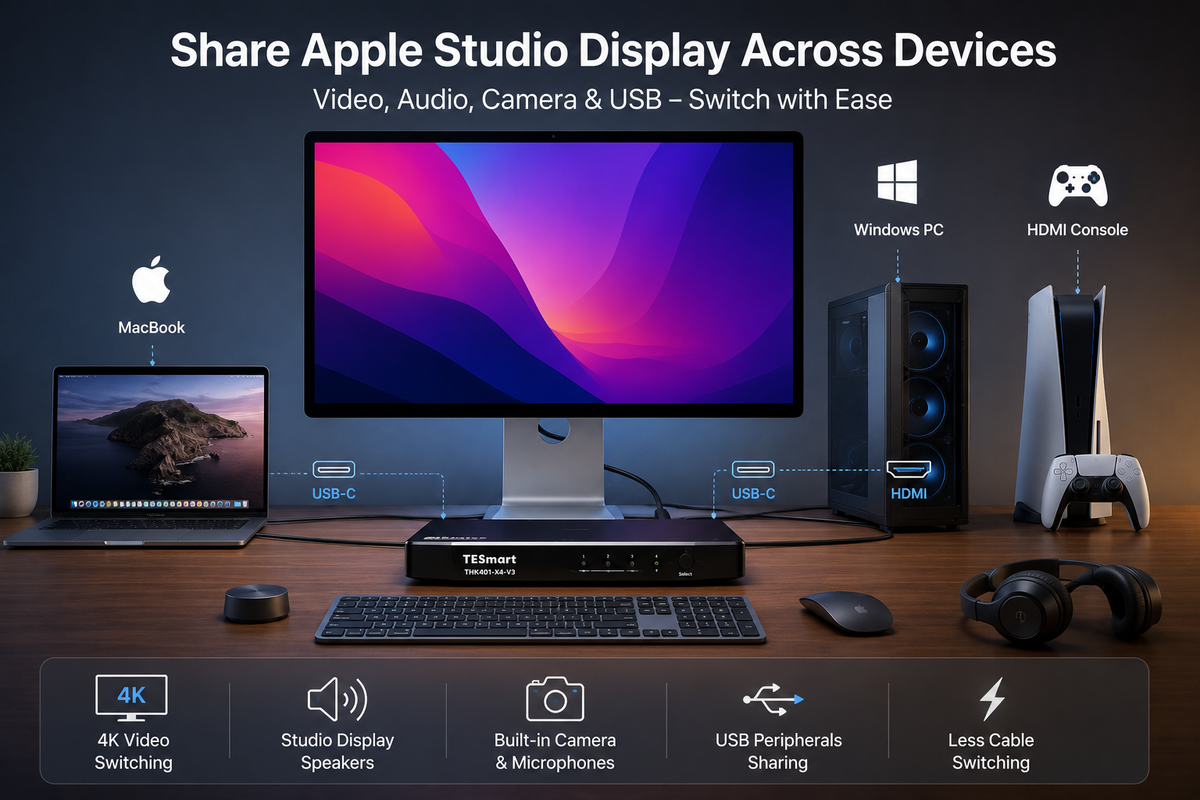
Quick answer: Apple Studio Display does not provide HDMI, DisplayPort, or built-in source switching. Both the 2022 and 2026 models are designed around one upstream host connection. Sharing the display between several computers therefore requires either moving the host cable manually or using a switching system that manages the display path and the USB data path required by integrated devices.
A visible image is only one part of the setup. The speakers, camera, microphone, downstream USB ports, keyboard, mouse, network adapter, and laptop charging can follow different paths. A connection that produces video does not automatically provide every Studio Display function.
Table of Contents
- Introduction
- Identify Your Apple Studio Display Model First
- Can Apple Studio Display Accept Multiple Inputs?
- Choose the Correct Switching Path
- Connection Examples for Mac, PC, and Consoles
- What Actually Follows the Active Computer?
- Cable Swapping, Dock, HDMI KVM, or THK401-X4?
- Where TESmart THK401-X4 Fits
- Common Problems and What to Check
- Buying Checklist
- FAQ
- Conclusion
Introduction
Sharing Apple Studio Display is not the same as changing the input on a conventional monitor. A normal desktop monitor may accept HDMI from a console, DisplayPort from a desktop GPU, and USB-C from a laptop. The user can connect all three devices and choose an input from the monitor menu.
Apple Studio Display does not use that multi-input structure. Its upstream host connection carries the display signal while also connecting the active computer to the display’s camera, audio hardware, microphone array, USB ports, and internal device controller.
This creates two separate questions:
- Can the source device send a compatible image to the display?
- Can the same source communicate with the display’s integrated USB and audio devices?
A Windows desktop or game console may satisfy the first requirement through a suitable conversion or switching path while providing only part of the second. That is why users sometimes see a picture but cannot select the Studio Display camera, speakers, microphone, or connected USB devices.
The correct solution depends on the complete chain: source output, USB data connection, switching device, display generation, cable capability, operating system, and the functions that must follow the active computer.
Identify Your Apple Studio Display Model First
The phrase “Apple Studio Display” now covers more than one hardware generation. The 2022 model, the 2026 Studio Display, and the 2026 Studio Display XDR do not have identical connection or performance requirements.
| Display | Native Display Specification | Host and Downstream Connections | Direct Host Charging | Why It Matters for Switching |
|---|---|---|---|---|
| Studio Display introduced in 2022 | 5120 × 2880 at 60Hz | One upstream Thunderbolt 3 connection and three downstream USB-C ports | Up to 96W | Most existing Apple Studio Display switching workflows were developed around this generation. |
| Studio Display introduced in 2026 | 5120 × 2880 at 60Hz | One upstream Thunderbolt 5 port, one downstream Thunderbolt 5 port, and two USB-C ports | Up to 96W | The second Thunderbolt 5 port is downstream. It does not provide a second computer input. Thunderbolt 5 functions should not be assumed to pass through a solution designed around Thunderbolt 4 workflows. |
| Studio Display XDR introduced in 2026 | 5120 × 2880 at up to 120Hz with Adaptive Sync | Thunderbolt 5 host and downstream connectivity plus USB-C peripheral ports | Up to 140W | Its refresh rate, HDR behavior, charging requirement, and bandwidth expectations are different from the standard 60Hz Studio Display. Compatibility must be confirmed for this exact model. |
The charging figures above describe a direct connection to the display. A switching device may provide a different amount of laptop charging. Do not assume that the display’s direct 96W or 140W capability will remain unchanged after adding a KVM or another intermediary device.
Why Two Thunderbolt 5 Ports Do Not Mean Two Computer Inputs
The 2026 Studio Display includes one upstream Thunderbolt 5 port for the host and one downstream Thunderbolt 5 port for accessories or display daisy-chaining. The downstream port is not a second host input.
Connecting one computer to each Thunderbolt 5 port will therefore not turn the display into a two-computer monitor. The active host relationship still runs through the designated upstream connection.
Can Apple Studio Display Accept Multiple Inputs?
Apple Studio Display cannot accept several computers directly in the same way as a multi-input HDMI or DisplayPort monitor.
It does not include:
- a conventional HDMI input;
- a conventional DisplayPort input;
- an on-screen input selector for multiple host computers;
- a second upstream host port for another computer.
A console cannot connect through a normal HDMI cable, and an HDMI KVM cannot plug directly into the display without an additional display-side conversion or switching architecture.
An Image Is Not the Same as Complete Display Functionality
Video and USB data should be evaluated separately.
The video path determines whether the source produces an image at the expected resolution and refresh rate. The USB data path determines whether the active computer can communicate with devices such as the camera, microphone, USB hub, keyboard, mouse, and network adapter.
This explains several common results:
- The display shows the Windows desktop, but the camera is not listed.
- A console produces video, but the Studio Display USB ports do not become console USB ports.
- The image switches correctly, but the operating system continues using internal laptop speakers.
- A MacBook charges when connected directly but receives less power through the switching device.
Why a USB-C Connector Is Not Enough
USB-C describes the connector. It does not confirm which video, data, charging, or Thunderbolt capabilities are available.
A USB-C port may support charging only, USB data, DisplayPort Alt Mode, USB4, Thunderbolt, or a combination of these functions. The cable must also support the required protocol and bandwidth. Matching connector shapes do not prove that the complete Studio Display workflow will operate.

Choose the Correct Switching Path
The correct solution depends less on the number of ports printed on the product and more on what the user expects to follow the active device.
| Your Setup | Most Relevant Approach | Reason |
|---|---|---|
| One Mac connected most of the time | Direct connection | Provides the simplest path for video, integrated devices, and the display’s full direct charging capability. |
| One laptop that needs additional ports | Dock or hub | A dock expands one host. It is not primarily designed to switch a complete desk between multiple computers. |
| Two compatible computers switched only occasionally | Manual host-cable swapping | Low cost, but inconvenient when the display and several USB devices must move frequently. |
| MacBook plus Windows desktop | Mixed-input switching solution | The MacBook may use a Thunderbolt-compatible connection while the desktop uses separate video and USB data paths. |
| MacBook, desktop PCs, and HDMI consoles sharing one Studio Display | TESmart THK401-X4-type workflow | This setup requires mixed source handling rather than a conventional HDMI-only KVM. |
| Studio Display XDR, multiple Thunderbolt 5 displays, or Thunderbolt 5 daisy-chaining | Model-specific validation required | A Thunderbolt 4-compatible workflow should not be assumed to preserve Thunderbolt 5 bandwidth, charging, Adaptive Sync, or daisy-chain functions. |
Connection Examples for Mac, PC, and Consoles
MacBook and Windows Desktop
This desk usually contains two different connection models. The MacBook is expected to use one cable for display, data, and charging. The Windows desktop normally sends video from its GPU and uses a separate USB connection for keyboard, mouse, camera, and peripheral data.
Example topology
MacBook with a compatible Thunderbolt connection → THK401-X4 PC4 path
Windows desktop GPU video + USB data → THK401-X4 PC1, PC2, or PC3 path
THK401-X4 display output → Apple Studio Display upstream host port
Keyboard, mouse, and compatible shared USB devices → THK401-X4 console or USB hub ports
The USB connection from the desktop is essential when the user expects keyboard, mouse, camera, audio-device, or hub communication. Connecting only the GPU video output may produce an image while leaving the USB functions attached to another computer or unavailable.
MacBook and Gaming Console
A PlayStation, Xbox, or other HDMI source does not provide a native host connection for Apple Studio Display. A specialized path is required to route its HDMI video to the display.
Example topology
MacBook with a compatible Thunderbolt connection → THK401-X4 PC4 path
Gaming console HDMI output → one of the mixed HDMI input paths
THK401-X4 display output → Apple Studio Display upstream host port
For a console, the practical goal is normally video and audio. The Studio Display camera, microphone, USB hub, laptop charging, and macOS-level display controls should not be treated as console features.
Users should also separate the standard Studio Display from Studio Display XDR. The standard Studio Display is a 60Hz display. It does not become a 120Hz gaming monitor because the KVM or console supports a higher HDMI refresh rate.
MacBook and Several HDMI-Based Devices
THK401-X4 is most relevant when one desk combines a laptop using a Thunderbolt-compatible workflow with up to three source paths based on HDMI video and USB data.
This can include a MacBook, a Windows workstation, a mini PC, a game console, or a media device. Each computer that needs shared keyboard, mouse, camera, or other USB functions must have the required USB data connection. HDMI alone is not a substitute for that connection.

What Actually Follows the Active Computer?
The table below separates documented capabilities from functions that remain conditional on the selected input and complete device chain.
| Function | Required Path | Expected Status | Important Note |
|---|---|---|---|
| Display image | Compatible source video output, KVM input path, display output, and cable | Documented capability | The achievable resolution and refresh rate are limited by the weakest part of the chain. |
| Keyboard and mouse | USB data connection from the selected computer | Documented capability | A video-only connection does not carry keyboard or mouse data. |
| Compatible shared USB devices | USB data connection and sufficient USB bandwidth | Documented, device-dependent | Storage, capture hardware, audio interfaces, and driver-dependent devices should be tested individually. |
| Studio Display speakers | Audio-capable display path plus correct operating-system output selection | Improved on THK401-X4-V3 Inputs 2–4 | After switching, macOS or Windows may continue using internal speakers or another audio interface until the output device is changed. |
| Studio Display camera | USB data path, operating-system recognition, and application permission | Improved on THK401-X4-V3 Inputs 1–2 | A visible image does not prove that camera data is reaching the computer. |
| Studio Display microphone | Compatible audio or USB data path plus operating-system and application selection | Conditional | Confirm the microphone separately on every intended computer and conferencing application. |
| Studio Display downstream USB ports | Complete USB data path to the active computer | Conditional | The ports cannot follow a source that is connected through video alone. |
| Gigabit Ethernet through THK401-X4 | USB data connection to the active computer | Documented capability | The active operating system must recognize the network adapter. |
| Laptop charging | Supported laptop path and suitable cable | Up to 60W through THK401-X4 for supported laptops | This is lower than the direct 96W charging capability of the 2022 and 2026 standard Studio Display. |
| Thunderbolt 5 downstream devices or daisy-chaining | End-to-end Thunderbolt 5 support | Not established by Thunderbolt 4 compatibility | Do not assume that the 2026 display’s downstream Thunderbolt 5 functions will pass through unchanged. |
| Studio Display XDR 120Hz and Adaptive Sync | Model-specific high-bandwidth display path | Requires separate validation | A general 5K120 or 6K60 specification does not by itself confirm complete Studio Display XDR feature support. |
Why the THK401-X4 Version Matters
Certain earlier THK401-X4 units may not provide the same camera and audio behavior as the updated V3 production version.
The V3 update is relevant when the intended workflow depends on:
- Studio Display speaker output through Input 2, Input 3, or Input 4;
- stereo rather than mono audio on those paths;
- Studio Display camera access through Input 1 or Input 2;
- video-conferencing workflows that alternate between macOS and Windows;
- coordinated display, audio, and USB switching.
Users who require these functions should confirm the production version before purchase. They should also follow the correct input diagram, because the V3 hardware update cannot replace a missing source-side USB data connection.

Cable Swapping, Dock, HDMI KVM, or THK401-X4?
| Approach | What It Actually Solves | Main Limitation | Suitable User |
|---|---|---|---|
| Manual host-cable swapping | Moves the Studio Display host connection from one compatible computer to another. | Requires repeated reconnection and does not organize separate HDMI sources or source-side USB cables. | Users who switch infrequently and only use directly compatible computers. |
| USB-C hub or dock | Expands one laptop with more ports, networking, storage, or external displays. | It normally expands one host rather than switching one desk between several hosts. | Single-laptop users who need expansion rather than multi-computer control. |
| Standard HDMI KVM | Switches HDMI video and USB control for a conventional HDMI monitor. | Apple Studio Display does not provide a conventional HDMI input. | Traditional monitors, TVs, and HDMI-based desktop setups. |
| TESmart THK401-X4 | Organizes one Thunderbolt-compatible laptop path and multiple HDMI/USB source paths around one Type-C or compatible Apple display workflow. | Functions differ by input path, product version, display generation, operating system, and USB connection. It should not be treated as a universal Thunderbolt 5 solution. | Mixed MacBook, Windows PC, console, mini PC, and media-device workstations using one Apple Studio Display. |
Where TESmart THK401-X4 Fits
TESmart THK401-X4 is intended for a specific type of workstation: one Apple Studio Display or compatible Type-C display shared by several source devices that do not all use the same interface.
Its practical value comes from combining two connection structures:
- PC1–PC3 are intended for mixed HDMI video and USB data workflows.
- PC4 provides a connection path designed for a compatible Thunderbolt laptop workflow.
This makes the product more suitable for a desk containing a MacBook, Windows desktop, mini PC, console, or media source than a basic HDMI KVM or single-host dock.
What It Solves
Compared with repeatedly moving the Studio Display cable, THK401-X4 centralizes source selection and shared-device connections. Depending on the configured input, it can coordinate the display, keyboard, mouse, compatible USB peripherals, network access, and supported audio functions.
The current product specification also includes high-speed USB connectivity, Gigabit Ethernet, multiple switching methods, and up to 60W charging for supported laptops. These functions are useful when the goal is to make one desk serve several very different devices.
When It Is Not the Right Match
THK401-X4 is less suitable when:
- only one Mac is connected to the display;
- the user only needs to expand one laptop;
- the workstation requires two independent displays;
- the laptop requires the full 96W or 140W available from a direct display connection;
- the workflow depends on confirmed Thunderbolt 5 daisy-chaining;
- the user expects guaranteed feature parity across every computer and console;
- the display is Studio Display XDR and its 120Hz, Adaptive Sync, HDR, charging, and integrated-device functions have not been validated with the complete chain.
Thunderbolt Compatibility Notice
Compatible with Thunderbolt™ 4 — Transparent and Tested
THK401-X4 is designed for users with compatible Thunderbolt™ 4 laptops and mixed Apple Studio Display workflows. It has been evaluated across common laptop, HDMI-source, display, and shared-peripheral configurations.
Compatibility and certification are not the same. THK401-X4 should not be described as an Intel®-certified Thunderbolt™ product unless the applicable certification status has been formally confirmed. It should also not be described as a Thunderbolt™ 5 KVM.

Common Problems and What to Check
The Display Shows No Image
Test the source directly with the display or another known-compatible monitor before troubleshooting the full switching chain. Then reduce the display setting, use shorter certified cables, remove unnecessary hubs or docks, and reconnect the devices in a controlled order.
Common causes include:
- source resolution or refresh rate exceeding the active path;
- an incompatible or one-directional adapter;
- a cable that supports charging or USB data but not the required video bandwidth;
- an additional dock introducing display negotiation problems;
- an incorrect input selection;
- an incomplete desktop GPU connection.
There Is an Image but No Camera
Check the source-side USB data connection first. The camera cannot travel through an HDMI video cable alone.
Then verify that:
- the selected THK401-X4 input supports the intended camera path;
- the unit is the required V3 production version when using Input 1 or Input 2 camera functionality;
- the camera appears in macOS System Information or Windows Device Manager;
- camera permission is enabled for the conferencing application;
- another application is not already using the camera.
There Is an Image but No Studio Display Audio
Open the operating-system sound settings after switching. The computer may continue using internal speakers, a headset, or another audio interface.
Users relying on audio through Inputs 2–4 should also confirm that they have the updated THK401-X4-V3 production version. Certain earlier units may have different audio behavior.
Keyboard, Mouse, or USB Devices Do Not Follow the Active Source
Confirm that the selected computer has both its video connection and its USB data connection attached to the corresponding KVM input.
For troubleshooting, disconnect high-bandwidth storage, capture devices, audio interfaces, and hubs. Test first with a basic wired keyboard or mouse, then reconnect other devices one at a time.

The Display Remains Black After Switching or Waking
A high-resolution display and several integrated USB devices may need time to renegotiate and enumerate after a source change. Avoid pressing the switch button repeatedly during this process.
When the issue continues:
- test without an intermediate dock;
- replace the host and display cables with shorter compatible cables;
- confirm the source works through a direct connection;
- lower the resolution temporarily;
- restart the display, KVM, and source in a consistent order;
- check whether sleep settings are preventing the source from reactivating its display output.
Buying Checklist
1. Confirm the Display Generation
Identify whether the desk uses the 2022 Studio Display, 2026 Studio Display, or 2026 Studio Display XDR. Do not make a purchase decision based only on the words “Apple Studio Display.”
2. List Every Source Output
Record whether each device uses a compatible Thunderbolt connection, USB-C video output, HDMI, DisplayPort, or a desktop GPU. A Windows PC with only HDMI output has different requirements from a laptop with a full Thunderbolt-capable USB-C port.
3. Decide Which Functions Must Be Shared
Separate essential functions from optional functions:
- display image;
- keyboard and mouse;
- Studio Display speakers;
- camera and microphone;
- USB storage or other peripherals;
- Ethernet;
- laptop charging.
A setup intended only for displaying a console image is simpler than a Mac and Windows video-conferencing workstation that depends on the integrated camera and audio system.
4. Check the Required Charging Power
THK401-X4 provides up to 60W for supported laptops. Compare that figure with the laptop’s actual power requirement and the higher direct charging capability available from some Studio Display models.
5. Confirm the THK401-X4 Production Version
When speaker support on Inputs 2–4 or camera access on Inputs 1–2 is important, confirm that the product is the updated V3 production version.
6. Use Cables Selected for the Complete Chain
A cable suitable for charging a phone is not automatically suitable for 5K video, high-speed USB data, or a Thunderbolt-compatible display workflow. Use cables with the required protocol, bandwidth, direction, and length.
7. Treat Thunderbolt 5 as a Separate Validation Question
Connector compatibility does not guarantee that Thunderbolt 5 bandwidth, downstream devices, daisy-chaining, 120Hz output, Adaptive Sync, or maximum charging power will be preserved. Confirm the exact display and functions rather than assuming backward compatibility covers the entire workflow.
FAQ
Can I Connect Two Computers to the Two Thunderbolt 5 Ports on the 2026 Studio Display?
No. One port is the upstream host connection. The other is a downstream connection for accessories or display daisy-chaining. It is not a second computer input.
Can Apple Studio Display Be Used With a Windows PC?
Yes, when the Windows computer and connection chain provide compatible video output. Access to the Studio Display camera, microphone, speakers, USB ports, and system controls depends on the accompanying USB data and audio paths.
Can a PS5 or Xbox Connect to Apple Studio Display?
Not through a normal HDMI cable, because Apple Studio Display has no HDMI input. A specialized mixed-input switching or conversion path can provide a route for HDMI video, but console use should be evaluated mainly for video and audio rather than Mac-specific integrated functions.
Can a USB-C Dock Replace a KVM?
Usually not. A dock expands one computer. A KVM switches a shared display, keyboard, mouse, and other devices between multiple computers. A dock may still appear on one source side, but it adds another negotiation layer to the connection chain.
Does THK401-X4 Provide Every Studio Display Function on Every Input?
No. The available functions depend on the selected input, source interface, USB data connection, product version, cable, operating system, driver, and application permission.
On the V3 production version, Studio Display audio support is improved on Inputs 2–4, while camera access is improved on Inputs 1–2 when the required data connections are present.
Is THK401-X4 a Thunderbolt 5 KVM?
No. THK401-X4 is more accurately described as a KVM designed for mixed HDMI and compatible Thunderbolt 4 workflows. It should not be presented as a Thunderbolt 5 product.
Can THK401-X4 Be Used With Studio Display XDR?
Do not assume complete compatibility based only on a listed maximum resolution. Studio Display XDR adds 120Hz, Adaptive Sync, HDR, Thunderbolt 5 downstream connectivity, and higher charging requirements. The exact display, source, cable, refresh rate, audio, camera, USB, charging, and wake behavior should be validated as a complete chain.
Conclusion
Apple Studio Display is difficult to share because it is not a conventional multi-input monitor. Its host connection carries more than a video signal, and the 2026 model’s additional Thunderbolt 5 port does not provide a second computer input.
The correct solution depends on the desk:
- Use a direct connection for one Mac.
- Use a dock when one laptop only needs additional ports.
- Use manual cable swapping for occasional switching between compatible computers.
- Use a mixed-input switching solution when a MacBook, Windows desktop, console, and other HDMI devices need to share one Studio Display.
TESmart THK401-X4 is designed for the last scenario. Its combination of HDMI/USB source paths and a compatible Thunderbolt laptop path makes it more suitable than a basic HDMI KVM for a mixed Apple Studio Display workstation.
Before purchase, identify the display generation, map every source connection, decide which integrated functions are required, check the laptop’s charging requirement, and confirm the THK401-X4 production version. This provides a more reliable basis for choosing the product than relying on connector shape or maximum-resolution labels alone.
Review TESmart THK401-X4 connection requirements for your Apple Studio Display setup.
Share:
Best Dual-Monitor KVM Setup for Mac mini and MacBook
DisplayLink Technology Explained: How Mac Users Can Break Multi-Monitor Limits