Introduction
In recent years, DisplayLink technology has emerged as a key solution for overcoming native video output limitations on computers. By combining software drivers with dedicated hardware chips, it enables video signals to be transmitted over USB channels and decoded externally. This allows computers that normally cannot support multiple displays to extend to more monitors.
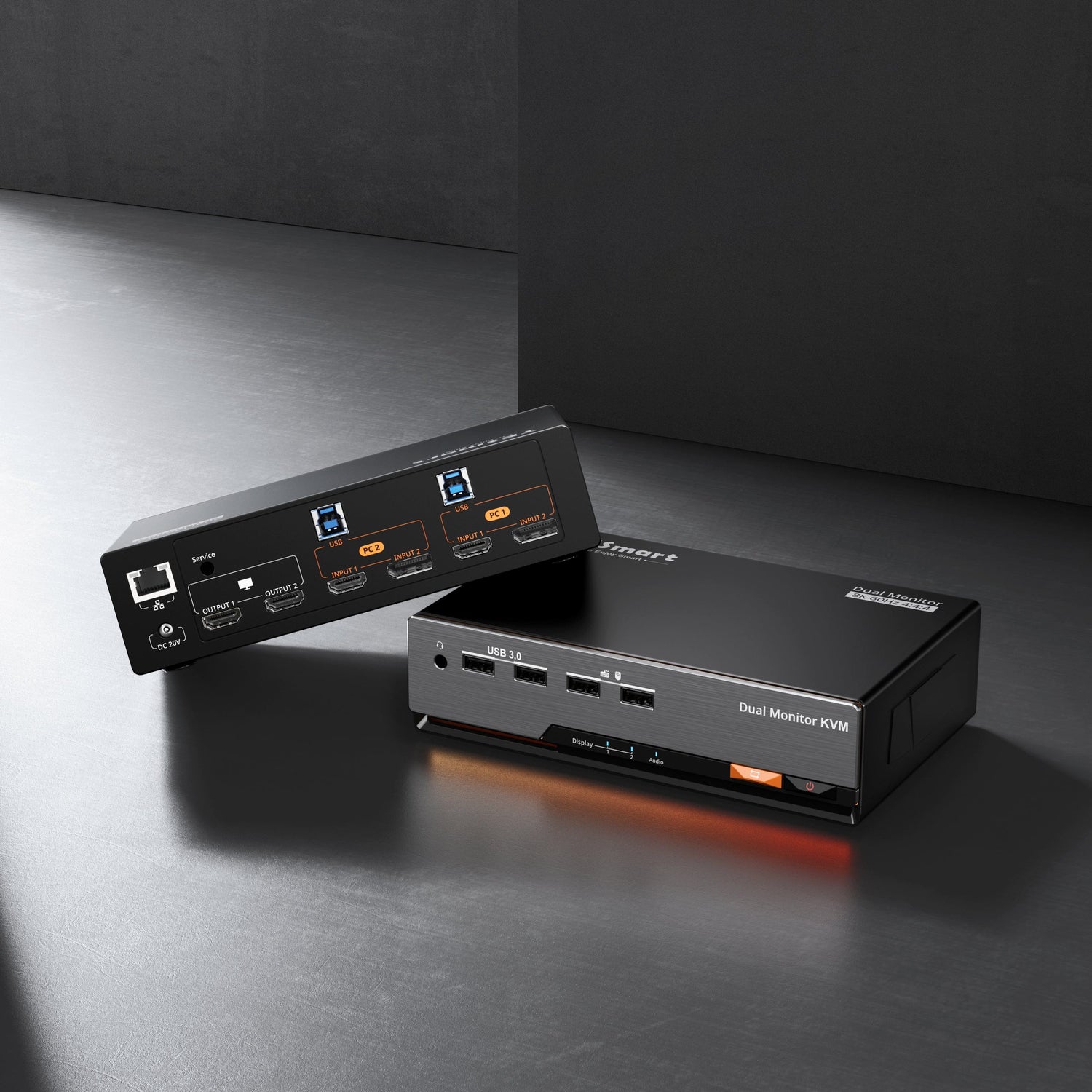
This article provides a technical deep dive into how DisplayLink works, its transmission mechanism, performance characteristics, and practical applications. We’ll also discuss how it integrates with multi-monitor setups, USB-C docking stations, and KVM switches, using TESmart’s dual-monitor USB-C KVM (HDC203-PM24) as a typical example.
1. Core Working Principle of DisplayLink
1.1 Sending Video Signals Over USB
Traditionally, video output requires a GPU’s native interface, such as HDMI or DisplayPort. DisplayLink’s breakthrough lies in:
- Not relying on additional physical GPU ports.
- Capturing rendered frames on the host via a software driver and compressing them into a data stream.
- Transmitting the compressed data over USB (including USB-A, USB-C, or Thunderbolt) to an external device.
This approach enables “video over USB” and allows ultraportable laptops and M-series Macs to drive multiple monitors even with limited physical ports.
1.2 Encoding, Compression, and Transmission Flow
DisplayLink’s data transmission can be summarized in three stages:
-
Host Side – Frame Capture and Compression
The driver captures the GPU framebuffer and compresses it using DisplayLink’s proprietary algorithms. The compression is designed to:- Reduce bandwidth usage
- Preserve text and UI element clarity
- Fit within USB bandwidth constraints
The compressed frame is then packaged into data packets.
-
Transmission – USB Bus Transfer
The compressed data is sent over USB2.0, USB3.x, USB-C, or Thunderbolt. USB3.x and USB-C provide higher throughput, suitable for high-resolution or multi-monitor setups. -
External Device – Decoding and Output
The external device’s DisplayLink chip decodes the data and restores it into standard video signals (HDMI/DP). These devices include:- USB-C docks
- Video adapters
- Multi-monitor hubs
- KVM switches with DisplayLink modules (e.g., HDC203-PM24)
The decoded signal is then displayed on connected monitors.
2. Key Features and Technical Advantages
2.1 Cross-Platform Compatibility
DisplayLink supports:
- Windows
- macOS
- Linux
- ChromeOS
This is particularly valuable for macOS, where M1/M2/M3 series Macs have strict limitations on the number of external monitors. DisplayLink provides a way to bypass these restrictions.
2.2 Number of Displays Independent of Host Ports
DisplayLink allows additional displays regardless of the host’s native video outputs. For example, a dual-monitor KVM with DisplayLink (HDC203-PM24) can provide extra display screens even if the host supports only one monitor natively.
2.3 CPU and Bandwidth Load
Since compression and decompression are involved, DisplayLink adds some CPU overhead on the host:
- Office tasks like documents or web browsing → minimal impact
- High-motion video or high-bitrate content → higher compression, possible slight quality loss
This is why DisplayLink is ideal for office productivity rather than high-frame-rate gaming or professional video production.
3. DisplayLink in Multi-Monitor Systems
3.1 Extending Monitors
The most common use of DisplayLink is adding extra monitors.
For example, in a three-display setup using the HDC203-PM24:
- One display uses native USB-C DP Alt Mode
- Two displays use DisplayLink decoding
On Macs, this is particularly useful:
- MacBook Air M1/M2/M3 supports only one external display natively
- macOS does not support MST
- DisplayLink allows expansion to three monitors with a single USB connection
This greatly improves productivity in multi-screen setups.
3.2 Combining Native and DisplayLink Signals
Many devices, including KVMs, combine:
- One native HDMI/DP output
- One or two DisplayLink outputs
This ensures:
- At least one monitor has GPU-native quality
- Additional monitors can be added flexibly via DisplayLink
In HDC203-PM24 setups, this combination is a clear advantage.
3.3 Role in KVM Switches
DisplayLink enables KVMs to maintain multi-monitor switching even when:
- Host interfaces are limited (e.g., USB-C only)
- Host does not natively support multiple monitors
- Mixed OS environments are used, especially macOS
Thus, DisplayLink has become a key component in modern multi-monitor KVM switches.
4. Limitations of DisplayLink
-
Not Ideal for High-Frame-Rate or High-Motion Content
Due to compression and decompression, it is not suitable for:- Competitive gaming
- High-frame-rate video playback
- Color-critical professional applications
-
Requires Driver Installation
Especially on macOS:- Install DisplayLink Manager
- Enable “Screen Recording” permissions
- Sometimes restart the system
-
Video Quality Depends on USB Bandwidth
Using USB2.0 or low-quality adapters can affect image quality or introduce latency.
These limitations reinforce that DisplayLink is best suited for office productivity, document editing, coding, web browsing, and multi-window work rather than media or gaming scenarios.
5. Conclusion
DisplayLink’s core value lies in its ability to “turn a USB channel into a multi-display output.” It does not rely on the host’s native video ports and is not constrained by system video output limits, making it ideal for ultraportable laptops, M-series Macs, and multi-host environments.
When combined with USB-C multi-monitor KVM switches like TESmart HDC203-PM24, users can share keyboard, mouse, and dual monitors across multiple computers, maintaining a full multi-screen workflow even with limited host interfaces.
DisplayLink has therefore become one of the most flexible and compatible technologies in modern multi-monitor office ecosystems.