

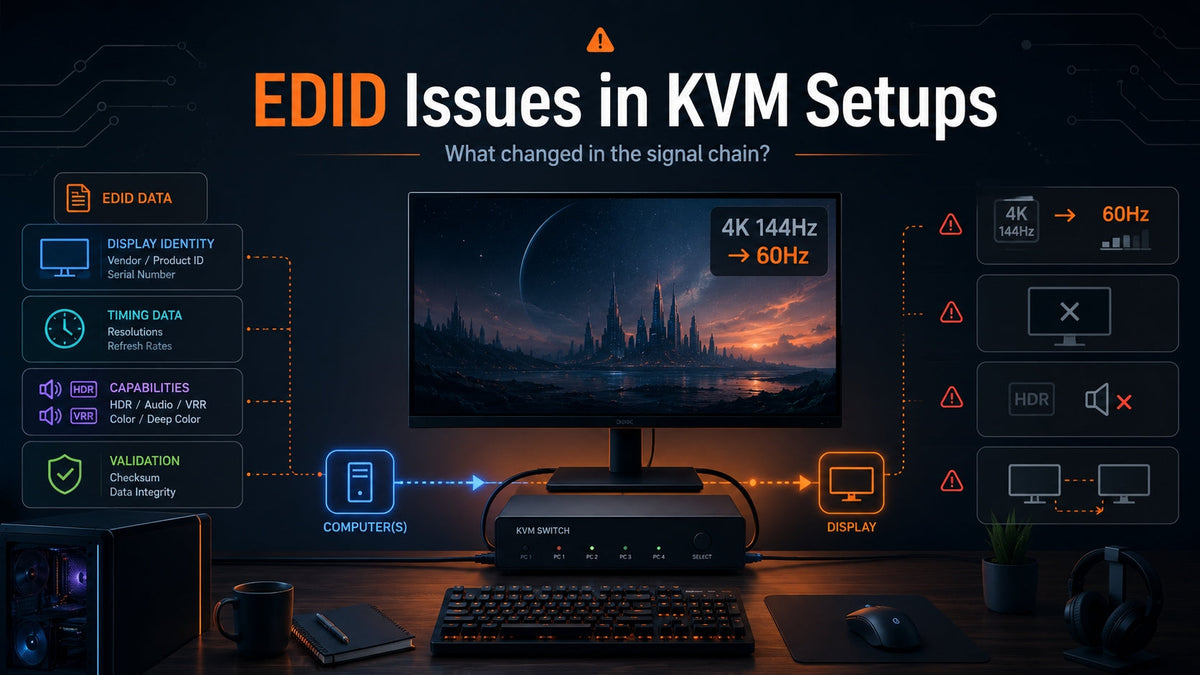
A monitor may run at 4K 144Hz when connected directly to a computer, then become limited to 60Hz after a KVM is added. HDR, VRR, or display audio may disappear, and application windows may move after switching computers.
These problems are often grouped together as “EDID compatibility issues,” but EDID is not simply a list of resolutions. It contains separate modules for display identity, video timings, color formats, audio capabilities, extension blocks, and data validation.
When different parts of the EDID are missing or altered, they produce different symptoms. The useful troubleshooting question is not simply whether the EDID works. It is:
Which part of the monitor’s EDID was removed, replaced, or modified after the KVM was added?
Table of Contents
- What EDID Does in a KVM Signal Chain
- The Core Structure of EDID
- Display Identity Data: Window Positions and Monitor Detection
- Timing Data: Resolution and Refresh Rate
- CTA-861 Extensions: HDR, Audio, Color, and VRR
- DisplayID: High Refresh Rates, Ultrawide, and High-Resolution Timings
- Extension Count and Checksums
- Why a KVM May Change EDID Data
- How to Identify Which EDID Section Is Missing
- Conclusion
- FAQ
What EDID Does in a KVM Signal Chain
EDID stands for Extended Display Identification Data. It is a structured set of information that a monitor provides to a computer.
EDID can describe:
- The monitor manufacturer, product code, and serial number
- The native resolution and preferred refresh rate
- Supported video timings
- Color depth and color formats
- HDR, VRR, and audio capabilities
The computer reads this information before deciding which display modes to make available in the operating system.
With a direct connection, the graphics source usually reads EDID directly from the monitor. After a KVM is added, the path becomes:
Computer → KVM → Monitor
The computer may now receive the monitor’s original EDID, or an EDID that has been copied, cached, filtered, merged, or regenerated by the KVM.
If the KVM preserves only part of the data, the monitor may still produce an image while losing specific features. A working 4K picture does not prove that high-refresh-rate timings, HDR metadata, VRR information, and audio capabilities were also preserved.
The Core Structure of EDID
A standard EDID includes at least one 128-byte base block. Modern HDMI monitors, high-refresh-rate displays, ultrawide monitors, and high-resolution panels may also include CTA-861 or DisplayID extension blocks.
For KVM troubleshooting, EDID can be divided into four functional groups:
- Identity data: tells the operating system which monitor is connected.
- Timing data: defines the available resolutions and refresh rates.
- Capability data: describes HDR, audio, color formats, and VRR.
- Integrity data: determines whether the graphics driver accepts the base block and its extensions.
Each group produces a different type of failure when it is missing or incorrect.
Display Identity Data: Window Positions and Monitor Detection
The main display identity fields include:
- Manufacturer ID
- Product Code
- Serial Number
- Monitor Name
These fields do not usually determine whether an image appears. Instead, they affect how the operating system identifies the monitor and stores display-specific settings.
Manufacturer ID and Product Code
The manufacturer ID and product code identify the monitor model.
If a KVM replaces the real monitor EDID with a generic profile, the operating system may no longer recognize the actual display. It may register the monitor as a generic device or create a new display record.
Possible effects include:
- Display scaling settings are reset
- An ICC color profile is no longer associated with the monitor
- Monitor-specific settings are not restored
- The operating system creates duplicate display entries
Serial Number
The serial number helps the operating system distinguish between two physical monitors of the same model.
In a dual-monitor or multi-monitor KVM setup, problems can occur when multiple outputs use the same emulated EDID or when the serial-number field is removed.
Common symptoms include:
- The left and right monitors exchange positions
- Application windows move to the wrong screen
- The display arrangement changes after switching computers
- Per-monitor scaling settings are applied inconsistently
A multi-monitor KVM therefore needs more than persistent resolution data. Each output should maintain a stable and distinguishable display identity.
Timing Data: Resolution and Refresh Rate
Timing data tells the graphics source how to generate the video signal. It can include:
- Horizontal and vertical active pixels
- Refresh rate
- Pixel clock
- Horizontal and vertical blanking
- Sync offsets and pulse widths
Common timing structures include Established Timings, Standard Timings, Detailed Timing Descriptors, CTA video entries, and DisplayID detailed timings.
Established Timings
Established Timings mainly contain older compatibility modes. They are less important for a modern desktop’s maximum resolution, but they may still be used by a BIOS, recovery environment, embedded device, or older operating system.
If these timings are missing, the result may be:
- No image during startup, even though the desktop appears later
- A BIOS screen that works directly but not through the KVM
- An unusual low-resolution startup mode
Standard Timings
Standard Timings provide compact descriptions of common resolutions and refresh rates.
If they are removed, some secondary display modes may disappear from the operating system. However, the highest resolutions and refresh rates are usually described through more detailed timing structures.
Detailed Timing Descriptor
A Detailed Timing Descriptor, or DTD, is one of the most important structures in EDID. The first DTD commonly describes the monitor’s preferred mode.
If the preferred DTD is missing or incorrect, the following problems may occur:
- The native resolution is not selected automatically
- A 4K monitor starts at 1080p
- A 144Hz monitor is limited to 60Hz
- An ultrawide native resolution disappears
- A specific refresh rate produces a black screen
Pixel Clock and Blanking Parameters
Two modes can have the same resolution and refresh rate while using different timing parameters.
For example, two timings may both be labeled 2560 × 1440 at 144Hz, but a Reduced Blanking timing may require less total bandwidth than a traditional blanking format.
If the KVM removes the correct Reduced Blanking timing or provides an incorrect pixel clock, the result may be:
- 60Hz works, but 120Hz or 144Hz produces no image
- High-refresh-rate options disappear completely
- The display flickers or loses signal at a higher refresh rate
- The resolution remains available, but the refresh rate is reduced
This is why support for a resolution does not automatically mean support for every refresh rate and timing combination at that resolution.
CTA-861 Extensions: HDR, Audio, Color, and VRR
The base EDID block does not have enough space to describe every modern display capability. HDMI displays commonly use a CTA-861 extension to advertise additional video modes, audio formats, HDR support, and advanced HDMI features.
If the display still works through a KVM but HDR, audio, or high-refresh-rate modes disappear, the CTA extension should be checked first.
Video Data Block
The Video Data Block uses standardized video codes to advertise common resolutions and refresh rates.
If a video format is missing from the KVM-provided EDID, the source may not offer that mode.
For example, if 4K 60Hz is available through a direct connection but only 4K 30Hz appears through the KVM, the CTA extension may no longer contain the required 4K 60Hz video entry.
Audio Data Block
The Audio Data Block describes supported audio formats, channel counts, sample rates, and sample sizes.
If this block is missing, possible symptoms include:
- The HDMI or DisplayPort audio device disappears
- The monitor speakers stop working
- Multichannel output is reduced to stereo
- An AV device receives video but no audio
USB headsets and USB sound cards use USB enumeration rather than display EDID, so they are not part of the same failure path.
HDR Static Metadata Data Block
The HDR Static Metadata Data Block describes supported HDR transfer functions and static metadata capabilities.
If the KVM removes this data, the computer may treat an HDR-capable monitor as an SDR display.
Common symptoms include:
- The Windows HDR option disappears
- A game console reports that HDR is unsupported
- HDR content is output in SDR
- The monitor does not enter HDR mode
Colorimetry Data Block
The Colorimetry Data Block describes additional color standards supported by the monitor.
If it is missing, wide-color-gamut modes may disappear, and HDR or professional video workflows may be limited to more basic color options.
RGB and YCbCr Support
A CTA extension may advertise support for:
- RGB
- YCbCr 4:4:4
- YCbCr 4:2:2
- YCbCr 4:2:0
These formats affect the bandwidth required by the video signal.
For example, a link may be unable to carry RGB 4K 60Hz but may still support 4K 60Hz using YCbCr 4:2:0. If the KVM removes the relevant 4:2:0 capability data, the graphics source may offer only 4K 30Hz.
Deep Color and Bit Depth
Deep Color data indicates whether the HDMI path supports higher color depths.
If this information is missing, the system may expose only 8-bit output instead of 10-bit or 12-bit.
However, an EDID claim alone does not guarantee that a specific 10-bit mode will work. The result also depends on resolution, refresh rate, chroma format, KVM bandwidth, cable capability, and the source device.
VRR and Advanced HDMI Capabilities
Modern HDMI displays may use HDMI Forum-related data blocks to advertise VRR, higher link rates, ALLM, and other advanced capabilities.
If a KVM preserves only basic HDMI information and removes these fields, possible symptoms include:
- VRR becomes unavailable
- 4K 120Hz disappears
- A game console identifies the connection as a lower-capability HDMI path
- High-bandwidth modes fall back to lower refresh rates
DisplayID: High Refresh Rates, Ultrawide, and High-Resolution Timings
Some high-resolution, high-refresh-rate, ultrawide, or specialized monitors use DisplayID extensions to describe timings that are difficult to represent in older EDID structures.
If a KVM preserves the base EDID but does not preserve DisplayID correctly, the monitor name may still appear normally while advanced modes disappear.
Possible symptoms include:
- 5K or higher resolutions are unavailable
- The native ultrawide resolution disappears
- A specific high-refresh-rate mode is missing
- A tiled display is detected incorrectly
- Only generic fallback resolutions remain
A correct monitor name therefore does not prove that the complete EDID has been preserved. The name may come from the base block, while the required timing is stored in a DisplayID extension.
Extension Count and Checksums
Extension Count
The Extension Count field in the base EDID tells the source how many additional 128-byte blocks follow.
If the value is incorrectly changed to zero, the computer reads only the base block.
The monitor may still produce an image, and its name and basic resolution may remain correct, but the following features can disappear together:
- HDR
- Display audio
- High refresh rates
- VRR
- YCbCr formats
- Additional 4K timings
- DisplayID advanced timings
This creates a common KVM symptom: the basic display works, but the monitor’s advanced capabilities are missing.
Checksum
Each 128-byte EDID block has its own checksum. If a block is modified without recalculating a valid checksum, the graphics driver may reject it.
If the base-block checksum is invalid, possible symptoms include:
- The monitor is not detected correctly
- Only low-resolution fallback modes are available
- The display repeatedly connects and disconnects
If an extension-block checksum is invalid, the result may be:
- Basic resolutions continue to work
- HDR or audio disappears
- High-refresh-rate modes are removed
- Different GPUs or operating systems behave differently
EDID analysis should therefore verify not only that a block exists, but also that its checksum is valid.
Why a KVM May Change EDID Data
EDID changes in a KVM signal chain usually result from one of four handling methods.
Only the First 128 Bytes Are Copied
The KVM preserves the monitor name and basic timings but drops CTA or DisplayID extensions.
The basic image may remain normal while HDR, audio, VRR, high-refresh-rate modes, and advanced color capabilities disappear.
A Fixed EDID Profile Is Used
The KVM presents a predefined profile, such as 1080p 60Hz or 4K 60Hz, instead of the monitor’s original EDID.
A fixed profile can improve predictability in standardized environments, but it may overwrite the monitor’s actual high-refresh-rate, HDR, VRR, audio, and color capabilities.
Multiple Outputs Share the Same EDID
If a dual-monitor or multi-monitor KVM does not manage EDID separately for each output, it may present one monitor’s capabilities on another video path.
For example, if a 4K 60Hz monitor and a 1440p 165Hz monitor share the same EDID, the result may be:
- The high-refresh-rate monitor is limited to 60Hz
- The 4K monitor loses its native resolution
- Both displays appear as the same device
- Display arrangement and window placement become unstable
The EDID Does Not Match the Real Link Capability
An advertised mode must be supported by the monitor, source, KVM, cables, and adapters.
If the KVM advertises a mode that its internal video path cannot carry, the operating system may allow that mode to be selected, but the result may be a black screen, flickering, or repeated signal loss.
The reverse can also happen. The KVM hardware may be capable of carrying a high-refresh-rate mode, but if the EDID does not advertise the required timing, the mode will not appear in the operating system.
A complete EDID is therefore not simply an unfiltered copy of every monitor capability. It must also match the KVM’s actual transmission limits.
How to Identify Which EDID Section Is Missing
A symptom can narrow down the possible cause, but it usually cannot confirm the exact missing field.
The more reliable method is to collect two EDID files:
- The EDID read while the computer is connected directly to the monitor
- The EDID read while the same computer and monitor are connected through the KVM
The two files can then be compared for differences in display identity, detailed timings, Extension Count, CTA-861 data, and DisplayID blocks.
TESmart provides an EDID reading utility and export instructions in the Help Center. When exporting the data, select the relevant monitor, include the complete EDID, and save it as a BIN file.
Use different filenames for the direct and KVM tests so they can be compared easily.
Download and Use the TESmart EDID Reading Tool
After collecting both files, use the following table to determine which EDID section should be checked first.
| Display Symptom | EDID Section to Check | What to Compare |
|---|---|---|
| The monitor is not detected | Header, Checksum, DDC communication | Whether the base block can be read and validated |
| Only low resolutions are available | Preferred DTD, Extension Count, Checksum | Whether the native timing and extension blocks remain present |
| The native resolution is missing | DTD, CTA Video Data Block, DisplayID | Whether the direct-connection timing disappears through the KVM |
| 144Hz is reduced to 60Hz | High-refresh DTD, pixel clock, range limits, DisplayID | Whether the required refresh-rate timing is still present |
| 4K 60Hz is reduced to 4K 30Hz | CTA video entry, TMDS capability, YCbCr 4:2:0 | Whether the 4K 60Hz format and related bandwidth data are missing |
| The HDR option disappears | HDR Static Metadata, Colorimetry | Whether the HDR data blocks remain in the CTA extension |
| VRR disappears | VRR capability data, refresh-rate range | Whether the advanced HDMI capability fields are still present |
| HDMI or DisplayPort audio disappears | Basic Audio, Audio Data Block | Whether audio formats, channel counts, and sample rates remain |
| 10-bit output is unavailable | Bit depth, Deep Color, HDR capability data | Whether the advertised color depth has been removed or reduced |
| Windows move after switching | Manufacturer ID, Product Code, Serial Number | Whether the display identity changes between connections |
| Two identical monitors exchange positions | Serial Number, independent EDID management | Whether both outputs are presenting the same EDID |
| The BIOS screen is black | Established Timings, basic compatibility timings | Whether a firmware-compatible safe mode is still advertised |
| Only one high-refresh-rate mode produces a black screen | DTD, pixel clock, blanking parameters | Whether the EDID advertises a mode the real signal path cannot carry |
Do not compare only the monitor name and maximum resolution.
A KVM-provided EDID may show the correct monitor model while still missing the CTA or DisplayID extensions that contain HDR, audio, VRR, or high-refresh-rate information.
Conclusion
The important question in EDID troubleshooting is not whether an EDID exists. It is whether the EDID is complete, valid, and consistent with the real signal path.
- Identity data determines how the operating system distinguishes and remembers each monitor.
- Timing data determines which resolutions and refresh rates are available.
- CTA-861 extensions describe HDR, audio, color formats, and some VRR capabilities.
- DisplayID may contain advanced timings for high-refresh-rate, ultrawide, and high-resolution monitors.
- Extension Count determines whether the source reads additional EDID blocks.
- Checksums determine whether each block is accepted by the graphics driver.
In a KVM setup, preserving the monitor name and a basic resolution is not enough to qualify as complete EDID handling.
A stable implementation should maintain the correct identity, timing information, and extension data for each display output. It should also ensure that the advertised modes do not exceed the real capabilities of the KVM, cables, adapters, and connected devices.
FAQ
Are EDID and HDCP the Same Technology?
No. EDID describes the resolutions, refresh rates, audio formats, and display features supported by a monitor. HDCP is used to authenticate devices and protect encrypted content.
A connection can read EDID correctly but fail HDCP authentication. It can also complete HDCP authentication while using an incomplete EDID that removes HDR or high-refresh-rate modes.
Does a Correct Monitor Name Mean the EDID Is Complete?
No. The monitor name is usually stored in the base EDID block, while HDR, audio, VRR, additional video modes, and DisplayID information may be stored in extension blocks.
The correct model name does not prove that all display capabilities were preserved by the KVM.
Why Can I Select a High Refresh Rate if It Produces a Black Screen?
This usually means the EDID advertises the mode, but the KVM, cable, adapter, or another part of the signal path cannot carry the required bandwidth.
An incorrect pixel clock or blanking parameter in the detailed timing can produce a similar result.
Why Do Windows Move After Switching the KVM?
If the inactive computer loses access to EDID, or if the KVM changes the display identity or hot-plug state during switching, the operating system may interpret the event as a monitor disconnection or replacement.
It may then rebuild the desktop layout and move application windows.
Can an EDID Emulator Add a Resolution the Monitor Does Not Support?
An EDID emulator can advertise a mode, but it cannot change the physical capabilities of the monitor, KVM, cable, adapter, or source device.
If the emulated EDID advertises a mode that the real signal path cannot support, selecting it may still produce a black screen or flickering.
How Can I Export an EDID File for Analysis?
Use the EDID Reading Tool provided in the TESmart Help Center. Export one EDID while the monitor is connected directly to the computer and another while it is connected through the KVM.
Save the files with different names so the two signal paths can be compared.
Share:
KVM for Ultrawide Monitors: 3440×1440 and 5120×1440
Wireless Mouse Lag Through a KVM Switch: USB Ports, HID and Interference Explained