

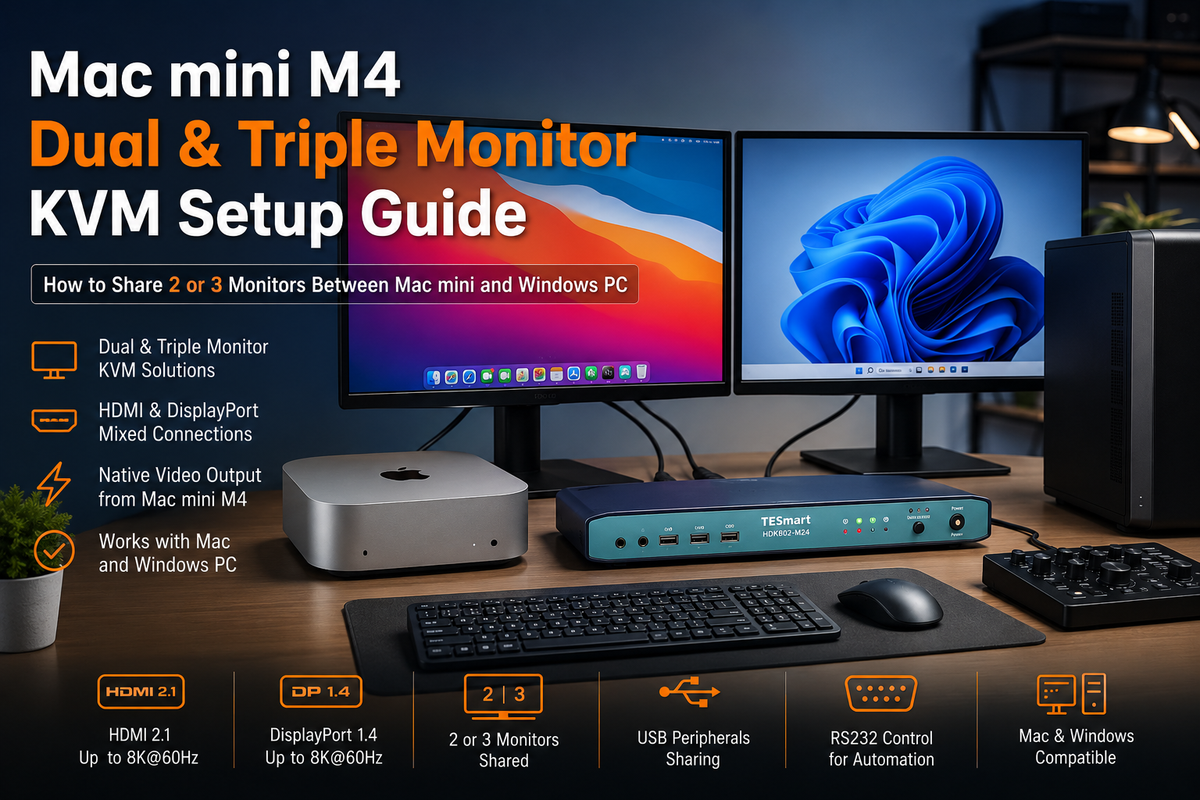
Table of Contents
- Introduction
- Quick Answer: Does the Mac mini M4 Work with a Multi-Monitor KVM?
- How Many External Displays Can the Mac mini M4 Support?
- Why Native Three-Display Support Does Not Mean One-Cable KVM Support
- Mac mini M4 Dual-Monitor KVM Setup
- Mac mini M4 Triple-Monitor KVM Setup
- All-DisplayPort vs. HDMI and DisplayPort Mixed Setups
- How to Map Mac mini and Windows Workstation Ports
- Should Every Monitor Go Through the KVM?
- Dual-Monitor vs. Triple-Monitor KVM Selection Table
- Choosing a TESmart Dual- or Triple-Monitor KVM
- Common Setup Problems and Troubleshooting
- Before You Buy: Compatibility Checklist
- FAQ
- Conclusion
Introduction
A Mac mini M4 can drive as many as three external displays, but that fact alone does not tell you which KVM switch to buy or how to connect it.
The real challenge appears when a Mac mini M4 and Windows PC must share two or three standard HDMI or DisplayPort monitors. The Mac mini provides one native HDMI output and several rear USB-C-shaped ports that support video. A Windows workstation usually provides several DisplayPort outputs and one or two HDMI outputs from its discrete graphics card. The monitors and KVM may use yet another combination.
A successful setup therefore depends on the complete signal path:
- How many independent display signals each computer can produce
- Which ports carry those signals
- Which input types the KVM expects from each computer
- Which output types the monitors accept
- Whether every cable and adapter works in the required direction
- Whether the complete path supports the intended resolution and refresh rate
This guide focuses on native video output from the Mac mini M4 and Mac mini M4 Pro. It does not treat DisplayLink or another software-created virtual display as the default answer. It also focuses on standard HDMI and DisplayPort monitors rather than Apple Studio Display or other displays that require a different connection architecture.
Quick Answer: Does the Mac mini M4 Work with a Multi-Monitor KVM?
Yes, provided that every display has a valid video path from both computers.
For a conventional dual-monitor KVM, the Mac mini and Windows PC normally provide two independent video signals each. For a conventional triple-monitor KVM, each computer normally provides three independent video signals.
The KVM switches those signals. It does not replace the computer’s GPU, increase the Mac mini’s display limit, or turn one ordinary USB-C cable into three independent extended desktops.
A typical Mac mini dual monitor KVM setup might use HDMI plus USB-C to DisplayPort from the Mac and HDMI plus DisplayPort from the Windows GPU.
A typical Mac mini triple monitor setup might use HDMI plus two USB-C to DisplayPort connections from the Mac and HDMI plus two DisplayPort connections from the Windows workstation.
Before choosing the KVM, map the six host-side video paths in a three-monitor, two-computer setup. That means three paths from the Mac mini and three from the Windows workstation.

How Many External Displays Can the Mac mini M4 Support?
Apple lists support for up to three simultaneous external displays on both the standard Mac mini M4 and Mac mini M4 Pro. However, the supported resolution and refresh-rate combinations are different.
| Mac mini model | Maximum external displays | Apple-listed three-display configuration | Apple-listed two-display capability | USB-C video output |
|---|---|---|---|---|
| Mac mini with M4 | Up to 3 | Two displays up to 6K at 60Hz over Thunderbolt, plus either one display up to 5K at 60Hz over Thunderbolt or one display up to 4K at 60Hz over HDMI. Apple also lists two displays up to 4K at 144Hz with a third display subject to the specified three-display combination. | Depending on the combination, the M4 can support two displays up to 6K at 60Hz or 4K at 144Hz, or one higher-bandwidth display together with a second supported display. | Native DisplayPort 1.4 output over USB-C |
| Mac mini with M4 Pro | Up to 3 | Three displays up to 6K at 60Hz or 4K at 144Hz across the supported Thunderbolt and HDMI outputs. | One display up to 8K at 60Hz, 5K at 120Hz, or 4K at 240Hz, plus a second display up to 6K at 60Hz or 4K at 144Hz, subject to Apple’s listed configuration. | Native DisplayPort 2.1 output over USB-C |
Official references: How many displays can be connected to Mac mini and Mac mini (2024) Technical Specifications.
Use the Rear Video-Capable Ports
The connector shape matters less than the port capability. Apple lists the two front USB-C ports on the 2024 Mac mini as USB 3 ports. The video-capable USB-C connections are the three rear Thunderbolt ports, which support DisplayPort output.
For a Mac mini M4 KVM setup, do not assume that every USB-C-shaped port can feed a monitor. Connect USB-C to DisplayPort or USB-C to HDMI video cables to the rear video-capable ports.
“Up to Three Displays” Does Not Mean Every Combination
The maximum display count is not a promise that any three monitors will run at any chosen resolution or refresh rate. A three-display arrangement consumes more of the Mac’s display resources than a one- or two-display arrangement.
For example, a mode available with one monitor may not remain available when two additional monitors are active. The standard M4 and M4 Pro also have different official three-display limits, so an M4 Pro result should not be assumed for the base M4.

Why Native Three-Display Support Does Not Mean One-Cable KVM Support
A traditional multi-monitor KVM is mainly a signal-switching device. It accepts video signals that already exist, routes them to the monitors, and switches keyboard, mouse, and USB control between computers.
It does not normally generate additional display streams.
Consider a conventional triple monitor KVM with three video inputs for PC 1 and three matching inputs for PC 2. The KVM expects each computer to provide:
- Video path 1 for monitor 1
- Video path 2 for monitor 2
- Video path 3 for monitor 3
- A USB upstream connection for keyboard, mouse, and shared peripherals
Connecting one ordinary USB-C cable from the Mac mini to one of those video inputs does not populate the other two inputs.
A dock or hub may expose multiple display connectors, but that is a separate function from KVM switching. The dock must create or route the required independent display streams in a way that macOS supports, and those outputs must still match the KVM’s inputs.
Apple notes that a supported hub or display daisy chain may allow two displays over one Thunderbolt port, but it does not increase the Mac’s maximum supported display count. It also does not mean that a conventional three-input KVM can accept one cable in place of three expected video paths.
Extended Desktops Are Different from Mirrored Displays
A splitter can sometimes duplicate one source image across multiple displays. That is not the same as providing three independent extended desktops.
For a true Mac mini M4 three displays workspace, macOS must identify three separate displays and assign a separate desktop area to each one. A product that only mirrors one video signal does not meet that requirement.

Mac mini M4 Dual-Monitor KVM Setup
A dual-monitor setup is generally easier to plan because each computer needs two video outputs rather than three. It also leaves more flexibility for a high-refresh primary display.
Dual-Monitor Example 1: Two DisplayPort Monitors
This arrangement is suitable when both monitors have DisplayPort inputs and the Windows graphics card provides at least two DisplayPort outputs.
| Device | Video path 1 | Video path 2 | KVM structure |
|---|---|---|---|
| Mac mini M4 | Rear USB-C video port → USB-C to DisplayPort cable → KVM DP input 1 | Rear USB-C video port → USB-C to DisplayPort cable → KVM DP input 2 | Dual DisplayPort KVM |
| Windows PC | GPU DisplayPort output 1 → KVM DP input 1 | GPU DisplayPort output 2 → KVM DP input 2 | |
| Monitors | KVM DP output 1 → DisplayPort monitor 1 | KVM DP output 2 → DisplayPort monitor 2 |
A DisplayPort KVM for Mac mini makes sense here because the Windows GPU and both monitors already use DisplayPort. The Mac requires two directional USB-C to DisplayPort cables, but the rest of the signal path stays in DisplayPort.
Dual-Monitor Example 2: One HDMI and One DisplayPort Monitor
This arrangement uses the Mac mini’s native HDMI output and only one USB-C video conversion.
| Device | HDMI path | DisplayPort path | KVM structure |
|---|---|---|---|
| Mac mini M4 | Mac HDMI → KVM HDMI input | Rear USB-C video port → USB-C to DisplayPort → KVM DP input | HDMI and DisplayPort KVM |
| Windows PC | GPU HDMI → KVM HDMI input | GPU DisplayPort → KVM DP input | |
| Monitors | KVM HDMI output → HDMI monitor | KVM DP output → DisplayPort monitor |
This hybrid structure can reduce unnecessary conversions when the monitors already provide one HDMI input and one DisplayPort input. It is often more direct than converting the Mac’s HDMI output to DisplayPort or converting a Windows DisplayPort output to HDMI without a clear need.
When to Choose Dual DisplayPort or a Hybrid KVM
Choose a dual DisplayPort KVM when:
- Both monitors use DisplayPort
- The Windows GPU has two available DisplayPort outputs
- You are prepared to use two USB-C to DisplayPort cables from the Mac
- Your higher-refresh monitor is best served through DisplayPort
Choose an HDMI and DisplayPort KVM when:
- One monitor is connected through HDMI and the other through DisplayPort
- The Windows GPU provides the same HDMI-plus-DisplayPort combination
- You want to use the Mac mini’s native HDMI port
- Reducing the number of converters is more important than standardizing every path on DisplayPort
Mac mini M4 Triple-Monitor KVM Setup
A Mac mini triple monitor KVM requires more careful planning because every computer must normally provide three usable video paths. The interfaces do not have to be identical on the computer itself, but they must match the KVM inputs by the time they reach the switch.
Triple-Monitor Example 1: HDMI + Two DisplayPort Paths
This is one of the most direct arrangements for a Mac mini and Windows workstation because it reflects the port structures commonly found on both computers.
| Device | Display path 1 | Display path 2 | Display path 3 |
|---|---|---|---|
| Mac mini M4 | HDMI → KVM HDMI input | Rear USB-C video port → USB-C to DP → KVM DP input 1 | Rear USB-C video port → USB-C to DP → KVM DP input 2 |
| Windows workstation | GPU HDMI → KVM HDMI input | GPU DP output 1 → KVM DP input 1 | GPU DP output 2 → KVM DP input 2 |
| Triple-monitor KVM | One HDMI host path | First DisplayPort host path | Second DisplayPort host path |
| Displays | One HDMI display | First DisplayPort display | Second DisplayPort display |
This layout reduces format conversion because the Mac’s HDMI output stays HDMI and the Windows GPU’s DisplayPort outputs stay DisplayPort.
It should still be treated as a topology example rather than a universal resolution promise. The final display modes depend on the exact Mac model, monitor specifications, USB-C video cables, DisplayPort and HDMI cables, KVM bandwidth, and macOS display configuration.
Triple-Monitor Example 2: All DisplayPort
An all-DisplayPort setup can make sense when the Windows workstation and all three monitors are built around DisplayPort.
| Device | Path 1 | Path 2 | Path 3 |
|---|---|---|---|
| Mac mini M4 or M4 Pro | Rear USB-C video port → USB-C to DP | Rear USB-C video port → USB-C to DP | Rear USB-C video port → USB-C to DP |
| Windows workstation | GPU DP output 1 | GPU DP output 2 | GPU DP output 3 |
| KVM | DP input and output path 1 | DP input and output path 2 | DP input and output path 3 |
| Monitors | DP monitor 1 | DP monitor 2 | DP monitor 3 |
The standard M4 can support three displays over its supported rear video ports, but its official three-display combination is not identical to the M4 Pro configuration. In particular, the base M4’s third display may be subject to a lower official limit than the first two displays.
Confirm the target mode for each monitor instead of assuming that all three will run at the highest mode advertised by the KVM.
Triple-Monitor Example 3: One Display Direct, Two Through a KVM
Not every workstation needs all three displays to switch together.
A user with one high-refresh primary display can connect that monitor directly to both computers using separate monitor inputs. The remaining two productivity displays can pass through a dual-monitor KVM.
This structure may look like:
- Primary monitor: Mac mini connected to one input and Windows GPU connected to another input
- Secondary monitors: two video paths from each computer connected through a dual-monitor KVM
- Keyboard, mouse, and shared USB devices: connected through the KVM
The tradeoff is that the primary monitor input must be switched separately. However, keeping the most demanding display outside the KVM can reduce the number of devices and adapters in its high-bandwidth path.

All-DisplayPort vs. HDMI and DisplayPort Mixed Setups
Interface asymmetry is normal in a Mac mini and Windows workstation setup.
- The Mac mini has one native HDMI output and rear USB-C ports that carry DisplayPort video.
- A Windows discrete GPU often has several DisplayPort outputs and fewer HDMI outputs.
- Many monitors provide both HDMI and DisplayPort inputs.
- The KVM may use all DisplayPort paths or a combination of HDMI and DisplayPort.
The objective is not to make every connector look the same. The objective is to create the fewest reliable conversions between each source and each display.
HDMI and DisplayPort Signal-Path Table
| Source | Required destination | Typical connection | What to verify |
|---|---|---|---|
| Mac mini HDMI | KVM HDMI input | Standard HDMI cable | HDMI version, cable bandwidth, target display mode, and KVM input assignment |
| Mac mini rear USB-C video port | KVM DisplayPort input | Directional USB-C to DisplayPort cable | The cable must support video from a USB-C source to a DisplayPort display input |
| Mac mini rear USB-C video port | KVM HDMI input | Directional USB-C to HDMI cable or adapter | Maximum supported mode and whether HDR or high refresh is preserved |
| Windows GPU DisplayPort | KVM DisplayPort input | Standard DisplayPort cable | GPU port capability, cable rating, and KVM input version |
| Windows GPU HDMI | KVM HDMI input | Standard HDMI cable | GPU output mode and complete HDMI path bandwidth |
| Windows GPU DisplayPort | HDMI input | Directional DisplayPort-to-HDMI cable or active converter, depending on the source and required mode | Direction, active or passive design, resolution, refresh rate, HDR, HDCP, and VRR support |
| HDMI source | DisplayPort input | Usually an active HDMI-to-DisplayPort converter with its own power requirement | Do not assume a passive cable will work; confirm conversion direction and supported bandwidth |
USB-C to DisplayPort Is Not DisplayPort to USB-C
A cable with USB-C on one end and DisplayPort on the other may be directional.
For this Mac mini setup, the required direction is:
Mac mini USB-C video source → DisplayPort input on the KVM
A cable designed to connect a DisplayPort graphics source to a USB-C monitor may not work in reverse. The connector shapes match, but the signal direction and conversion electronics are different.
Conversions Can Change Available Features
An adapter that produces an image at 4K does not automatically preserve every other feature. Depending on the converter and complete signal path, you may lose or limit:
- Higher refresh rates
- HDR formats
- Variable refresh rate
- HDCP compatibility
- Color depth or chroma mode
- Display Stream Compression support
Check the adapter specification for the exact source-to-display direction and intended display mode. Avoid buying an adapter based only on connector shape.
How to Map Mac mini and Windows Workstation Ports
We recommend mapping every video path before choosing the KVM. A simple port inventory usually reveals whether an all-DisplayPort model or a hybrid model is the more direct choice.
Step 1: Define the Required Desktop
Write down:
- Two or three extended displays
- Resolution and refresh rate required on each display
- Which display is the primary monitor
- Whether HDR, VRR, or another feature is essential
- Whether every display must switch with one command
Step 2: List the Monitor Inputs
Do not record only the monitor model. Record the actual ports you intend to use.
| Monitor | Target mode | Available HDMI input | Available DisplayPort input | Preferred KVM connection |
|---|---|---|---|---|
| Primary monitor | Example: 4K high refresh | Record version and supported mode | Record version and supported mode | Choose the input that supports the target mode with the fewest conversions |
| Secondary monitor | Example: 4K60 | Yes/No | Yes/No | HDMI or DP |
| Third monitor | Example: 1440p60 | Yes/No | Yes/No | HDMI or DP |
Step 3: Map the Mac mini Outputs
For a three-display setup, common native paths include:
- HDMI + two rear USB-C video outputs
- Three rear USB-C video outputs, subject to the selected Apple-supported display combination
Do not count the front USB-C ports as display outputs without explicit support. Apple lists DisplayPort capability on the rear Thunderbolt ports.
Step 4: Map the Windows GPU Outputs
Connect the KVM to the discrete graphics card rather than to motherboard display outputs unless the motherboard outputs are active and intentionally part of the system configuration.
Confirm:
- The GPU has enough simultaneously active outputs
- The selected HDMI and DisplayPort ports support the required modes
- The graphics driver detects all displays when directly connected
- The system is configured for an extended desktop rather than mirroring
Step 5: Match the KVM Host Inputs
The two host groups on a multi-monitor KVM are normally symmetrical. If PC 1 uses one HDMI and two DisplayPort inputs, PC 2 usually needs the same input pattern.
That is why a hybrid KVM can be useful for a Mac mini and Windows workstation. Both computers can reach the same HDMI-plus-DisplayPort pattern without converting every connection to one format.
Step 6: Test Each Computer Directly
Before introducing the KVM, connect each computer directly to the monitors using the intended cables and adapters.
Confirm that:
- All monitors are detected
- The desktop is extended
- The required resolutions and refresh rates appear
- The Mac wakes the monitors correctly
- The Windows workstation keeps the intended monitor order
If the direct setup fails, adding a KVM will not correct the underlying host, cable, or adapter problem.
Should Every Monitor Go Through the KVM?
Sending every display through the KVM gives the cleanest switching behavior, but it is not the only valid structure.
Option 1: Switch Every Display
This is suitable for a fixed three-screen productivity workstation where the user wants the entire desktop, keyboard, mouse, and USB devices to move between computers together.
Advantages include:
- One coordinated switching action
- Consistent monitor assignment
- Fewer manual monitor-input changes
- A cleaner daily workflow
The limitation is that every high-bandwidth video path must pass through the KVM. The KVM, cables, and adapters must all support the required display modes.
Option 2: Keep the Primary Display Direct
This can be more suitable when the primary display runs at a demanding refresh rate and the other two displays are used for code, documents, monitoring, or communication tools.
The two computers connect directly to separate inputs on the primary monitor. A dual-monitor KVM switches the other two displays and shared USB devices.
This reduces the number of active components in the primary display path, but the user must switch the primary monitor separately.
Option 3: Keep One Display Assigned to One Computer
Some mixed Mac and Windows workflows use one monitor as a permanently visible status screen for the Windows workstation while two displays switch between computers.
This can be practical for system monitoring, rendering progress, logs, security feeds, or long-running tasks. It does not require a full triple monitor KVM because the fixed monitor is not part of the switching group.

Dual-Monitor vs. Triple-Monitor KVM Selection Table
| Setup type | Displays switched | Video outputs required from each computer | Recommended interface structure | Cabling complexity | High-refresh primary display | Fixed three-screen productivity desk | Adapters | Main limitation |
|---|---|---|---|---|---|---|---|---|
| Mac mini M4 dual monitor KVM | 2 | 2 | Dual DP or HDMI + DP | Moderate | Often easier to support than a three-screen path | No third switched display | Usually one or two Mac-side USB-C video cables | Only two displays switch with the computer |
| Mac mini M4 triple monitor KVM | 3 | 3 | Triple DP or HDMI + 2×DP | High | Requires full-chain verification on every path | Yes | Usually two or three Mac-side adapters or conversion cables | More cables, more bandwidth constraints, and more EDID interactions |
| All-DisplayPort KVM | 2 or 3 | One DP-compatible signal per display | DP from Windows; USB-C to DP from Mac | Consistent but adapter-heavy on the Mac side | Suitable when the full DP path supports the target mode | Yes, with a triple DP model | Two or three USB-C to DP cables for the Mac | The Mac does not provide native full-size DP ports |
| HDMI + DisplayPort hybrid KVM | 2 or 3 | Matching HDMI and DP signal pattern from each host | Mac native HDMI plus USB-C to DP; Windows HDMI plus DP | Often lower conversion count | Depends on which path carries the high-refresh monitor | Yes, with an HDMI + 2×DP model | Fewer Mac adapters than an all-DP structure | Both host groups must match the KVM’s mixed input pattern |
| One monitor direct, two through KVM | 2 through KVM; 1 switched at the monitor | Three total outputs, but only two enter the KVM | Direct primary display plus dual-monitor KVM | Moderate | Often suitable for a demanding primary monitor | Partially | Depends on the dual-monitor path | Primary monitor requires separate input switching |
| All monitors through KVM | 2 or 3 | One independent output per switched display | Match the complete host, KVM, and monitor topology | Highest for three displays | Possible only when every component supports the mode | Most convenient structure | Varies by interface choice | The weakest link determines the available display mode |
Choosing a TESmart Dual- or Triple-Monitor KVM
The model should follow the port map, not the other way around. We recommend deciding how each video signal will travel before selecting the KVM.
For an All-DisplayPort Triple-Monitor Workstation
For an all-DisplayPort workstation, our DKS203-M24 provides a more direct three-display signal path.
This structure is more suitable when:
- Three monitors use DisplayPort
- The Windows graphics card provides three DisplayPort outputs
- The Mac mini uses three directional USB-C to DisplayPort connections from its rear video-capable ports
- The intended three-display modes fit the official limits of the specific M4 or M4 Pro configuration
The value of this approach is interface consistency after the Mac-side conversion. It avoids mixing HDMI and DisplayPort inside the KVM path, but it requires three verified USB-C to DisplayPort cables for the Mac.
For One HDMI and Two DisplayPort Monitors
For a Mac mini and Windows PC using one HDMI display and two DisplayPort displays, our HDK203-M24 can reduce the number of unnecessary format conversions.
This is more suitable when:
- The Mac mini uses its native HDMI output plus two USB-C to DisplayPort paths
- The Windows workstation provides one HDMI output and two DisplayPort outputs
- The monitor group is one HDMI display plus two DisplayPort displays
- You want all three displays and shared USB devices to switch as one workstation
Compared with forcing every path into DisplayPort, this arrangement uses the native HDMI output already available on the Mac and commonly available on a Windows GPU.
For Dual-Monitor Users
If the setup includes two DisplayPort monitors, our DKS202-M24 follows a two-path DisplayPort structure. The Mac side normally uses two USB-C to DisplayPort cables, while a Windows GPU can connect through two native DisplayPort outputs.
If the setup uses one HDMI monitor and one DisplayPort monitor, our HDK202-M24 follows the Mac mini’s native HDMI-plus-USB-C video topology more closely. It also aligns with many Windows GPUs that provide both HDMI and DisplayPort.
These product categories include EDID-management features intended to help maintain a more consistent display relationship during switching. EDID can reduce monitor re-enumeration, window movement, and repeated display-mode negotiation, but the final behavior still depends on macOS, Windows, monitor firmware, adapters, and cables.

Performance note: A KVM’s maximum specification does not guarantee that a particular Mac mini three-display combination will reach that specification. Final resolution, refresh rate, HDR, VRR, DSC, color depth, and wake behavior depend on the host, operating system, adapter, cable, KVM, and monitor.
Common Setup Problems and Troubleshooting
Multi-monitor problems should be isolated one video path at a time. Changing several cables, adapters, and settings together makes the actual cause harder to identify.
| Symptom | Likely cause | Verification | Recommended action |
|---|---|---|---|
| Only one or two of three displays work | A missing video path, wrong KVM input, unsupported Mac display combination, or non-video USB-C port | Test each monitor directly from the computer using the same cable and adapter | Confirm three independent host outputs, use the rear Mac video ports, and check every KVM input assignment |
| Black screen after switching | Resolution or refresh rate exceeds part of the chain; EDID negotiation; cable or adapter instability | Reduce the affected path to 1080p60, use a shorter cable, and remove optional adapters | Restore one component at a time and configure a compatible EDID mode where the model supports it |
| One monitor mirrors another | The source is producing a duplicated signal, macOS is set to mirror, or a dock is not providing independent display streams | Open macOS Displays settings and test each output directly | Select an extended desktop and verify that each KVM input receives a separate video signal |
| Windows move to another monitor after switching | The operating system detects a monitor disconnect or receives changing EDID information | Check whether the monitor disappears from display settings during a switch | Use consistent KVM ports, resolutions, and EDID settings; avoid changing adapter types between paths |
| Mac does not wake one or more displays | Sleep-state negotiation, monitor deep sleep, cable instability, or delayed EDID recovery | Wake the Mac before switching and compare the same monitor through a direct connection | Disable monitor deep-sleep options where appropriate, update macOS, and simplify the signal path |
| Refresh rate drops after adding the KVM | The KVM, adapter, cable, monitor input, or active display combination cannot carry the requested mode | Check the mode with a direct connection and then add components one at a time | Replace the limiting component or keep the high-refresh monitor directly connected |
| HDR or VRR is unavailable | A converter or one interface segment does not preserve the feature | Test HDR or VRR with a direct native-format connection | Reduce conversion layers and verify feature support across the entire path |
| Keyboard and mouse switch, but USB devices do not | Missing USB upstream cable, USB focus setting, unsupported peripheral, or power requirement | Test a basic USB device and confirm the host USB cable is connected for both computers | Check USB focus settings, connect high-power devices through an appropriate powered hub, and test devices individually |
Recommended Test Order
- Connect the affected monitor directly to the computer.
- Set the path to 1080p at 60Hz.
- Use a short, known-good cable.
- Remove docks, hubs, and nonessential converters.
- Reconnect the KVM with only one monitor.
- Add the second and third displays one at a time.
- Increase resolution and refresh rate gradually.
- Reconnect shared USB devices after the display paths are stable.
This order separates host limitations from cable, adapter, KVM, and monitor-input problems.
Before You Buy: Compatibility Checklist
- ☐ Confirm whether the Mac mini uses the standard M4 or M4 Pro chip.
- ☐ Check Apple’s official display combination for the intended number of monitors.
- ☐ Confirm the resolution and refresh rate required on each monitor.
- ☐ Count the independent video outputs available from the Mac mini.
- ☐ Use the rear video-capable USB-C ports rather than assuming every USB-C port carries video.
- ☐ Count the active HDMI and DisplayPort outputs on the Windows graphics card.
- ☐ Confirm that the KVM provides one video input per switched display for each computer.
- ☐ Match the KVM outputs to the actual monitor inputs you plan to use.
- ☐ Verify that USB-C to DisplayPort cables work from a USB-C source to a DisplayPort destination.
- ☐ Verify the direction and active or passive design of every HDMI/DisplayPort converter.
- ☐ Check cable and adapter support for the target resolution, refresh rate, HDR, VRR, HDCP, and color mode.
- ☐ Test the complete monitor arrangement directly from each computer before adding the KVM.
- ☐ Decide whether every monitor must switch or whether one high-refresh monitor can remain direct.
- ☐ Confirm how EDID is handled and whether the KVM offers suitable EDID modes.
- ☐ Include the required USB upstream connection for each computer.
- ☐ Leave enough rear Mac mini ports for storage, networking, audio, or other peripherals.
FAQ
1. Does the Mac mini M4 support three external displays?
Yes. Apple officially lists support for up to three external displays on both the Mac mini M4 and Mac mini M4 Pro. The supported resolution and refresh-rate combinations differ between the two chips, so check the exact Apple configuration before planning a triple-monitor KVM path.
2. Can one USB-C cable from the Mac mini connect to a traditional triple monitor KVM?
Not when the KVM expects three separate video inputs from each computer. A conventional triple monitor KVM switches three existing display signals. One ordinary USB-C connection does not automatically populate three independent KVM inputs.
A specialized dock-based architecture may handle multiple displays differently, but its macOS support and output structure must be verified separately.
3. Can I use HDMI plus two USB-C to DisplayPort cables for three monitors?
Yes, this is a practical signal topology for many Mac mini M4 and Windows workstation setups. The Mac uses its HDMI output and two rear USB-C video outputs, while the Windows GPU uses one HDMI and two DisplayPort outputs.
The final display modes still depend on the Mac model, Apple-supported display combination, cables, adapters, KVM, and monitors.
4. Can I connect three DisplayPort monitors to a Mac mini M4?
A possible native arrangement is to use three directional USB-C to DisplayPort cables from the rear video-capable ports. The standard M4 and M4 Pro have different official three-display capabilities, so verify the target resolution and refresh rate for all three monitors before choosing an all-DisplayPort KVM.
5. Is USB-C to DisplayPort the same as DisplayPort to USB-C?
No. Many cables are directional. A cable intended for a DisplayPort source and USB-C monitor may not work from a Mac USB-C video source to a DisplayPort KVM input.
For this setup, look for a cable explicitly designed for USB-C source to DisplayPort display.
6. Is an all-DisplayPort KVM always better for a Mac mini?
No. An all-DisplayPort KVM is more direct when the Windows GPU and all monitors already use DisplayPort. However, it requires USB-C to DisplayPort conversion for every Mac display path.
An HDMI and DisplayPort KVM can be more suitable when using the Mac mini’s native HDMI output together with one or two USB-C to DisplayPort outputs.
7. Will a KVM increase the number of displays supported by the Mac mini?
No. A KVM cannot exceed the display limit of the Mac mini chip. It switches the signals the Mac already supports.
8. Do I need DisplayLink for a Mac mini M4 triple monitor setup?
Not necessarily. The Mac mini M4 and M4 Pro natively support up to three external displays within Apple’s listed configurations. This guide focuses on those native video paths.
DisplayLink may be relevant in other workstation designs, but it adds a software-driven display layer and should not be treated as interchangeable with native GPU output.
9. Can I keep a high-refresh monitor outside the KVM?
Yes. You can connect the high-refresh monitor directly to separate inputs from the Mac and Windows PC while switching the other two displays through a dual-monitor KVM.
This reduces the number of components in the demanding video path, but the direct monitor input must be switched separately.
10. Why do my windows move after switching computers?
The operating system may interpret the switch as a monitor disconnect and reconnect. EDID management can help keep the display identity available, reducing window movement and repeated display negotiation. Results also depend on the operating system, monitor firmware, adapters, and display settings.
Conclusion
The correct KVM switch for Mac mini M4 is determined by the signal topology, not only by the resolution printed on the product page.
For two monitors, start by deciding between two DisplayPort paths and an HDMI-plus-DisplayPort path. For three monitors, confirm that both the Mac mini and Windows workstation can provide three independent outputs that match the KVM input structure.
An all-DisplayPort setup is appropriate when the monitors and Windows GPU already use DisplayPort and the Mac can provide the required USB-C to DisplayPort paths. An HDMI-plus-two-DisplayPort setup can be more direct when you want to use the Mac mini’s native HDMI output and avoid an unnecessary conversion.
Most importantly, verify the complete chain:
Computer output → cable or adapter → KVM input → KVM output → monitor input
We recommend mapping every video path, testing both computers directly, and confirming the required display modes before purchasing.
Explore TESmart solutions for:
Whether you choose a DisplayPort KVM or an HDMI and DisplayPort KVM, the most reliable setup is the one in which every host output, cable direction, KVM port, and monitor input has been matched before installation.
Share:
MacBook Air M4/M5 Dual Monitor KVM Setup: What Works and What Does Not
KVM for Ultrawide Monitors: 3440×1440 and 5120×1440