Table of Contents
- Introduction
- What HDCP Is Actually Trying to Do
- How HDCP Works in a Display Chain
- Why HDCP Errors Happen in Real KVM Setups
- How We Diagnose an HDCP Error
- How We Approach HDCP-Sensitive KVM Setups
- HDCP-Sensitive Setup Checklist
- Common HDCP Mistakes We See
- Related Guides
- FAQ
Introduction
Most customers do not start learning about HDCP because they want to study a content protection protocol. They usually find the term after something in the display chain stops working.
The monitor may work normally. The desktop may appear without any issue. A KVM switch may switch between computers as expected. Then, as soon as Netflix, Apple TV, a Blu-ray player, a PS5 media app, or a capture card enters the workflow, the screen goes black or the system reports an HDCP error.
From our experience designing and troubleshooting KVM display workflows, this type of problem is often misdiagnosed. Customers may first suspect the KVM switch, cable, or monitor. In many cases, however, the real issue is that the full video chain has not completed the authentication required for protected content.
This article explains HDCP from the perspective of real KVM setups: what HDCP is, how HDCP authentication works, why HDCP errors happen through HDMI, DisplayPort, docks, adapters, game consoles, capture cards, and KVM switches, and how we usually approach the problem.
What HDCP Is Actually Trying to Do
HDCP stands for High-bandwidth Digital Content Protection. It is not a video quality feature, and it does not increase bandwidth. Its purpose is to protect high-value digital video and audio from unauthorized interception or copying while they travel across a digital display connection. The official HDCP specification is managed by Digital Content Protection LLC.
In a real desk setup, we usually explain HDCP as a permission check before protected playback begins.
When protected content is played, the source device checks whether the downstream display chain is allowed to receive that content. The source may be:
Apple TV
Blu-ray player
PS5 or Xbox
Streaming box
Laptop
Desktop GPU
Cable box or set-top box
The downstream chain may include:
Monitor or TV
AV receiver
HDMI switch
DisplayPort adapter
USB-C dock
Capture card
KVM switch
If every required device in the chain meets the HDCP requirement, the source continues outputting protected video. If one device does not support the required HDCP version, or if authentication is interrupted, the source may stop the video output, reduce the output format, or show an HDCP error.
This is why the same desk can work perfectly for office applications, development tools, local files, and non-protected games, but fail when protected video starts playing.
How HDCP Works in a Display Chain
The full HDCP protocol contains more technical detail than most users need for troubleshooting. In KVM workflows, the practical process can be understood in four stages: detection, authentication, encrypted transmission, and ongoing link monitoring.
1. The Source Reads the Display Chain
When a source device detects a display connection, it reads information from the downstream device chain. This often happens alongside HDMI or DisplayPort link training, hot-plug detection, and EDID reading.
A simple direct connection may look like this:
PC → HDMI cable → Monitor
A real customer setup may look more like this:
PS5 → HDMI cable → KVM switch → HDMI cable → Gaming monitor
Or:
MacBook → USB-C dock → HDMI adapter → KVM switch → Display
In these structures, the KVM switch, dock, adapter, capture card, and display may all affect link negotiation. A normal desktop image passing through the chain does not automatically mean protected content will also pass.
2. Devices Authenticate Each Other
If the content requires protection, the source asks the downstream devices to prove that they are authorized to receive it. When a KVM switch, AV receiver, matrix switch, or splitter sits in the middle, it may need to behave as part of the protected link rather than as a passive video path.
This is why we do not diagnose HDCP-sensitive cases by asking only whether the monitor can display an image. In a protected playback scenario, the important question is whether the entire chain can maintain the authentication state required by the source.
3. Protected Video Is Sent as an Encrypted Stream
After authentication succeeds, protected video and audio are transmitted in encrypted form. Another device cannot simply tap the HDMI or DisplayPort signal and extract a usable copy of the content.
This explains a common customer case: a capture card can record a game menu, desktop screen, or normal video source, but it shows a black screen when a streaming app or Blu-ray movie starts.
That does not necessarily mean the capture card or KVM switch is defective. It may simply mean the source has enabled HDCP protection. Preventing that type of copying is exactly what HDCP is designed to do.
4. The Link May Be Checked Again After Switching
HDCP is not always a one-time check. Switching a KVM, waking a monitor, changing inputs, changing resolution, enabling HDR, or changing refresh rate can trigger a new authentication process.
That is why protected content may work at first but fail after the user switches away and back through a KVM. The source may re-detect the display chain, and if EDID, HDCP, or hot-plug behavior is unstable at that moment, protected playback may stop.
Why HDCP Errors Happen in Real KVM Setups
When we look at an HDCP error, we do not start by blaming a single device. HDCP is a chain-level requirement. An error usually means the source did not receive the protection response it expected from the full downstream path.

HDCP Version Mismatch
One of the most common causes is an HDCP version mismatch.
Some protected 4K content may require HDCP 2.2 or later. If the source, KVM switch, monitor, AV receiver, dock, or adapter supports only an older HDCP version, the content may fail to play.
Typical symptoms include:
4K protected content shows a black screen
1080p content works, but 4K content fails
The desktop works, but Netflix, Apple TV, or Blu-ray playback fails
The system reports that the display does not support HDCP
A common customer question is: “My monitor supports 4K, so why can’t it play this 4K content?”
The answer is that 4K resolution support and HDCP support are not the same thing. A chain can carry a 4K signal and still fail the content protection requirement for a specific protected source.
Too Many Adapters or Docking Layers
Docks, hubs, USB-C to HDMI adapters, HDMI to DisplayPort converters, DisplayPort to HDMI converters, capture cards, splitters, and extenders all add negotiation layers.
We often see structures such as:
MacBook → Dock → HDMI adapter → KVM switch → Monitor
Or:
Console → HDMI splitter → Capture card → KVM switch → Display
These structures are not automatically wrong. The problem is that every added device introduces another point where HDCP, EDID, bandwidth, HDR, and refresh-rate negotiation can fail.
For HDCP troubleshooting, we usually start with the shortest possible chain:
Source → Display
If protected playback works in a direct connection, we add the KVM switch, dock, adapter, capture card, or extender back into the chain one device at a time. This makes it much easier to identify where the failure begins.
EDID and HDCP Are Different, but They Often Fail Together
EDID and HDCP are different technologies, but in KVM setups they often affect the same user experience.
EDID tells the source what the display supports: resolution, refresh rate, audio format, color format, and sometimes HDR capability. HDCP determines whether protected content is allowed to play across the link.
If EDID information is unstable, the source may repeatedly think the monitor has been disconnected and reconnected. If protected content is playing at the same time, HDCP authentication may also restart. The result can be a black screen, playback interruption, resolution fallback, or a long delay after switching.
This is why EDID stability matters in multi-monitor KVM design. Stable EDID handling can reduce window movement, resolution fallback, and black-screen delays after switching.
Capture Cards Are a Special Case
Capture cards create some of the most common HDCP misunderstandings.
If a customer uses a capture card to record a PC desktop, gameplay, or camera feed, the chain may work normally. But if the customer tries to capture Netflix, Disney+, Apple TV, Blu-ray video, or certain console media apps, a black screen may be expected because the source is protecting the content from being copied.
Some game consoles allow HDCP to be disabled for game capture. However, when HDCP is disabled, some streaming apps may refuse to play. That is not a KVM limitation. It is a content protection requirement.
How We Diagnose an HDCP Error
When a customer tells us that the screen goes black after connecting a KVM switch, we do not immediately assume the issue is HDCP. A black screen can also be caused by resolution limits, refresh-rate settings, cable quality, input selection, docks, adapters, EDID behavior, or power sequencing.
We usually start with these questions:
Does the black screen happen only when protected content is played?
Does the normal desktop display correctly?
Does the setup work at 1080p60?
Does the source work when connected directly to the display?
Does removing the dock, adapter, or capture card fix the problem?
Does the issue happen after KVM switching?
Does the setup involve PS5, Xbox, Apple TV, Blu-ray, or a streaming app?
These questions help separate HDCP authentication problems from general video-link problems.
If Only Protected Content Fails
If the desktop works but Netflix, Apple TV, Blu-ray playback, or a console media app fails, HDCP becomes a primary suspect.
In that case, we check:
Whether the HDCP version matches the content requirement
Whether a capture card is in the chain
Whether an adapter is interrupting authentication
Whether a dock or HDMI splitter is involved
Whether the monitor or TV supports the required HDCP level
Whether the KVM switch is part of the protected path
If All Video Fails
If all video fails, including BIOS, desktop, and normal applications, we do not treat HDCP as the first cause.
In that case, the problem is more likely to involve:
Resolution or refresh rate beyond the chain’s capability
Long or unstable cables
Incorrect monitor input selection
Wrong KVM port connection
USB-C video output not supported by the host
Dock or hub compatibility
EDID reading failure
Power sequencing
For these cases, our usual first checks are direct display connection, lowering the output to 1080p60, using a shorter cable, removing the dock or hub, and power cycling the chain in the correct order.
How We Approach HDCP-Sensitive KVM Setups
We do not recommend choosing a KVM switch by asking only: “Does this KVM support HDCP?”
A better starting point is the actual chain:
What is the source device?
What type of content will be played?
How many monitors are involved?
Is the connection HDMI, DisplayPort, or USB-C?
Are docks, adapters, capture cards, or extenders involved?
Is the target output 1080p60, 4K60, 4K120, 4K144, or 8K60?
Does the workflow require HDR, VRR, or high refresh rate?
A KVM switch is one part of the path. For HDCP to work reliably, the full path must match the source requirement.
For Console + PC + Monitor Setups
If the setup includes a PS5 or Xbox, a work PC, and a gaming monitor, we usually start by looking at an HDMI-based structure.
The reason is practical: game consoles primarily output through HDMI. Reducing unnecessary HDMI-to-DisplayPort or DisplayPort-to-HDMI conversion can reduce HDCP, EDID, and display negotiation variables.
For two devices sharing one display, we match a single-monitor HDMI KVM based on the required resolution and refresh rate.
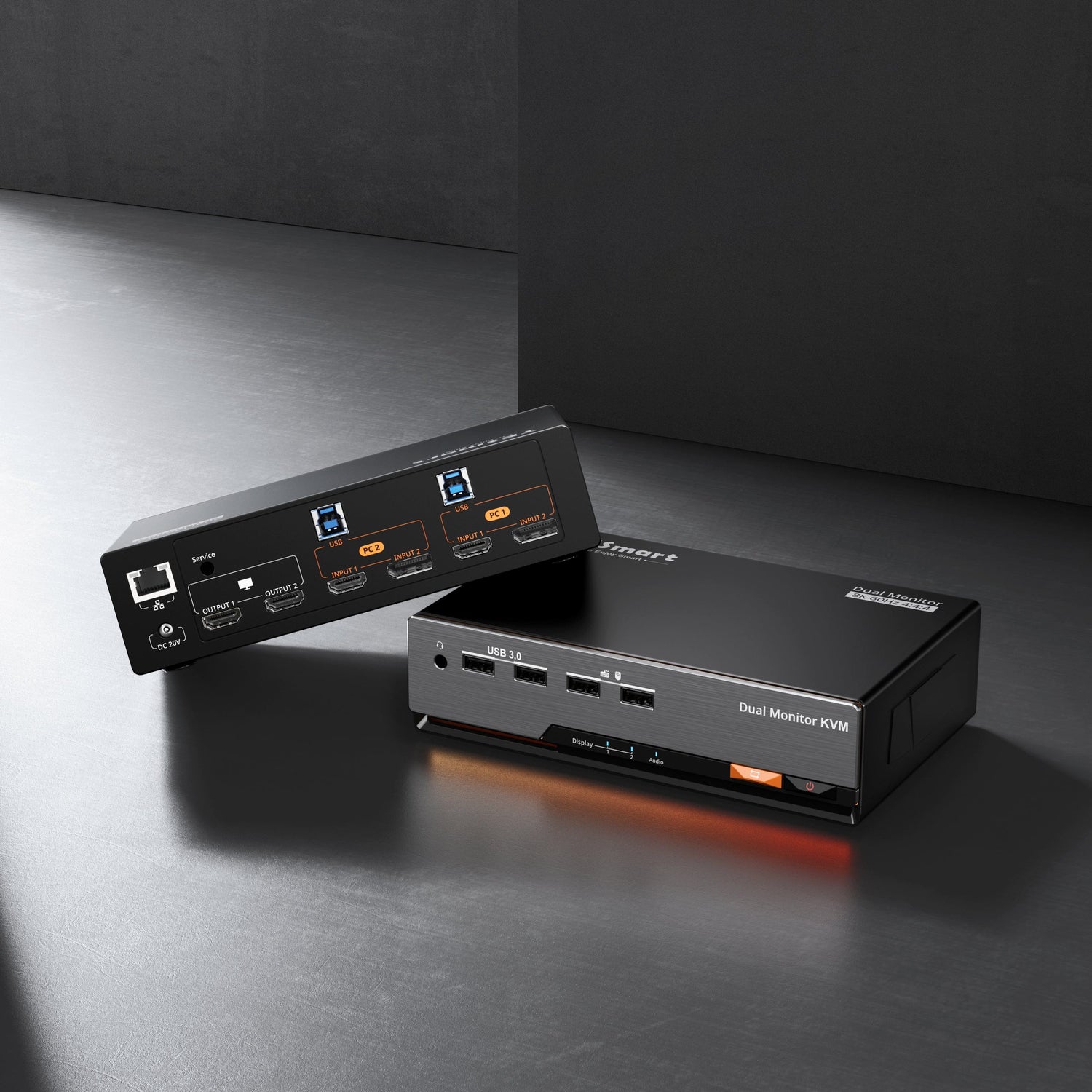
For two devices sharing a dual-monitor desk, the HDK202 series is a more relevant direction when both computers can provide the required HDMI outputs.
This type of setup fits customers who want to share displays, keyboard, mouse, and selected USB devices between a console and a computer without adding unnecessary conversion layers.
For High-Refresh PC Workstations
If the priority is high refresh rate, DisplayPort monitors, and multi-monitor PC workstations, we usually evaluate a DisplayPort-based structure such as the DKS series.
However, high refresh rate support is a full-chain requirement. The GPU, cable, monitor input, KVM switch, operating system setting, and video format must all support the target output.
If protected content is part of the workflow, HDCP support must also be checked. A chain may support 4K144 desktop output but still fail protected playback if the HDCP version or adapter layer does not match the source requirement.
For MacBook, Dock, and USB-C Workflows
MacBook setups need a separate look. Many MacBook models do not provide a native DisplayPort output port. If the KVM uses DisplayPort inputs, the Mac side may need a USB-C to DisplayPort cable or a dock.
That does not mean a MacBook cannot be used with a KVM switch. It means the adapter layer must be treated as part of the system design.
Docks, hubs, USB-C to HDMI adapters, and USB-C to DisplayPort adapters can all affect EDID and HDCP behavior.
If the desk includes a MacBook, a Windows laptop, HDMI displays, and shared USB peripherals, we often look at HDC or CKS series workflows rather than forcing a pure DisplayPort structure.
For Multi-Monitor Workstations
Dual-monitor, triple-monitor, and quad-monitor KVM setups make HDCP troubleshooting more complex because each monitor usually has its own video path. If one path has unstable EDID, HDCP, cabling, or adapter behavior, the overall experience can be affected.
For dual-monitor users, we choose the direction based on interface structure:
HDMI dual-monitor workflows: HDK202 series
DisplayPort dual-monitor workflows: DKS202 series
USB-C or mixed laptop workflows: HDC202 or CKS202 series
For triple-monitor users, we first confirm whether each computer can provide three usable video outputs. After that, we evaluate product directions such as DKS203, HDC203, or HDK203 based on the interface type and resolution target.
The goal is not to choose the highest-spec model by default. The goal is to match computer outputs, monitor inputs, target resolution, refresh rate, and content protection requirements in one stable chain.
HDCP-Sensitive Setup Checklist
| Setup Type | Main Risk | What We Check First | TESmart Direction |
|---|---|---|---|
| Console + PC + one monitor | Streaming app or media playback black screen | HDMI version, HDCP support, monitor input, short cable test | Single-monitor HDMI KVM |
| Console + PC + dual monitors | One screen works while protected content fails on another | Each video path, HDCP support, EDID behavior | HDK202 series |
| High-refresh DisplayPort PC setup | Refresh rate drop or protected content failure | GPU output, cable rating, monitor input, KVM bandwidth, HDCP support | DKS series |
| MacBook + Dock + KVM | Black screen after switching or unstable authentication | Direct connection, remove Dock, confirm USB-C video output | HDC / CKS series |
| Capture card workflow | Protected content cannot be captured | Whether the content source requires HDCP | KVM can switch devices, but cannot make protected content capturable |
Common HDCP Mistakes We See
Mistake 1: Assuming HDMI Means HDCP Works
HDMI is an interface. HDCP is a content protection mechanism. A device can have an HDMI port and still fail the HDCP version required by a specific protected source.
Mistake 2: Checking Only the KVM
HDCP is a chain issue, not a single-device issue. If the source fails even when connected directly to the display, the KVM switch is probably not the root cause.
Mistake 3: Ignoring Adapters
Many customers treat adapters as simple connector changers. In HDCP-sensitive workflows, adapters may affect authentication and signal conversion. USB-C docks, HDMI splitters, and DisplayPort-to-HDMI adapters should be tested separately.
Mistake 4: Treating Capture Failure as a KVM Issue
If the content is protected by HDCP, a capture card showing a black screen is often expected behavior. A KVM switch cannot and should not be used to bypass content protection.
Mistake 5: Ignoring EDID Stability
Unstable EDID can trigger display re-detection. Re-detection can trigger HDCP re-authentication. In KVM switching scenarios, these two problems often appear together.
Related Guides
If you are building or troubleshooting a multi-device display setup, these related topics are worth reading next:
What Is EDID and Why It Matters in KVM Switching
HDMI vs DisplayPort for KVM Switches
Why Your KVM Switch Shows a Black Screen After Switching
Why Your Monitor Drops from 144Hz to 60Hz Through a KVM
How to Choose a Dual Monitor KVM Switch for Two Computers
FAQ
Q1: What does an HDCP error mean?
An HDCP error usually means the source device cannot verify that the downstream display chain is authorized to receive protected content. The issue may involve the monitor, TV, KVM switch, cable, dock, adapter, capture card, or HDCP version support.
Q2: Can a KVM switch cause an HDCP error?
Yes, it can. When a KVM switch sits between the source and display, it becomes part of the HDCP chain. However, not every HDCP error is caused by the KVM. We usually start with a direct source-to-display test before adding the KVM and other devices back into the chain.
Q3: Why does my desktop work but Netflix or Apple TV shows a black screen?
Normal desktop output may not require HDCP. Netflix, Apple TV, Blu-ray, and other protected video services often require HDCP authentication. If that authentication fails, the protected video may show a black screen even though the desktop works.
Q4: Is HDCP only used with HDMI?
No. HDCP is commonly associated with HDMI, but DisplayPort can also support HDCP content protection. The official DisplayPort FAQ notes that DisplayPort 2.1b enables support for HDCP 2.2.
Q5: Can disabling HDCP on PS5 solve the problem?
Disabling HDCP may help with game capture workflows, but some streaming apps may stop working when HDCP is disabled. The result depends on whether the content being played requires HDCP protection.
Q6: Can a TESmart KVM bypass HDCP?
No. A KVM switch should not be used to bypass HDCP. HDCP exists to protect copyrighted content. Our goal is to help customers build stable and compliant multi-device display chains, not to remove content protection.
Q7: What is the difference between EDID and HDCP?
EDID tells the source what the display can support, such as resolution, refresh rate, audio format, and HDR capability. HDCP determines whether protected content is allowed to play across the link. They are different, but both can affect black screens and switching stability.
Q8: How should I choose a KVM if I care about HDCP?
Start with the full chain: source devices, number of monitors, HDMI or DisplayPort structure, target resolution and refresh rate, and whether streaming, console, Blu-ray, or capture card workflows are involved. Console setups usually benefit from reducing conversion layers. High-refresh PC setups require full-chain bandwidth verification. MacBook users should also verify USB-C, dock, and adapter behavior before choosing a KVM workflow.
SEO Title: What Is HDCP? How It Works and Why HDCP Errors Happen in KVM Setups
Meta Description: Learn what HDCP means, how HDCP authentication works, why HDCP errors cause black screens, and how TESmart approaches HDMI, DisplayPort, console, streaming, and KVM switch troubleshooting.
Suggested Keywords: what is HDCP, HDCP error, HDCP KVM switch, HDCP 2.2, HDCP 2.3, HDMI HDCP, DisplayPort HDCP, HDCP black screen, HDCP handshake, EDID and HDCP