Table of Contents
- Introduction
- Why MST and DisplayLink Are Often Confused in Multi-Monitor Setups
- What Is DisplayPort MST?
- What Is USB-C MST and DisplayPort Alt Mode?
- What Is DisplayLink and How Does a DisplayLink Dock Work?
- MST vs DisplayLink: Core Differences for Mac and Windows Users
- Why MacBook Multiple Monitors Are Different from Windows MST Setups
- When MST Is Better for a Windows Multi-Monitor Setup
- When DisplayLink Is Better for a MacBook Multi-Monitor Setup
- MST KVM vs DisplayLink KVM vs Traditional Multi-Monitor KVM
- How to Choose the Right Multi-Monitor KVM Switch for Mac and Windows
- How TESmart Supports Cleaner Mac and Windows Desk Setups
- FAQ About MST, DisplayLink, and Multi-Monitor KVM Switches
Introduction
Many users search for MST vs DisplayLink because they want one simple result: connect a laptop or desktop to two or more external monitors without dealing with black screens, mirrored displays, missing refresh rates, or unstable switching.
The difficult part is that MST and DisplayLink solve different problems. MST uses the computer’s native GPU video pipeline and splits a DisplayPort signal into multiple display streams. DisplayLink creates display output through USB data conversion and depends on software support. A Windows MST setup, a MacBook DisplayLink dock, and a multi-monitor KVM switch may all support multiple displays, but they do not work the same way.

This guide explains the difference between DisplayLink vs MST, why MacBook multiple monitors behave differently from Windows dual-monitor setups, and how to decide whether you need an MST KVM, a DisplayLink KVM, a KVM docking station, or a traditional dual monitor KVM switch.
Why MST and DisplayLink Are Often Confused in Multi-Monitor Setups
MST and DisplayLink are often grouped together because both can help create a multi-monitor setup from a laptop. The user-facing result looks similar: one computer drives two or three external screens. The technical path is very different.
DisplayPort MST works inside the DisplayPort video standard. It requires a source device that supports MST, a compatible port or hub, and an operating system that can handle independent display streams through that connection.
DisplayLink works through USB. Instead of sending native GPU video directly over DisplayPort or HDMI, DisplayLink compresses display data, transfers it over USB, and restores it through a DisplayLink chip inside a dock, adapter, or KVM docking station.
This difference matters when users mix MacBook, Windows laptops, desktops, docking stations, and KVM switches. A setup that works well for a Windows laptop through USB-C MST may not give the same result on a MacBook. A DisplayLink dock that helps a MacBook run additional monitors may not be the best path for high-refresh gaming or color-critical GPU workloads.

What Is DisplayPort MST?
DisplayPort MST, or Multi-Stream Transport, allows one DisplayPort link to carry multiple independent video streams. Those streams can be sent to different monitors through an MST hub, a daisy-chain monitor setup, or a device that supports MST routing.
In a typical MST multi-monitor setup, a Windows laptop or desktop sends one DisplayPort signal that contains multiple display streams. The MST hub or monitor chain separates those streams so the operating system can see two or more external displays.
MST is useful because it keeps the display path close to the native GPU output. That usually makes it more suitable for Windows productivity desks, engineering workstations, and dual monitor setups where users care about direct GPU rendering, lower latency, and predictable display behavior.
The main limitation is compatibility. The computer, port, cable, dock or hub, operating system, and monitor chain all need to support the required DisplayPort MST behavior. If one part of the chain does not support it, the second monitor may be mirrored, missing, or limited to a lower resolution.

What Is USB-C MST and DisplayPort Alt Mode?
USB-C MST is not a separate display standard. It usually means the USB-C port is carrying DisplayPort video through USB-C DisplayPort Alt Mode, and that DisplayPort signal is then being split with MST.
This is why two USB-C ports that look identical can behave differently. One USB-C port may support charging and USB data only. Another may support DisplayPort Alt Mode. A higher-end USB-C or Thunderbolt-enabled port may support stronger display bandwidth, but the exact monitor result still depends on the laptop, GPU, operating system, dock, and display chain.
For Windows laptops, USB-C MST can be a practical way to build a dual monitor setup with a hub or dock. For MacBook users, it is more complicated because macOS does not treat MST in the same way Windows does for independent extended external displays in many common setups.
This is one reason a Mac and Windows desk setup should not be planned by connector shape alone. Before choosing a dock, adapter, or KVM switch for Mac and PC, users need to check what the USB-C port actually supports.
What Is DisplayLink and How Does a DisplayLink Dock Work?
DisplayLink is a USB-based display technology. A DisplayLink dock or adapter uses a DisplayLink chip and driver software to create one or more external display outputs through USB data.
For users asking how to connect multiple monitors to MacBook, DisplayLink is often considered because it can work around some native external display limitations. A MacBook DisplayLink dock can help certain MacBook setups drive additional extended displays when a direct MST path is not available or not supported in the expected way.
The tradeoff is that DisplayLink is not the same as native GPU video output. It depends on software, USB bandwidth, system resources, and driver support. For office work, coding, dashboards, documents, and general productivity, this can be a practical solution. For high-refresh gaming, low-latency interaction, HDR-sensitive workflows, or GPU-intensive visual work, native HDMI, DisplayPort, USB-C video, or a traditional KVM path may be more appropriate.
This is why the question is not simply whether DisplayLink works. The better question is whether a DisplayLink multi-monitor setup matches the type of work being done.
MST vs DisplayLink: Core Differences for Mac and Windows Users
The clearest way to compare MST vs DisplayLink is to look at how each technology sends video, what it requires, and where it fits best.
| Comparison Point | MST | DisplayLink |
|---|---|---|
| Video path | Native DisplayPort video streams from the GPU | USB data converted into display output by a DisplayLink chip |
| Common use case | Windows MST setup, DisplayPort MST hub, USB-C MST dock | MacBook multiple monitors, USB docking stations, hybrid KVM docking station setups |
| Driver dependency | Usually handled through native GPU and OS display support | Requires DisplayLink software support |
| MacBook behavior | Often limited for independent extended displays through MST | Often used to add external monitors through compatible docks |
| Windows behavior | Usually a strong fit when the laptop and dock support MST | Useful when native display outputs are limited, but less ideal for high-refresh workloads |
| Best fit | Native GPU display quality, Windows productivity, DP-based workstations | MacBook dual or triple monitor setups, office productivity, dock-based workflows |
For Windows users, MST is often the cleaner path when the hardware supports it. For MacBook users, DisplayLink is often considered when the goal is more than one external display and native output paths are limited.
Why MacBook Multiple Monitors Are Different from Windows MST Setups
A common long-tail question is: does MacBook support MST? The practical answer is that MacBook users should not assume a Windows-style MST setup will provide multiple independent extended monitors.
Many MacBook setups rely on USB-C or Thunderbolt-enabled ports rather than native DisplayPort outputs. Some Mac models include HDMI, but most do not provide a direct full-size DisplayPort connector. When a KVM input is DisplayPort-only, a MacBook usually needs a USB-C to DisplayPort cable, a dock, or another adapter layer before it can connect to that KVM.
That adapter layer matters. Every added dock or hub introduces another point of negotiation: video mode, bandwidth, HDCP, EDID, USB devices, power delivery, and sometimes driver behavior. This is why a MacBook may work when connected directly to a monitor but become unstable when routed through a dock and then a KVM.
For MacBook multiple monitors, the first step is not choosing MST or DisplayLink. The first step is checking the Mac model, the number of external displays it supports natively, the ports available, and whether the monitors need to be driven through HDMI, DisplayPort, USB-C video, or DisplayLink.
When MST Is Better for a Windows Multi-Monitor Setup
MST is usually the better path when the computer is a Windows laptop or desktop with reliable DisplayPort output, and the goal is to drive multiple monitors through native GPU display streams.
A Windows MST setup makes sense when:
The laptop supports USB-C DisplayPort Alt Mode with MST.
The desktop GPU has DisplayPort outputs that support the target resolution and refresh rate.
The monitors or MST hub support the needed display configuration.
The workload benefits from native GPU output, such as engineering tools, trading dashboards, development work, or high-resolution productivity.
MST is also a better fit when users want to avoid DisplayLink driver dependency. In an IT environment, fewer software layers can make deployment and troubleshooting easier.
However, MST is not magic. If the second monitor is not detected, the issue may be bandwidth, a USB-C port without DisplayPort Alt Mode, an MST hub limitation, a cable problem, or an operating system behavior difference. A dual monitor setup with DisplayPort MST should always be planned around the full signal chain, not just the dock label.
When DisplayLink Is Better for a MacBook Multi-Monitor Setup
DisplayLink is often the better path when the user has a MacBook and needs more external displays than the native display path easily supports.
A MacBook DisplayLink dock for dual monitors can be useful for office work, software development, document editing, dashboards, email, chat, and browser-based workflows. It can also help mixed Mac and Windows users keep one desk structure while switching between devices.
DisplayLink is less suitable when the priority is high refresh rate, very low latency, gaming, HDR-sensitive playback, or workloads where the display must behave exactly like a native GPU output. Users comparing DisplayLink vs native GPU should treat DisplayLink as a practical USB display path, not a full replacement for direct HDMI, DisplayPort, or USB-C video in every scenario.
For MacBook users, the key advantage is flexibility. A DisplayLink dock for MacBook can make a multi-monitor desk possible without depending on Windows-style MST behavior. The key limitation is that the setup depends on software and USB bandwidth.
MST KVM vs DisplayLink KVM vs Traditional Multi-Monitor KVM
Once multiple computers are involved, the question changes. Users are no longer only asking how one computer drives multiple monitors. They are asking how two computers share monitors, keyboard, mouse, USB devices, and sometimes audio.
This is where the difference between a dock and a KVM becomes important. A dock expands one computer. A KVM switches control and display access between multiple computers. A KVM docking station combines parts of both ideas, but users still need to understand how video is being created and switched.
| Setup Type | Best For | What to Check |
|---|---|---|
| MST KVM | Windows laptops or desktops using DisplayPort MST or USB-C MST | MST support, GPU output capability, monitor resolution, refresh rate, cable quality |
| DisplayLink KVM | MacBook users who need dual or triple external displays through a dock-based workflow | DisplayLink driver support, USB bandwidth, PD requirement, monitor count, workload type |
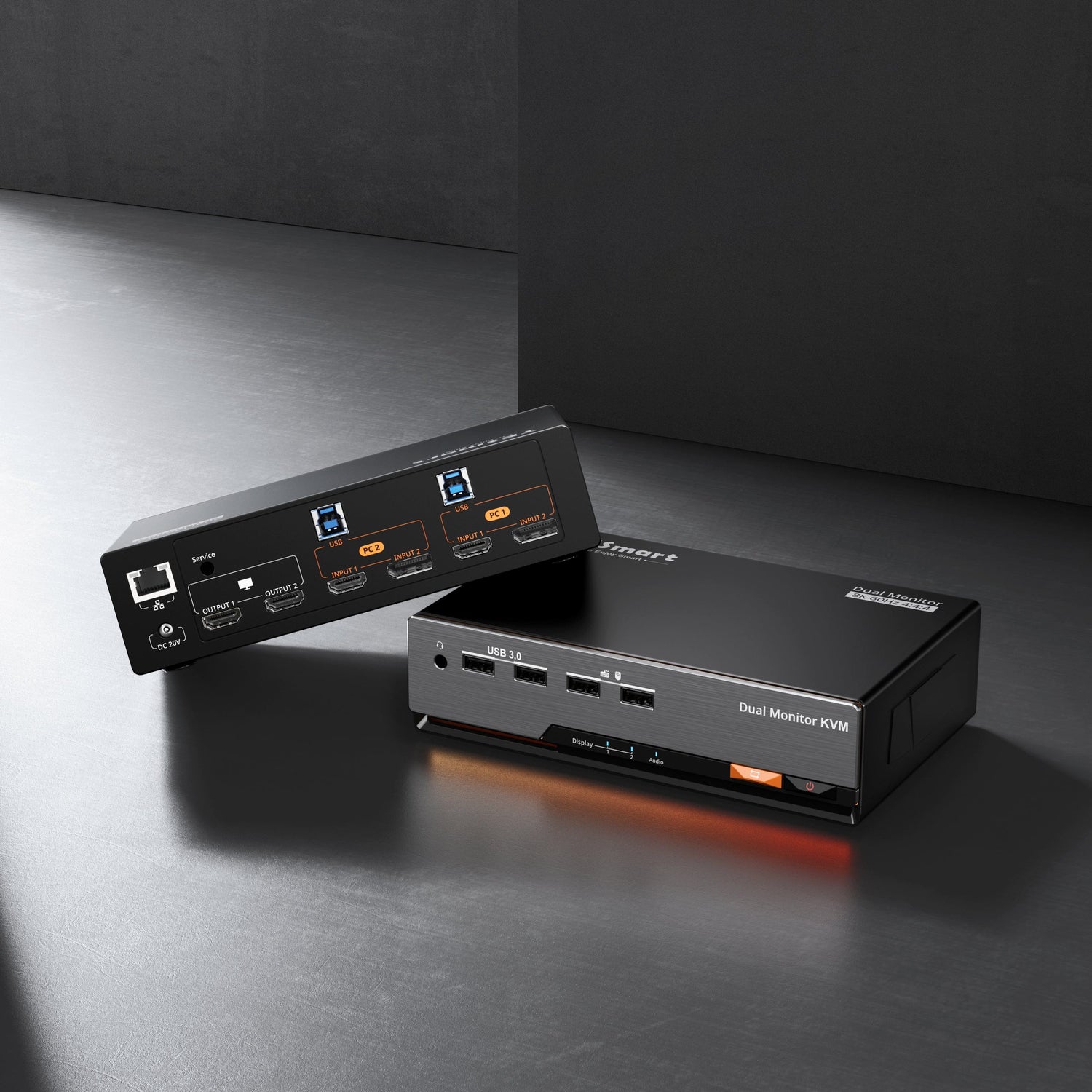
| Traditional multi-monitor KVM switch | Desktops or laptops that can provide one video output per monitor | Number of computers, number of monitors, HDMI/DP/USB-C inputs, EDID behavior, USB sharing |
A traditional multi-monitor KVM switch often expects each computer to send a separate video signal for each monitor. For example, a dual monitor KVM switch usually needs two video outputs from each computer. This is not a flaw. It is how the KVM preserves each monitor as an independent display path.
How to Choose the Right Multi-Monitor KVM Switch for Mac and Windows
Before choosing a KVM switch for Mac and PC, start with the desk structure rather than the product category.
1. Check how many computers need to switch
A two-computer desk has different requirements from a four-computer lab or workstation. A user switching between a MacBook and a Windows PC may only need a 2-input KVM. A testing bench, IT desk, or trading setup may need more inputs.
2. Check how many monitors must be shared
A dual monitor KVM switch is suitable when both computers need to use the same two monitors. Triple-monitor and quad-monitor workstations require more careful planning because each additional monitor adds another video path to manage.
3. Check whether each computer can output enough video signals
This is one of the most common mistakes in multi-monitor KVM planning. A dual monitor KVM does not automatically create a second display signal from a computer that only outputs one. If the computer cannot provide enough native video outputs, users may need MST, DisplayLink, a dock, or a different KVM docking station structure.
4. Check the MacBook connection path
For MacBook users, confirm whether the KVM supports USB-C video input, HDMI input, or DisplayPort input. If the KVM is DisplayPort-based, the MacBook side may need a USB-C to DisplayPort cable or dock. This should be planned before buying, not discovered after installation.
5. Check resolution, refresh rate, and EDID behavior
High refresh rate and high-resolution displays place more demand on the full chain. Cable length, adapter quality, GPU output, KVM bandwidth, monitor input, and EDID handling all affect whether the setup can maintain stable video. EDID support is especially important when users want to reduce window rearrangement, display re-detection, and black-screen delay during switching.
How TESmart Supports Cleaner Mac and Windows Desk Setups
TESmart multi-monitor solutions are most useful when users already understand the structure of their desk: how many computers, how many monitors, which video interfaces, and whether the setup depends on native GPU output, DisplayLink, or a dock-based workflow.
For a Windows DisplayPort workstation, a DisplayPort-based KVM can make more sense than a USB display solution because it keeps the display path closer to the GPU. For a MacBook user who needs multiple external displays through a dock-style workflow, a DisplayLink KVM docking station may be more appropriate. For mixed Mac and Windows desks, the right choice depends on which device has the stricter display limitation.

DKS202-M24 for 2 PCs and 2 DisplayPort monitors, high-resolution or high-refresh DP workflows, with EDID support.
SHOP NOW
HDK202-M24 for 2 PCs and 2 monitors, HDMI 2.1 + DP 1.4, dual 4K@144Hz, VRR and HDR workflows.
SHOP NOW
HDC203-PM24 for MacBook and desktop users who need triple 4K@60Hz displays, DisplayLink workflow, and 100W PD.
SHOP NOWFor users comparing MST vs DisplayLink for Mac and Windows, the practical recommendation is straightforward: choose the technology that matches the weakest part of the desk. If the Windows PC has strong native DisplayPort output, a DisplayPort KVM path is usually cleaner. If the MacBook needs extra external displays beyond its native behavior, a DisplayLink KVM docking station may be the more realistic option.
FAQ About MST, DisplayLink, and Multi-Monitor KVM Switches
Does MacBook support MST for multiple external monitors?
MacBook users should not assume a Windows-style MST setup will create multiple independent extended displays. Many MacBook workflows require native USB-C video, HDMI, a compatible dock, or DisplayLink depending on the Mac model and the number of external monitors needed.
Is DisplayLink the same as native GPU video output?
No. DisplayLink sends display data through USB and depends on DisplayLink software and a compatible chip inside the dock or adapter. Native GPU output through HDMI, DisplayPort, or USB-C video is usually better for high-refresh, low-latency, and graphics-heavy workflows.
Is MST better than DisplayLink for Windows dual monitors?
For many Windows dual monitor setups, MST is the better choice when the laptop, GPU, USB-C DisplayPort Alt Mode, dock, and monitors all support the required configuration. It uses the native GPU display pipeline and avoids DisplayLink driver dependency.
Should I choose a DisplayLink KVM or a traditional multi-monitor KVM?
Choose a DisplayLink KVM docking station when the computer, especially a MacBook, needs a USB-based display path to drive additional monitors. Choose a traditional multi-monitor KVM when each computer can already provide the required number of native HDMI or DisplayPort outputs.
Why does my second monitor not work through an MST hub or KVM?
The most common reasons are lack of MST support, insufficient DisplayPort bandwidth, a USB-C port without DisplayPort Alt Mode, a limited dock or hub, cable issues, or operating system behavior. In a KVM setup, also check whether each computer is providing enough video outputs for the number of monitors.
What is the best KVM setup for a MacBook and Windows PC?
The right KVM setup depends on which computer has the stricter display limitation. For a Windows PC with strong DisplayPort output, a DisplayPort multi-monitor KVM may be the cleaner path. For a MacBook that needs additional external displays, a DisplayLink KVM dock may be more suitable. For mixed Mac and Windows desks, check monitor count, video inputs, USB-C capabilities, dock requirements, and refresh rate targets before choosing.
Why is my second monitor mirrored instead of extended?
This often happens when the system is not receiving two independent display streams. In MST setups, the cause may be operating system behavior, hub limitations, or incorrect display settings. In MacBook setups, it may also happen when the display path does not support independent extended monitors in the expected way.
Is a KVM docking station different from a normal dock?
Yes. A normal dock expands one computer. A KVM docking station is designed to help multiple computers share displays and USB peripherals while also providing dock-style connectivity. The exact behavior depends on whether the device uses native video, MST, DisplayLink, or a hybrid structure.
Conclusion
MST vs DisplayLink is not a question of which technology is universally better. It is a question of which technology fits the computer, operating system, monitor count, and workflow.
For Windows users with compatible DisplayPort or USB-C DisplayPort Alt Mode hardware, MST is often the cleaner multi-monitor path. For MacBook users who need additional external displays beyond what the native display path easily provides, DisplayLink can be a practical solution. For users who also need to switch between multiple computers, the decision should include KVM structure, video inputs, USB sharing, EDID behavior, and whether the setup depends on native GPU output or a dock-based display path.
Start with the desk requirement first: Mac or Windows, number of computers, number of monitors, target resolution and refresh rate, and whether each computer can output enough video signals. Once that is clear, choosing between an MST KVM, a DisplayLink KVM, or a traditional multi-monitor KVM becomes much easier.