

Table of Contents
- Introduction
- Why Long-Distance Workstations Are Becoming More Common
- Why Standard Cables Are Not Enough for 50–100m Workstation Setups
- KVM Extender vs. Standard KVM Switch: What Is the Difference?
- How DisplayLink Helps Dual-Monitor Remote Workstations
- Why HDBaseT and Cat6A Matter in Professional AV Extension
- Comparing Long-Distance Workstation Options
- Where TESmart HKE10SS-PD25 Fits
- What to Check Before Building a 100M KVM Extender Setup
- FAQ
- Conclusion
Introduction
Running a computer 50 to 100 meters away from the desk sounds simple until the setup includes two 4K monitors, a keyboard, mouse, USB storage, audio devices, and a stable control path back to the host system.
At short distances, users can often solve connection problems with better HDMI cables, USB extenders, or a docking station. At longer distances, those fixes start to break down. Video bandwidth, USB signal integrity, display detection, cable quality, and installation environment all become part of the same problem.
This is why a long-distance workstation is not just a cable-length issue. It requires a KVM extension architecture that can carry display, control, and peripheral signals in a predictable way.
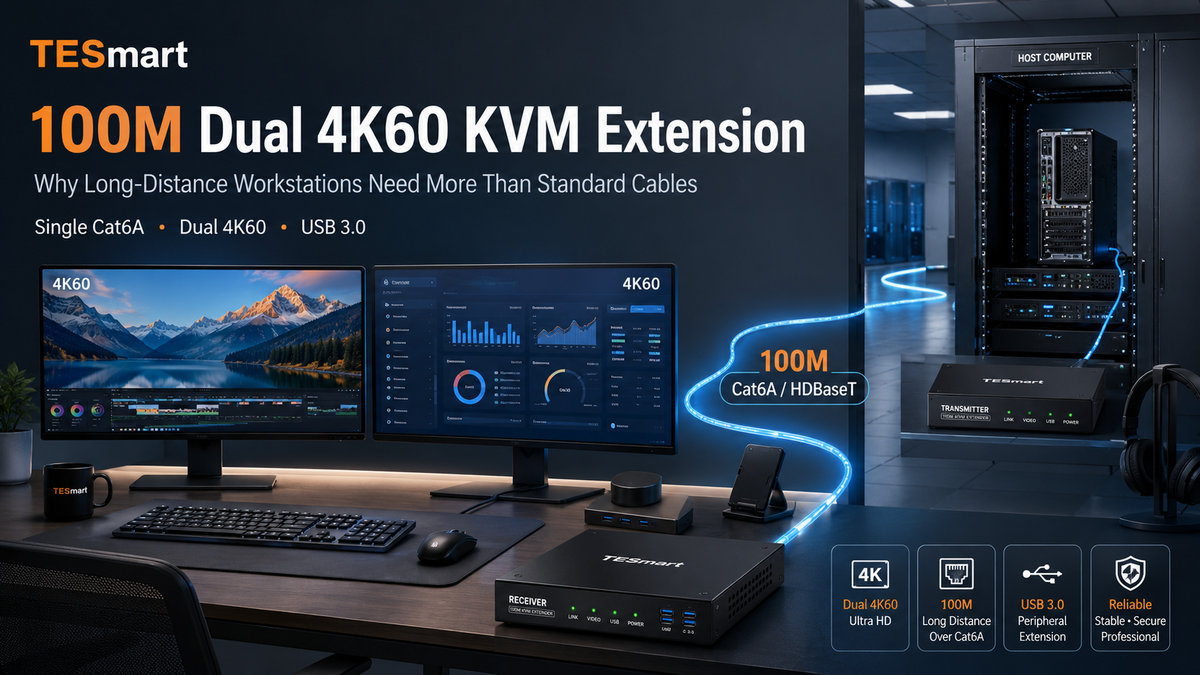
For users who need a 100M KVM extender for a dual monitor remote workstation, TESmart designed the HKE10SS-PD25 as a 100M Dual 4K60 KVM Extender over Single Cat6A. It is built for users who need to separate the computer from the working desk without giving up dual-monitor productivity.
Why Long-Distance Workstations Are Becoming More Common
Many users no longer want the computer tower sitting directly under the desk. The reason is not only aesthetics. In many environments, moving the host system away from the user improves noise control, heat management, security, and maintenance.
Quieter Desks for Creators and Office Users
High-performance PCs, render workstations, and editing systems often include large GPUs, multiple fans, and high-wattage power supplies. Moving the computer into a machine room, equipment closet, or rack area can reduce fan noise near the user while keeping the workstation accessible from the desk.
Cleaner Control Rooms and Operation Consoles
Control rooms, security centers, broadcast spaces, and monitoring stations often need multiple displays at the operator desk while the computers remain in a secured equipment area. This layout keeps heat and cable clutter away from the operator zone and makes hardware easier to service.
IT and Server Room Management
IT teams may need local-style keyboard, mouse, and monitor access to systems placed in server racks or equipment cabinets. A KVM extender over Cat6A allows the user console to stay at a comfortable location while the host remains in the rack.
Remote High-Performance PC Placement
Some users want the experience of a local workstation without placing the full PC at the desk. This is different from remote desktop software. A hardware KVM extender keeps the user working through direct display and USB connections rather than relying only on network streaming software.
Why Standard Cables Are Not Enough for 50–100m Workstation Setups
A short HDMI cable and a short USB cable are designed for a different problem. They connect nearby devices. They are not designed to carry a complete dual-monitor workstation across a building, through walls, or between a machine room and a user console.
Long HDMI Cables Have Practical Limits
HDMI can work reliably over short cable runs, but 4K60 transmission places higher demands on cable quality and signal integrity. Over long distances, users may see black screens, flickering, resolution drops, or unstable monitor detection.
Active HDMI cables or optical HDMI cables can extend video farther than passive copper cables, but they solve only part of the workstation problem. They do not automatically carry keyboard, mouse, USB 3.0 peripherals, audio routing, or remote control in one managed architecture.
USB Extension Becomes Harder as Distance Increases
USB is sensitive to distance, bandwidth, device type, and power conditions. A keyboard and mouse may work across a basic USB extender, but storage devices, webcams, capture devices, audio interfaces, and other USB 3.0 peripherals can be less forgiving.
For a USB 3.0 KVM extender, the issue is not only whether a USB signal reaches the far end. The extender must maintain a stable path for everyday peripheral use while the workstation is operating at the remote desk.
A USB-C Dock Is Not a Long-Distance Extension System
A USB-C hub or dock expands one nearby computer. It is useful when a laptop sits at the desk and needs more ports. It is not designed to place the computer 100 meters away.
Even when a dock supports dual monitors, it usually expects the host computer to be close. Extending the dock-to-host link over long distances introduces another layer of signal and compatibility risk. For 100m deployments, the better question is not “which dock has enough ports?” but “how will video, USB, and control signals be transported across the full distance?”
A Standard KVM Switch Usually Does Not Solve Distance
A standard KVM switch lets multiple computers share one or more monitors, a keyboard, and a mouse. It is mainly a switching device. Most standard desktop KVM switches are intended to sit near the computers and displays.
If the goal is to separate the computer from the desk by tens of meters, a basic KVM switch still depends on long HDMI, DisplayPort, and USB cable runs. That brings the original distance problem back into the setup.
KVM Extender vs. Standard KVM Switch: What Is the Difference?
The difference is simple but important: a KVM switch changes which computer you control, while a KVM extender moves the user console away from the computer.
A standard KVM switch is useful when computers and monitors are in the same workspace. For example, two PCs under the same desk can share one dual-monitor console through a desktop KVM switch.
A KVM extender is used when the keyboard, video, and mouse need to operate at a distance from the host system. The transmitter is placed near the computer. The receiver is placed at the remote desk. The two sides communicate through a structured cable link, such as Cat6A.
In a KVM extender over Cat6A setup, the goal is not only to display an image at the far end. The goal is to recreate the working console: monitors, keyboard, mouse, USB peripherals, and other workstation signals where the user actually sits.
Why This Matters in Real Deployments
If a user only needs to show a presentation screen across a room, a simple video extender may be enough. If the user needs to edit files, control software, use USB devices, and work across two 4K displays, the requirement is different.
A dual 4K60 KVM extender is designed around the full workstation experience. This is why it belongs in discussions about control rooms, equipment rooms, secure offices, production desks, and remote workstation setups.
How DisplayLink Helps Dual-Monitor Remote Workstations
Dual-monitor extension is harder than single-monitor extension because the host system must provide two usable display outputs at the remote console. In some workstation designs, DisplayLink helps create or manage additional display output through a USB-based graphics path.
A DisplayLink KVM extender can be useful when the system architecture needs dual-display support without relying only on the computer’s native video outputs. DisplayLink works through software and drivers, so the host operating system, driver installation, and intended workload all matter.
This distinction is important. DisplayLink is not the same as a direct GPU output. It is a practical technology for many productivity, control, office, and workstation-management environments, but users should still check driver support and workload expectations before choosing it for specialized graphics tasks.
Where DisplayLink Makes Sense
DisplayLink is most relevant when the priority is extending desktop workspace, managing applications across two displays, and keeping a clean remote console. It can be a strong fit for IT administration, control dashboards, office workstations, monitoring tools, and many creator support workflows.
What Users Should Check
Before deploying a DisplayLink-based extender, users should verify operating system support, driver availability, display resolution requirements, and whether their applications have special GPU, color, HDR, or refresh-rate needs. This avoids treating DisplayLink as a universal substitute for every native video workflow.
Why HDBaseT and Cat6A Matter in Professional AV Extension
Long-distance AV installations often use structured network-style cabling because it is easier to route through walls, ceilings, racks, and control-room infrastructure. Cat6A is widely used in professional environments because it supports longer, cleaner, and more manageable cable runs than multiple thick video and USB cables.
An HDBaseT KVM extender approach is valuable because HDBaseT-style transmission is designed for professional AV extension over twisted-pair cabling. Instead of trying to push consumer display cables beyond their comfortable range, the system uses a transmitter, receiver, and cable infrastructure designed for distance.
For a 100m deployment, cable choice still matters. Users should not assume that every Cat5e, Cat6, or Cat6A cable will perform the same way. Cable category, shielding, connector quality, installation bends, interference, patch panels, and total run length can all affect stability.
Why a Single Cat6A Link Helps
Using one Cat6A cable between the transmitter and receiver simplifies installation. It reduces the number of long cable runs, keeps the pathway easier to document, and makes future maintenance more manageable.
This is especially useful in machine rooms, AV racks, control desks, and office renovations where running several long HDMI and USB cables would be bulky, fragile, or difficult to troubleshoot.
Comparing Long-Distance Workstation Options
| Option | What It Is Best For | Main Limitation at 50–100m | Fit for Dual 4K60 Remote Workstation |
|---|---|---|---|
| Long HDMI + USB extension cables | Simple short-to-medium distance extensions with limited peripherals | Video and USB are handled separately; signal stability depends heavily on cable type, length, and environment | Usually difficult to manage for a complete dual-monitor workstation |
| USB-C hub/dock | Expanding ports for a nearby laptop or desktop | Designed for local expansion, not 100m host-to-desk transmission | Not the right architecture for long-distance workstation separation |
| Standard KVM switch | Switching control between nearby computers | Does not solve the distance problem unless paired with a separate extension system | Useful for local switching, but not enough by itself for 100m deployment |
| KVM extender / TESmart HKE10SS-PD25 | Separating the computer from the user console while keeping dual displays and USB control at the desk | Requires proper Cat6A cabling, compatible host setup, and correct deployment planning | Designed for 100M dual 4K60 KVM extension over a single Cat6A link |
Where TESmart HKE10SS-PD25 Fits
TESmart designed HKE10SS-PD25 for users who need a long-distance workstation layout rather than a short desktop cable setup. It is positioned as a 100M Dual 4K60 KVM Extender over Single Cat6A, supporting dual 4K60 display extension, USB 3.0 up to 5Gbps, and up to 100m transmission over Cat6A in suitable deployment conditions.
This makes it a practical fit for users who want the computer located in a machine room, equipment cabinet, server area, or other remote location while keeping a dual-monitor console at the working desk.
Remote Dual-Monitor Workstations
For developers, analysts, operators, and office power users, dual monitors are not optional. They allow users to keep documentation, dashboards, terminals, editing tools, communication apps, or monitoring windows visible at the same time.
A dual 4K60 KVM extender helps preserve that two-screen workflow when the host PC is no longer placed near the monitors.
Machine Room and Equipment Rack Isolation
In IT and AV environments, moving systems into a rack or machine room can simplify service access and reduce desk clutter. HKE10SS-PD25 fits this kind of layout because the transmitter can stay near the host system while the receiver supports the remote console position.
Creator and Production Desks
Creators working with large desktop PCs may want less noise and heat near the editing desk. A 100M KVM extender allows the workstation to remain physically separate while the user continues working from a local keyboard, mouse, and dual-monitor setup.
This does not mean every creative workflow has the same requirements. Users working with specialized color pipelines, HDR monitoring, capture hardware, or high-refresh editing displays should confirm the full signal chain before deployment.
Control Room and Monitoring Environments
Control rooms often need reliability, clean cabling, and easy maintenance more than frequent hardware access at the operator desk. A KVM extender over Cat6A helps keep the user console simple while allowing computers to remain in a controlled equipment area.
What to Check Before Building a 100M KVM Extender Setup
A stable remote workstation depends on the full chain, not just the extender. Before installation, users should confirm the computer output, monitor requirements, USB device types, cable route, and operating system environment.
1. Confirm Resolution and Refresh Rate Requirements
Start with the display target. If the workstation requires dual 4K60, every relevant part of the system must support that target, including the host, extender, display configuration, and cables.
2. Use the Right Cat6A Cable for the Installation
For 100m-class deployments, cable quality is not a small detail. Use proper Cat6A cable, avoid poor connectors, and consider the real installation path. Long runs through ceilings, cable trays, electrical areas, and patch panels should be planned carefully.
3. Check USB Device Requirements
Keyboard and mouse devices are usually easier to support than high-bandwidth peripherals. If the setup includes USB storage, webcams, audio interfaces, or capture devices, users should confirm bandwidth and compatibility expectations before final deployment.
4. Verify Host and Driver Conditions
If the setup uses DisplayLink, driver support matters. Confirm the operating system version, driver installation path, and any enterprise restrictions that may block driver installation.
5. Plan for Maintenance
A remote workstation is easier to manage when cables are labeled, transmitter and receiver locations are documented, and access to power is planned. This matters in control rooms, machine rooms, and enterprise deployments where troubleshooting time can become expensive.
FAQ
What is a 100M KVM extender?
A 100M KVM extender allows the user console—monitors, keyboard, mouse, and supported USB peripherals—to operate up to 100 meters away from the host computer, typically through structured cabling such as Cat6A.
Is a KVM extender the same as a KVM switch?
No. A KVM switch is mainly used to switch control between computers near the same desk. A KVM extender is used to place the computer away from the user console. Some products may combine switching and extension concepts, but the core purpose is different.
Can a KVM extender support dual 4K60 monitors?
Some KVM extenders are designed for dual 4K60 output. Users should check the exact model, host requirements, cable type, operating system support, and display configuration. TESmart HKE10SS-PD25 is positioned for dual 4K60 KVM extension over a single Cat6A link.
Do all Cat6A cables work the same for a 100M KVM extender?
No. Cable category is only one factor. Cable quality, shielding, connector termination, bends, patch panels, interference, and total run length can affect stability. For 100m-class deployments, using high-quality Cat6A cabling and careful installation is important.
Why does DisplayLink matter in a dual-monitor KVM extender?
DisplayLink can help provide or manage additional display output through a USB-based graphics path. It is useful in many productivity and workstation scenarios, but it depends on driver support and should be evaluated against the user’s operating system and workload.
What does HDBaseT add to a KVM extender setup?
HDBaseT-style transmission is designed for long-distance AV signal transport over twisted-pair cabling. In a KVM extender, this helps move workstation signals across structured cable infrastructure instead of relying on multiple long consumer HDMI and USB cables.
Can I use a USB-C dock instead of a KVM extender?
A USB-C dock is useful for expanding ports near a laptop. It is not a 100m workstation extension architecture. If the computer needs to stay far away from the desk, a KVM extender is usually the more appropriate category to evaluate.
Is HKE10SS-PD25 intended for competitive gaming?
HKE10SS-PD25 is better understood as a long-distance dual 4K60 workstation extender. Users with competitive gaming, VRR, HDR, or specialized high-refresh requirements should verify the full signal chain before choosing any extender.
Conclusion
A long-distance workstation is not solved by buying the longest HDMI cable and adding a USB extender. Once the distance reaches 50 to 100 meters, the setup becomes a system-level problem involving video bandwidth, USB behavior, cabling quality, display detection, and maintenance.
For users building a remote workstation setup with two 4K displays, shared USB peripherals, and a cleaner separation between the computer and the desk, a dedicated 100M KVM extender is the right category to evaluate.
TESmart HKE10SS-PD25 is designed for this type of deployment: a dual 4K60 KVM extender over a single Cat6A link for users who need a practical remote console without placing the host computer at the workstation desk.
CTA: To build a long-distance dual-monitor workstation with cleaner cabling and centralized host placement, explore the TESmart HKE10SS-PD25 100M Dual 4K60 KVM Extender over Single Cat6A.
Share:
DisplayLink Technology Explained: How Mac Users Can Break Multi-Monitor Limits
World Cup-Scale AV Control Rooms: Why Long-Distance Workstations Need Fiber KVM Extension