![]() Why Choose a DisplayPort KVM Switch for Desktop Workstations?
Why Choose a DisplayPort KVM Switch for Desktop Workstations?
Modern desktop workstations often involve multiple high-performance computers—such as a primary work PC, a personal system, or additional machines for development, rendering, or testing. The challenge is no longer raw computing power, but how to efficiently share high-end peripherals, especially multi-monitor displays, between these systems.
High-performance monitors typically require DisplayPort connections to achieve their maximum resolution and refresh rate. At the same time, most modern discrete graphics cards follow a 3×DisplayPort + 1×HDMI output configuration, making DisplayPort-based KVM switches a natural choice for performance-oriented desktop environments.

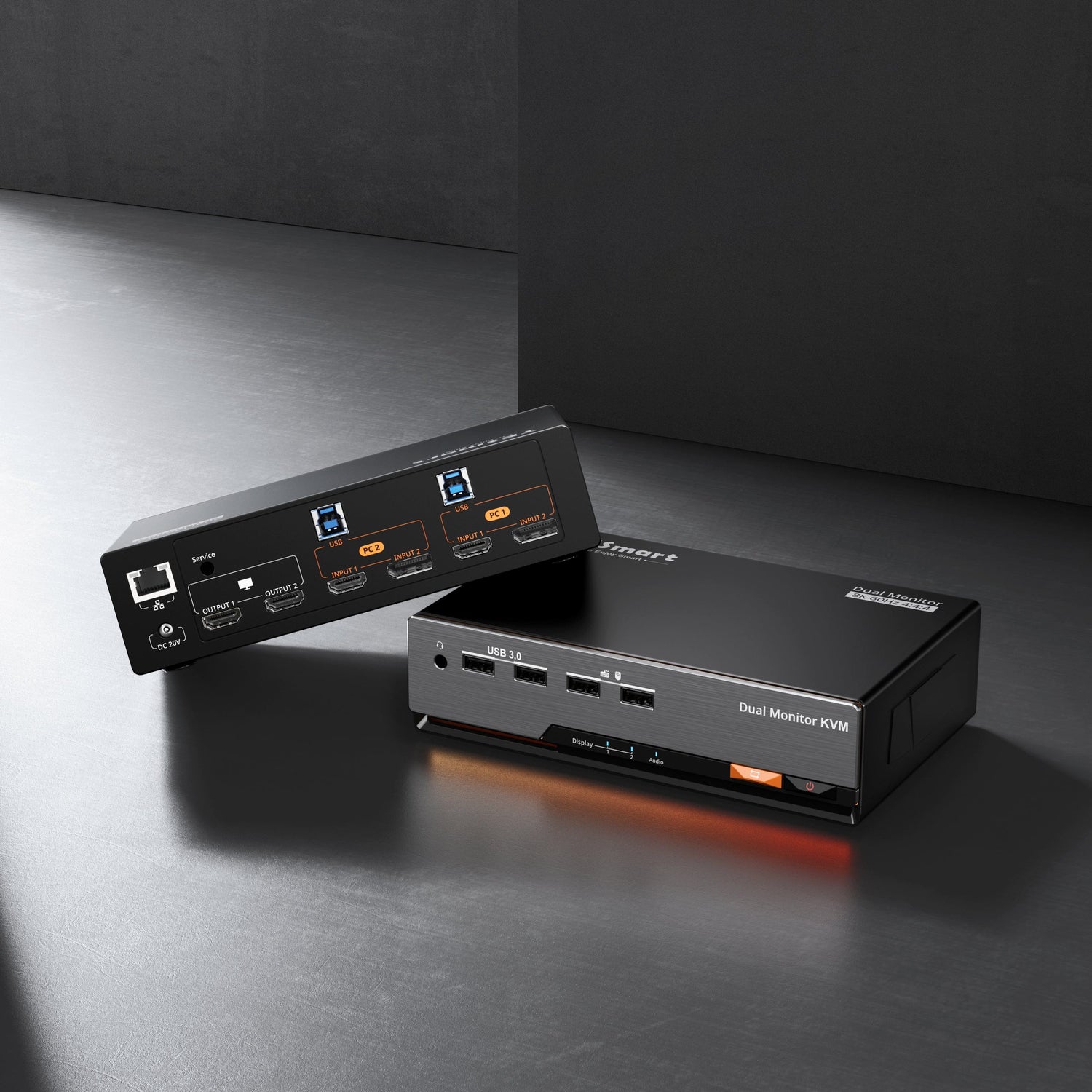
The DKS402-M24 DisplayPort KVM Switch
The DKS402-M24 DisplayPort KVM switch is designed for users who require stable multi-monitor switching, uncompromised display performance, and flexible system control in desktop workstation setups.
For users who need to manage three displays, the DKS403-M24 is available as the triple-monitor variant within the same product series, offering identical performance characteristics and feature sets.
Throughout this article, references to the DKS402-M24 apply to the shared platform design of the series unless otherwise specified.
High Resolution and High Refresh Rate Support
The DKS402-M24 is engineered to support demanding display configurations without signal degradation. It supports:
-
Up to 8K at 60Hz
-
Up to 4K at 240Hz
This makes the DKS402-M24 suitable for professional workflows such as video editing, 3D modeling, and financial trading, as well as high-refresh-rate gaming and simulation environments.
Unlike basic KVM switches that limit resolution or refresh rate, the DKS402-M24 is built to preserve the native output capabilities of modern GPUs and monitors.
Stable Multi-Monitor Experience with EDID Emulation
Multi-monitor instability is a common issue when switching between systems. Without proper EDID handling, operating systems may re-detect displays, rearrange layouts, or reset resolution settings.
The DKS402-M24 integrates hardware-level EDID emulation, ensuring that each connected computer consistently detects the same monitor configuration—even when it is not the active system. This allows for seamless switching without flicker, resolution changes, or window repositioning.
Multiple Switching Methods for Flexible Control
To adapt to different workflows and desk layouts, the DKS402-M24 offers multiple switching methods:
-
Front-panel buttons
-
Customizable keyboard hotkeys
-
Mouse middle-button switching
-
Infrared remote control
These options allow users to switch systems quickly and intuitively, whether at the desk or from a distance.
Integrated Gigabit Network Sharing
The DKS402-M24 also simplifies network connectivity. By connecting a single Ethernet cable to the KVM, up to four computers can share a USB-based gigabit network connection, reducing cable clutter while maintaining consistent network access across all systems.
What If Your GPU Does Not Have Enough DisplayPort Outputs?
While the DKS402-M24 is optimized for GPUs with multiple native DisplayPort outputs, some desktop graphics cards may not provide enough DP ports for dual- or triple-monitor configurations. In such cases, there are three possible approaches, each with its own trade-offs.
Option 1: Using HDMI-to-DP or USB-C-to-DP Adapters
Users may supplement missing DP outputs by using HDMI-to-DisplayPort or USB-C-to-DisplayPort adapter cables.
However, several limitations should be considered:
-
Most desktop PCs do not support video output over USB-C, unless the port is explicitly connected to the GPU with DisplayPort Alt Mode.
-
HDMI-to-DP adapters require active signal conversion, which can be inherently less stable.
-
Depending on the adapter and system combination, issues such as flickering, black screens, signal dropouts, or limited refresh rates may occur—especially in high-resolution or high-refresh-rate scenarios.
This approach can work, but careful adapter selection and thorough testing are strongly recommended.
Option 2: Using a DisplayPort MST Hub
Another workaround is to use a DisplayPort MST (Multi-Stream Transport) hub, allowing a single DP output from the GPU to be split into multiple DP outputs before connecting to the DKS402-M24.
Important considerations include:
-
All displays share the bandwidth of a single DP output, which may limit maximum resolution or refresh rate per display.
-
MST hubs add another layer of signal processing and may introduce compatibility or stability issues, depending on the GPU, operating system, and monitor combination.
While not ideal for performance-critical environments, this method can still serve as a practical alternative when native DP outputs are limited.
Option 3: Choosing an HDMI-Based KVM Instead
For users whose GPUs primarily offer HDMI outputs, selecting an HDMI-based KVM such as the HDK402-M24 or HDK403-M24 is often the most straightforward and reliable solution.
By matching the KVM interface type to the GPU’s native outputs, users can avoid signal conversion altogether and achieve more predictable long-term stability.
Conclusion
The DKS402-M24 DisplayPort KVM switch is a professional-grade solution for desktop users who demand high resolution, high refresh rates, and stable multi-monitor switching. With built-in EDID emulation, flexible switching options, and integrated network sharing, it is designed to support complex workstation environments with minimal friction.
While native DisplayPort connections provide the best experience, the DKS402-M24 platform also allows for alternative approaches when DP outputs are limited—giving users multiple paths to build a solution that fits their hardware configuration.
Frequently Asked Questions (FAQ)
Q1. What is the difference between the DKS402-M24 and the DKS403-M24?
The DKS403-M24 is the triple-monitor version of the same platform. Both models share the same performance specifications, switching methods, and feature set; the difference lies only in the number of supported displays.
Q2. What should I do if my GPU does not have enough DisplayPort outputs?
There are three options:
-
Use HDMI-to-DP or USB-C-to-DP adapters, with careful attention to compatibility and stability.
-
Use a DisplayPort MST hub, understanding that bandwidth and refresh rate may be limited.
-
Choose an HDMI-based KVM such as the HDK402-M24 or HDK403-M24 for a more direct and stable connection.
Q3. Will using adapters or MST hubs affect resolution or refresh rate?
In some cases, yes. Active adapters and MST hubs may limit maximum resolution or refresh rate depending on bandwidth and compatibility. For best results, native DisplayPort connections are recommended whenever possible.