

Table of Contents
- Introduction
- Quick Answer
- Why Modern Studios Need More Than One Computer
- The Problems with Managing Multiple PCs Separately
- What a Professional Multi-PC Studio Setup Requires
- How to Plan the Connections for a Multi-PC Studio
- HDMI 2.1, DisplayPort 1.4 and 8K Explained
- Why RS232 Matters in Professional Studio Control
- Comparing Multi-PC Studio Management Options
- How HDK802-M24 Fits a Multi-PC Dual-Monitor Workflow
- Step-by-Step HDK802-M24 Studio Setup
- Connection and Compatibility Checklist
- Who Should Consider the HDK802-M24?
- Frequently Asked Questions
- Build a Cleaner Multi-PC Studio with TESmart
Introduction
A multi-PC studio does not become difficult simply because it contains several computers. The real problem begins when every computer has its own monitor cables, keyboard, mouse, USB devices and control method.
A video editor may use one workstation for editing, another for rendering and a third for ingest. A broadcast operator may need separate systems for playback, graphics, streaming and monitoring. An IT or software testing team may have several computers running different operating systems or application builds.
Connecting each system independently creates duplicated hardware, crowded desks and a higher risk of operating the wrong computer. Manual cable swapping reduces equipment duplication, but introduces another problem: every change requires physically reconnecting video and USB paths.
A professional multi-PC studio setup needs a more structured approach. Video, keyboard, mouse, USB peripherals and control commands should be managed as parts of one system rather than as unrelated connections.
This guide explains how to plan that system, why dual-monitor and high-bandwidth video paths require careful preparation, and where the TESmart HDK802-M24 fits into a professional multi-computer workstation.
Quick Answer
Quick Answer: A multi-PC studio should be planned around the number of computers, the two required display paths from each computer, the monitor input types, shared USB devices and the preferred control method.
The HDK802-M24 is positioned for professional environments that need to centralize multiple computers around two monitors, one keyboard and mouse set, shared USB peripherals and an RS232-enabled control workflow.
Its HDMI 2.1, DisplayPort 1.4 and 8K-related capabilities provide room for high-bandwidth display configurations, but they do not guarantee every possible 8K or high-refresh-rate mode. The final result depends on the GPU, operating system, adapters, cables, KVM, monitor inputs and display settings across the complete signal chain.
Why Modern Studios Need More Than One Computer
Using several computers is often a deliberate workflow decision rather than a sign of inefficient equipment management. Different systems may be assigned to different tasks so that one process does not interrupt another.
Video Production and Post-Production
A production studio may separate editing, rendering, media ingest and quality-control tasks across different workstations. One computer can remain dedicated to a timeline while another processes exports or transcodes source footage.
Dual monitors are particularly useful in this environment. One display may show the editing timeline and project controls, while the second is used for preview, scopes, asset management or communication tools.
Live Streaming and Broadcast Workflows
Streaming and broadcast teams often divide playback, graphics, encoding, monitoring and backup functions between computers. Keeping these functions separate can reduce the chance that a software problem on one system affects the entire production.
A broadcast studio workstation may also need centralized switching from a control surface, equipment rack or automation system rather than relying only on a button at the operator’s desk.
Testing Labs and IT Administration
Software teams may need Windows, macOS and Linux systems available at the same station. IT administrators may manage deployment computers, test machines, diagnostic systems or local servers from one console.
In these environments, the number of computers matters, but repeatable control matters more. Operators need to know which system currently owns the monitors and USB devices without tracing cables across the desk.
Creator and Design Workstations
Creators may use one machine for design applications, another for rendering and a third for storage management or review. Sharing the same monitors and input devices helps maintain a consistent viewing and control environment across those systems.
Software Development Workstations
Developers frequently work with multiple build targets, virtualized environments and operating systems. A multi-computer workstation makes it possible to move between a development PC, a test machine and a production-like system without maintaining a separate desk for each one.

The Problems with Managing Multiple PCs Separately
The simplest way to connect several computers is to give each system its own display and peripherals. That approach works, but it becomes increasingly inefficient as the number of computers grows.
Duplicated Monitors and Peripherals
Separate workstations require additional monitors, keyboards, mice, USB hubs and audio devices. This increases equipment cost and consumes desk or rack space even when most computers are not being actively controlled.
High Cable Density
A dual-monitor computer normally needs two video paths. If eight computers are installed, video wiring alone can become difficult to label and maintain before USB, power, network and control cables are added.
Poor cable organization makes troubleshooting slower. When a screen goes blank, the operator may not know whether the cause is the computer output, an adapter, a cable, the monitor input or the switching device.
Manual Cable Swapping
Moving HDMI, DisplayPort and USB cables between computers may appear inexpensive, but it interrupts work and places repeated mechanical stress on ports and connectors.
It also creates inconsistent connection states. A monitor may detect a computer differently after reconnection, and the operating system may rearrange windows when the display is removed and rediscovered.
Control Confusion
Several keyboards and mice make it easy to interact with the wrong system. This is particularly risky in broadcast, test and administration environments where an unintended command can interrupt an active process.
Limited Automation
A manually operated desktop setup is difficult to integrate with a studio controller or automation platform. Without an external control interface, switching remains dependent on someone physically pressing a button or reconnecting a cable.
What a Professional Multi-PC Studio Setup Requires
A professional studio KVM should be selected by examining the whole workflow rather than one headline specification.
Enough Computer Inputs
Start with the number of systems that need regular access to the shared console. Include planned additions rather than counting only the computers currently installed.
An 8-port KVM switch can make sense when several production, testing or administration systems must be available from one workstation. However, the number of inputs should not be evaluated separately from the required monitor count and video connection structure.
Two Usable Video Paths from Each Computer
A dual monitor KVM for multiple PCs generally needs two independent video signals from every computer that will use both displays.
A desktop GPU may provide these outputs directly. A laptop may require a compatible dock, USB-C video adapter or another display expansion method. The operating system and hardware must also support the intended number of independent displays.
A KVM switches available video signals; it does not create an additional GPU output that the computer cannot provide.
Keyboard, Mouse and USB Peripheral Sharing
The keyboard and mouse should follow the selected computer predictably. Studios may also need to share storage devices, card readers, webcams, control panels or other USB equipment.
Not every USB peripheral behaves the same way. Devices with high bandwidth, strict latency requirements, proprietary drivers or continuous data streams should be tested before full deployment.
Stable Display Detection
Display detection affects more than whether an image appears. It can also affect window placement, desktop layout, available resolution and the time required to regain video after switching.
EDID handling is therefore an important part of the evaluation. EDID communicates display capabilities such as supported resolutions and timing information to the source computer.
Users should confirm the available EDID behavior of the final HDK802-M24 production specification rather than assuming that every display state will be preserved in the same way.
Local and External Control
A desktop user may be satisfied with front-panel or keyboard switching. A control room may need RS232 access so that source selection can be incorporated into a larger control workflow.
The correct method depends on who operates the system, where the KVM is installed and whether the switching process needs to be automated.

How to Plan the Connections for a Multi-PC Studio
A connection plan should be completed before purchasing cables or installing the KVM. This reduces the risk of discovering that a computer lacks the required outputs after the equipment has been mounted.
1. Create a Device Map
List every computer and record:
- Operating system
- GPU or graphics output capability
- Available HDMI, DisplayPort or USB-C video outputs
- Required resolution and refresh rate
- Whether adapters or docks are needed
- USB devices that must follow that computer
Do not treat two ports with the same connector shape as automatically equivalent. A USB-C port, for example, may or may not support video output depending on the computer.
2. Define the Role of Each Monitor
Decide whether both monitors will always display the selected computer or whether the workflow requires different source arrangements. Do not assume independent monitor routing unless that behavior is explicitly listed in the final product specification.
Also document the native resolution, preferred refresh rate and available inputs of each monitor.
3. Map Two Video Paths per Computer
For each computer, draw the route for Monitor 1 and Monitor 2 separately:
Computer video output → source-side cable or adapter → KVM input → KVM output → display cable → monitor input
This makes it easier to identify mixed-interface paths and unnecessary adapter layers.
4. Separate Essential and Optional USB Devices
Place the keyboard and mouse in the essential category. Then list optional shared devices such as webcams, storage, control surfaces, printers or audio equipment.
During deployment, test essential devices first. Add optional devices one at a time so that any compatibility problem can be traced to a specific peripheral.
5. Plan the Control Path
Decide whether the KVM will be controlled locally, through keyboard commands or through RS232.
For RS232 deployment, record the controller type, physical connection, communication settings and command requirements. The third-party controller and the KVM must use compatible protocol settings and command syntax.
6. Label Both Ends of Every Cable
Use labels that identify the computer, display path and function. For example:
- PC3–Monitor A
- PC3–Monitor B
- PC3–USB
- KVM–Monitor A
- KVM–RS232 Controller
This is especially important in rack installations where the front panel may be far from the connected computers.

HDMI 2.1, DisplayPort 1.4 and 8K Explained
HDMI 2.1, DisplayPort 1.4 and 8K support are relevant to a high-bandwidth studio, but they describe different parts of the display chain.
The Role of HDMI 2.1
An HDMI 2.1 KVM is useful in environments where computers, professional displays, large-format screens or other sources rely on modern HDMI connections.
The interface can provide more bandwidth than earlier HDMI generations, but the connector label alone does not define the final display mode. The result can be affected by implementation details, cable quality, color format, compression, display capability and source settings.
The Role of DisplayPort 1.4
A DisplayPort 1.4 KVM is often relevant to PC workstations with graphics cards and monitors that use DisplayPort as their primary connection.
DisplayPort 1.4 can support demanding display configurations when the complete chain supports the required timing and, where applicable, compression method. It should not be interpreted as a guarantee that every DP 1.4 source, cable, adapter and monitor can run the same resolution and refresh-rate combination.
Planning HDMI and DisplayPort Integration
A studio may contain HDMI-based systems and DisplayPort-based systems at the same time. That does not mean the two interfaces can always be connected interchangeably.
When evaluating the HDK802-M24, confirm the exact input and output arrangement in the final product documentation. Determine whether each computer uses native HDMI, native DisplayPort or an approved conversion path.
Adapters add another negotiation point to the chain. For critical systems, native output-to-input connections are generally easier to validate than multi-stage conversion paths.
What 8K Support Means in a Studio
An 8K KVM switch is not useful only for operating an 8K monitor. Higher video bandwidth can also provide more room for large displays, high-resolution monitoring, demanding workstation outputs and future upgrades.
However, “8K support” should be treated as a capability category rather than a universal operating guarantee. It does not mean that every computer will automatically output 8K or that all refresh rates, bit depths, HDR modes and color formats are available in every configuration.
The final video result depends on:
- The computer’s GPU and output port
- The operating system and graphics driver
- The selected resolution, refresh rate and color format
- The KVM input and output capabilities
- The monitor’s supported input modes
- The cables used on both sides of the KVM
- Any dock, adapter or converter in the path
- EDID negotiation and display settings
For production work, test the exact intended mode rather than relying only on the interface version printed on each device.
Why RS232 Matters in Professional Studio Control
RS232 is a serial communication method commonly used to send control commands between equipment. In a KVM installation, it can allow a controller to request a computer switch without requiring an operator to reach the front panel.
Control Room Integration
A control room KVM may be installed in an equipment rack while operators work from a separate console. RS232 can connect the KVM to a control processor, operator panel or other management device.
Automation Workflows
In a repeatable production workflow, one command may need to change several devices at the same time. A control system could, for example, select a computer on the KVM while changing another part of the room configuration.
This type of integration can reduce repetitive manual steps, especially in studios that use predefined operating modes.
Centralized Control Panels
RS232 can also support custom button panels or operator interfaces. A clearly labeled control panel may be easier to use than remembering keyboard shortcuts, particularly when several staff members share the same workstation.
What RS232 Does Not Guarantee
RS232 KVM control does not mean automatic compatibility with every control system.
Before deployment, confirm:
- The physical RS232 connection type
- The required baud rate and serial settings
- The available command list
- Whether commands require responses or status feedback
- The controller’s ability to send the required command format
- How the system behaves after power loss or restart
Always test commands with the actual controller before building a larger automation workflow.
Comparing Multi-PC Studio Management Options
Several methods can be used to manage multiple computers, but they solve different problems. A video matrix is not the same as a KVM, and a USB hub does not replace either one.
| Comparison Area | Separate Monitors and Peripherals for Every PC | Manual Cable Swapping | Basic Two-Port Desktop KVM | HDMI or DisplayPort Matrix Switch | Professional Multi-Port KVM / HDK802-M24 |
|---|---|---|---|---|---|
| Supported computer count | Scales by adding complete workstations | Technically flexible, but impractical as the system grows | Usually two computers | Depends on matrix input count | Designed for a multi-computer, eight-port-class workflow; confirm the final production input count |
| Dual-monitor workflow | Yes, with two monitors for every computer | Possible, but two video paths must be reconnected | Only when the KVM is specifically designed for dual monitors | Video routing is possible, depending on matrix design | Designed around a shared dual-monitor workstation |
| Keyboard and mouse sharing | No | Requires USB reconnection or another sharing method | Yes | Normally no | Yes, as part of the KVM workflow |
| USB peripheral sharing | No shared devices unless separate networking or USB tools are used | Manual reconnection | May support a limited number of shared devices | Not normally included | Designed to centralize shared USB devices; verify the final port and bandwidth specification |
| HDMI and DisplayPort integration | Handled separately for each workstation | Possible only when ports and adapters match | Often built around one interface family | Strong video-routing capability, but interface conversion depends on the model | HDMI 2.1 and DisplayPort 1.4 are part of the planned high-bandwidth workflow; confirm the final port map |
| RS232 control | No centralized switching device | No | Uncommon | Available on some professional models | Designed to support RS232-based control integration |
| Cable management | High cable volume and duplicated equipment | Few permanent connections, but frequent cable handling | Good for a small two-computer desk | Organizes video routing but not necessarily USB control | Centralizes video, USB and control connections |
| Automation potential | Low | None | Limited to supported local switching methods | Often strong for video routing when a control interface is provided | Suitable for RS232-based studio and control-room workflows after protocol validation |
| Best use case | Computers that must remain visible and independently controlled at all times | Occasional temporary testing | Two-computer home or office desk | Multi-source video distribution without keyboard and mouse sharing | Studios, test labs, control rooms and professional workstations managing several computers from one console |
The central distinction is control. A matrix routes video signals, while a KVM transfers the operator’s keyboard, video and mouse access between computers. A professional multi-port KVM brings those functions together and may also support shared USB peripherals and external control.
How HDK802-M24 Fits a Multi-PC Dual-Monitor Workflow
Once a studio needs to manage more computers than a basic desktop KVM can accommodate, the design priorities change. Port count, cable labeling, dual-display consistency and external control become more important than compact desktop size.
We designed the HDK802-M24 for studios and professional workspaces that need to manage multiple computers without duplicating monitors, keyboards and control devices.
One Centralized Operator Console
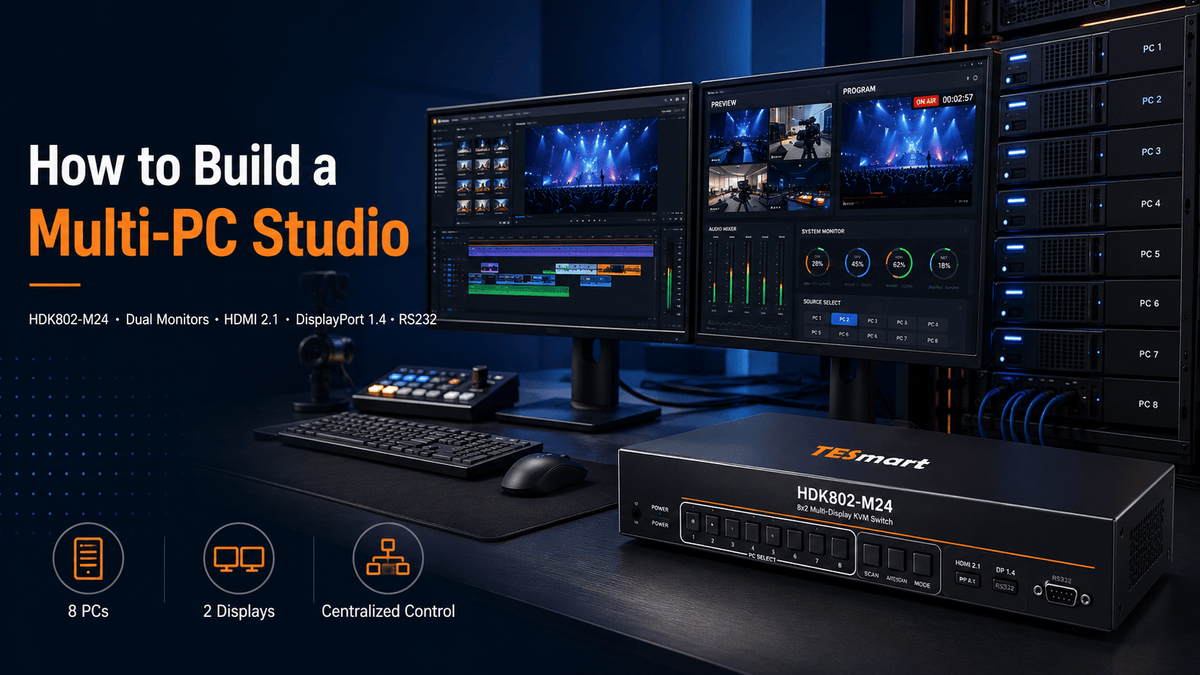
The HDK802-M24 is intended to place several computers behind one shared dual-monitor console. The operator works with the same displays, keyboard, mouse and approved USB peripherals while selecting the computer required for the current task.
Compared with maintaining a separate console for every system, this structure reduces duplicated equipment and creates a more consistent operating position.
A High-Bandwidth Video Workflow
The combination of HDMI 2.1, DisplayPort 1.4 and 8K-related capability is relevant to studios using modern GPUs, professional workstations and high-resolution displays.
The practical value is not limited to an 8K desktop. It also gives users a platform for evaluating demanding display modes and future equipment upgrades without treating a basic 4K office KVM as the permanent limit of the studio.
Actual performance must still be validated for the intended resolution, refresh rate, color configuration and cable length.
Professional Control Integration
RS232 makes the HDK802-M24 more relevant to a studio or control-room environment than a KVM designed only for local desk switching.
After the control protocol has been confirmed, the KVM can be considered as part of a wider operator-control design rather than as an isolated desktop accessory.
What the HDK802-M24 Does Not Replace
The HDK802-M24 does not replace a docking station when a laptop needs additional ports, charging or display generation. It does not replace a video matrix when several different sources must be routed independently to many destinations. It also does not create display outputs that are missing from a computer.
Its role is to centralize switching between properly prepared computer, display and USB paths.
Before purchasing, confirm the final HDK802-M24 product page, port layout, included cables and supported operating modes. Product availability and production specifications may change before the official page is published.
Step-by-Step HDK802-M24 Studio Setup
Step 1: Define the Studio Requirements
Record the number of computers, the two shared monitors, the target display mode and every USB peripheral that needs to switch.
Decide which systems are critical and which are optional. Critical systems should be tested first and should use the simplest available connection path.
Step 2: Verify Two Display Outputs from Every Computer
Confirm that every computer can generate two independent display signals at the intended resolution and refresh rate.
For desktop systems, inspect the GPU outputs rather than relying on motherboard ports that may not be active. For laptops, confirm whether the required outputs are available directly or through a compatible dock or adapter.
Step 3: Power Down Before Initial Wiring
Turn off the computers, monitors and KVM before making the first complete set of connections. This creates a controlled starting point and reduces confusion caused by devices detecting an incomplete chain.
Step 4: Connect Each Computer’s Video Paths
Connect the first and second video outputs from each computer to the corresponding HDK802-M24 inputs.
Keep Monitor A and Monitor B paths consistent across every computer. Avoid crossing the labels between systems, because inconsistent port mapping can cause the desktop arrangement to reverse when switching.
Step 5: Connect the Computer-Side USB Paths
Connect the required USB link from every computer to the KVM according to the final product manual.
This connection allows the selected computer to receive keyboard, mouse and supported shared USB-device input. Do not assume that a video cable also carries the required USB control path unless the product documentation explicitly states that it does.
Step 6: Connect the Two Shared Monitors
Connect the KVM’s display outputs to the two monitors using cables rated for the intended interface and display mode.
Select the correct input on each monitor and disable unnecessary automatic input switching during initial testing. Automatic input selection can make troubleshooting harder by changing inputs when a signal is temporarily interrupted.
Step 7: Connect Keyboard, Mouse and Essential USB Devices
Begin with one basic wired keyboard and mouse. Confirm reliable switching before connecting additional devices.
Add webcams, storage devices, audio interfaces, card readers or control panels individually. This staged method makes it easier to identify a device that behaves differently through the shared USB path.
Step 8: Configure RS232 Control
Connect the RS232 controller using the required cable and pin configuration. Match the serial settings specified by TESmart and load only confirmed commands from the official protocol document.
Test basic source selection first. Then test command responses, repeated switching and recovery after power cycling before integrating the KVM into a larger automation sequence.
Step 9: Power On in a Controlled Order
A practical initial sequence is:
- Power on the monitors.
- Power on the KVM.
- Select the first computer input.
- Power on the first computer.
- Confirm both displays and USB control.
- Repeat the process for each additional computer.
If a system does not display correctly, test it directly with the monitor before troubleshooting the entire installation.
Step 10: Test Every Switching Scenario
For every computer, verify:
- Image output on both monitors
- Correct extended or mirrored desktop mode
- Expected resolution and refresh rate
- Keyboard and mouse control
- Shared USB-device detection
- Audio-device selection, where relevant
- Wake-from-sleep behavior
- RS232 source-selection commands
- Recovery after restarting the computer
Do not validate only one high-specification workstation. A studio deployment is ready only when every connected computer has been tested through both display paths.
Connection and Compatibility Checklist
Use this checklist before purchasing or deploying the HDK802-M24.
- Computer count: Confirm that the final production model supports the required number of computers.
- Monitor count: Confirm that the workflow requires two shared displays.
- GPU outputs: Verify that every computer can provide two independent video outputs.
- Port types: Record the HDMI, DisplayPort and USB-C video outputs available on every system.
- Monitor inputs: Confirm that both monitors have compatible inputs for the planned KVM outputs.
- Adapters: Identify every required converter, dock or USB-C video adapter.
- Target display mode: Define the required resolution, refresh rate, color mode and HDR behavior.
- Cables: Use cables rated for the intended HDMI or DisplayPort mode and keep high-bandwidth paths as short and direct as practical.
- EDID behavior: Confirm the available EDID options and test window placement after switching.
- USB devices: List the keyboard, mouse and other peripherals that must be shared.
- Special USB hardware: Test capture devices, storage, webcams, audio interfaces and proprietary control hardware individually.
- Operating systems: Confirm display and USB behavior on every Windows, macOS or Linux system in the studio.
- RS232 controller: Verify the connector, serial settings, protocol and command syntax.
- Power sequence: Document the preferred startup and recovery process.
- Fallback plan: Keep a direct monitor connection available during installation and troubleshooting.
- Official documentation: Review the final HDK802-M24 product page and manual before ordering cables or building automation scripts.
Who Should Consider the HDK802-M24?
Broadcast and Production Teams
The HDK802-M24 is more suitable for teams that operate separate playback, graphics, editing, encoding or monitoring computers but want one shared dual-monitor control position.
Video Editing and Content Creation Studios
If your setup includes editing, rendering, ingest and review systems, a centralized KVM can reduce duplicated displays and peripherals while keeping each computer available when needed.
Control Room Operators
For users who need a KVM to participate in an RS232-controlled environment, the HDK802-M24 makes more sense than a basic desktop unit that supports only local buttons or keyboard switching.
IT Administrators and Test Labs
A professional multi-port KVM is useful when several test computers, deployment systems or local servers must be managed from one station.
Software Development Teams
Developers who maintain separate build, test and operating-system environments can use one dual-monitor desk instead of moving between several complete workstations.
Gaming and High-Performance Workstation Users
The HDMI 2.1, DisplayPort 1.4 and 8K-related positioning may also be relevant to high-performance systems. However, users seeking a specific gaming mode should verify that exact resolution, refresh rate, HDR, VRR and color configuration before purchase.
When It May Not Be the Right Fit
The HDK802-M24 may be unnecessary for a user with only two computers and one display. It may also be the wrong category when the primary goal is charging and expanding one laptop, routing many video sources independently, or keeping all computers visible on separate displays at the same time.
Frequently Asked Questions
Q1: What is the HDK802-M24 designed for?
The HDK802-M24 is positioned for professional multi-computer environments that need to share two monitors, keyboard and mouse control, supported USB peripherals and an RS232-enabled control path. Final computer count, port layout and operating specifications should be confirmed from the official product page.
Q2: Can multiple computers share two monitors through one KVM?
Yes, when the KVM is specifically designed for dual-monitor switching and each computer provides the required two video signals. The KVM cannot create a second display output if the computer or dock does not support one.
Q3: What is the difference between HDMI 2.1 and DisplayPort 1.4 in a KVM setup?
They are different video-interface standards commonly used by modern computers and displays. HDMI is common on TVs, consoles and many professional displays, while DisplayPort is common on desktop GPUs and PC monitors. The better option depends on the source outputs, monitor inputs and target display mode.
Q4: Does an 8K KVM guarantee that every computer can output 8K?
No. The computer’s GPU, output port, operating system, cable, adapter, KVM and monitor must all support the required mode. Color depth, refresh rate and compression requirements can also affect whether a particular 8K configuration works.
Q5: What is RS232 control used for on a professional KVM switch?
RS232 allows a compatible external controller to send switching commands to the KVM. It can be used with control panels, room-control processors and automation systems after the serial settings and command protocol have been validated.
Q6: Can the HDK802-M24 be integrated into a broadcast studio or control room?
It is intended for this type of multi-computer, dual-monitor and externally controlled workflow. Before deployment, confirm the final rack or mounting requirements, RS232 protocol, cable plan and compatibility with the studio’s controller.
Q7: Can HDMI and DisplayPort computers be used in the same studio setup?
They can be part of the same studio, but the exact connection method depends on the HDK802-M24 port map and the outputs available on each computer. Do not assume that passive adapters can convert every HDMI and DisplayPort combination.
Q8: What cables should I use for an 8K or high-refresh-rate KVM setup?
Use certified or properly rated cables for the intended HDMI or DisplayPort mode. Keep the video path direct and avoid unnecessary couplers or adapters. Because the signal travels through one cable before the KVM and another cable after it, both segments must be suitable for the target bandwidth.
Q9: How should I test compatibility before deploying the KVM across an entire studio?
Build one complete computer-to-KVM-to-monitor path first. Test both monitors, USB devices, sleep and wake behavior, switching, restart recovery and RS232 commands. After that system is stable, add computers and peripherals one at a time.
Q10: Is the HDK802-M24 suitable for gaming, video editing and IT administration?
It may suit all three scenarios when the need is to manage several computers from one dual-monitor console. Video editors and IT administrators may prioritize display consistency and centralized control, while gaming users should additionally verify their exact refresh rate, HDR, VRR and color requirements.
Q11: Is a video matrix the same as the HDK802-M24?
No. A video matrix primarily routes video sources to display outputs. A KVM also transfers keyboard and mouse control and may share USB peripherals. Choose a matrix when flexible video distribution is the main requirement and a KVM when centralized computer control is the main requirement.
Q12: Can a docking station replace the HDK802-M24?
A dock expands the connections of one computer. It does not normally provide structured switching between several computers. A laptop may use a dock to create the required display and USB paths before connecting to the KVM, but the dock and KVM perform different roles.
Build a Cleaner Multi-PC Studio with TESmart
A professional multi-PC studio is not built by adding more cables whenever another computer arrives. It requires a clear plan for computer count, two display paths per system, monitor inputs, USB-device behavior, EDID handling and operator control.
HDMI 2.1, DisplayPort 1.4 and 8K capability provide a foundation for demanding display workflows, but the complete signal chain determines the final result. RS232 adds another layer of value by allowing the switching system to participate in a wider studio or control-room design.
For studios, test labs, broadcast teams and professional workspaces that need to manage multiple computers from one dual-monitor console, the HDK802-M24 offers a more structured path than duplicated workstations, manual cable swapping or a basic two-port KVM.
Plan Your Multi-PC Studio with TESmart
Review the final interface layout, computer count, supported display modes and RS232 documentation before deployment.
Share:
Monitor With Built-in KVM vs External KVM Switch: Which Is Better in 2026?
MacBook Air M4/M5 Dual Monitor KVM Setup: What Works and What Does Not