

Table of Contents
- Introduction
- Why Built-in KVM Monitors Are Getting More Popular in 2026
- What Is a Monitor With Built-in KVM?
- What Is an External KVM Switch?
- Built-in KVM Monitor vs External KVM Switch: Key Differences
- When a Built-in KVM Monitor Is Good Enough
- When an External KVM Switch Is the Better Choice
- Are KVM Monitors Worth It in 2026?
- How TESmart Thinks About Built-in KVM vs External KVM
- Which Option Should You Choose?
- FAQ: Built-in KVM Monitor vs External KVM Switch
Introduction
Searches like monitor built in KVM vs KVM switch and are KVM monitors worth it usually come from the same real problem: users want to share one desk between two computers without constantly moving cables, keyboards, mice, webcams, or USB devices.
In 2026, the answer is not as simple as “buy a monitor with built-in KVM” or “always use an external KVM switch.” A built-in KVM monitor can be a clean and practical choice for a single-screen desk. It reduces desk clutter, often works well with a laptop and desktop, and may be enough for basic office use.
But once the setup includes dual monitors, three displays, a gaming PC, a work laptop, a Mac and PC KVM setup, high refresh rate monitors, or several USB peripherals, the limits of a monitor with built-in KVM become easier to see.
This guide explains the practical difference between a KVM monitor vs KVM switch, where each option makes sense, and when an external KVM switch gives a workstation more flexibility.
Why Built-in KVM Monitors Are Getting More Popular in 2026
Built-in KVM has become a more visible monitor feature in 2026 because many users now keep more than one computer on the same desk. A common setup might include a work laptop during the day and a personal desktop or gaming PC after hours.
For a single-monitor desk, putting KVM functionality inside the monitor is easy to understand. The monitor already sits at the center of the workspace, so it can also act as the place where video input, USB upstream connections, keyboard, mouse, and a small USB hub meet.
This is especially appealing for USB-C monitor users. One computer may connect through USB-C for display, USB data, and charging, while another connects through HDMI or DisplayPort plus a USB upstream cable. From the user’s perspective, switching the monitor input can also switch keyboard and mouse control.
The benefit is simple: fewer boxes on the desk and fewer visible cables. For many office users, that is enough.
The limitation is also simple: the KVM function is tied to that specific monitor. If your desk later grows beyond one screen, two computers, or basic USB devices, the monitor’s internal KVM may not scale with the rest of the setup.

What Is a Monitor With Built-in KVM?
A monitor with built-in KVM integrates basic keyboard, video, and mouse switching into the monitor itself. Instead of using a separate KVM box, the monitor handles both the display input and the USB device routing.
A typical built-in KVM monitor may include:
- One USB-C input for a laptop
- One HDMI or DisplayPort input for a desktop PC
- One or more USB upstream connections
- USB-A ports for a keyboard, mouse, webcam, USB drive, or headset
- A menu option or button for switching the active computer
When configured correctly, the user can share monitor between two computers and use the same keyboard and mouse with both systems.
The important detail is that most built-in KVM monitors are designed around the monitor’s own input structure. They are usually strongest when the entire setup revolves around one display. They may not offer the same routing flexibility for multiple monitors, several USB peripherals, independent screen switching, or long-term hardware upgrades.

What Is an External KVM Switch?
An external KVM switch is a separate hardware device that sits between your computers, monitors, keyboard, mouse, and USB peripherals. Instead of being built into one display, it manages switching independently from the monitor.
Depending on the model, an external KVM switch may support one monitor, dual monitors, three monitors, or more. It may also support two, four, eight, or more computers. This makes it more suitable for desks where the computer count, monitor count, or peripheral count may change over time.
External KVM switches are also available for different video paths, including HDMI KVM, DisplayPort KVM, USB-C-related workflows, and mixed-interface desks. Some models include hotkey switching, front-panel buttons, remote control, audio handling, USB peripheral sharing, or EDID management to help displays remain more stable during switching.
For users with a dual monitor KVM switch requirement, an external device is often easier to design around because each computer can send the required video signals into the KVM, and both monitors can follow the selected computer.

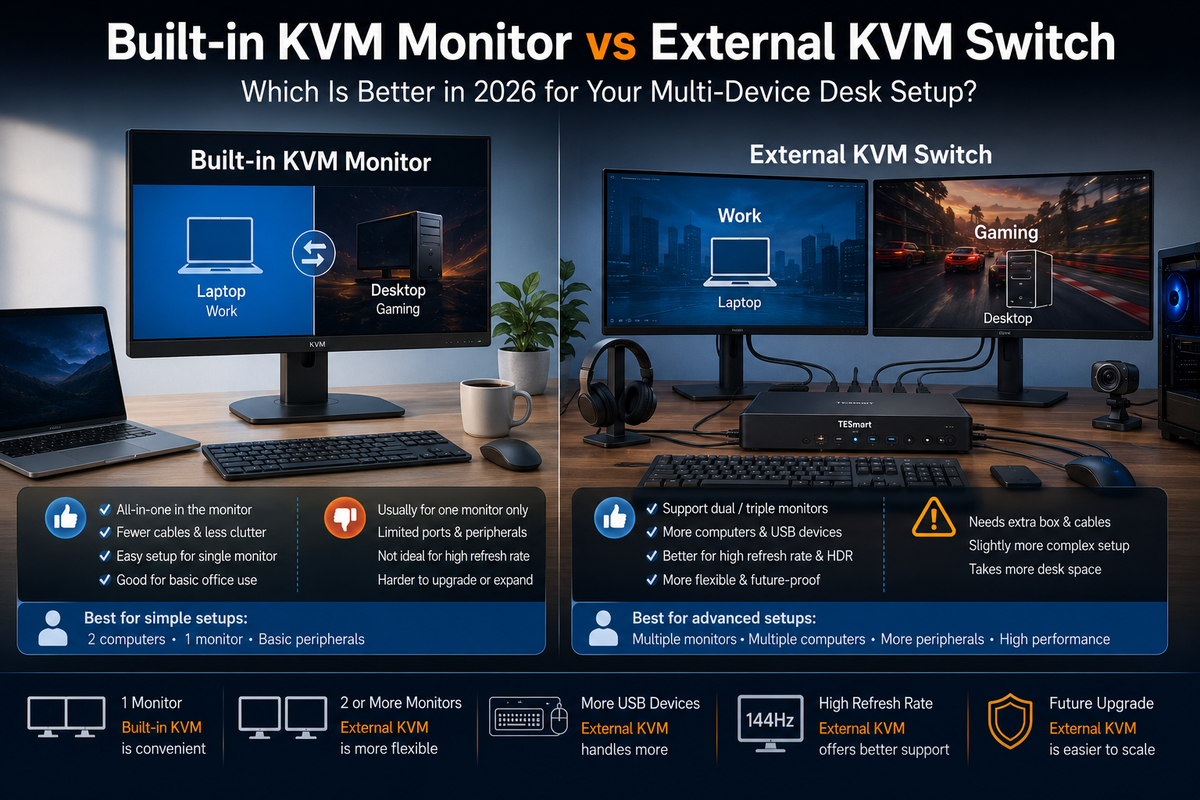
Built-in KVM Monitor vs External KVM Switch: Key Differences
The core difference is not only where the KVM function is located. It is whether the switching system is tied to one monitor or independent from the monitor.
| Factor | Built-in KVM Monitor | External KVM Switch |
|---|---|---|
| Display support | Usually centered on the monitor’s own panel and input options. | Can be selected based on HDMI, DisplayPort, USB-C-related, or mixed display workflows. |
| Number of computers | Commonly best for two computers. | Available for two, four, eight, or more computers depending on the model. |
| Number of monitors | Best suited to single-monitor desks. | Better suited to dual monitor, triple monitor, and larger workstation layouts. |
| USB peripheral sharing | Usually enough for keyboard, mouse, and a few basic USB devices. | More practical when sharing multiple USB peripherals such as webcams, microphones, audio devices, storage, or drawing tablets. |
| Upgrade flexibility | KVM function stays tied to that monitor. | KVM system can remain in place even when monitors or computers are upgraded. |
| Cable management | Cleaner for simple desks because fewer devices are visible. | Requires more planning, but can organize complex multi-device setups more effectively. |
| Gaming and high refresh rate use | Can work if the monitor’s KVM path supports the target display mode, but this must be checked carefully. | Can be chosen around specific high-performance HDMI or DisplayPort requirements, but the full signal chain still matters. |
| Mac and PC mixed setup | May work well for simple USB-C laptop plus desktop use, depending on the monitor and computer ports. | More flexible for MacBook, Windows workstation, desktop PC, and mixed-interface desks, especially when adapters or docks are involved. |
| Long-term scalability | Limited by the monitor’s built-in ports and KVM design. | Better for desks that may add monitors, computers, or USB devices later. |
When a Built-in KVM Monitor Is Good Enough
A built-in KVM monitor makes sense when the desk is simple and likely to stay simple.
It is a practical option if you use one monitor, two computers, and only a few USB devices. For example, a user may connect a work laptop through USB-C and a personal desktop through DisplayPort or HDMI, then share one keyboard and mouse through the monitor’s USB ports.
This kind of setup works well for:
- Single-monitor office desks
- Hybrid work setups with one laptop and one desktop
- Users who mainly share a keyboard, mouse, and basic USB accessories
- Desks where cable reduction matters more than future expansion
- Users who do not need dual-screen switching or advanced USB routing
In this case, the strongest argument for a built-in KVM monitor is simplicity. The monitor becomes the center of the setup, and the user does not need to buy or place a separate KVM device.
That is why built-in KVM monitors are worth considering for light office use. They solve a real problem, especially for users who only need basic input switching between two computers.

When an External KVM Switch Is the Better Choice
An external KVM switch becomes more useful when the desk has more moving parts. The more computers, monitors, ports, and USB devices involved, the more important it becomes to separate the KVM function from the monitor itself.
An external KVM switch is usually the better path for:
- Dual monitor or triple monitor workstations
- A gaming PC plus work laptop setup
- MacBook plus Windows workstation desks
- Users sharing a keyboard, mouse, webcam, microphone, audio interface, USB drive, or drawing tablet
- High refresh rate monitors where the full video chain needs to be planned carefully
- Users who may replace the monitor but want to keep the same switching system
- Multi-computer workstations where more than two systems need access to the same desk
For a dual-monitor setup, the difference is especially important. A single built-in KVM monitor may switch its own screen and USB hub, but it does not automatically solve the problem of making two computers share two displays. A dual monitor KVM switch is designed around that requirement.
External KVM switching also gives users more control over interface matching. A desktop gaming PC may use DisplayPort or HDMI for high refresh rate output, while a work laptop may rely on USB-C, a dock, or an adapter. A MacBook may require USB-C to DisplayPort or USB-C to HDMI conversion depending on the KVM and monitor inputs. The correct choice depends on the entire signal chain, not just the KVM label.
For gaming and creator setups, users should verify the target resolution, refresh rate, HDR, VRR, cable quality, GPU output, monitor input, and KVM specifications before buying. No KVM, whether built into a monitor or external, can overcome a weak link elsewhere in the chain.

Are KVM Monitors Worth It in 2026?
Yes, KVM monitors can be worth it in 2026 when the setup matches their strengths. If you use one monitor, two computers, and basic USB peripherals, a built-in KVM monitor can reduce desk clutter and make daily switching easier.
But a built-in KVM monitor is not always a full replacement for an external KVM switch. It is a monitor-first solution with KVM functionality included. That is different from choosing a dedicated switching device around your computers, monitors, USB devices, and upgrade plans.
The question should not be “Is a KVM monitor good or bad?” A better question is: “Will this monitor’s built-in KVM still fit my desk one or two upgrades from now?”
If you expect to stay with one screen and two systems, the built-in option may be enough. If you may add a second monitor, move to a higher refresh rate display, add more USB devices, or mix Mac and Windows systems, an external KVM switch usually gives you more room to build the setup correctly.

How TESmart Thinks About Built-in KVM vs External KVM
At TESmart, we see built-in KVM monitors as a useful option for simple desks, but not always the best answer for complex multi-device setups.
For a single-screen office desk, a monitor with built-in KVM can be a clean and reasonable choice. It may be the right fit for a user who wants to switch between a laptop and desktop without adding another device.
For professional workstations, the requirements are usually different. Developers, creators, engineers, IT users, gamers, and multi-device users often need to share more than one display, more than one USB device, and more than two computers. They may also need the switching system to stay useful after replacing a monitor or adding another computer.
This is where TESmart external KVM solutions are designed to help. A TESmart external KVM switch can help users share monitors, keyboard, mouse, and USB peripherals across computers while reducing repeated plugging and unplugging. For multi-monitor workflows, users can choose a KVM structure around the number of computers, the number of displays, and the required video interface rather than being limited to the KVM function inside one monitor.
The goal is not to replace every built-in KVM monitor. The goal is to use the right switching method for the actual desk.
Which Option Should You Choose?
The easiest way to decide is to start with the desk structure, not the product category.
Choose a built-in KVM monitor if:
- You use one monitor.
- You switch between two computers.
- You mainly share a keyboard, mouse, and one or two basic USB devices.
- You want fewer visible devices on the desk.
- You do not expect to add more monitors soon.
Choose an external KVM switch if:
- You use dual monitors, three monitors, or a larger display layout.
- You need to control more than two computers.
- You share several USB peripherals across systems.
- You use a gaming PC and work laptop on the same desk.
- You have a Mac and PC KVM setup with mixed ports or adapters.
- You need to plan carefully around high refresh rate displays.
- You want the KVM system to remain independent from the monitor you buy today.
In short, a built-in KVM monitor is often the cleaner answer for a simple one-screen desk. An external KVM switch is usually the more flexible answer for a multi-computer, multi-monitor, or high-performance workstation.
FAQ: Built-in KVM Monitor vs External KVM Switch
Is a monitor with built-in KVM the same as a KVM switch?
Not exactly. A monitor with built-in KVM includes simplified KVM functionality inside the display. An external KVM switch is a separate device designed to route video, keyboard, mouse, and USB peripherals between computers. Built-in KVM is often enough for a single-monitor desk, while external KVM switches are usually more flexible for multi-monitor and multi-device setups.
Are KVM monitors worth it in 2026?
Yes, KVM monitors are worth considering if you use one display, two computers, and basic USB peripherals. They reduce desk clutter and simplify everyday switching. If you need dual monitors, high refresh rate displays, several USB devices, or a mixed Mac/PC setup, an external KVM switch is usually a better fit.
Can a built-in KVM monitor work with Mac and PC?
Many built-in KVM monitors can work with Mac and PC, but the experience depends on the monitor inputs, USB-C support, video output mode, operating system behavior, and any adapters or docks in the chain. Before buying, check how each computer will send video and USB data to the monitor.
Do I need an external KVM switch for dual monitors?
If you want two computers to share two monitors, keyboard, mouse, and USB peripherals, a dual monitor KVM switch is usually more appropriate than relying on one monitor’s built-in KVM. Each computer must also provide the required number of video outputs for the dual-monitor setup.
Can I use a KVM monitor for gaming?
Yes, but you need to verify whether the monitor’s KVM path supports your target resolution, refresh rate, HDR, VRR, and input interface. For a gaming PC plus work computer setup with multiple USB devices, an external KVM switch may provide more layout flexibility.
Will a built-in KVM monitor share all my USB devices?
It depends on the monitor’s USB hub design and the devices you connect. A keyboard, mouse, and simple USB accessory may work well. More demanding devices such as webcams, microphones, audio interfaces, storage drives, or drawing tablets may require closer compatibility checking. An external KVM switch with dedicated USB peripheral support may be easier to plan around.
Which option is better for future upgrades?
An external KVM switch is usually better for long-term flexibility because it is not built into a specific monitor. If you replace your display, add a second monitor, or change computers, the external KVM can remain part of the workstation if its ports and performance match the new setup.
Conclusion
If your desk is built around one monitor and two basic computers, a built-in KVM monitor may be all you need. It can keep the workspace clean and make simple switching easier.
But if your workflow includes multiple computers, dual monitors, gaming displays, Mac and PC devices, or several USB peripherals, an external KVM switch can give you more control and upgrade flexibility.
At TESmart, we design KVM solutions for real multi-device desks, not only simple input switching. Explore TESmart external KVM solutions to build a cleaner, more flexible workspace for your Mac, PC, gaming, and workstation setup.
Share:
Why Your KVM Switch Only Shows 60Hz?
How to Build a Multi-PC Studio with HDK802-M24?