

Table of Contents
- Introduction
- Quick Answer: Can M4 and M5 MacBook Air Run Two External Displays?
- What Apple’s Two-Display Support Actually Means
- Why Some Dual-Monitor USB-C KVMs Show Only One Extended Display
- MST vs. SST vs. DisplayLink on MacBook Air
- Dual-Monitor Connection Methods: What Works and What Does Not
- Recommended MacBook Air and Windows PC Dual-Monitor Layout
- Where TESmart HDC202 Fits Into the Setup
- Step-by-Step Connection Process
- Troubleshooting a MacBook Air Dual-Monitor KVM Setup
- Final Buying Checklist
- Related Guides
- FAQ
- Conclusion
Introduction
An M4 or M5 MacBook Air can drive two external displays without giving up the built-in screen. That removes an important limitation found in some earlier MacBook Air workflows, but it does not make every dual-monitor dock or KVM compatible with macOS.
The failure usually appears after the laptop is connected through an accessory. One monitor works and the second stays dark, or both external monitors turn on but show the same desktop. The product may have two HDMI outputs, yet the Mac still receives only one usable native video path.
The reason is architectural. A MacBook Air dual monitor KVM setup must preserve two independent display streams from the Mac to the two monitors. The number of connectors on the rear panel does not prove that the upstream connection can carry those streams in a way macOS can extend.
This guide focuses on that decision. It explains when MST, independent SST paths, a connection compatible with Thunderbolt 4, or DisplayLink makes sense. It also shows where the TESmart HDC202-X24 fits when one M4/M5 MacBook Air and one desktop need to share two HDMI monitors and USB peripherals.
Quick Answer: Can M4 and M5 MacBook Air Run Two External Displays?
Yes. Apple states that MacBook Air models with either the M4 or M5 chip support up to two external displays at the same time in addition to the built-in display. Closing the lid does not raise the external-display limit to three.
The important qualification is that this is a capability of the Mac’s display engine. A dock, adapter, or KVM must still provide a compatible two-display path. A standard USB-C device that depends on MST may produce one extended display plus a mirror on macOS, while a supported multi-stream Thunderbolt connection, two independent SST paths, or a DisplayLink solution can behave differently.
Apple’s current MacBook Air external display support guide lists two-display configurations for both M4 and M5 models. Those direct-host limits do not guarantee that an intermediate KVM will preserve the same resolution, refresh rate, HDR behavior, or display topology.
What Apple’s Two-Display Support Actually Means
When Apple says an M4 or M5 MacBook Air supports two external displays, it is describing the maximum native display configuration available from that Mac under supported resolution and refresh-rate combinations. It is not certifying every device with two video outputs.
A complete MacBook Air KVM setup contains several negotiation points:
- The Mac must generate two display streams.
- The host port and cable must carry the required streams and bandwidth.
- The KVM or dock must preserve, route, or intentionally create the two display paths.
- The output ports, monitor inputs, and cables must support the chosen display mode.
- macOS must detect the screens as two independent displays rather than duplicated endpoints.
This is why a MacBook Air may work when two monitors are connected directly but fail after a dock or KVM is inserted. The Mac has not lost its display capability. The intermediate device is using a topology that does not expose two independent native displays to macOS, or the full chain cannot maintain the requested mode.
Resolution also needs to be considered at the chain level. Apple’s host specifications may allow a higher display mode than the KVM. For example, the HDC202-X24 is specified for up to dual 4K at 60Hz. A monitor that runs at a higher refresh rate when connected directly should therefore be expected to operate within the KVM’s supported limit when routed through that model.

Why Some Dual-Monitor USB-C KVMs Show Only One Extended Display
The most common buying mistake is counting output ports instead of tracing upstream video streams. Two HDMI outputs tell you that the device can connect to two monitors. They do not tell you how the device obtains two images from the laptop.
One USB-C DisplayPort Alt Mode Link May Still Be One Display Path
A USB-C port can carry DisplayPort Alt Mode, but the connector shape does not specify how many independent displays the complete device can present to macOS. Many Windows-oriented dual-monitor docks take one DisplayPort link and divide it through MST. Windows can commonly use the resulting streams as separate extended desktops. macOS does not use a conventional MST hub in the same way for two independent extended displays.
Dual Outputs Are Not Proof of Dual Independent Streams
A product labeled “dual HDMI” or “dual monitor” may use one of several internal designs:
- An MST splitter that is practical for compatible Windows systems.
- Two independent native video inputs from the host.
- A Thunderbolt-compatible path capable of carrying multiple display streams.
- A DisplayLink chipset that creates display outputs from USB data and software.
These designs can look similar from the monitor side while behaving very differently on a Mac.
Mirroring Is Not Dual-Screen Extension
If both monitors show the same desktop, the hardware has successfully delivered a picture to both outputs, but macOS has not received two independent extended-display endpoints. This is not the same as a true two-screen workspace where each monitor has its own desktop area.
Host-Side Connections Matter More Than the Port Count
A dual-link SST KVM may require two host-side video connections because each monitor receives a separate native stream. A different KVM may obtain two streams through one connection designed for laptops with Thunderbolt 4. A DisplayLink device may use one USB connection but require software. The correct question is therefore not “How many outputs does it have?” but “How does this exact model obtain two independent images from my Mac?”

MST vs. SST vs. DisplayLink on MacBook Air
MST, SST, Thunderbolt transport, and DisplayLink solve different problems. They should not be used as interchangeable terms.
| Display method | How the signal is created | Two extended displays on macOS | Driver required | Typical host cable count | Best use case | Main limitation |
|---|---|---|---|---|---|---|
| Native direct display output | The Mac GPU sends a native display signal directly to each monitor. | Yes, within the Mac model’s native display limits. | No | Usually one connection per display | Baseline testing and desks with one computer | Does not switch monitors or USB devices between computers. |
| Thunderbolt multi-display connection | A compatible host and device carry multiple native DisplayPort streams with data over one Thunderbolt connection. | Yes, when the host, cable, KVM or dock, and display topology all support two streams. | No | Potentially one | Native dual-display laptop workflows with fewer host cables | A USB-C connector alone does not prove Thunderbolt capability or a two-stream design. |
| USB-C MST | One DisplayPort link is divided into multiple streams by an MST hub. | Generally not as two independent extended displays through a conventional MST hub; mirroring or one extended display is a common result. | No | One | Compatible Windows dual-monitor desks | The Windows result should not be assumed to apply to macOS. |
| Dual-link SST | Each monitor receives a separate native single-stream video path. | Yes, when the Mac provides two independent supported outputs. | No | Often two, depending on the KVM architecture | Native macOS dual-display setups where extra host cabling is acceptable | The Mac needs two real video paths; adapters must be correctly oriented and specified. |
| DisplayLink | USB display data is processed through DisplayLink hardware and DisplayLink Manager software. | Yes, within supported software, hardware, and macOS conditions. | Yes | Potentially one | Productivity displays and setups that need software-assisted expansion | Depends on software, permissions, USB bandwidth, and workload; it is not a native GPU display path. |
MST: Efficient on the Right Windows Host
Multi-Stream Transport carries multiple display streams over one DisplayPort link. It is useful when a compatible Windows laptop needs two monitors from one USB-C connection. The limitation in a MacBook Air MST vs. SST decision is not the existence of two output ports; it is how macOS handles the MST branch presented by the device.
SST: Independent Native Paths
Single-Stream Transport describes one display stream. A native dual-monitor Mac setup can use two separate SST paths, one for each display. This may require two host-side connections, but it avoids relying on a Windows-style MST split.
A Compatible Thunderbolt Path: Multiple Native Streams Over One Cable
A supported Thunderbolt connection can transport more than one DisplayPort stream along with USB or PCIe data. This is how a one-cable native dual-display workflow can be possible without DisplayLink. Every component still matters: the Mac, cable, controller inside the KVM or dock, monitor outputs, and selected display modes must support the topology.
DisplayLink: USB Graphics Rather Than Native Display Output
DisplayLink can create additional displays through USB data and software. On macOS, it requires DisplayLink Manager and the required system permissions. It is useful for documents, dashboards, communication tools, and other productivity screens, but it should be evaluated carefully for high-refresh gaming, latency-sensitive work, protected video, HDR-dependent workflows, or color-critical production.
Dual-Monitor Connection Methods: What Works and What Does Not
The following table separates methods that can provide two independent external desktops from methods that commonly fail when their internal architecture is misunderstood.
| Connection method | Two extended displays on M4/M5 MacBook Air | Driver required | One-cable potential | Assessment | Main limitation |
|---|---|---|---|---|---|
| Two direct USB-C video connections | Yes, when both display chains are supported. | No | No | Valid native baseline | Requires separate connections and does not provide KVM switching. |
| Supported KVM designed for laptops with Thunderbolt 4 connectivity | Potentially yes, when the exact model carries two native streams. | No | Yes | Valid when topology is confirmed | The USB-C connector, cable label, and output count are not enough; model-level confirmation is required. |
| Standard USB-C MST dock or KVM | Often no independent dual-screen extension on macOS. | No | Yes | Usually invalid for native Mac dual extension | The two external displays may mirror or only one may extend. |
| Dual-link SST KVM setup | Yes, when two independent host video paths are supplied. | No | Usually no | Valid native method | May require two Mac-side video connections and the correct directional adapters. |
| DisplayLink dock or KVM | Yes, within supported software conditions. | Yes | Yes | Valid with software trade-offs | Driver, permissions, USB bandwidth, and workload limitations must be accepted. |
| One unspecified USB-C input plus two HDMI outputs | Unknown until the internal display architecture is verified. | Unknown | Possibly | Do not buy from port count alone | It may be MST, mirrored output, DisplayLink, or a supported two-stream design. |
One-cable potential does not mean any USB-C cable can deliver two extended displays. The host port, cable, KVM controller, monitor outputs, resolution, refresh rate, and operating system must all agree on the same topology.
Recommended MacBook Air and Windows PC Dual-Monitor Layout
A common dual monitor Mac and PC desk setup includes one mobile Mac, one fixed Windows system, two shared monitors, and a single set of peripherals. The hosts do not need identical cabling because they may generate the two display streams in different ways.
Typical Components
- Host 1: M4 or M5 MacBook Air.
- Host 2: Windows desktop or a work PC with two suitable display outputs.
- Displays: Two monitors with inputs that match the KVM outputs.
- Shared control: Keyboard and mouse.
- Optional USB devices: Webcam, microphone, storage, audio interface, or printer, subject to USB bandwidth and compatibility.
- KVM: A model whose Mac-side path explicitly supports two independent displays.
Why the Mac and Windows PC May Use Different Paths
The Windows desktop can normally provide two independent physical outputs, such as HDMI plus DisplayPort. A Windows laptop may also use MST through one USB-C connection when the laptop and KVM both support it.
The MacBook Air side needs a macOS-compatible path. That may be two separate native SST connections, a supported multi-display connection through Thunderbolt, or a DisplayLink path. Applying the Windows MST connection diagram to the Mac without checking the architecture is one of the fastest ways to end up with mirrored screens.
Built-In Screen Plus Two External Displays
With an M4 or M5 MacBook Air, the built-in screen can remain active while two external displays are connected. This creates a three-screen workspace in total. Closing the lid changes how the laptop is used at the desk, but it does not add a third external display.

Where TESmart HDC202 Fits Into the Setup
HDC202 is a product family, not one universal connection architecture. The suffix matters. Two models can share the HDC202 name while using different laptop-side display methods.
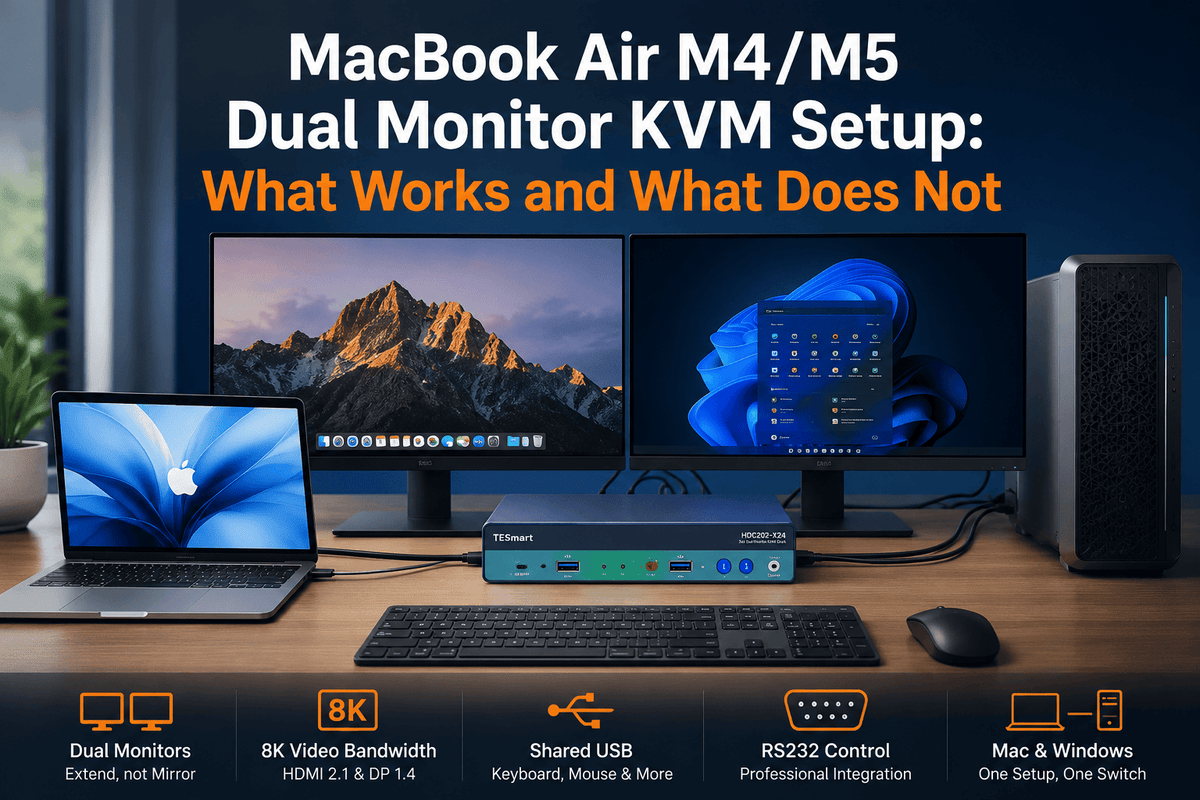
HDC202-X24: One MacBook Air, One Desktop, and Two HDMI Monitors
The HDC202-X24 is more suitable for a mixed workstation that includes one laptop with Thunderbolt 4 connectivity, one desktop, and two HDMI monitors. The laptop connects to the PC1 side with one supported Thunderbolt cable. The desktop connects to PC2 through an HDMI-plus-USB KVM cable and a separate DisplayPort cable. Two HDMI output ports feed the monitors.
For this exact model, TESmart specifies up to dual 4K at 60Hz, up to 60W charging for the laptop connected to PC1, Gigabit Ethernet, shared USB ports, and EDID emulation. EDID handling can help the computers retain display information during switching, although sleep, wake, operating-system behavior, cables, and monitor firmware can still affect recovery time and window placement.
This makes the HDC202-X24 relevant when the priority is native dual-display output from an M4/M5 MacBook Air, one-cable laptop connection, shared USB control, and switching to a desktop with two physical video outputs.
HDC202-P23: Do Not Confuse Its MST Path With the X24 Architecture
The HDC202-P23 uses a different laptop-side design. Its single USB-C dual-monitor workflow is based on MST, which is useful for compatible Windows systems. Mac users should not assume that this one-cable MST path will provide two independent extended desktops in macOS.
If an HDC202-P23 is already part of the desk, verify the exact Mac connection diagram and whether the Mac is supplying two independent video paths. Do not transfer the HDC202-X24 connection instructions, charging behavior, or display architecture to the P23 model.
When a DisplayLink Path Makes More Sense
M4 and M5 MacBook Air models already support two external displays natively, so DisplayLink is not automatically required for a two-monitor setup. It becomes relevant when the selected KVM cannot carry two native streams, when a different single-cable topology is required, or when the user wants more external displays than the Mac natively supports. In those cases, software dependency and workload suitability should be part of the buying decision.
Model-selection rule: Choose the display architecture first, then the product. For a MacBook Air and Windows desktop sharing two HDMI monitors, evaluate HDC202-X24. For a Windows laptop that uses MST, HDC202-P23 may be the more relevant topology. They should not be treated as interchangeable.
Step-by-Step Connection Process
The following process uses the HDC202-X24 as a concrete example. Always follow the manual for the exact regional SKU and hardware revision you own.
-
Confirm the Mac model. Open Apple menu > About This Mac and verify that the MacBook Air uses an M4 or M5 chip.
-
Test the two monitors directly. Connect both monitors to the MacBook Air without the KVM. Confirm that macOS detects two independent external displays. This separates a Mac or monitor issue from a KVM-chain issue.
-
Set a conservative baseline. Start at 1920 × 1080 at 60Hz or another widely supported mode. Do not begin troubleshooting at the highest available resolution or refresh rate.
-
Connect the two monitors to the KVM. For HDC202-X24, connect each monitor to one of the two HDMI output ports with suitable HDMI cables.
-
Connect the MacBook Air to PC1. Use the supplied or specified Thunderbolt cable between the MacBook Air and the PC1 laptop port. Avoid inserting another dock, hub, or adapter during the baseline test.
-
Connect the Windows desktop to PC2. Use the model’s HDMI-plus-USB KVM cable and the separate DisplayPort cable so that the desktop supplies two video signals and USB control.
-
Connect shared peripherals. Start with a basic wired keyboard and mouse. Add the webcam, storage, audio interface, and other higher-bandwidth devices only after display switching works.
-
Connect power and start the chain. Power the monitors and KVM, then start or wake the computers. Select the correct input on each monitor.
-
Configure macOS display arrangement. Open System Settings > Displays. Confirm that both external monitors appear as separate displays and that mirroring is disabled unless you intentionally want duplication.
-
Test switching and wake behavior. Switch from the Mac to the Windows PC and back. Then test sleep and wake. Record whether the issue is video detection, USB focus, charging, or monitor input recovery rather than treating every symptom as one failure.
Troubleshooting a MacBook Air Dual-Monitor KVM Setup
Work through the display path in order. Changing several adapters, cables, and settings at once makes it difficult to identify the failed layer.
- Verify the chip generation. Confirm M4 or M5 rather than applying an M3 clamshell rule.
- Prove native dual-display output. Connect both monitors directly to the MacBook Air and confirm that each can extend the desktop.
- Check macOS display mode. In System Settings > Displays, make sure the external monitors are set to extend rather than mirror.
- Identify the KVM architecture. Determine whether the laptop path uses MST, two SST inputs, a connection compatible with Thunderbolt 4, or DisplayLink.
- Count Mac-side video streams. Do not count only the KVM’s HDMI or DisplayPort outputs. Confirm how two independent signals reach the KVM from the Mac.
- Verify DisplayLink software when applicable. Update DisplayLink Manager and confirm the required macOS permissions. Skip this step for a native HDC202-X24 path because it is not a DisplayLink model.
- Remove extra conversion layers. Temporarily remove third-party hubs, docks, extenders, and chained adapters.
- Check adapter direction. A USB-C-to-DisplayPort cable and a DisplayPort-to-USB-C cable are not necessarily bidirectional. Use the direction required by the signal flow.
- Use bandwidth-appropriate cables. Test with short, known-good cables specified for the required resolution, refresh rate, and protocol.
- Lower the display mode. Test both monitors at 1080p60. If that works, increase resolution and refresh rate one display at a time.
- Test switching, sleep, and wake separately. A setup that works after a cold start but fails after wake points to a different negotiation problem than a setup that never shows the second monitor.
- Add USB devices gradually. Start with keyboard and mouse. Add cameras, storage, capture devices, and audio hardware one at a time to detect USB bandwidth or compatibility issues.
| Symptom | Likely area | First useful test |
|---|---|---|
| Only one external monitor appears | The Mac-to-KVM path may carry only one usable native stream. | Test both monitors directly, then confirm the exact KVM architecture. |
| Both external monitors show the same image | MST-based split or macOS mirroring setting | Disable mirroring; if the displays remain duplicated, check whether the device relies on MST. |
| Dual displays work directly but not through the KVM | KVM topology, host cable, adapter direction, or mode limit | Remove extra adapters and test at 1080p60 with the specified host cable. |
| Windows extends two screens but the Mac mirrors | Windows MST behavior has been assumed to apply to macOS. | Use a confirmed Mac-compatible native two-stream, dual-link SST, or DisplayLink path. |
| Displays recover slowly after switching or wake | EDID negotiation, monitor input scanning, cable quality, or OS wake behavior | Fix monitor inputs, lower the test mode, use known-good cables, and test cold boot versus wake. |
| Video works but USB devices disconnect | USB bandwidth, device compatibility, hub layering, or focus mode | Use a basic keyboard and mouse, remove high-bandwidth USB devices, then add them back individually. |
Final Buying Checklist
Before buying a dual monitor KVM for MacBook Air, confirm the complete path rather than comparing only connector counts.
- Is the laptop an M4 or M5 MacBook Air?
- Do you need two independent external desktops or only mirrored screens?
- Will the built-in display remain open as a third workspace screen?
- Does the exact KVM model explicitly support the required macOS dual-display topology?
- Does the Mac path use MST, independent SST streams, a compatible Thunderbolt multi-display path, or DisplayLink?
- Are you willing to install and maintain DisplayLink Manager?
- How many host-side cables are required for the Mac and for the second computer?
- Do the KVM outputs match the monitor inputs without extra converters?
- What resolution and refresh rate must both monitors maintain through the KVM?
- Which USB devices need to switch, and how much bandwidth do they use?
- Does the laptop need charging through the KVM, and is the specified power sufficient for the workflow?
- Do you need EDID emulation, audio switching, Ethernet, hotkeys, or a remote switch button?
Practical Buying Options Compared
| Option | Shares two monitors | Shares USB peripherals | macOS dual-extension fit | Driver | Switching convenience | Connection complexity | Recommended user |
|---|---|---|---|---|---|---|---|
| Direct cable swapping | Yes, manually | No | Strong native compatibility when each display is directly supported | No | Low | Simple technically, inconvenient daily | Occasional switching and low budget |
| Basic USB-C hub | Not necessarily | For one computer | Depends on its video architecture | Usually no | Low for two-computer use | Low | One laptop needing extra ports |
| MST dual-monitor dock | Yes on compatible Windows hosts | For one computer | Poor for two independent native macOS displays | No | Low for two-computer use | Low | Windows laptop users |
| DisplayLink dock | Yes, within supported conditions | For one computer | Useful when software-assisted output is acceptable | Yes | Low for two-computer use | Moderate | Productivity-focused Mac users needing added displays |
| Standard dual-monitor KVM with two native inputs per host | Yes | Yes | Good when the Mac supplies two supported SST paths | No | High | More Mac-side cabling | Users who prioritize native video over one-cable docking |
| KVM with a confirmed Thunderbolt-compatible laptop path | Yes, when the exact model supports two streams | Yes | Good when the complete topology is validated | No | High | Lower on the laptop side | MacBook Air plus desktop workstations |
| TESmart HDC202-X24 configuration | Yes, up to the model’s supported dual-display mode | Yes | Designed for one compatible laptop and one desktop sharing two HDMI monitors | No DisplayLink driver | High | One laptop cable; two desktop video paths | M4/M5 MacBook Air and Windows desktop users targeting dual 4K60 HDMI output |
Related Guides
This article concentrates on the display topology behind an M4/M5 MacBook Air dual monitor KVM. The following TESmart guides cover adjacent topics in more detail:
- Does the M4 Chip MacBook Support Multiple Monitors? — model-specific background on M4 display support.
- How to Connect Multiple Monitors to a MacBook — direct connections, docks, adapters, and general display planning.
- What Is DisplayPort MST? — a deeper explanation of MST and display-stream splitting.
- DisplayLink Technology Explained — when a software-assisted USB graphics path is useful and where its limits matter.
- KVM Switch vs. Docking Station — how display expansion differs from switching a complete desk between computers.
FAQ
1. Can the M4 MacBook Air run two external monitors with the lid open?
Yes. Apple states that M4 MacBook Air models can use up to two external displays in addition to the built-in display. The KVM, dock, cables, and monitor modes must still support the required two-display path.
2. Can the M5 MacBook Air support two external displays and its built-in display at the same time?
Yes. Apple lists support for two external displays while the built-in display remains active. Actual resolution and refresh-rate combinations depend on Apple’s supported configurations and the limits of every device in the chain.
3. Does closing the MacBook Air lid allow a third external monitor?
No. For M4 and M5 MacBook Air, closing the lid does not increase the supported number of external displays from two to three.
4. Why does my dual-monitor USB-C dock mirror both screens on macOS?
The dock may be splitting one DisplayPort link through MST. A compatible Windows computer may treat the two MST streams as extended desktops, while macOS may present duplicated output or only one independent external display through that path.
5. Does macOS support MST for two independent extended displays?
macOS does not use a conventional MST hub as a Windows-style method for two independent extended desktops. Do not assume a one-cable USB-C MST dock will create two separate Mac displays merely because it has two output ports.
6. What is the difference between MST, SST, and DisplayLink?
MST divides one DisplayPort link into multiple streams. SST carries one native stream per path, so a dual-link SST setup supplies two independent paths. DisplayLink creates display output through USB data, hardware, and software rather than using only the Mac’s native display pipeline.
7. Do I need DisplayLink for an M4 or M5 MacBook Air?
Not necessarily. Both chips support two external displays natively. DisplayLink is relevant when the selected accessory cannot carry two native streams, when a software-assisted single-cable path is preferred, or when the target setup exceeds the Mac’s native external-display count.
8. Can one USB-C cable connect an M4/M5 MacBook Air to two monitors?
Potentially, but only through an architecture that supports two independent displays over that connection. A confirmed Thunderbolt multi-display path or DisplayLink solution may do so. A standard MST-based USB-C splitter should not be assumed to provide two extended macOS desktops.
9. Can a MacBook Air and Windows desktop share two monitors through one KVM?
Yes, when each host supplies the two display paths required by the exact KVM. The Mac and Windows PC may use different host-side connections. The KVM must also match the monitor inputs and target resolution and refresh rate.
10. Which TESmart HDC202 model should I choose for a MacBook Air dual-monitor setup?
For one M4/M5 MacBook Air with Thunderbolt 4 connectivity, one desktop, and two HDMI monitors, evaluate HDC202-X24 first. HDC202-P23 uses an MST-based single-USB-C path and should not be treated as the same macOS dual-display architecture. Confirm the exact SKU, monitor inputs, target display mode, charging requirement, and computer ports before ordering.
Conclusion
The M4 and M5 MacBook Air solve the host-side display-count problem for many dual-monitor users: both models can run two external displays while keeping the built-in screen active. The remaining challenge is preserving two independent display streams through the KVM.
Use the topology as the buying filter. A Windows MST path, two independent SST paths, a supported connection designed for laptops with Thunderbolt 4, and DisplayLink are not equivalent. Count the Mac-side streams, confirm the exact model architecture, and test the complete chain at a conservative display mode before increasing resolution or refresh rate.
For a MacBook Air and Windows desktop that need to share two HDMI monitors, keyboard, mouse, USB devices, Ethernet, and a one-cable laptop connection, the HDC202-X24 is the HDC202 configuration to evaluate. It is designed around that mixed laptop-and-desktop layout rather than a generic MST split.
Planning an M4/M5 MacBook Air and Windows PC dual-monitor desk?
Review the HDC202-X24 connection layout, supported display mode, monitor outputs, laptop charging, and included host cables before finalizing the setup.
Share:
How to Build a Multi-PC Studio with HDK802-M24?
KVM Switch for Mac mini M4: Dual and Triple Monitor Setup Guide