

Table of Contents
- Introduction
- Why Mac and PC Triple-Monitor Setups Get Complicated
- Docking Station vs KVM Switch: Similar Desk, Different Job
- Why DisplayLink Matters for MacBook Triple Monitor Setups
- Why a Hybrid KVM Docking Station Makes Sense
- What DisplayLink Improves, What KVM Solves, and Why Users May Need Both
- Who Actually Needs This?
- Where TESmart Fits in a Triple-Monitor Mac and PC Desk
- Setup and Compatibility Considerations
- How TESmart Approaches This Desk-Switching Problem
- FAQ
- Conclusion
Introduction
A triple-monitor desk is easy to describe but harder to build. Many users want one keyboard, one mouse, one set of USB devices, and three 4K displays shared between a MacBook, a Windows laptop, and sometimes a desktop PC.
The problem is that display expansion and computer switching are not the same task. A docking station helps one computer connect to more devices. A KVM switch helps multiple computers share monitors and USB control. A MacBook triple monitor setup may also need DisplayLink when the built-in display output limits are not enough.
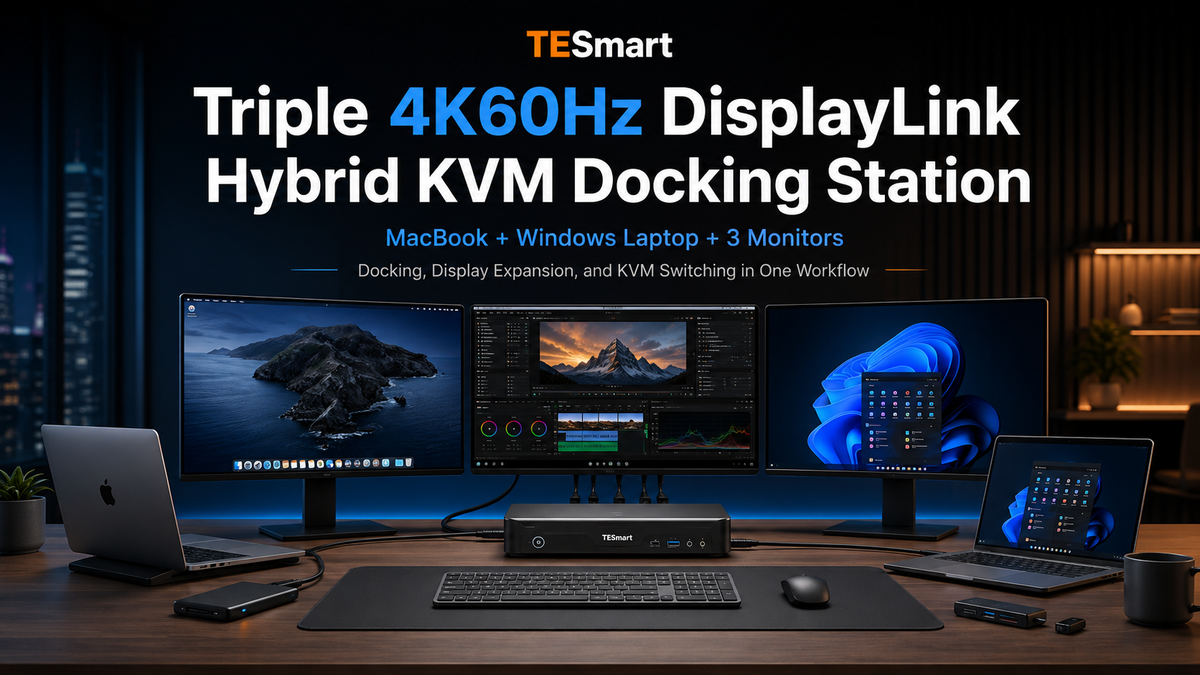
The TESmart Triple 4K60Hz DisplayLink Hybrid KVM Docking Station is designed for this real desk scenario: Mac and PC desk setup, triple 4K60Hz displays, USB-C docking, shared keyboard and mouse, USB peripherals, and multi-device switching in one workflow.
Why Mac and PC Triple-Monitor Setups Get Complicated
Most multi-monitor problems start with a mismatch between what the user wants and what each computer can output.
A desktop PC may have several HDMI or DisplayPort outputs. A Windows laptop may rely on USB-C, HDMI, or a dock. A MacBook often uses USB-C or Thunderbolt-compatible ports, and the number of external displays depends on the exact chip and model. Some MacBook models support fewer external displays than users expect, while higher-end models support more.
This is why a triple monitor KVM switch alone does not automatically create three displays from a MacBook. If the computer cannot provide enough native display outputs, a conventional KVM can only switch the signals it receives.
For mixed Mac and Windows desks, the real question is not just “Which port is fastest?” It is: how can the desk keep three monitors, keyboard, mouse, USB devices, and multiple computers working together with fewer cables and fewer switching steps?

Docking Station vs KVM Switch: Similar Desk, Different Job
A docking station and a KVM switch can sit in the same desk setup, but they solve different problems.
What a Docking Station Does
A docking station expands one computer. It may add display outputs, USB ports, Ethernet, audio, and power delivery. For a laptop user, a USB-C docking station can reduce daily cable plugging and make the laptop behave more like a desktop workstation.
However, a normal docking station is not built to switch the entire desk between two computers. It may help one MacBook or Windows laptop connect to three displays, but it usually does not let a second computer take over the same monitors, keyboard, mouse, and USB devices with o ne switch action.
What a KVM Switch Does
A KVM switch shares keyboard, video, and mouse control between multiple computers. In a multi-monitor setup, it also needs to switch each display path correctly so the active computer can use the monitors.
However, a normal KVM switch does not necessarily expand a MacBook beyond its native display capability. If a MacBook can only send one or two native external displays, a basic triple monitor KVM cannot turn that into a three-display extended desktop by itself.
This is the gap that a DisplayLink KVM or hybrid KVM docking station is designed to address.

Why DisplayLink Matters for MacBook Triple Monitor Setups
DisplayLink is useful because it can carry additional display output through a USB data path. In practical terms, it helps some laptops drive more screens than their native display outputs would otherwise allow.
For MacBook users, this matters because not every MacBook can natively support three external monitors. A DisplayLink docking station for Mac can provide a practical route for triple-display productivity setups, especially when the work involves office applications, coding, research, trading dashboards, collaboration tools, or browser-based workflows.
DisplayLink should not be described as native GPU output. It depends on DisplayLink software, the operating system, the computer’s resources, the docking hardware, the monitors, and the cable quality. Synaptics describes DisplayLink Manager for macOS as software that combines the driver with features for setting up multiple displays, and DisplayLink setup typically involves installing the software and connecting the DisplayLink-enabled device by USB.
That distinction is important. DisplayLink is valuable for multi-monitor productivity, but it is not the same as a direct DisplayPort or HDMI signal from the GPU. Users who need high-frame-rate esports performance, ultra-low-latency video monitoring, or color-critical real-time review should check whether native GPU display outputs are more appropriate for that specific workload.

Why a Hybrid KVM Docking Station Makes Sense
A hybrid KVM docking station combines two desk functions that are often handled by separate devices.
First, it works as a docking hub for compatible laptops, helping route display, USB, network, and peripheral connections through a cleaner desk structure. Second, it works as a KVM switch, allowing multiple computers to share the same monitors, keyboard, mouse, and USB devices.
This matters in a Mac and PC desk setup because the two computers may not connect in the same way. A MacBook may benefit from USB-C docking and DisplayLink-based expansion. A desktop PC may use DisplayPort or HDMI outputs directly. A Windows laptop may use USB-C with DisplayPort Alt Mode or a mixed port configuration.
A triple 4K60Hz KVM docking station is useful when the desk needs the docking layer and the switching layer at the same time. It reduces the need to combine a separate dock, a separate KVM, multiple adapters, and several manual cable changes.
What DisplayLink Improves, What KVM Solves, and Why Users May Need Both
| What DisplayLink improves | What a KVM switch solves | Why users may need both |
|---|---|---|
| Helps add extra displays through a USB data path when native display outputs are limited. | Lets multiple computers share monitors, keyboard, mouse, and USB devices. | A MacBook may need DisplayLink for triple-display expansion, while the desk still needs KVM switching between Mac and PC. |
| Supports practical multi-monitor productivity workflows on compatible macOS and Windows systems. | Moves control from one computer to another without unplugging monitors and peripherals. | Users can keep three monitors and the same peripherals while switching between laptop and desktop systems. |
| Reduces dependence on the number of native HDMI or DisplayPort outputs on a laptop. | Centralizes keyboard, mouse, and USB device control. | A cleaner desk requires both display expansion and shared control, not just more ports. |
| Can be useful for MacBook triple monitor setup scenarios where native output is not enough. | Switches video and USB focus between computers. | A hybrid KVM docking station can combine Mac display expansion with PC switching in one device class. |
Who Actually Needs This?
A DisplayLink-based hybrid KVM docking station is not necessary for every desk. It makes the most sense when the user’s problem includes both multi-monitor expansion and multi-computer switching.
This setup is more suitable for users who:
Use a MacBook and a Windows PC on the same desk.
Want a triple 4K60Hz display workflow for productivity rather than high-frame-rate gaming.
Need to share one keyboard, mouse, webcam, USB storage, audio device, or other USB peripherals across computers.
Want a USB-C KVM docking station experience for compatible laptops while still supporting a desktop PC workflow.
Prefer one central desk-switching device instead of combining a dock, a KVM, and several adapters.
This may not be the right fit if:
You only use one computer and do not need KVM switching.
Your Mac or PC already supports all required displays natively and you do not need shared peripherals.
Your main priority is competitive gaming at very high refresh rates.
Your work requires the lowest possible video latency for real-time production monitoring.
Your IT policy does not allow installing DisplayLink software or display drivers.
Where TESmart Fits in a Triple-Monitor Mac and PC Desk
For users who have already confirmed that they need both display expansion and multi-computer switching, the next question is practical: should the desk be built from separate devices, or should those functions be combined into one central switching hub?
This is where a product such as the TESmart Triple 4K60Hz DisplayLink Hybrid KVM Docking Station becomes relevant. Instead of treating the docking station and the KVM switch as two unrelated devices, it is designed around the real workflow of a Mac and PC triple-monitor desk.
In a typical setup, one computer may be a MacBook that benefits from USB-C docking and DisplayLink-based display expansion. Another computer may be a Windows laptop or desktop PC that needs to share the same three monitors, keyboard, mouse, webcam, USB storage, or audio device. A hybrid KVM docking station helps bring these requirements into one desk structure.
| Desk Requirement | Why It Matters | How a TESmart Hybrid KVM Docking Station Helps |
|---|---|---|
| Triple-monitor productivity workspace | Many users want three displays for coding, trading, research, design review, documentation, or multitasking. | Provides a practical triple 4K60Hz display workflow for compatible Mac and PC setups. |
| MacBook display expansion | Some MacBook models cannot natively drive as many external displays as users expect. | Uses a DisplayLink-based path to help support additional displays in compatible macOS workflows. |
| Multi-computer switching | A dock alone expands one computer, but it usually does not let another computer take over the same full workstation. | Combines docking and KVM switching so users can move between computers without rebuilding the desk connection. |
| Shared USB peripherals | Modern workstations often need more than a keyboard and mouse. Webcams, microphones, USB drives, receivers, and audio devices may also need to follow the active computer. | Centralizes shared USB control as part of the same switching workflow. |
| Cleaner cable management | Separate docks, adapters, video cables, USB switches, and power supplies can make troubleshooting harder. | Reduces the need to combine multiple separate devices in the signal chain. |
The important point is that this type of product should not be selected only because it has USB-C ports or because it includes DisplayLink. It should be selected when the full desk problem matches the product category: one or more laptops, one or more PCs, three productivity displays, shared USB devices, and frequent switching between systems.
For users whose main goal is high-refresh-rate gaming or ultra-low-latency video monitoring, a native GPU display path and a different KVM category may be more appropriate. But for productivity-focused MacBook and Windows workspaces, a DisplayLink hybrid KVM docking station can be a more integrated answer than using a normal docking station and a normal KVM switch separately.
Setup and Compatibility Considerations
Before choosing any DisplayLink KVM, users should check the full signal chain rather than only the product headline.
1. Check the Computer and Operating System
For MacBook users, confirm the exact chip and model, because external display support varies. For Windows PCs, check whether the computer will use USB-C, HDMI, DisplayPort, or a combination of outputs.
2. Plan for DisplayLink Software
DisplayLink usually requires software installation. On managed work computers, users may need administrator permission. The final experience can depend on macOS or Windows version, DisplayLink driver version, security permissions, system resources, and display arrangement settings.
3. Match Monitors and Cables
Triple 4K60Hz workflows depend on the monitors, ports, cables, adapters, and docking path. If one display path uses a weak cable or an unsupported adapter, the whole desk may feel inconsistent even when the KVM dock itself is working correctly.
4. Do Not Assume Every USB-C Port Behaves the Same
USB-C describes a connector shape, not a guaranteed display capability. Some USB-C ports support DisplayPort Alt Mode, some support data only, and some Thunderbolt-enabled laptop ports may support multiple functions through the same connector. The right setup depends on the actual computer specification.
5. Treat DisplayLink as a Productivity Expansion Path
DisplayLink is practical for many office, development, research, and mixed-device workspaces. It should not be positioned as identical to native GPU output or as a replacement for every high-refresh, low-latency display requirement.
How TESmart Approaches This Desk-Switching Problem
At TESmart, we focus on solving the real desk-switching problem: how users can move between computers while keeping monitors, keyboard, mouse, USB devices, and desk cabling under control.
The TESmart triple 4K60Hz DisplayLink hybrid KVM docking station is built for users who need both a DisplayLink docking station for Mac-style multi-monitor expansion and a triple monitor KVM switch for Mac and PC switching.
For compatible setups, this type of hybrid KVM docking station can help support:
Triple 4K60Hz display workflows.
MacBook and Windows PC desk setup scenarios.
USB-C docking for compatible laptops.
Shared keyboard, mouse, and USB peripherals.
Multi-device switching between laptop and desktop systems.
Cleaner cabling compared with separate dock-plus-KVM arrangements.
The product should not be treated as a pure Thunderbolt product category. It is better understood as a DisplayLink-based hybrid KVM docking solution for compatible USB-C, Mac, and PC workflows. Thunderbolt-enabled laptops may be part of the setup when their USB-C connectivity, system software, and display requirements match the configuration, but compatibility should be checked by device model.
For users building a triple-monitor productivity desk around MacBook and Windows systems, this is the practical value of a hybrid design: DisplayLink helps with multi-display expansion, while KVM switching handles shared control across computers.
FAQ
1. Is a DisplayLink KVM the same as a regular KVM switch?
No. A regular KVM switch mainly switches keyboard, video, mouse, and sometimes USB peripherals between computers. A DisplayLink KVM adds a DisplayLink-based display expansion path, which can be especially useful when a laptop does not provide enough native display outputs for a triple-monitor setup.
2. Does DisplayLink mean the monitors are using native GPU output?
No. DisplayLink uses a USB data path with software support. It is useful for productivity-focused multi-monitor expansion, but it should not be described as the same as direct HDMI or DisplayPort output from the GPU.
3. Do MacBook users need to install a driver?
In most DisplayLink workflows, yes. Mac users typically need DisplayLink Manager or related DisplayLink software. Users should also check macOS permissions and IT restrictions before choosing this type of setup.
4. Can every MacBook run three external monitors with this type of solution?
No single statement fits every MacBook. Native display support depends on the Mac model and chip. DisplayLink can help create practical triple-monitor workflows in many cases, but the final result depends on system version, driver support, cables, monitors, and the specific computer.
5. Is this suitable for high-refresh-rate gaming?
This type of triple 4K60Hz KVM docking station is better positioned for productivity, development, trading, office, and hybrid work setups. Users focused on high-frame-rate esports or ultra-low-latency video work should check whether a native GPU display path and a high-refresh KVM are more appropriate.
6. Why not use a normal docking station and a normal KVM separately?
That can work in some setups, especially when the user already owns reliable hardware. The drawback is added cable complexity, more adapters, more power supplies, and more places where display negotiation can fail. A hybrid KVM docking station reduces the number of separate devices in the chain.
7. What should users check before buying?
Check the number of computers, number of monitors, desired resolution and refresh rate, MacBook model, Windows PC outputs, USB-C capabilities, DisplayLink software permission, monitor inputs, cable quality, and whether USB peripherals need to follow the active computer.
Conclusion
A triple-monitor Mac and PC desk is not only a display problem. It is a full workstation problem involving display expansion, computer switching, USB sharing, cable management, and platform differences between macOS and Windows.
A normal docking station expands one computer. A normal KVM switch shares control between multiple computers. DisplayLink helps add displays through a USB data path when native outputs are limited. For many MacBook and Windows mixed desks, the most practical answer is to combine these functions in a hybrid KVM docking station.
For users who need a triple 4K60Hz desk that combines MacBook display expansion, Windows PC switching, shared USB devices, and cleaner cable management, a DisplayLink-based hybrid KVM docking station can be a practical direction. The TESmart Triple 4K60Hz DisplayLink Hybrid KVM Docking Station is designed for this type of Mac and PC productivity workflow.
Learn more about the TESmart Triple 4K60Hz DisplayLink Hybrid KVM Docking Station and check whether it matches your Mac and PC multi-monitor workflow.
Share:
Does HDMI Support 144Hz? 1080p, 1440p and 4K Requirements Explained
Alternatives to Elite One KVM Switch: KVM Setup Guide for Mac, PC, and Multi-Monitor Desks