Table of Contents
- Introduction
- Why Apple Studio Display and Pro Display XDR Are Different
- Why Regular KVMs Fail
- Thunderbolt Display Sharing vs. Regular Video Switching
- Regular KVM vs. Apple Display Workflow Requirements
- Who Actually Needs This?
- The 2026 Complete Fix: Choose the Right Workflow, Not Just Any KVM
- Where TESmart THK401-X4 Fits
- Practical Setup Notes Before You Buy
- FAQ
- Conclusion
Introduction
Apple Studio Display and Pro Display XDR are excellent monitors, but they are not built like ordinary HDMI or DisplayPort displays. For many users, the problem appears only after they try to share one Apple display between a MacBook, a desktop PC, a work laptop, or an HDMI source.
A regular HDMI or DisplayPort KVM may switch a traditional monitor without much trouble. With an Apple Studio Display KVM setup, however, the real question is not only whether a picture appears. The harder question is whether the display, USB devices, audio, camera, microphone, and host communication remain usable across different computers.
This is where many standard KVM setups break down. They are designed around video switching. Apple Studio Display and Pro Display XDR workflows often depend on a more complete Thunderbolt or USB-C display chain.
Why Apple Studio Display and Pro Display XDR Are Different
Most monitors behave mainly as video endpoints. They receive HDMI or DisplayPort input, display the signal, and may provide a basic USB hub if a separate USB cable is connected.
Apple Studio Display and Pro Display XDR are different because they are designed around Apple’s display ecosystem and Thunderbolt / USB-C host connections. Apple Studio Display is a 27-inch 5K Retina display with built-in camera, speakers, microphones, and USB-C ports. Pro Display XDR uses a high-resolution 6K panel and includes a Thunderbolt 3 upstream connection for the host system.
That means the display is not only asking for pixels. It also expects device communication between the host and the display. In a direct Mac connection, that communication can carry display data, USB devices, audio endpoints, camera access, brightness behavior, and charging or host-side capabilities depending on the display and computer.
This is why an Apple display KVM switch problem is often misunderstood. Users search for an Apple Studio Display KVM or Pro Display XDR KVM because they want one cable path that behaves like direct connection. A regular video KVM is usually not designed to preserve that complete relationship.
Why Regular KVMs Fail
Regular KVMs do not fail because they are poorly designed. They fail in this specific scenario because they are solving a different problem.
1. HDMI KVMs cannot create the display chain Apple expects
An HDMI KVM switches HDMI video plus USB keyboard and mouse control. That works well for many PCs, gaming consoles, and HDMI monitors. But Apple Studio Display does not expose a standard HDMI input. If a user tries to force an HDMI source into an Apple display workflow, extra conversion is required, and the result often becomes limited or unstable.
For users trying to connect Apple Studio Display with Windows PC systems, this is the first major limitation. The issue is not only “HDMI versus USB-C.” It is whether the source, adapter, switch, and display can negotiate a display path that the Apple display will accept.
2. DisplayPort KVMs switch video, not the full device relationship
DisplayPort KVMs can be strong choices for high-refresh-rate workstations and multi-monitor PC setups. They are often the right answer for traditional monitors. But Apple Studio Display and Pro Display XDR are not typical DP-only monitors.
A DP KVM may handle a video signal, but it does not automatically preserve Apple display features such as built-in camera, speaker routing, microphone access, USB expansion, or host-side device communication. A partial signal path may produce partial behavior.
3. A USB-C hub is not the same thing as a KVM
Many users first try a USB-C hub or docking station. That makes sense because a dock can expand one laptop into a desktop setup. But a dock is usually designed to serve one host at a time. It does not manage controlled switching between multiple computers.
In a Mac and PC desk setup, the user is not only expanding a MacBook. The user wants to move display access, keyboard, mouse, USB peripherals, and sometimes audio between multiple systems. That is a switching problem, not only an expansion problem.
4. Camera, audio, and USB behavior may not follow the video
With a normal monitor, losing USB hub behavior may be annoying but not critical. With Apple Studio Display, the built-in camera, speakers, microphone array, and USB ports are part of the display experience.
When the video path and USB/device path are not handled together, the user may see a picture but lose the camera, audio device, or USB peripheral access. This creates the common feeling that the display “works,” but the setup is still not usable for meetings, audio switching, or clean daily operation.
5. Host compatibility is not symmetrical
A MacBook, Mac mini, Windows desktop, gaming console, and HDMI source do not behave the same way. Some provide Thunderbolt or USB-C display output. Some only provide HDMI. Some need USB data separately. Some cannot expose Apple display features fully even if video works.
This is why a Pro Display XDR KVM or Apple Studio Display KVM setup should not be judged only by the connector shape. The source device, display requirement, protocol path, and peripheral expectations all matter.

Thunderbolt Display Sharing vs. Regular Video Switching
Regular video switching asks one basic question: which computer sends video to the monitor?
Thunderbolt display sharing asks a broader question: which computer becomes the active host for a display that also behaves like a USB, audio, camera, and peripheral device?
That distinction matters on Apple displays. A traditional KVM can switch HDMI or DisplayPort video and pass keyboard/mouse control. A Thunderbolt-compatible KVM workflow is designed for setups where the display connection must carry more than a simple video signal.
For Apple Studio Display sharing scenarios, the correct workflow must consider:
- whether the display requires Thunderbolt or USB-C host connectivity;
- whether the connected computer can output the required resolution and refresh rate;
- whether USB devices, camera, audio, and display communication need to move with the active host;
- whether one or more HDMI sources must be included in the same desk setup;
- whether repeated cable plugging is causing wear, desk clutter, or daily friction.
In other words, the fix is not simply “buy a stronger KVM.” The fix is to choose a switching architecture that matches the display type and the host devices.
Regular KVM vs. Apple Display Workflow Requirements
| Regular HDMI / DisplayPort KVM | Apple Studio Display / Pro Display XDR Needs | Why users need a different approach |
|---|---|---|
| Switches standard HDMI or DisplayPort video signals. | Requires a host connection that can support Apple display behavior through Thunderbolt or USB-C display workflows. | The display is not only a passive video endpoint; it also depends on host-device communication. |
| Often separates video switching from USB peripheral switching. | Camera, speakers, microphone, USB ports, and display control may need to follow the active host. | A setup that only switches video can leave key Apple display features unavailable. |
| Works best with monitors that have native HDMI or DP inputs. | Apple Studio Display and Pro Display XDR are built around USB-C / Thunderbolt-style host connections. | Adapter chains can introduce compatibility limits, black screens, or incomplete feature support. |
| Good for traditional PC monitors, gaming monitors, and office displays. | Needs careful matching between Mac, PC, HDMI source, display resolution, and USB/device expectations. | The correct solution depends on the whole desk workflow, not only the monitor resolution. |
| May not preserve Apple display-specific behavior. | Users often expect one clean switching path for display, USB, audio, and peripherals. | A Thunderbolt-compatible workflow reduces repeated unplugging and keeps the desk easier to manage. |
Who Actually Needs This?
Not every user needs a Thunderbolt-compatible KVM workflow. A regular HDMI or DisplayPort KVM is still a practical choice when the monitor has standard HDMI / DP inputs and the user only needs to switch video plus keyboard and mouse.
You should consider a different approach if your setup looks like one of these scenarios.
You use a MacBook and a Windows PC with one Apple display
This is one of the most common use cases. A MacBook connects naturally to Apple Studio Display, while a Windows desktop may rely on HDMI, DisplayPort, USB-C, or adapter-based output. The challenge is not only showing Windows on the display. It is making the desk usable without constantly moving cables.
You want to include an HDMI source in an Apple display workflow
Some users need to connect a desktop PC, mini PC, test machine, capture system, or console-like HDMI source. Apple displays do not behave like standard HDMI monitors, so this requires a workflow that understands both the HDMI side and the Apple display side.
You rely on camera, audio, and USB devices
If your Apple Studio Display is used for meetings, speakers, microphone input, USB accessories, or daily peripheral access, video-only switching is usually not enough. You need the active computer to gain the right device path, not only the right screen image.
You are tired of repeated cable plugging
Repeatedly unplugging Thunderbolt, USB-C, HDMI, audio, and USB cables works as a temporary workaround. It is not a good long-term workstation design. The more devices you add, the more likely you are to create connection errors, worn ports, and inconsistent startup behavior.

The 2026 Complete Fix: Choose the Right Workflow, Not Just Any KVM
The complete fix in 2026 is not to assume every KVM can handle every display. The better approach is to identify the display type, then map the host connection paths.
Step 1: Identify the display type
If your monitor has native HDMI and DisplayPort inputs, a regular KVM may be enough. If your display is Apple Studio Display or Pro Display XDR, you need to treat it as a display-plus-device endpoint, not only as a screen.
Step 2: Identify your host devices
A MacBook with Thunderbolt / USB-C output, a Windows desktop with HDMI, and a mini PC with USB-C do not require the same path. Before choosing a switch, list each source device and its real output port.
Step 3: Decide what must switch
Some users only need the display. Others need keyboard, mouse, webcam, speakers, microphone, USB drives, capture devices, network adapters, or audio devices to follow the active computer. This difference changes the type of KVM workflow you need.
Step 4: Avoid unnecessary adapter stacks
Every adapter adds another negotiation point. HDMI-to-USB-C, DisplayPort-to-USB-C, docks, hubs, and converter boxes can all affect signal reliability. A cleaner path is usually more predictable than a chain of conversion devices.
Where TESmart THK401-X4 Fits
At TESmart, we focus on solving the real switching problem behind Apple display workflows: how to move between different computers without rebuilding the desk connection every time.
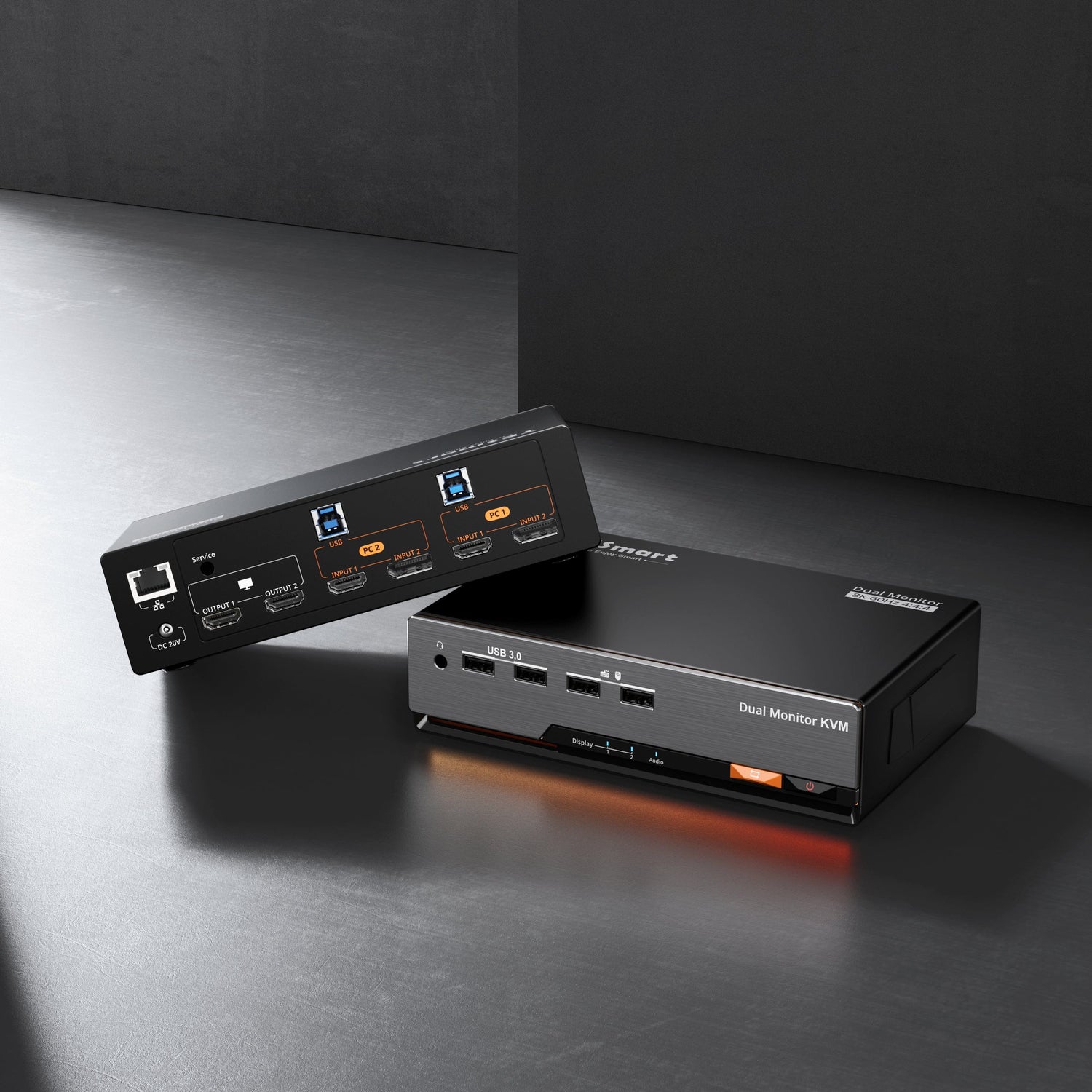
The TESmart THK401-X4 is designed for users who need a practical Apple Studio Display sharing workflow across multiple devices. It is especially relevant when a desk includes a MacBook or other Thunderbolt-enabled laptop together with HDMI-based computers or sources.
Rather than positioning THK401-X4 as a universal Pro Display XDR KVM for every possible host, it is better understood as a workflow device for mixed Apple display environments. It helps users reduce cable swapping, manage a Mac and PC desk setup more cleanly, and bring Thunderbolt-compatible workflows together with HDMI source switching.
This makes THK401-X4 a better fit for users who need:
- Apple Studio Display sharing between multiple devices;
- a Thunderbolt-compatible KVM workflow for a MacBook or compatible laptop;
- integration of HDMI sources into a cleaner desktop switching setup;
- shared keyboard, mouse, and USB peripherals across a mixed desk;
- less repeated plugging and unplugging during daily work.
It is not the right promise to say every Apple display function will work on every host in every configuration. Host capability still matters. Windows PC compatibility, display resolution, camera behavior, audio routing, and USB device access depend on the computer, operating system, cables, and connected display.
The more accurate value of THK401-X4 is that it gives Apple Studio Display users a more realistic switching architecture than a regular HDMI or DisplayPort KVM can provide.

Practical Setup Notes Before You Buy
Apple Studio Display
Apple Studio Display is often the stronger fit for this type of workflow because many users want to share the display between a MacBook and another computer while keeping a clean desk. The key is to check whether your non-Mac source can produce a compatible signal path and whether the features you need are supported in that host environment.
Pro Display XDR
Pro Display XDR has stricter professional display expectations and a 6K workflow. Users should be more cautious when planning a Pro Display XDR KVM setup. Do not assume that any switch, adapter, or source can fully preserve every behavior of the display. Confirm the host output capability, resolution target, cable quality, and expected peripheral behavior before building the setup.
Windows PC and HDMI source note
Using Apple Studio Display with Windows PC systems is possible in some workflows, but it should not be treated like connecting a normal HDMI monitor. The path from Windows source to Apple display must be designed intentionally. A standard HDMI KVM alone usually cannot solve the full Apple display connection requirement.
Cable and port note
Use the correct cable type for the connection path. For Apple display workflows, cable quality and port capability are not minor details. A cable that works for charging or basic USB data may not support the display behavior you expect.
Thunderbolt™ Compatibility Notice
THK401-X4 is designed for use with common Thunderbolt™ laptop workflows and Apple Studio Display sharing scenarios. Compatibility should be understood separately from official certification status. Do not assume Intel® Thunderbolt™ certification unless it is explicitly stated for the specific product and version.
For best results, verify the exact host devices, display model, resolution target, cable type, and peripheral requirements before deployment.
FAQ
1. Can I use a regular HDMI KVM with Apple Studio Display?
Usually not in the way users expect. Apple Studio Display does not behave like a standard HDMI monitor. A regular HDMI KVM may work well with HDMI displays, but it cannot directly provide the complete Apple Studio Display host connection and device behavior.
2. Can I use a DisplayPort KVM with Pro Display XDR?
A DisplayPort KVM is not automatically a complete Pro Display XDR solution. Pro Display XDR depends on a specific high-resolution host connection path. Before using any switch or adapter, confirm the host output, resolution support, cable path, and whether you need more than video.
3. What is the difference between Thunderbolt display sharing and video switching?
Video switching moves a display signal from one source to one monitor. Thunderbolt display sharing may also involve USB devices, audio, camera access, host communication, and power behavior. Apple display workflows often require this broader view.
4. Does THK401-X4 guarantee every Apple Studio Display feature on every computer?
No. Feature availability depends on the host device, operating system, cable, display model, and connection path. THK401-X4 is intended to support practical Apple Studio Display sharing and Thunderbolt-compatible workflows, but users should verify the exact features they need.
5. Is THK401-X4 suitable for a Mac and PC desk setup?
Yes, THK401-X4 is especially relevant for mixed setups where a MacBook or Thunderbolt-enabled laptop shares an Apple display environment with HDMI-based computers or sources. This is different from a basic PC monitor KVM setup.
6. Do I need a Thunderbolt-compatible KVM workflow if I only use normal HDMI monitors?
Probably not. If your monitors have standard HDMI or DisplayPort inputs and you only need to switch video, keyboard, and mouse, a regular TESmart HDMI or DisplayPort KVM may be more appropriate.
7. Why does my Apple display work when directly connected but fail through a switch?
Direct connection gives the computer and display a clean negotiation path. A switch, adapter, hub, or converter can interrupt part of that path. With Apple displays, losing part of the device relationship can affect video, USB, audio, or built-in peripherals.
Conclusion
Regular KVMs are still useful when the display is a regular HDMI or DisplayPort monitor. The problem starts when users apply that same logic to Apple Studio Display or Pro Display XDR.
Apple displays require a more careful workflow because the connection is not only about video. It may also involve USB data, audio, camera behavior, display communication, and host compatibility. That is why the best 2026 fix is not buying any KVM with enough ports. It is choosing a switching path that matches the display, the source devices, and the features the user actually needs.
For users building an Apple Studio Display KVM setup, a Mac and PC desk setup, or a mixed Thunderbolt display sharing workflow with HDMI sources, TESmart THK401-X4 offers a more appropriate direction than a regular HDMI or DisplayPort KVM.
Explore TESmart THK401-X4 to build a cleaner Apple display sharing workflow with fewer cable changes and a more realistic approach to multi-device desktop switching.