

Table of Contents
- The Receiver Works Directly—So Why Does It Fail Through the KVM?
- Quick Answer: A Wireless Receiver Is More Than a Simple Mouse Connection
- Why Logitech Recommends Connecting the Bolt Receiver Directly
- Dedicated HID Ports and Regular USB Ports Are Not the Same
- Why Basic Input Works but Advanced Logitech Features Do Not
- USB 2.0 vs USB 3.x: Faster Is Not Always Better for a Wireless Receiver
- Receiver Placement Can Matter More Than the KVM Specification
- Reconnection Delay Is Not the Same as Continuous Mouse Lag
- Diagnose the Problem by Symptom
- A Step-by-Step Test for Wireless Keyboard and Mouse Problems
- How Independent USB Channels Make Troubleshooting Easier
- FAQ
- Conclusion: Check the USB Path and the RF Environment
The Receiver Works Directly—So Why Does It Fail Through the KVM?
A Logi Bolt mouse may feel completely normal when its receiver is connected directly to a Windows PC or Mac. Move the same receiver to a KVM switch, and the cursor may begin to stutter. The keyboard may miss keystrokes, Logi Options+ may stop detecting the device, or the receiver may need several seconds to recover after switching computers.
This does not automatically mean that Logi Bolt, a Logitech Unifying Receiver, or another 2.4GHz receiver is inherently incompatible with KVM switches. A KVM adds another USB path between the receiver and the computer, and the receiver also remains dependent on a clean wireless path to the keyboard or mouse.
Logitech recommends connecting a Logi Bolt receiver directly to the computer during troubleshooting rather than through a dock, hub, extender, or switch. That step removes several variables at once. It establishes whether the receiver, wireless device, USB port, operating system, and radio environment work under a simple baseline connection.
The important distinction is that a direct-connection test is a diagnostic control. It should not be rewritten as a blanket statement that a Logi Bolt receiver cannot work through a KVM.

Quick Answer: A Wireless Receiver Is More Than a Simple Mouse Connection
Quick Answer
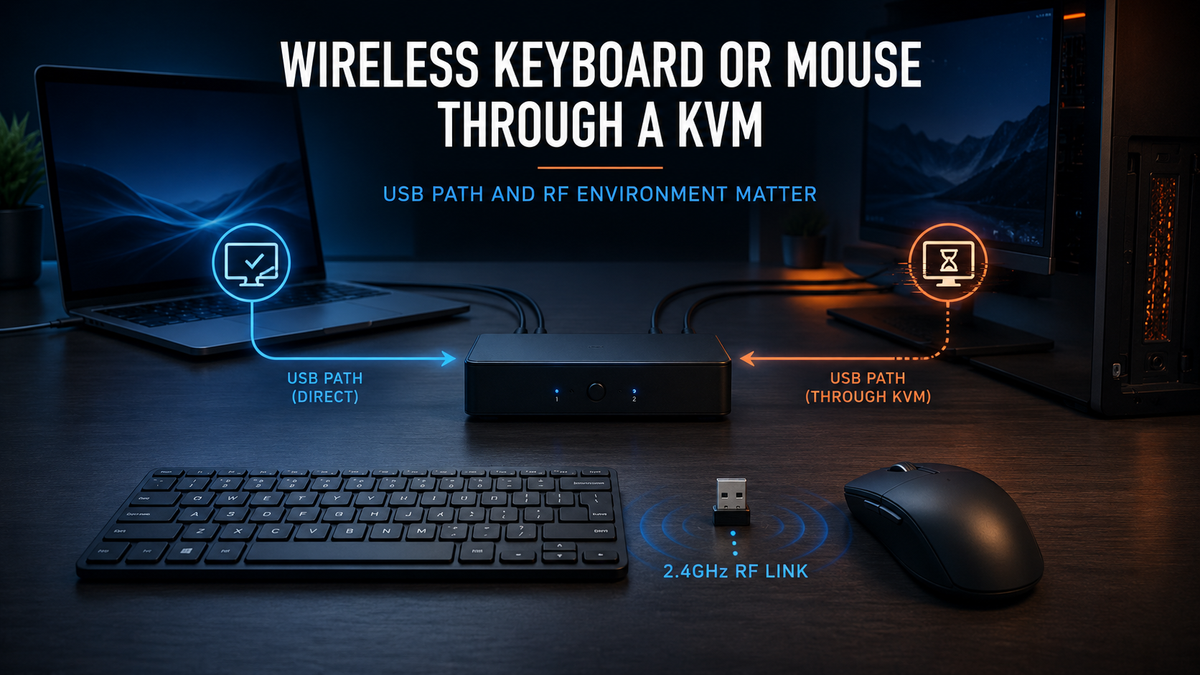
A wireless keyboard or mouse connected through a KVM depends on two separate links:
- The 2.4GHz wireless link between the keyboard or mouse and its USB receiver.
- The wired USB link from the receiver, through the KVM, to the selected computer.
A problem in either link can look like the same symptom: lag, dropped input, delayed reconnection, or a device that appears to be missing. Do not ask only whether the wireless device is “KVM compatible.” Check which USB channel carries the receiver, whether the KVM emulates HID devices, whether the receiver is re-enumerated during switching, and whether its physical location exposes it to radio interference.
This two-link model is the fastest way to understand a wireless keyboard KVM issue or wireless mouse lag through KVM. USB architecture explains why a receiver may not enumerate correctly or why advanced functions disappear. The radio environment explains why the cursor remains choppy even though the computer still sees the receiver.
Why Logitech Recommends Connecting the Bolt Receiver Directly
When Logitech asks users to connect the receiver directly to the computer, the goal is to isolate the receiver from other devices in the chain. A dock, USB hub, extender, or KVM may introduce a different power source, cable, hub controller, USB topology, physical location, or switching behavior.
A direct connection helps answer four useful questions:
- Does the receiver and wireless device work at all? If the problem remains during a direct connection, the KVM is not the only variable.
- Does the computer enumerate the receiver correctly? A working baseline confirms that the operating system can recognize the device on at least one native USB port.
- Is receiver placement affecting the radio link? A receiver at the front of a computer may have a clearer path than one hidden behind a metal KVM or monitor.
- Is another USB device adding interference or power instability? Removing hubs and nearby high-speed devices makes that easier to test.
This is why the answer to “why does Logi Bolt not work through a KVM?” should begin with comparison testing, not a compatibility verdict. If direct connection is stable and the KVM connection is not, the next step is to identify which KVM USB port, switching mode, cable, or receiver position changes the result.

Dedicated HID Ports and Regular USB Ports Are Not the Same
Many KVM switches provide more than one type of USB path. Port labels vary by model, and not every KVM implements these functions in the same way. Always check the product manual before assuming that a port marked “keyboard,” “mouse,” or “USB” behaves like another port.
HID Emulation
A dedicated keyboard or mouse port may use KVM USB HID emulation. Instead of exposing the exact physical device to each computer, the KVM presents a basic keyboard or mouse identity. This can help the computers maintain input readiness, support hotkey commands, and reduce the delay associated with disconnecting and reconnecting a device.
The tradeoff is that the emulated device may represent only standard keyboard and mouse reports. A receiver that also carries vendor-specific controls, device status, multiple HID interfaces, or software communication may lose functions that fall outside the KVM’s emulated profile.
DDM or a Mapped Keyboard/Mouse Channel
A DDM KVM or another mapped keyboard/mouse implementation may maintain a closer relationship with the connected device than simple fixed HID emulation. Depending on the design, it can keep mapped keyboard and mouse behavior available to connected computers while switching focus quickly.
DDM is not implemented identically across every manufacturer or model. It should not be treated as a guarantee that every receiver, macro key, biometric function, gaming report, or configuration utility will pass through unchanged.
Transparent USB Sharing or Hub Switching
A regular shared USB 2.0 or USB 3.x port usually behaves more like a switched USB hub. The complete receiver is assigned to the active computer, allowing the operating system to enumerate its available interfaces rather than seeing only a generic keyboard or mouse.
This path is often the better first test for a Logi Bolt receiver, Unifying Receiver, multi-function mouse, or any device that depends on Logi Options+, G HUB, status reporting, custom buttons, or gestures. The tradeoff is that the receiver may disconnect from one computer and re-enumerate on the other during a switch.
| USB Path | Typical Strength | Possible Limitation | Useful First Test |
|---|---|---|---|
| HID emulation | Hotkeys, basic input continuity, fast focus changes | May not forward vendor-specific or advanced interfaces | Test typing, pointer movement, and KVM hotkeys |
| DDM or mapped channel | Maintained keyboard/mouse mapping and switching responsiveness | Behavior depends on the KVM implementation and device reports | Compare basic input and software detection |
| Transparent shared USB | Full receiver enumeration and better access to advanced features | May reconnect after every computer switch | Check Logi Options+, custom buttons, gestures, and device status |
One Receiver or Separate Receivers?
If the keyboard and mouse share one receiver, both devices follow the same KVM USB path. Moving that receiver from a dedicated keyboard port to a regular shared USB port may improve software recognition for both devices, but it may also remove keyboard-based KVM hotkey control if the regular USB channel is not monitored for hotkeys.
If the keyboard and mouse use separate receivers, test them one at a time. One receiver may work well through a dedicated HID port while the other requires transparent USB sharing. Separate testing prevents one device from hiding the behavior of the other.

Why Basic Input Works but Advanced Logitech Features Do Not
A receiver can expose more than basic left-click, pointer movement, and standard keyboard input. Depending on the product, the computer may also use additional HID collections, vendor-defined reports, or another USB interface for configuration and status communication.
This explains several common symptoms:
- The mouse moves and clicks, but custom side buttons do not work.
- The keyboard types normally, but media keys or special function keys behave differently.
- The keyboard works but Logi Options+ cannot detect the device.
- Battery status, gestures, application-specific profiles, or device switching controls are unavailable.
- KVM hotkeys work, but advanced mouse functions do not.
A dedicated keyboard/mouse port may successfully translate the standard HID reports while not exposing the receiver as the complete USB device expected by the vendor software. A regular shared USB port is more likely to let the receiver enumerate with its full interface set, although the result still depends on the KVM, receiver model, operating system, and current software version.
At TESmart, we separate basic HID behavior from full USB device compatibility when diagnosing these cases. “It can type and click” confirms only that basic input is passing. It does not prove that every receiver interface or vendor application is available.

USB 2.0 vs USB 3.x: Faster Is Not Always Better for a Wireless Receiver
A wireless keyboard or mouse sends very little data compared with a storage drive, camera, or capture device. A 2.4GHz receiver generally does not need USB 3.x bandwidth to carry normal input.
The more important question in a USB 2.0 vs USB 3.0 wireless receiver comparison is often physical placement. Certain USB 3.x devices, connectors, and cables can produce radio-frequency noise in or near the 2.4GHz band. When the receiver is close to that noise source, the wireless link may become less reliable.
This is not the same as saying that every USB 3.0 port interferes with every wireless mouse. The effect depends on device design, shielding, cable quality, traffic level, distance, and the surrounding RF environment. It is often more noticeable when an external SSD or flash drive is actively transferring data close to the receiver.
Useful tests include:
- Move the receiver from a USB 3.x port to an available USB 2.0 port.
- Temporarily disconnect USB 3.x storage, capture devices, docks, and high-speed hubs.
- Use a short USB extension cable to separate the receiver from the KVM chassis and high-speed cables.
- Place the receiver closer to the keyboard and mouse without placing it next to another 2.4GHz transmitter.
If moving the receiver immediately improves cursor movement, the problem is more likely to be the RF environment than USB bandwidth, a mouse driver, or the KVM’s video specification.

Receiver Placement Can Matter More Than the KVM Specification
A receiver may be electrically connected correctly but physically positioned poorly. This is especially common when the KVM is placed under the desk or behind monitors while the keyboard and mouse remain on the opposite side of a large workspace.
Common problem locations include:
- Behind a metal KVM chassis or desktop computer case.
- Directly behind a monitor, metal monitor arm, or desk frame.
- Next to a USB 3.x SSD, high-speed hub, dock, or active cable bundle.
- Under the desk with several feet of distance and a desktop surface between the receiver and mouse.
- On the opposite side of the workstation from the mouse.
A short extension cable is often more useful than replacing the keyboard or mouse because it changes the receiver’s RF position without changing the USB data path. Bring the receiver into an open area on the desktop, shorten the wireless distance, and keep it away from metal barriers and active high-speed USB devices.
Also separate the receiver from Wi-Fi access points, phones, wireless speakers, and other nearby 2.4GHz devices during testing. The goal is not to permanently remove every wireless device. It is to determine whether the symptom changes when the receiver has a cleaner local environment.
Reconnection Delay Is Not the Same as Continuous Mouse Lag
Different timing patterns point to different parts of the system. Treating every pause as “wireless lag” can send troubleshooting in the wrong direction.
Short Delay Only After Switching
If the receiver is on a transparent shared USB channel, switching computers may electrically detach it from one host and attach it to the other. The new computer then detects and enumerates the receiver. During that process, input may pause and the operating system may play a USB connection sound.
A brief, repeatable delay immediately after switching is therefore different from a mouse that stutters continuously for the entire session. It may be normal for that USB switching design, although unusually long or failed enumeration still deserves testing.
Continuous Cursor Stutter or Missed Keystrokes
Persistent lag is more consistent with RF interference, poor receiver placement, unstable USB power, a cable or hub problem, or a receiver/device fault. If the computer continues to list the receiver while the cursor skips, start with physical placement and nearby USB 3.x activity.
Only Advanced Functions Are Missing
If typing and clicking work reliably but Logi Options+, gestures, battery status, or custom controls do not, investigate the USB path. A dedicated HID-emulation channel may be passing basic reports without forwarding every interface used by the receiver and its software.
The Problem Appears on Only One Computer
If the same KVM port and receiver work on one computer but not the other, compare the KVM’s USB upstream cables, computer USB ports, OS accessory permissions, USB power settings, and installed software. A one-sided failure is less likely to be caused solely by the wireless link.

Diagnose the Problem by Symptom
| Symptom | Most Likely Area | First Test |
|---|---|---|
| Mouse lags continuously | RF interference or receiver placement | Move the receiver away from USB 3.x devices and metal barriers |
| Keyboard works but Logi Options+ cannot detect it | HID emulation or incomplete USB pass-through | Use a regular shared USB port |
| Devices pause only after switching | USB re-enumeration | Wait for the OS to detect the receiver and observe the connection sound |
| Receiver works on one PC but not another | USB cable, port, power, permission, or OS settings | Swap the KVM USB upstream cables and computer ports |
| Hotkey switching stops working | Receiver is connected to a non-hotkey USB channel | Test the dedicated keyboard port |
| Hotkeys work but advanced mouse buttons do not | Dedicated HID channel limitation | Test the transparent shared USB channel |
| Both keyboard and mouse fail together | Shared receiver, receiver power, or common USB path | Test the shared receiver directly on the computer |
A Step-by-Step Test for Wireless Keyboard and Mouse Problems
Use the same receiver, keyboard, mouse, and computers throughout the test. Change one variable at a time so the result identifies a specific part of the chain.
- Connect the receiver directly to one computer. Confirm that pointer movement, typing, custom buttons, gestures, and vendor software work as expected. This is the baseline.
- Confirm the basic device state. Check battery level, pairing, receiver identity, and device firmware briefly. Do not spend the entire diagnosis on generic updates if the direct baseline already works.
- Connect the receiver to the KVM’s regular shared USB port. Test complete device detection, Logi Options+ or other configuration software, custom buttons, and normal input.
- Test the dedicated keyboard or mouse port. Compare basic input, KVM hotkeys, switching speed, and advanced functions. Note which capabilities change.
- Separate hotkey behavior from device compatibility. A port can be good for KVM hotkeys but limited for vendor software. Another port can expose the full receiver but not support keyboard hotkey switching.
- Temporarily remove high-speed USB devices. Disconnect external SSDs, capture devices, cameras, docks, and USB 3.x hubs. Retest while the receiver is the only shared USB device.
- Change the receiver’s physical position. Use a short USB extension cable to place it on the desktop, away from metal, high-speed cables, and other 2.4GHz equipment.
- Test each computer and USB upstream cable separately. Swap the KVM’s computer-side USB cables or ports. A failure that follows one cable or host port identifies the wired USB side.
- Classify the timing. Record whether the problem is a short pause after switching, continuous lag, total non-detection, or advanced-feature loss. These are different failure categories.
- Check OS-specific controls. On Windows, review USB power management only if the receiver disconnects or sleeps unexpectedly. On a Mac, make sure the system has allowed the newly connected USB accessory when prompted.
- Document the connection path before contacting support. Record the KVM model, receiver model, keyboard and mouse models, operating system, KVM port label, computer-side USB cable, and whether the devices share one receiver.
At TESmart, our support team may ask for the KVM model, receiver model, and exact USB connection path because those details determine whether the issue is occurring in the HID channel, the shared USB channel, the host connection, or the wireless link.

How Independent USB Channels Make Troubleshooting Easier
A KVM with independent USB channels gives users more than one way to connect input devices and peripherals. This does not eliminate RF interference or guarantee compatibility with every wireless product, but it makes diagnosis and configuration more flexible.
A dedicated keyboard/mouse channel can prioritize basic HID behavior, KVM hotkeys, and responsive switching. A regular shared USB 2.0 or USB 3.x channel can allow a wireless receiver to enumerate as a fuller USB device. Storage, cameras, audio devices, and receivers therefore do not all have to use the same switching method.
For a Logitech keyboard and mouse through KVM, the practical choice often depends on the user’s priority:
- Hotkeys and basic input first: Test the dedicated keyboard/HID or DDM channel.
- Logi Options+, gestures, custom buttons, and device status first: Test the regular shared USB channel.
- Stable 2.4GHz performance first: Use whichever compatible channel lets the receiver sit in the clearest physical location, preferably away from active USB 3.x equipment.
We recommend testing the receiver through both the dedicated keyboard channel and the regular shared USB channel when the KVM provides both. Do not assume that the port with the faster USB version is automatically the best port for a low-bandwidth wireless receiver.
When evaluating a TESmart KVM, check the specific model’s rear-panel labels, manual, hotkey requirements, USB sharing modes, and compatibility notes. TESmart models do not all use the same USB architecture, and a port-selection recommendation for one model should not be applied automatically to another.
FAQ
Can I use a Logi Bolt receiver with a KVM switch?
Often, yes, but the result depends on the KVM’s USB architecture, the selected port, the receiver and device models, and the functions you need. For a Logitech Bolt KVM setup, start with the regular shared USB port when full software detection and custom functions matter. Test the dedicated keyboard port separately when KVM hotkeys or faster input focus are the priority. This is not a universal compatibility guarantee.
Why does Logitech recommend connecting the Bolt receiver directly to the computer?
Direct connection removes docks, hubs, extenders, switches, extra cables, and receiver-placement changes from the test. It confirms whether the receiver and wireless device work in a simple baseline configuration. The recommendation is a troubleshooting step, not an announcement that every Logi Bolt receiver KVM connection is unsupported.
Should I connect a wireless receiver to the KVM’s keyboard port or USB port?
Use the regular shared USB port first when you need Logi Options+, G HUB, custom buttons, gestures, or complete receiver enumeration. Try the dedicated keyboard/mouse port when you need KVM hotkeys, basic HID continuity, or faster switching. The correct choice depends on the model, so check the manual and test both paths when available.
Why does my mouse lag when a USB 3.0 device is connected?
Some USB 3.x devices and cables can add radio noise near the 2.4GHz band, especially when a high-speed storage device is active close to the receiver. Move the receiver away from the USB 3.x device, try a USB 2.0 port, or use a short extension cable. This is a possible interference condition, not a rule that every USB 3.0 connection causes mouse lag.
Why do my keyboard and mouse stop working briefly after switching computers?
The receiver may be disconnecting from one computer and enumerating on the other through a transparent shared USB channel. A short pause can be part of that switching method. If the devices never recover, reconnect repeatedly, or remain unstable after detection, test the USB upstream cable, host port, power behavior, and receiver path.
Why does Logi Options+ fail to detect a device that can still type or click?
The KVM may be forwarding only basic keyboard or mouse reports through an emulated HID channel. The vendor software may require additional receiver interfaces or reports that are not being exposed. Test the receiver through a regular shared USB port, but keep in mind that software and device support can also vary by OS and product version.
Is Bluetooth better than a USB receiver for a multi-computer KVM setup?
Bluetooth can bypass the KVM’s USB path by pairing the keyboard or mouse directly with each computer. That can be useful when a USB receiver remains problematic. However, Bluetooth switching usually has to be performed on the peripheral or in the operating system and does not automatically follow the KVM’s video and USB selection. It is therefore an alternative connection method, not a fully synchronized KVM experience.
What should I test when a wireless mouse is not working with a KVM?
First confirm direct operation on the computer. Then test the KVM’s regular shared USB port, the dedicated keyboard/mouse port, the receiver position, nearby USB 3.x devices, each computer-side USB cable, and each operating system separately. This sequence distinguishes a receiver fault from a USB receiver KVM switch path problem or an RF problem.
Conclusion: Check the USB Path and the RF Environment
When a wireless mouse stops working after switching computers, or when basic input works but advanced functions disappear, the useful question is not simply, “Is this wireless keyboard or mouse compatible with a KVM?”
Check which USB channel carries the receiver. Determine whether the KVM uses HID emulation, DDM, or transparent USB switching on that port. Observe whether the symptom appears only during USB re-enumeration or continues throughout use. Then evaluate the receiver’s physical location, metal obstructions, wireless distance, and nearby USB 3.x activity.
A KVM that provides both a dedicated keyboard/mouse path and a regular shared USB path gives you more ways to balance hotkey support, switching behavior, full receiver enumeration, and physical receiver placement. It does not remove every compatibility or RF variable, but it makes the system easier to diagnose.
Next step: Review the USB port labels, manual, hotkey requirements, and compatibility notes for the specific TESmart KVM model you are considering. If the behavior remains unclear, contact TESmart technical support with the KVM model, receiver model, operating systems, port used, and a simple connection diagram so the USB path can be evaluated accurately.
Share:
KVM Black Screen or Refresh Rate Drop? How EDID Data Causes Display Issues
How to Build a Dual Apple Studio Display Workstation with a Thunderbolt 4 KVM