

Table of Contents
- Introduction
- Why DisplayPort 2.1 Monitors Are Getting Attention in 2026
- DisplayPort 2.1 Is Not One Single Speed
- DisplayPort 2.1 Bandwidth Explained: HBR3 vs UHBR10 vs UHBR20
- Why KVM Buyers Need to Think Beyond the Monitor Port
- Which Display Modes Actually Need DP 2.1?
- What DSC Really Does and Why It Matters for KVM Setups
- When a DP 1.4 KVM Still Makes Sense
- Choosing Between DKS202-M24 and DKS203-M24
- Comparison: Which Upgrade Path Makes Sense?
- Technical Checklist Before Buying a KVM for a DisplayPort 2.1 Monitor
- FAQ
- Final Thoughts: Upgrade the Workflow, Not Just the Port
Introduction
A DisplayPort 2.1 monitor can look like a simple upgrade: higher bandwidth, newer connector labeling, and better support for extreme refresh-rate displays. But for KVM users, the decision is not that simple.
If you use one gaming PC and one work laptop, or a Mac and PC desk setup with two or three monitors, the monitor port is only one part of the chain. The GPU output, monitor input, KVM bandwidth, cable certification, DSC behavior, EDID management, USB peripheral switching, and operating system all affect the final result.
That is why we recommend planning the full display chain before choosing a KVM, not just matching the connector name. A DP 2.1 monitor does not automatically require a DisplayPort 2.1 KVM today, and a mature DisplayPort 1.4 DSC KVM can still be the more practical choice for many high-refresh-rate desks.
This guide explains the technical concepts behind DisplayPort 2.1, including UHBR10, UHBR13.5, UHBR20, DP40, DP80, and DSC. It also explains what those terms mean in real multi-computer KVM setups, where video switching, USB device sharing, EDID stability, cable quality, and monitor count all matter.
Why DisplayPort 2.1 Monitors Are Getting Attention in 2026
DisplayPort 2.1 is becoming more visible because monitor specifications are moving faster than ordinary desktop needs. High-end gaming and creator displays now include 4K 240Hz OLED panels, dual-mode monitors that switch between 4K and very high-refresh 1080p modes, and 5K multi-mode Mini LED monitors that can trade resolution for refresh rate.
For gamers, this matters because 4K 240Hz, 1080p 480Hz, OLED response times, HDR, and VRR all increase pressure on the video link. For creators and workstation users, high-resolution 5K or 8K displays can require more bandwidth when combined with high bit depth, HDR, or multiple monitors.
For KVM buyers, however, the real question is not “Does the monitor say DP 2.1?” The better question is: can every device between the computer and the display carry the signal mode you actually want?
A direct GPU-to-monitor connection is usually the easiest path for extreme specifications. A KVM setup adds switching, EDID handling, USB device sharing, and cable length considerations. Those added parts are useful, but they also make compatibility planning more important.

DisplayPort 2.1 Is Not One Single Speed
One common mistake is treating DisplayPort 2.1 as a single bandwidth level. It is not. DisplayPort 2.1 devices may support different UHBR tiers, and those tiers change what the link can carry.
| Term | What It Means | Why KVM Buyers Should Care |
|---|---|---|
| UHBR10 | Ultra High Bit Rate 10, up to 40Gbps across four lanes | A DP 2.1 device with UHBR10 is not the same as a full UHBR20 device. |
| UHBR13.5 | Up to 54Gbps across four lanes | Higher than UHBR10, but still below UHBR20. |
| UHBR20 | Up to 80Gbps across four lanes | This is the highest DisplayPort 2.1 UHBR tier and is the level many users mean when they say “full-bandwidth DP 2.1.” |
| DP40 cable | Certification associated with UHBR10 operation | Useful to understand older or existing cable labels, but not enough for UHBR20. |
| DP80 cable | Certification associated with UHBR20 operation | Important when the goal is full UHBR20 bandwidth over a certified cable. |
| DP80LL cable | Low-loss active cable concept for longer UHBR20 links | Relevant for future desk layouts where cable distance matters more. |
This is why a DP 2.1 monitor label alone is not enough. One monitor may support UHBR20. Another may use DP 2.1 branding but operate at a lower UHBR tier. A GPU may also support a different tier than the monitor. If the KVM or cable cannot support the required link mode, the system may fall back to a lower bandwidth mode, use DSC, reduce refresh rate, or fail to display the expected signal.
Another important detail is that DisplayPort version numbers and bandwidth tiers are not the same thing. A product can mention DisplayPort 2.1 but still support only a lower UHBR tier. In the same way, a cable may look physically identical to another DisplayPort cable but carry a different certification level. For users, the safest approach is to look for the specific bandwidth tier, such as UHBR10, UHBR13.5, UHBR20, DP40, or DP80, instead of relying only on the DisplayPort version number.
This matters even more with a KVM because the signal does not travel directly from the GPU to the monitor. It passes through extra connectors, switching circuitry, EDID logic, and two separate cable runs. Each additional link increases the importance of bandwidth margin and signal integrity.

DisplayPort 2.1 Bandwidth Explained: HBR3 vs UHBR10 vs UHBR20
To understand DisplayPort 2.1, it helps to compare it with the DisplayPort 1.4 HBR3 link that many high-refresh-rate monitors and KVM switches still use today. The key point is that the number printed on a product page is usually the raw link rate, while the usable video data rate is lower after encoding overhead.
| DisplayPort Link Mode | Raw Link Rate | Approx. Effective Data Rate | Common Association | Why It Matters |
|---|---|---|---|---|
| HBR3 / DisplayPort 1.4 | 32.4Gbps | 25.92Gbps | Many current 4K high-refresh and 8K 60Hz DSC setups | Still practical for many gaming and workstation desks when DSC is supported. |
| UHBR10 / DisplayPort 2.1 | 40Gbps | About 38.7Gbps | DP40-class cable expectations | A DP 2.1 device at UHBR10 is faster than HBR3, but it is not full-bandwidth DP 2.1. |
| UHBR13.5 / DisplayPort 2.1 | 54Gbps | About 52.2Gbps | Mid-tier UHBR support | Provides more headroom than UHBR10, but still below UHBR20. |
| UHBR20 / DisplayPort 2.1 | 80Gbps | About 77.4Gbps | DP80-class cable expectations | This is the highest common DP 2.1 UHBR tier and is what many users mean by “full-bandwidth DP 2.1.” |
This bandwidth difference is the reason a simple “DP 2.1” label can be misleading. A monitor, GPU, dock, cable, or KVM may all use DisplayPort-related language, but they may not support the same link tier. In a KVM setup, the final result is limited by the weakest part of the chain.
For example, a GPU with DP 2.1 UHBR20 connected to a monitor with DP 2.1 UHBR20 still cannot run at UHBR20 through a KVM or cable that only supports a lower link rate. The system may fall back to a lower refresh rate, require DSC, reduce color depth, or fail to display the expected mode.

Why KVM Buyers Need to Think Beyond the Monitor Port
A DisplayPort KVM sits in the middle of a full video and control workflow. It does more than pass a video signal from one input to one output.
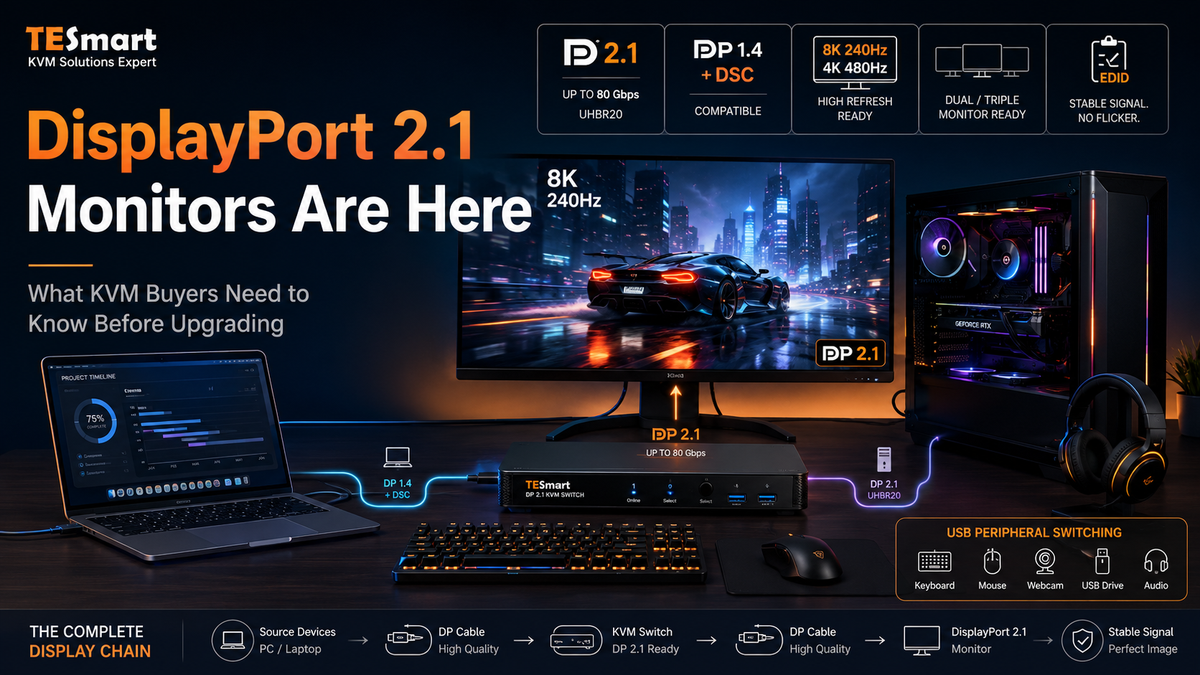
In a typical gaming PC and work laptop setup, the chain looks like this:
GPU or laptop video output → cable → KVM input → KVM output → cable → monitor input
For a dual monitor KVM or triple monitor KVM, this chain is repeated for each display. Each computer usually needs one video output per monitor. If you want two monitors from two computers, each computer normally needs two usable video outputs. If you want three monitors from two computers, each computer normally needs three usable video outputs.
The signal chain also includes non-video parts:
Keyboard → mouse → webcam → headset → USB storage → audio devices → KVM USB switching logic
This is where a real KVM differs from a basic DisplayPort switch. A standard DisplayPort switch may only change which video source reaches the monitor. A DisplayPort KVM is designed to switch the display path and the control path together, so your keyboard, mouse, and USB peripherals follow the selected computer.
EDID management is also important. EDID tells the computer what display is connected and what modes it supports. In multi-monitor setups, weak EDID behavior can lead to black screens, windows moving around, monitors being re-detected, or refresh rates falling back after switching.
Which Display Modes Actually Need DP 2.1?
Not every high-end monitor mode requires the same level of DisplayPort bandwidth. Resolution, refresh rate, color depth, HDR, chroma format, blanking timings, and DSC support all affect the required link bandwidth. This is why two monitors with the same resolution and refresh rate may behave differently in a KVM setup.
| Display Mode | Typical Practical Path | Does It Usually Require DP 2.1? | KVM Planning Note |
|---|---|---|---|
| 2560×1440 at 144Hz or 165Hz | Often works within DisplayPort 1.4 | Usually no | A stable DP 1.4 KVM is often enough if the monitor count and USB needs match. |
| 3440×1440 ultrawide at 144Hz or 175Hz | Often practical on DP 1.4, depending on color settings | Usually no | Check 10-bit color, HDR, and cable quality, especially with gaming monitors. |
| 4K at 144Hz or 160Hz | Often DP 1.4 with DSC, or DP 2.1 with more headroom | Not always | Many users can still use a mature DP 1.4 DSC KVM if the whole chain supports the mode. |
| 4K at 240Hz | Commonly depends on DSC unless using a higher-bandwidth DP 2.1 path | Sometimes | Confirm whether the monitor expects DSC, UHBR, or a specific cable certification. |
| 5K or 5K2K high-refresh monitors | Highly dependent on timing, color depth, and DSC | Often benefits from DP 2.1 | Do not assume every KVM can carry the advertised maximum monitor mode. |
| 8K at 60Hz | Often DP 1.4 DSC or DP 2.1, depending on device support | Not always, but careful checking is required | DSC support and EDID stability become especially important. |
| Extreme uncompressed 4K/5K/8K modes | Usually needs higher DP 2.1 UHBR bandwidth | Yes, if the goal is to avoid compression | The GPU, monitor, KVM, and cables must all support the required bandwidth tier. |
The practical lesson is simple: do not buy a KVM only because the monitor says “DisplayPort 2.1.” First identify the actual mode you plan to run. A user who normally runs dual 4K 144Hz with DSC has a very different requirement from a user trying to preserve an uncompressed UHBR20 path to a flagship 4K 240Hz or future 8K display.

What DSC Really Does and Why It Matters for KVM Setups
DSC stands for Display Stream Compression. It is a visually lossless compression technology used in many modern high-resolution and high-refresh-rate display modes. In simple terms, DSC allows a video signal that would otherwise exceed the available DisplayPort bandwidth to fit through the link.
This is why many current monitors can advertise modes such as 4K 240Hz or 8K 60Hz even when the connection path uses DisplayPort 1.4. Without DSC, those modes may require more bandwidth than the link can carry. With DSC, they can become practical on existing GPUs, monitors, and KVM switches, provided every part of the chain supports the required behavior.
For most gaming, office, and creator desk setups, DSC is not something users actively notice during daily use. It is designed to preserve visual quality while reducing bandwidth demand. However, it should not be confused with unlimited bandwidth. DSC does not magically make every DisplayPort 1.4 device equivalent to a full DisplayPort 2.1 UHBR20 path.
| Scenario | What DSC Helps With | What DSC Does Not Solve |
|---|---|---|
| 4K high-refresh gaming | Allows modes such as 4K 144Hz, 4K 160Hz, or 4K 240Hz to fit into a lower-bandwidth link | Does not guarantee compatibility if the GPU, monitor, KVM, or cable handles DSC poorly. |
| 8K 60Hz display setups | Can make 8K 60Hz possible on DisplayPort 1.4-class links | Does not replace the need to check EDID, cable quality, and device support. |
| Multi-monitor KVM desks | Reduces bandwidth pressure for each display path | Does not create extra GPU outputs or solve operating system display limitations. |
| Color-critical workflows | May still be acceptable for many users | Users with strict capture, grading, medical, or validation requirements should verify the exact workflow. |
For KVM buyers, the most important question is not simply “Does the KVM support DSC?” The better question is whether the complete chain supports the target display mode with stable switching. That includes the GPU output, cable, KVM input, KVM output, second cable, monitor input, EDID handling, and operating system behavior.
This is also where a mature DisplayPort 1.4 DSC KVM can still make sense. If your actual target mode is supported through DP 1.4 with DSC, and you need reliable switching for two or three monitors plus USB peripherals, a DP 1.4 DSC KVM may be more practical than waiting for every part of the DP 2.1 KVM ecosystem to mature.
When a DP 1.4 KVM Still Makes Sense
A DP 1.4 KVM still makes sense when your priority is a stable multi-computer desk rather than chasing the highest possible interface label.
For example, a user with one gaming PC and one work laptop may care about switching two monitors, a keyboard, a mouse, a webcam, and a headset between systems. In that case, USB peripheral switching and EDID behavior may matter more every day than whether the monitor port is the newest revision.
A DP 1.4 KVM can also be practical for creators who use a workstation and a laptop with dual 4K monitors, or for software developers who want one desk for Windows and macOS. The key is to confirm the actual resolution and refresh-rate target first.
Mac users should be especially careful. Many MacBook models do not provide a native DisplayPort connector. A Mac and PC desk setup with a DisplayPort KVM may require USB-C to DisplayPort cables, a compatible dock, or another adapter layer. Each adapter can affect display detection, EDID behavior, refresh-rate options, and wake-from-sleep reliability.
In short: choose a DP 1.4 KVM when the target display modes are supported, the monitor count matches the KVM design, and you need reliable switching for both video and USB devices.
Choosing Between DKS202-M24 and DKS203-M24
TESmart DisplayPort KVM selection should start with the number of computers and monitors, not only with the newest monitor interface.
After the technical requirements are clear, the KVM selection becomes much easier. Instead of starting from the newest interface name, start from the number of computers, number of monitors, target display modes, and USB devices you need to share.
For Two Computers and Two Monitors: DKS202-M24
If your setup includes two computers and two DisplayPort monitors, DKS202-M24 is the more relevant model to consider. It fits users who want a dual monitor KVM for a gaming PC and work laptop setup, a Windows workstation plus a second PC, or a Mac and PC desk setup where the Mac side has the correct DisplayPort-capable adapter path.
The reason to consider this type of TESmart KVM is not that it turns every DP 2.1 monitor into a full UHBR20 setup. It is that many users need stable dual-display switching, EDID management, and USB peripheral switching across two computers. For a desk built around DisplayPort 1.4 DSC display modes, that can be a more practical upgrade than waiting for every part of the DP 2.1 KVM ecosystem to mature.
For Two Computers and Three Monitors: DKS203-M24
If your workflow uses three monitors, DKS203-M24 is the more natural fit. A triple monitor KVM is useful for developers, traders, editors, analysts, and technical users who need three displays to follow the active computer without rebuilding the desk every time they switch systems.
With any triple monitor setup, the first question is whether each computer can output three independent video signals at the required resolution and refresh rate. The KVM cannot create GPU outputs that the computer does not have. It organizes and switches the outputs that already exist.
If you already own a DP 2.1 UHBR20 monitor and want to run an extreme uncompressed mode, confirm the whole chain before choosing any KVM. If your actual target is a supported DP 1.4 DSC mode across two or three monitors, a current TESmart KVM may still match the workflow better than a direct-cable setup.
Comparison: Which Upgrade Path Makes Sense?
| Upgrade Path | Best For | Main Advantage | Main Limitation | KVM Buyer Takeaway |
|---|---|---|---|---|
| DisplayPort 2.1 monitor direct connection | One high-end PC connected to one high-end monitor | Shortest signal path and best chance of reaching the monitor’s highest supported mode | No multi-computer switching or USB peripheral sharing | Good for maximum display performance, weak for shared desks. |
| DisplayPort 2.1 monitor with future DP 2.1 KVM | Users who need UHBR20-class switching across multiple computers | Potentially better fit for future full-bandwidth DP 2.1 monitor workflows | Requires matching GPU output, monitor input, KVM bandwidth, and certified cables | Worth watching if your target mode truly requires DP 2.1 bandwidth. |
| DisplayPort 1.4 + DSC KVM | Many 4K high-refresh, 8K 60Hz, dual monitor, and triple monitor desks | Mature switching path with EDID management and USB peripheral switching | Not a full substitute for every DP 2.1 UHBR20 uncompressed use case | Often the most practical current choice when your target modes are supported. |
| Standard DisplayPort switch without USB sharing | Simple video-only source switching | Lower complexity for one monitor and simple source selection | Usually does not switch keyboard, mouse, webcam, headset, or USB storage | Not a full KVM workflow. |
| USB-C hub/dock | Expanding one laptop into monitors and peripherals | Useful for single-computer laptop expansion | Does not normally solve multi-computer display and USB control switching by itself | A dock expands one computer; a KVM switches between computers. |
| Direct cable swapping | Occasional switching with minimal equipment | No compatibility layer between source and monitor | Slow, inconvenient, increases cable wear, and does not preserve a clean workflow | Acceptable for rare changes, poor for daily multi-device work. |
Technical Checklist Before Buying a KVM for a DisplayPort 2.1 Monitor
Before buying a DisplayPort KVM for a DP 2.1 monitor, check the full chain in this order. This avoids the common mistake of buying around the monitor label while ignoring the actual signal path.

- Start with the real display mode. Write down the exact resolution, refresh rate, color depth, HDR setting, and monitor count you want to use.
- Check the GPU output tier. Confirm whether the source device supports DP 1.4 HBR3, DP 2.1 UHBR10, UHBR13.5, or UHBR20.
- Check the monitor input tier. Do not rely only on “DP 2.1” in the product title. Look for the actual UHBR level in the specifications.
- Confirm whether DSC is required. Some modes only work when DSC is enabled across the GPU, monitor, and switching path.
- Use the right cable certification. DP40 is associated with UHBR10-class operation, while DP80 is relevant for UHBR20-class expectations.
- Count video outputs per computer. A dual monitor KVM normally requires two video outputs from each computer. A triple monitor KVM normally requires three.
- Check laptop and Mac limitations. Some laptops and MacBooks cannot output the number of independent displays you expect without a dock, adapter, or DisplayLink solution.
- Review EDID behavior. Strong EDID management helps reduce black screens, window rearrangement, and display re-detection after switching.
- Separate video switching from USB switching. A DisplayPort switch may only change the video source. A KVM also switches keyboard, mouse, webcam, headset, and other USB devices.
- Leave bandwidth margin. If your target mode is already close to the limit, longer cables, adapters, or multiple switching layers can make the setup less stable.
FAQ
Do I need a DisplayPort 2.1 KVM for a DisplayPort 2.1 monitor?
Not always. You need to check the resolution, refresh rate, color settings, DSC use, GPU output, cable certification, and monitor input tier. If your actual target mode works within a DisplayPort 1.4 DSC KVM workflow, a DP 1.4 KVM may still be practical.
Is every DisplayPort 2.1 monitor UHBR20?
No. DisplayPort 2.1 is not one single bandwidth level. A DP 2.1 monitor may support UHBR10, UHBR13.5, or UHBR20. Always check the monitor’s detailed input specification, not just the connector label.
Is DP80 the same as DisplayPort 2.1?
No. DP80 is a cable certification related to UHBR20-class operation, while DisplayPort 2.1 is an interface specification. A DP 2.1 device may support different UHBR tiers, and a cable certification helps indicate what link rate the cable is designed to carry.
Why can a DP 2.1 monitor still fail to reach its maximum refresh rate through a KVM?
Because the monitor is only one part of the chain. The GPU, cable, KVM, second cable, monitor input, DSC support, EDID handling, and operating system must all support the target mode. If one part of the chain is limited, the system may fall back to a lower mode or fail to display correctly.
Does a higher-bandwidth DP 2.1 connection mean I no longer need DSC?
Not always. Higher bandwidth reduces dependence on DSC, but some extreme modes may still use DSC depending on resolution, refresh rate, color depth, HDR, and device design. Users should check the actual monitor and GPU specifications rather than assuming DSC is always disabled on DP 2.1.
Can DisplayPort 1.4 with DSC still support high-refresh-rate gaming?
Yes, in many current setups. DisplayPort 1.4 DSC is commonly used for high-resolution and high-refresh modes such as 4K 240Hz or 8K 60Hz, depending on the full device chain. It should not be assumed to cover every uncompressed DP 2.1 UHBR20 use case.
What is the difference between a DisplayPort switch and a DisplayPort KVM?
A DisplayPort switch usually focuses on video source selection. A DisplayPort KVM is designed to switch video and control together, including keyboard, mouse, and often other USB peripherals. For daily multi-computer work, USB peripheral switching is usually the reason to choose a KVM instead of a simple video switch.
Why does EDID matter when switching between two PCs?
EDID tells the computer what display is connected and which modes are available. Without stable EDID management, a computer may think the monitor was disconnected during switching. That can cause window rearrangement, black-screen delays, or resolution and refresh-rate fallback.
Should I wait for DP 2.1 KVMs or buy a DP 1.4 KVM now?
If your monitor workflow truly depends on UHBR20-class bandwidth and you want to preserve that path through a KVM, waiting for a matching DP 2.1 KVM may make sense. If your real target is supported through DisplayPort 1.4 DSC and you need stable dual-monitor or triple-monitor switching today, a mature DP 1.4 KVM may be the more useful choice.
Which TESmart KVM should I consider for dual or triple monitors?
For two computers and two DisplayPort monitors, consider DKS202-M24. For two computers and three DisplayPort monitors, consider DKS203-M24. In both cases, confirm your GPU outputs, monitor inputs, target resolution and refresh rate, cable quality, DSC requirements, and USB device needs before buying.
Final Thoughts: Upgrade the Workflow, Not Just the Port
DisplayPort 2.1 is an important direction for high-end monitors, especially as 4K 240Hz OLED, 5K multi-mode, Mini LED, and future UHBR20 displays become more common. But a KVM buying decision should be based on the complete workflow.
The monitor port matters, but it is not the whole system. The better question is whether your GPU, monitor, KVM, cables, DSC behavior, EDID management, and USB peripheral switching needs all line up.
For users chasing the highest uncompressed DP 2.1 UHBR20 modes, the safest approach is to confirm every link in the chain before adding a KVM. For many real gaming, creator, developer, and home office desks, a stable DisplayPort 1.4 DSC KVM remains a practical way to share high-resolution monitors and USB peripherals across multiple computers.
To choose the right TESmart KVM, start with your monitor count, resolution, refresh rate, GPU outputs, cable path, and USB device needs. Then compare TESmart DisplayPort KVM options based on the desk you are actually building, not only the newest interface name.
Share:
49-Inch Super Ultrawide vs Dual Monitors: Which KVM Setup Works Better?
Thunderbolt 5 Dock vs KVM Switch: Why a Powerful Dock Still Does Not Switch Two Computers