

Table of Contents
- Introduction
- What Users Are Actually Trying to Solve
- Why 49-Inch Super Ultrawide Monitors Still Make Sense in 2026
- Why Dual Monitors Still Work Better for Many Desks
- How KVM Requirements Change Between Ultrawide and Dual Monitors
- Comparison: Ultrawide, Dual Monitors, Dock, Switch, or Cable Swapping
- What to Check Before Choosing a KVM
- Which TESmart KVM Direction Fits Your Setup?
- FAQ
- Conclusion
Introduction
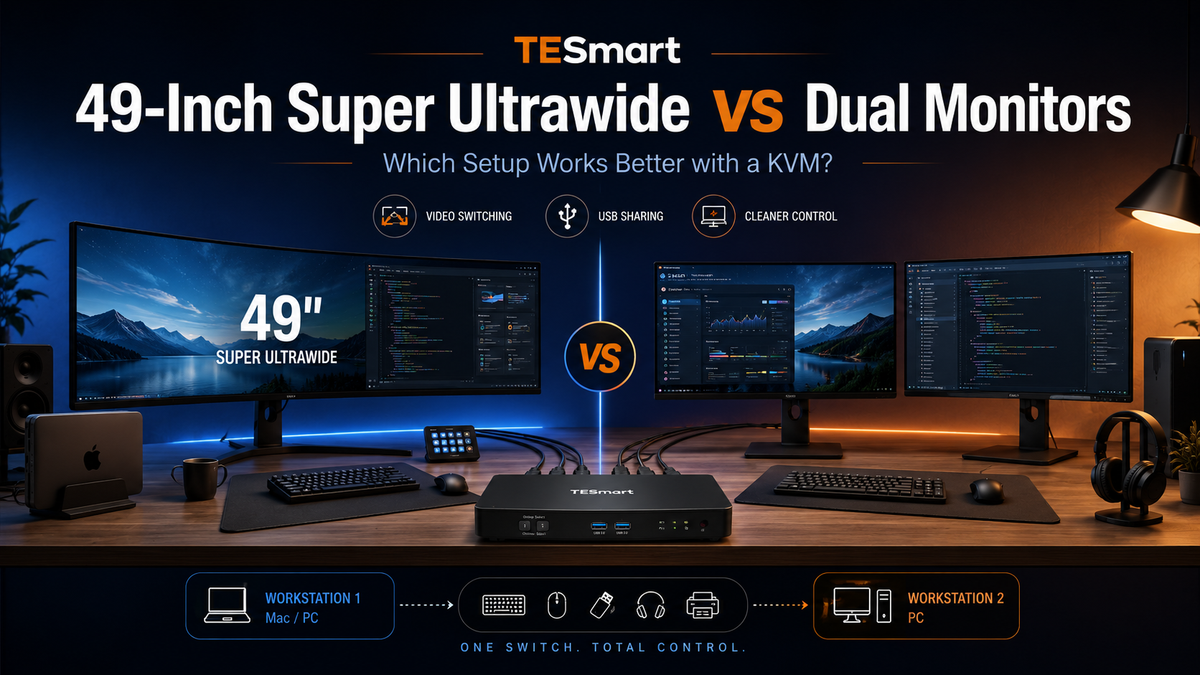
A 49-inch super ultrawide monitor and a dual monitor setup can look similar on paper. Both give you a large desktop area. Both can support office work, gaming, content creation, coding, trading, and a Mac and PC desk setup.
But once you add a KVM switch, the difference becomes more practical. You are no longer choosing only between one wide screen and two separate screens. You are choosing how video signals, USB peripherals, audio devices, EDID information, refresh rates, and switching behavior will work across multiple computers.
At TESmart, we recommend choosing the KVM around your display workflow, not just the number of computers. A 49-inch super ultrawide monitor may work best with a single monitor KVM, while a two-screen workstation usually needs a dual monitor KVM with the right video inputs and USB peripheral switching.
This guide explains how to compare a 49-inch super ultrawide KVM setup with a dual monitor KVM setup, and how to decide which path is more stable for your desk.
What Users Are Actually Trying to Solve
Most users start with a simple question: should I buy one large 49-inch monitor or two separate monitors?
For KVM users, the real question is more specific:
- Do you need one continuous workspace or two physically separate screens?
- Will you switch between a gaming PC and work laptop setup?
- Do both computers have the right HDMI, DisplayPort, or USB-C video outputs?
- Do you need the keyboard, mouse, webcam, headset, microphone, storage device, or capture device to follow the active computer?
- Do you care more about high refresh rate gaming, window organization, clean wiring, or multi-application productivity?
A basic HDMI switch or DisplayPort switch may only move the video signal. A full KVM setup also needs to manage control devices and USB accessories. That distinction matters when your desk includes a MacBook, Windows workstation, gaming PC, work laptop, or console.

Why 49-Inch Super Ultrawide Monitors Still Make Sense in 2026
A 49-inch super ultrawide monitor is attractive because it replaces the physical split between two monitors with one continuous display surface. For many users, that is the main advantage.
Instead of dealing with two bezels, two stands, two power cables, and two monitor input menus, a 49-inch super ultrawide monitor gives you one large canvas. This can work well for timeline editing, wide spreadsheets, racing simulators, immersive gaming, and side-by-side browser or productivity windows.
For KVM users, the simpler physical structure can also reduce switching complexity. A single monitor KVM only needs to switch one video output path from each computer to one display. In a 49 inch monitor KVM setup, the desk may be easier to wire than a dual-monitor workstation.
However, “single monitor” does not automatically mean “easy.” Many 49-inch super ultrawide monitors use high resolutions, high refresh rates, HDR modes, OLED panels, or specific HDMI and DisplayPort bandwidth requirements. The KVM, GPU output, monitor input, cable specification, and system display settings all need to support the target mode.
This is why a super ultrawide KVM setup should be planned around the full display chain, not only the diagonal size of the screen.

Why Dual Monitors Still Work Better for Many Desks
Dual monitors remain popular because two separate screens create a natural structure for multitasking. Developers can keep code on one screen and logs or documentation on the other. Creators can separate preview, timeline, tool panels, and reference materials. Office users can keep meetings, email, documents, and dashboards visible without constantly resizing windows.
Dual monitors also give users more flexibility with positioning. You can use one landscape monitor and one portrait monitor. You can choose different sizes, panel types, refresh rates, or color profiles. You can replace one display without replacing the whole workspace.
For a KVM setup, though, dual monitors add one important requirement: each computer usually needs to provide one video output for each monitor. A dual monitor KVM does not magically create a second independent display signal from a computer that only outputs one video stream.
This is where many setups fail. A desktop PC may have enough HDMI or DisplayPort outputs, but a laptop may rely on USB-C, a dock, or an adapter. A Mac and PC desk setup may require extra attention because many Mac laptops use USB-C or Thunderbolt-compatible ports instead of native DisplayPort outputs. If the KVM expects DisplayPort input, the Mac side may need a USB-C to DisplayPort cable or a compatible dock.
Dual monitors can be more productive, but the signal path is more complex than a single-screen ultrawide setup.

How KVM Requirements Change Between Ultrawide and Dual Monitors
The main KVM difference is not simply “one screen vs two screens.” It is how many independent video paths need to be switched.
49-Inch Super Ultrawide with a Single Monitor KVM
With a 49-inch super ultrawide monitor, each computer normally sends one video signal into the KVM. The KVM then sends one output to the monitor. This makes a single monitor KVM suitable for many super ultrawide KVM desks.
This approach is often easier for users who want one keyboard, one mouse, one large display, and one clean switching workflow between two or more computers.
The main technical question is whether the KVM can support the monitor’s required resolution and refresh rate through the selected interface. A 49-inch super ultrawide monitor may use a demanding signal format, especially when running at high refresh rates. Users should check the monitor input port, GPU output port, KVM supported resolution, refresh rate, and cable rating before buying.
Dual Monitors with a Dual Monitor KVM
With two monitors, each computer usually sends two video signals into the KVM. The KVM then sends two outputs to the two displays. This makes a dual monitor KVM the better fit for two-monitor desks.
This setup is useful when you want each computer to use both displays as an extended desktop. It is also better when your workflow depends on physically separating applications across two screens.
The tradeoff is wiring and compatibility. A 2-computer dual monitor KVM setup may require four video input cables plus two video output cables, in addition to USB and audio connections. A 4-computer dual monitor setup requires even more planning.
Why EDID Management Matters
EDID management affects how a computer recognizes a connected monitor. In a KVM setup, stable EDID behavior can help the system remember display identity, resolution, and layout when switching between computers.
Without stable EDID handling, some users may see black screens, delayed wake-up, changed refresh rates, or windows moving after a switch. This is especially noticeable in dual monitor setups because the operating system needs to keep track of two display identities instead of one.
EDID does not guarantee every high-end display mode will work through every KVM. It is one part of a larger chain that also includes the GPU, operating system, monitor firmware, cable, adapter, and KVM video specification.
Comparison: Ultrawide, Dual Monitors, Dock, Switch, or Cable Swapping
| Setup Option | Best For | KVM / Switching Behavior | Key Advantages | Main Limitations |
|---|---|---|---|---|
| 49-inch super ultrawide with single-monitor KVM | Users who want one large display for gaming, editing, spreadsheets, or a clean Mac and PC desk setup | One video signal per computer is switched to one monitor, along with keyboard, mouse, and selected USB peripherals | Cleaner wiring, no bezel gap, simpler display path than dual monitors, good for a super ultrawide KVM workflow | Requires careful checking of resolution, refresh rate, HDMI KVM or DisplayPort KVM bandwidth, cable quality, and monitor input support |
| Dual monitors with dual-monitor KVM | Developers, office users, creators, traders, and users who need two physically separate screens | Each computer usually provides two video outputs into the KVM; both monitors switch together or according to the KVM workflow | Strong multitasking structure, flexible monitor placement, better physical separation of apps and tasks | More video cables, more GPU output requirements, more EDID complexity, and more Mac/PC compatibility planning |
| Direct cable swapping | Occasional switching between computers | No centralized switching; users manually unplug and reconnect display and USB cables | Low hardware cost and no KVM compatibility layer | Slow, inconvenient, increases port wear, does not create a reliable daily switching workflow |
| USB-C hub or dock | Expanding one laptop into more ports, displays, USB devices, and power connections | Usually expands one computer rather than switching control between multiple computers | Useful for laptop docking, charging, and adding ports | Not the same as a KVM; may add adapter complexity when used before a KVM, especially in Mac/Windows mixed setups |
| Standard HDMI/DP switch without USB sharing | Simple video-only switching | Switches the display signal but usually does not manage keyboard, mouse, webcam, headset, or storage devices | Simple for one monitor and basic video source selection | Not a full KVM; users still need a separate way to share USB peripherals and audio devices |
What to Check Before Choosing a KVM
Before choosing between a single monitor KVM and a dual monitor KVM, check the actual signal path on your desk.
1. Monitor Input Ports
Check whether your 49-inch super ultrawide monitor or dual monitors use HDMI, DisplayPort, USB-C video input, or a mix of interfaces. A DisplayPort KVM is not automatically interchangeable with an HDMI KVM. Adapters can work in some setups, but they also add another negotiation point.
2. GPU and Laptop Output Ports
A gaming PC may have several DisplayPort and HDMI outputs. A work laptop may only have USB-C ports. A MacBook may need USB-C to DisplayPort or USB-C to HDMI conversion, depending on the KVM and monitor inputs.
For a dual monitor setup, confirm that each computer can output two independent display signals at the same time. This is especially important for laptops, compact PCs, and Mac systems.
3. Resolution and Refresh Rate Targets
Do not assume that every KVM can run every display at its maximum mode. A 49-inch super ultrawide monitor, OLED gaming monitor, or high-refresh-rate curved monitor may require more bandwidth than a standard 4K60 office display.
Check the KVM supported resolution and refresh rate, the video interface version, the GPU output capability, the monitor input mode, and the cable specification. If your priority is high refresh rate gaming, the whole chain must support the target mode.
4. USB Peripheral Switching
A complete TESmart KVM setup is not only about video. It should also match how you use keyboard, mouse, USB headset, webcam, microphone, external drive, controller, or other USB devices.
For a gaming PC and work laptop setup, this can be the difference between a clean one-button workflow and a desk full of separate USB hubs.
5. Audio Device Routing
Some users rely on monitor speakers, USB headsets, DACs, microphones, or HDMI audio. Before choosing a KVM, decide whether audio should follow the active computer, remain attached to one device, or be handled separately.
6. EDID Behavior and Switching Stability
EDID management is especially important when users want stable window positions, reduced black-screen time, and consistent monitor recognition after switching.
For dual monitor users, EDID stability matters even more because each computer must remember two displays. For 49-inch super ultrawide users, EDID matters because the monitor may present a non-standard ultrawide resolution or high-refresh-rate mode.
Which TESmart KVM Direction Fits Your Setup?
The right TESmart KVM direction depends on how your display workflow is built.
For a 49-Inch Super Ultrawide or Single Display Setup: HKS / HDK Direction
If your desk uses one 49-inch super ultrawide monitor, a single monitor KVM is often the cleaner starting point. This setup is suitable for users who want to switch one large display, keyboard, mouse, and USB peripherals between a desktop PC, gaming PC, work laptop, or Mac system.
The HKS series is a natural direction for users who need a single-display KVM workflow. It is especially relevant when your priority is simple switching across multiple computers while keeping one main monitor at the center of the desk.
For users comparing HDMI KVM and DisplayPort KVM options, the interface choice should follow the monitor and GPU outputs. If your 49-inch super ultrawide monitor performs best over DisplayPort, the KVM path should reflect that. If your devices are HDMI-based, an HDMI KVM may make more sense.
The HDK series may also be considered when your setup expands beyond a basic single-screen workflow or when the surrounding video and USB requirements point toward a different TESmart KVM structure. The key is to match the KVM to the real signal chain instead of choosing by monitor size alone.
For a Dual Monitor Desk Setup: DKS / HKS Direction
If your desk uses two monitors as an extended desktop, a dual monitor KVM is usually the better fit. This is the path for developers, financial users, creators, engineers, and office users who rely on two separate displays every day.
The DKS series is a practical direction for DisplayPort-based multi-monitor workstations, especially when users need a dual monitor KVM or multi-monitor KVM structure. It is important to confirm that each computer can provide the required number of video outputs and that the KVM supports the resolution and refresh rate you want on each display.
The HKS series can also fit certain multi-computer single-display workflows where the user values direct switching, USB sharing, and a simpler monitor structure. For dual-screen users, however, the product direction should be checked against the exact number of monitors and video outputs needed.
For Mac and PC Mixed Setups
A Mac and PC desk setup often needs extra planning because the two systems may not expose the same video ports. A Windows desktop may use native DisplayPort outputs, while a MacBook may rely on USB-C or Thunderbolt-compatible ports.
If the KVM input is DisplayPort, the Mac side may need USB-C to DisplayPort conversion. If the setup uses HDMI, confirm whether the Mac has native HDMI output or requires an adapter. If a dock is involved, check whether it can output the required resolution and refresh rate before the signal reaches the KVM.
For mixed desks, the safest planning method is to draw the signal chain first:
Computer output → cable or adapter → KVM input → KVM output → monitor input
Then check USB and audio separately:
Computer USB → KVM USB input → shared keyboard, mouse, webcam, headset, or storage device
FAQ
Is a 49-inch super ultrawide monitor better than dual monitors for a KVM?
Not always. A 49-inch super ultrawide monitor can be cleaner and easier to wire with a single monitor KVM, but dual monitors often work better for users who want physical task separation. The better choice depends on your workflow, video outputs, refresh rate target, USB peripherals, and desk layout.
Do I need a single monitor KVM for a 49-inch super ultrawide monitor?
In many cases, yes. A 49-inch super ultrawide monitor is still one display, so a single monitor KVM is usually the correct category. However, you still need to check resolution, refresh rate, HDMI or DisplayPort bandwidth, cable quality, and EDID behavior.
Do dual monitors always require a dual monitor KVM?
If you want both monitors to switch between computers as extended displays, you usually need a dual monitor KVM. Each computer typically needs to provide one video output per monitor. A basic video switch or USB hub will not provide the same control workflow.
Can I use a USB-C dock instead of a KVM?
A USB-C dock is mainly used to expand one computer. A KVM is used to switch control between multiple computers. Some desks use both, but they are not the same device. Adding a dock before a KVM can also introduce compatibility variables, especially with high refresh rates or Mac/Windows mixed setups.
Is DisplayPort better than HDMI for a super ultrawide KVM?
It depends on your monitor and computer outputs. Many high-refresh-rate monitors rely on DisplayPort for certain modes, while many consoles and HDMI-based devices are better matched with HDMI. Choose the KVM interface based on the exact ports and display modes you plan to use.
Why do windows move after switching a KVM?
This can happen when the computer thinks the monitor was disconnected or changed during switching. EDID management can help maintain display identity, but stable behavior also depends on the monitor, operating system, GPU, cable, adapter, and KVM design.
Can a standard HDMI or DisplayPort switch replace a KVM?
Usually no. A standard HDMI or DisplayPort switch may switch video only. A KVM also switches keyboard, mouse, and other USB peripherals. For users who want one desk setup shared by multiple computers, USB peripheral switching is often as important as video switching.
Conclusion
The dual monitor vs ultrawide decision becomes more technical when a KVM is involved.
A 49-inch super ultrawide monitor can be a strong choice if you want one continuous screen, cleaner cabling, immersive gaming, and a simpler single monitor KVM path. It still requires careful checking of resolution, refresh rate, HDMI or DisplayPort support, cable specification, and EDID behavior.
A dual monitor setup remains a strong choice if your work depends on two separate screens, fixed application zones, coding and documentation, content creation panels, or multitasking across different sources. It usually requires a dual monitor KVM and enough video outputs from every connected computer.
For 49-inch super ultrawide and single-display setups, explore TESmart HKS and HDK series options based on your video interface and USB sharing needs. For dual monitor workstations, compare TESmart DKS and HKS series directions according to your monitor count, computer count, HDMI or DisplayPort chain, EDID requirements, and USB peripheral switching workflow.
CTA: Before choosing a KVM, list your monitor count, monitor input ports, computer output ports, target resolution, refresh rate, and USB peripherals. Then review TESmart KVM options that match your actual display workflow rather than choosing only by screen size.
Share:
Nintendo Switch 2 Shared Monitor: HDMI Switch or KVM Switch?
DisplayPort 2.1 Monitors and KVM Switches: UHBR, DP80, DSC, and Real-World Compatibility Explained