Table of Contents
- Introduction
- DisplayPort vs HDMI: The Basic Difference
- Why Version Numbers Matter More Than the Port Shape
- DisplayPort vs HDMI for Gaming
- DisplayPort vs HDMI for Work and Multi-Monitor Desks
- DisplayPort vs HDMI Comparison Table
- Which Should You Choose for Your Setup?
- DP KVM or HDMI KVM: What Changes in a KVM Setup?
- What to Check Before Buying Cables, Monitors, or a KVM
- How TESmart DP KVM and HDMI KVM Solutions Fit In
- FAQ
- Conclusion
Introduction
Choosing between DisplayPort and HDMI is rarely about which connector is “better” in every situation. The real question is whether your video chain matches your devices, monitors, refresh rate target, and switching needs.
A gaming PC with a high-refresh DisplayPort monitor, a PS5 connected to a TV, a dual-monitor office workstation, and a mixed gaming and work setup all make different demands on the display connection. The port name alone does not tell you enough.
This guide explains DisplayPort vs HDMI from a practical desktop perspective: gaming, work, creative tasks, multi-monitor setups, and KVM switching. It also explains why a high-end monitor or graphics card still needs the right cable, KVM, USB device path, and display settings to deliver the experience you expect.
DisplayPort vs HDMI: The Basic Difference
DisplayPort is most common in PC monitors, discrete graphics cards, professional workstations, and multi-monitor desk setups. It was designed as a PC display interface, and VESA describes DisplayPort as a scalable display standard with features such as Multi-Stream Transport for multiple displays over one source connection.
That PC-first background is why many high-refresh gaming monitors and workstation displays include DisplayPort inputs. If your main system is a Windows gaming PC or GPU-based workstation, DisplayPort is often the first port to check.
HDMI is more common across TVs, game consoles, media players, projectors, AV receivers, and consumer electronics. HDMI is also widely used on laptops and monitors, but its strongest advantage is broad device compatibility.
For console gaming and home entertainment, HDMI is usually the practical choice because PS5, Xbox Series X, TVs, soundbars, and AV systems are built around HDMI. HDMI 2.1 also introduced features important for modern gaming and media, including higher resolutions and faster refresh rates such as 4K120 and 8K60, depending on the devices and cable used.

Why Version Numbers Matter More Than the Port Shape
“DisplayPort” and “HDMI” are not single fixed performance levels. A DisplayPort 1.2 connection, a DisplayPort 1.4 connection, an HDMI 2.0 connection, and an HDMI 2.1 connection can behave very differently.
This is where many buying mistakes happen. A monitor may have both HDMI and DisplayPort, but not every port on that monitor necessarily supports the same maximum resolution, refresh rate, color depth, HDR mode, VRR behavior, or bandwidth.
DisplayPort 1.2 vs DisplayPort 1.4
DisplayPort 1.2 is still common in office and older gaming setups. It can be enough for many 1080p, 1440p, and 4K60 workflows, depending on the monitor and system.
DisplayPort 1.4 is more relevant for higher-end gaming and workstation displays because it supports higher link rates than DP 1.2 and can use Display Stream Compression in supported device chains. VESA’s DisplayPort 1.4 announcement specifically highlights DSC and HDR-related improvements.
In real setups, that does not mean every DP 1.4 device will automatically deliver every high-resolution, high-refresh, HDR combination. The GPU, monitor, cable, KVM, and system settings all need to support the target mode.

HDMI 2.0 vs HDMI 2.1
HDMI 2.0 is widely used and remains suitable for many 4K60 displays, office monitors, and AV devices.
HDMI 2.1 is more important when the setup involves 4K120 console gaming, modern gaming TVs, VRR, ALLM, or higher-bandwidth media workflows. HDMI Forum lists HDMI 2.1 features such as 4K120, 8K60, Dynamic HDR, VRR, and ALLM, but actual support still depends on the source device, display, cable, and firmware.
This is why “HDMI 2.1” on a spec sheet should be checked carefully. Some devices support only certain HDMI 2.1 features, and some TVs provide full gaming features only on specific HDMI ports.

DisplayPort vs HDMI for Gaming
For DisplayPort vs HDMI for gaming, the right answer depends on whether you are gaming on a PC monitor, a gaming TV, or a console.
Gaming PC with a High-Refresh Monitor
For a desktop gaming PC connected to a high-refresh monitor, DisplayPort is often the cleaner path. Many graphics cards and gaming monitors expose their highest PC-focused refresh rate modes through DisplayPort, especially for 144Hz, 165Hz, ultrawide, or multi-monitor setups.
DisplayPort is also common in GPU-heavy desks where users run two or three monitors from one graphics card. In this environment, the display path is usually built around GPU outputs, monitor inputs, and refresh-rate stability rather than TV or AV compatibility.
Still, DisplayPort is not automatically better. If your monitor supports the target refresh rate and resolution over HDMI 2.1, HDMI can also be a strong PC gaming option.
PS5, Xbox, and Console Gaming
For PS5, Xbox Series X, and most living-room gaming devices, HDMI is the standard path. Sony states that PS5 supports HDMI 2.1 and 4K 120Hz video output, while Microsoft provides setup guidance for 4K gaming at 120Hz on Xbox Series X.
Xbox documentation also connects HDMI 2.1 with gaming features such as 4K120, VRR, and ALLM on capable displays.
This does not mean every HDMI connection will produce 4K120 or VRR. The console, TV or monitor, HDMI port, cable, firmware, and game settings must all align.
VRR, HDR, and DSC in Real Gaming Setups
VRR, HDR, and DSC are not controlled by the cable name alone. They depend on source support, monitor support, interface version, bandwidth, and sometimes firmware behavior.
For example, a high-refresh mode may require DSC on a DisplayPort chain. A console may require an HDMI 2.1 input on the TV for 4K120. HDR may work at one refresh rate but require reduced color settings at another. These limits are why the whole signal path matters.

DisplayPort vs HDMI for Work and Multi-Monitor Desks
For DisplayPort vs HDMI for work, the decision usually starts with the computer and monitor structure.
Office and Productivity Work
For standard office work, both HDMI and DisplayPort can work well. A single 1080p or 4K60 monitor does not usually require the most advanced interface.
The more important question is whether your laptop or desktop has the right native output. Many office laptops have HDMI or USB-C video output, while many desktop GPUs provide multiple DisplayPort outputs.
If you are using a MacBook, check the output path carefully. Many Mac models rely on USB-C or Thunderbolt-compatible ports rather than native DisplayPort outputs, so a DisplayPort KVM setup may require a USB-C to DisplayPort cable, docking station, or adapter. That extra conversion layer should be planned before buying the KVM or cables.
Creative Work and Color-Critical Displays
For design, video editing, CAD, and production work, the interface decision should be based on the monitor’s supported modes: resolution, refresh rate, color depth, HDR behavior, and the exact input port used.
A creative display may support its best mode over DisplayPort, HDMI, USB-C, or a specific combination. Do not assume that every input on the same monitor is equal.
Dual-Monitor and Triple-Monitor Workstations
DisplayPort is often favored in PC multi-monitor workstations because graphics cards commonly include several DP outputs, and DisplayPort supports PC-oriented multi-display workflows such as MST.
However, MST support is not universal across operating systems and devices. A Windows PC may handle certain MST workflows differently from a Mac. For a KVM setup, it is usually safer to think in terms of one reliable video path per monitor rather than assuming one cable will solve every multi-screen problem.
HDMI can also be the better option when the desk includes TVs, consoles, capture devices, AV receivers, or laptops that already provide HDMI output.

DisplayPort vs HDMI Comparison Table
| Category | DisplayPort | HDMI |
|---|---|---|
| DisplayPort | Best known for PC monitors, graphics cards, high-refresh desktop displays, and multi-monitor workstation use. | Less common on TVs and consoles; usually not the main interface for home entertainment devices. |
| HDMI | Available on some monitors and GPUs, but not the default connection for many PC-first multi-monitor desks. | Best known for TVs, consoles, AV receivers, media players, projectors, and broad consumer electronics compatibility. |
| Best for gaming | Often stronger for high-refresh PC gaming monitors, especially when the monitor’s highest mode is exposed through DP. | Often stronger for PS5, Xbox, gaming TVs, and living-room setups where HDMI 2.1 features may matter. |
| Best for office work | Good for desktop PCs, docking workflows, and multi-monitor productivity setups. | Good for laptops, meeting rooms, standard monitors, and desks where broad compatibility is more important than maximum PC display bandwidth. |
| Best for multi-monitor setup | Often preferred for PC workstations because GPUs commonly provide multiple DP outputs and DP supports PC multi-display workflows. | Useful when the displays or computers are HDMI-based, especially in mixed office, console, and AV environments. |
| Best for KVM switching | Best when your computers and monitors are DP-based, especially for high-refresh PC desks and multi-monitor workstations. | Best when your setup includes HDMI laptops, consoles, TVs, capture devices, or mixed gaming and entertainment devices. |
Which Should You Choose for Your Setup?
| Scenario | Better Starting Point | Why | KVM Direction |
|---|---|---|---|
| Gaming PC with high-refresh monitor | DisplayPort | Many PC gaming monitors and GPUs expose high-refresh modes through DP, especially in 144Hz, 165Hz, ultrawide, or multi-monitor setups. | Choose a DP KVM or high refresh rate KVM that matches the monitor resolution and refresh target. |
| PS5 / Xbox / console gaming | HDMI | Consoles and TVs are built around HDMI, and HDMI 2.1 is the usual path for 4K120 and related gaming features on capable displays. | Choose an HDMI KVM switch only after confirming console, display, and KVM support for the target mode. |
| Mac or Windows office workstation | Depends on output ports | Windows desktops often provide DP through GPUs; laptops and MacBooks may rely on HDMI, USB-C, or adapters. | Match the KVM input type to the computer outputs instead of forcing unnecessary adapters. |
| Dual-monitor or triple-monitor desk | DisplayPort for PC-first desks; HDMI for HDMI-based devices | Multi-monitor switching depends on how many independent video outputs each computer can provide. | Use a multi-monitor KVM switch sized for the number of computers and monitors. |
| Mixed gaming and work setup | Depends on the main display and main gaming device | A PC gaming monitor may favor DP, while a console or TV-based setup usually favors HDMI. | Select a DP KVM or HDMI KVM based on the most demanding device in the chain. |
| Home entertainment setup | HDMI | TVs, AV receivers, soundbars, streaming devices, and consoles are usually HDMI-based. | An HDMI KVM or HDMI switching setup is usually more practical than DP. |
DP KVM or HDMI KVM: What Changes in a KVM Setup?
A KVM switch is not just a video switch. In a real gaming and work setup, it also manages keyboard, mouse, USB peripherals, and switching behavior between multiple computers.
This matters because a high-refresh display chain is only one part of the desk. You may also need your mechanical keyboard, mouse, webcam, USB headset, audio device, storage device, or controller to follow the active computer.
When a DP KVM Makes More Sense
A DP KVM is usually the better match when your main systems are desktop PCs or workstations with DisplayPort outputs, especially if the monitors are high-refresh PC displays.
This type of setup is common for developers, engineers, traders, creators, and gamers who want one desk to switch between a gaming PC and a work PC without reconnecting monitors and USB devices.
A DisplayPort KVM switch becomes especially relevant when you need dual monitors, triple monitors, high refresh rates, or EDID stability across multiple computers.
When an HDMI KVM Makes More Sense
An HDMI KVM is usually more practical when your setup includes HDMI laptops, consoles, TVs, capture cards, projectors, or AV equipment.
An HDMI KVM switch can also be a better fit for users who work on a laptop during the day and use a console or media device on the same display after work.
The key is to check the actual HDMI version and feature support across the whole path. For example, a console gaming setup targeting 4K120 should not be evaluated the same way as a 4K60 office desk.
Why Multi-Monitor KVM Switching Requires Extra Planning
A multi-monitor KVM switch usually needs one video connection per monitor from each computer. A dual-monitor KVM often requires two video outputs from each PC. A triple-monitor KVM often requires three.
This is where users often run into unexpected issues. A laptop may support only one external monitor. A dock may not behave the same way on Windows and macOS. A USB-C port may support charging but not video output. A DisplayPort adapter may limit refresh rate.
Before choosing a KVM, map the desk as a full system: computers, outputs, displays, resolution, refresh rate, USB devices, cable lengths, and switching method.
What to Check Before Buying Cables, Monitors, or a KVM
Do not choose DisplayPort or HDMI by connector name alone. Use this checklist before buying a monitor, cable, adapter, or KVM:
1. Check the Exact Interface Version
Confirm whether the devices support DP 1.2, DP 1.4, HDMI 2.0, HDMI 2.1, or another version. The port shape does not guarantee the performance level.
2. Check the Monitor’s Port-Specific Limits
Some monitors support different maximum modes on HDMI and DisplayPort. The same monitor may support one refresh rate through DP and a different refresh rate through HDMI.
3. Check Cable Quality and Length
High refresh rate, HDR, 4K, 8K, and long cable runs are more sensitive to cable quality. If the signal drops to a lower refresh rate, flickers, or shows no video, a shorter certified cable is often one of the first things to test.
4. Check DSC, VRR, HDR, and Color Settings
DSC, VRR, HDR, 10-bit color, and high refresh rates can increase bandwidth requirements or introduce compatibility limits. Confirm support across the source, display, KVM, and cable.
5. Check USB and Peripheral Needs
If your desk includes a keyboard, mouse, webcam, headset, DAC, USB storage, or controller, video switching alone is not enough. A KVM should match both the display path and the USB device path.
6. Check Mac and Laptop Output Behavior
MacBook and USB-C laptop setups need extra attention. A USB-C port may support video, charging, data, or a combination of these functions. A Mac connected to a DP KVM may require USB-C to DisplayPort conversion, and that adapter becomes part of the signal chain.
How TESmart DP KVM and HDMI KVM Solutions Fit In
At TESmart, we design DP KVM and HDMI KVM solutions for users who need to manage multiple computers, displays, and USB devices from one desk.
The value of a KVM is clearest when your setup is no longer just “one computer to one monitor.” Once you have a gaming PC, work laptop, development workstation, two or three monitors, and shared USB devices, cable swapping becomes a weak point.
TESmart DP KVM Solutions
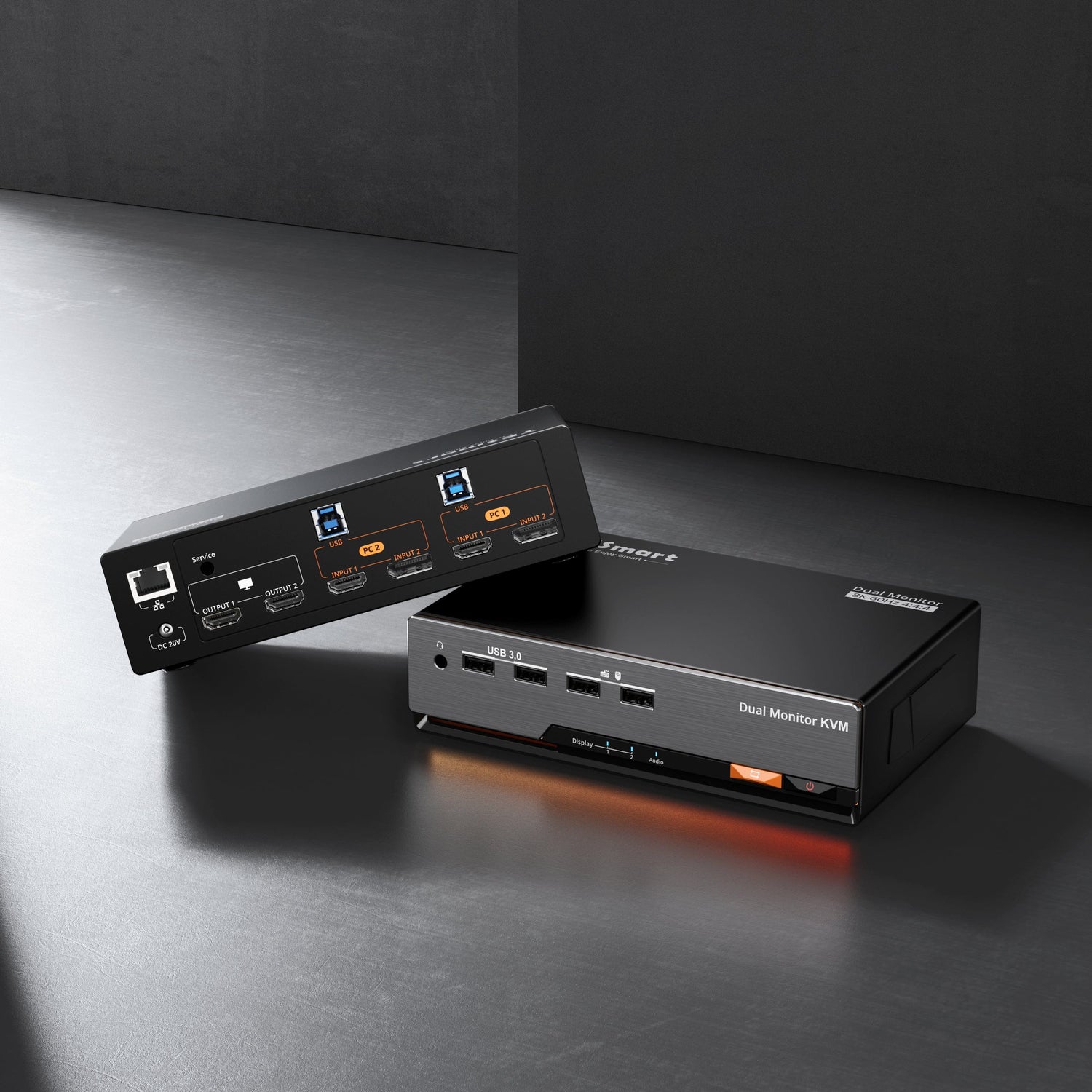
TESmart DisplayPort KVM solutions are better suited for PC-first desks where DisplayPort is already the main display path. These setups often involve high-refresh monitors, multiple graphics card outputs, dual-monitor or triple-monitor workstations, and users who need stable switching between computers.
For example, a developer may use a work PC during the day and a gaming PC after hours on the same dual-monitor desk. A DP-based KVM path helps keep the monitor structure aligned with the GPU and display inputs.
TESmart HDMI KVM Solutions
TESmart HDMI KVM solutions are better suited for HDMI-based desks, especially when laptops, consoles, TVs, AV equipment, or general office monitors are involved.
This type of setup is common for users who want to switch between a work laptop, personal desktop, game console, or media device without changing cables or duplicating peripherals.
High Refresh Rate KVM Considerations
A high refresh rate KVM should be selected according to the actual target mode: resolution, refresh rate, color depth, HDR behavior, cable length, and the number of monitors.
Buying a high-refresh monitor or premium graphics card is only the first step. The KVM, cable, adapter, display input, and source output must all support the same goal. Otherwise, the setup may fall back to a lower refresh rate or show unstable video behavior.
FAQ
Is DisplayPort better than HDMI for gaming?
DisplayPort is often better for high-refresh PC gaming monitors, especially when the monitor’s best mode is available through DP. HDMI is usually better for console gaming, gaming TVs, and AV-based setups. The better choice depends on the source device, display, interface version, and target refresh rate.
Is HDMI 2.1 always better than DisplayPort 1.4?
No. HDMI 2.1 can support important gaming features such as 4K120, VRR, and ALLM on compatible devices, but that does not automatically make it better for every PC monitor or workstation. DisplayPort 1.4 remains highly relevant for PC gaming monitors and multi-monitor desks, especially when DSC is supported across the chain.
Should I use DisplayPort or HDMI for office work?
For standard office work, either can work. The better choice is usually the one your computer and monitor support natively. For desktop workstations with multiple monitors, DisplayPort is often convenient. For laptops, meeting rooms, TVs, or broad device compatibility, HDMI may be easier.
Do I need a DP KVM or HDMI KVM?
Choose a DP KVM if your computers and monitors are mainly DisplayPort-based, especially for high-refresh PC or multi-monitor workstation use. Choose an HDMI KVM if your setup includes HDMI laptops, consoles, TVs, media devices, or AV equipment.
Can a KVM switch support high refresh rates?
Yes, but only when the entire chain supports the target mode. The computer output, KVM, cable, monitor input, resolution, refresh rate, color settings, HDR mode, and sometimes DSC or VRR support must all be compatible.
Why does my monitor drop from 144Hz to 60Hz through a KVM?
This usually means one part of the signal chain cannot support the selected mode. Common causes include the wrong port version, a cable bandwidth limit, an adapter, a dock, a KVM that does not support the required mode, or display settings that reset after switching.
Is HDMI better for PS5 and Xbox?
Yes, HDMI is the standard connection for PS5 and Xbox. For 4K120 gaming, you need a console, display, HDMI port, cable, and settings that all support the required mode.
Conclusion
The best answer to DisplayPort vs HDMI is not a universal winner. DisplayPort is usually the stronger starting point for PC gaming monitors, graphics-card-based workstations, and multi-monitor desks. HDMI is usually the better fit for consoles, TVs, AV devices, and broad consumer electronics compatibility.
For a simple one-computer desk, choosing the right cable may be enough. For a mixed gaming and work setup with multiple computers, multiple monitors, and shared USB devices, the better question is how the whole desk is managed.
Explore TESmart DP KVM and HDMI KVM solutions to build a cleaner switching path for your computers, monitors, and USB devices—whether your setup is built around a high-refresh gaming PC, a multi-monitor workstation, or a mixed gaming and work desk.