

Table of Contents
- Introduction
- Why Mac Users Are Moving Toward Ultrawide and 5K 120Hz Workflows
- Why a macOS 27 Ultrawide Monitor Setup Can Become Complicated
- Single-Device Display Connection vs Multi-Device KVM Switching
- Why 5K 120Hz Is Not a Basic Display Requirement
- Comparing Direct Swapping, Docks, HDMI KVMs, and DisplayPort / Thunderbolt-Compatible KVMs
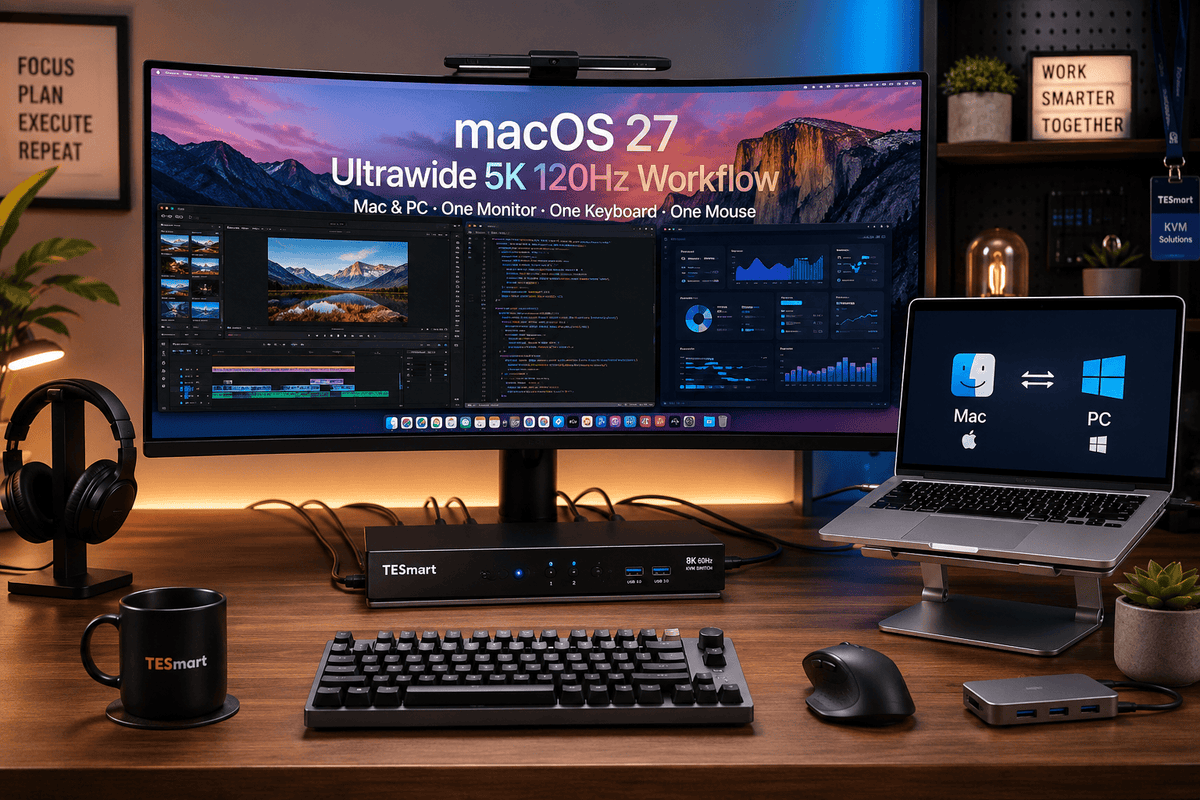
- Where TESmart KVM Solutions Fit in a Mac and PC Desk Setup
- What to Check Before Buying an Ultrawide Monitor KVM
- FAQ
- Conclusion
Introduction
A 5K or 5K2K ultrawide monitor can make a Mac workstation feel simpler. Instead of splitting work across two separate displays, a developer, video editor, designer, trader, or analyst can keep timelines, code, previews, dashboards, browser windows, and communication tools in one continuous workspace.
macOS 27 makes this conversation more relevant because ultrawide display support is becoming a more visible part of the Mac workflow. But a macOS 27 ultrawide monitor setup is not only about whether a Mac can light up the screen. The real question is whether the entire desk can support the resolution, refresh rate, cable path, USB devices, audio devices, keyboard, mouse, and computer switching behavior you expect.
This becomes more important when one monitor is shared by a MacBook, Mac mini, Mac Studio, Windows PC, or high-performance workstation. At that point, the setup changes from “connect one Mac to one monitor” into “manage a shared desk across multiple computers.” That is where an ultrawide monitor KVM may become useful.
Why Mac Users Are Moving Toward Ultrawide and 5K 120Hz Workflows
Many Mac users choose ultrawide monitors because they want a cleaner workspace without giving up screen area. A wide 5K2K display can provide more horizontal room for timelines, code editors, design canvases, spreadsheets, market charts, and reference windows.
For a MacBook ultrawide monitor setup, the benefit is often desk simplicity. The laptop can stay mobile, while the desk monitor becomes the main work surface. A Mac mini or Mac Studio user may choose the same kind of monitor to reduce the complexity of dual-monitor positioning, bezels, and window movement.
The 120Hz part matters for a different reason. It is not only for gaming. A higher refresh rate can make scrolling, cursor movement, timeline navigation, and window movement feel more responsive. For users who spend long hours in macOS, that can make the display feel easier to work with.
But a 5K 120Hz monitor Mac workflow is not guaranteed just because the monitor supports that specification. The final result depends on the Mac model, GPU output capability, monitor input, cable, protocol, operating system settings, and any device placed between the Mac and the display.

Why a macOS 27 Ultrawide Monitor Setup Can Become Complicated
A single Mac connected directly to one monitor is usually the simplest case. The Mac negotiates resolution and refresh rate with the display, macOS shows available scaling options, and the user chooses a working arrangement.
The setup becomes harder when a second computer enters the desk. A MacBook may connect through USB-C or Thunderbolt. A Windows workstation may output DisplayPort from a graphics card. A gaming PC may rely on HDMI 2.1. A Mac mini may have HDMI and USB-C / Thunderbolt ports, while a Mac Studio may support several displays depending on the chip and port configuration.
These systems may all be capable computers, but they do not necessarily provide the same display signal in the same way. That matters when they must share one high-spec ultrawide monitor.
Several issues often appear in mixed Mac and PC desks:
- The Mac can reach the target resolution directly, but not through the same adapter or dock.
- The Windows PC supports the monitor through DisplayPort, while the Mac needs USB-C to DisplayPort conversion.
- A USB-C hub expands ports but does not switch the desk between computers.
- A basic HDMI KVM may not have enough video bandwidth for the monitor’s highest mode.
- USB devices, audio interfaces, webcams, storage, and keyboard/mouse control still need to follow the active computer.
This is why a high-end monitor purchase should be followed by display-chain planning. The monitor is only one part of the workflow.

Single-Device Display Connection vs Multi-Device KVM Switching
It is important to separate two different problems.
Problem 1: Expanding One Computer
If you only use one MacBook and need more ports, a dock or hub may be enough. A dock can give one computer access to display output, USB-A ports, Ethernet, audio, card readers, and power delivery depending on the model.
That is a single-computer expansion problem. The dock belongs to one host computer.
Problem 2: Sharing One Desk Across Multiple Computers
If you want a MacBook and a Windows PC to use the same monitor, keyboard, mouse, USB microphone, webcam, audio device, and external storage, the problem is no longer only port expansion. It becomes control and switching.
A KVM is designed for that second problem. A 5K KVM switch or high-spec DisplayPort / HDMI / USB-C KVM should be evaluated by the complete signal path, not just by the monitor resolution written in the product name.
In a Mac and PC desk setup, the KVM needs to handle three things at the same time:
- Video: the display signal must match the monitor’s required input mode.
- USB control: keyboard, mouse, and USB peripherals need to switch to the active computer.
- Desk behavior: switching should reduce cable handling instead of adding more adapters and failure points.
Why 5K 120Hz Is Not a Basic Display Requirement
5K 120Hz carries far more display data than ordinary office display modes. Even before HDR, VRR, color depth, chroma format, or compression behavior are considered, the signal requires a stronger chain than 1080p60 or 4K60.
That is why users should avoid judging a setup by connector shape alone. A USB-C connector does not automatically mean Thunderbolt. A USB-C port does not always support video output. A cable that works for charging may not carry the required display signal. A dock that works at 4K60 may not support the same monitor at 5K 120Hz.
DisplayPort, HDMI, USB-C, and Thunderbolt-compatible workflows solve different parts of the problem:
- DisplayPort is common in high-refresh PC workstation and graphics-card setups. It is often the more natural path for a DisplayPort KVM for Mac and PC, but most Macs do not have a native DisplayPort connector, so the Mac side usually needs USB-C to DisplayPort conversion or a compatible dock.
- HDMI is common on TVs, consoles, and many monitors. High-resolution and high-refresh support depends on the HDMI version, the computer output, the monitor input, the cable, and the KVM specification.
- USB-C can be convenient for laptops, but the port must support the right video mode, such as DP Alt Mode. It should not be treated as the same thing as Thunderbolt.
- Thunderbolt-compatible workflows can carry video, data, device communication, and sometimes power in one cable, but compatibility and official certification must be treated separately.
The practical rule is simple: the final display result depends on the weakest part of the chain. The Mac, PC GPU, monitor, cable, adapter, dock, KVM, and system settings must all support the target mode.

Comparing Direct Swapping, Docks, HDMI KVMs, and DisplayPort / Thunderbolt-Compatible KVMs
| Setup option | Best fit | Main advantage | Limitation in 5K 120Hz workflows |
|---|---|---|---|
| Direct cable swapping | One monitor shared occasionally between two computers | Fewest devices in the signal path | Requires manual unplugging of display cables and USB devices. Repeated cable handling can wear ports and disrupt desk organization. |
| USB-C hub/dock | Expanding one MacBook or laptop | Adds ports and can simplify a single-laptop desk | A dock does not switch the whole desk between computers. Many docks also have display-mode limits, and extra conversion layers can affect stability. |
| Standard HDMI KVM | Ordinary HDMI monitors, office displays, consoles, and simpler PC/Mac sharing | Combines video switching with keyboard and mouse control | May not support the bandwidth, refresh rate, or input structure required by a 5K 120Hz ultrawide monitor. Always verify the exact resolution and refresh-rate specification. |
| DisplayPort / Thunderbolt-compatible KVM | High-refresh workstations, Mac and PC desks, USB-C / Thunderbolt-enabled display workflows | Better aligned with high-spec display chains and shared peripheral management | Still depends on Mac model, GPU output, monitor input, cable quality, protocol support, and the exact KVM model. A Thunderbolt-compatible KVM should not be assumed to support every Thunderbolt 5, 5K 120Hz, HDR, VRR, or webcam/audio feature. |
Where TESmart KVM Solutions Fit in a Mac and PC Desk Setup
At TESmart, we design KVM solutions for users who need more than a monitor connection. The users we focus on often have a MacBook, a desktop Mac, a Windows PC, a workstation, or a testing machine sharing the same desk hardware.
For these users, the goal is not only to show video on a monitor. The goal is to make the desk behave as one controlled workspace.
For DisplayPort-Based High-Refresh Workstations
A DisplayPort KVM for Mac and PC is more suitable when the monitor’s strongest input is DisplayPort and the Windows PC uses a graphics card with DisplayPort outputs. This kind of setup is common for high-refresh ultrawide monitors and professional workstations.
For Mac users, the important detail is that many Macs do not provide native DisplayPort output as a physical port. If the KVM input is DisplayPort, the Mac side usually needs a USB-C to DisplayPort cable or a compatible dock. That conversion step should be planned before buying the KVM, not discovered after the monitor arrives.
For USB-C and Thunderbolt-Compatible Display Workflows
A Thunderbolt-compatible KVM becomes more relevant when the display workflow depends on USB-C or Thunderbolt-enabled device communication, not just ordinary HDMI or DisplayPort video.
This can matter when the monitor behaves as more than a screen. Some USB-C or Thunderbolt-enabled displays may also expose USB devices, audio paths, webcam functions, network devices, or charging behavior through the same cable. In those cases, a basic video KVM may not preserve the full workflow.
Compatibility should still be described carefully. A product can be designed for Thunderbolt-compatible workflows without implying that it is officially certified for every Thunderbolt standard or every display feature. Users should confirm the specific TESmart model, host computer, monitor, cable, and target display mode before purchase.
For Shared USB, Audio, Keyboard, and Mouse Control
Many high-end monitor setups fail to feel organized because users only plan the display path. The USB side is often added later: keyboard, mouse, webcam, headset, microphone, card reader, capture device, external storage, and audio interface.
A KVM helps when those devices need to follow the active computer. This is especially useful in a Mac and PC desk setup where software-based control, remote desktop, or manual cable swapping does not provide the same local hardware experience.

What to Check Before Buying an Ultrawide Monitor KVM
Before choosing an ultrawide monitor KVM, confirm the full chain.
- Mac model and chip: Do not assume every Mac supports 5K 120Hz or every ultrawide mode. Check the exact MacBook, Mac mini, Mac Studio, or iMac specifications.
- Monitor input: Confirm whether the monitor reaches its highest mode through DisplayPort, HDMI, USB-C, or a Thunderbolt-compatible path.
- PC GPU output: A Windows workstation may need a specific DisplayPort or HDMI output mode from the graphics card.
- Cables: Use cables rated for the target resolution, refresh rate, and protocol. Avoid assuming a charging cable can handle high-bandwidth video.
- Adapters and docks: Reduce conversion layers where possible. Mac + dock + adapter + KVM + monitor can introduce more negotiation points.
- KVM specification: Check the exact supported resolution, refresh rate, input/output structure, USB behavior, EDID handling, and any stated compatibility notes.
- Peripheral plan: Decide which devices should switch with the computer and which should stay fixed.
A high-end monitor deserves this level of planning. Without it, users may buy a capable display and still end up with lower refresh rates, black screens, unstable USB devices, or frequent cable swapping.
FAQ
1. Does macOS 27 guarantee 5K 120Hz on every Mac?
No. macOS 27 improves the relevance of ultrawide and high-resolution display workflows, but the final result still depends on the Mac model, chip, GPU output capability, monitor input, cable, adapter, and system settings. Always check the exact Mac specifications.
2. Is USB-C the same as Thunderbolt?
No. USB-C is a connector shape. Thunderbolt is a protocol with different capabilities. Some USB-C ports support video output, some support DP Alt Mode, some support Thunderbolt, and some may only support data or charging. The cable also matters.
3. Can a standard HDMI KVM handle a 5K 120Hz monitor Mac setup?
Only if the entire HDMI chain supports that exact mode. A standard HDMI KVM designed for ordinary office resolutions may not have the bandwidth or signal support needed for a 5K 120Hz monitor Mac workflow. Check the KVM’s stated resolution and refresh-rate support before purchase.
4. When do I need a DisplayPort KVM for Mac and PC?
A DisplayPort KVM for Mac and PC makes sense when the monitor and Windows workstation are built around DisplayPort, especially for high-refresh or high-resolution setups. For Mac users, remember that the Mac side may need USB-C to DisplayPort conversion unless the KVM provides a suitable USB-C video input.
5. Can a dock replace a KVM?
A dock can expand one computer. A KVM switches a shared desk between multiple computers. If your only problem is “my MacBook needs more ports,” a dock may be enough. If your problem is “my MacBook and Windows PC need to share one monitor and peripherals,” a KVM is the more relevant category.
6. Will a Thunderbolt-compatible KVM support every Thunderbolt 5, HDR, VRR, webcam, audio, or 5K 120Hz feature?
No. Thunderbolt-compatible does not mean every possible feature is guaranteed. Display behavior depends on the host computer, monitor, cable, protocol, KVM design, operating system, and certification status. Always confirm the specific workflow before relying on advanced features.
7. Why does my monitor work directly with my Mac but not through a KVM or dock?
Direct connection uses the shortest signal path. Adding a dock, adapter, or KVM introduces more negotiation points for resolution, refresh rate, EDID, HDCP, USB, and power behavior. For troubleshooting, test direct connection first, then add one device at a time.
Conclusion
A 5K or 5K2K ultrawide monitor can be a strong upgrade for Mac users, especially in creative, development, trading, data, and workstation environments. But a macOS 27 ultrawide monitor setup is not only about the display itself.
For one Mac, a direct cable or dock may be enough. For a MacBook, Mac mini, Mac Studio, Windows PC, or workstation sharing the same display and peripherals, the decision becomes different. You need to plan video bandwidth, interface protocol, cable quality, GPU output, display input, USB switching, audio behavior, and KVM specifications together.
That is where TESmart KVM solutions fit: not as a universal promise for every 5K 120Hz or Thunderbolt 5 workflow, but as hardware designed for users who need cleaner switching, shared peripherals, and a more organized Mac and PC desk setup.
CTA: If you are building a macOS 27 ultrawide monitor setup for Mac and PC workflows, explore TESmart KVM solutions designed for cleaner switching, shared peripherals, and more organized high-performance desks.
Share:
TESmart DKS202-M24 DP 1.4 Dual 8K@60Hz KVM Switch Gaming Dock: Is It Right for Your Setup?
Can a KVM Support 4K 240Hz OLED?