

Table of Contents
- Introduction
- What Users Are Really Trying to Solve
- Why DP 1.4 Matters for Gaming and Workstation KVM Setups
- DP 1.4 KVM vs HDMI KVM vs USB Switch
- How TESmart DKS202-M24 Fits a Dual-Monitor Desk
- EDID, DSC, FEC, G-Sync, and FreeSync: What They Mean in Practice
- Beyond Video: USB, Network, and Peripheral Sharing
- Which TESmart KVM Fits Your Setup?
- Setup Checklist Before You Buy
- FAQ
- Conclusion
Introduction
When users search for a DP 1.4 KVM switch gaming dock, a dual 8K KVM switch, or a DisplayPort KVM for gaming, they are usually not just counting ports. They are trying to solve a specific desk problem: two computers, two high-spec monitors, one keyboard, one mouse, and as little cable swapping as possible.
The challenge is that high-refresh DisplayPort setups are less forgiving than basic office displays. A gaming PC may need 4K high refresh rate output, adaptive sync, and low input delay. A work laptop or workstation may need stable dual-screen layouts, reliable USB peripherals, and fast switching without the desktop rearranging itself every time the input changes.
This is where a DisplayPort-based KVM architecture becomes useful. A basic HDMI switch or USB switch can change one part of the setup, but it does not fully manage the video, keyboard, mouse, and peripheral workflow across two computers.
What Users Are Really Trying to Solve
A dual-monitor KVM switch is not only about sharing screens. In a real gaming or workstation desk, users usually want four things to work together.
Two Computers Sharing Two Monitors
A typical setup may include a gaming PC and a work laptop, or a creator workstation and a secondary testing machine. Each computer needs access to both monitors, not just one. That means the KVM must handle two independent DisplayPort video paths from each computer.
One Keyboard, One Mouse, and Shared USB Devices
Users often want the same keyboard, mouse, headset, webcam, USB audio device, or storage accessory to follow the active computer. A video-only switch cannot do this. A full KVM switch controls the display path and the USB control path together.
High-Refresh Gaming Without Downgrading the Display Path
For gaming PCs, the display chain matters. The GPU, monitor, cable, KVM, DSC settings, operating system, and game settings all affect whether the user can reach high refresh rates. A 4K high refresh rate KVM must be selected as part of the complete signal chain, not as an isolated device.
Stable Desktop Layout After Switching
When a monitor disappears from the operating system during switching, Windows or macOS may resize windows, move icons, or drop to a lower resolution. This is one reason EDID emulation KVM features matter in multi-monitor desks.

Why DP 1.4 Matters for Gaming and Workstation KVM Setups
DisplayPort 1.4 is common in gaming GPUs, creator workstations, engineering desktops, and professional monitors. Compared with many older display standards, DP 1.4 is better suited for high-resolution and high-refresh display workflows when the full chain supports the required bandwidth.
For a DisplayPort KVM for two PCs, DP 1.4 matters because the KVM sits directly inside the display path. If the KVM cannot preserve the required signal capability, the system may fall back to a lower resolution, lower refresh rate, or reduced color format.
This is especially important in setups such as:
- Dual 4K monitors used by developers, traders, engineers, or creators
- Gaming PCs connected to 144Hz, 160Hz, or similar high-refresh displays
- Workstations using color-sensitive displays for editing or design
- Hybrid desks where one system is for work and another is for gaming
- Dual-screen setups where window position stability matters
A DP 1.4 KVM switch does not automatically guarantee every monitor will run at its maximum specification. The final result depends on the GPU, monitor input, cable quality, DSC support, graphics driver, operating system settings, and the KVM’s own supported specifications.

DP 1.4 KVM vs HDMI KVM vs USB Switch
Different switching devices solve different problems. Choosing the wrong architecture is a common reason users end up with unstable high-refresh or multi-monitor setups.
| Device Type | What It Switches | Where It Works Well | Main Limitation |
|---|---|---|---|
| USB Switch | Keyboard, mouse, and USB peripherals | Users who already have separate monitor input switching | Does not switch the display path |
| Basic HDMI KVM | HDMI video plus keyboard and mouse | Office monitors, consoles, and HDMI-based desks | May not fit DP-first gaming GPUs or high-refresh DisplayPort monitors |
| DP 1.4 KVM Switch | DisplayPort video, keyboard, mouse, and USB control | Gaming PCs, creator workstations, dual-monitor DP desks | Requires each computer to provide the needed DisplayPort outputs |
| Docking Station | Expands ports for one computer | Laptop users who need more ports from one host | Does not replace a KVM when two computers need shared control |
The key difference is control. A dock expands one computer. A USB switch shares peripherals. A video switch changes display input. A KVM switch brings video, keyboard, mouse, and often USB peripherals into one switching workflow.
How TESmart DKS202-M24 Fits a Dual-Monitor Desk
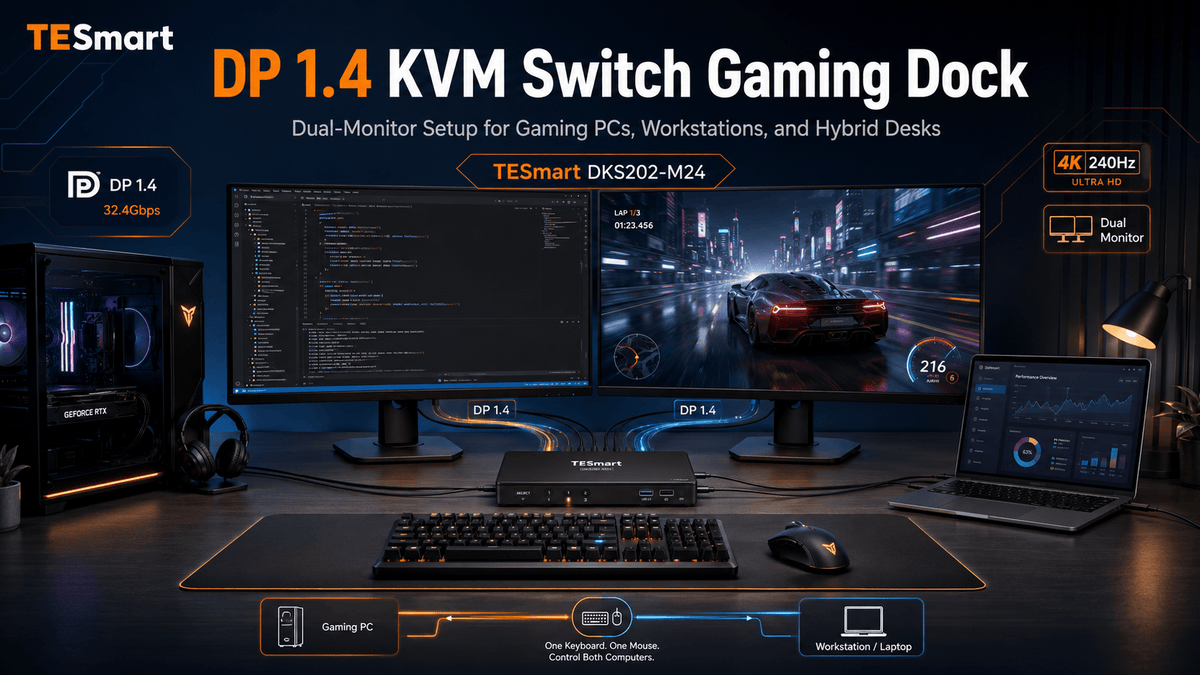
TESmart DKS202-M24 is a DP 1.4 dual-monitor KVM switch designed for users who want to control two computers across two DisplayPort monitors with one keyboard and mouse. For gaming PCs, creator workstations, engineering desks, and hybrid work setups, our DKS202-M24 helps keep the desk clean while preserving a high-performance DP 1.4 display path.
TESmart With You. Evolving For You!
We designed this KVM for users who have moved beyond a basic single-monitor office setup. If your desk includes two DisplayPort monitors and two computers, the DKS202-M24 gives both systems access to the same visual workspace and shared control devices.
Where DKS202-M24 Makes Sense
The DKS202-M24 is a focused choice when your setup looks like this:
- Two computers need to share two DisplayPort monitors
- Each computer can provide the required DP video outputs
- You want one keyboard and mouse to control the active computer
- You need shared USB peripherals at the desk
- You care about stable dual-screen switching and EDID behavior
- Your gaming PC or workstation uses high-resolution or high-refresh monitors
Display Workflows
The DKS202-M24 supports dual 8K@60Hz-class visual workflows when the full monitor, GPU, cable, DSC, operating system, and settings chain supports the required bandwidth. It can also support 4K high-refresh-rate gaming workflows depending on the complete signal path.
This wording matters. In high-end display setups, the KVM is only one part of the chain. A monitor that supports 4K high refresh rate through one input may behave differently through another input. A GPU may require DSC for certain combinations of resolution, refresh rate, and color depth. Cables also need to be suitable for the bandwidth target.
Switching and Daily Use
In normal use, the DKS202-M24 is designed for hot-plug-friendly workflows without unnecessary PC rebooting. Users can switch between systems through methods such as hotkeys, front-panel buttons, IR remote control, or mouse-based switching where supported.
For a desk that alternates between work and play, this is practical. A user can work on a laptop or workstation during the day, then switch the same monitors, keyboard, mouse, and USB devices to a gaming PC without rebuilding the desk.

EDID, DSC, FEC, G-Sync, and FreeSync: What They Mean in Practice
High-end display terms are often listed as specifications, but they only matter when they affect the real user experience. In a dual-monitor KVM setup, the most important question is not whether a feature exists in theory. The question is whether the full chain can use it consistently.
EDID Emulation KVM: Why It Reduces Display Problems
EDID is the information a monitor provides to a computer about supported resolutions, refresh rates, color formats, and display behavior. When switching devices interrupt that information, the computer may think the monitor was disconnected.
An EDID emulation KVM helps maintain monitor identity during switching. This can reduce common issues such as black screens, resolution drops, desktop icon rearrangement, and windows moving to the wrong screen after switching.
EDID emulation does not fix every display issue. Cable quality, adapter behavior, GPU driver settings, monitor firmware, and operating system behavior can still affect the result. But for dual-screen and multi-screen workflows, EDID stability is one of the most important KVM features to check.
DSC and FEC
Display Stream Compression, or DSC, helps support high-resolution and high-refresh combinations over available DisplayPort bandwidth. Forward Error Correction, or FEC, helps maintain signal reliability in supported high-bandwidth workflows.
For users targeting 8K@60Hz-class or 4K high refresh rate workflows, DSC support may be required depending on resolution, refresh rate, color depth, and chroma format. The GPU, monitor, cable, KVM, and system settings must all align.
G-Sync and FreeSync
G-Sync and FreeSync are adaptive sync technologies that help reduce tearing and improve motion smoothness in supported gaming setups. In a KVM environment, adaptive sync behavior depends on the GPU, monitor, driver, cable, KVM, and display settings.
For this reason, it is better to treat G-Sync and FreeSync as chain-dependent features rather than universal guarantees. A DisplayPort KVM for gaming should preserve the right display architecture, but the final adaptive sync result must be verified with the specific gaming monitor and GPU.

Beyond Video: USB, Network, and Peripheral Sharing
Video switching is only one part of a clean dual-PC desk. Many users also need to share USB devices such as keyboards, mice, webcams, USB audio interfaces, storage devices, capture accessories, or desk controllers.
The DKS202-M24 helps two computers share two DisplayPort monitors, one keyboard, one mouse, and USB peripherals. This is enough for many gaming, work, and creator desks where the main requirement is dual-screen control.
Some TESmart KVM solutions go further by helping dual PCs share network access and higher-speed USB workflows. For users who want fewer cables and more shared desk infrastructure, 1000Mbps Ethernet sharing, USB 3.0 data transfer, USB-C/A peripheral compatibility, and auto scan input switching may be more appropriate.
This type of network-sharing and USB 3.0 enhanced KVM solution is useful when the desk is not only switching displays, but also coordinating external devices and network access across systems. For example, a user may want dual PCs to share network through a single cable, use USB 3.0 for faster data transfer or device charging, and monitor multiple active inputs with auto scan switching.

Which TESmart KVM Fits Your Setup?
The right TESmart KVM depends on your desk structure. Start with the number of computers, the number of monitors, and the type of video output each computer can provide. Then check the resolution, refresh rate, USB, and peripheral requirements.
| Setup Type | Recommended TESmart Architecture | Why It Fits | What to Check First |
|---|---|---|---|
| Two PCs + two DisplayPort monitors | TESmart DKS202-M24 DP 1.4 dual-monitor KVM switch | More suitable for users who need a focused dual monitor KVM switch for gaming PCs, creator workstations, or hybrid work desks. | Each computer should provide the required DP outputs. GPU, monitor, cable, DSC, and settings must support the target resolution and refresh rate. |
| Two PCs + three DisplayPort monitors | TESmart master triple-monitor DP 1.4 KVM docking station | Better suited for users who need to control 2 PCs across 3 displays, including creators, competitive gamers, engineers, financial users, and multi-screen power users. | Confirm that each PC can output three display signals and that the monitors, cables, DSC 1.2a, GPU, and settings support the target display mode. |
| Laptop-first desk with USB-C video | TESmart USB-C DP 1.4 Alt Mode KVM | A better fit than a pure desktop DP KVM when the host depends on USB-C DP Alt Mode for video output. | Check whether the laptop’s USB-C port supports video output, DP Alt Mode bandwidth, and the required charging profile. |
| Dual PCs with shared network and more USB devices | TESmart network-sharing / USB 3.0 enhanced KVM solution | Useful when users want display switching plus 1000Mbps Ethernet sharing, USB 3.0 data transfer, USB-C/A peripheral support, and cleaner cabling. | Confirm the required USB speed, device compatibility, network expectations, and whether auto scan input switching is needed. |
| Basic office desk with one display | Single-monitor KVM | More practical when only one monitor needs to be shared and high-end dual-screen DP 1.4 bandwidth is not required. | Check HDMI, DP, or USB-C input type before choosing the KVM family. |
When a Triple-Monitor DP 1.4 KVM Makes More Sense
If your workflow expands from two screens to three, the DKS202-M24 is no longer the most focused match. TESmart’s master triple-monitor KVM docking station is better suited for users who need to control 2 PCs across 3 displays.
With DP 1.4 triple 8K@60Hz-class display workflows, 4K@144Hz-class smooth visual experience depending on the complete signal chain, DSC 1.2a, EDID emulation, and support for technologies such as G-Sync, FreeSync, FEC, and DSC in compatible workflows, this architecture is designed for users who need extended or split desktop workflows across three screens.
As with any high-end display setup, 12-bit color precision, high refresh rates, adaptive sync, and 8K-class operation depend on the GPU, monitor, cable, DSC support, operating system, and settings.
When a USB-C DP 1.4 Alt Mode KVM Is a Better Fit
For laptop-first desks, the TESmart USB-C DP 1.4 Alt Mode KVM may be a better fit than a pure desktop DP KVM. It allows two computers to share one monitor with one keyboard and mouse, while supporting 8K@60Hz-class display workflows when the USB-C host, cable, monitor, and DP Alt Mode chain support the required bandwidth.
Notice: If a laptop’s charging protocol does not support 20V DC voltage, it may only receive lower charging power due to handshake limitations. Some ThinkPad models may receive up to 60W, while certain Mac, ThinkPad Yoga, T, P, or X series devices may behave differently. Users should check their laptop’s charging and USB-C video specifications before ordering.
Setup Checklist Before You Buy
Before choosing a KVM switch gaming dock or 8K@60Hz KVM switch, check the entire desk instead of only checking the KVM model.
- Computer outputs: Each computer must provide enough video outputs for the number of monitors you want to share.
- Monitor inputs: Confirm whether your monitors support the target resolution and refresh rate through their DisplayPort inputs.
- Cables: Use cables suitable for the bandwidth target. Weak or overly long cables can cause black screens, flicker, or refresh-rate fallback.
- DSC requirements: Some 8K@60Hz-class and 4K high refresh rate modes may require DSC support across the chain.
- Adaptive sync: G-Sync and FreeSync behavior depends on the full GPU, monitor, driver, cable, KVM, and settings chain.
- Mac and USB-C systems: If a MacBook or USB-C laptop does not have native DP output, check whether a USB-C to DP cable, dock, or a USB-C DP Alt Mode KVM architecture is more appropriate.
- USB devices: Check whether your keyboard, mouse, audio device, webcam, storage device, or controller requires special USB behavior.
This checklist is especially important for mixed Mac/Windows desks, gaming PC plus work laptop setups, and multi-monitor workstations where small compatibility details can affect the final experience.
FAQ
1. Is TESmart DKS202-M24 a good fit for a gaming PC and work laptop?
Yes, if both computers can provide the required DisplayPort outputs for your two monitors. The DKS202-M24 is designed for dual-display gaming and workstation setups where users want two computers to share two DP monitors, one keyboard, one mouse, and USB peripherals.
2. Does DKS202-M24 guarantee dual 8K@60Hz on every setup?
No. Dual 8K@60Hz-class workflows depend on the complete signal chain, including GPU, monitor, cable, DSC support, system settings, and KVM specifications. The KVM must be matched with compatible hardware throughout the chain.
3. Can a DP 1.4 KVM support 4K high refresh rate gaming?
It can support 4K high-refresh workflows when the full chain supports the target mode. The GPU, monitor, DisplayPort cable, KVM, driver, DSC setting, and operating system configuration all affect the final refresh rate.
4. Why is EDID emulation important in a dual monitor KVM switch?
EDID emulation helps the computer continue recognizing the monitor during switching. This can reduce black screens, resolution drops, desktop icon rearrangement, and windows moving between displays after switching.
5. Should I choose DKS202-M24 or a triple-monitor KVM docking station?
Choose DKS202-M24 if your desk uses two computers and two DisplayPort monitors. If your workflow requires two computers across three displays, TESmart’s master triple-monitor DP 1.4 KVM docking station is the more appropriate architecture.
6. Is a USB-C DP 1.4 Alt Mode KVM better for MacBook or laptop users?
It may be better for laptop-first desks where the computer outputs video through USB-C DP Alt Mode. Users should confirm USB-C video support, charging behavior, cable capability, and display bandwidth before ordering.
7. Is a USB switch enough if I already use the monitor input buttons?
A USB switch may be enough if you only need to share keyboard, mouse, and peripherals. But if you want both monitors and USB control to switch together between two computers, a dual monitor KVM switch is the cleaner architecture.
Conclusion
The TESmart DKS202-M24 is right for users who need a focused DP 1.4 KVM switch for two computers and two DisplayPort monitors. It is especially relevant for gaming PCs, creator workstations, engineering desktops, and hybrid work desks where high-resolution, high-refresh, and stable dual-screen switching matter.
It is not the right answer for every desk. If you use three monitors, a triple-monitor KVM docking station is a better match. If your main system is a USB-C laptop, a USB-C DP 1.4 Alt Mode KVM may reduce adapter complexity. If your workflow depends on shared network access and more USB infrastructure, a network-sharing or USB 3.0 enhanced KVM solution may make more sense.
For a two-PC, two-monitor DisplayPort desk, our DKS202-M24 gives users a practical way to share dual displays, keyboard, mouse, and USB peripherals while keeping the DP 1.4 display path suitable for demanding gaming and workstation workflows.
Explore TESmart DKS202-M24 to build a cleaner dual-monitor KVM setup for your gaming PC, workstation, or hybrid work desk.
Share:
Alternatives to Elite One KVM Switch: KVM Setup Guide for Mac, PC, and Multi-Monitor Desks
macOS 27 Ultrawide Monitor Setup: Do You Need a KVM for 5K 120Hz Workflows?