

- 1. What is Screen Flickering?
- 2. Why is Your Screen Flickering?
- 3. How to Fix Screen Flickering?
- 4. Conclusion
1. What is Screen Flickering?
Screen flickering, also known as monitor or laptop flickering, and screen tearing are common display issues. Screen flickering refers to the rapid and repetitive blinking or flashing of the screen of a laptop or computer. This phenomenon can be distracting and annoying to users and may indicate various underlying issues, including hardware problems, software glitches, or environmental factors.
2. Why is Your Screen Flickering?
2.1 Hardware Issues
- Hardware issues, such as a faulty graphics card (GPU), are a common cause of monitor flickering or a flickering screen. If the GPU is faulty or experiencing hardware malfunctions, it can cause flickering, artifacts, or other visual anomalies on the display.
- LCD screens in laptops or monitors require an inverter to power the backlight. If the inverter malfunctions or fails, it can lead to flickering or dimming of the screen.
- Internal components of the device, including the screen, graphics card, or motherboard, may degrade due to wear and tear over time. This degradation can lead to various hardware issues, including screen flickering.
- Excessive heat around the GPU or other graphics processing can cause instability in image rendering. This overheating can result in screen flickering as the hardware struggles to maintain proper functionality.
2.2 Software Issues
-
Outdated or corrupted graphics drivers can lead to screen flickering, tearing, freezing, or other display problems on laptops and desktops.
- Some programs or software may conflict with your system, leading to issues like screen flickering or tearing.
2.3 Environmental Factors
- Loose or damaged cables are among the most common monitor flickering causes. The screen of your device connects to the computer's graphics card or motherboard through a cable. If this cable becomes loose or damaged, it can lead to intermittent connectivity issues, causing the screen to flicker.
3. How to Fix Screen Flickering?
3.1. Check Cables
In the best-case scenario, the flickering issue might just be due to a loose or damaged cable. Try unplugging and plugging the cable back in firmly at both ends to make sure it's securely connected. Cables can sometimes get jostled or worn out over time, causing connection issues. While you're at it, look for any signs of damage, like fraying or bent pins. Once you've reconnected the cable securely, keep an eye on the screen to see if the flickering stops.
3.2. Reset the Monitor Refresh Rate
-
Change the refresh rate in Windows 10 and 11
Select Start > Settings > System > Display > Advanced display
- Next to selecting a refresh rate, choose the rate that suits your preference.
- The available refresh rates depend on your display and its capabilities. Some laptops and external displays may support higher refresh rates, offering smoother visuals.

- Change the refresh rate in Mac
Apple menu>System Settings (System Preferences) >Displays
- Click the Refresh Rate pop-up menu and choose a refresh rate.
- You can also change the refresh rate of your external display in the same interface if there's one.
*In macOS Catalina and macOS Big Sur, press and hold the Option key and select the Scaled button to display the refresh rate menu.

3.3. Update Graphics Driver
A. Before updating, it's good to know which graphics card you have. You can find this information by:
1.Right-clicking on the Start button and selecting "Device Manager."
2.In Device Manager, expand the "Display Adapters" category. Your graphics card model will be listed here.
Once you know your graphics card model, visit the manufacturer’s website to download the driver.
If your graphics card is from NVIDIA, go to nvidia.com.
If your graphics card is from AMD, go to amd.com.
If your graphics card is from Intel, go to intel.com.
3. After downloading the new driver, double-click the downloaded file and follow the on-screen instructions to install it. Follow any prompts, and restart your computer if prompted.
*WindowsKey+Control+Shift+B restarts the graphics drivers.
It is not a long-term solution, but it will often stop screen flickering at least for now.
3.4. Check for Software Conflicts
Certain software or background processes may conflict with your display settings and cause flickering. Try booting your computer in Safe Mode (for Windows/Mac) to see if the issue persists, which can help identify if a third-party application is causing the problem.
If none of the above solutions work, there may be a hardware issue with your monitor or graphics card. Try connecting your monitor to another computer to see if the flickering persists. If it does, the issue may be with the monitor itself, and you may need to contact the manufacturer for support or consider replacing it.
Some users may notice screen flicker when gaming or running high-performance applications.
In high-performance scenarios such as gaming, video editing, or multi-monitor workstations, screen flickering is often related to refresh rate mismatches, signal instability, or repeated EDID renegotiation—especially when switching between systems.
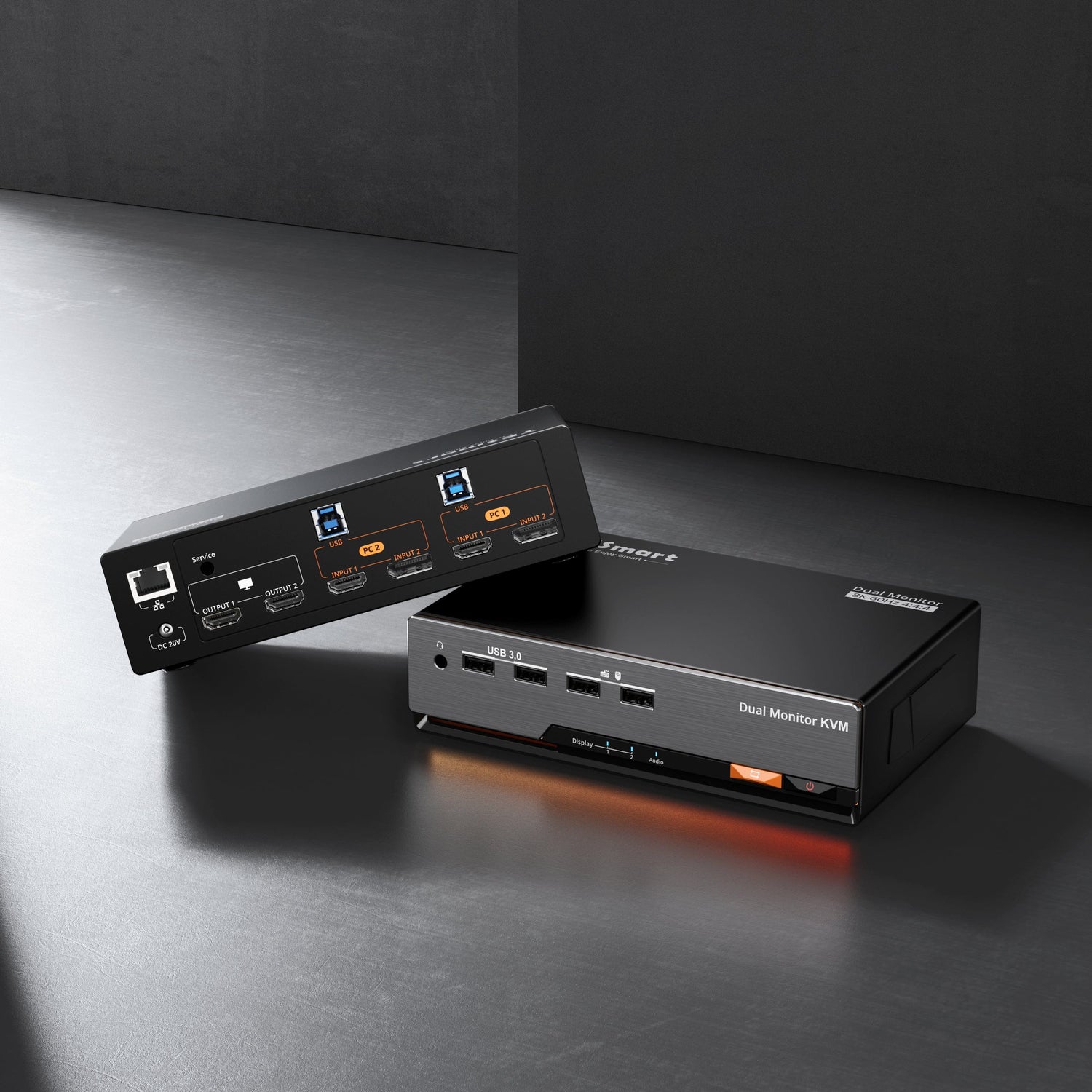
For setups running 4K@144Hz or even 240Hz, using a DisplayPort-based KVM switch with stable signal handling becomes critical. Solutions like the TESmart DKS202-M24 Dual Monitor DisplayPort KVM Switch, which supports DisplayPort 1.4, high refresh rate output, and built-in EDID emulation, help maintain consistent display parameters during switching. This minimizes screen flicker, tearing, and resolution resets, ensuring a smoother and more reliable experience in demanding workflows.
4.FAQ: Common Questions About Screen Flickering
Q1: Why does my screen flicker only when gaming or using high-performance applications?
Screen flickering in gaming or other high-performance scenarios is often caused by refresh rate mismatches, unstable signal transmission, or frequent display re-negotiation between the graphics card and the monitor.
When running at high resolutions and refresh rates (such as 4K@144Hz or 240Hz), even minor signal instability can become noticeable, especially during system switching or heavy GPU load.
Q2: Can switching between multiple computers cause screen flickering?
Yes. In multi-computer setups, switching between systems can trigger EDID re-detection and display parameter resets, which may result in flickering, temporary black screens, or resolution changes.
Using devices or configurations that maintain consistent display information can help reduce these interruptions and improve overall display stability.
Q3: Does refresh rate really matter when troubleshooting screen flicker?
Absolutely. An unsupported or unstable refresh rate is one of the most common causes of screen flickering.
Always ensure that the selected refresh rate is fully supported by the monitor, graphics card, cable, and any intermediate devices. Lowering the refresh rate slightly can sometimes immediately eliminate flickering.
Q4: Can a KVM switch help reduce screen flickering?
In certain scenarios, yes. A high-quality KVM switch designed for high refresh rate and multi-monitor environments can help stabilize signal transmission.
Models with DisplayPort support and built-in EDID emulation are particularly effective at preventing flicker caused by repeated display handshakes when switching between systems.
Q5: How can I tell if the problem is my monitor or my computer?
A simple way to isolate the issue is to connect the monitor to another computer using the same cable and settings.
-
If the flickering persists, the issue is likely related to the monitor or cable.
-
If the flickering disappears, the problem may lie with the graphics card, driver, or system configuration.
5. Conclusion
Screen flickering can result from various causes, including hardware issues like faulty graphics cards or damaged cables, as well as software glitches such as outdated drivers. It's important to check and reset cables, adjust refresh rates, and update graphics drivers to troubleshoot the problem effectively. Utilizing shortcuts like WindowsKey+Control+Shift+B can offer temporary solutions during troubleshooting. If problems persist, connecting the monitor to another computer can help identify if the issue lies with the monitor itself. By addressing these factors, in most cases, you can resolve screen flickering and ensure a smoother computing experience.


1 comment
Hi, I’m having a similar problem with my laptop screen.
The display flickers randomly, especially when I adjust the brightness.
Sometimes it happens while watching videos or browsing, which is really annoying.
I’ve tried updating the graphics driver, but the issue still occurs.
I’m not sure if it’s a software problem or a hardware issue with the screen.
Can anyone suggest a reliable fix or whether I need to replace the display?