

The best KVM for two computers is not automatically the model with the highest advertised resolution. A KVM only works as well as the complete connection between your computers and monitors.
A pair of USB-C laptops sharing one display requires a different signal path from two desktop PCs driving two HDMI monitors. A dual-DisplayPort gaming workstation creates another set of requirements involving graphics card outputs, Display Stream Compression, variable refresh rate support, cable bandwidth, and monitor compatibility.
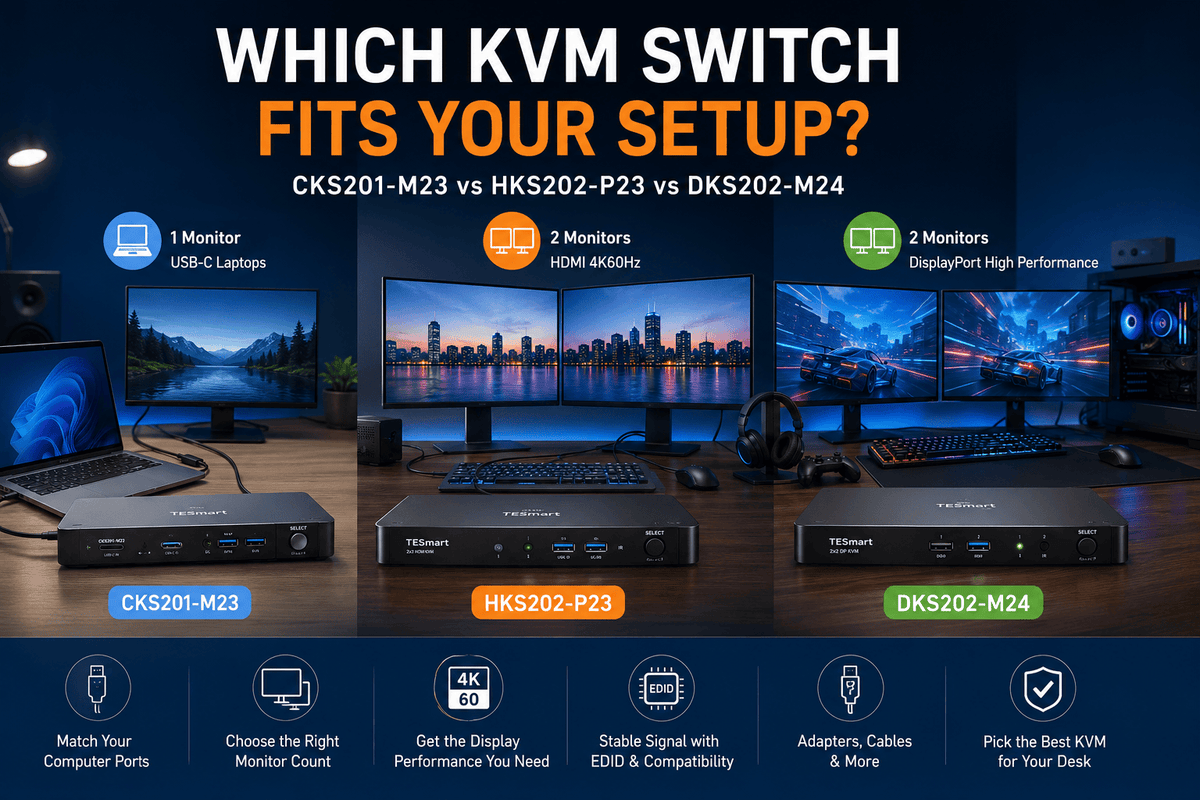
This TESmart KVM comparison focuses on the three questions that should come before every specification comparison: Which video outputs do your computers provide, how many monitors do you need to share, and what display modes do you expect?
Quick Answer: Which TESmart KVM Should You Choose?
Two USB-C laptops sharing one monitor: Choose the TESmart CKS201-M23.
Two computers sharing two HDMI 4K60Hz monitors: Choose the TESmart HKS202-P23.
Two high-performance computers sharing two DisplayPort monitors: Choose the TESmart DKS202-M24.
This is only a starting point. Final compatibility still depends on the video outputs available on both computers, the inputs supported by the monitors, the number of independent display signals, and the bandwidth of every cable or adapter in the path.
Table of Contents
- Quick Answer: Which TESmart KVM Should You Choose?
- Start With Your Signal Path, Not the Maximum Resolution
- USB-C vs HDMI vs DisplayPort KVM: What Actually Changes?
- CKS201-M23: A Cleaner Single-Monitor Setup for Two USB-C Laptops
- HKS202-P23: A Practical Dual-HDMI KVM for 4K60 Workstations
- DKS202-M24: A High-Bandwidth DisplayPort Option for Gaming and Creative Work
- CKS201-M23 vs HKS202-P23 vs DKS202-M24
- Can You Use Adapters With These KVM Switches?
- How to Check Your Setup Before Buying
- Which Model Is Right for Your Desk?
- FAQ
- Conclusion
Start With Your Signal Path, Not the Maximum Resolution
Terms such as “8K,” “4K60Hz,” or “144Hz” describe possible display modes under specific conditions. They do not guarantee that every computer, adapter, cable, KVM, and monitor combination will reach the same result.
Every stage must support the target signal. A DisplayPort 1.4 KVM cannot recover bandwidth that was already lost through an older USB-C adapter. A 4K144Hz monitor may fall back to 4K60Hz if one cable in the chain cannot carry the required format. A dual-monitor KVM cannot create a second independent desktop if the computer supplies only one video signal.
This is why we recommend checking the complete signal path before choosing a KVM switch for two computers. Maximum-resolution labels are useful, but they should be evaluated only after the physical interface and display topology are confirmed.
A Single-Monitor KVM Uses One Display Path Per Computer
In a single-monitor setup, each computer sends one video signal to the KVM. The KVM selects one source and sends it to the shared monitor.
This structure is relatively straightforward. The main questions are whether the computer output matches the KVM input and whether the complete path supports the required resolution, refresh rate, color format, and HDR mode.
A Dual-Monitor KVM Usually Uses Two Display Paths Per Computer
A dual monitor KVM setup is different. For extended desktop operation, each computer normally needs to send two independent video signals to the KVM—one for each monitor.
One HDMI or DisplayPort cable does not automatically become two independent extended displays. Unless the system uses a specifically supported multi-stream, dock, or driver-based architecture, one physical video output represents one display path.
The KVM switches the signals it receives. It does not add display-controller capabilities to the computer or graphics card.

USB-C vs HDMI vs DisplayPort KVM: What Actually Changes?
The main difference between a USB-C, HDMI, and DisplayPort KVM is not the connector shape alone. Each option assumes a different computer output structure and a different type of workstation.
USB-C KVM
A USB-C KVM can combine video, USB data, and laptop charging through one computer-side connection. This makes it useful for laptops that are designed around USB-C connectivity.
However, USB-C is only a connector. A USB-C port may support charging, data, video, or a combination of these functions. For video output, the computer port must support DisplayPort Alt Mode or another compatible video capability.
HDMI KVM
An HDMI KVM is a natural match for desktop PCs, mini PCs, consoles, workstations, and monitors that already use HDMI. HDMI 2.0 is widely used for 4K60Hz office and content workflows.
For a dual monitor HDMI KVM switch, each computer normally needs two HDMI display outputs or two compatible video outputs converted to HDMI.
DisplayPort KVM
DisplayPort is common on discrete graphics cards, professional workstations, high-refresh gaming monitors, and PC-focused multi-monitor desks.
A DisplayPort KVM for two monitors is often the more suitable path when the priorities include high refresh rates, high display bandwidth, VRR, professional graphics cards, or DisplayPort-native monitors. It is less convenient for laptops that provide only one USB-C video output.

CKS201-M23: A Cleaner Single-Monitor Setup for Two USB-C Laptops
The CKS201-M23 is a USB-C KVM switch for two laptops sharing one HDMI monitor, one keyboard, one mouse, and supported USB peripherals.
Its main value is not simply the maximum display specification. It is the ability to combine the laptop video path, USB data connection, and up to 60W laptop charging into a more direct desk connection.
The Ideal CKS201-M23 Setup
A typical setup includes a MacBook and a Windows laptop, or two USB-C Windows laptops, that are alternated at the same desk. Both computers connect to the KVM through USB-C, while the KVM connects to one HDMI monitor and the shared peripherals.
This structure is suitable when the user wants to reduce separate video, USB, network, and charging connections without building a dual-monitor workstation.
The USB-C Ports Must Support Video Output
The most important compatibility check is the computer-side USB-C port.
The port must support DisplayPort Alt Mode or a compatible video output path. A USB-C port used only for data or charging cannot send a display signal to the KVM, even though the connector physically fits.
Port markings can help, but they are not always consistent. The safer approach is to check the laptop specification page or manual for terms such as:
- DisplayPort Alt Mode
- USB-C display output
- Video over USB-C
- Thunderbolt 3 or Thunderbolt 4 connectivity
A laptop with a compatible Thunderbolt port may provide the required display signal, but the CKS201-M23 should still be understood as a USB-C KVM using a compatible video path—not as a product category defined by Thunderbolt.
It Is a Single-Monitor KVM
The CKS201-M23 is designed for two computers and one monitor. It should not be selected when the goal is to share two independent external displays.
Adding an HDMI splitter would duplicate the same image rather than create two independent extended desktops. A dual-monitor workflow requires a KVM and computer output structure designed for two separate display signals.
Display Performance Still Depends on the Entire Chain
The final resolution and refresh rate depend on the laptop GPU, USB-C video capability, KVM, HDMI output, monitor input, display settings, and cable quality.
HDR or high-refresh operation should also be treated as a full-chain requirement. If an adapter, cable, monitor input, or laptop configuration supports a lower mode, the connection will normally fall back to that lower mode.
Who Should Choose CKS201-M23?
CKS201-M23 is more suitable for mobile professionals, developers, hybrid workers, and MacBook or Windows laptop users who need one shared monitor and want to reduce the number of cables connected to each laptop.
It is less suitable for users who need two external monitors, two independent video paths per computer, or DisplayPort-native dual-screen gaming.
HKS202-P23: A Practical Dual-HDMI KVM for 4K60 Workstations
The HKS202-P23 is a dual monitor HDMI KVM switch for two computers and two HDMI displays. Its display priority is stable dual-screen operation at up to 4K60Hz rather than the newest extreme-refresh gaming modes.
This makes it a practical match for developers, analysts, financial workstations, office users, content teams, and other users who rely on multiple windows across two 4K monitors.
Each Computer Normally Needs Two Video Signals
For two-monitor extended mode, each computer normally sends two HDMI signals to the KVM. The KVM then routes those signals to the two shared HDMI monitors.
A desktop graphics card with two HDMI outputs can connect directly. A computer with one HDMI output and one USB-C video output may use a compatible USB-C-to-HDMI adapter for the second path.
A laptop with only one usable video output cannot create a normal two-monitor extended desktop through the KVM without an additional compatible display solution.
Extended Mode Is Not the Same as Mirrored Mode
In extended mode, the operating system treats the two monitors as separate workspaces. Different applications and windows can appear on each display.
In mirrored mode, both displays show the same desktop. Mirroring may be possible from a duplicated signal, but it does not provide the extra workspace that most dual-monitor users expect.
Before buying a dual-monitor KVM, confirm that both computers can generate two independent extended-display signals.
Why EDID Matters in an HDMI Workstation
EDID allows the monitor to report its supported resolution, refresh rate, color format, and other display capabilities to the computer.
EDID management in a KVM can help the computer continue recognizing the monitor during switching. This may reduce unnecessary display redetection, window movement, resolution changes, and longer black-screen intervals.
EDID does not increase HDMI bandwidth or create a second video output. It improves how display identity and capability information are handled.
Why HKS202-P23 Makes Sense for 4K60Hz Office Work
A 4K60Hz HDMI KVM is often sufficient for coding, spreadsheets, financial dashboards, documentation, photo work, general video editing, and multi-window productivity.
These tasks benefit more from a predictable dual-display structure, EDID handling, and USB peripheral sharing than from 144Hz or 240Hz gaming modes.
Users building an extreme-refresh HDMI gaming desk should evaluate a higher-bandwidth HDMI model instead of assuming that a 4K60Hz design will pass every newer gaming feature.
Who Should Choose HKS202-P23?
HKS202-P23 is more suitable for two computers with two available video outputs each, two HDMI monitors, and a primary target of stable 4K60Hz dual-screen work.
It is not the natural choice for two USB-C laptops that need single-cable charging or for a DisplayPort-native high-refresh workstation.
DKS202-M24: A High-Bandwidth DisplayPort Option for Gaming and Creative Work
The DKS202-M24 is a high refresh rate DisplayPort KVM designed for two computers and two DisplayPort monitors.
It is aimed at gaming PCs, professional graphics workstations, video editing systems, 3D production desks, and other setups where DisplayPort 1.4 bandwidth, high resolution, VRR, or high refresh rates are important.
It Is Built Around a Native DisplayPort Signal Path
Each computer normally connects to the DKS202-M24 through two DisplayPort video connections plus a USB data connection. Each shared monitor connects to one of the KVM’s DisplayPort outputs.
This is a good match for desktop graphics cards with multiple DisplayPort outputs. It is not a direct one-cable solution for a laptop that provides only one USB-C video output.
A laptop may be integrated through USB-C-to-DisplayPort cables, a dock, or another conversion path, but every additional device increases the number of compatibility variables.
High-Bandwidth Modes May Depend on DSC
Display Stream Compression allows a compatible source and display chain to transport display modes that would otherwise exceed the uncompressed bandwidth of the link.
When DSC is required, the graphics card, GPU driver, KVM path, monitor, and relevant adapters must all support the required implementation. If one component does not support it, the system may reduce the refresh rate, resolution, color depth, or chroma format.
For this reason, a theoretical DisplayPort bandwidth figure should not be interpreted as a guarantee for every pair of monitors at every resolution and refresh rate.
VRR, HDR, G-Sync, and FreeSync Are Full-Chain Features
Variable refresh rate allows the monitor refresh cycle to follow the GPU’s frame delivery. Technologies such as G-Sync-compatible modes and FreeSync rely on this type of coordination.
For VRR to operate through a KVM, the graphics card, driver, game or application, KVM, DisplayPort cables, monitor input, and monitor settings must all support the intended mode.
HDR has similar dependencies. The monitor may support HDR while an adapter or cable restricts the required bandwidth, color depth, metadata handling, or display mode.
The Graphics Card Must Provide Enough Independent Outputs
A dual-monitor DisplayPort KVM cannot turn one GPU output into two independent native DisplayPort desktops.
Each computer should normally provide two suitable DisplayPort outputs. This is common on gaming and professional graphics cards, but it is less common on thin laptops and some compact systems.
Who Should Choose DKS202-M24?
DKS202-M24 is more suitable for users with two DisplayPort-equipped computers, two DisplayPort monitors, and a need for higher display bandwidth than a conventional 4K60Hz office setup.
It makes more sense when the priority is high-refresh gaming, high-resolution creative work, professional graphics output, or a DisplayPort-native workstation.
CKS201-M23 vs HKS202-P23 vs DKS202-M24
The following comparison focuses on workstation structure rather than listing every available feature.
| Product | Computer Connection | Monitor Connection | Number of Computers | Number of Monitors | Best For | Typical Display Priority | Laptop Charging | Dual-Monitor Requirement | Main Compatibility Check |
|---|---|---|---|---|---|---|---|---|---|
| CKS201-M23 | USB-C with compatible DP Alt Mode video, USB data, and power path | One HDMI monitor | 2 | 1 | Two USB-C laptops sharing a single monitor and peripherals | Single-monitor USB-C workflow with high-resolution or high-refresh capability when the full chain supports it | Up to 60W per supported laptop connection | Not applicable; this is a single-monitor KVM | Confirm that both USB-C computer ports support video output |
| HKS202-P23 | Two HDMI video paths plus USB data from each computer | Two HDMI monitors | 2 | 2 | Office, development, finance, content, and general dual-screen workstations | Dual 4K60Hz HDMI operation, EDID handling, and USB peripheral sharing | No laptop charging through the video inputs | Each computer normally needs two independent video outputs | Confirm two usable computer video outputs and HDMI inputs on both monitors |
| DKS202-M24 | Two DisplayPort 1.4 video paths plus USB data from each computer | Two DisplayPort monitors | 2 | 2 | Gaming PCs, professional workstations, video editing, 3D, and high-bandwidth display setups | High resolution, high refresh rate, VRR, and DisplayPort-native workflows where supported | No laptop charging through the video inputs | Each computer normally needs two suitable DisplayPort outputs | Confirm GPU outputs, DSC requirements, monitor capabilities, and DP cable bandwidth |
Our goal is not to recommend the most expensive model. It is to identify the model whose input structure, monitor outputs, and display priorities match the devices already on the desk.
Can You Use Adapters With These KVM Switches?
Adapters can make a mixed-interface setup possible, but they also add another negotiation and bandwidth stage to the signal path.

DisplayPort to HDMI
Converting a DisplayPort source to an HDMI display input is often easier than converting in the opposite direction. Some graphics outputs support dual-mode DisplayPort, while other combinations require an active adapter.
The adapter must support the intended resolution, refresh rate, HDR format, HDCP version, and color mode. A basic adapter may work at 1080p60 but fail at 4K60Hz, HDR, or a higher refresh rate.
HDMI to DisplayPort
HDMI-to-DisplayPort conversion normally requires an active converter because the conversion direction is not the same as DisplayPort-to-HDMI.
These converters may need separate USB power and may limit refresh rate, HDR, VRR, color depth, or HDCP compatibility. They should not be treated as a simple reversible cable.
USB-C to HDMI or DisplayPort
A USB-C-to-HDMI or USB-C-to-DisplayPort adapter works only when the computer’s USB-C port provides a compatible video signal.
The adapter cannot add video output to a data-only USB-C port. It must also provide enough bandwidth for the selected resolution and refresh rate.
What an Adapter Can Affect
Depending on its chipset and supported standards, an adapter may affect:
- Maximum resolution and refresh rate
- HDR availability and color depth
- VRR, G-Sync-compatible, or FreeSync operation
- EDID communication
- HDCP-protected content
- Wake-from-sleep and hot-plug behavior
- Display detection after KVM switching
Practical recommendation: Choose a KVM that matches the native interfaces of the computers and monitors whenever possible. Fewer conversions usually mean fewer points of failure.
How to Check Your Setup Before Buying
Use this checklist before selecting a KVM switch for two computers.
- Record the exact model of both computers. Do not rely only on the brand or processor family.
- List every usable video output. Separate HDMI, DisplayPort, USB-C video, and Thunderbolt-compatible ports from data-only ports.
- Confirm the number of independent displays each computer supports. A dual-monitor KVM cannot override a computer’s display-controller limit.
- Record the number of monitors. Decide whether the desk requires one shared monitor or two independent shared monitors.
- Check each monitor input. Confirm whether the displays provide HDMI, DisplayPort, USB-C, or multiple input types.
- Set the target display mode. Record the required resolution, refresh rate, color depth, HDR mode, and VRR requirement for each monitor.
- Decide between extended and mirrored mode. Dual-screen extension requires independent display paths.
- Identify every adapter and dock. Check the supported direction, bandwidth, DSC, HDR, VRR, EDID, and HDCP capabilities.
- Check laptop charging requirements. Determine whether the laptop needs power through the KVM or will use its original charger.
- List the USB devices to be shared. Include keyboards, mice, webcams, microphones, storage devices, capture hardware, and audio interfaces.
- Check USB bandwidth requirements. A keyboard and mouse place different demands on the USB path than a high-resolution webcam or external SSD.
- Inspect the existing cables. Confirm that they are rated for the intended interface version, resolution, refresh rate, and length.
Three Example Checks
Example 1: Two USB-C laptops, one HDMI monitor, and a need for charging point toward CKS201-M23—provided both USB-C ports support video output.
Example 2: Two desktop computers, each with two HDMI outputs, and two 4K60Hz HDMI monitors point toward HKS202-P23.
Example 3: Two gaming PCs with multiple DisplayPort outputs and two high-refresh DisplayPort monitors point toward DKS202-M24, subject to full-chain validation.
Which Model Is Right for Your Desk?
Choose CKS201-M23 When
- You use two USB-C laptops.
- You need to share one monitor.
- Both laptop ports support compatible video output.
- You want video, USB data, and laptop charging in a more consolidated connection.
- You do not need two independent external monitors.
Compared with a basic video switch, CKS201-M23 makes more sense when the keyboard, mouse, USB devices, network connection, and laptop power path are also part of the shared workstation.
Choose HKS202-P23 When
- You use two computers and two HDMI monitors.
- Each computer can provide two independent video signals.
- Your main target is dual 4K60Hz office, development, financial, or content work.
- You value EDID handling and USB peripheral sharing.
- You do not need an extreme-refresh HDMI gaming specification.
Compared with a single-monitor or USB-C laptop solution, HKS202-P23 is built around a conventional dual-HDMI workstation with clearly separated video paths.
Choose DKS202-M24 When
- You use two DisplayPort-equipped gaming PCs or professional workstations.
- You need to share two DisplayPort monitors.
- Each computer provides two suitable DisplayPort outputs.
- Your priorities include high resolution, high refresh rate, VRR, or professional GPU workflows.
- You are prepared to verify DSC, monitor, graphics card, and cable compatibility.
Compared with a 4K60Hz office KVM, DKS202-M24 provides a more appropriate signal path for a DisplayPort-native high-bandwidth desk. It is not a substitute for a USB-C laptop dock or a guarantee that every monitor combination will reach the same maximum mode.
FAQ
1. Which is better: CKS201-M23, HKS202-P23, or DKS202-M24?
None of the three is better for every setup. CKS201-M23 is more suitable for two USB-C laptops and one monitor. HKS202-P23 is designed for two computers and two HDMI 4K60Hz monitors. DKS202-M24 is intended for two DisplayPort-equipped computers and two higher-bandwidth DisplayPort monitors.
The correct choice depends on the complete signal path rather than the largest resolution number.
2. Can CKS201-M23 support two external monitors?
CKS201-M23 is a single-monitor KVM. Its normal workstation structure is two computers sharing one external HDMI display.
An HDMI splitter may duplicate one image onto two screens, but it does not create two independent extended desktops. For two shared extended monitors, use a dual-monitor KVM and confirm that both computers provide two independent video signals.
3. Does each computer need two video outputs for a dual-monitor KVM?
For a conventional dual-monitor extended desktop, yes. Each computer normally supplies one independent video signal for each monitor.
A dock, MST hub, or driver-based graphics adapter may create additional outputs in some systems, but compatibility depends on the operating system, computer hardware, dock design, and KVM signal path. The KVM itself does not create a second GPU output.
4. Can I connect a USB-C laptop to HKS202-P23 or DKS202-M24?
It may be possible through compatible adapters or a dock.
For HKS202-P23, the laptop needs two independent video outputs converted to HDMI. For DKS202-M24, it needs two independent outputs converted to DisplayPort. The USB-C ports must support video, and the conversion equipment must support the required resolution, refresh rate, HDR, and other display features.
A laptop with only one USB-C video stream cannot automatically provide two native extended displays.
5. Can DKS202-M24 support high-refresh-rate gaming monitors?
DKS202-M24 is designed for high-bandwidth DisplayPort workflows and can be appropriate for high-refresh monitors.
The actual result depends on the GPU output, monitor resolution, refresh rate, color depth, DSC support, VRR mode, DisplayPort cables, and system settings. A supported mode on one monitor does not prove that every dual-monitor combination will operate at the same specification.
6. Will HDMI or DisplayPort adapters reduce the resolution or refresh rate?
They can. The adapter becomes another bandwidth and protocol stage in the signal path.
An adapter that supports 4K60Hz may not support 4K120Hz, HDR, VRR, DSC, or the required HDCP version. HDMI-to-DisplayPort conversion is particularly likely to require an active, externally powered converter.
7. Can a MacBook use two external monitors through these KVM switches?
That depends on the exact MacBook model and the number of external displays it supports.
CKS201-M23 requires only one external video signal and is therefore the simpler of the three for a compatible USB-C MacBook. HKS202-P23 and DKS202-M24 require two independent display signals for dual-screen extension.
Many MacBooks do not provide native DisplayPort connectors, so DKS202-M24 usually requires USB-C-to-DisplayPort cables or a compatible dock. Do not assume that an MST dock will create two extended desktops on every macOS system.
8. What is the difference between EDID emulation and DSC?
EDID emulation manages information about the connected monitor, including its available display modes. It can help the computer maintain more consistent monitor recognition during switching.
DSC compresses the video stream to transport higher-bandwidth display modes over a supported link. EDID concerns display identification and capability communication; DSC concerns video bandwidth.
9. Does USB-C automatically mean the laptop supports video?
No. USB-C describes the connector, not every function available through it.
The port may support only charging and USB data. For CKS201-M23 or a USB-C video adapter, the laptop port must provide DisplayPort Alt Mode or another compatible display-output capability.
10. Is a dock the same as a KVM switch?
No. A dock expands the ports of one computer. A KVM switches displays and peripherals between multiple computers.
A dock may be used before a KVM when a laptop lacks enough native outputs, but this creates a longer signal chain. The dock and KVM must both support the intended display and USB configuration.
Conclusion
Choosing between CKS201-M23, HKS202-P23, and DKS202-M24 starts with the workstation structure—not with a search for one universal winner.
Choose CKS201-M23 for two compatible USB-C laptops sharing one monitor, especially when laptop charging and a consolidated computer connection are priorities.
Choose HKS202-P23 for two computers sharing two HDMI monitors at up to 4K60Hz, with an emphasis on stable dual-screen work, EDID handling, and USB peripheral sharing.
Choose DKS202-M24 for two DisplayPort-equipped gaming PCs or professional workstations sharing two high-resolution or high-refresh DisplayPort monitors, after verifying graphics outputs, DSC, VRR, monitor, and cable support.
Check your ports before choosing your KVM:
Review the TESmart CKS201-M23 for a two-laptop, single-monitor USB-C desk; the TESmart HKS202-P23 for a dual-monitor HDMI 4K60Hz workstation; or the TESmart DKS202-M24 for a higher-bandwidth dual-DisplayPort setup.
Before selecting a model, confirm the available outputs on both computers, the inputs on both monitors, and the exact resolution and refresh rate you need from the complete signal path.
Share:
How to Build a Dual Apple Studio Display Workstation with a Thunderbolt 4 KVM
Why Apple Studio Display Needs a True Thunderbolt 4 KVM