Gaming KVM Switch Buying Guide: What to Check Before Sharing a PC, USB-C Laptop, and Multiple Monitors
Table of Contents
- Introduction
- What Users Are Actually Trying to Solve
- Do Not Check Resolution Without Refresh Rate
- Make Sure the KVM Matches Your Real Monitor Setup
- Understand DisplayLink Before Choosing a Triple-Monitor KVM
- Match the KVM to the Type of Gaming You Actually Play
- Look for EDID Support to Keep Displays Stable
- Check USB Performance for Gaming Peripherals and Shared Devices
- Consider Switching Speed and Switching Consistency
- Check Laptop Charging and Docking Features
- Confirm Operating System and Driver Compatibility
- Common Buying Mistakes to Avoid
- Which TESmart Solution Fits This Scenario
- Quick Buying Checklist
- FAQ
- Conclusion
Introduction

A gaming desk is often used for more than gaming. Many users keep a desktop PC for gaming, streaming, editing, or 3D work, while also using a laptop for coding, meetings, school, office work, or creative projects.
Once two or three monitors, a mechanical keyboard, gaming mouse, headset, webcam, external storage, Ethernet, and charging cables are added, the desk can quickly become difficult to manage.
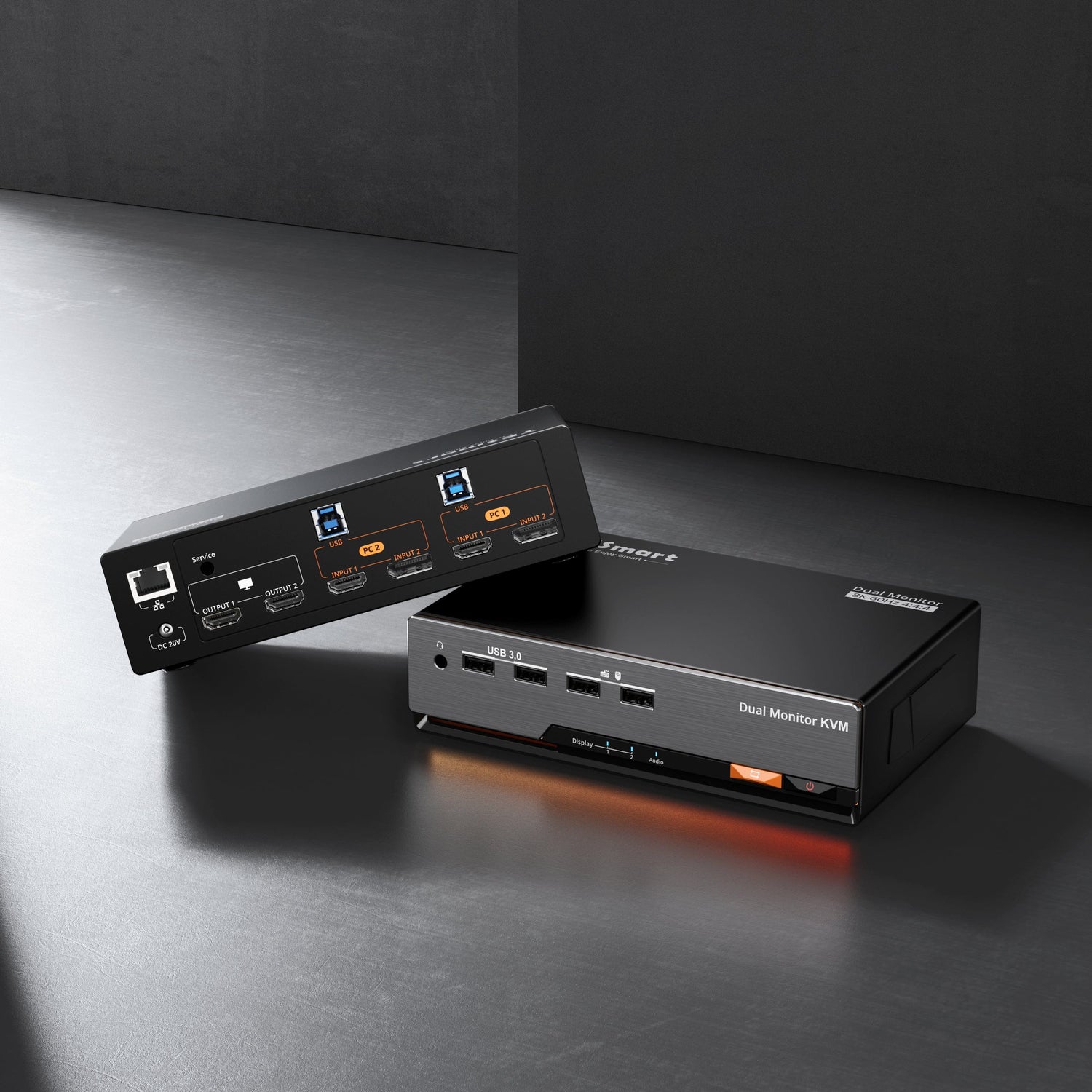
A gaming-capable KVM switch helps by allowing two or more computers to share the same monitors, keyboard, mouse, and USB peripherals. Instead of unplugging cables whenever you move from a gaming PC to a work laptop, you can switch control through a button, hotkey, remote, or another supported method.
The difficult part is choosing the right KVM. A model that works for a basic office monitor may not be suitable for high-refresh gaming, triple-monitor output, USB-C laptops, MacBooks, or DisplayLink-based expansion. If your setup includes a desktop PC, a USB-C laptop, and multiple monitors, the number of ports is only the starting point.
What Users Are Actually Trying to Solve

Most users are not only trying to “switch computers.” They are trying to keep one complete desk environment consistent across two machines.
That means the KVM has to manage several things at the same time:
- Video output to one, two, or three monitors
- Keyboard and mouse control
- USB peripherals such as webcams, microphones, storage drives, and wireless receivers
- Display recognition after switching
- Resolution and refresh-rate stability
- Laptop charging, Ethernet, and audio in dock-style setups
- Windows, macOS, and driver behavior
This is why a gaming KVM purchase often fails when the selection is based only on “4K support” or the number of HDMI or DisplayPort ports. The real question is whether the full signal chain matches your computers, monitors, refresh-rate targets, USB devices, and operating systems.
Do Not Check Resolution Without Refresh Rate
One of the most common mistakes is looking only for the phrase “supports 4K.” That is not enough.

A KVM may support 4K at 30Hz, which can feel noticeably less responsive on a desktop. Another model may support 4K at 60Hz, but not higher refresh rates at lower resolutions. For gaming, refresh rate affects motion clarity, mouse response, and how direct the display feels during movement.
Before buying, confirm the exact resolution and refresh-rate combinations you need:
- 4K at 60Hz for productivity, media, and general gaming
- 1440p at 120Hz or higher for smoother gameplay
- 1080p at 144Hz, 165Hz, or 240Hz for high-refresh gaming
- Ultrawide resolutions such as 3440×1440, depending on the monitor
- Multi-monitor output at the same time, not only single-monitor output
Video bandwidth is limited. A KVM that can handle one 4K display does not automatically support three 4K displays at the same time. A model that works well at 1080p may not maintain the same experience at 4K or ultrawide resolutions.
The practical rule is simple: do not buy a KVM because it says “4K.” Buy it because it supports the resolution, refresh rate, interface type, and number of monitors you actually plan to use.
Make Sure the KVM Matches Your Real Monitor Setup

A single-monitor KVM is relatively simple. A dual-monitor or triple-monitor KVM is more demanding because the switch must maintain video signals, monitor recognition, desktop layout, resolution settings, and USB control across every connected computer.
This becomes more complicated when the desktop and laptop use different output structures. A gaming desktop may use HDMI or DisplayPort outputs directly from the GPU. A laptop may rely on USB-C, DisplayPort Alt Mode, Thunderbolt-compatible ports, or DisplayLink. Some MacBook models also have native external-display limits that depend on the chip generation and model.
Before choosing a KVM switch, answer these questions:
- How many monitors do you want to share?
- Do you need extended mode or mirrored mode?
- Can each computer support the required number of external displays?
- Are your monitor inputs HDMI, DisplayPort, USB-C, or a mix?
- Does your laptop output video through USB-C?
- Do you need DisplayLink to add more external displays?
- Does the KVM help preserve your display layout after switching?
For a desktop PC plus a USB-C laptop, a hybrid KVM dock can be more practical than a basic KVM switch because each computer can use the connection path that fits its hardware. The desktop can use dedicated video outputs, while the laptop can use USB-C and DisplayLink expansion where needed.
Understand DisplayLink Before Choosing a Triple-Monitor KVM

DisplayLink is important for many modern laptop-based multi-monitor setups. Some laptops cannot natively drive three external displays through one USB-C port. Some MacBook models also have native external-display restrictions. DisplayLink addresses this by using a driver-based video expansion method that allows additional displays to run through USB.
For a triple-monitor KVM dock, this can be useful because it allows a USB-C laptop to join a multi-display desk without requiring multiple native video outputs.
The trade-off is that DisplayLink is not the same as a direct GPU-to-monitor path. It is well suited for productivity, coding, browsing, content management, video meetings, document work, and multi-window workflows. It can also work for many casual and mainstream gaming scenarios.
However, because DisplayLink depends on driver-based video processing, it is not the ideal choice for highly competitive FPS players who are extremely sensitive to latency, compression, or motion response.
A more accurate way to think about this category is:
A DisplayLink-based hybrid KVM dock is best for users who need triple-monitor productivity, laptop and desktop switching, and gaming-capable performance in one shared desk setup.
Match the KVM to the Type of Gaming You Actually Play

Not every gamer needs the same KVM. A competitive FPS player using a 360Hz monitor has different requirements from someone who plays RPGs, strategy games, racing games, simulation titles, or casual multiplayer games.
If you mainly play competitive FPS games, prioritize:
- Native high-refresh video paths
- Minimal input latency
- Stable keyboard and mouse response
- Direct GPU-to-monitor performance
- VRR, G-Sync, or FreeSync compatibility if required
If your desk is used for both gaming and productivity, you may care more about:
- Two or three shared monitors
- Laptop and desktop switching
- Stable display recognition
- USB peripheral sharing
- Predictable switching behavior
- Docking features such as Ethernet, audio, and charging
This distinction matters because a product optimized for shared multi-monitor productivity is not always the same as a product optimized for esports-grade refresh rates. Choose based on the performance you actually need, not the broad label “gaming.”
Look for EDID Support to Keep Displays Stable

Display stability is one of the most important parts of a KVM setup, but it is often overlooked.
EDID stands for Extended Display Identification Data. It is the information a monitor sends to a computer to describe supported resolutions, refresh rates, color formats, and other display capabilities.
Without proper EDID handling, the computer may think a monitor has been disconnected every time you switch away. When you switch back, the system may need to detect the display again. This can cause:
- Black screens after switching
- Long signal recovery time
- Windows rearranging themselves
- Resolution resets
- Refresh-rate changes
- Monitor flicker
- Multi-monitor layout problems
For a single monitor, this is annoying. For two or three monitors, it can interrupt work. A KVM with EDID support helps maintain monitor identity when the active computer changes, which makes switching more predictable and helps preserve display settings.
Check USB Performance for Gaming Peripherals and Shared Devices

A gaming KVM is not only about video. USB behavior also matters.
Most users want to share a keyboard and mouse. Many also want to share a headset, USB microphone, webcam, external SSD, stream deck, USB audio interface, wireless mouse receiver, mechanical keyboard, USB hub, printer, scanner, or capture device.
Different USB devices have different requirements. A basic keyboard or mouse needs little bandwidth. A webcam, external SSD, capture device, or audio interface may need more stable USB performance. Gaming mice and keyboards may also rely on special drivers, polling rates, RGB software, macro functions, or wireless receivers.
Before buying a KVM, check:
- Does it include USB 3.0 or higher-speed USB ports?
- Are there dedicated keyboard and mouse ports?
- Does it support keyboard and mouse pass-through where needed?
- Can it share storage devices, webcams, or audio devices?
- Does it have enough USB ports for your real desk?
- Should high-power USB devices be connected through a powered hub?
For best results, connect the keyboard and mouse according to the KVM’s recommended port layout. Use higher-speed USB ports for external storage, webcams, and other data-heavy peripherals. For complex gaming peripherals, behavior can still depend on the device chipset, driver, and USB protocol.
Consider Switching Speed and Switching Consistency

Many people ask whether a KVM switch is fast. Speed matters, but it is only part of the experience.
For daily use, consistency can be more important than the absolute switching time. After switching, the monitors should recover correctly, the keyboard and mouse should respond normally, USB devices should remain available, and the desktop layout should not collapse.
Poor switching behavior may appear as:
- One monitor waking up later than the others
- USB devices disconnecting and reconnecting repeatedly
- Keyboard or mouse not responding after switching
- Display settings resetting
- Audio devices disappearing
- Windows moving to the wrong screen
These problems are more common in complex setups with multiple monitors, mixed operating systems, USB-C laptops, or several shared USB devices. When comparing KVMs, do not only ask, “How many seconds does switching take?” Also ask, “Does everything come back correctly after switching?”
Check Laptop Charging and Docking Features

If your second computer is a laptop, a KVM with docking features can simplify the desk.
A basic KVM may switch video and USB, but the laptop may still need a separate charger, Ethernet adapter, USB hub, audio adapter, or docking station. Each extra device adds more cables and another potential point of failure.
A KVM dock can combine several functions in one device, depending on the model:
- Video output
- USB peripheral sharing
- Laptop charging
- Ethernet
- Audio input and output
- Keyboard and mouse sharing
- Multi-monitor expansion
- Computer switching
Power requirements still need to be checked. A 100W PD connection may be enough for many USB-C laptops, ultrabooks, and MacBook workflows. High-performance gaming laptops and mobile workstations may require more power under heavy load, so the original power adapter may still be needed.
The goal is not always to replace every cable. The goal is to make the setup cleaner, more stable, and easier to control.
Confirm Operating System and Driver Compatibility

Operating system compatibility is especially important when a setup includes both Windows and macOS.
Windows desktops are usually straightforward when using dedicated GPU outputs. USB-C laptops and MacBooks may require closer attention, especially when DisplayLink is involved.
Before choosing a KVM, check:
- Does the KVM support your operating system?
- Does DisplayLink require a driver for your setup?
- Is the driver available for your version of Windows or macOS?
- Does your company laptop allow driver installation?
- Are additional permissions required on macOS?
- Does your laptop support the required USB-C video or data functions?
This point is especially important for managed work laptops. Some companies restrict driver installation. Since DisplayLink depends on software support, users should confirm driver availability and permission policies before buying a DisplayLink-based KVM dock.
Common Buying Mistakes to Avoid
Many KVM problems come from choosing a model that does not match the actual setup.
| Buying Mistake | Why It Causes Problems | What to Check Instead |
|---|---|---|
| Buying only based on price | A low-cost KVM may be fine for basic office use but may not handle high-resolution, high-refresh, or multi-monitor gaming setups well. | Check video bandwidth, monitor count, USB needs, and switching behavior. |
| Assuming “4K” means “4K gaming” | 4K30Hz, 4K60Hz, and 4K144Hz are very different experiences. | Confirm the exact resolution and refresh-rate combinations. |
| Ignoring the number of monitors | A KVM that supports one 4K monitor may not support three 4K monitors at the same time. | Confirm simultaneous multi-monitor output. |
| Forgetting laptop limits | Many laptops cannot drive three external displays natively through one USB-C port. | Check whether DisplayLink or another expansion method is required. |
| Overlooking EDID | Poor EDID handling can cause black screens, layout resets, or slow display recovery. | Look for EDID support designed for stable switching. |
| Ignoring USB device behavior | Webcams, external SSDs, audio devices, and gaming peripherals may need more stable USB support than basic keyboards and mice. | Check USB speed, port layout, and device compatibility. |
| Choosing the wrong KVM for competitive gaming | A DisplayLink hybrid KVM dock is useful for mixed productivity and gaming, but it is not the same as a native high-refresh esports setup. | Choose native high-refresh paths if lowest latency is the top priority. |
Which TESmart Solution Fits This Scenario
If your setup includes one USB-C laptop, one desktop PC, and three monitors, TESmart HDC203-PM24 is the more relevant TESmart option to consider.
It is designed as a 2-computer, 3-monitor hybrid KVM docking station, allowing users to share three displays, keyboard, mouse, USB peripherals, network, and audio devices between a laptop and desktop. With DisplayLink support, it is especially useful for laptop users who need more external displays than their system can natively provide.
For multi-monitor users, HDC203-PM24 also includes Smart EDID support to help preserve display settings and reduce common switching problems such as black screens, flickering, resolution resets, or window rearrangement.
This model is a strong fit when your priority is:
- A shared triple-monitor desk
- One USB-C laptop and one desktop PC
- DisplayLink-based multi-monitor expansion
- 4K60Hz productivity display support
- Gaming-capable performance for mainstream use
- Smart EDID for more stable switching
- USB peripheral sharing
- Gigabit Ethernet and audio integration
- 100W PD charging for compatible laptops
- Fewer repeated cables across the desk
HDC203-PM24 is not meant to replace a dedicated esports-grade KVM for users who require extreme refresh rates, native GPU paths, VRR, and the lowest possible input latency. For users who want a complete shared desk for gaming, work, content creation, meetings, and laptop/desktop switching, it offers a balanced approach.
Quick Buying Checklist
Before choosing a gaming KVM switch, confirm these details:
- Number of computers
- Number of monitors
- Monitor input types: HDMI, DisplayPort, USB-C, or mixed
- Target resolution and refresh rate for each display
- Whether the laptop can drive the required number of displays natively
- Whether DisplayLink is needed
- Whether your operating system supports the required drivers
- Whether your company laptop allows driver installation
- USB devices that need to be shared
- Whether EDID support is needed for stable switching
- Whether laptop charging, Ethernet, or audio should be integrated
- Whether your gaming priority is competitive low latency or mixed-use convenience
FAQ
Q1: Is a gaming KVM switch good for both gaming and work?
Yes, if the KVM matches the real setup. For mixed gaming and productivity, check monitor count, resolution, refresh rate, USB support, EDID behavior, and laptop compatibility. A basic office KVM may not be enough for a gaming PC, USB-C laptop, and multi-monitor desk.
Q2: Does “4K KVM” always mean it is good for gaming?
No. “4K” does not tell you the refresh rate. A 4K30Hz KVM and a 4K60Hz KVM feel very different. For gaming, always check the exact resolution and refresh-rate combinations supported by the KVM.
Q3: Do I need DisplayLink for a triple-monitor laptop setup?
It depends on the laptop. Some laptops can drive multiple external displays natively, while others cannot output three displays through one USB-C port. DisplayLink can help add external displays through USB, but it requires driver support.
Q4: Is DisplayLink suitable for competitive FPS gaming?
DisplayLink is usually better suited for productivity, office work, coding, browsing, meetings, and mainstream mixed-use scenarios. Competitive FPS players who need the lowest latency and highest refresh rates should usually prioritize a native high-refresh video path.
Q5: Why does EDID matter in a multi-monitor KVM setup?
EDID helps the computer understand the monitor’s supported resolutions, refresh rates, and display capabilities. With better EDID handling, the system is less likely to treat the monitor as disconnected during switching, which can reduce black screens, layout resets, and resolution changes.
Q6: Can one KVM replace a dock, charger, and USB hub?
Some KVM docks can replace several desktop devices, depending on the model and laptop. However, high-performance gaming laptops or mobile workstations may still need their original power adapter if their power demand is higher than the KVM dock’s PD output.
Q7: Who is TESmart HDC203-PM24 best suited for?
HDC203-PM24 is best suited for users who want to share three monitors, USB peripherals, Ethernet, audio, and keyboard/mouse control between one USB-C laptop and one desktop PC. It is a better match for mixed gaming and productivity than for esports users who require the lowest possible latency and extreme refresh rates.
Conclusion
Choosing a gaming KVM switch is not just about finding a box with enough ports. You need to match the KVM to your real desk: computers, monitors, video interfaces, target resolution, refresh rate, USB devices, operating systems, laptop charging needs, and switching expectations.
For a simple single-monitor gaming setup, a basic high-refresh KVM may be enough. For a more advanced desk with a gaming PC, USB-C laptop, and three monitors, the better choice is usually a more integrated device.
For that type of setup, a hybrid KVM dock such as TESmart HDC203-PM24 is worth considering because it combines triple-monitor support, DisplayLink expansion, Smart EDID, USB sharing, Ethernet, audio, and 100W PD charging for compatible laptops in one shared desktop system.
The right KVM should not only switch inputs. It should help the entire desk recover correctly after each switch.