

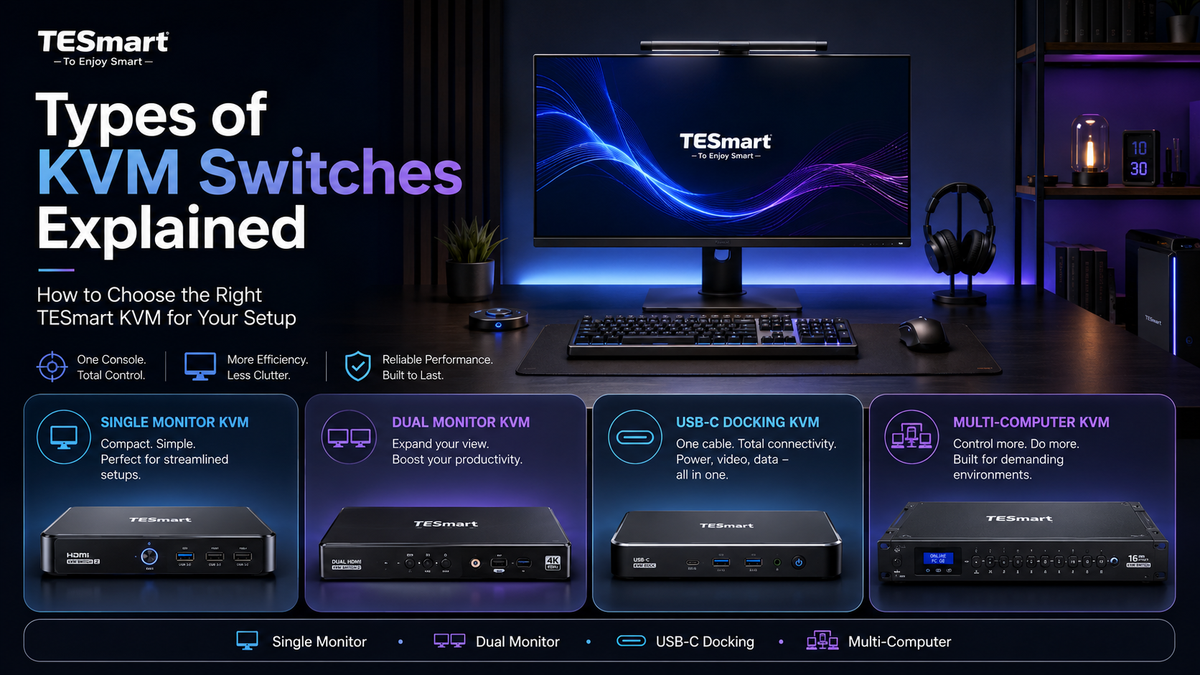
Table of Contents
- Introduction
- What Users Are Actually Trying to Solve with a KVM Switch
- The Main Types of KVM Switches
- KVM Types by Video Interface
- KVM Types by Number of Monitors
- KVM Types by Number of Computers
- TESmart Product Categories Explained
- How to Choose the Right KVM Type
- Common Mistakes When Choosing a KVM Switch
- Conclusion
- FAQ
Introduction
A KVM switch looks simple from the outside: several computers connect to one device, and one keyboard, mouse, and monitor set control them. In practice, choosing the right KVM switch depends on more than the number of computers.
The real question is not only “How many PCs do I want to switch?” It is also:
How many monitors must stay active?
What resolution and refresh rate do those monitors need?
Are the computers using HDMI, DisplayPort, USB-C, or Thunderbolt™ ports?
Do you need to share only a keyboard and mouse, or also USB devices, audio, network access, and professional peripherals?
This is why two KVM switches that look similar on a product page can behave very differently in a real desk setup. A single-monitor office KVM, a dual-monitor gaming KVM, a rackmount-style 16-port KVM, and a KVM compatible with Thunderbolt™ 4 laptops are built for different problems.
This guide explains the major types of KVM switches, how they differ in real-world use, and how TESmart product categories fit different workstation needs.
What Users Are Actually Trying to Solve with a KVM Switch

Most users do not buy a KVM switch because they want another box on the desk. They buy one because their workspace has become difficult to manage.
A developer may use a desktop PC for local builds and a laptop for remote work. A creator may switch between a MacBook and a Windows workstation. An IT user may manage several systems from one console. A gamer may want one monitor, keyboard, mouse, headset, and capture setup shared across a gaming PC and another computer.
In all of these cases, the goal is not just switching video. The goal is maintaining a stable control point across multiple computers.
A good KVM switch should preserve the parts of the setup that matter most:
Display resolution and refresh rate
Keyboard and mouse control
USB peripheral access
Audio behavior
EDID and display recognition
Clean cable routing
Predictable switching behavior
Once you understand which part of the setup is hardest to preserve, the right KVM category becomes much easier to identify.
The Main Types of KVM Switches
KVM switches can be grouped in several ways. The most useful method is to classify them by the problem they solve: monitor count, computer count, video interface, resolution requirement, and workstation complexity.

Single-Monitor KVM Switches
A single-monitor KVM switch lets multiple computers share one display, one keyboard, and one mouse. This is the simplest KVM category and is usually the right starting point for users who work from one primary screen.
This type fits common setups such as:
One work laptop and one personal desktop
One Windows PC and one Mac mini
One gaming PC and one office computer
A small workstation where desk space is limited
The key decision is not only whether the KVM supports one monitor. You also need to check whether the video interface and resolution match your display. For example, a 4K60 HDMI setup has different requirements from an 8K60 or high-refresh DisplayPort setup.
In the TESmart lineup, single-monitor KVM options include models for 2-computer and 4-computer use cases, such as HKS201 and HKS401 series products. These are better suited to users who want a compact switching point without building a multi-display workstation.
Multi-Monitor KVM Switches
A multi-monitor KVM switch is designed for users who need two, three, or four monitors to follow the selected computer. This is common in development, trading, video editing, engineering, monitoring, and command-center-style workflows.
The technical challenge is higher than single-monitor switching. Each computer must provide enough video outputs to feed the KVM, and each monitor path must support the target resolution and refresh rate. For a dual-monitor KVM, each computer usually needs two video outputs. For a triple-monitor KVM, each computer usually needs three.
This is where many users make a wrong assumption. A dual-monitor KVM does not automatically create a second display from one video output. In most hardware KVM workflows, the computer must send separate display signals into the KVM.
TESmart multi-monitor KVM categories include dual-monitor, triple-monitor, and quad-monitor models. Examples include DKS202, HDK202, HDC202, DKS203, HDK203, HDC203, HDK404, and related series. These products are more appropriate when the monitor layout itself is part of the workflow, not just an accessory.
8-Port and 16-Port KVM Switches
An 8-port or 16-port KVM switch is built for controlling many computers from one console. These are common in labs, server rooms, test benches, device maintenance areas, and IT management spaces.
The priority is different from a desk KVM for two computers. In a high-port-count environment, users usually care about reducing console duplication, keeping device access organized, and switching between many machines quickly.
TESmart’s 8-16 port KVM category includes models such as HKS801 and HKS1601 series products. These are better suited to IT users and equipment rooms than to a typical two-computer desk.
Matrix Switchers
A matrix switcher is not the same as a traditional KVM switch. A KVM focuses on controlling computers with shared keyboard, video, and mouse access. A matrix switcher focuses on routing video signals between multiple sources and multiple displays.
For example, a 4x4 matrix can route four input sources to four output displays in different combinations. This is useful in meeting rooms, AV installations, monitoring rooms, and display distribution setups.
TESmart matrix switcher categories include models such as HMA404 and HMA808 series products. These are useful when the main requirement is flexible video routing rather than full computer control.
KVM Extenders and Video Extenders
An extender solves a distance problem. If the computer and the user console are far apart, a standard short HDMI, DisplayPort, or USB cable may not be practical.
In this case, an extender can carry signals over a longer medium such as network cable, depending on the model. This type of product is used in equipment rooms, classrooms, control rooms, industrial spaces, and installations where the computer should not sit directly on the desk.
TESmart extender products include models such as HKE120-EH23 and related HKE / DKE / VKE series products. These should be selected based on distance, resolution, transmission medium, and whether USB control is required.
KVM Types by Video Interface
The video interface is one of the most important differences between KVM switches. It affects resolution, refresh rate, cable choice, computer compatibility, and monitor behavior.

HDMI KVM Switches
HDMI KVM switches are common in office setups, gaming setups, media systems, consoles, and many general-purpose desktops. HDMI is widely supported by monitors, TVs, laptops, docking stations, and graphics cards.
An HDMI KVM is often a good fit when the monitor input is HDMI and the target resolution is clearly supported by the entire chain. For example, a 4K60 HDMI KVM is usually enough for many office, home, and dual-computer setups.
The important detail is version and bandwidth. Not every HDMI port supports the same refresh rate. A monitor, computer, cable, and KVM must all support the target mode. If one part of the chain is limited, the final output may drop to a lower refresh rate or fail to display reliably.
DisplayPort KVM Switches
DisplayPort KVM switches are often preferred for high-refresh monitors, workstation graphics cards, and professional multi-monitor setups. Many desktop GPUs provide multiple DisplayPort outputs, making DisplayPort practical for dual-screen and triple-screen workstations.
DisplayPort setups can be especially relevant when users need high refresh rates or higher bandwidth display modes. However, Mac users should check their connection path carefully. Many Mac computers use USB-C or Thunderbolt™ ports and do not provide native DisplayPort output as a physical connector. In those cases, USB-C to DisplayPort cables, adapters, or docks may be required.
This matters because every adapter adds another compatibility point. A DisplayPort KVM can work well in the right chain, but the setup should be planned around actual ports, not only theoretical protocol support.
USB-C KVM Switches
A USB-C KVM switch is useful when laptops are part of the setup. Many modern laptops output video, USB data, and sometimes power through USB-C, but not every USB-C port behaves the same way.
The key question is whether the USB-C port supports DisplayPort Alt Mode or another video-capable mode. A USB-C charging-only port is not enough for display output. Some laptops also limit the number of external monitors they can drive, even when the cable and KVM support more.
USB-C KVM solutions are most useful when the user wants a cleaner laptop connection and fewer separate cables. They are especially relevant for MacBook users, Windows laptop users, and hybrid laptop-plus-desktop workstations.
KVM Solutions Compatible with Thunderbolt™ 4 Workflows
Some users need a KVM solution that works with Thunderbolt™ 4 laptops or displays. This should be described carefully: Thunderbolt™ compatibility is a workflow and device compatibility point, not a phrase that should be used loosely as a product identity.
In a Thunderbolt™ 4 laptop workflow, users may expect high-bandwidth video, USB device access, network connectivity, and laptop charging through a compact connection path. That is different from a basic HDMI or DisplayPort switch.
TESmart products such as TKS202-X4 and THK401-X4 are designed for users working with Thunderbolt™ 4 laptop environments. TKS202-X4 is positioned for 2-computer, dual-display workflows with Thunderbolt™ 4 devices. THK401-X4 is designed for a 4-input, single-display workflow where one input path supports Thunderbolt™ 4 device use while other inputs use HDMI-based connections.
Compatible with Thunderbolt™ 4 — Transparent & Tested
These products are designed for use with Thunderbolt™ 4 laptops and have been tested across common real-world workstation setups for display output, USB device behavior, and peripheral connectivity. They are not yet Intel® certified for Thunderbolt™, and certification is currently in progress. For buyers, this distinction matters: compatibility testing supports practical confidence, while certification status should remain clearly stated.
KVM Types by Number of Monitors
Monitor count is often the easiest way to narrow the choice. A KVM must match how many displays you want each computer to use after switching.
| KVM Type | Typical Setup | Best Fit | What to Check First |
|---|---|---|---|
| Single-monitor KVM | 2 or 4 computers → 1 monitor | Compact workstations, home offices, simple PC/laptop switching | Video interface, resolution, USB needs |
| Dual-monitor KVM | 2 or 4 computers → 2 monitors | Developers, finance users, creators, multitasking desks | Each computer must provide two usable video outputs |
| Triple-monitor KVM | 2 or 4 computers → 3 monitors | Engineering, monitoring, production, advanced workstations | GPU output count, resolution, cable quality, OS display behavior |
| Quad-monitor KVM | Multiple computers → 4 monitors | Control rooms, trading, simulation, heavy multitasking | Full video chain bandwidth and stable EDID handling |
For multi-monitor users, the most common mistake is assuming a KVM can compensate for missing computer video outputs. In most cases, it cannot. If your laptop supports only one external display, connecting it to a dual-monitor KVM does not automatically create a true extended dual-monitor desktop.
This is especially important for MacBook setups. Depending on the Mac model and chip generation, external display support can vary. Before choosing a dual-monitor or triple-monitor KVM, confirm how many external displays the Mac can drive and whether the required adapter or dock supports that mode.
KVM Types by Number of Computers
The number of computers determines the input side of the KVM. This is different from monitor count.

2-Computer KVM Switches
A 2-computer KVM is the most common choice for desk users. It fits work/personal setups, Mac/Windows setups, desktop/laptop setups, and gaming/workstation combinations.
TESmart 2-computer KVM categories include single-monitor models such as HKS201 series products and multi-monitor models such as HKS202, DKS202, HDK202, HDC202, DKS203, HDK203, and HDC203 series products.
This category is usually the best starting point when the user has one main workstation but needs to switch between two systems several times a day.
4-Computer KVM Switches
A 4-computer KVM is useful when the user manages several systems from one desk. This may include a work PC, personal PC, test machine, mini PC, server, or dedicated media system.
TESmart 4-computer KVM categories include HKS401 for single-monitor use and HKS402, DKS402, HDK402, HDC402, HKS403, HDC403, HDK403, and HDK404 series products for multi-monitor setups.
For 4-computer setups, cable planning becomes more important. A dual-monitor 4-computer KVM can require a large number of video and USB connections. Before buying, confirm both the port count and the available cable space behind the desk.
8-Port and 16-Port KVM Switches
8-port and 16-port KVM switches are less about desk convenience and more about system management. They allow one console to access many machines.
TESmart HKS801 and HKS1601 series products fit this category. These are better for IT benches, device testing, server access, and technical environments where one user needs to control many systems without dedicating a monitor and keyboard to each one.
TESmart Product Categories Explained
TESmart’s product range can be understood as several practical categories rather than a long list of model numbers. The right category depends on the user’s display structure, input devices, computer count, and connection type.

TESmart Single-Monitor KVM Switches
Single-monitor KVM models are suitable for users who want to share one monitor between multiple computers. TESmart HKS201 and HKS401 series products fit this type of setup.
Choose this category when your desk has one display and the main requirement is switching control between two or four computers. It is also the easiest category to install because each computer usually sends only one video signal to the KVM.
TESmart Multi-Monitor KVM Switches
Multi-monitor KVM models are suitable for users who need the selected computer to take over two, three, or four displays. TESmart DKS, HDK, HDC, HKS, and CKS multi-monitor series cover different combinations of computer count, monitor count, interface type, and resolution support.
This category is better for users who depend on screen layout. For example, a developer may keep code on one screen and logs on another. A creator may use one display for editing and another for preview or file management. In these cases, switching only one screen would interrupt the workflow.
TESmart High-Resolution and High-Refresh KVM Options
Some TESmart models are designed for higher display specifications such as 8K60 or high-refresh 4K workflows, depending on model and interface. These are more appropriate for users with gaming monitors, professional displays, or workstation GPUs.
When choosing this category, do not look only at the maximum resolution line. Confirm the exact combination of resolution, refresh rate, color format, cable type, and monitor input. A chain that works at 4K60 may not automatically work at 4K120 or 8K60.
TESmart 8-16 Port KVM Switches
TESmart 8-16 port KVM products, including HKS801 and HKS1601 series models, are designed for environments with many computers and one shared console.
This category is most relevant when the user’s problem is not display performance alone, but device density. IT teams, repair benches, labs, and technical support spaces can reduce the number of monitors, keyboards, and mice needed to manage multiple systems.
TESmart KVM Solutions Compatible with Thunderbolt™ 4 Laptop Workflows
For laptop-heavy workstations, TESmart offers solutions designed for use with Thunderbolt™ 4 laptops and related USB-C display workflows. TKS202-X4 is aimed at users who need a 2-computer, dual-display setup with Thunderbolt™ 4 device compatibility. THK401-X4 is better suited to a mixed-input setup where multiple computers share one display path and one input is built around Thunderbolt™ 4 device use.
This category is most relevant for users who care about laptop connectivity, compact cabling, USB peripherals, network access, and high-bandwidth display behavior. It is not the same buying decision as a basic HDMI KVM.
TESmart Matrix Switchers and Extenders
TESmart matrix switchers and extenders sit next to the KVM category but solve different problems.
A matrix switcher is better when you need to route several video sources to several displays. An extender is better when the computer and user console are far apart. A KVM switch is better when you need shared control of computers from one keyboard, monitor, and mouse setup.
Understanding this distinction prevents overbuying the wrong product. A matrix switcher may route video well but may not provide the same keyboard and mouse control behavior as a KVM. An extender may solve distance but not multi-computer switching by itself.
How to Choose the Right KVM Type
The safest way to choose a KVM switch is to define the connection structure before comparing model names.

Step 1: Count Computers and Monitors Separately
Do not describe your setup only as “dual monitor” or “two computers.” Write it as a structure:
2 computers → 1 monitor
2 computers → 2 monitors
4 computers → 2 monitors
4 computers → 3 monitors
8 computers → 1 monitor
This immediately narrows the category. For example, a 2x2 KVM and a 4x2 KVM are not interchangeable. They may both support dual monitors, but the number of computers is different.
Step 2: Match the Video Interface
Check the actual ports on every computer and monitor. HDMI, DisplayPort, USB-C, and Thunderbolt™ connections may require different KVM types.
For desktop PCs with graphics cards, DisplayPort or HDMI may be straightforward. For MacBook and USB-C laptops, you may need to confirm whether the port supports external display output and whether adapters or docks are involved.
Step 3: Confirm Resolution and Refresh Rate
Resolution and refresh rate should be treated as a full-chain requirement. The computer, GPU, cable, KVM, and monitor must all support the same target mode.
If you want 4K60, choose a KVM and cables rated for that mode. If you want 4K120, 144Hz, or 8K60, verify the specific model capability and avoid long or unverified cables. Display instability is often caused by a weak link in the chain rather than the KVM alone.
Step 4: Check USB Peripheral Requirements
Basic keyboard and mouse sharing is easier than sharing high-bandwidth USB devices. Webcams, capture cards, storage devices, DACs, and hubs may behave differently from standard input devices.
If you need to share USB 3.0 devices, check whether the KVM supports the required USB bandwidth and whether the device should be connected through the KVM or directly to one computer.
Step 5: Consider EDID and Display Stability
EDID handling affects whether a computer remembers the monitor during switching. Poor display recognition can cause window rearrangement, black screens, resolution drops, or long switching delays.
For multi-monitor and high-resolution workstations, EDID behavior is not a minor feature. It is part of what makes the setup feel stable in daily use.
Common Mistakes When Choosing a KVM Switch
Mistake 1: Assuming a Dock and a KVM Do the Same Job
A dock expands one computer. A KVM switches control between multiple computers. Some setups use both, but they are not substitutes for each other.
If you want one laptop to connect to more ports, a dock may be enough. If you want two or more computers to share the same monitor and peripherals, you need a KVM switch.
Mistake 2: Ignoring the Number of Video Outputs from Each Computer
A dual-monitor KVM usually needs two video inputs from each computer. A triple-monitor KVM usually needs three. If one computer cannot provide enough outputs, the KVM cannot create a full extended desktop by itself.
Mistake 3: Choosing by Maximum Resolution Alone
Maximum resolution is only one part of compatibility. Refresh rate, color format, cable length, adapter quality, and monitor input type all matter.
A model that supports a high maximum resolution may still require the right cables and source devices to reach that mode.
Mistake 4: Overlooking Mac and USB-C Port Limits
MacBook and USB-C laptop users should check external display limits before choosing a multi-monitor KVM. Some laptops support only one external display. Others require specific docks, adapters, or DisplayPort Alt Mode support.
For Mac users choosing a DisplayPort KVM, remember that many Mac models do not have a physical DisplayPort output. A USB-C to DisplayPort adapter or dock may be part of the final connection path.
Mistake 5: Buying a Matrix Switcher When You Need Computer Control
A matrix switcher is useful for routing video, but it is not always the right device for sharing a keyboard and mouse across computers. If the main requirement is computer control, start with the KVM category first.
Conclusion
The right KVM switch type depends on the structure of your workstation. Start with the number of computers and monitors, then confirm the video interface, resolution, refresh rate, USB requirements, and operating system limits.
For a simple two-computer desk, a TESmart single-monitor KVM may be enough. For developers, creators, and workstation users, a TESmart multi-monitor KVM is usually a better match. For IT benches and equipment rooms, 8-port and 16-port KVM models make more sense. For AV routing or long-distance signal runs, matrix switchers and extenders solve different problems.
If your setup includes MacBook, USB-C, or Thunderbolt™ 4 laptops, pay close attention to the connection path. The best choice is not the most complex model, but the one that matches how your computers actually output video and USB signals.
FAQ
What type of KVM switch do I need?
Start by counting computers and monitors separately. A 2-computer, 1-monitor setup needs a different KVM from a 2-computer, 2-monitor setup. Then check the video interface, resolution, refresh rate, and USB device requirements.
Do I need two video outputs from each computer for a dual-monitor KVM?
In most hardware KVM setups, yes. Each computer usually needs to send one video signal per monitor into the KVM. A dual-monitor KVM does not automatically create two extended displays from one standard video output.
Should I choose HDMI or DisplayPort KVM?
Choose based on your computers and monitors. HDMI is widely used for general office, media, and console setups. DisplayPort is often preferred for workstation GPUs, high-refresh monitors, and multi-monitor desktop PCs.
Is a USB-C KVM always better for laptops?
Not always. USB-C is convenient, but the laptop port must support video output. Check whether the port supports DisplayPort Alt Mode or the required display protocol before choosing a USB-C KVM.
Can TESmart products work with Thunderbolt™ 4 laptops?
TESmart offers products designed for use with Thunderbolt™ 4 laptop workflows, including TKS202-X4 and THK401-X4. These products are designed and tested for common Thunderbolt™ 4 workstation scenarios, but they are not yet Intel® certified for Thunderbolt™, and certification is currently in progress.
Is a matrix switcher the same as a KVM switch?
No. A matrix switcher routes video from multiple sources to multiple displays. A KVM switch shares keyboard, video, and mouse control across computers. Choose a matrix switcher for video routing and a KVM switch for computer control.
When do I need a KVM extender?
Use an extender when the computer and user console are far apart. An extender solves distance and cable routing problems, while a KVM switch solves multi-computer control problems.
Share:
Gaming KVM Switch Buying Guide: What Specs to Check Before Sharing Monitors Between a PC and Laptop
KVM Switch for Home Office: How to Share One Desk Between Work and Personal Computers