

Table of Contents
- Introduction
- What Home Office Users Are Actually Trying to Solve
- Why a Home Office Setup Becomes Complicated
- Dock vs KVM: Why They Solve Different Problems
- What to Check Before Choosing a Home Office KVM
- Single-Monitor Home Office Setup
- Dual-Monitor Home Office Setup
- MacBook and USB-C Laptop Notes
- Which TESmart KVM Fits a Home Office Scenario
- Practical Setup Tips
- FAQ
Introduction

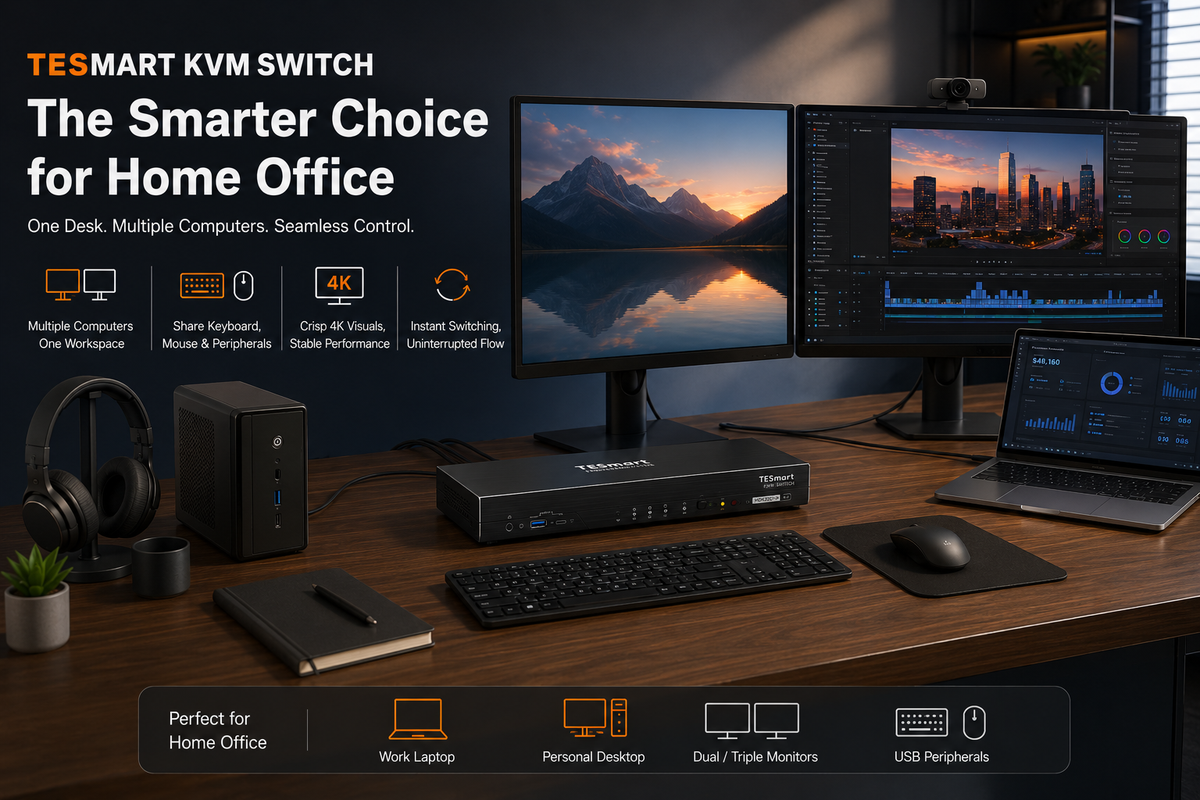
A home office desk often has to support more than one computer. You may use a company laptop during the day, a personal desktop after work, and sometimes a MacBook for travel or creative work. The problem is not only switching screens. It is also keeping the same keyboard, mouse, webcam, headset, storage device, and monitor arrangement available without reconnecting cables every time.
This is where a KVM switch for home office becomes useful. A KVM switch lets multiple computers share one set of keyboard, video display, mouse, and USB peripherals. Instead of treating each computer as a separate desk, a KVM makes the desk the fixed workspace and lets the active computer change when needed.
For home office users, the right KVM choice depends less on the word “KVM” itself and more on the actual setup: how many computers you use, how many monitors you need, which video ports your computers have, and whether your work depends on stable display behavior after switching.
What Home Office Users Are Actually Trying to Solve

Most home office users do not start by looking for a KVM switch. They start with a more practical frustration:
They want one clean desk for two or more computers.
A common setup looks like this:
- A work laptop issued by the company
- A personal desktop or mini PC
- One or two external monitors
- A mechanical keyboard and mouse
- A webcam, USB microphone, headset, or external drive
Without a KVM, users usually end up with one of three workarounds. They manually move cables between computers. They keep duplicate keyboards and mice on the desk. Or they use a dock for one laptop while the second computer remains separate.
All three approaches work at a basic level, but they create friction. Cable wear increases, USB devices may not reconnect cleanly, display settings can reset, and the desk becomes harder to manage. A KVM switch is useful when the goal is not only “connect a laptop” but “switch the entire desk between computers.”
Why a Home Office Setup Becomes Complicated

Home office setups look simple from the outside, but the signal path can be more complex than expected. A monitor connection is not just a cable carrying an image. The computer also reads display information, negotiates resolution and refresh rate, detects USB devices, and sometimes manages audio output through the same workflow.
Display Detection Can Affect Window Positions
When a computer thinks a monitor has been disconnected, it may move windows back to the laptop screen, change scaling, or reset the refresh rate. This is why some users notice that windows move around after switching devices or waking a computer from sleep.
A home office KVM with better display handling helps reduce this behavior by keeping the monitor relationship more consistent during switching. This matters most for users who keep many windows open, such as developers, analysts, designers, and remote workers using multiple dashboards.
USB Devices Do Not All Behave the Same Way
A keyboard and mouse are usually easy to share. Webcams, microphones, capture cards, USB hubs, and external storage can be more sensitive. Some devices require more bandwidth, some draw more power, and some do not like being repeatedly disconnected and reconnected.
For a home office KVM, USB stability is especially important if your video calls depend on the same webcam and microphone across multiple computers. A basic HDMI switch only changes the monitor signal. It does not solve USB device sharing.
Resolution and Refresh Rate Must Match the Whole Chain
A monitor may support 4K, 144Hz, or higher, but the final result depends on the computer output, cable, adapter, KVM, and monitor input. If one part of the chain is limited, the system may fall back to a lower refresh rate or fail to display properly.
This is why home office users should choose a KVM based on the actual display target, not just the number of ports. A dual-monitor 4K60 setup has different requirements from a single 1080p monitor, and a high-refresh gaming monitor has different requirements from a standard office display.
Dock vs KVM: Why They Solve Different Problems
A docking station and a KVM switch are often confused because both sit at the center of a desk. But they are designed for different jobs.
| Device | Main Purpose | Best For | Limitation |
|---|---|---|---|
| Docking Station | Expands one laptop into monitors, USB devices, network, and power | Users with one primary laptop | Does not easily switch the whole desk between multiple computers |
| KVM Switch | Shares one monitor and USB workspace between multiple computers | Users who regularly switch between work and personal computers | Must match your monitor count, ports, resolution, and USB needs |
A dock is an expansion device. A KVM is a switching device. If you only use one laptop, a dock may be enough. If you switch between a work laptop and a personal computer, a KVM is usually the more direct solution.
Some users may still use both. For example, a MacBook may connect to a dock, and the dock connects to the KVM. This can work, but every additional adapter or dock adds another compatibility layer. For a more stable setup, use direct video connections where possible and keep the signal path as simple as the devices allow.
What to Check Before Choosing a Home Office KVM

Choosing a KVM for home office use becomes much easier when you define the setup first. The key questions are practical, not abstract.
1. How Many Computers Need to Share the Desk?
Most home office users need a 2-computer KVM: one work computer and one personal computer. Users with a lab machine, mini PC, gaming desktop, or test system may need a 4-computer KVM.
Do not choose extra inputs only because they look useful. More ports are helpful when they match a real workflow. For many home offices, a well-matched 2-port KVM is cleaner and easier to manage.
2. How Many Monitors Do You Use?
A single-monitor KVM is suitable for compact desks, laptop-plus-monitor workflows, or users who do not need extended screen space.
A dual-monitor KVM is better for users who keep reference material, video calls, code editors, spreadsheets, or dashboards open at the same time. If your productivity depends on keeping two external displays active, choose a KVM designed for dual-monitor output rather than trying to combine separate switches.
3. Are Your Devices HDMI, DisplayPort, or USB-C?
Port type matters because adapters can change the reliability of the setup. Desktop PCs often provide HDMI or DisplayPort outputs. Laptops may use HDMI, USB-C with DisplayPort Alt Mode, or Thunderbolt-compatible USB-C ports.
For home office users, the safest approach is to map every connection before buying:
- Computer 1 video output type
- Computer 2 video output type
- Monitor input type
- Target resolution and refresh rate
- USB devices that need to be shared
This prevents a common mistake: buying a KVM with the right number of ports but the wrong video interface for the actual computers.
4. Which USB Devices Need to Move With the Switch?
If you only share a keyboard and mouse, most KVM setups are straightforward. If you also share a webcam, USB microphone, external DAC, drawing tablet, or storage device, pay closer attention to USB port type, bandwidth, and device behavior after switching.
For video calls, it is especially useful to keep the webcam and microphone connected to the KVM instead of moving them between computers. This gives both systems access to the same meeting setup.
Single-Monitor Home Office Setup
A single-monitor KVM is often the right choice for users who want a compact, low-clutter home office. This setup is common when a laptop already has a built-in display and the external monitor is mainly used as the main work screen.
A typical single-monitor home office KVM setup includes:
- Work laptop connected to the KVM
- Personal desktop or mini PC connected to the KVM
- One external monitor connected to the KVM output
- Keyboard, mouse, webcam, or headset connected to the shared USB ports
This setup is best when desk space is limited or when the user does not need a full dual-display arrangement on both computers. It also reduces cable complexity because only one video output is required from each computer.
Dual-Monitor Home Office Setup
A dual-monitor KVM is more suitable for users who work with several applications at the same time. Developers may keep documentation on one screen and code on the other. Finance users may compare spreadsheets and dashboards. Remote workers may keep a video call open while working on documents.
Dual-monitor switching requires more planning than single-monitor switching because each computer usually needs two video outputs. For example, a desktop may provide two DisplayPort outputs, while a laptop may need HDMI plus USB-C video output, or a dock that supports two external displays.
The important point is that the KVM cannot create display outputs that the computer itself does not provide. It switches the available signals. Before choosing a dual-monitor KVM, confirm that each computer can output to two external displays at the resolution and refresh rate you expect.
MacBook and USB-C Laptop Notes
MacBook users should check their display path carefully. Many Mac laptops rely on USB-C or Thunderbolt-compatible ports rather than native DisplayPort outputs. Some models include HDMI, but DisplayPort typically requires a USB-C to DisplayPort cable, adapter, or dock.
This matters because a DisplayPort KVM may still work well with a MacBook, but the MacBook side usually needs the correct USB-C to DisplayPort connection. A direct, high-quality adapter is often more stable than a chain of multiple hubs and converters.
Users should also confirm how many external displays their MacBook model supports. Some MacBook models support only one external display without DisplayLink-based solutions. In those cases, buying a dual-monitor KVM does not automatically make the laptop output two native external displays.
For USB-C laptops compatible with Thunderbolt workflows, avoid assuming that every USB-C port behaves the same way. Some ports support charging and data only, while others support video output. The laptop specification should confirm whether DisplayPort Alt Mode or Thunderbolt-compatible video output is available.
Which TESmart KVM Fits a Home Office Scenario
TESmart KVM switches are most useful in a home office when the product is matched to the number of computers, the number of monitors, and the target display performance. The goal is not to choose the most complex model, but to choose the one that fits the actual desk.

For Two Computers and One Monitor: TESmart HKS201-M24
The TESmart HKS201-M24 fits users who want to switch a single external monitor, keyboard, and mouse between two computers. It is a practical match for a work laptop plus personal desktop setup where desk space is limited and only one main display is required.
This type of setup is suitable for remote workers, students, writers, and general office users who want a clean desk without duplicating peripherals. It also keeps the buying decision simple because the user only needs to plan one video connection per computer.
For Two Computers and Two 4K60 Monitors: TESmart HDK202-P23
The TESmart HDK202-P23 is a better fit when the home office depends on two external displays and a 4K60 target is enough for the workflow. This is common for office work, software development, research, trading dashboards, and content review.
Compared with using separate HDMI switches or manually changing monitor inputs, a dual-monitor KVM keeps both displays and USB peripherals tied to the same computer switch. That matters when you want the full desk to move from work mode to personal mode at the same time.
For Higher Display Requirements: TESmart DKS202-M24
The TESmart DKS202-M24 is more appropriate for users who need a dual-monitor KVM with stronger display headroom. This can matter when the setup includes higher-resolution monitors, high-refresh displays, or a workstation where display stability is important during switching.
This type of model is a better match for engineers, creators, analysts, and users who treat the home office as a serious workstation rather than a basic laptop desk.
For Two Computers and Three Monitors: TESmart DKS203-M24
The TESmart DKS203-M24 fits users who need three external displays across two computers. This is a more specialized home office scenario, but it is common for users managing code, monitoring tools, design timelines, financial data, or multiple remote systems.
A triple-monitor KVM is not necessary for every home office. It becomes useful when the user already relies on three displays and wants that entire layout to remain available when switching between computers.
For More Than Two Computers: TESmart DKS402-P23
The TESmart DKS402-P23 is better suited for users who need to control up to four computers with two monitors. This may include a work laptop, personal desktop, mini server, and test machine.
For IT professionals, developers, and advanced home lab users, a 4-computer KVM can reduce the need for extra monitors or remote access workarounds. It keeps the physical desk focused on one keyboard, mouse, and display environment.
| Home Office Scenario | Suggested TESmart Direction | Why It Fits |
|---|---|---|
| Work laptop + personal PC, one monitor | HKS201-M24 | Simple 2-computer, single-monitor switching with shared keyboard and mouse |
| Two computers, two standard 4K60 displays | HDK202-P23 | Better for users who need both monitors to switch together |
| Two computers, stronger display requirements | DKS202-M24 | More suitable for higher-resolution or higher-performance dual-monitor desks |
| Two computers, three monitors | DKS203-M24 | Designed for users who need a full triple-monitor workstation |
| Three or four computers, two monitors | DKS402-P23 | Better for advanced users, IT workflows, and home lab environments |
Practical Setup Tips
Keep the Video Path as Simple as Possible
Use direct HDMI or DisplayPort cables where possible. If a laptop requires USB-C video output, use a reliable USB-C to HDMI or USB-C to DisplayPort cable that matches your target resolution and refresh rate. Avoid chaining several adapters unless there is no other option.
Check Display Support Before Buying
Before choosing a KVM, confirm that each computer can output the number of monitors you want. This is especially important for laptops and MacBooks. A KVM can switch display signals, but it cannot bypass the display limitations of the computer.
Separate Basic USB Devices From High-Bandwidth Devices
Keyboard and mouse devices are usually easy to share. Webcams, USB storage, capture cards, and audio interfaces may require more care. If a high-bandwidth USB device behaves inconsistently after switching, test it directly with each computer first, then test it through the KVM.
Match the Refresh Rate to the Real Use Case
For office work, 4K60 is often enough. For gaming, motion graphics, or high-refresh monitors, choose a KVM and cable path that support the refresh rate you actually use. Do not assume that a monitor’s maximum refresh rate will automatically pass through every device in the chain.
FAQ
Is a KVM switch worth it for a home office?
Yes, if you regularly use more than one computer at the same desk. A KVM is most useful when you want to share the same monitor, keyboard, mouse, webcam, and other USB devices between a work computer and a personal computer.
Do I need a dock or a KVM for working from home?
Use a dock if you mainly need to expand one laptop. Use a KVM if you need to switch the whole desk between two or more computers. Some setups use both, but the cleaner option is usually the one with fewer adapters and a shorter signal path.
Can a KVM support two monitors?
Yes, but you need a dual-monitor KVM, and each computer must provide two video outputs. The KVM switches the signals that already exist; it does not create extra display outputs by itself.
Can I use a KVM switch with a MacBook?
Yes, but the connection path matters. Many MacBooks use USB-C or Thunderbolt-compatible ports, so a DisplayPort or HDMI KVM may require the correct USB-C video adapter or dock. You should also confirm how many external displays your MacBook model supports.
Can I share a webcam and microphone through a KVM?
Many KVM setups can share USB devices such as webcams and microphones. For the best result, check the USB bandwidth requirements and avoid unnecessary hubs between the device and the KVM.
Can I use a home office KVM for gaming after work?
Yes, but choose based on the monitor’s resolution and refresh rate. A basic office KVM may be enough for 1080p or 4K60 work, while high-refresh gaming monitors need a KVM and cable chain that support the required bandwidth.
Conclusion
A KVM switch is valuable in a home office when the desk belongs to more than one computer. It reduces cable changes, keeps peripherals consistent, and makes it easier to move between work and personal systems without rebuilding the setup each time.
The right choice depends on the real structure of the desk. A single-monitor user should not overbuy a complex multi-monitor model. A dual-monitor user should not rely on a basic switch that only changes one display. MacBook users should confirm USB-C video output and external display support before choosing a KVM.
For home office users, TESmart KVM solutions are best selected by scenario: HKS201-M24 for simple two-computer single-monitor desks, HDK202-P23 for dual 4K60 workspaces, DKS202-M24 for higher display requirements, DKS203-M24 for triple-monitor users, and DKS402-P23 for advanced multi-computer home office environments.
Start with the desk you actually use, then choose the KVM that matches the number of computers, monitors, ports, and USB devices in that setup.
```
Share:
Types of KVM Switches Explained: How to Choose the Right TESmart KVM for Your Setup
Why KVM Switches for Apple Studio Display Are Still Rare — and What THK401-X4 Solves