

Table of Contents
- Why Live Sports Setups Become Chaotic So Quickly
- The Real Problem Is Not More Screens — It Is Better Control
- What a KVM Switch Does in a Multi-Screen Sports Setup
- KVM Switch vs HDMI Matrix vs HDMI Splitter vs HDMI Switch
- Common Live Sports Setup Problems and How TESmart KVM Helps
- Who Actually Needs This?
- How TESmart Helps Simplify Multiple Display Control
- What to Check Before Building a Sports Bar AV Setup
- FAQ
- Final Thoughts
Why Live Sports Setups Become Chaotic So Quickly
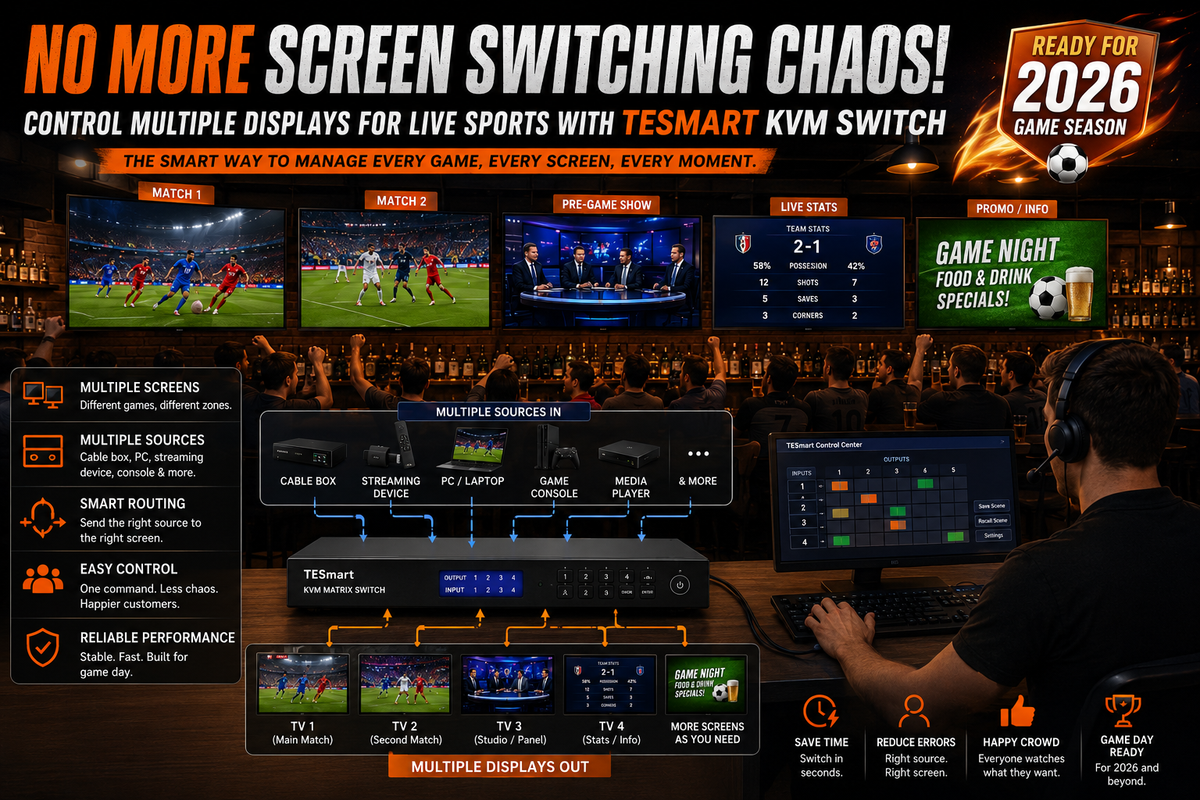
A single-screen setup is easy to understand: one source, one display, one remote. A football match multi-screen setup changes the structure. A bar may want one TV showing the main match, another showing a second match, a third showing pre-game coverage, and a fourth connected to a PC for schedules or streaming dashboards.
The problems usually appear at the worst time. One screen stays on the wrong input. A staff member changes the source on the wrong TV. A streaming device needs a mouse or keyboard, but those peripherals are connected somewhere else. A game console is connected to one display, while the crowd wants it on the main screen.
Manual switching works when the environment is small and calm. It becomes unreliable when several people need to control several screens during a live event. The more sources you add, the more important the control layer becomes.
The Real Problem Is Not More Screens — It Is Better Control
Many users try to fix a messy sports bar AV setup by adding more HDMI cables, more remotes, or another basic HDMI Switch. That can make the setup larger, but not necessarily easier to operate.
The real question is:
Who controls which source, which display, and which USB devices at the moment a live event changes?
In a live sports viewing setup, different devices often play different roles. A cable box may carry a broadcast feed. A PC may handle browser-based streaming. A MacBook may show social content or match data. A game console may be used before or after the match. A media player may handle local promotional content.
Without a planned switching structure, these devices compete for display inputs, power outlets, USB peripherals, and staff attention. That is why multiple display control is not just a technical detail. It directly affects how quickly a venue can respond when a guest asks for a different match or when the main screen needs to change sources.

What a KVM Switch Does in a Multi-Screen Sports Setup
A KVM switch controls Keyboard, Video, and Mouse. In practical terms, it allows multiple computers or source devices to share one or more displays and, when supported by the setup, shared USB peripherals.
For a KVM switch for live sports, the value is not that it turns a bar into a broadcast studio. It does not manage broadcast rights, internet performance, streaming platform restrictions, or camera production. Its role is more specific: it helps organize the connection between multiple source devices and multiple displays so operators can switch with less confusion.
An HDMI KVM switch is especially useful when the setup includes computers, mini PCs, laptops, or media systems that need both video output and keyboard/mouse control. Instead of keeping separate keyboards, mice, and display paths for each device, a TESmart KVM switch can help centralize the control point.
This matters in sports viewing environments because staff often need to make fast but simple changes: move from a pre-game PC screen to a live feed, switch a control computer to another display group, or manage a streaming device without searching for the right input path.

KVM Switch vs HDMI Matrix vs HDMI Splitter vs HDMI Switch
These devices are often discussed together, but they solve different problems. Choosing the wrong one can create more complexity instead of reducing it.
| Item | What it does | Best for | Limitation |
|---|---|---|---|
| KVM Switch | Switches video and control signals such as keyboard and mouse between multiple computers or source devices. | Users who need to control multiple displays and multiple computer-like devices from one operating position. | Not a full broadcast production system and not always the right tool for routing many unrelated video feeds to many TVs. |
| HDMI Matrix | Routes multiple HDMI inputs to multiple HDMI outputs, often allowing different screens to show different sources. | Larger sports bar AV setup projects where many TVs need flexible source routing. | Usually focuses on video routing, not shared keyboard, mouse, or USB control. |
| HDMI Splitter | Duplicates one HDMI source to multiple displays. | Showing the same match on several TVs at the same time. | Does not switch between multiple sources and does not provide device control. |
| HDMI Switch | Selects one source from multiple HDMI inputs and sends it to one display. | Small home setups with one TV and several devices such as a console, streaming box, and laptop. | Usually limited to one display output and no keyboard/mouse sharing. |
A simple home user may only need an HDMI Switch. A venue with many TVs and many independent feeds may need an HDMI Matrix. A bar that wants the same match on every display may use an HDMI Splitter. But when the issue is shared control across PCs, laptops, media devices, and multiple monitors, a sports bar KVM switch becomes more relevant.
Common Live Sports Setup Problems and How TESmart KVM Helps
Most failures in a live sports viewing setup are not dramatic hardware failures. They are small control mistakes that become visible when the room is full and the match is starting.
| Live Sports Setup Problem | Why It Happens | How TESmart KVM Helps |
|---|---|---|
| Wrong screen input | Different TVs or monitors are set to different HDMI inputs, and staff must check them one by one. | A TESmart KVM switch helps organize source selection from a central control path, reducing guesswork during switching. |
| Too many remotes | Each display, streaming box, player, or console has its own control method. | For computer-based sources, shared keyboard and mouse control can reduce the need to operate every device separately. |
| Manual cable swapping | Devices are added temporarily, and staff move HDMI or USB cables between them. | A KVM switch creates a planned connection structure so source changes do not require repeated unplugging. |
| Multiple source devices | PCs, MacBooks, game consoles, set-top boxes, and media players all compete for display access. | TESmart KVM solutions are designed for multi-device control workflows where supported sources need shared display and USB access. |
| Messy multi-screen control | Operators must remember which cable, remote, or display input belongs to each screen. | Multiple display control becomes easier when switching is handled through a defined KVM workflow instead of scattered controls. |
Who Actually Needs This?
Not every sports viewing environment needs a KVM switch. The right solution depends on whether the main problem is display duplication, video routing, or device control.
Sports Bars and Pubs
A sports bar KVM switch makes sense when staff need to control multiple computer-based sources from one location, especially when the venue uses PCs, laptops, or media systems for streaming dashboards, browser-based feeds, match schedules, or promotional content.
If the bar only needs to send one cable box feed to many TVs, an HDMI Splitter may be enough. If the bar needs many sources routed independently to many TVs, an HDMI Matrix may be the better central device. If the bar needs shared keyboard, mouse, and display control for multiple source systems, a KVM switch fills a different role.
Restaurants and Entertainment Venues
Restaurants often combine live sports, menu boards, background media, and private event content. A TESmart KVM switch can be useful when one staff station needs to manage multiple computer-based sources without moving between devices.
Home Football Viewing Setups
A home football match multi-screen setup may include a TV, a monitor, a gaming PC, a streaming box, and a laptop. A basic HDMI Switch may work for one screen. A KVM becomes more useful when the user wants to control a PC and another device from the same keyboard and mouse while managing more than one display.
Small AV Integrators
Small AV projects often fail because the system is technically connected but operationally confusing. A KVM switch can help when the client needs a cleaner control workflow for PCs or media workstations. It should be specified alongside, not confused with, matrix routing, signal extension, audio distribution, and network planning.
Event Rooms and Watch Party Spaces
In a temporary watch party room, the goal is usually not complex production. The goal is predictable switching. A KVM switch for live sports can help when a laptop, mini PC, or media workstation needs to be selected quickly without changing cables during the event.

How TESmart Helps Simplify Multiple Display Control
TESmart KVM switch solutions are built around structured switching: multiple input devices, one or more displays, and shared control where the setup supports it. For live sports environments, that structure is often more valuable than adding another adapter or remote.
For smaller setups, a single-monitor HDMI KVM switch may be enough when two or four source computers need to share one display and one keyboard/mouse set. For dual-screen setups, a multi-monitor KVM is more appropriate because it allows users to control multiple displays as part of the same operating workflow.
For users who want to control multiple displays from PCs, Mac systems, game consoles, or streaming-oriented devices, the important step is to map the source structure before choosing hardware:
- How many source devices need to be connected?
- How many displays need to be controlled?
- Does each source device output one video signal or multiple video signals?
- Do you need shared keyboard and mouse control?
- Are the displays using HDMI, DisplayPort, USB-C adapters, or a mixed connection path?
- Is the goal to duplicate one match, route different matches, or control computer-based sources?
A TESmart KVM switch is most valuable when the answer involves both video switching and device control. It is less appropriate when the only goal is to duplicate one source to many screens or build a large independent TV routing system.
What to Check Before Building a Sports Bar AV Setup
Before buying any KVM switch, HDMI Matrix, HDMI Splitter, or HDMI Switch, start with the signal path. A clean diagram prevents most setup mistakes.
1. Count sources and displays separately
Four source devices and four displays do not automatically mean you need a four-output system. Decide whether each display needs an independent source or whether some displays will always show the same content.
2. Separate video routing from device control
HDMI Matrix products are useful for routing video. KVM products are useful when users also need keyboard, mouse, and USB control. Mixing these categories without understanding the difference often leads to wrong purchases.
3. Confirm resolution and refresh rate requirements
Sports content is often viewed at 1080p or 4K, but the full chain must support the target format: source device, cable, switch, display, and any adapters in between. One weak link can force a lower resolution or create unstable output.
4. Plan cable length and cable quality
Sports bars and restaurants often place displays far from the source rack or counter. Longer cable runs may require active cables, extenders, or a different AV architecture. A KVM switch can organize control, but it does not remove the need for proper signal planning.
5. Test before match day
Do not build the setup for the first time on the day of a major match. Test every source, display, remote control method, keyboard/mouse path, audio output, and fallback source before the room is full.
FAQ
1. Is a KVM switch the same as an HDMI Matrix?
No. An HDMI Matrix routes multiple video sources to multiple displays. A KVM switch manages video plus control signals such as keyboard and mouse for computer-based workflows. Some setups may use both, but they solve different problems.
2. Do I need a KVM switch for a sports bar?
You may need a sports bar KVM switch if your staff must control multiple PCs, laptops, or media systems from one place. If you only need to show the same game on many TVs, an HDMI Splitter may be enough. If you need many independent TV routes, an HDMI Matrix may be more suitable.
3. Can a TESmart KVM switch replace a professional broadcast switcher?
No. A TESmart KVM switch is not a professional television production switcher. It is designed for display switching and device control in multi-device environments. It does not replace camera switching, broadcast graphics, encoding, copyright management, or streaming platform control.
4. Can I use a KVM switch with a game console?
In many setups, game consoles can be connected through HDMI video paths, but keyboard and mouse control depends on the console, the game, and peripheral support. For console-heavy setups, confirm the exact control requirements before choosing a KVM.
5. What is the difference between an HDMI Splitter and an HDMI Switch?
An HDMI Splitter takes one source and duplicates it to multiple displays. An HDMI Switch takes multiple sources and sends one selected source to one display. Neither provides the same shared keyboard and mouse workflow as a KVM switch.
6. Can a KVM switch help with too many remotes?
It can reduce control clutter for computer-based sources by allowing shared keyboard and mouse operation. It will not eliminate every remote in the room because TVs, set-top boxes, audio systems, and streaming devices may still require their own control methods.
7. What should I choose for a home football match multi-screen setup?
For one TV and several HDMI devices, a simple HDMI Switch may be enough. For one source duplicated to multiple screens, use an HDMI Splitter. For multiple computer-like devices sharing displays and keyboard/mouse control, a TESmart KVM switch is more relevant.
8. Does a KVM switch solve streaming delay or network buffering?
No. Streaming delay, buffering, and platform restrictions depend on the streaming service, network quality, device performance, and content rights. A KVM switch helps with local device switching and control, not internet delivery.
Final Thoughts
Live sports viewing becomes difficult when the display system grows faster than the control plan. More screens can make the experience better, but only if the sources, inputs, and shared controls are organized.
A KVM switch for live sports is not the right answer for every AV project. Use an HDMI Splitter when one source needs to appear everywhere. Use an HDMI Switch when one display needs a few simple inputs. Use an HDMI Matrix when many sources must be routed to many displays. Choose a TESmart KVM switch when the setup also needs shared control across PCs, laptops, media workstations, or multi-display desktop sources.
For sports bars, pubs, home viewing rooms, and small AV projects that need cleaner multiple display control, TESmart KVM solutions provide a practical way to reduce screen switching chaos and make source control easier to manage before the match begins.
Explore TESmart KVM Switch product options to find a setup that matches your number of devices, displays, video interfaces, and control requirements.
Share:
Bar & Pub Sports Streaming Setup: Why TESmart HDMI Matrix Is a Must-Have for 2026 Game Season
Multi-PC Live Broadcast Workstation Setup for Sports Commentary | TESmart Multi-Monitor Solution