

HDC203-PM24-UKBK
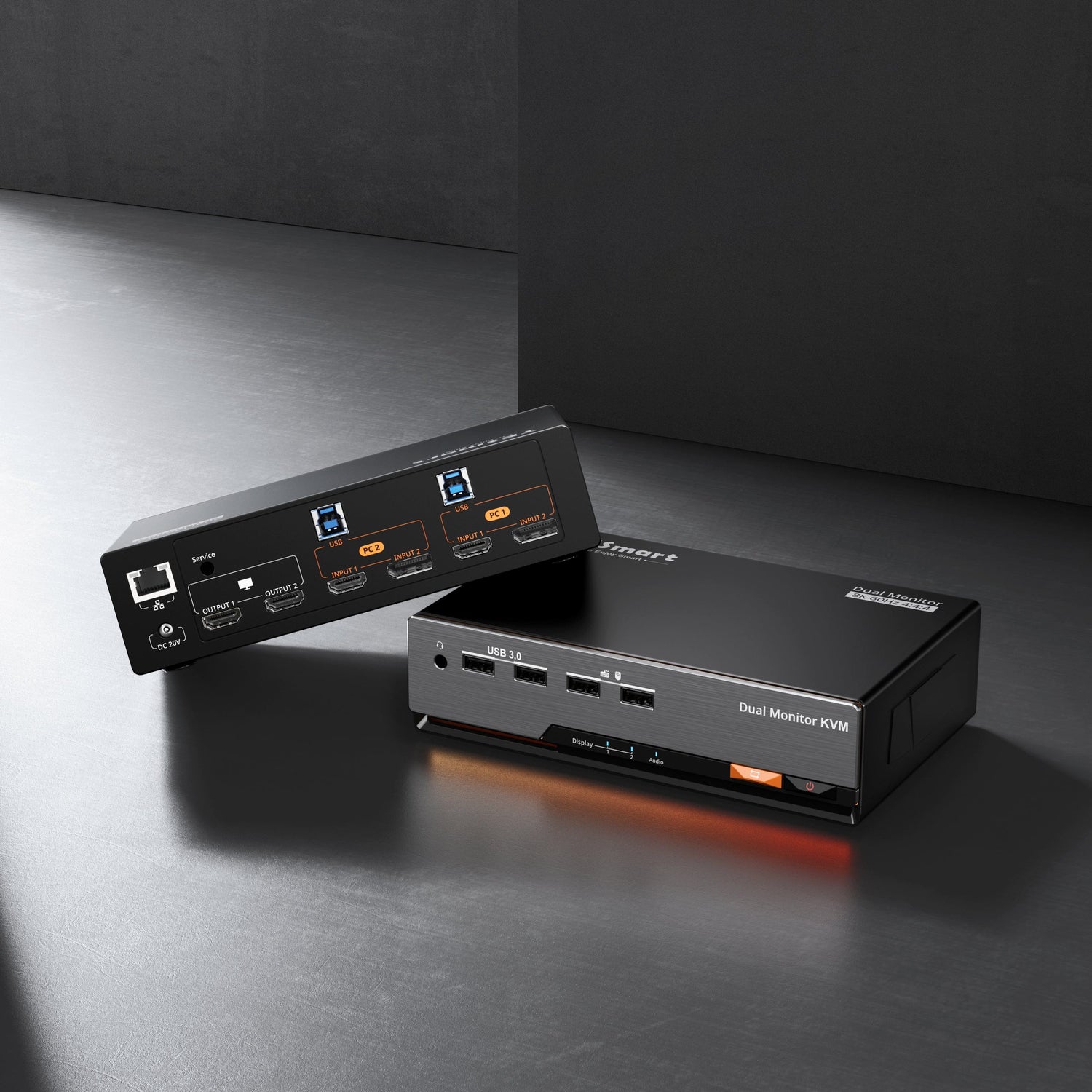
Triple 4K60Hz DisplayLink® Hybrid KVM Docking Station – USB-C with EDID & 100W PD for 2 PCs (Mac & Desktop)
- Regular price
-
$699.00 - Regular price
-
- Sale price
-
$699.00
Couldn't load pickup availability
Overview & Key Features
Built for Mac & Desktop Hybrid Workflows
One USB-C cable carries video, data, and power — delivering true triple-display output, instant switching, and full docking capability.
Key Features
- Triple Display for Mac — Overcomes macOS MST limits to extend 3×4K 60 Hz screens seamlessly.
- Hybrid KVM + Docking Station Design — Share one setup between MacBook and desktop; video, data, audio, 1000M LAN, and power all through a single cable.
- 100W PD Power Delivery — Keeps high-performance laptops running at full speed through heavy workloads.
- Smart EDID Instant Switching — Switch between PCs in a blink—no signal loss, no long black screens.
- Powered by DisplayLink® — Combines 1 DP + 2 USB video streams for stable, fluid triple-display performance.
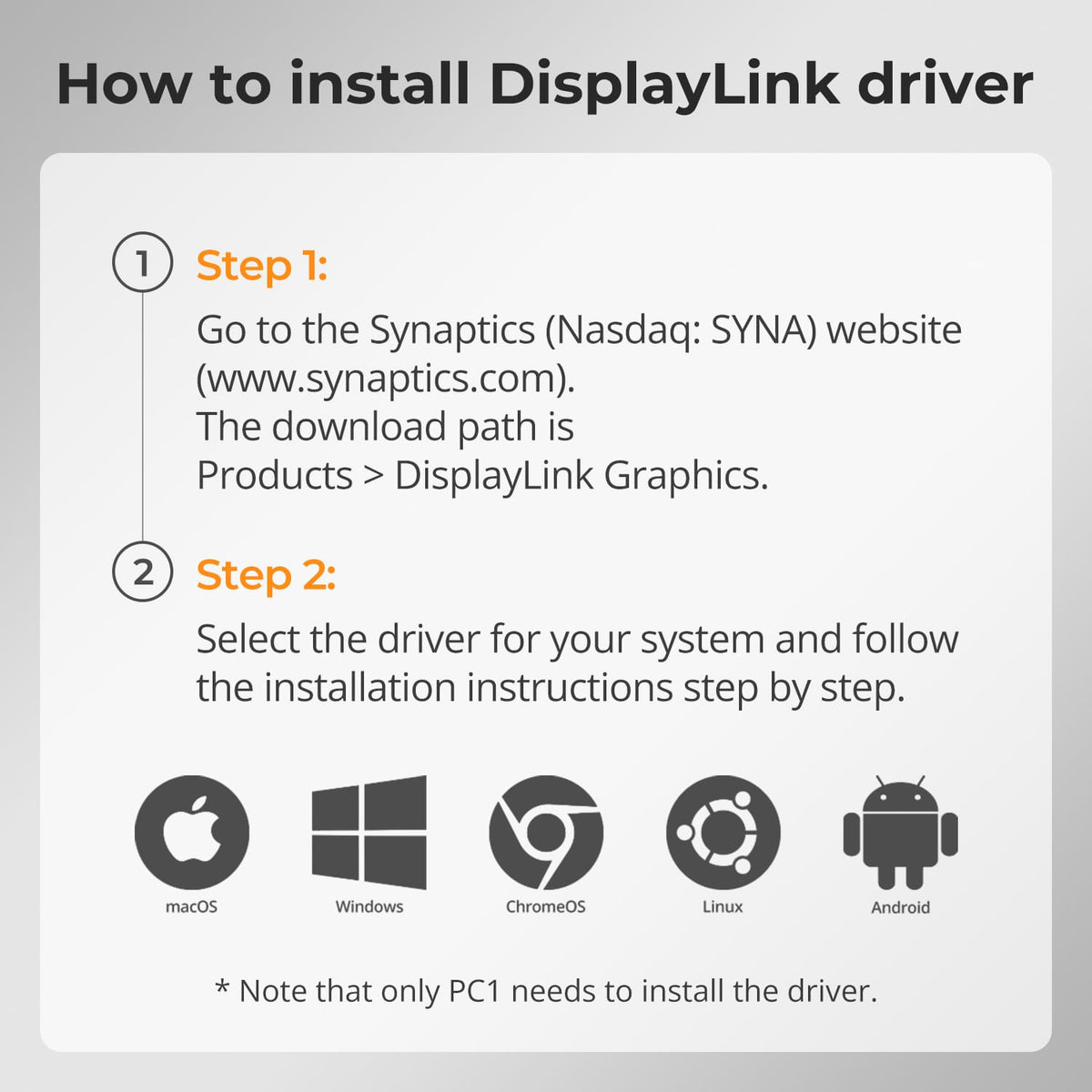
⚠️ DisplayLink driver required (free download).
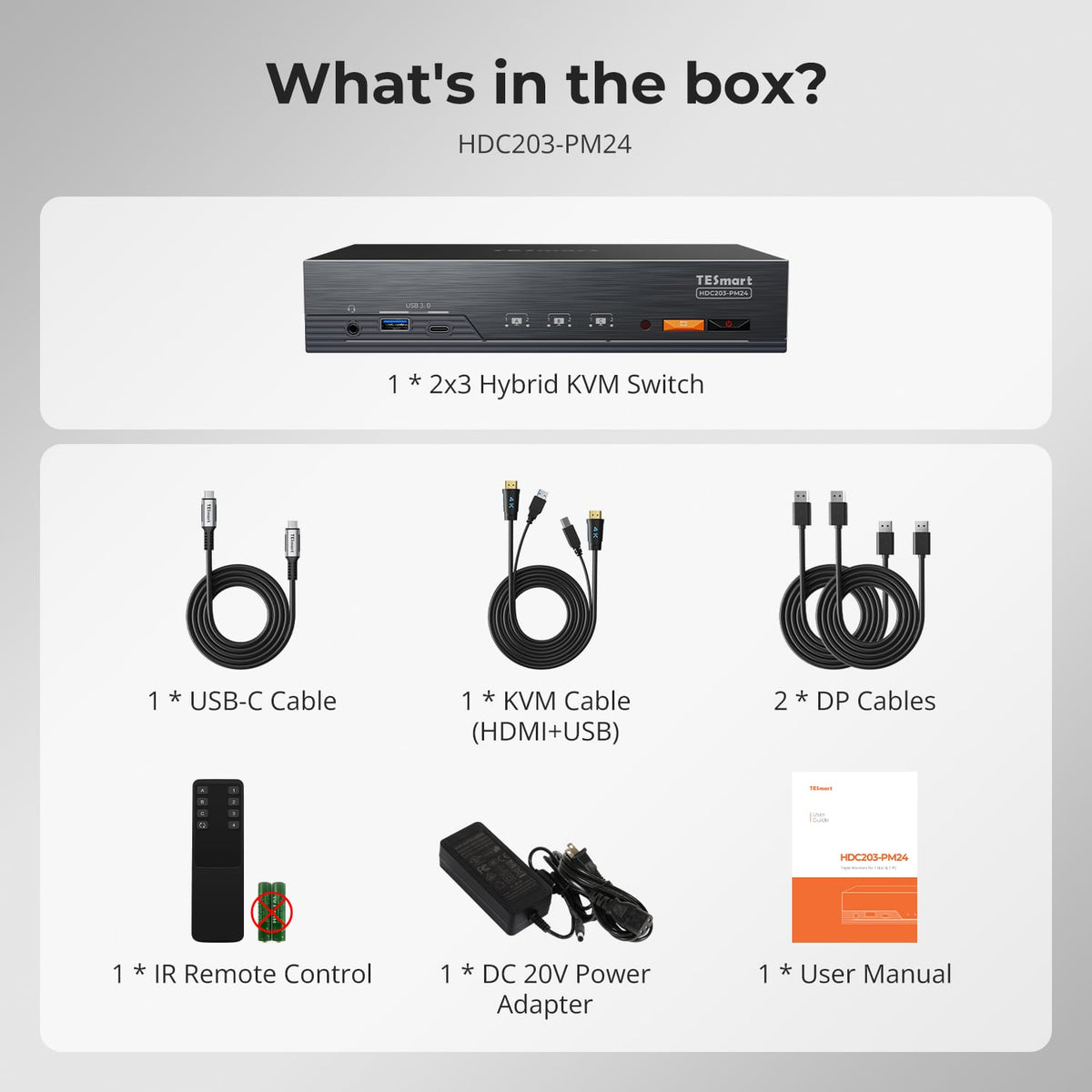
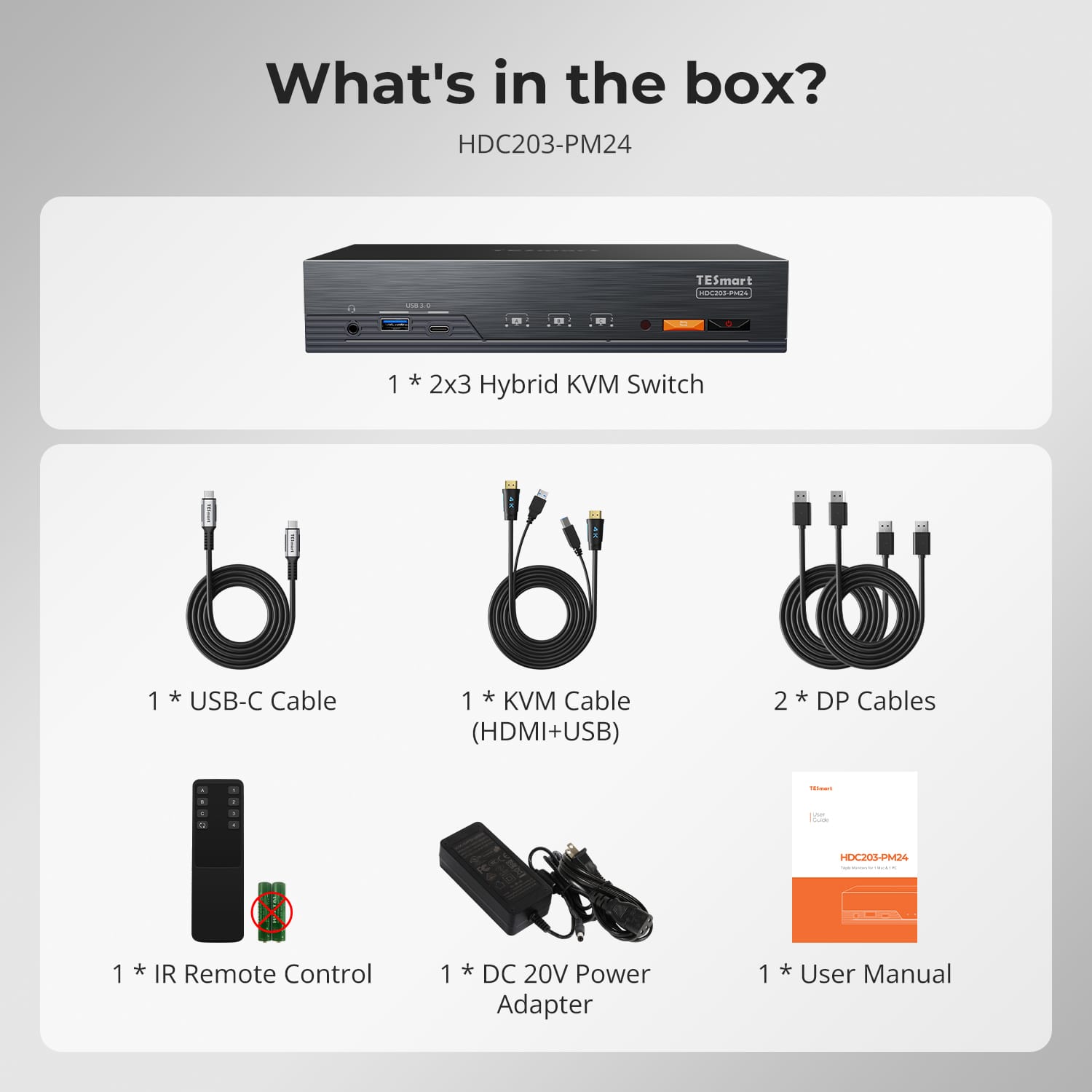
What's in the box
Packing List
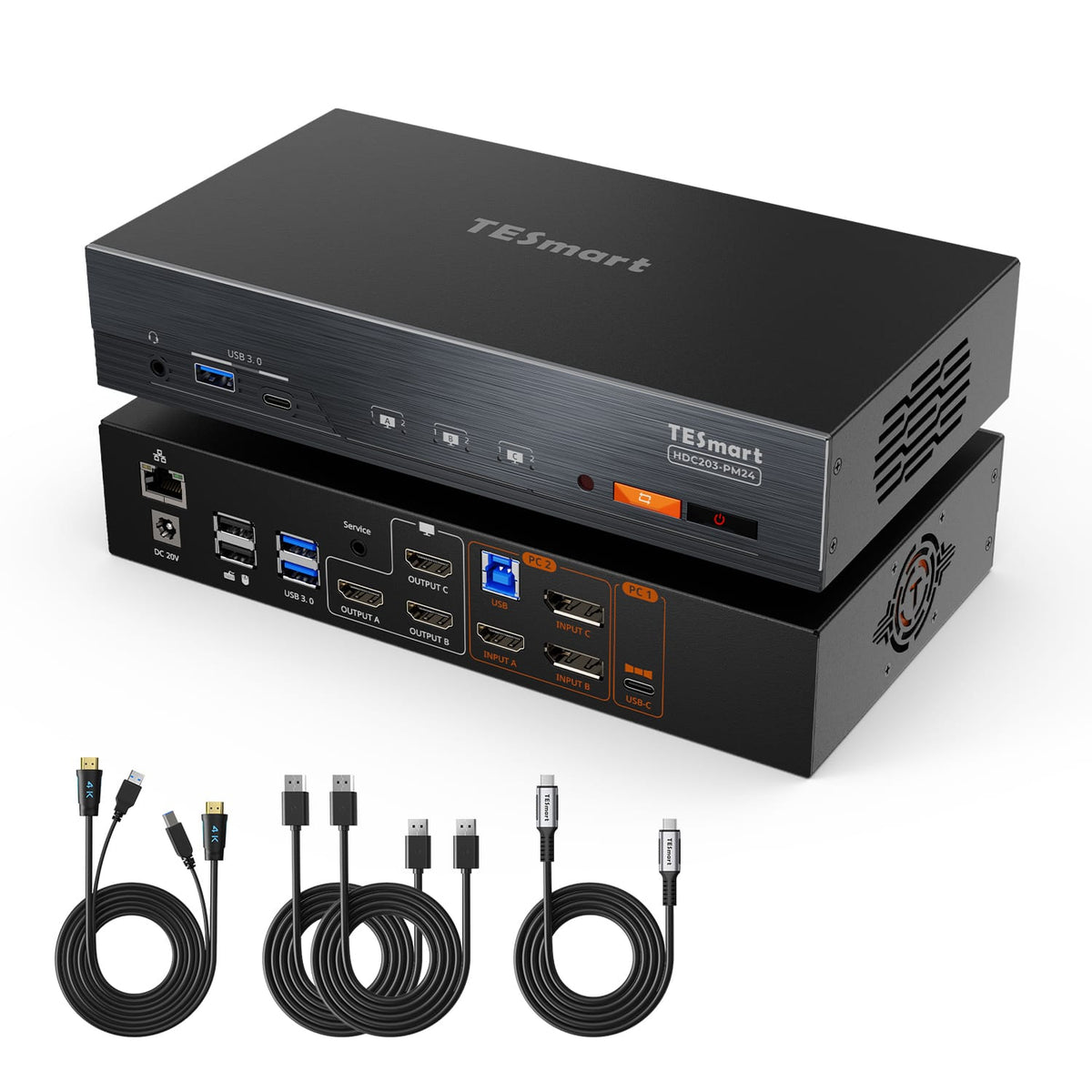
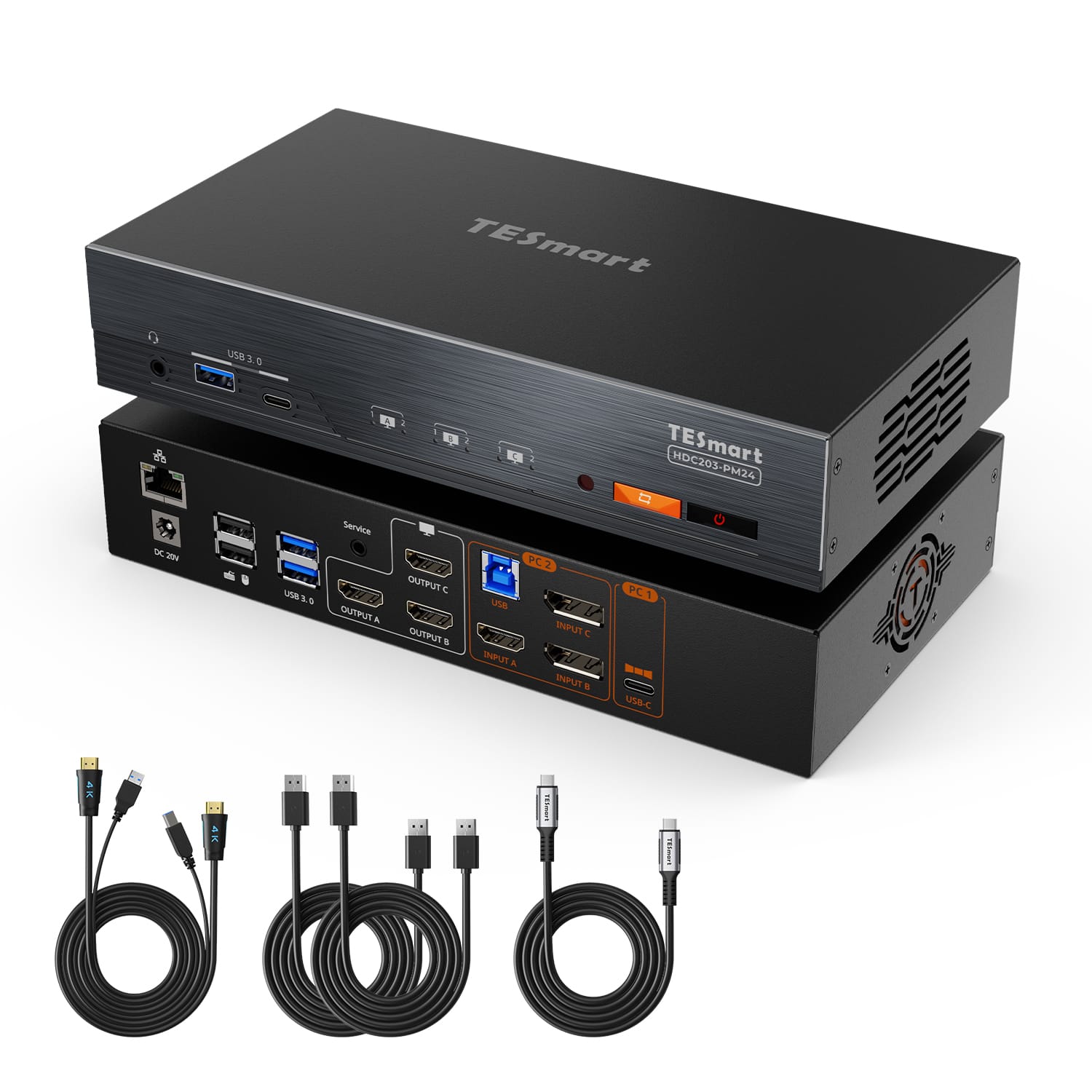
1 * 2x3 Hybrid KVM Switch
1 * USB-C Cable
1 * KVM Cable
2 * DP Cables
1 * IR Remote Control
1 * DC 20V Power Adapter
1 * User Manual
Downloads & Manual
| Country or Region | Estimated delivery time | Freight | postman |
| United States (Contiguous 48 States) | 3-5 working days | Free Shipping | UPS/USPS/FedEx/uniuni |
| U.K. | 3 working days | UPS/DPD | |
| Canada | 3-5 working days | Starting at $20 | Purolator/UPS |
| China (Macao SAR, Hong Kong SAR, Taiwan) | 1-3working days | Starting at $30 | SF Express |
| Australia, New Zealand, Saudi Arabia, United Arab Emirates, Israel, United States (Alaska, Hawaii, U.S. Territories & Military Addresses) | 5-12 working days | Starting at $60 | DHL/FedEx/UPS |
| Singapore, Malaysia, Philippines, Thailand | 5-12 working days | Starting at $30 | DHL/FedEx/UPS |
-
Orders cannot be canceled or modified once placed due to automated processing.
-
If a return is needed, contact service@tesmart.com within 30 days of delivery. Items must be in original condition with all packaging and accessories.
-
Return shipping for non-quality issues is the customer’s responsibility.
-
Products from third-party retailers
-
Items damaged by misuse
-
Order number, proof of purchase
-
Photos/videos (if defective), full shipping address, and phone number
-
Within 30 days: Refunds/returns accepted for both quality and non-quality issues
-
30 days–1 year: No returns/refunds; repair or replacement may be offered
-
1–3 years: No returns/refunds; replacement or Upgrade /trade-in up to 50% discount after 3 months (members only)
The return and refund policy process overview is shown below. For the full policy, please refer to the Full Policy page below.

1.Order Cancellation & Modification
-
To ensure timely delivery for every customer, TESmart’s order and shipping system is fully automated. Most orders are processed and dispatched within a few hours, and always within 24 hours depending on warehouse workload. Customers may cancel an order at any time before it ships, including within our 30-day cancellation window. Once an order has shipped, it can no longer be canceled or modified.
-
Please kindly contact us within 30 days of delivery at service@tesmart.com, If you wish to return a product after receiving it, ensure the product and packaging are undamaged and in original condition.
-
⚠️ Return shipping costs for non-quality issues are the responsibility of the customer. For more details, please kindly see below.
2.Return Process
2.1 Return Conditions:
-
Products must be returned in original packaging, including all accessories, manuals, and documentation.
2.2 Items Not Eligible for Return:
-
Products purchased from third-party retailers.
-
Products damaged due to misuse or improper handling by the customer.
2.3 Return Request:
-
Order number
-
Proof of purchase
-
Photos or videos of the defective product (to speed up processing)
-
Full shipping address
-
Contact phone number
2.4 Processing Time:
-
Our support team will respond to your return request within 48 hours and provide the return warehouse address in your country/region.
-
For certain countries/regions (e.g., the U.S., Germany, and the EU), we may provide a prepaid return label after confirming your address to expedite the return/refund process.
2.5 Return Address:
- Please contact our customer service at service@tesmart.com before returning the product. Once confirmed, you may send the item to the designated TESmart return warehouse.
- Unit 108, 8333 Rochester Ave
STX-X166
Rancho Cucamonga, CA 91730
United States
2.6 Warehouse Inspection:
-
Upon receipt, TESmart will inspect the returned item(s).
3. Refund Process
3.1 Refund Trigger:
-
Once the returned product is received and inspected by our warehouse, the refund process will begin.
3.2 Refund Timeframe:
-
Refunds will be processed within 5 business days after the return is received.
3.3 After-Sales Categories:
3.3.1 Within 30 days of delivery:
-
The product is in its original packaging with all accessories.
-
Return photos are provided before shipping.
-
Non-quality issues: Return and refund supported within 30 days. Return shipping is the customer’s responsibility.
-
Quality issues: Return and refund supported within 30 days. Return shipping is covered by TESmart.
3.3.2 From 30 days to 1 year after delivery (warranty period):
-
Return/refund not supported. Please email service@tesmart.com to contact our after-sales support team.
-
After evaluation by our technical team, we may offer product repair or replacement with the same model.
-
To ensure timely service, we prioritize replacements.
3.3.3 From 1 to 3 years after purchase (for VIP Members) :
-
Return/refund not supported.
-
You may contact our after-sales support team for replacement of the same model.
-
If you wish to upgrade the product after 3 months from purchase, members may Upgrade & Trade-in up to 50% discount off the original order’s paid amount toward your new purchase.
For detailed terms and conditions, please visit: https://www.tesmart.com/pages/tesmart-id-trade-in
4. After-Sales Support & Issue Resolution
4.1 Contact Information:
-
For any questions or support requests, please contact TESmart Customer Service: 📧 service@tesmart.com
4.2 Delayed Refunds (if you haven’t received a refund after 5 business days):
-
Check your bank account (ensure it is the one used for the purchase).
-
Contact your card issuer (credit/debit card providers may experience processing delays).
-
Contact your bank to confirm the transaction status.

Tech Specs
| Product Attribut | |
|---|---|
Model (SKU) |
HDC203-PM24-UKBK
|
Compatible Setup |
|
Max Resolution |
|
Supported Resolutions |
|
VRR (Variable Refresh Rate) |
|
MST (Multi-Stream Transport) |
|
Laptop Charging |
|
Network Port |
|
Independent Audio Focus Switching |
|
Independent Audio Focus Locking |
|
Thunderbolt 4 Ports |
|
EDID Emulation |
|
Switching Methods |
|
Assignable Hotkeys |
|
Legacy Emulation Mode |
|
Input Ports |
|
Output Ports |
|
Docking Ports |
|
Display Modes |
|
Manual (PDF) |
|
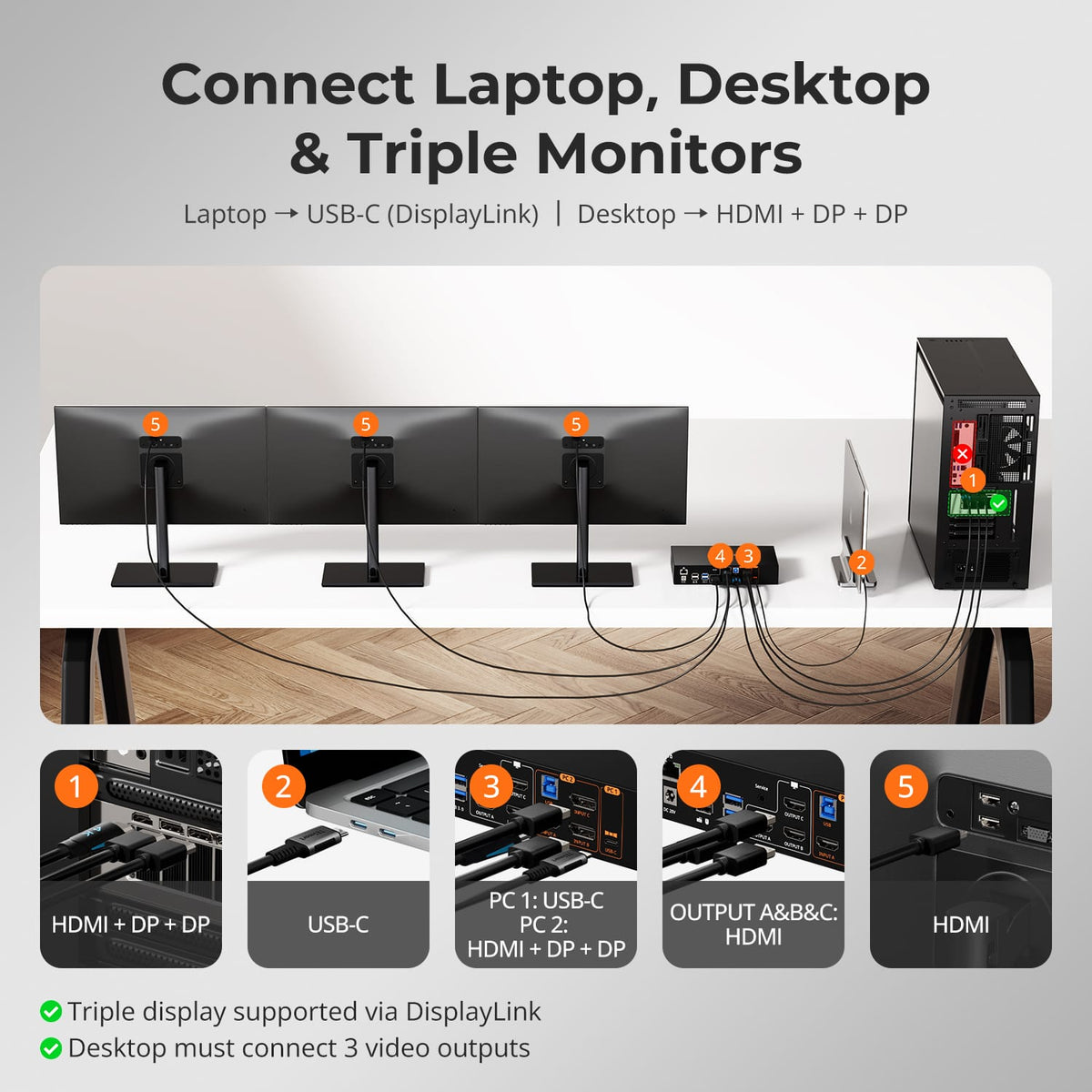
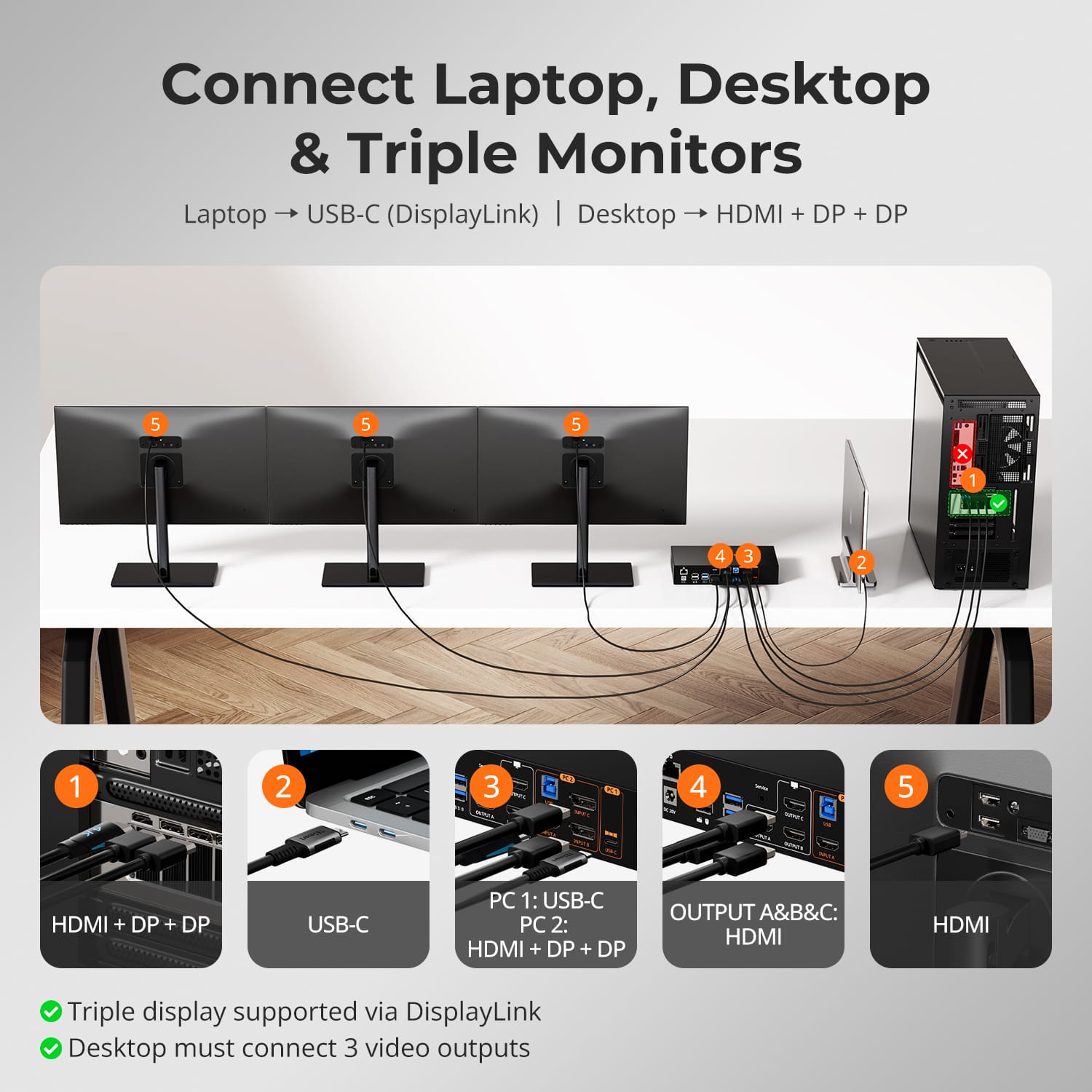
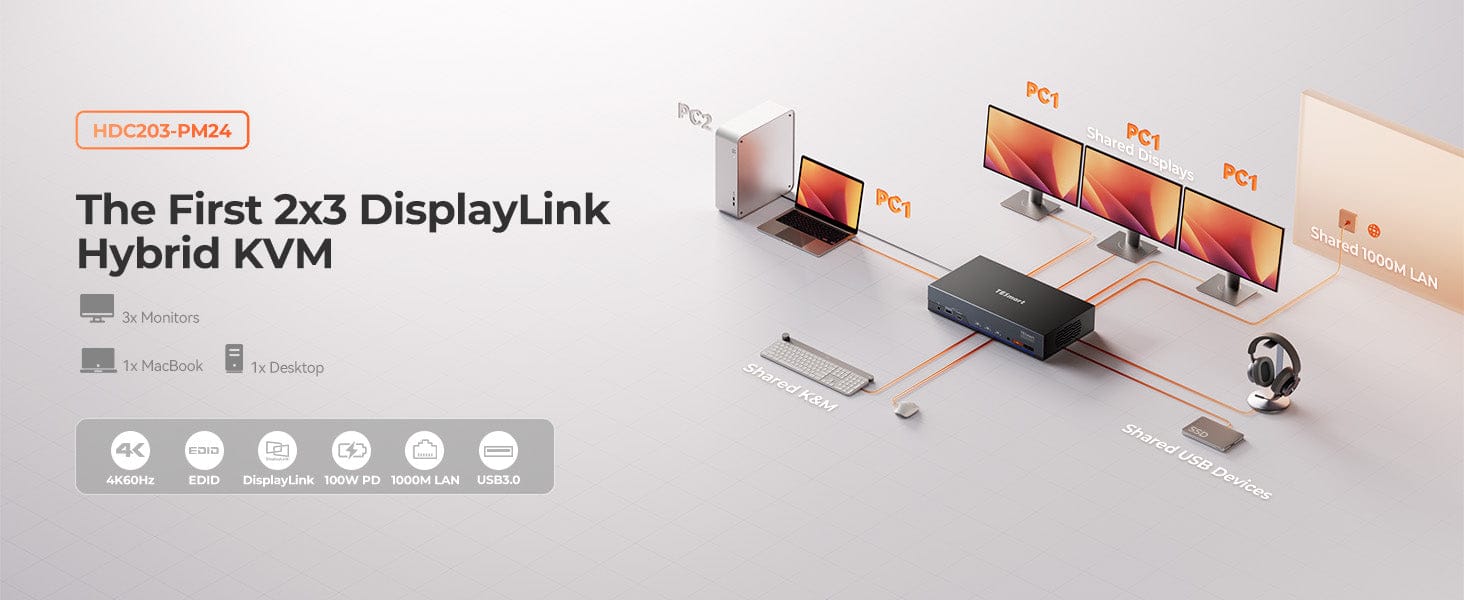
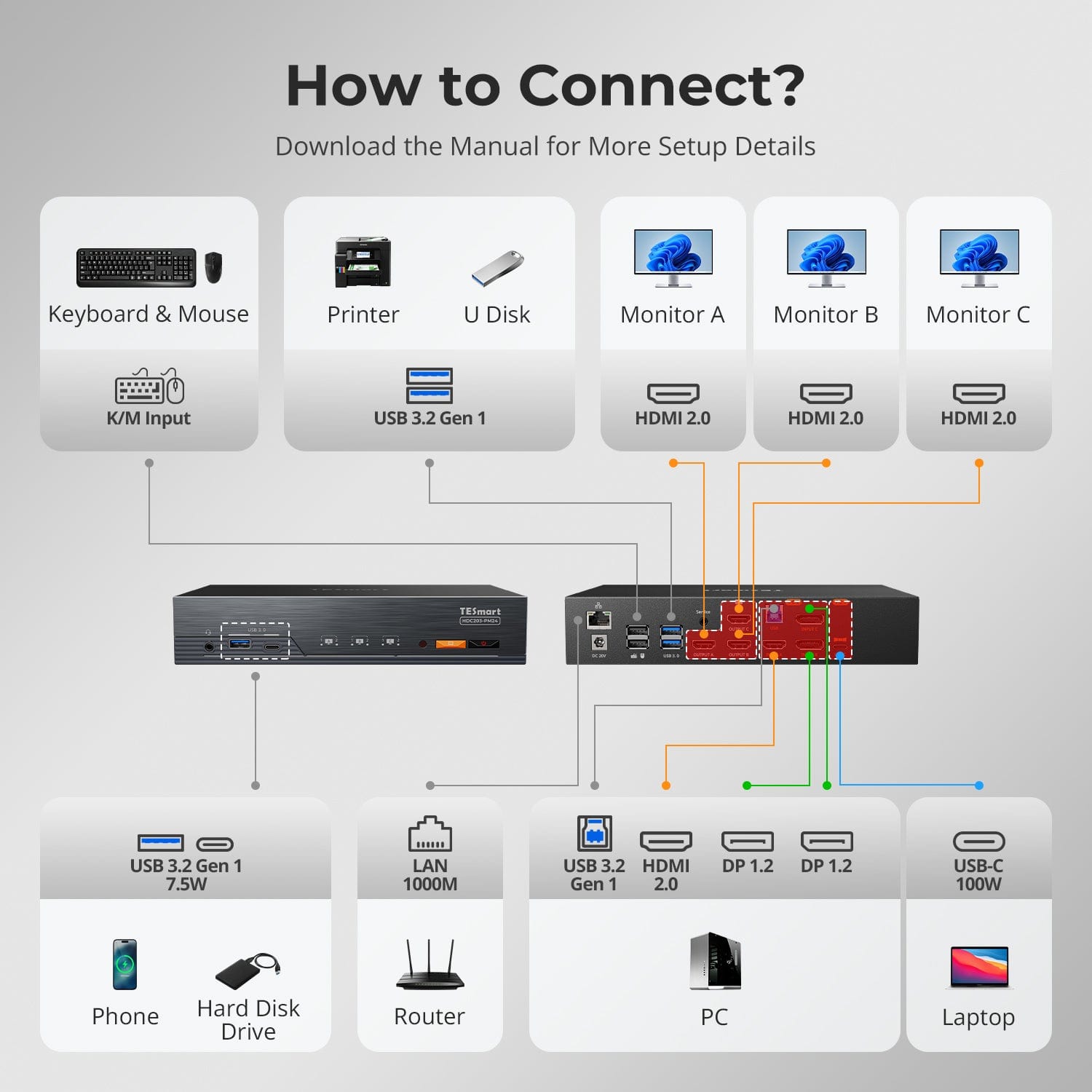
Connect Laptop, Desktop & Triple Monitors
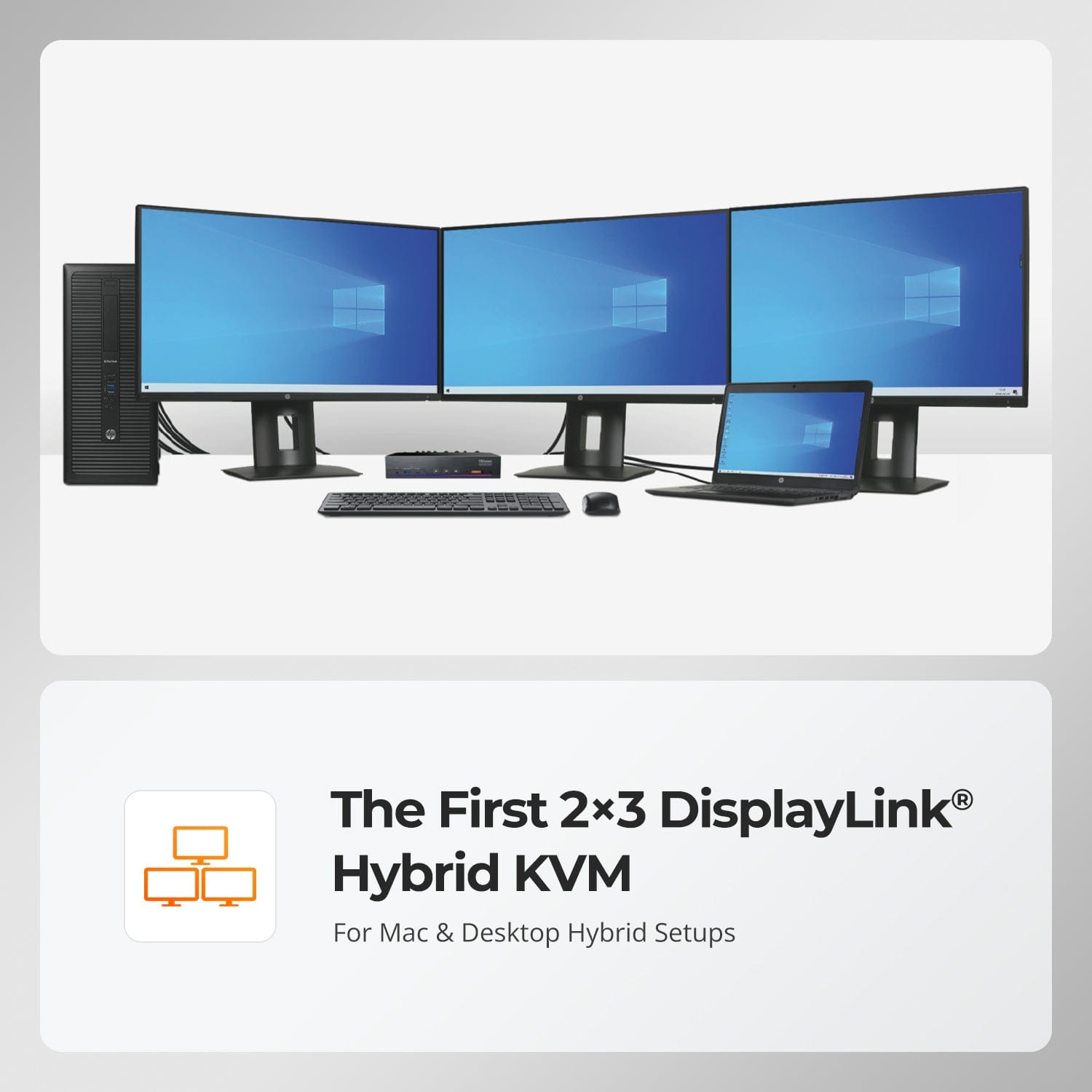
The First 2×3 DisplayLink® Hybrid KVM
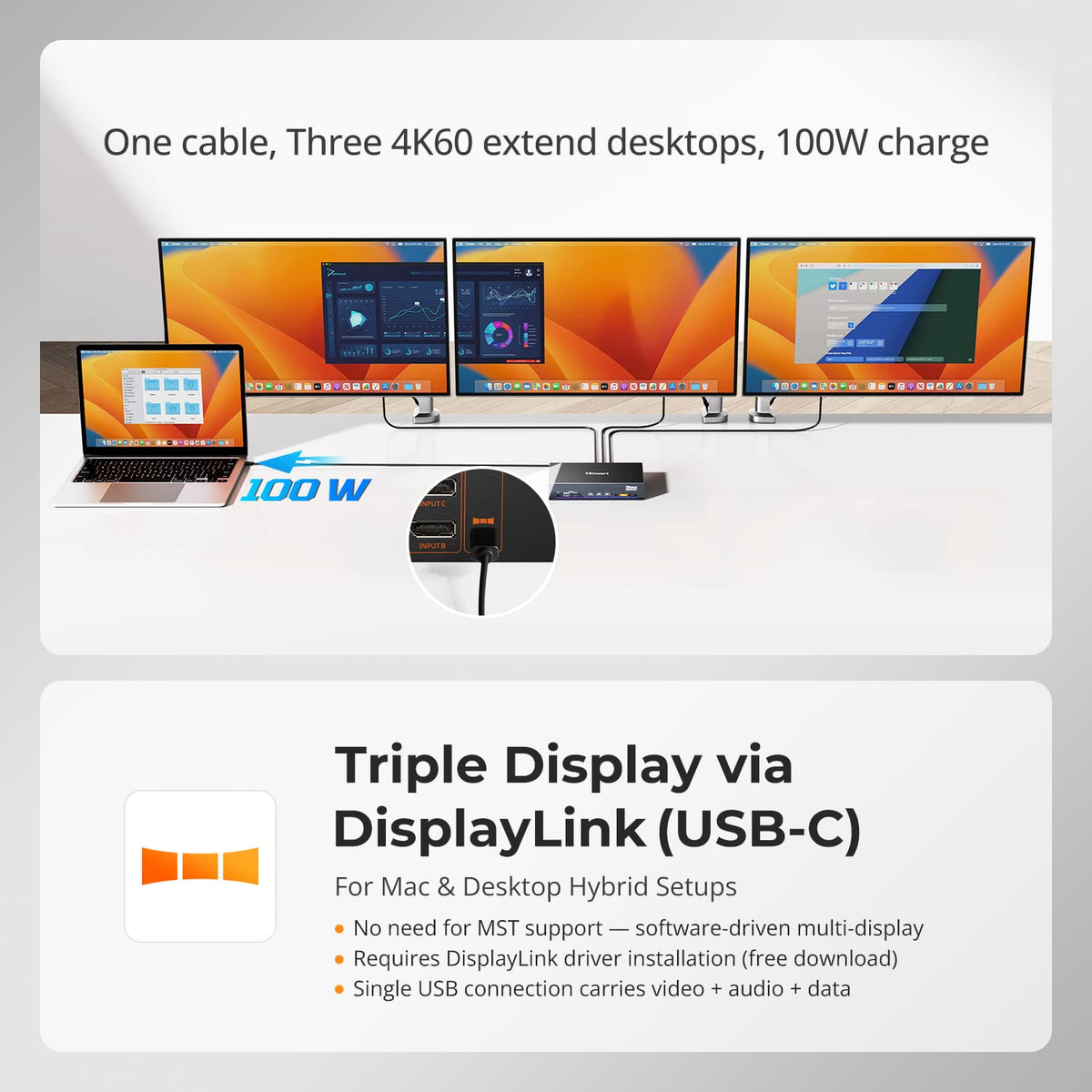
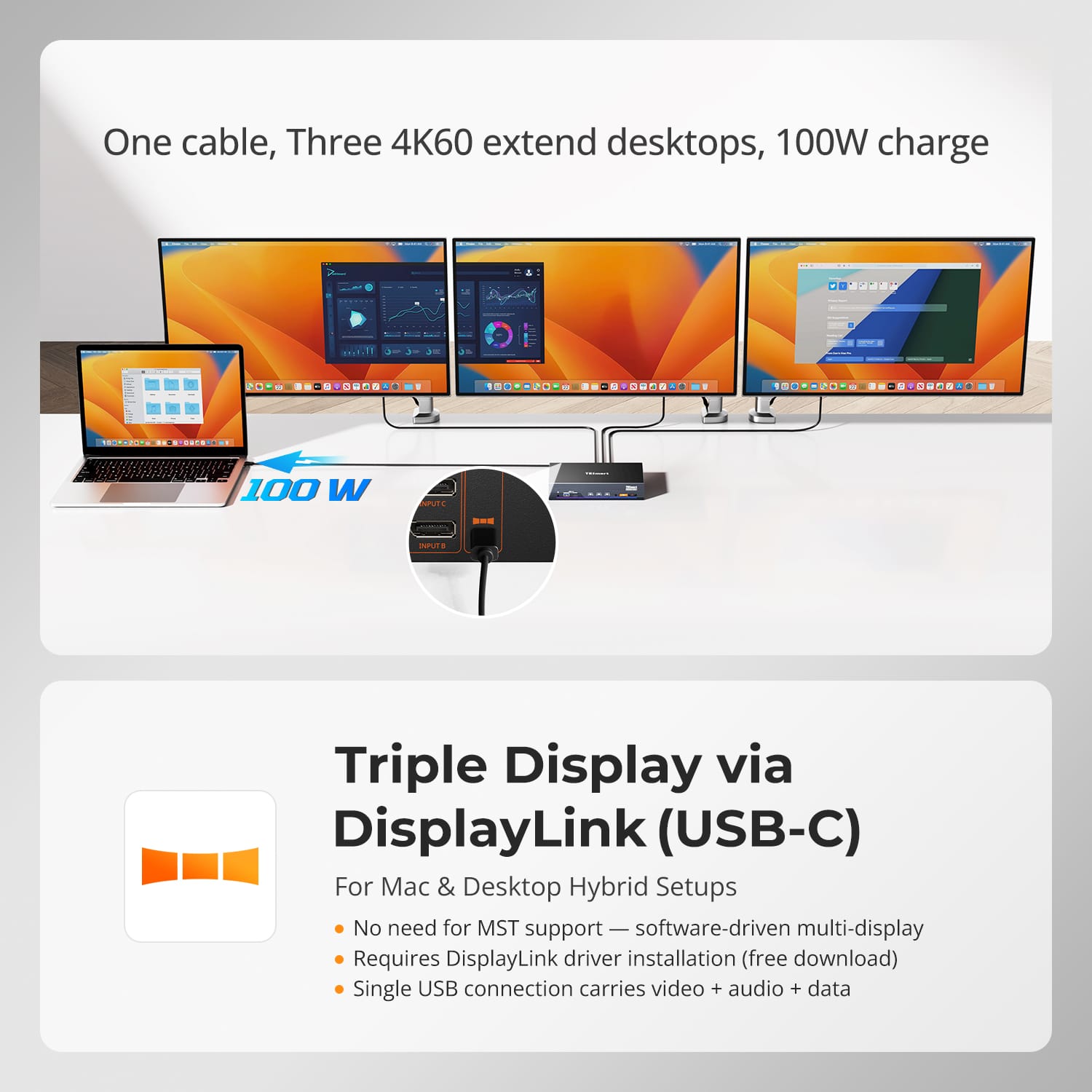
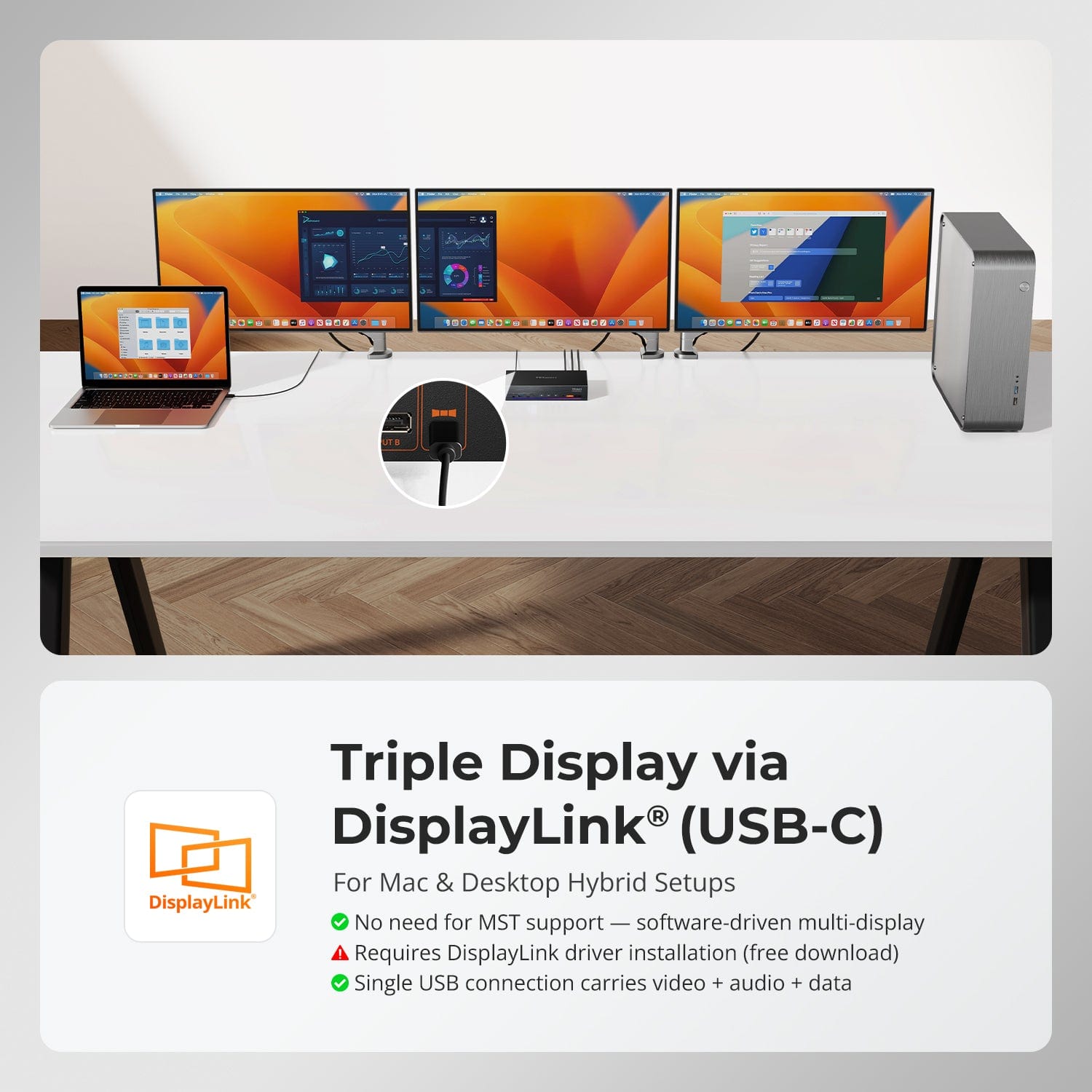
Triple Display via DisplayLink® (USB-C)
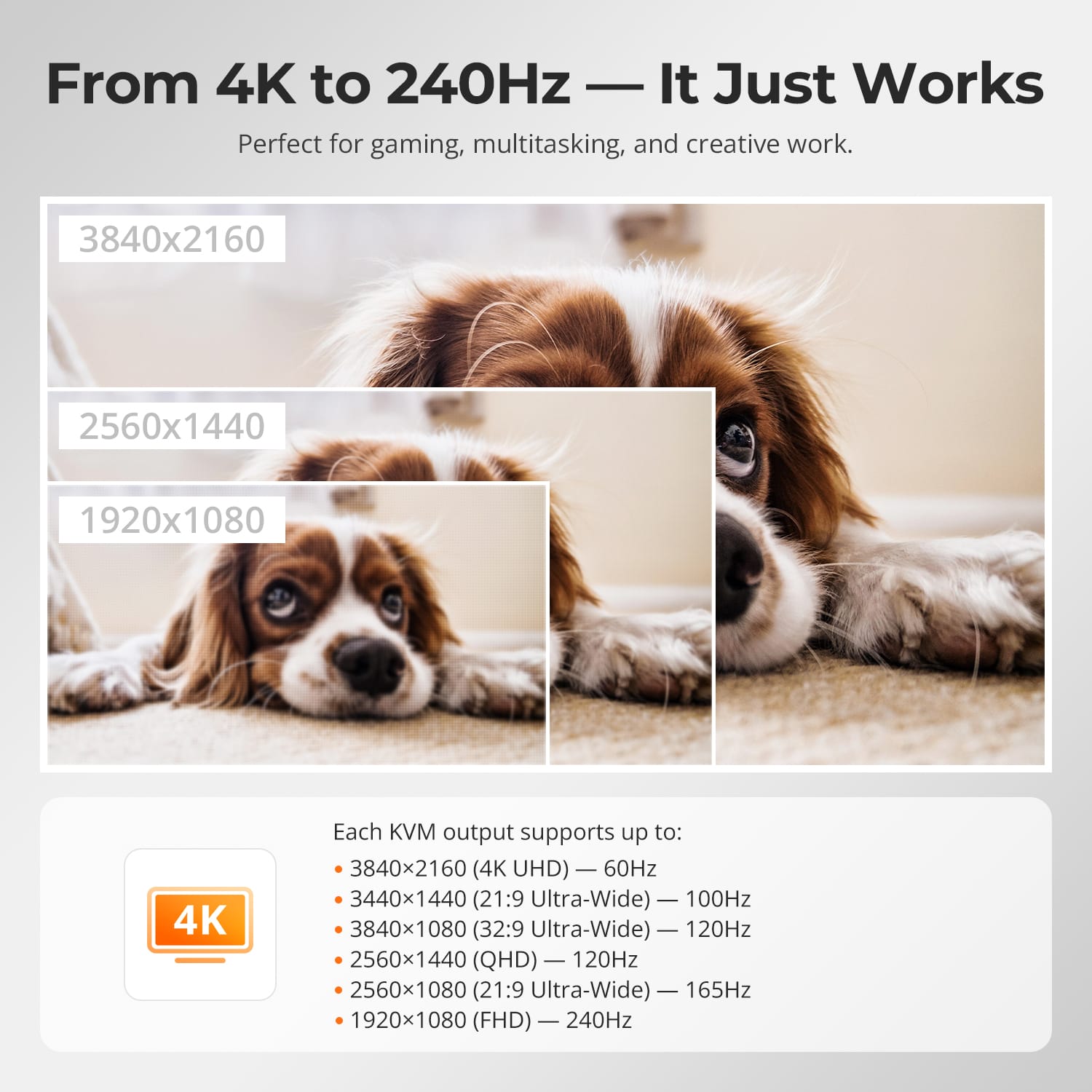
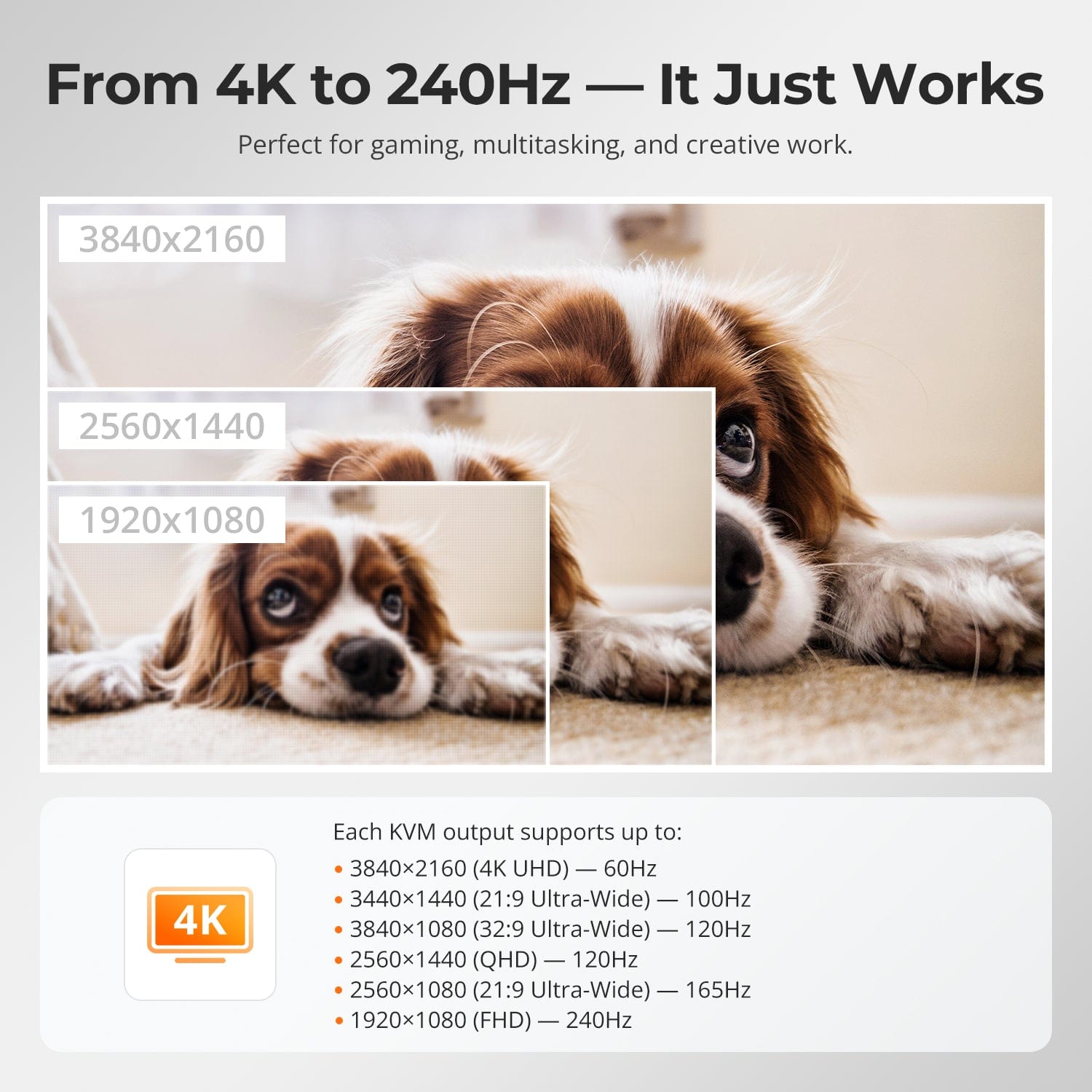
From 4K to 240Hz — It Just Works
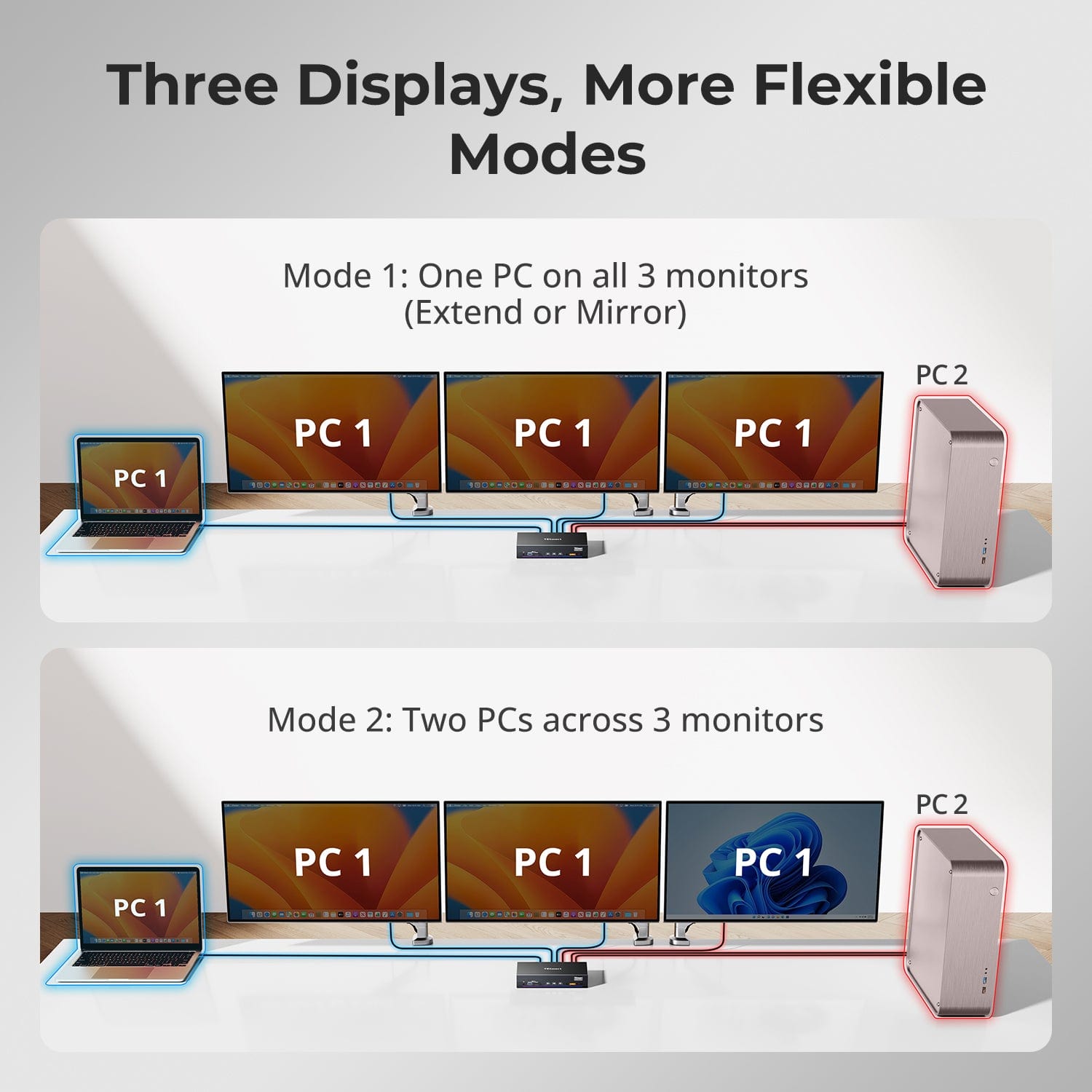
Three Displays, More Flexible Modes
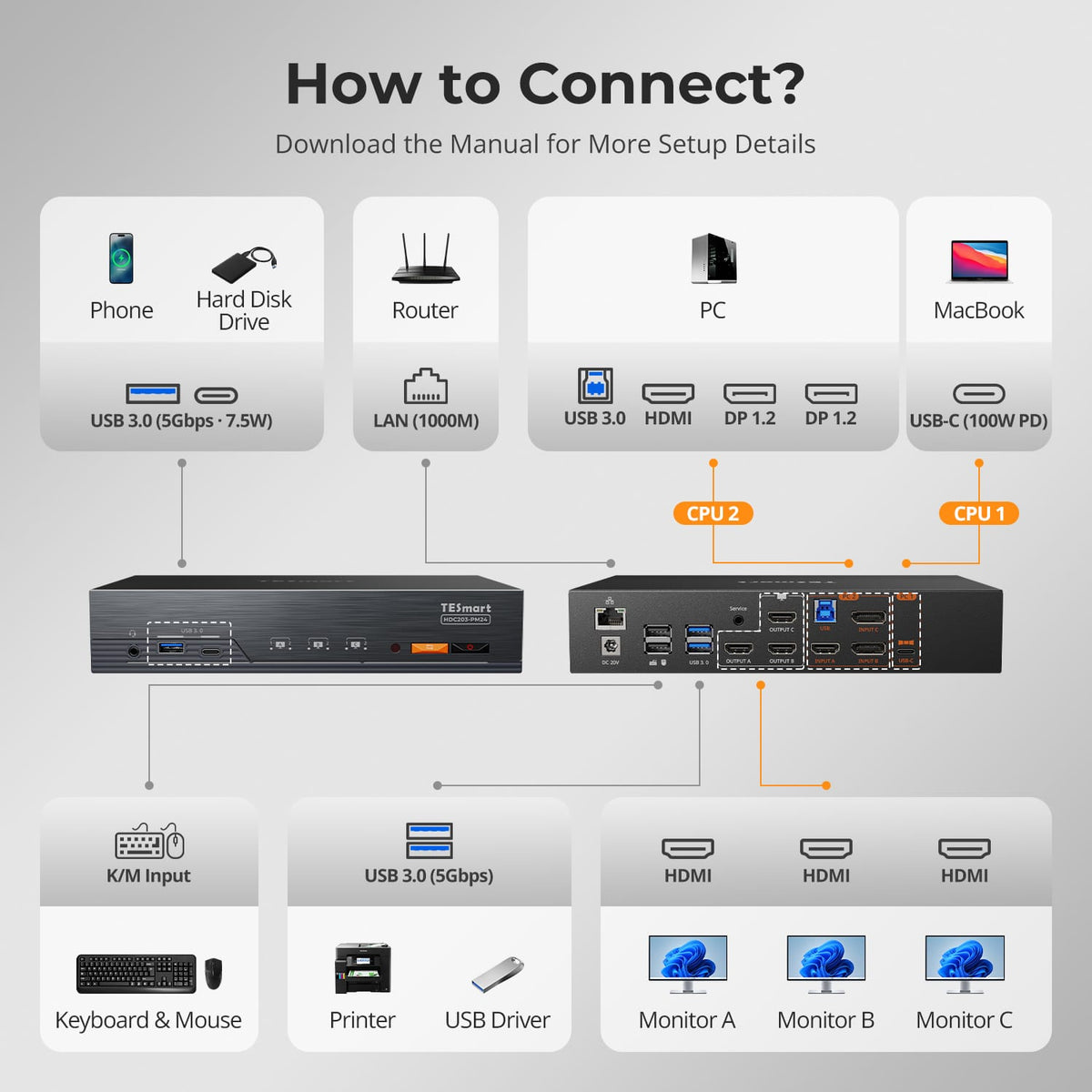
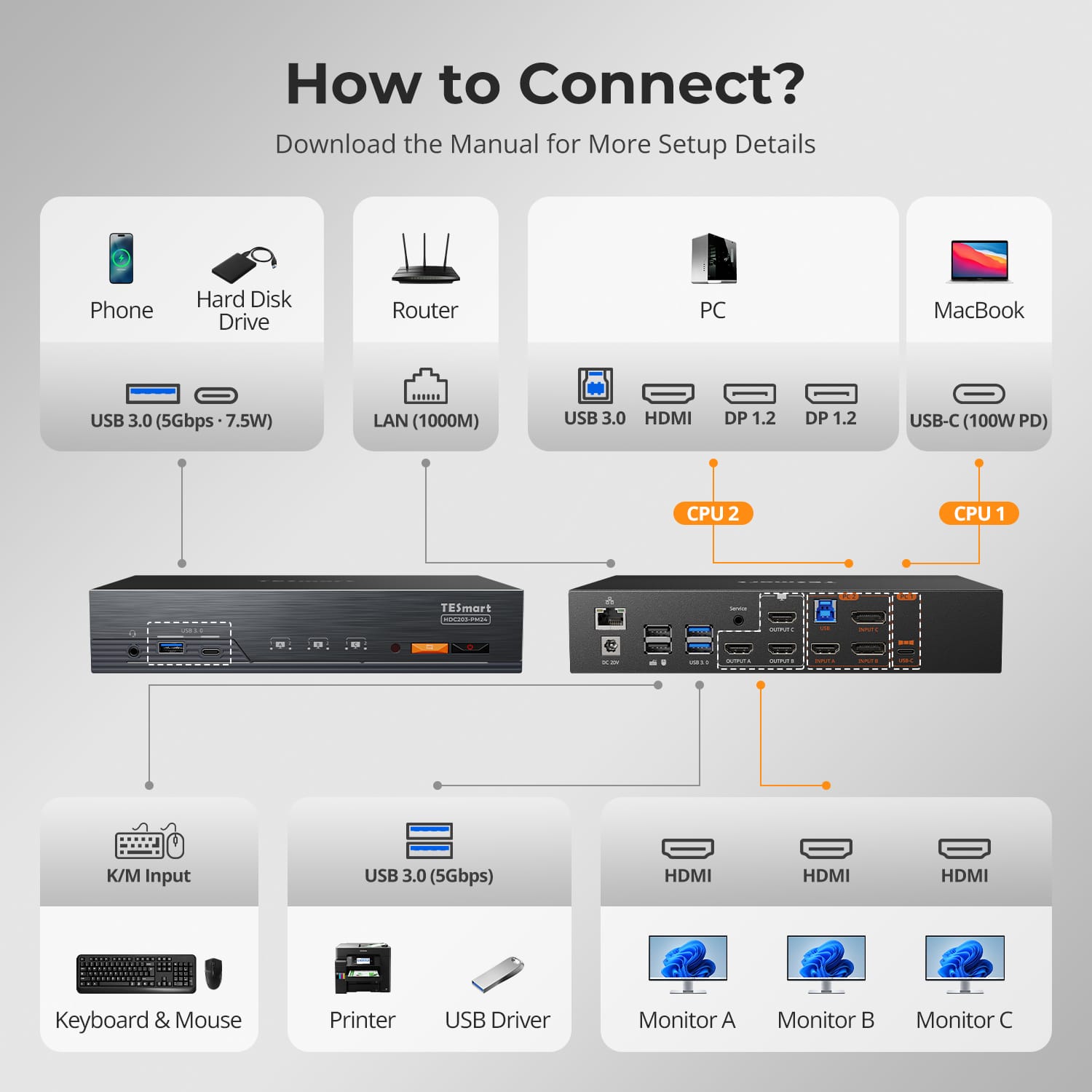
Designed for hybrid work setups that mix laptops and desktops. Connect your laptop via USB-C (DisplayLink) and your desktop via HDMI + DP + DP.
- Triple-display output supported through DisplayLink® technology — no MST required.
- Each computer uses its own optimal connection type, ensuring stable, full-bandwidth signal.
- Ideal for users who switch between mobile and desktop workflows but need a unified 3-screen environment.
This is the world’s first dual-computer KVM that supports three monitors simultaneously using DisplayLink®.
- Seamlessly combine one USB-C laptop and one multi-port desktop into a shared 3-display workspace.
- Optimized for both macOS and Windows — no compromise on flexibility or speed.
- TESmart’s proprietary hybrid switching ensures instant response and minimal lag during transitions.
DisplayLink® software unlocks full triple-display capability — even on systems that lack MST support.
- Uses a single USB-C cable to transmit video, audio, and data simultaneously.
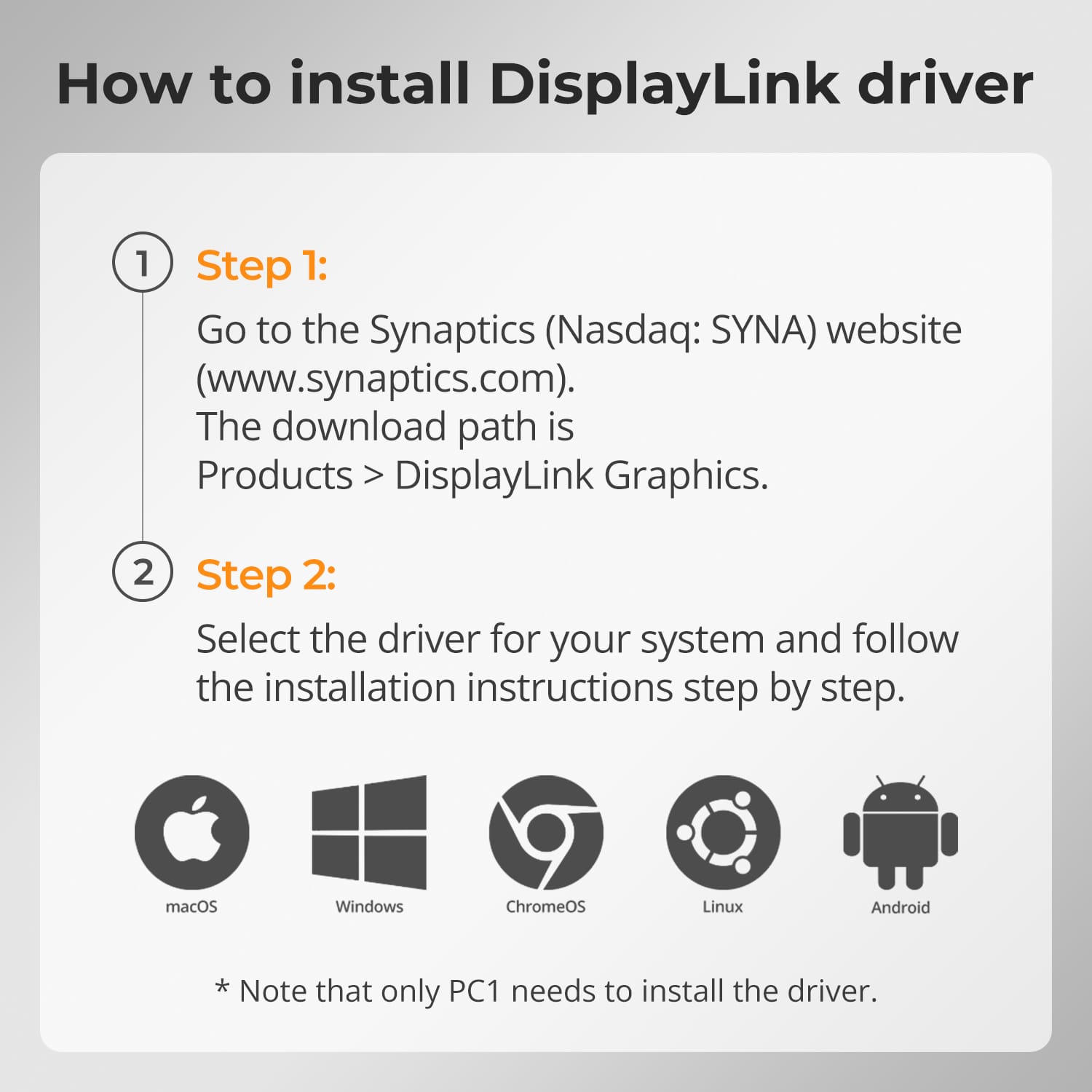
- Requires DisplayLink driver installation (free download).
- Enables multi-monitor expansion for macOS laptops that traditionally support only one external display.
This makes complex setups simple and consistent across platforms.
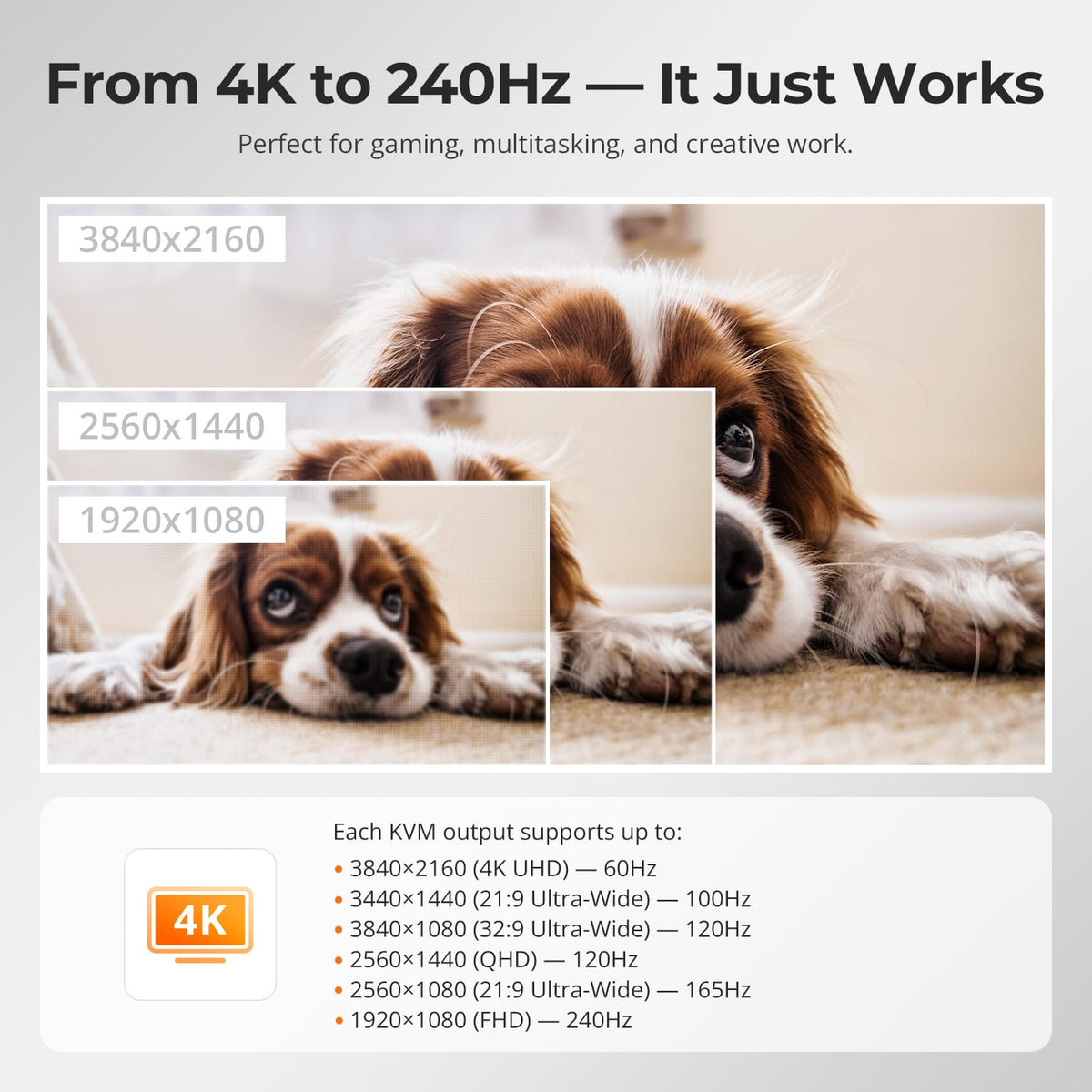
TESmart KVM switches are built for creators, gamers, and professionals who demand precision visuals and fluid motion.
- Supports a wide range of resolutions and refresh rates up to 4K@60Hz and 1080p@240Hz.
- Delivers consistent frame timing and color accuracy across multi-monitor environments.
- Optimized signal integrity ensures zero flicker or frame drops, even during high-load operations.
You get gaming-grade performance with professional reliability.
Adapt your workspace to any task. TESmart’s flexible display modes offer unmatched versatility.
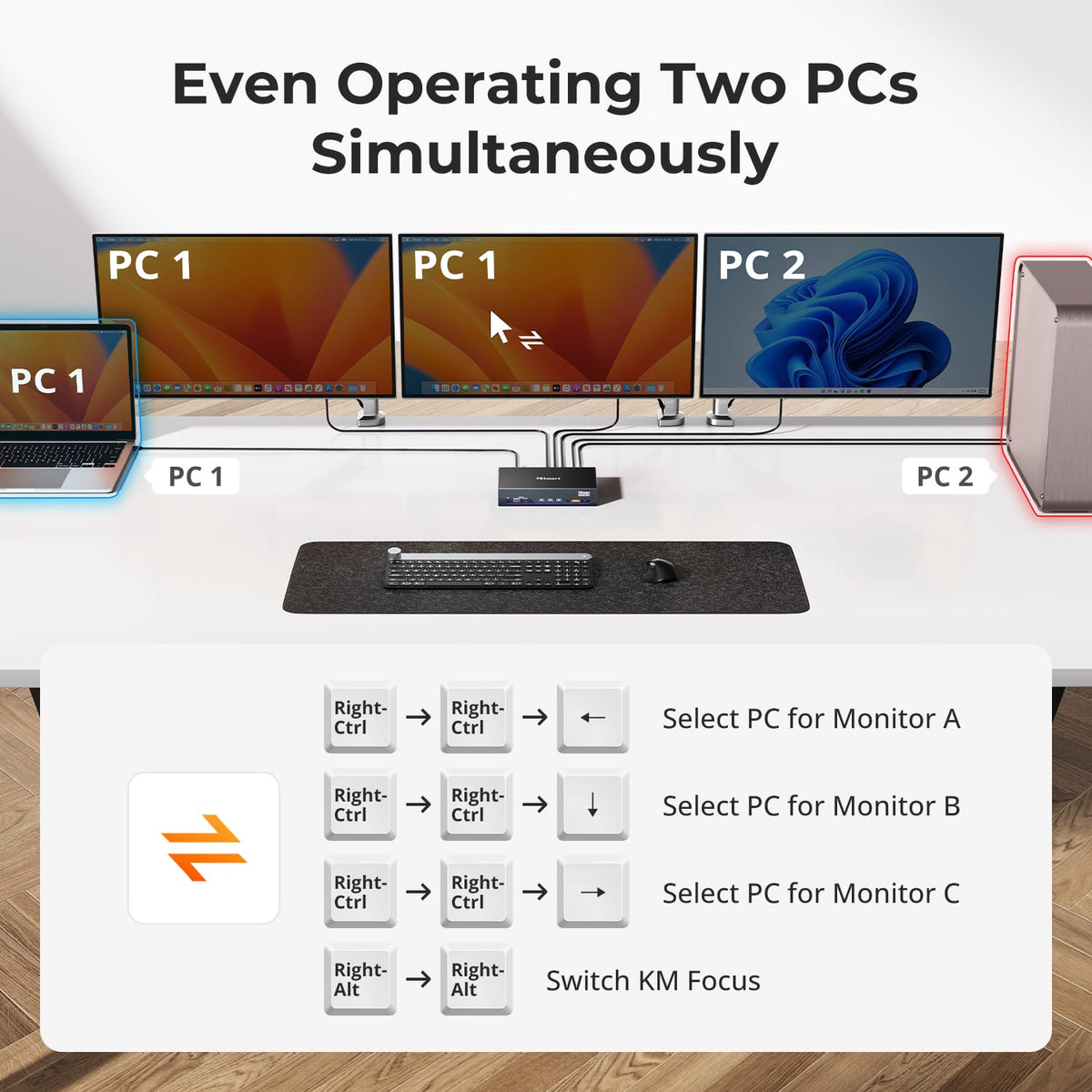
- Mode 1: Extend or mirror a single PC across three monitors for ultra-wide productivity.
- Mode 2: Split the screens between two PCs — ideal for real-time monitoring, development, or content review.
Switching between modes takes seconds, letting you adapt without re-cabling or reconfiguring.
EDID Emulation
Built-in Shared Docking Station
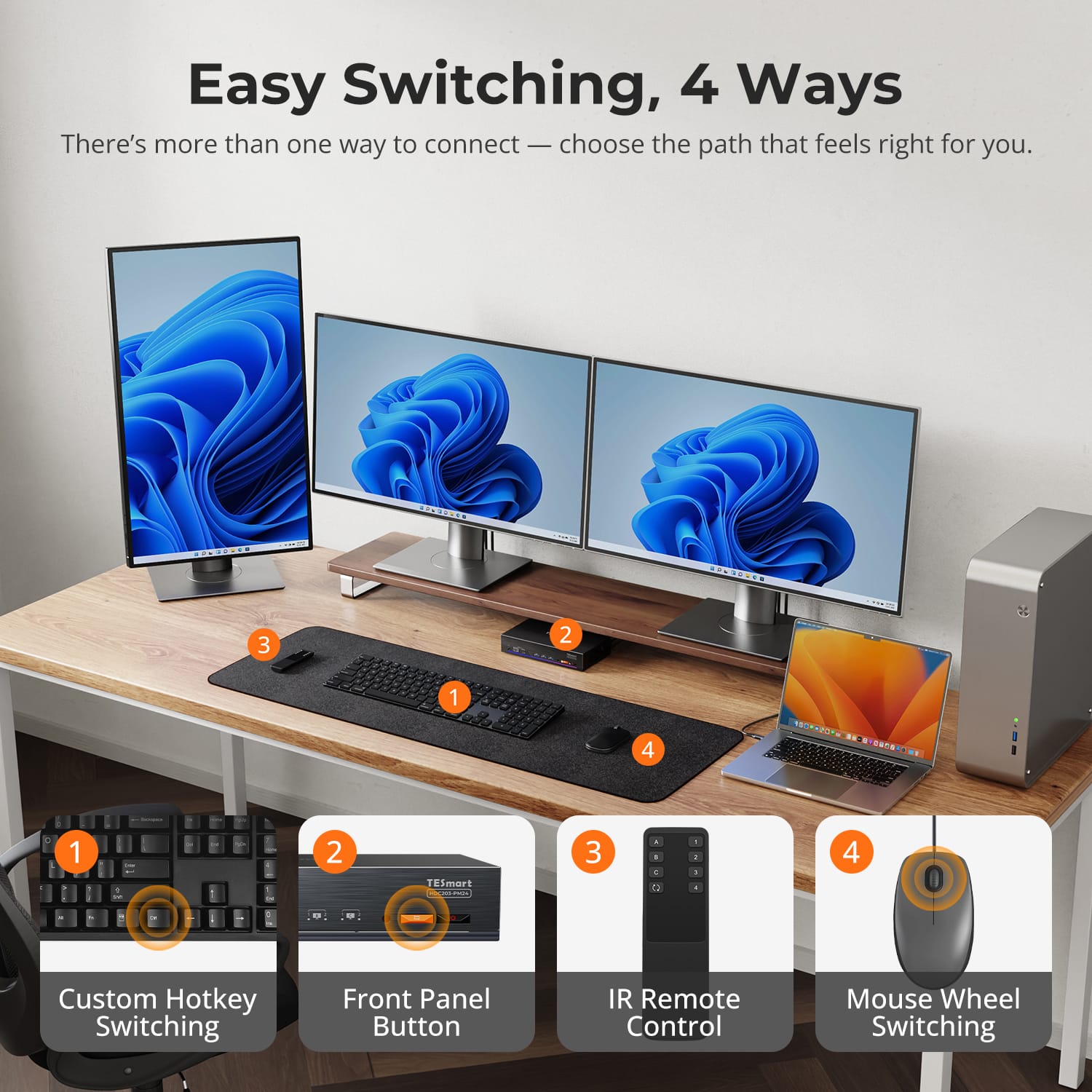
Easy Switching, 4 Ways
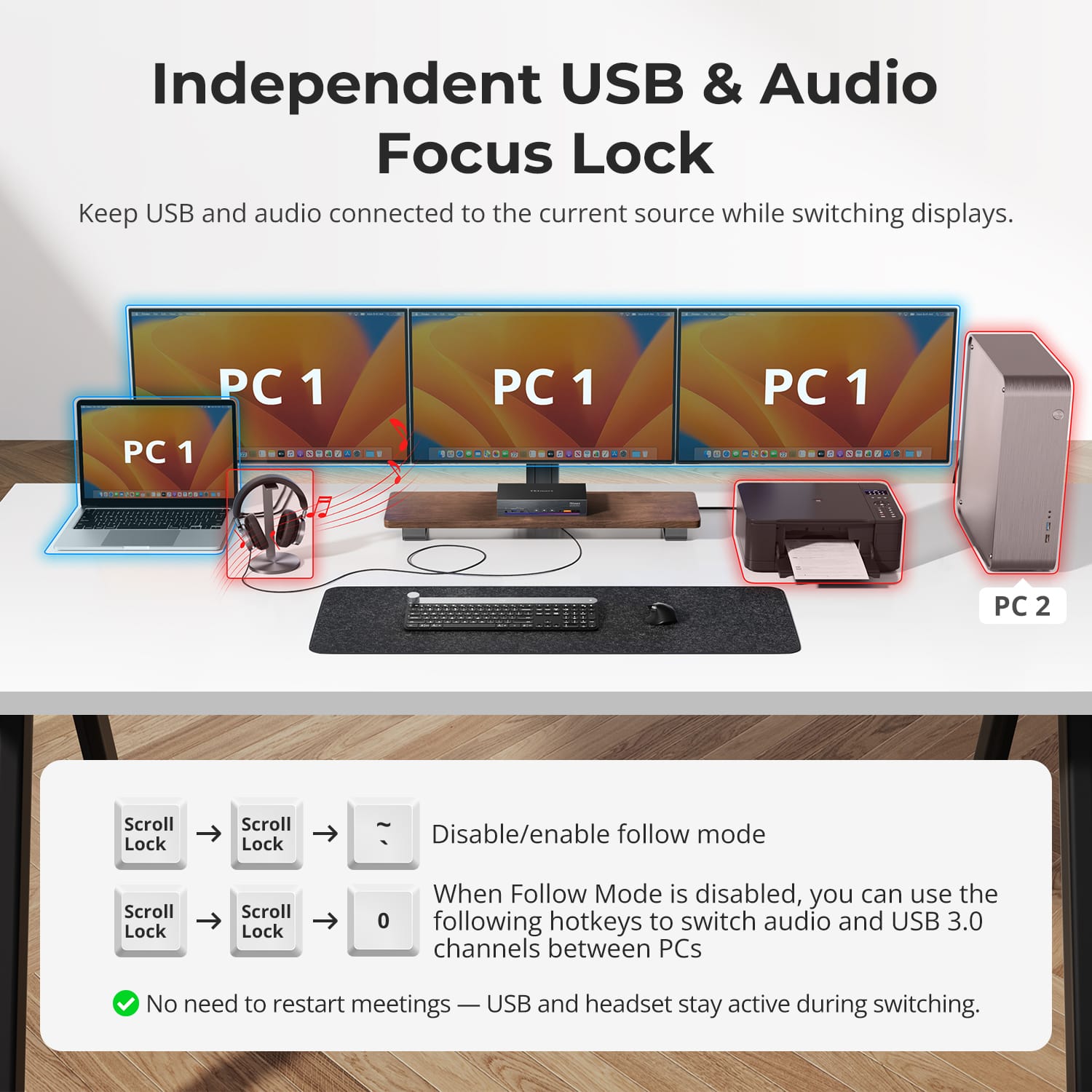
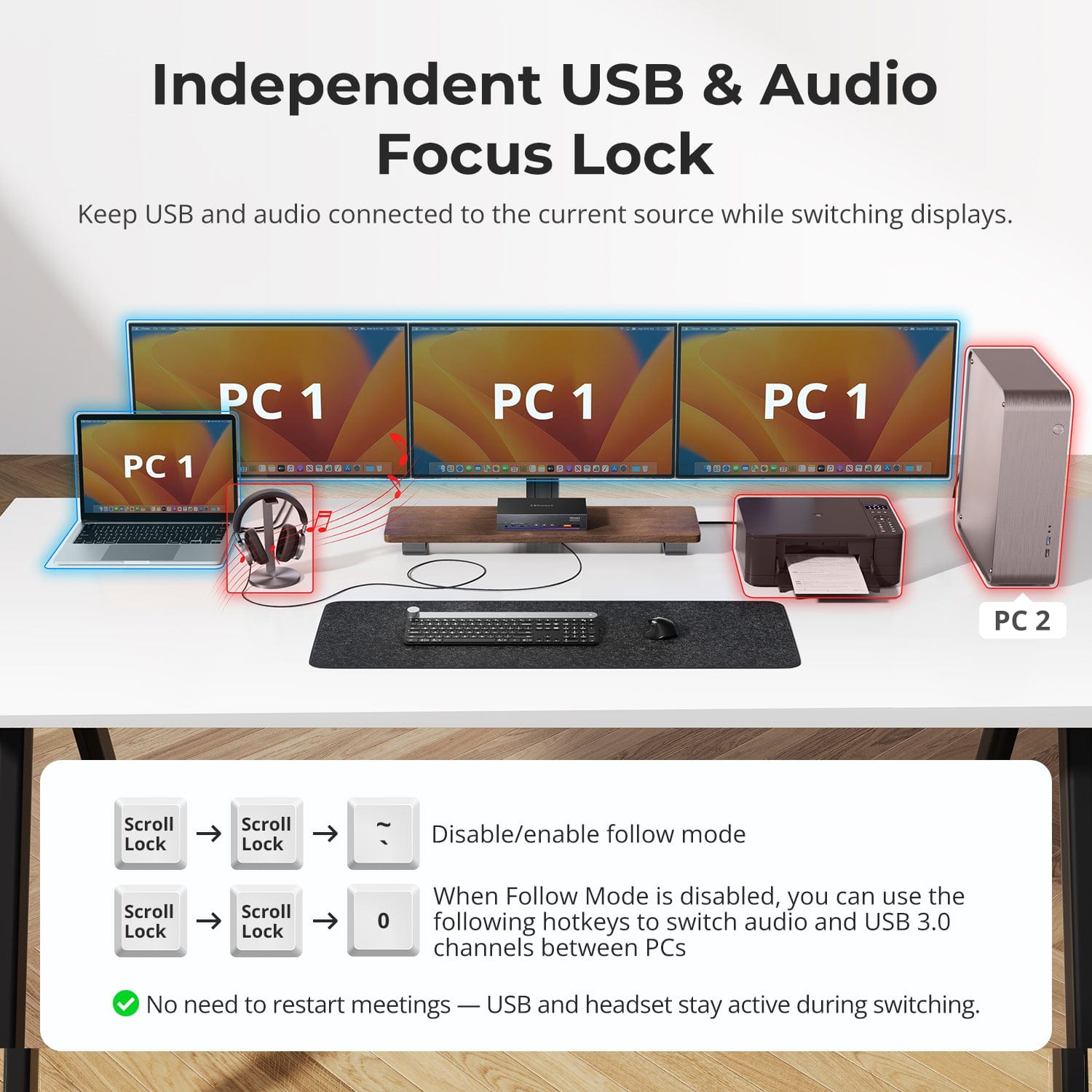
Independent USB & Audio Focus Lock
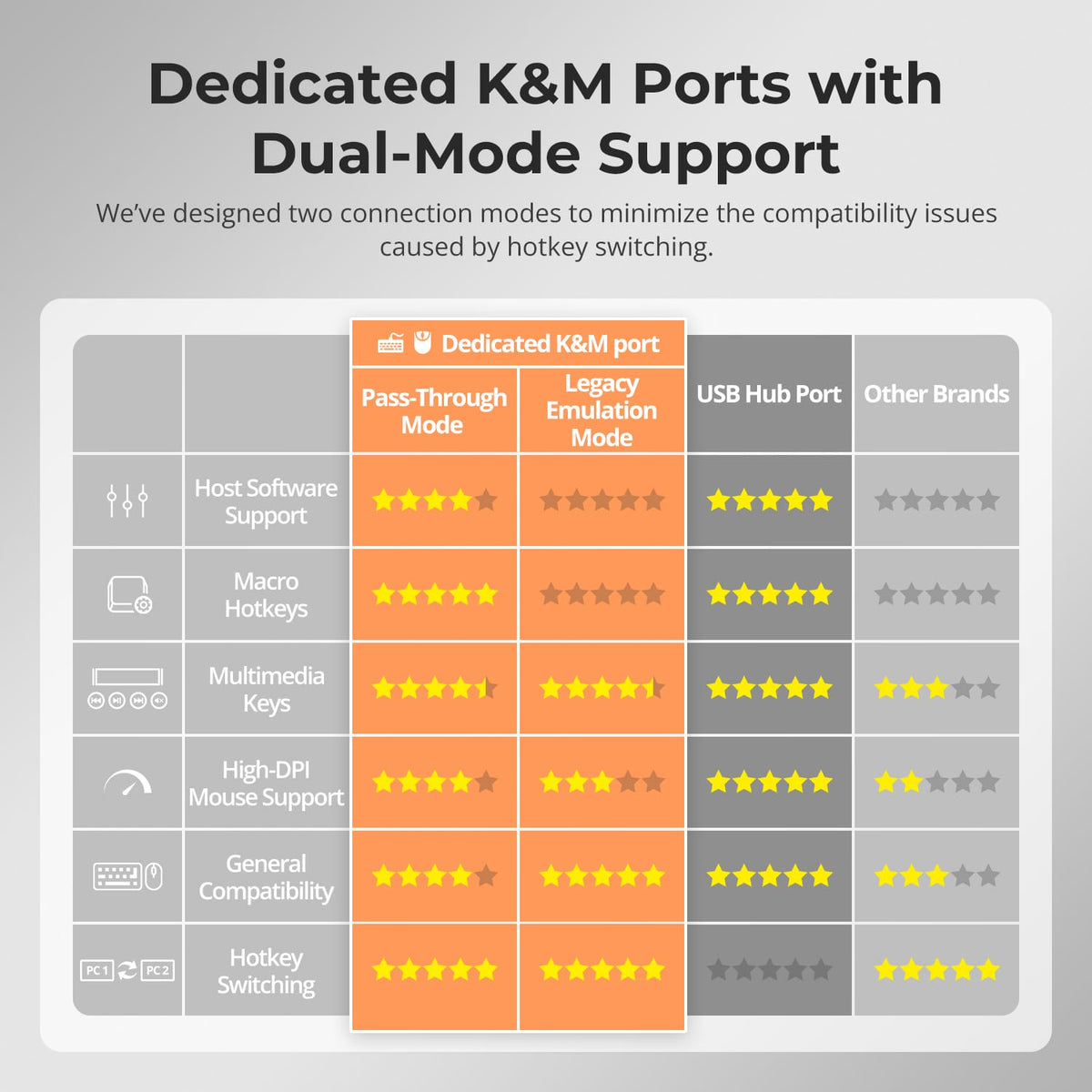
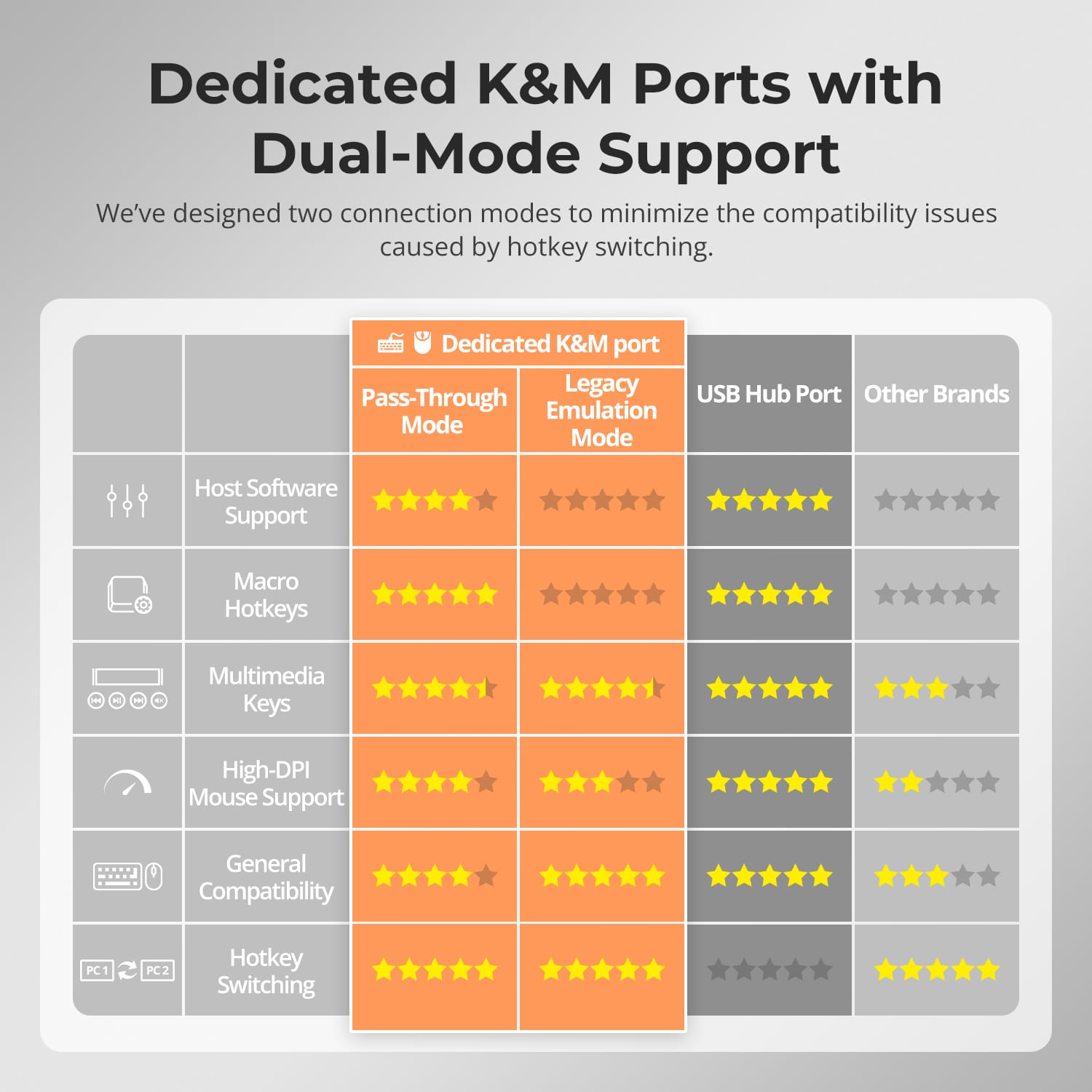
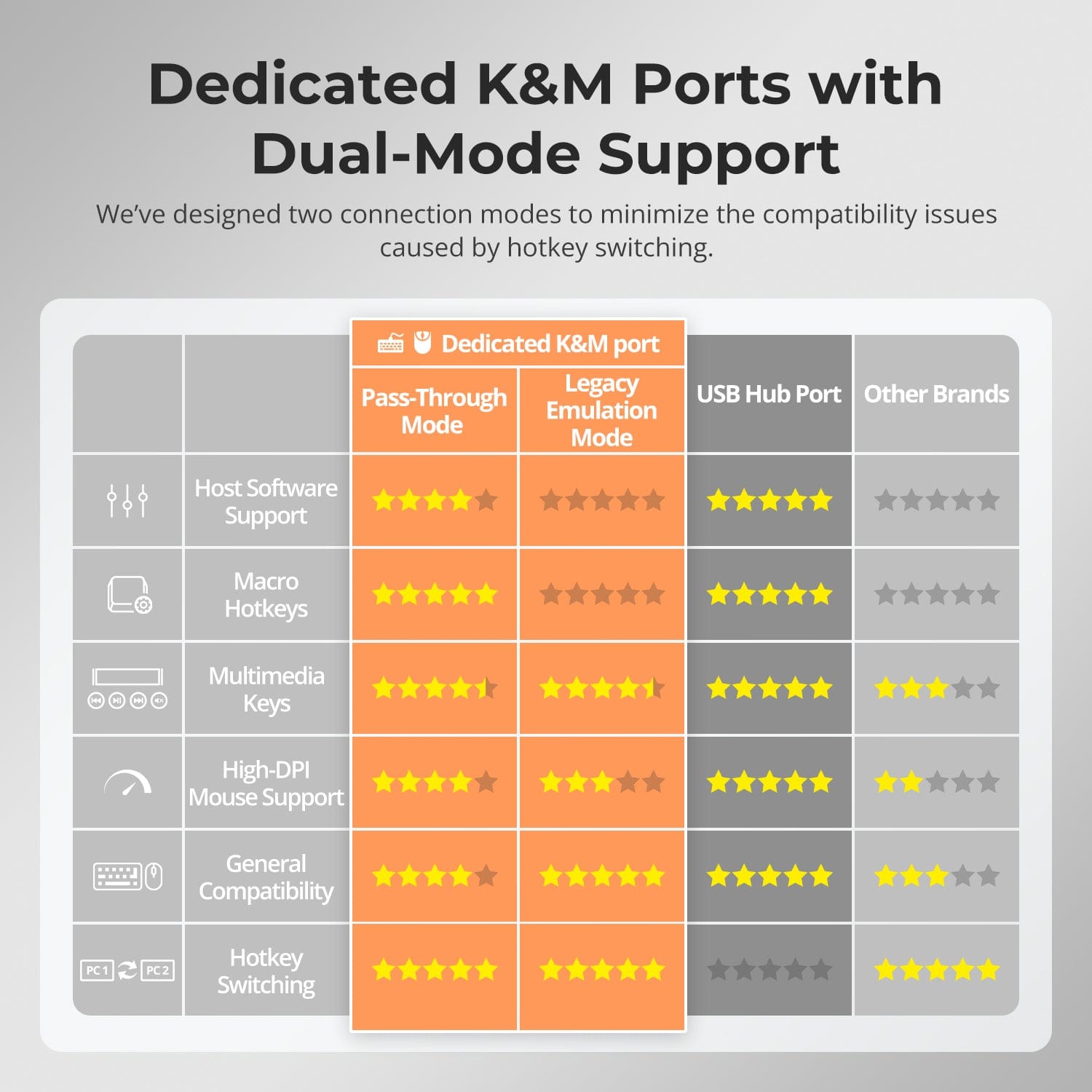
Dedicated K&M Ports with Dual-Mode Support
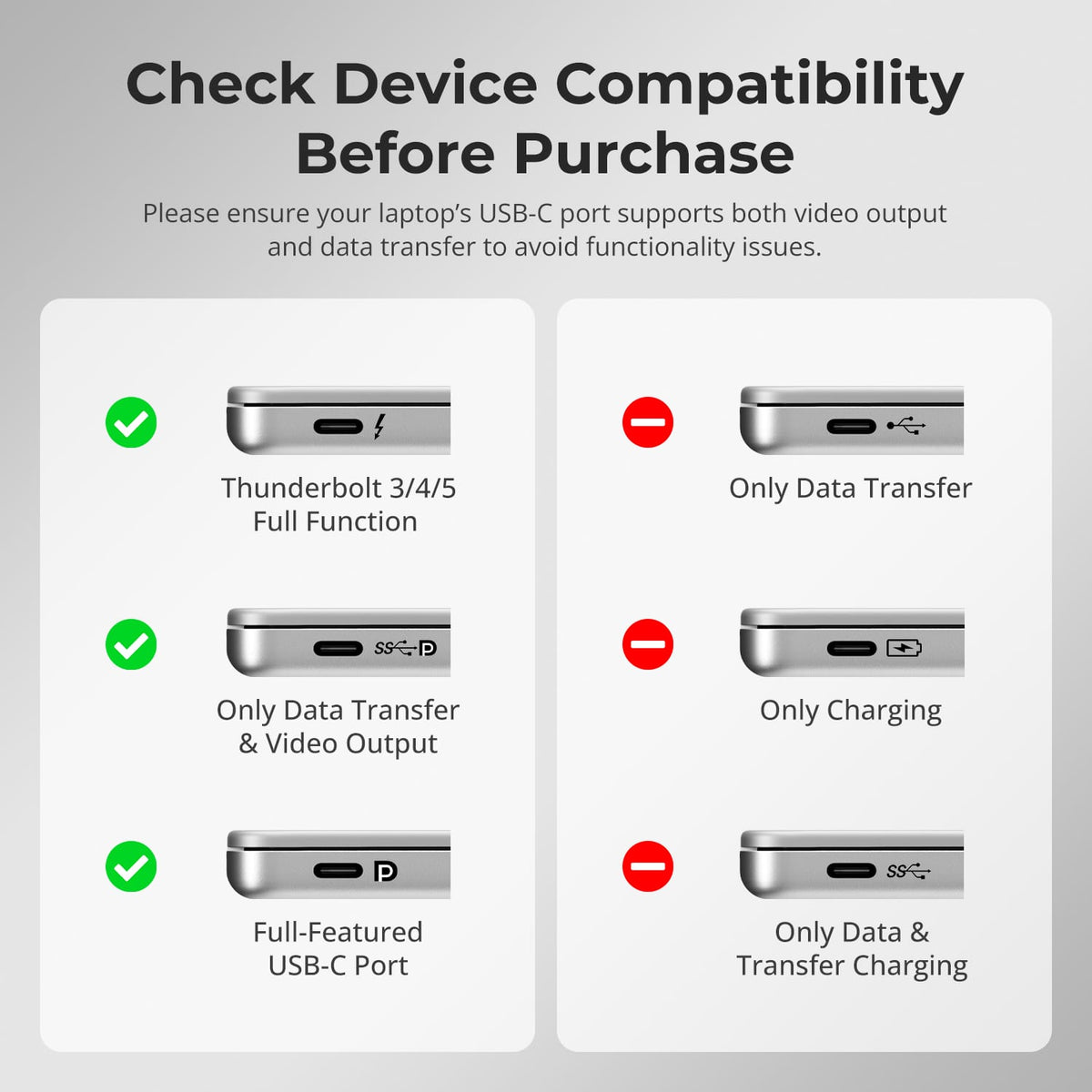
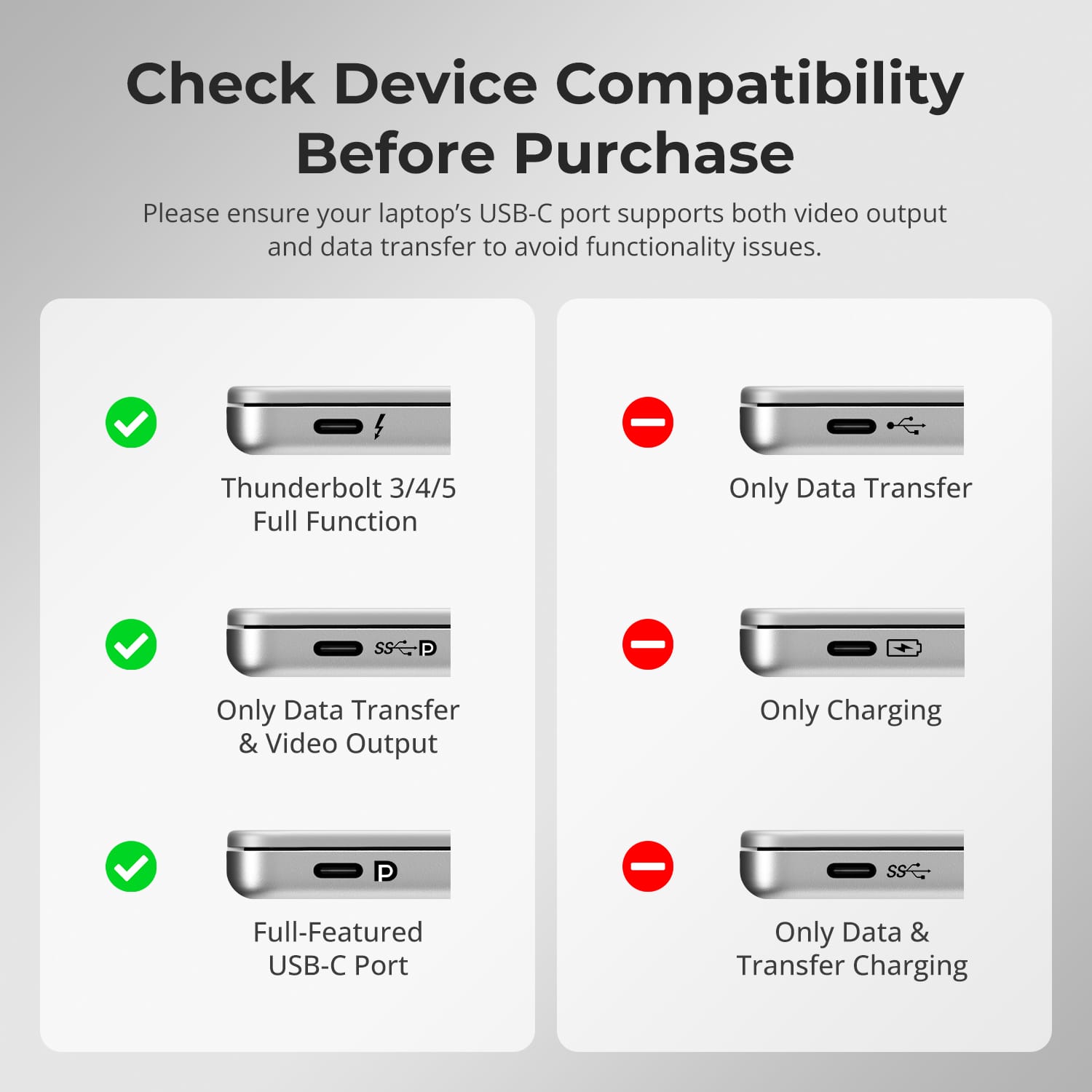
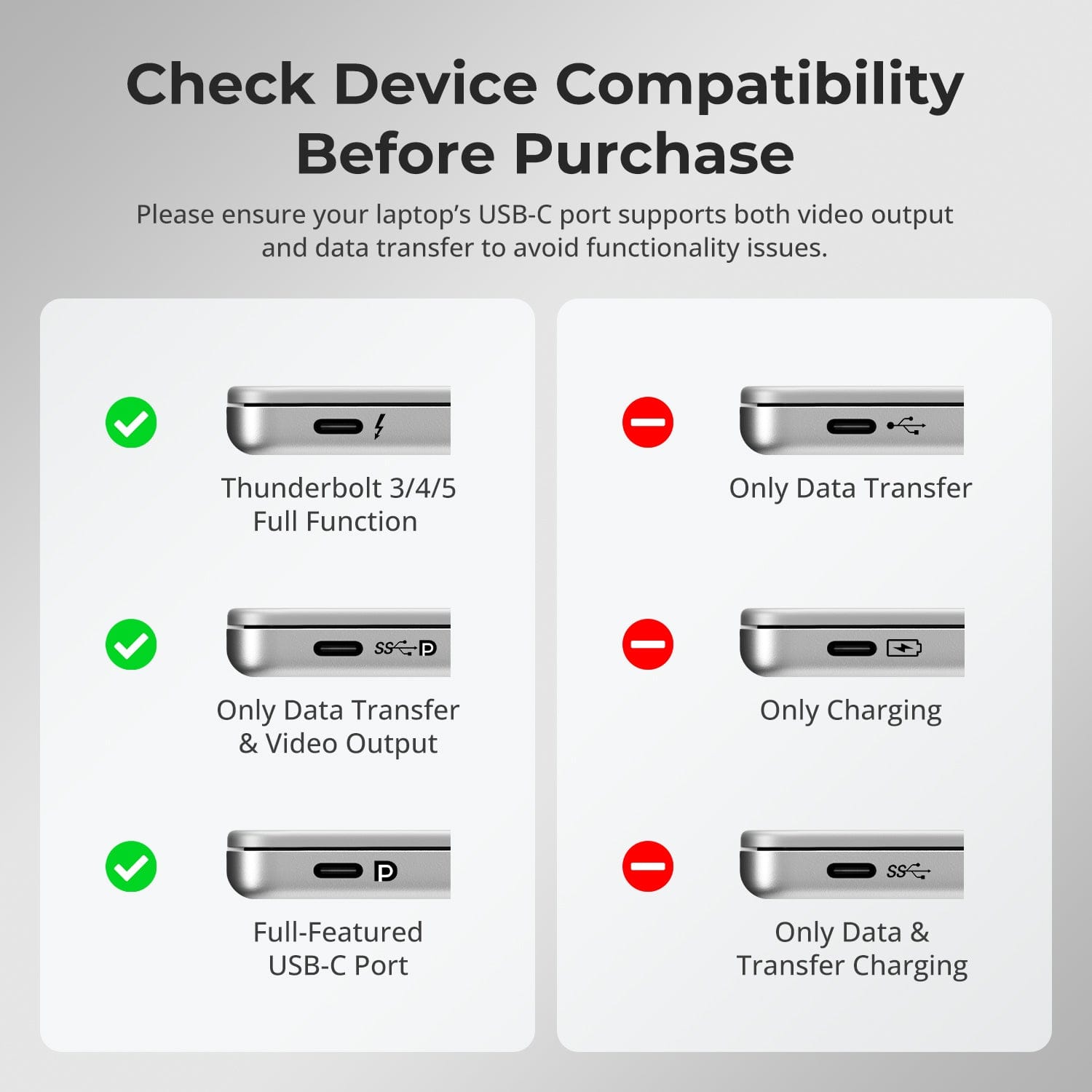
Check Device Compatibility Before Purchase
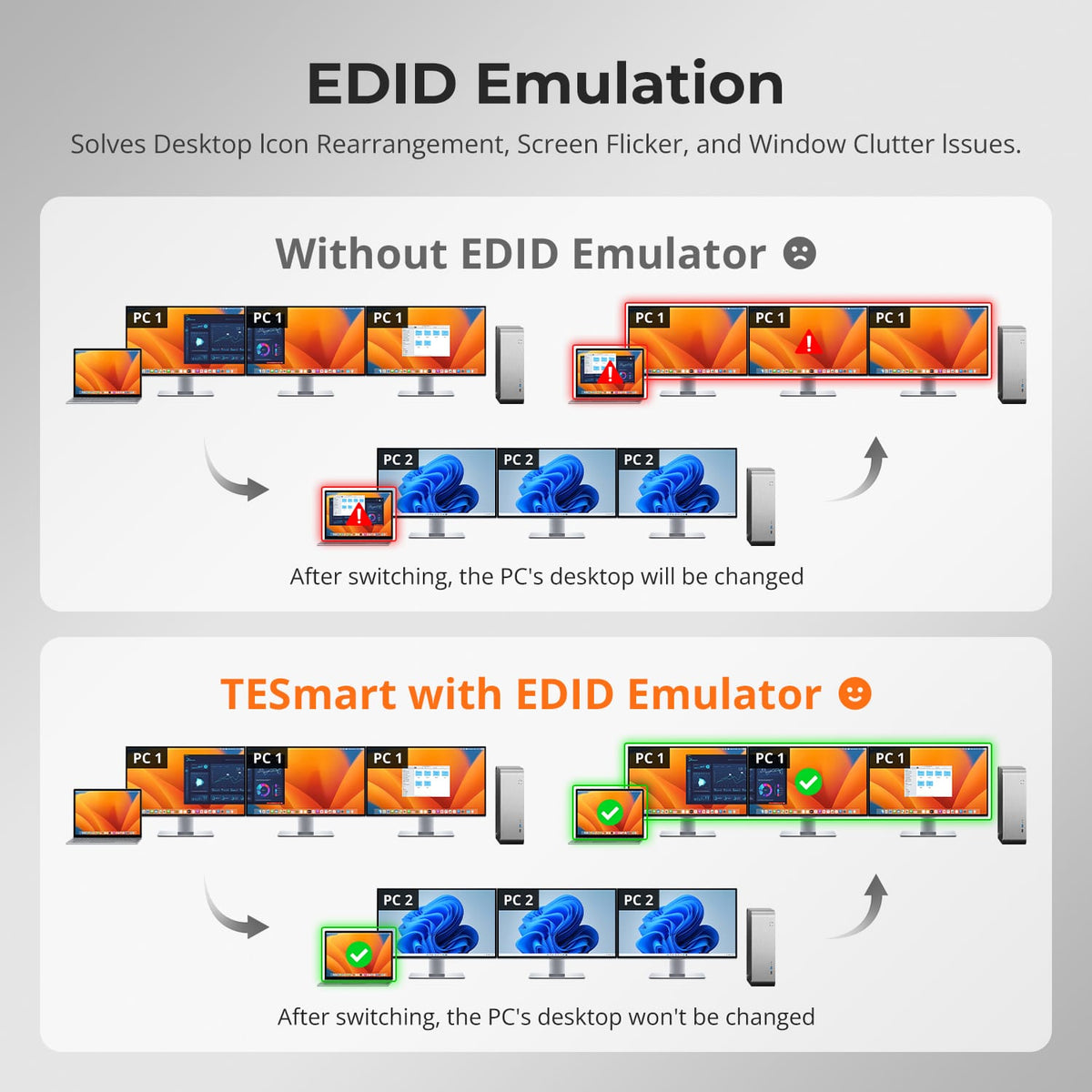
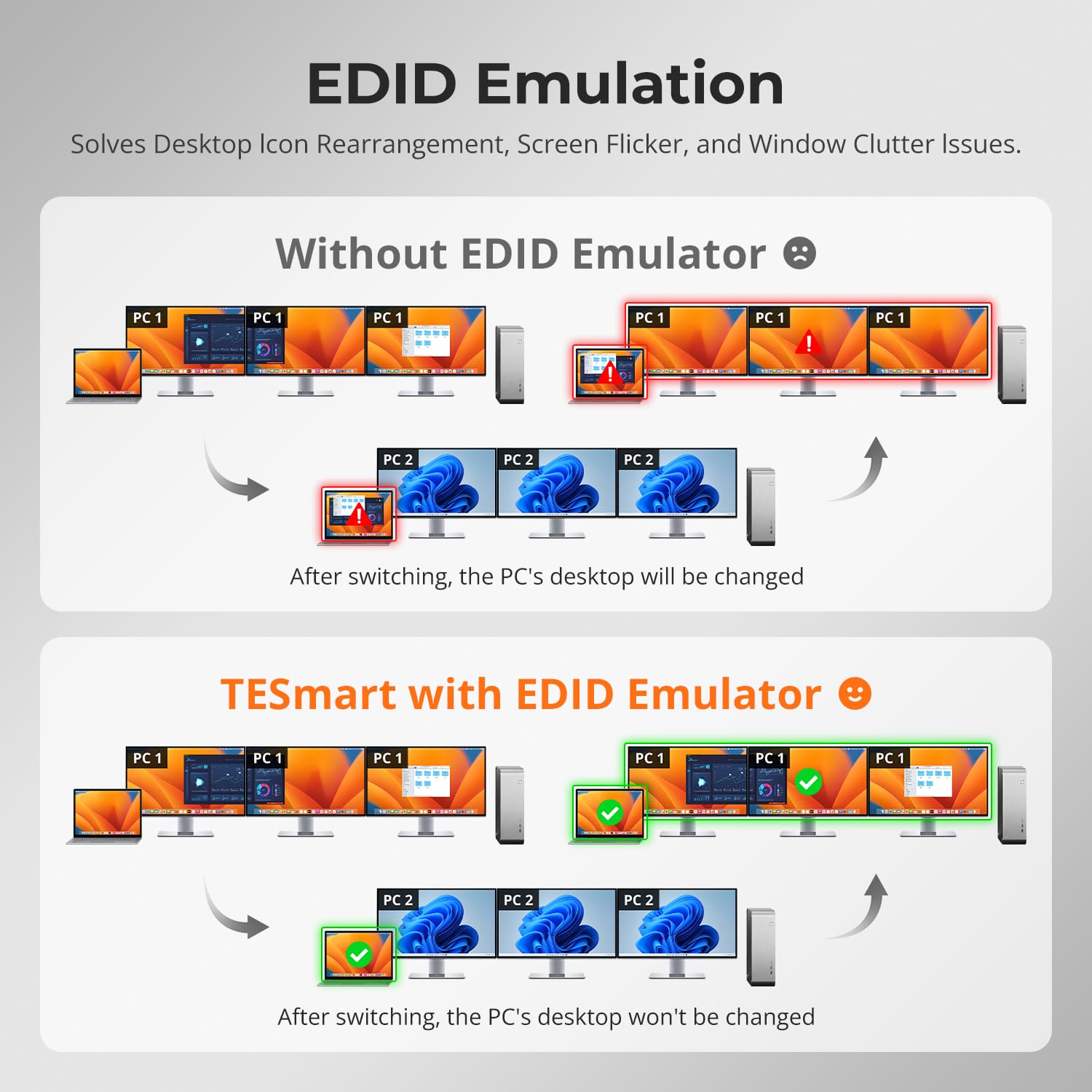
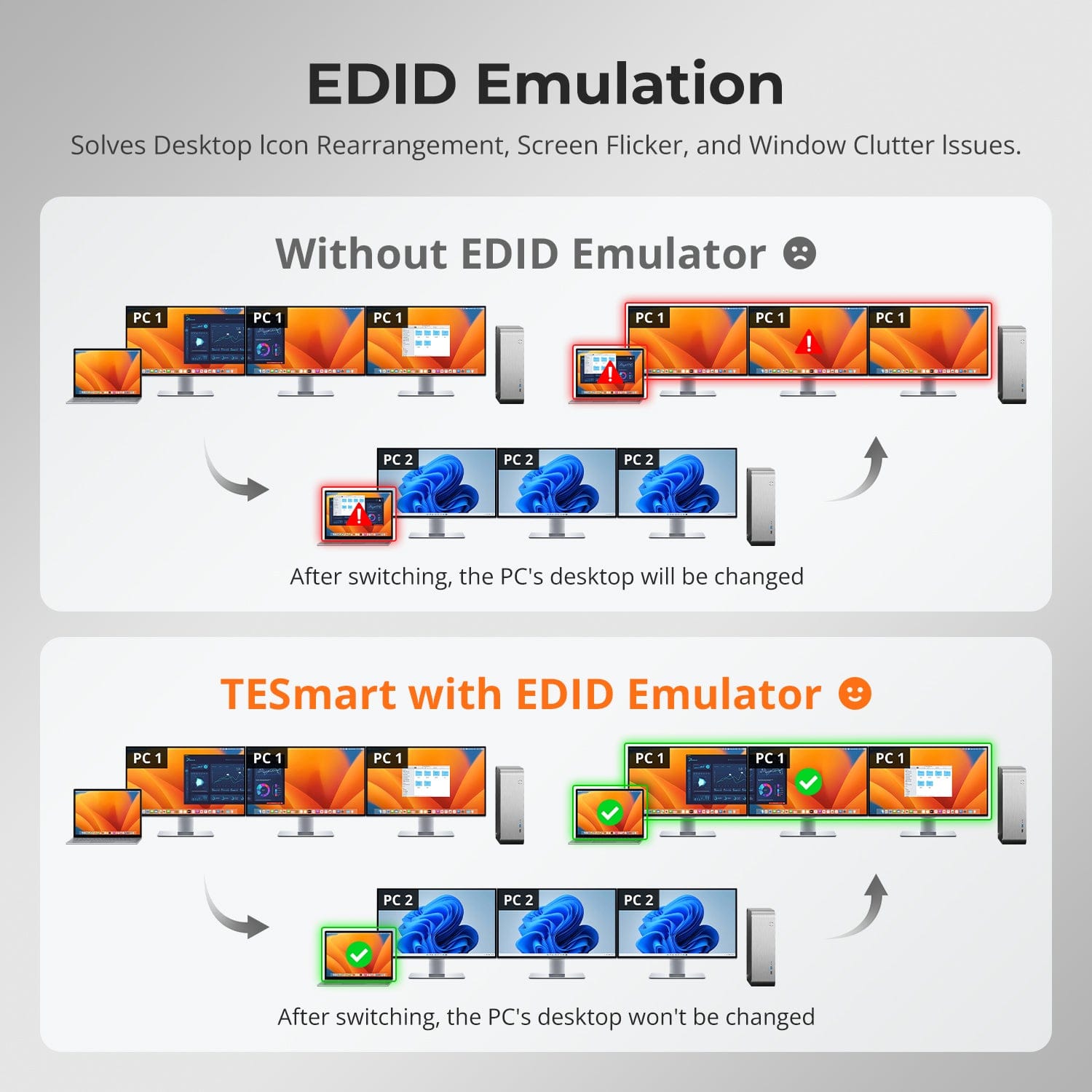
No more icon rearranging or window chaos after switching inputs. TESmart’s smart EDID emulation keeps your desktop layout stable.
- Preserves display configuration between switches.
- Prevents screen flicker, blackouts, or resolution resets.
- Saves valuable time in multi-monitor environments where precise window placement matters.
Your monitors remember exactly how you left them.
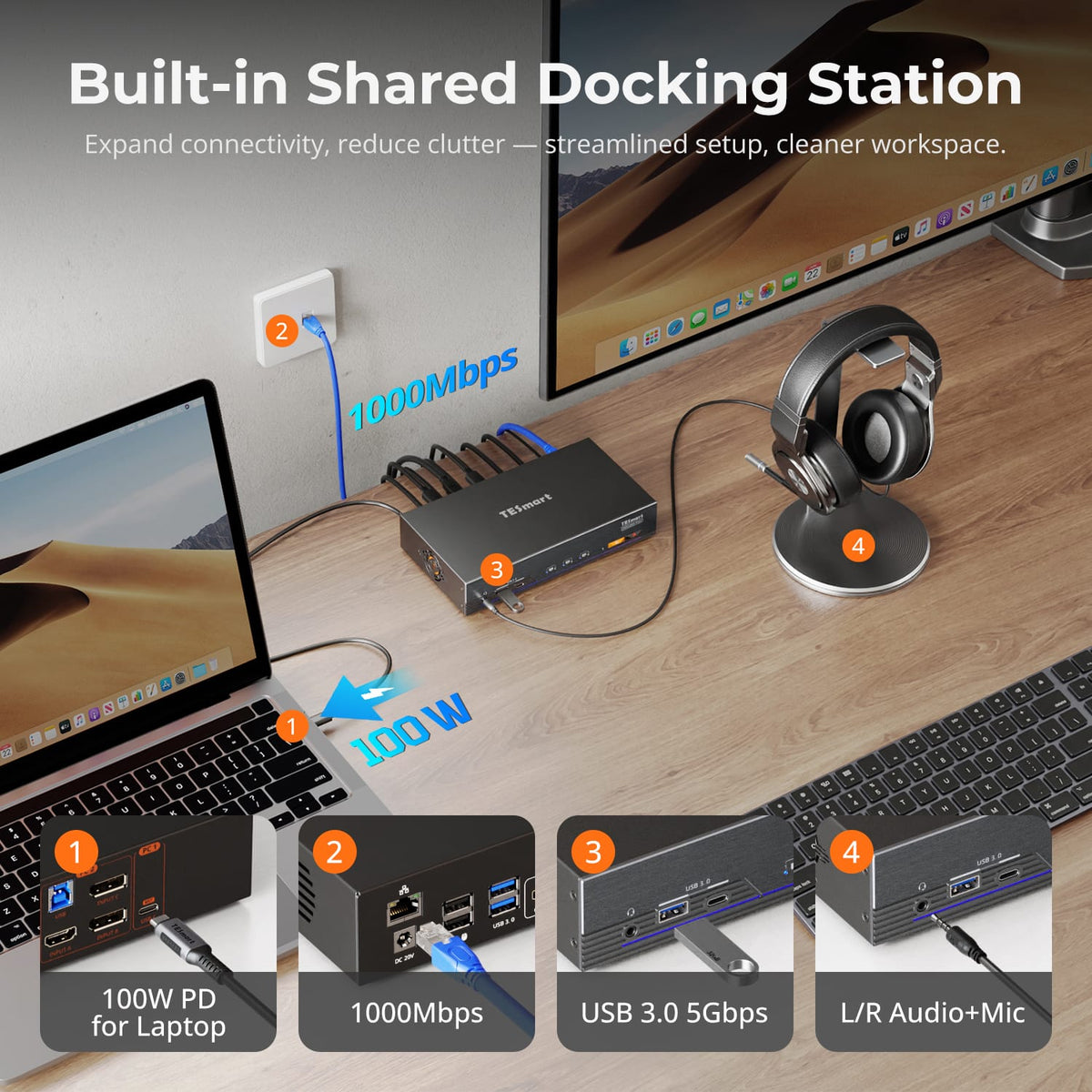
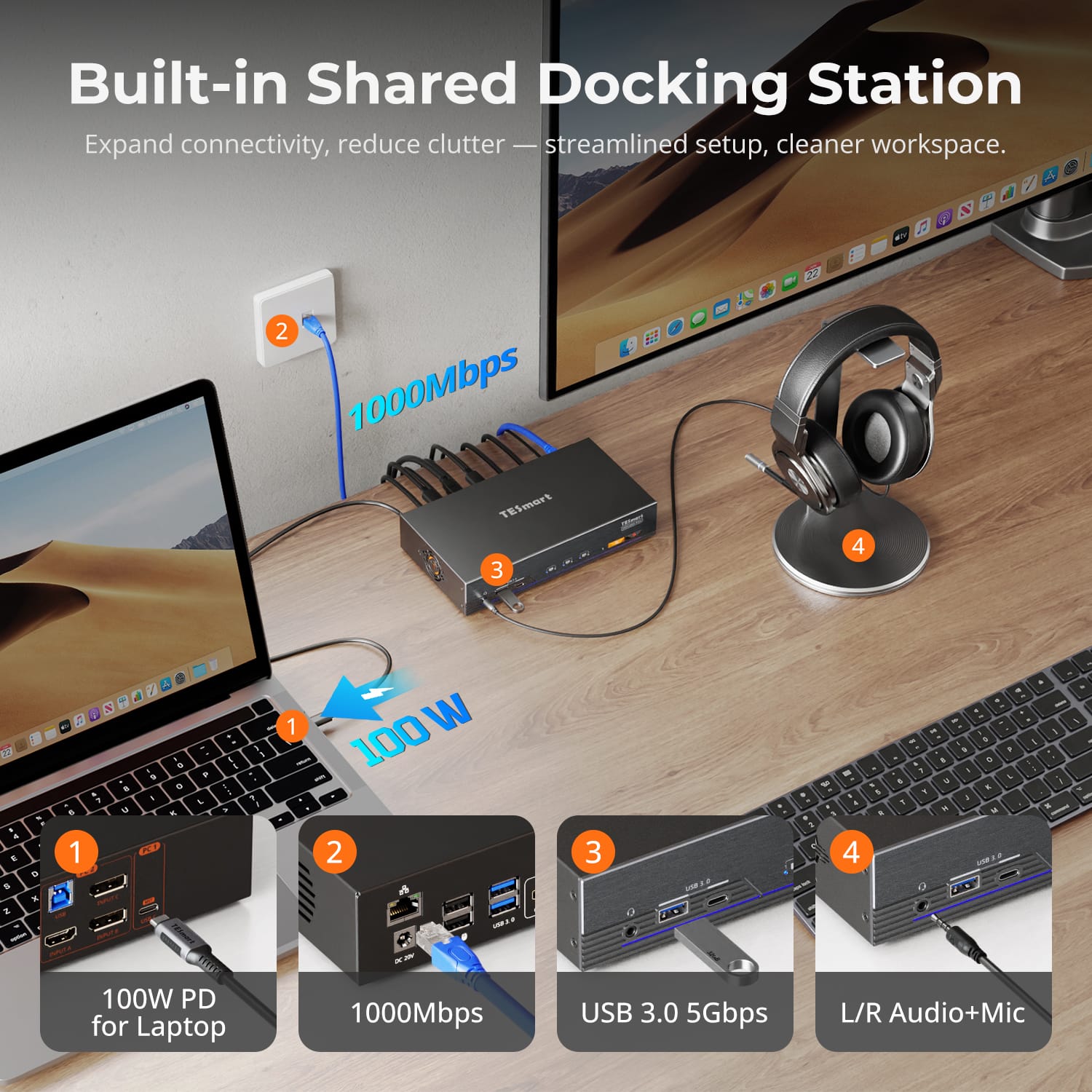
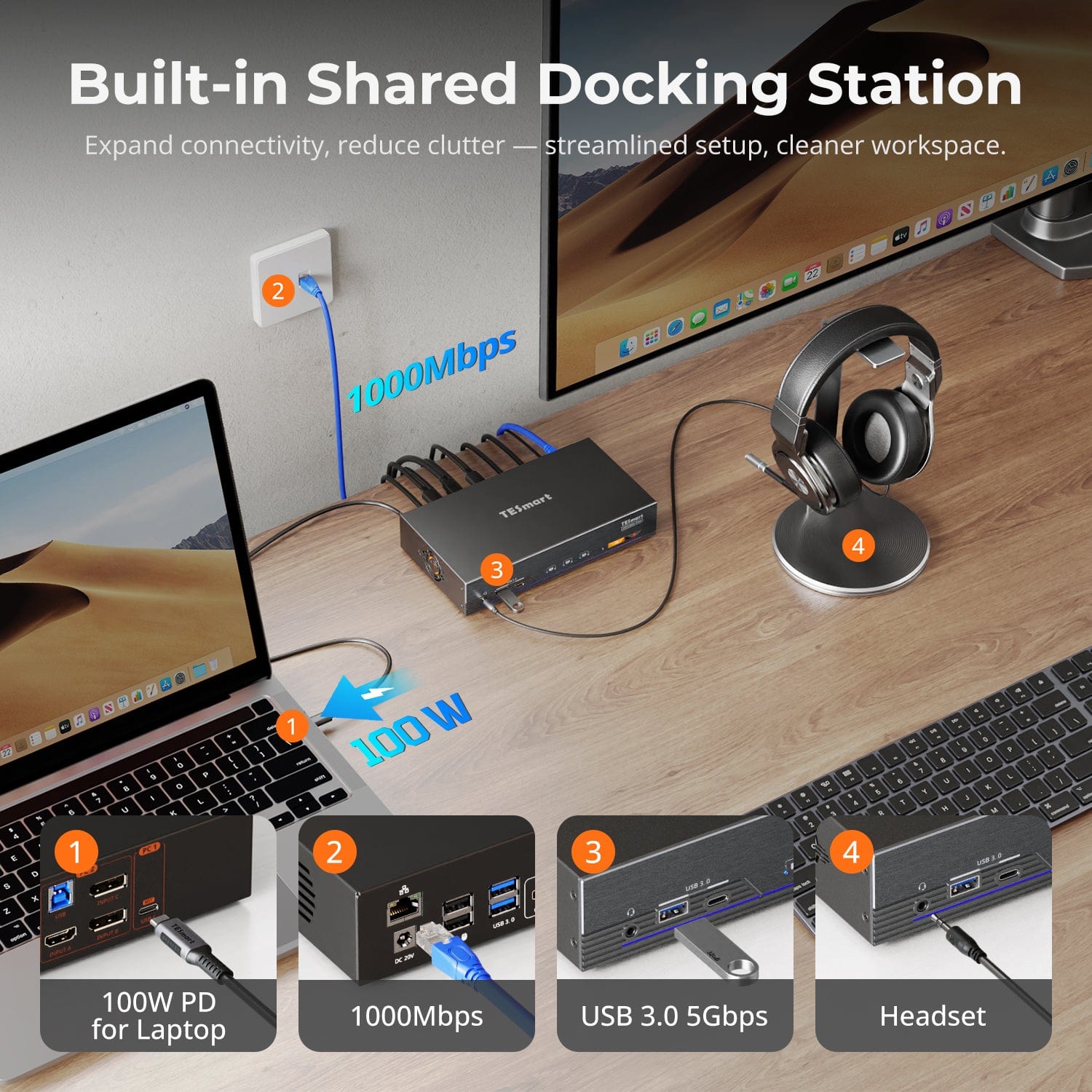
Reduce clutter and maximize efficiency with a fully integrated docking system.
- 100W PD for fast laptop charging.
- USB 3.0 (5Gbps) for peripherals and storage.
- Gigabit Ethernet (1000Mbps) for stable wired connections.
- Combo audio jack for headsets or speakers.
This single dock design eliminates the need for extra hubs and keeps your setup clean and organized.
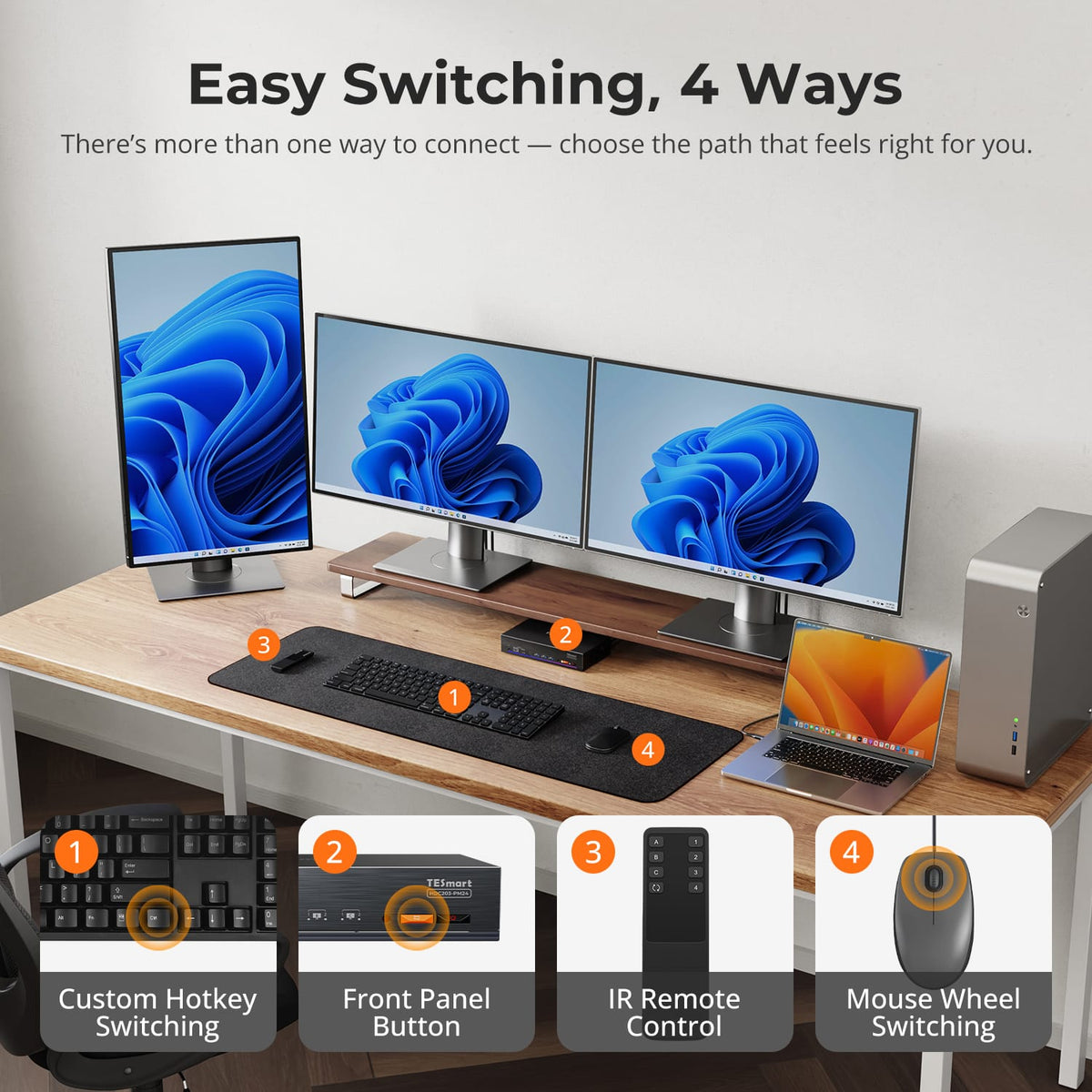
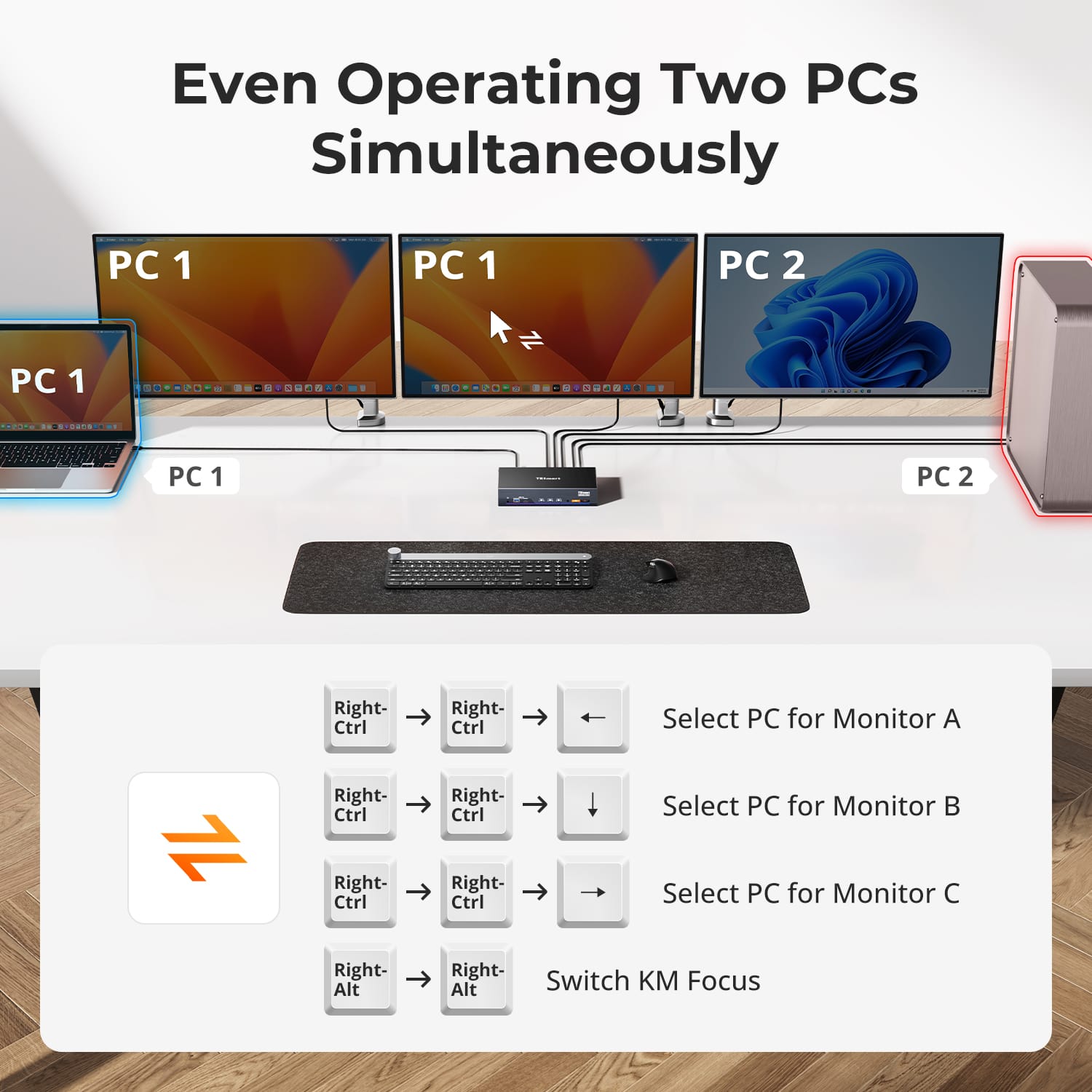
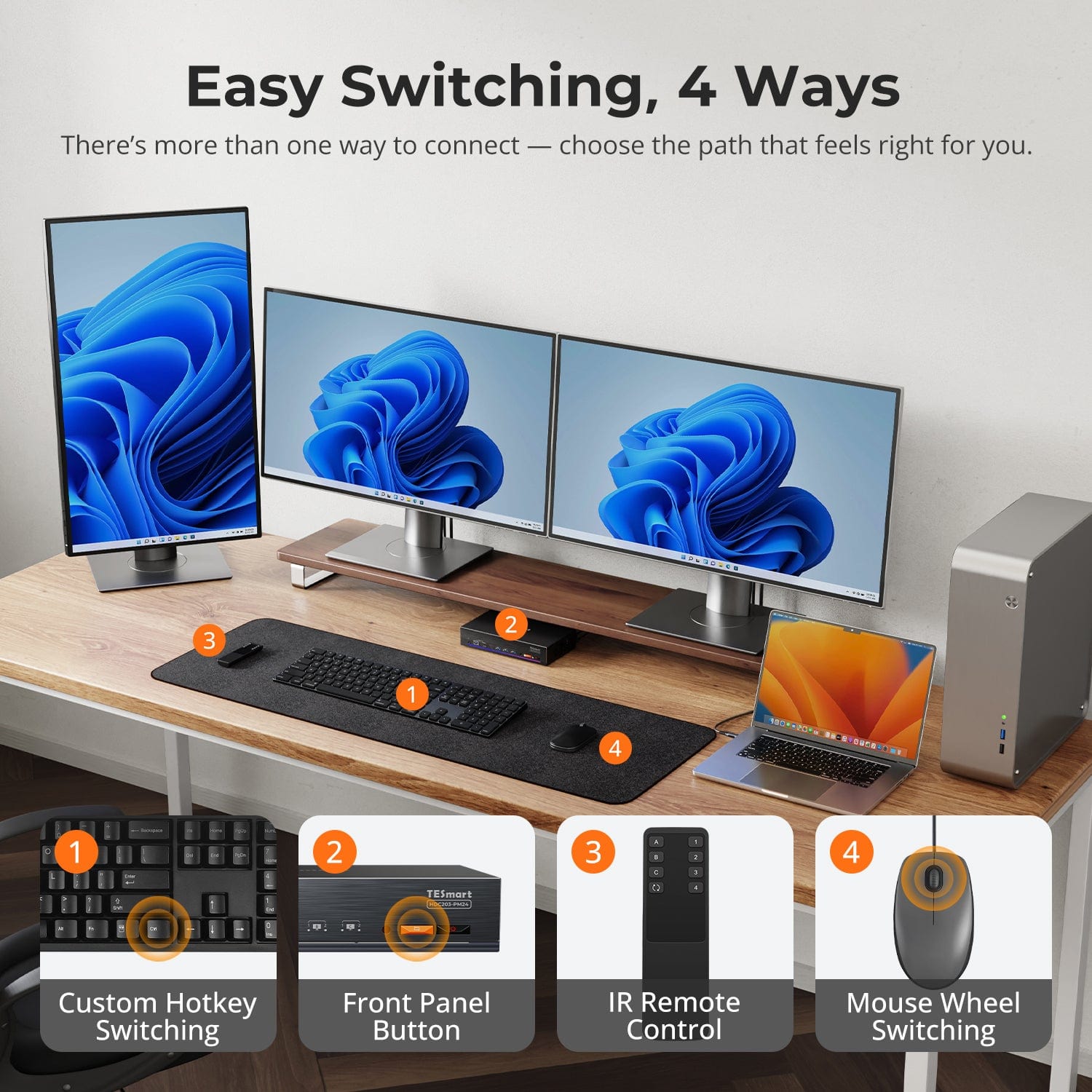
Switch between computers your way — no need to adapt to a fixed control method.
- Customizable keyboard hotkeys for instant switching.
- Front panel buttons for quick access within arm’s reach.
- IR remote control for flexible desk setups.
- Mouse wheel switching for seamless workflow transitions.
Every method is engineered for speed and reliability, giving you true command over your setup.
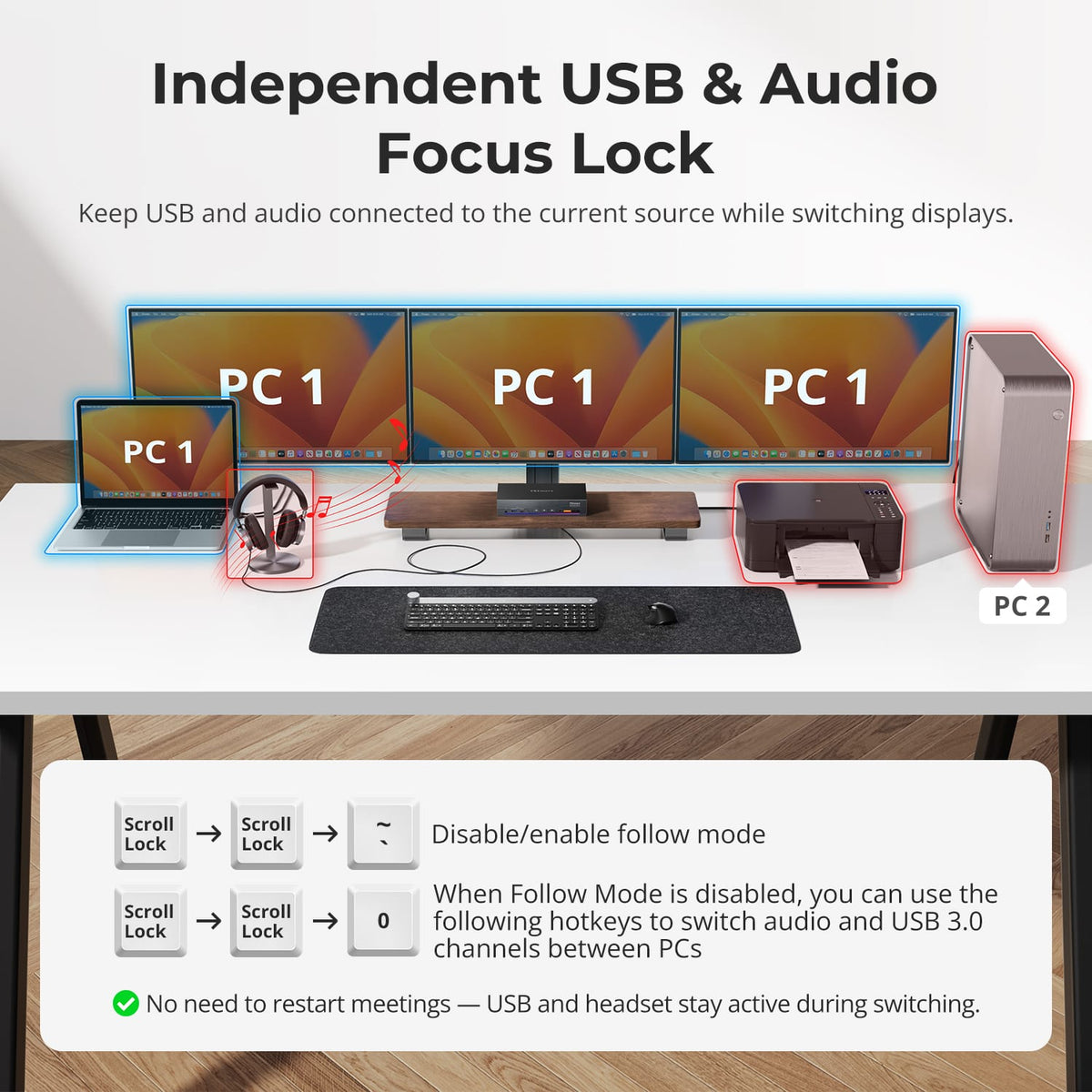
Stay in your meeting or music session even while switching displays.
- USB and audio devices remain linked to the active computer until you decide to switch them.
- Prevents interruptions to ongoing calls or data transfers.
- Ideal for conference, streaming, and multitasking environments.
You can change displays without breaking your connection.
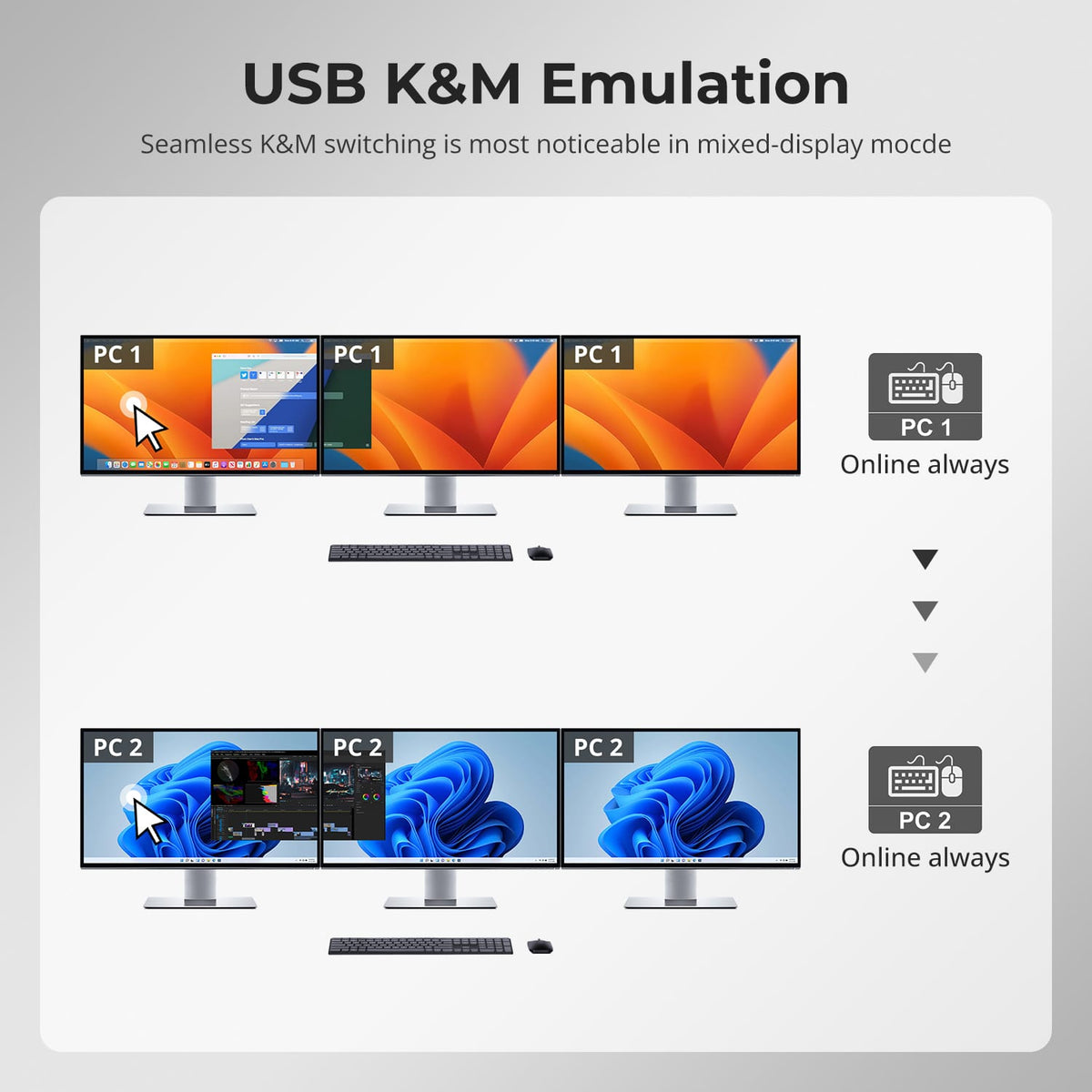
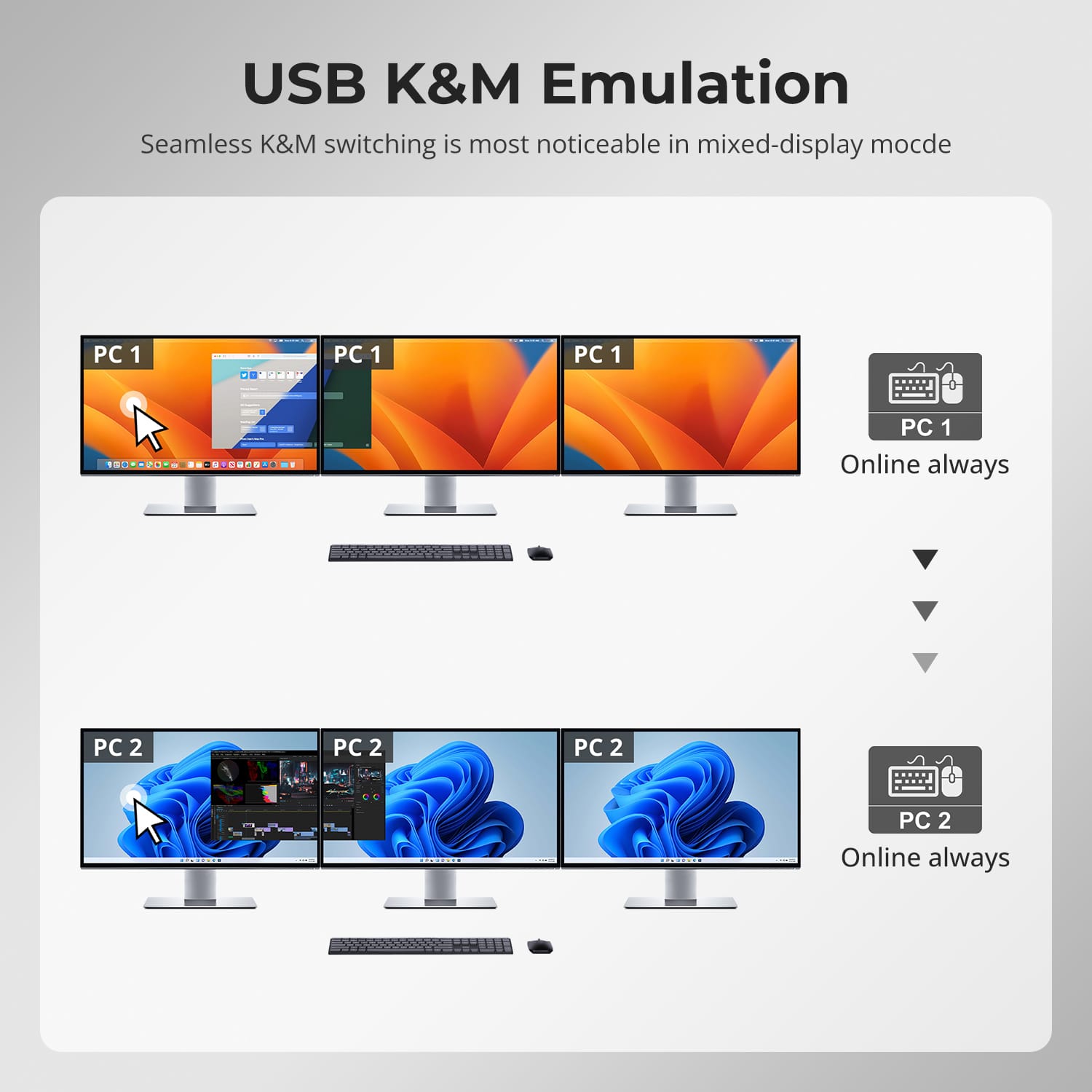
TESmart KVMs feature specialized keyboard and mouse (K&M) ports designed to minimize compatibility issues.
- Emulation mode: Ensures instant response and hotkey control.
- Pass-through mode: Provides native device behavior for gaming or specialized input devices.
Choose the mode that fits your workflow — stability for work, precision for play.
- Before connecting, verify that your laptop’s USB-C port supports both video output and data transfer.
- Some USB-C ports only handle data, which would limit display functionality.
Confirm your laptop’s specifications to ensure full performance and avoid setup issues.
See How Others Use It

FAQs
Can it support macOS computers for triple-display output?
Yes. The HDC203-PM24 is optimized for macOS and incorporates DisplayLink
technology. By installing the DisplayLink driver, it can overcome macOS ’ s native
multi-monitor limitations to achieve three independent displays.
Note: The DisplayLink driver on macOS only starts after logging in, so OUTPUT C
must be connected to a monitor to view the boot screen.
Can it charge a connected laptop?
The HDC203-PM24 supports PD (Power Delivery) fast charging and can provide up
to 100W (20V, 5A) via the USB-C port. Most laptops, including MacBook Pro and
MacBook Air, can be charged stably in typical office or creative scenarios.
Precautions:
1) If the laptop requires more than 100W (e.g., high-end gaming laptops or
mobile workstations), it is recommended to use the original power adapter
for stable charging.
2) Ensure proper ventilation when using high power for extended periods to
prevent overheating.
3) Turn off the KVM Switch if unused for long periods.
If my laptop’s USB-C port does not support DP Alt Mode, canI achieve triple-display output?
The PC1 port on HDC203-PM24 uses a composite architecture integrating
DisplayLink technology, a DP 1.2 video channel, and a USB 3.0 data channel for
triple-display extension.
- Triple display configuration:
Native DP video → OUTPUT C (Monitor 1)
Two DisplayLink video signals (via USB data) → OUTPUT A/B (Monitors
2 and 3) - Laptop USB-C without DP Alt Mode:
Without DisplayLink driver: No video output, all monitors blank
With DisplayLink driver: Two DisplayLink signals, achieving dual-display
(OUTPUT A/B) - Laptop USB-C with DP Alt Mode:
Without DisplayLink driver: Native DP output, single display (OUTPUT C)
With DisplayLink driver: Triple display output (OUTPUT A/B/C) - Precautions:
1) Only the PC1 port supports DisplayLink. - 2) DisplayLink driver download:
https://www.synaptics.com/products/displaylink-graphics/downloads
3) Keep the driver up to date to ensure proper triple-display functionality. - 4) DisplayLink uses compressed video transmission; minor latency or color
differences may occur. - 5) Use cables supporting USB 3.0 or higher for stable DisplayLink video.
Which operating system versions does the device support?
- Windows:
Windows 10 / 11 - macOS:
Ventura 13, Sonoma 14, Sequoia 15, Tahoe 26 - Android:
5.0 (Lollipop) or later - ChromeOS:
R51 or later - Linux:
Ubuntu 20.04 / 22.04 / 23.04 / 24.04
How can I switch USB peripherals or audio deviceindependently?
By default, the KVM operates in Follow Mode, meaning connected USB 3.0
devices and audio device automatically switch with the keyboard/mouse focus.
- To disable Follow Mode:
Press [Right Ctrl] → [Right Ctrl] → [~] to toggle Follow Mode. Note: Enable it will trigger the buzzer to beep twice and disable it will trigger the
buzzer to beep once. - To switch USB 3.0 & audio focus independently:
After disabling Follow Mode, press [Right Ctrl] → [Right Ctrl] → [0] to
synchronously switch the USB 3.0 and audio devices focus between the two
computers.
Why is my audio device not working?
- Connection Requirements
The audio functionality of the KVM Switch relies on the PC1 USB-C port and
the PC2 USB-B Port. Ensure that the computers are securely connected to these
two ports.
- Computer Sound Settings
1) For 3.5mm jack Connection: Select "Plugable Audio" as the default
output device in your computer’s sound settings.
2) For USB 3.0 port Connection: Choose the appropriate USB audio output, such as "USB Audio Device" or "USB Headset", depending on your
system's display.
If no sound is output through the 3.5mm jack even after selecting the correct
settings, we recommend using a USB sound card (USB to 3.5mm adapter) to improve
compatibility and ensure proper audio output.
Why can’t my computer use Wi-Fi after connecting to theKVM Switch?
The KVM switch has a built-in network card, which is enabled by default. Computers may prioritize the wired connection.
If you need to use Wi-Fi instead of the KVM’s wired network connection, you can:
1) Disable the KVM’s built-in network adapter for the selected computer:
- Press [Right-Ctrl] → [Right-Ctrl] → [F4] to turn off the built-in network
card.
Note: Enable it will trigger the buzzer to beep twice and disable it will trigger
the buzzer to beep once.
2) Disable the USB network adapter in the computer settings (Windows 11
example):
Method 1: Advanced Network Settings
Press [Win + I] to open Windows Settings.
- Go to Network & Internet → Advanced network settings.
- Find the adapter named Plugable Ethernet in the list.
- Find the adapter named Plugable Ethernet in the list.
- Click Disable.
Method 2: Device Manager
- Press [Win + X] and select Device Manager.
- Expand Network adapters and locate Plugable Ethernet.
- Right-click and choose Disable device.
-
Recycling & Trade-in
Up to 50% Credit on Recycling
-
Free Shipping
US / UK · 3–5 Business Days
-
30-Day Free Returns
Hassle-Free Return & Purchase Guarantee
-
Extended Warranty: 1+4 Years
Register to unlock 4 extra years of coverage